To rename iPhone under Device Info, open Settings, tap General, tap About, tap Name and enter the new name, because the device list in your Apple Account only shows the name and has no rename control.
This guide also covers a new iPhone that still shows your old model, Find My, Personal Hotspot, other Apple devices, and a name that changes by itself.
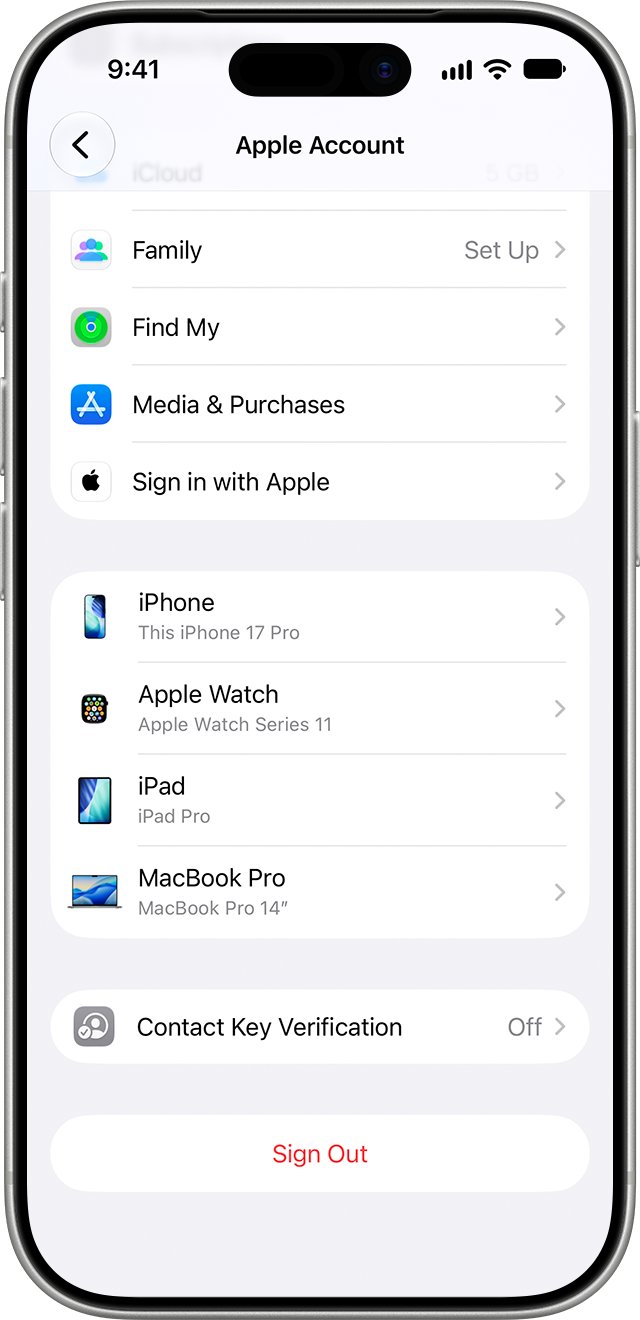
How to rename iPhone in Settings
The name you set here is the one iCloud, AirDrop, Bluetooth, your Personal Hotspot and your computer use.
- Open the Settings app on the iPhone you want to rename.
- Tap General, then tap About.
- Tap Name to open the name field.
- Clear the current name, then type the new one.
- Go back to About and check that the new name shows beside Name.
Where does the iPhone name show up?
One name covers all of these places, so there is nothing separate to rename in any of them.
| Place | How the name appears | Separate rename control? |
|---|---|---|
| Settings > General > About | The source of the name | Yes, this is the one to use |
| Apple Account device list | The name you tap to see that device's information | No, only view or remove |
| AirDrop | The name nearby Apple devices see | No |
| Bluetooth | The name listed on other devices | No |
| Personal Hotspot | The network name other devices join | No |
| Your computer | The device name in the Finder, Apple Devices or iTunes | No documented control |
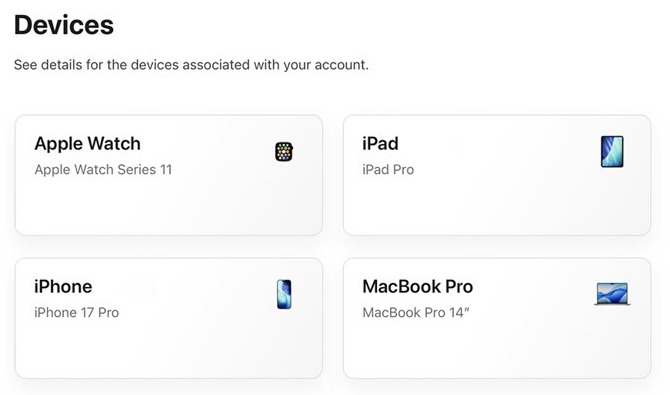
How to see iPhone device info in Settings
Open this screen after renaming. It is the device information view that the Apple Account list leads to, and every device on that list appears under its current name.
- Open Settings, then tap your name at the top.
- Scroll down to the list of devices.
- Find the iPhone you renamed under its new name.
- Tap the name to view that device's information.
On a Mac, choose Apple menu > System Settings, click your name and scroll to the same list. On a Windows PC or Android device, sign in at account.apple.com and select Devices.
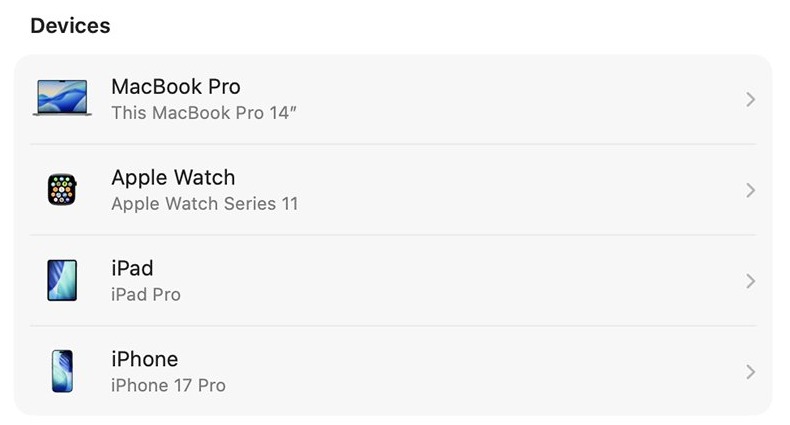
How to change iPhone device info name
This is the fix when a new iPhone still carries your old model in its name, such as an iPhone 8 Plus labelled iPhone 6 after you restored a backup. Rename the phone first, then clear the old entry from your list.
- On the new iPhone, open Settings > General > About > Name.
- Replace the old model with the name you want, such as Sam's iPhone 8 Plus.
- Tap your name at the top of Settings and scroll to the device list.
- Check that the new iPhone shows the new name.
- If the old iPhone is listed too and you no longer use it, tap it and tap Remove from Account.
How to remove an old iPhone from Apple Account devices
A removed device loses access to iCloud, Find My and other Apple services, and it stops showing two-factor verification codes. Remove only a device you no longer use or do not recognize.
- Open Settings and tap your name.
- Scroll down to see the list of devices.
- Tap the old device's name to view its information.
- Tap Remove from Account, then read the message that appears.
- Confirm that you want to remove that device.
If the old iPhone is still signed in, it might reappear the next time it connects to the internet. To remove it permanently, go to Settings on that iPhone and sign out.
Rename device in Find My iPhone
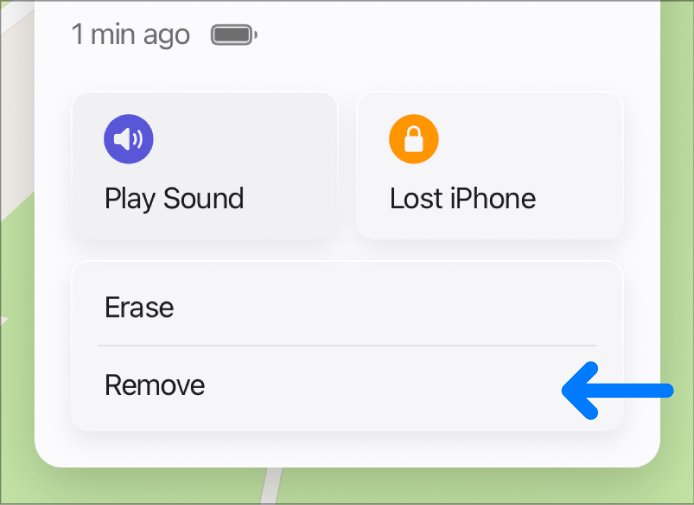
Apple documents the iPhone name in Settings, not in Find Devices on iCloud.com, whose device controls cover locating, playing a sound, Lost Mode, erasing and removing. To change how the iPhone reads, rename it on the phone and check the list afterward.
- On the iPhone, open Settings > General > About > Name and enter the new name.
- On a computer, go to icloud.com/find and sign in to your Apple Account.
- Check the list of devices for the iPhone's name.
- To remove an old entry, select the device and select Remove This Device.
An online device cannot be removed this way, but you can prepare it for service. An offline device leaves Find My after 30 days. If the list looks empty instead, you can fix iCloud showing no devices.
How to rename Personal Hotspot on iPhone
The Personal Hotspot on iPhone has no name field of its own. Its network name is the device name, so renaming the iPhone renames the hotspot.
- Open Settings, tap General, tap About, then tap Name.
- Enter the name you want other devices to see.
- Return to Settings and tap Personal Hotspot, or tap Cellular and then Personal Hotspot.
- Turn on Allow Others to Join.
- On the other device, open its Wi-Fi list and look for the new name.
How to rename Apple devices
Every Apple device keeps its name in its own settings, and the route differs for each one. Use this table if you are tidying your whole device list.
| Device | Where to change the name | Final step |
|---|---|---|
| iPhone | Settings > General > About > Name | Clear the name and enter a new one |
| iPad | Settings > General > About > Name | Clear the name and enter a new one |
| Mac | Apple menu > System Settings > General > About | Select the current computer name and type a new one |
| Apple Watch | Apple Watch app on iPhone > My Watch > General > About | Tap the first line, rename it, then tap Done |
| AirPods on iPhone or iPad | Settings > the name of your AirPods near the top of the screen | Tap the current name and enter a new one while wearing them |
| AirPods on Mac | System Settings > the name of your AirPods in the sidebar | Enter a new name |
AirPods update across devices when you are signed in to the same Apple Account, so you only need to rename them once.
How to find iPhone name on a Mac or PC
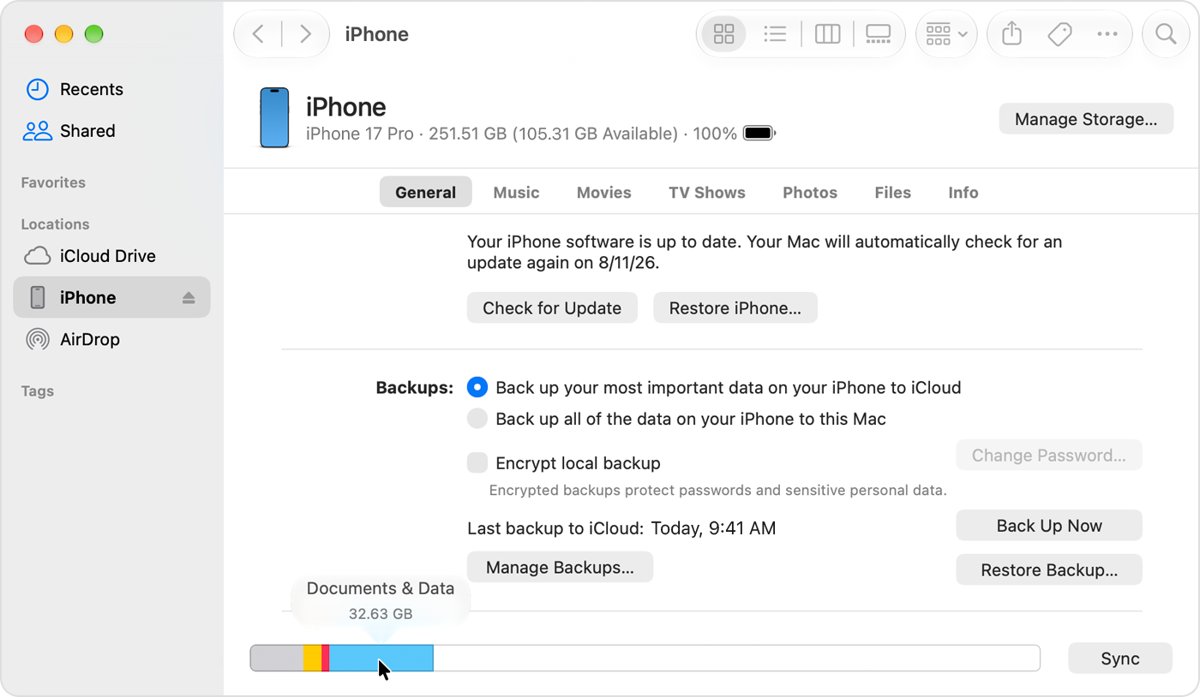
Connect the iPhone to see the name your computer uses. On Windows, the Apple Devices app on a PC replaces iTunes for this job if you have it installed.
- Open the Finder on a Mac, or the Apple Devices app on a PC. Use iTunes if your PC does not have Apple Devices.
- Connect the iPhone to the computer.
- Look in the sidebar for the device. In iTunes, look in the upper-left corner of the window.
- Select the iPhone to confirm that this is the right device.
A clear name makes it easier to pick the right device in the sidebar when you back up iPhone to a PC.
iPhone name changed by itself
Pick the symptom that matches what you see, then follow its fix.
The name went back to plain "iPhone"
Reset Network Settings resets the name assigned in About to "iPhone".
- Open Settings > General > About > Name.
- Enter your name again.
- Reconnect to your Wi-Fi networks, because the same reset removed them.
The name still shows your old iPhone model
Apple documents no automatic update of the name for a new model, so change it by hand.
- Open Settings > General > About > Name on the phone in your hand.
- Enter a name that matches this model.
- Open Settings, tap your name, and check the device list for the new entry.
You cannot change the iPhone device name
A device management administrator can stop users from changing the name shown in About.
- Open Settings > General > VPN & Device Management to see whether the iPhone is managed.
- Ask the school or company that manages it to allow the change.
An old iPhone keeps returning to the list
A device that is still signed in can reappear when it next connects to the internet.
- On the old iPhone, open Settings and sign out of your Apple Account.
- If you no longer have it, use Find My to turn on Lost Mode or erase it remotely.
Rename iPhone device FAQ
Can I rename my iPhone?
Yes, you can rename your iPhone at any time from Settings, General, About, Name. The change needs no computer or reset, and the new name is used by iCloud, AirDrop, Bluetooth, your Personal Hotspot and your computer.
How do I rename my iPhone device?
Rename your iPhone by opening Settings, tapping General, tapping About and then tapping Name. Clear the current name and type a new one. An iPad uses the same path, and the new name then appears in your Apple Account device list.
How to change iPhone device info name?
Change the device info name from Settings, General, About, Name on the iPhone itself. The device information screen under your Apple Account lets you view the iPhone or remove it, so it picks up the new name instead of editing it.
How to rename a device on iPhone?
Rename AirPods on iPhone by wearing them, opening Settings, tapping their name near the top of the screen, tapping the current name and entering a new one. To rename an Apple Watch, use the Apple Watch app under My Watch, General, About.
How to rename Apple devices?
Rename each Apple device in its own settings. iPhone and iPad use Settings, General, About, Name. A Mac uses System Settings, General, About. An Apple Watch uses the Apple Watch app on iPhone. AirPods use the entry with their name in Settings.
Why did my iPhone name change by itself?
One documented cause is Reset Network Settings, which returns the name in About to "iPhone". Apple documents no automatic rename for a new model, so a name mentioning an older iPhone has to be edited by hand in Settings, General, About, Name.
Does renaming my iPhone change my Personal Hotspot name?
Yes, renaming your iPhone changes your Personal Hotspot name, because Apple uses the device name as the hotspot name. Open Settings, General, About, Name to change it, then look for the new name in the Wi-Fi list on the other device.