Do Not Disturb on iPhone is in Control Center under the Focus button, and in the Settings app under Focus > Do Not Disturb.
This guide shows where to find it on every iPhone model and iPad, how to turn it on and schedule it, what it silences, and what to do when the button seems to be missing.
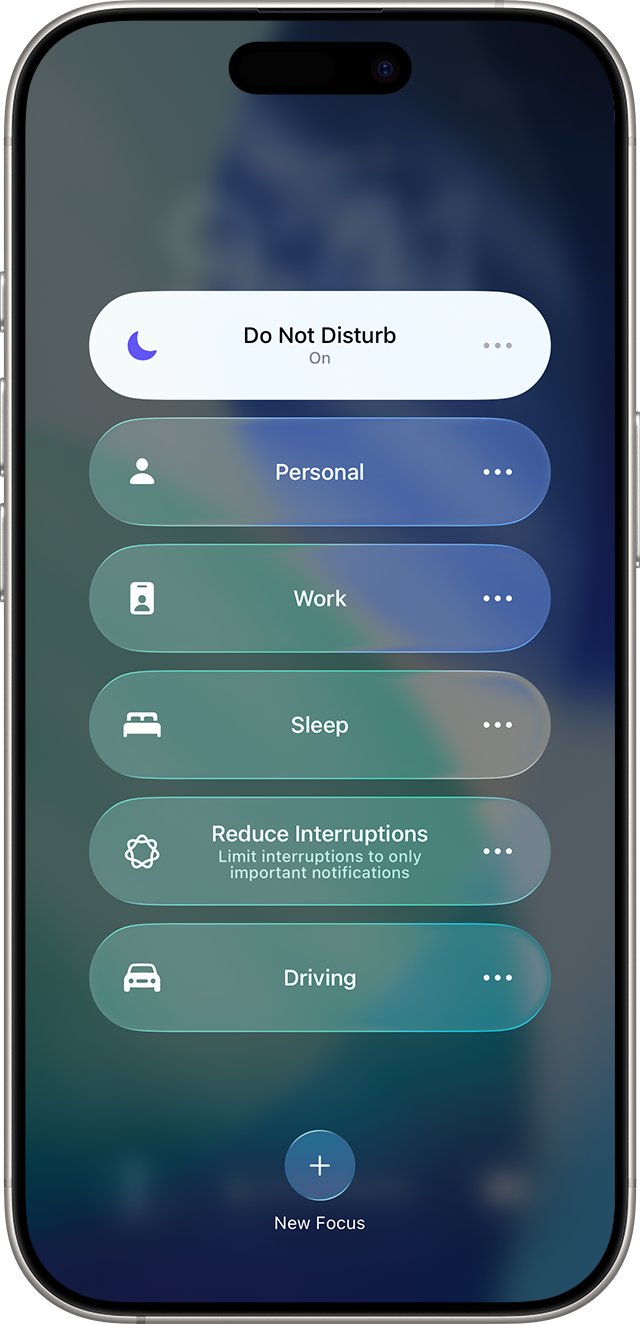
Where is Do Not Disturb on iPhone?
Do Not Disturb is a Focus option in iOS 15 and later, so it sits inside Focus and has no entry of its own in the main Settings list. Control Center is the fastest way to reach it.
- Swipe down from the top-right corner of the screen to open Control Center. On iPhone SE, swipe up from the bottom instead.
- Find the Focus button. It may show Do Not Disturb or another Focus name such as Work or Sleep.
- Tap Focus, or touch and hold the button if it shows a different Focus name.
- Tap Do Not Disturb in the list to turn it on.
- Look at the status bar. The Do Not Disturb icon appears there and on the Lock Screen.
When you are finished, you can turn off Do Not Disturb by tapping it again in the same list. If another Focus is already on, it turns off when you tap this one.
Step by step tutorial: Enabling Do Not Disturb on iPhone
The Settings route takes a few more taps than Control Center, but this is where the schedule, allowed people and allowed apps also live. Do Not Disturb is listed under Focus in Settings, so look there rather than in the main list.
- Open the Settings app on your iPhone.
- Tap Focus.
- Tap Do Not Disturb.
- Toggle the switch on.
- Look for the Do Not Disturb icon in the status bar.
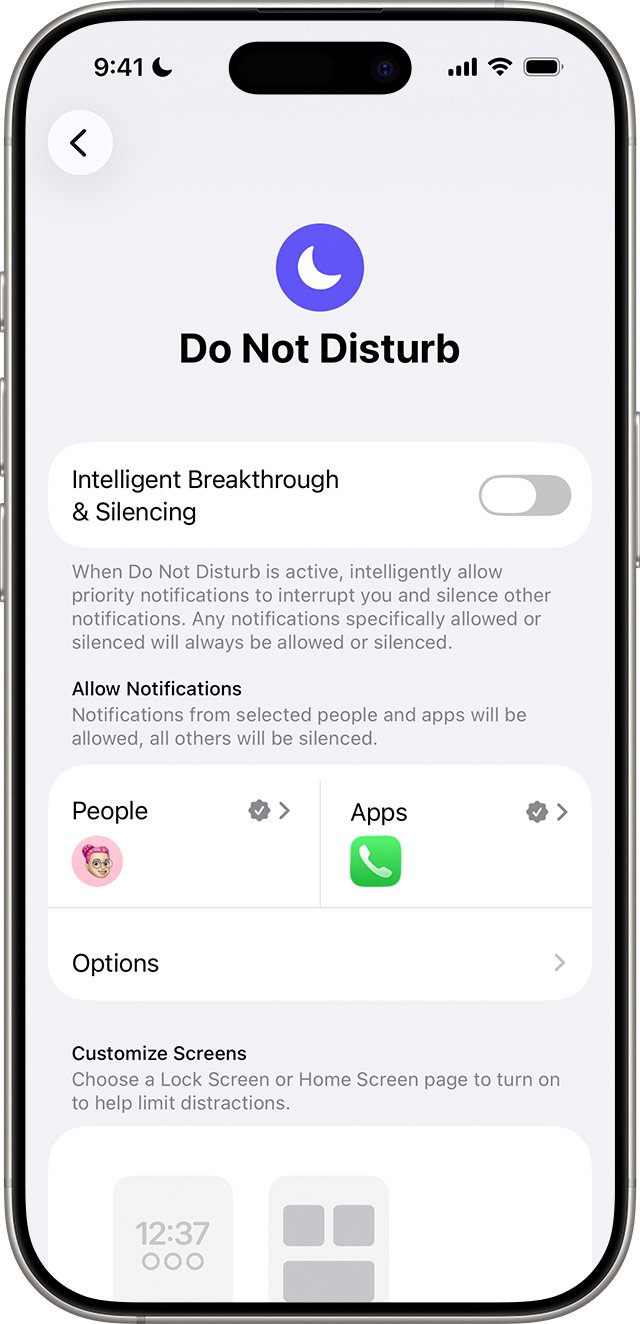
Where is Do Not Disturb on iPhone 17, 16, 15, 14, 13, 12 and 11?
The location is the same on every model running iOS 15 or later. Only the gesture that opens Control Center changes, and it depends on whether your iPhone has Face ID or a Home button.
| iPhone model | How to open Control Center | Where to tap next |
|---|---|---|
| iPhone Duo, iPhone 17, 16 and 15 models | Swipe down from the top-right corner | Focus > Do Not Disturb |
| iPhone 14, 13, 12 and 11 models | Swipe down from the top-right corner | Focus > Do Not Disturb |
| iPhone X, XR and XS models | Swipe down from the top-right corner | Focus > Do Not Disturb |
| iPhone SE, all generations | Swipe up from the bottom edge | Focus > Do Not Disturb |
| iPhone 8 and earlier | Swipe up from the bottom edge | Focus > Do Not Disturb |
The Settings route never changes: Settings > Focus > Do Not Disturb, on any of these models.
Where is the Do Not Disturb button on iPhone?
The button is easy to miss because its label changes. It reads Focus while nothing is on, and it takes the name of whichever Focus is running.
| Where to look | What you see | What you can do there |
|---|---|---|
| Control Center | A button labeled Focus, Do Not Disturb or another Focus name | Tap the icon to turn the current Focus off, or touch and hold the button and pick Do Not Disturb from the list |
| Settings > Focus | Do Not Disturb in the list of Focus options | Turn it on, schedule it, and choose who can reach you |
| Lock Screen | The Do Not Disturb icon, only while it is on | Touch and hold the icon to open the Focus list |
| Status bar | The Do Not Disturb icon, only while it is on | Nothing; it only shows that the Focus is active |
| Lock Screen wallpaper gallery | Do Not Disturb at the bottom of a linked wallpaper | Choose that wallpaper and Do Not Disturb turns on |
How to turn on Do Not Disturb on iPhone with Siri
Siri can turn Do Not Disturb on or off without you opening a menu, which helps when you are driving or your hands are full.
- Activate Siri the way you normally do on your iPhone.
- Say something like "Turn on Do Not Disturb."
- Check the status bar for the Do Not Disturb icon.
How to turn on Do Not Disturb from the iPhone Lock Screen
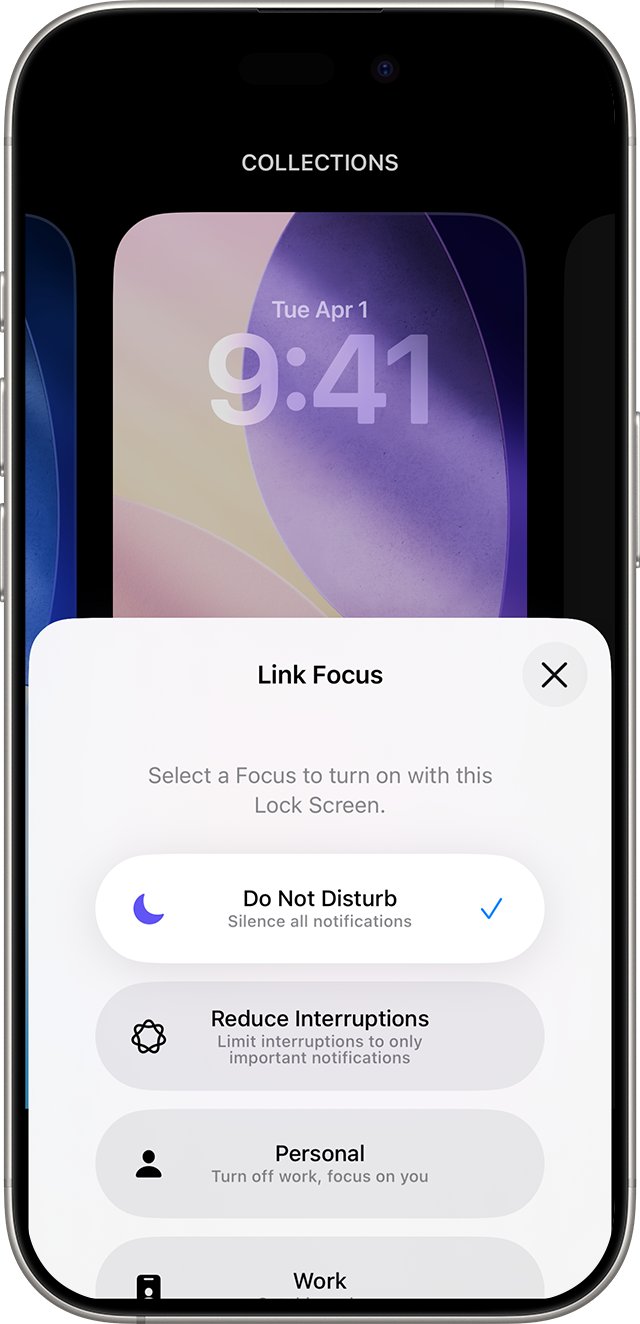
In iOS 16 and later, you can connect a custom Lock Screen wallpaper to Do Not Disturb. Choosing that wallpaper turns the Focus on, so you never need to open a menu.
- On the Lock Screen, tap and hold the image to open your wallpaper gallery.
- Swipe until you reach a wallpaper that displays Do Not Disturb at the bottom.
- If none does, tap the current Focus option on a wallpaper to change it to Do Not Disturb.
- Tap the wallpaper to make it your current Lock Screen.
You can also open Control Center from the Lock Screen and use Focus from there. If that does not work, go to Settings > Face ID & Passcode and turn on Control Center below Allow Access When Locked. On iPhone SE and iPhone Duo, the setting is under Touch ID & Passcode.
How to set Do Not Disturb to turn on automatically on iPhone
A schedule starts Do Not Disturb at certain times, when you arrive at a location, or when you open a specific app.
- Open the Settings app.
- Tap Focus, then tap Do Not Disturb.
- Scroll down to Set a Schedule.
- Tap an existing time if one is listed, or tap Add Schedule.
- Set the times, a location or an app that should activate Do Not Disturb.
To stop it starting on its own later, return to Set a Schedule and turn off any active schedule.
What does Do Not Disturb do on iPhone?
Do Not Disturb silences calls, alerts and notifications. It is not a full mute, though, and several things can still reach you depending on your settings.
| Item | While Do Not Disturb is on |
|---|---|
| Calls, alerts and notifications | Silenced, unless you allowed that person or app |
| Clock alarms | Still sound, including through the speaker when headphones are connected |
| Repeated calls | Ring through if you turned on the option, which covers two or more calls from the same person within 3 minutes |
| Time Sensitive Notifications | Arrive immediately if you turned them on |
| Contacts with Emergency Bypass | Still make sound and vibrate |
| People texting you in Messages | May see that you have notifications silenced, when Share Focus Status is on |
Silent mode is a separate setting. It stops the ringer and sound effects, but it has no schedule and no list of allowed people.
How do I know if Do Not Disturb is on?
- Look at the status bar at the top of the screen for the Do Not Disturb icon.
- Lock your iPhone and look for the same icon on the Lock Screen.
- Open Control Center and read the button. It says Do Not Disturb while the Focus is on.
- Tap that icon if you want to end it. The icon dims and the label changes back to Focus.
If the button shows Sleep, Work or Driving, a different Focus is on instead. Those can also hold back calls and notifications.
Tips for using Do Not Disturb on iPhone
Do Not Disturb works better when you tell it who matters and how long to run. Most of these settings are in Settings > Focus > Do Not Disturb.
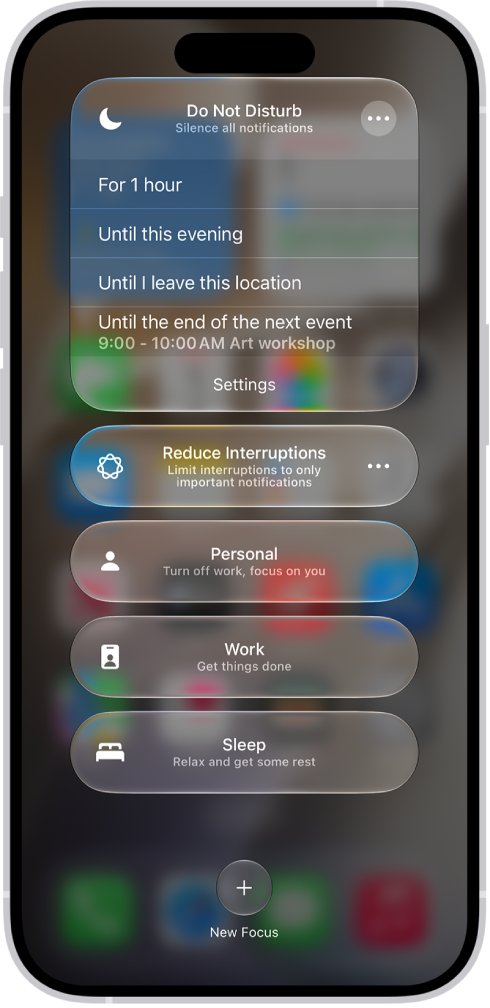
- Give it an end point: in the Control Center Focus list, tap the options button beside Do Not Disturb and pick For 1 hour or Until I leave this location.
- Tap People and add contacts under Allow Notifications From, so family or colleagues still get through.
- Tap Apps and allow the few apps you cannot miss.
- Turn on Time Sensitive Notifications so all apps can send urgent alerts immediately.
- Tap Options to decide whether silenced notifications show on the Lock Screen and whether the Lock Screen darkens.
- Use Add Filter under Focus filters to choose which mail account or calendar to use during Do Not Disturb.
- Turn on Share Across Devices in Settings > Focus to use the same setup on your other Apple devices.
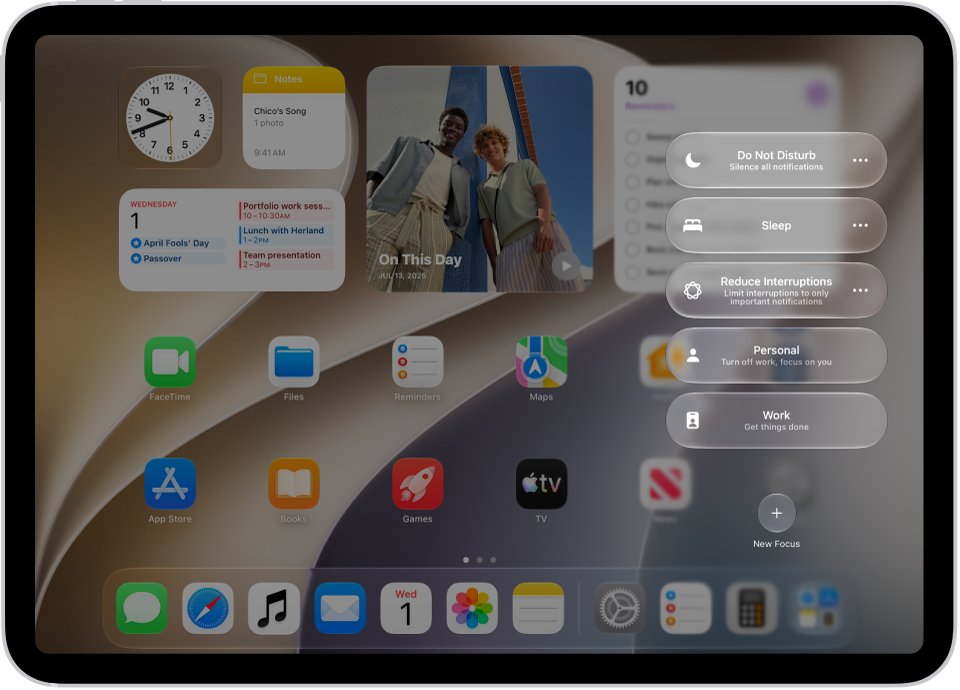
Where is Do Not Disturb on iPad?
An iPad keeps Do Not Disturb in the same two places as an iPhone: Control Center and Settings > Focus.
- Swipe down from the top-right corner of the iPad screen to open Control Center.
- Tap Focus.
- Tap Do Not Disturb to turn it on.
- Look for the Do Not Disturb icon in the status bar and on the Lock Screen.
Why is Do Not Disturb not working on iPhone?
Match what you see to a symptom below. A missing button and a Focus that behaves oddly usually come down to one of these settings.
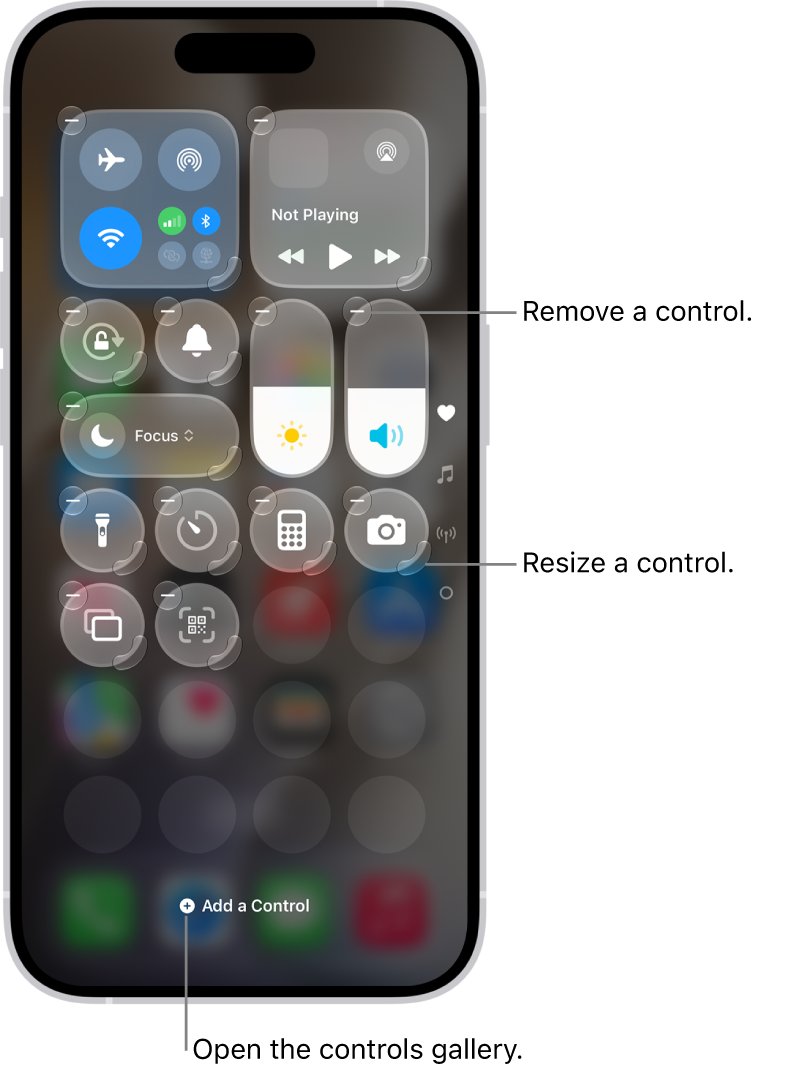
There is no Focus button in Control Center
The Focus control was removed while Control Center was being customized.
- Open Control Center and tap the edit button to begin editing the controls.
- Tap Add a Control at the bottom of the screen.
- Tap the Focus control in the gallery to add it.
- Swipe up from the bottom center of the screen to finish.
Do Not Disturb is missing from the Focus list
A provided Focus that gets deleted has to be set up again.
- Open Settings and tap Focus.
- Tap the add button.
- Choose Do Not Disturb and set it up again.
Do Not Disturb keeps turning on by itself
A schedule, a linked Lock Screen wallpaper or another device is starting it.
- Go to Settings > Focus > Do Not Disturb and check Set a Schedule for active schedules.
- Check whether your current Lock Screen wallpaper is connected to Do Not Disturb.
- Go to Settings > Focus and turn off Share Across Devices if another Apple device is turning it on.
Calls and notifications still come through
That person or app is allowed, or a setting lets them break through.
- Go to Settings > Focus > Do Not Disturb, then tap People and Apps to review your lists.
- Turn off the repeated calls option if a second call should stay silent.
- Turn off Time Sensitive Notifications on the Apps screen if urgent alerts should wait.
- In Contacts, open the person, tap Edit, tap Ringtone or Text Tone, and turn off Emergency Bypass.
Your iPhone stays quiet after Do Not Disturb is off
Silent mode or another Focus is still on.
- Open Control Center and check whether the Focus button shows another Focus, then tap it to turn it off.
- Open Settings > Sounds & Haptics and turn off Silent mode.
- If only phone calls stay quiet, get incoming calls ringing again.
- If alerts never appear on screen, fix missing iPhone notification banners.
Frequently asked questions about Do Not Disturb on iPhone
Where is the Do Not Disturb setting on iPhone?
Open the Settings app, tap Focus, then tap Do Not Disturb. On iOS 15 and later it has no separate entry in the main Settings list. The same screen holds its schedule, allowed people, allowed apps and Lock Screen options.
Will my alarm still go off if I have Do Not Disturb on?
Yes. Clock alarms sound even when Do Not Disturb, another Focus or Silent mode is on. If yours stays quiet anyway, the cause lies elsewhere, and you need to fix an alarm that makes no sound.
Can I customize who can contact me when Do Not Disturb is on?
Yes. Go to Settings > Focus > Do Not Disturb and tap People. Add contacts under Allow Notifications From, and turn on the options for groups of callers or repeated calls. Emergency Bypass on a contact card also lets that person through.
Will I miss notifications if they come in while Do Not Disturb is enabled?
They stay silent while Do Not Disturb is on, so they do not interrupt you. Tap Options in Settings > Focus > Do Not Disturb to choose whether silenced notifications show on the Lock Screen, and allow important people or apps through beforehand.
Can I schedule Do Not Disturb to turn on automatically?
Yes. Go to Settings > Focus > Do Not Disturb, scroll to Set a Schedule, and tap Add Schedule. You can choose set times, a location or a specific app that starts it. Remove the schedule the same way when you no longer need it.
Does Do Not Disturb silence everything on my iPhone?
No. It silences calls, alerts and notifications, but Clock alarms still sound. Allowed people and apps, repeated calls, Time Sensitive Notifications and contacts with Emergency Bypass can also get through, depending on the options you turned on.
What is Do Not Disturb on iPhone?
Do Not Disturb is a Focus option in iOS 15 and later that silences calls, alerts and notifications. While it is on, its icon shows in the status bar and on the Lock Screen, and other people may see that your notifications are silenced.
Where is Do Not Disturb on iPhone SE?
Swipe up from the bottom edge of the screen to open Control Center, tap Focus, then tap Do Not Disturb. You can also go to Settings > Focus > Do Not Disturb. Only the Control Center gesture differs from iPhone models with Face ID.
Where do I find Do Not Disturb on iPhone 16 or iPhone 17?
Swipe down from the top-right corner to open Control Center, tap Focus, then tap Do Not Disturb. Both models also list it under Settings > Focus. The steps match every other iPhone with Face ID, so nothing changes when you upgrade.
Where is Do Not Disturb on Android?
Swipe down from the top of the screen to open Quick Settings, then tap Do Not Disturb. Google groups it with other Modes on Android, where you can also set what it blocks and how long it lasts. Some of these settings need Android 14 or later.