Open Settings > Network & internet, select Properties next to your connection, and read the DNS server lines: the first address is your primary DNS and the second is your secondary.
The same two addresses show up with ipconfig /all in Command Prompt. The steps below also cover PowerShell, Control Panel, your router, Mac, iPhone, Android and Linux.
Step by step tutorial on finding your primary & secondary DNS
These steps work on Windows 11 and Windows 10, and you do not need admin rights to read the values.
- Select Start > Settings > Network & internet. You can also right-click the network or Wi-Fi icon on the taskbar and select Network and internet settings.
- Select Properties near your connected network to open its details.
- Read the DNS server lines in the list. The first address is your primary DNS and the next one is your secondary DNS.
- Write both addresses down before you change anything, so you can restore them later.
Windows calls these two values Preferred DNS and Alternate DNS on its edit screen. Preferred means primary, and Alternate means secondary.
How to find your primary DNS with ipconfig /all
Command Prompt prints every adapter at once, which helps on a PC that has Wi-Fi, Ethernet and VPN adapters.
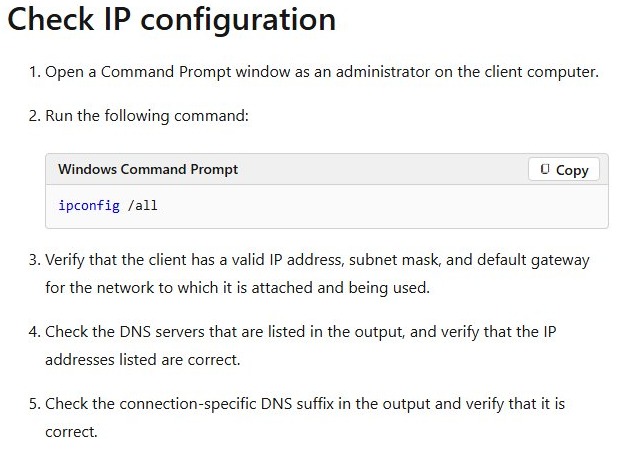
ipconfig /allThis displays the full TCP/IP configuration for all adapters. Scroll to the adapter you are using, then read its DNS Servers entry.
You should see: A DNS Servers entry with one or more addresses under the active adapter. The top address is the primary and the address below it is the secondary.
How to check DNS servers in PowerShell with Get-DnsClientServerAddress
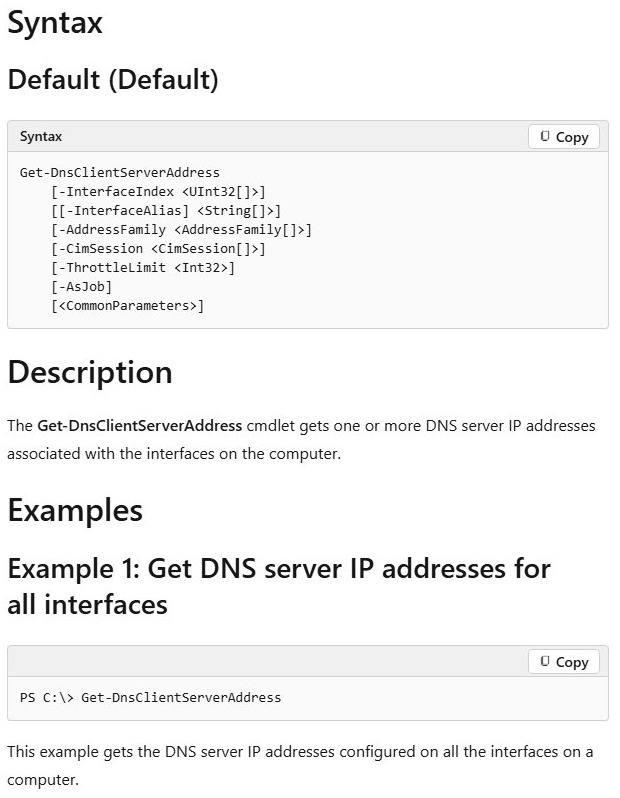
PowerShell returns the DNS server addresses from the TCP/IP properties of each interface, so the output is shorter than ipconfig /all.
Get-DnsClientServerAddress -AddressFamily IPv4The -AddressFamily parameter accepts IPv4 or IPv6. To check one adapter, add its name, for example Get-DnsClientServerAddress -InterfaceAlias "Wi-Fi".
You should see: One row per interface, with the DNS server addresses listed in order for each one.
How to find DNS servers in Windows 10 Control Panel
The older adapter dialog still exists, and it is the place to look when DNS was typed in by hand.
- Open Control Panel and go to Network and Internet > Network and Sharing Center > Change adapter settings.
- Right-click your Ethernet or Wi-Fi adapter and choose Properties.
- Select Internet Protocol Version 4 (TCP/IPv4), then select Properties.
- Read the two boxes under Use the following DNS server addresses.
- Select Cancel so nothing changes.
These boxes only hold values set by hand. When your router assigns DNS, use ipconfig /all to see the addresses in use.
How to find primary and secondary DNS on your router
With Automatic (DHCP), your router or access point sets the DNS server address for the PC. A private address such as 192.168.1.1 in the DNS list usually means the router is answering, so the upstream servers are in the router's admin page.
- Run
ipconfigin Command Prompt and note the Default Gateway address. - Enter that address in a browser. Router addresses are typically 192.168.0.1, 192.168.1.1 or 192.168.2.1.
- Sign in with the router's admin password.
- Find the DNS server settings. The primary and secondary fields show the current servers.
- Note both values and leave the page without saving.
Some internet providers lock the DNS settings on their equipment. If yours does, the fields may be read-only or missing.
Where to find primary and secondary DNS on Mac, iPhone, Android and Linux
| Device | Where to look | What it shows |
|---|---|---|
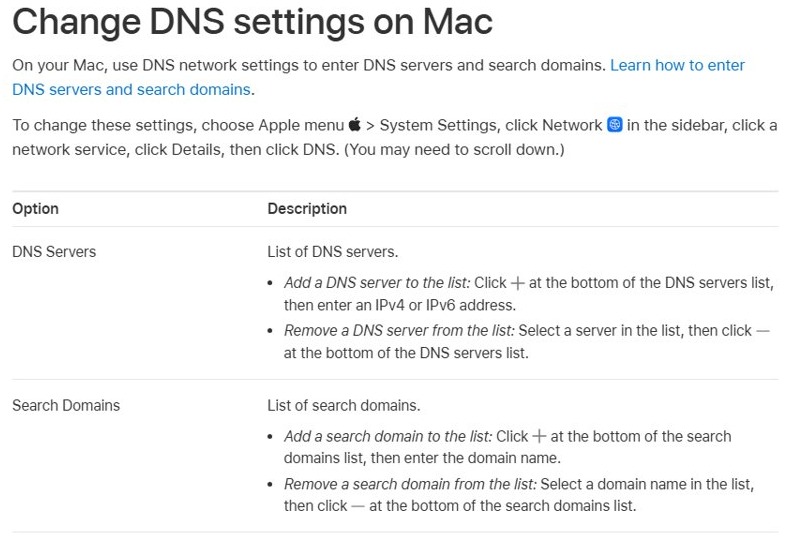
| Mac | Apple menu > System Settings > Network > select the service > Details > DNS | A DNS Servers list and a Search Domains list |
| iPhone and iPad | Settings > Wi-Fi > the info icon beside your network > Configure DNS | The DNS setup for that Wi-Fi network only, not for cellular data |
| Android 9 or later | Settings > Network & Internet > Advanced > Private DNS | The Private DNS mode and hostname, such as dns.google, rather than two addresses |
| Older Android | The advanced options of the Wi-Fi network, configured per network | Primary and secondary entries, where the phone exposes them |
| Linux with Network Manager | Network Connections > edit your connection > IPv4 Settings | The DNS servers field, with addresses separated by commas |
| Linux without Network Manager | The /etc/resolv.conf file |
The nameserver lines, in the order they are used |
What is the difference between primary and secondary DNS?
DNS maps computer names to IP addresses, and every network connection is configured with the address of at least one DNS server.
| Term | What it means | Label in Windows |
|---|---|---|
| Primary DNS | The first server your device asks to resolve a name | Preferred DNS |
| Secondary DNS | The backup server, used when the primary does not respond | Alternate DNS |
| Automatic DNS | Addresses assigned by your router or access point | Automatic (DHCP) |
| Manual DNS | Addresses you typed in yourself | Manual |
| Encrypted DNS | Queries sent to the DNS server over HTTPS | DNS over HTTPS (Windows 11 only) |
Common primary and secondary DNS server addresses
Match what you found against this table to see who answers your lookups. Anything else is usually your internet provider, your workplace or your router.
| Provider | Primary | Secondary | IPv6 |
|---|---|---|---|
| Google Public DNS | 8.8.8.8 | 8.8.4.4 | 2001:4860:4860::8888 and 2001:4860:4860::8844 |
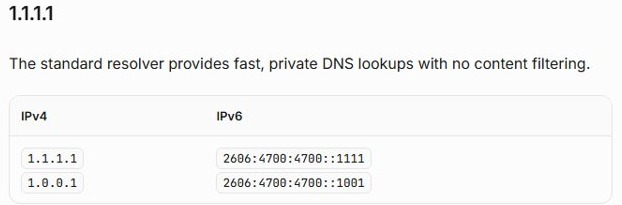
| Cloudflare | 1.1.1.1 | 1.0.0.1 | 2606:4700:4700::1111 and 2606:4700:4700::1001 |
| Cloudflare for Families, malware blocking | 1.1.1.2 | 1.0.0.2 | 2606:4700:4700::1112 and 2606:4700:4700::1002 |
| Cloudflare for Families, malware and adult content blocking | 1.1.1.3 | 1.0.0.3 | 2606:4700:4700::1113 and 2606:4700:4700::1003 |
| Quad9 | 9.9.9.9 | 149.112.112.112 | 2620:fe::fe and 2620:fe::fe:9 |
| OpenDNS | 208.67.222.222 | 208.67.220.220 | Not listed here |
If you want to move to one of these, you can set up Cloudflare's 1.1.1.1 resolver on Windows and on your phone.
Pros of finding your primary & secondary DNS
| Benefit | Why it helps |
|---|---|
| Faster troubleshooting | Microsoft's first DNS check is to confirm that the listed server addresses are correct. |
| A safe way back | A written copy lets you restore your old settings if a new DNS provider causes problems. |
| No extra software | Settings, Command Prompt and PowerShell all show the addresses on a stock Windows install. |
| A view per adapter | You can compare Wi-Fi and Ethernet, which can use different servers. |
| A way to spot provider changes | An address you do not recognise tells you the router, a VPN or a manual setting has taken over. |
Cons of finding your primary & secondary DNS
| Limit | What to do about it |
|---|---|
| The PC may only show the router's address | Open the router's admin page to read the upstream servers. |
| Each adapter has its own values | Read the entry for the adapter you are actually connected through. |
| Automatic addresses can change | Treat your note as a snapshot and check again when you troubleshoot. |
ipconfig /all output is long |
Use Get-DnsClientServerAddress for a shorter list. |
| Phones show less detail | Android's Private DNS screen shows a hostname, so check the Wi-Fi network's advanced options. |
| Reading the values fixes nothing | Test the servers with nslookup before you decide to change them. |
Additional information about primary and secondary DNS
| Topic | What to know |
|---|---|
| IPv6 | IPv6 has its own DNS servers, so run Get-DnsClientServerAddress -AddressFamily IPv6 to see them. |
| Number of servers | Google recommends at least two addresses, with different ones for primary and secondary. |
| VPN apps | On Android 9, VPN and DNS changer apps override Private DNS while they are active. |
| Browsers | A browser can use its own secure DNS provider, so its lookups may not match the Windows settings. |
| Hosts file | ipconfig /displaydns includes entries preloaded from the local Hosts file, not only answers from your DNS servers. |
| Windows 10 | The DNS over HTTPS setting is not available in Windows 10. |
How to change your primary and secondary DNS on Windows 11
- Go to Settings > Network & internet.
- For Wi-Fi, select Wi-Fi > Manage known networks, then your network. For Ethernet, select Ethernet, then your network.
- Next to IP assignment, select Edit.
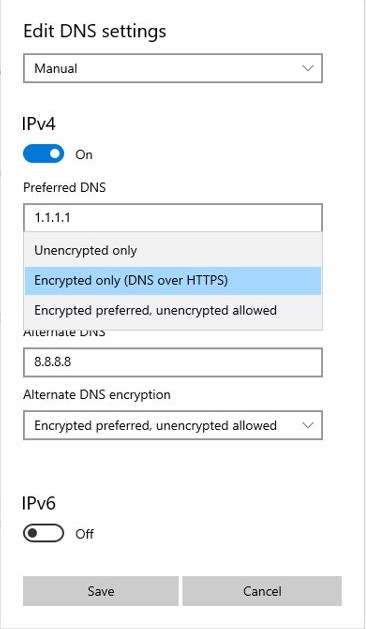
- Under Edit IP settings, choose Manual and turn on IPv4.
- Type the addresses in the Preferred DNS and Alternate DNS boxes, then select Save.
To go back, choose Automatic (DHCP) on the same screen. You can also change DNS settings on Windows from PowerShell or netsh.
How to tell which DNS server Windows is using
The nslookup tool skips the client's DNS cache, so the answer comes from your configured server.
nslookup bing.comWith no second parameter, nslookup uses the default DNS name server. To test one server directly, add its address, for example nslookup bing.com 1.1.1.1.
You should see: The server that answered at the top of the output, followed by the IP addresses for bing.com.
Primary DNS server not responding on Windows
nslookup says "timed out" or "No response from server"
The server did not answer in time, or no DNS server is running at that address.
- Run
pingfollowed by your primary DNS address, for exampleping 10.0.0.1. The firewall must allow ICMP traffic for this test to work. - Repeat the test with your secondary DNS address.
- If neither server responds, the problem is more likely the connection between your PC and the servers, so check the network first.
- If only the primary fails, run
nslookup bing.comfollowed by the secondary address to confirm that it answers.
ipconfig /all lists the wrong DNS server addresses
The router handed out stale values, or a manual entry is wrong.
- If the adapter gets its settings automatically, run
ipconfig /renewto renew the configuration from the DHCP server. - If the addresses were typed in, correct them under IP assignment > Edit.
- Run
ipconfig /allagain and compare the DNS Servers entry.
nslookup works but a site still says "Name does not exist"
A negative response from a DNS server was cached on your PC.
- Run
ipconfig /displaydnsand look for the name that failed. - Run
ipconfig /flushdnsto clear the DNS cache. - Load the site again.
Primary and secondary DNS FAQ
How do I find my primary DNS?
Open Settings > Network & internet and select Properties near your connection, or run ipconfig /all in Command Prompt. The first DNS server address listed for your active adapter is the primary, and the next address is the secondary.
What is DNS?
DNS, the Domain Name System, is the protocol that maps computer names to IP addresses. When you type a website name, your device asks a DNS server for the matching IP address, then connects to that address.
Why do I have a primary and secondary DNS?
The second server is a backup. If the primary does not respond, your device can still resolve names through the secondary. Google recommends configuring at least two addresses and using different ones for primary and secondary.
Can I use any DNS server address?
You can use your internet provider's servers, your workplace's servers or a public resolver such as Google Public DNS or Cloudflare. The address must be reachable from your network. Some providers lock DNS on their equipment, so you may need to set it on each device.
Will changing my DNS server speed up my internet?
It can only change how long name lookups take. DNS does not affect your connection's bandwidth, so downloads and streaming keep the same top speed. A slow or failing DNS server can make sites feel slow to start loading, which is where a change helps.
Is it safe to use a public DNS server?
Well-known public resolvers publish their addresses and privacy terms, so you can check what they do. Cloudflare says it deletes its 1.1.1.1 logs within 25 hours. Standard Google Public DNS is not a malware filter, so keep your other protections on.
How do I find my private IP address on Windows?
Go to Settings > Network & internet, select Wi-Fi or Ethernet, and look next to IPv4 address. You can also find your IP address on Windows by running ipconfig in Command Prompt, which lists it for each adapter.