Press the Num Lock key once, or hold Fn and press it on a laptop, and letter keys that type numbers go back to typing letters.
The fixes below cover laptops with no obvious Num Lock key, accessibility settings, keyboard layouts, drivers, remapping tools and failing hardware on Windows 10, with the Windows 11 path where it differs.
Keyboard typing numbers instead of letters
Many laptops fold a number pad into the letter keys, and Num Lock switches those keys over to digits. That is why only some letters turn into numbers while the rest of the keyboard behaves normally.
- Click inside any text box, such as Notepad, so you can see what the keys produce.
- Press Num Lock once. On a laptop where that label shares a key with another function, hold Fn and press the key.
- Type the letters that were producing numbers.
- Press the same key again if the problem got worse, because Num Lock was already off and you have just turned it on.
Letters are back? You are finished. If the numbers remain, match what you see to the table in the next section.
When I type numbers I get letters
The reverse symptom has a different cause. Number keys that produce letters or symbols usually point to the keyboard layout rather than Num Lock, so identify the exact symptom before you change anything.
| What you see | Likely cause | Go to |
|---|---|---|
| Some letter keys on a laptop type digits | Num Lock is on and the embedded pad is active | Method 1 |
| Number keys type letters or symbols, or letters swap places | The wrong keyboard layout is selected | Method 7 |
| The number pad moves the mouse pointer instead of typing digits | Mouse Keys is on | Method 4 |
| One key always produces another key's character | A key remapping tool or script is running | Turn off scripts and key remapping tools |
| The wrong characters appear in one app only | That app's own settings, or a remap aimed at it | Method 10 |
| The fault follows the keyboard to another PC | Damaged keys, dirt or a failing keyboard | Method 11 |
Method 1: Turn off Num Lock
The key press depends on the keyboard in front of you. Look at the printed legends first, because laptop makers place Num Lock differently from one model to the next.
| Your keyboard | How to turn Num Lock off | What you should see |
|---|---|---|
| Full-size keyboard with a number pad | Press Num Lock once, above the number pad | The Num Lock light goes out |
| Laptop with Num Lock or NumLk printed on a shared key | Hold Fn and press that key | Letter keys type letters again; some laptops have no light for this |
| Laptop with small numbers printed on letter keys but no visible Num Lock legend | Use Method 2 to press Num Lock on screen | Letter keys type letters again |
Key combinations differ by manufacturer, so check the laptop's manual if the legend is unclear.
Method 2: Use the On-Screen Keyboard
The On-Screen Keyboard gives you a Num Lock key when your physical keyboard has none, or when you cannot find it. It works with a mouse and does not need a touchscreen.
- Press Windows key + Ctrl + O, or go to Start > Settings > Ease of Access > Keyboard and turn on Use the On-Screen Keyboard.
- Select the Options key on the On-Screen Keyboard.
- Select Turn on numeric keypad, then close the options window to expand the keyboard with a number pad.
- Select the Num Lock key on the pad that appears.
- Click in a text box and type on your physical keyboard to test the letters.
On Windows 11 the path is Start > Settings > Accessibility > Keyboard > On-Screen Keyboard. Stuck at the sign-in screen with a password full of digits? Select the Ease of Access button in the lower-right corner (Accessibility on Windows 11), then On-Screen Keyboard, and type the password with the mouse.
Method 3: Restart your computer
A restart reloads the keyboard driver and closes any tool holding a key in the wrong state. Save your work before you begin.
- Select Start > Power > Restart.
- Wait until the sign-in screen appears, and check the Num Lock light if your keyboard has one.
- Sign in and type in Notepad.
- Repeat Method 1 if the numbers come back, because the startup state of Num Lock may be set to on.
Method 4: Check accessibility keyboard settings
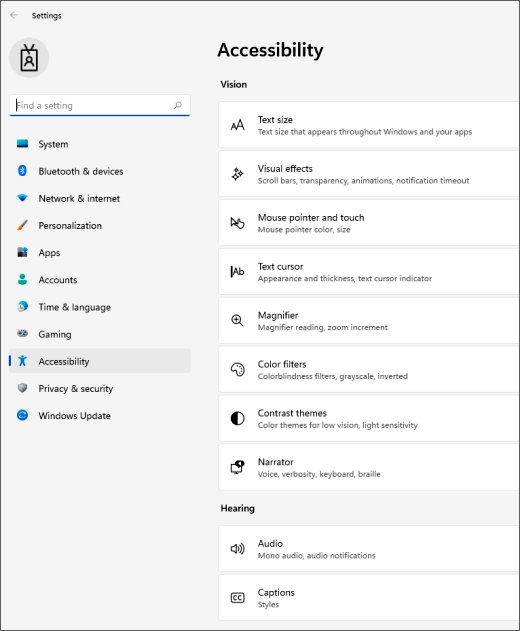
Accessibility shortcuts can switch on by accident. Holding Num Lock for five seconds toggles Toggle Keys, and Left Alt + Left Shift + Num lock toggles Mouse Keys, so a stray press can change how the keyboard behaves.
| Feature | What it changes | Windows 10 path | Windows 11 path |
|---|---|---|---|
| Mouse Keys | The number pad moves the pointer instead of typing digits | Settings > Ease of Access > Mouse, under Control your mouse with a keypad | Settings > Accessibility > Mouse, switch Mouse keys |
| Sticky Keys | Shift, Ctrl and Alt stay active after you release them | Settings > Ease of Access > Keyboard, under Sticky Keys | Settings > Accessibility > Keyboard, switch Sticky keys |
| Filter Keys | Brief or repeated keystrokes are ignored | Settings > Ease of Access > Keyboard, under Filter Keys | Settings > Accessibility > Keyboard, switch Filter keys |
| Toggle Keys | A sound plays when you press Caps Lock, Num Lock or Scroll Lock | Settings > Ease of Access > Keyboard, under Toggle Keys | Settings > Accessibility > Keyboard, switch Toggle keys |
Turn off whichever feature you did not choose to use. If you rely on Mouse Keys for clicking, leave it on and use the top row for digits while it is active.
Method 5: Update the keyboard driver
Windows Update is the preferred source for drivers, and Device Manager can also search for one. Get manual downloads only from the manufacturer's official site, never from a driver-updater tool.
- Right-click the Start button and select Device Manager.
- Select the arrow next to Keyboards to expand the category.
- Right-click your keyboard and select Update driver.
- Select Search automatically for updated driver software. Windows installs any driver it finds.
- If Windows finds nothing, select Search for updated drivers on Windows update, or select Close.
Did the problem start right after a driver update? Open the keyboard's Properties, go to the Driver tab and select Roll Back Driver, then choose a reason and select Yes.
Method 6: Reinstall the keyboard driver
A reinstall replaces a damaged driver with a fresh copy. Keep a mouse connected, because the built-in keyboard may stop responding until Windows restarts.
- Save your work and close all apps.
- Right-click the Start button and select Device Manager.
- Expand Keyboards, right-click your keyboard and select Uninstall device.
- In the Uninstall Device window, select Uninstall.
- Go to Start > Power > Restart. Windows tries to reinstall the driver during startup.
- If the keyboard still fails after the restart, repeat Method 5.
Method 7: Verify keyboard language and layout settings
A second layout can be selected by accident, because Windows key + Spacebar cycles through every installed layout. Check the input language icon in the system tray first; selecting it lists the layouts you can switch to.
- Go to Start > Settings > Time & language > Language.
- Under Preferred languages, select your language, then select Options.
- Under Keyboards, check that the layout matches the printed keys on your keyboard.
- Select Add a keyboard and choose the right layout if it is missing.
- Select any layout you do not use, then select Remove.
- Type in Notepad to test the keys.
A greyed-out Remove means that entry is the only layout for your display language. On Windows 11, go to Settings > Time & language > Language & region, select the ellipses next to your language, select Language options, and manage the entries under Keyboards.
Method 8: Run the keyboard troubleshooter
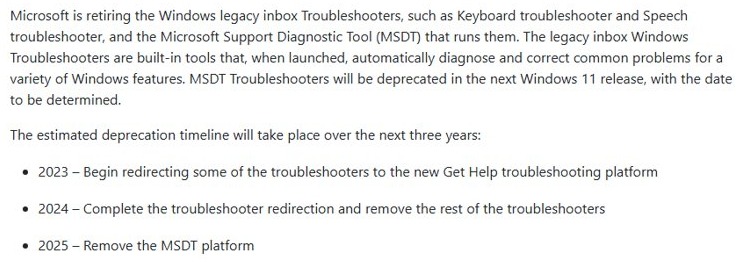
Windows 10 still includes the legacy Keyboard troubleshooter, so give it one run once the Num Lock and layout checks are done.
- Go to Start > Settings > Update & Security > Troubleshoot.
- Under Find and fix other problems, select Keyboard. If it is not listed, open the link to more troubleshooters on the same page.
- Select Run the troubleshooter.
- Apply any fix it offers, then type in Notepad.
Newer Windows 11 releases are on Microsoft's removal list for this tool, and the Get Help app lists no keyboard troubleshooter. On those versions, skip to Method 9.
Method 9: Check for Windows updates
Windows Update delivers recommended drivers as well as system fixes. Microsoft ended Windows 10 support on October 14, 2025, and no longer provides free software updates for it, so expect fewer new fixes there.
- Go to Start > Settings > Update & Security > Windows Update.
- Select Check for updates and install what Windows finds.
- If View optional updates appears, select it and choose any keyboard driver listed.
- Download and install the driver, then restart.
On Windows 11, go to Settings > Windows Update > Advanced options > Optional updates, select the drivers you want, and select Download and install.
Method 10: Test the keyboard in another application
App-specific input problems look like a keyboard fault but disappear outside that one program. A second app tells you which side the problem is on.
| Test result | What it means | Next step |
|---|---|---|
| Letters are correct in Notepad but wrong in one app | The app is the cause | Check that app's own keyboard or hotkey settings, and any remap targeted at it |
| Numbers appear in Notepad and every other app | Windows or the keyboard is the cause | Continue with Method 11 and Method 12 |
| Wrong characters only after a particular app has opened | A background tool is changing the input | Use the clean boot steps further down |
Test in Notepad and in the Microsoft Edge address bar, since neither needs any special keyboard setup.
Method 11: Check for physical keyboard problems
Hardware faults tend to affect the same keys every time, and no setting clears them. Work through these checks before you buy anything.
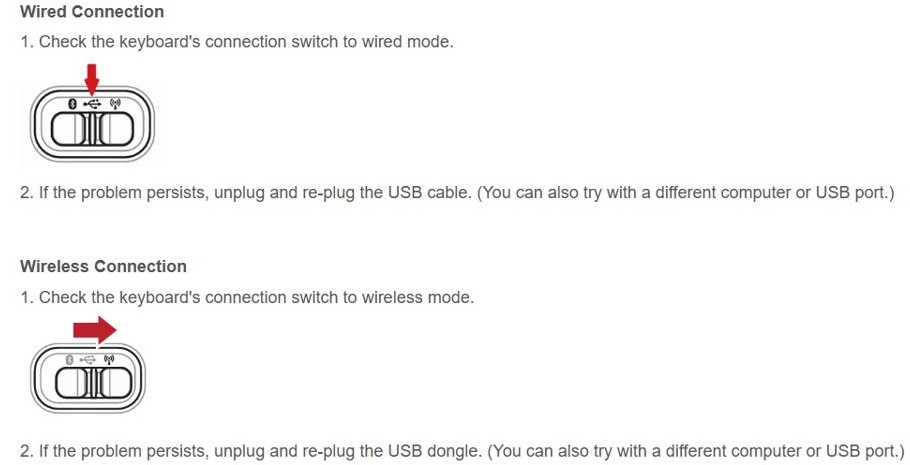
- Unplug a USB keyboard, wait a short while for Windows to unload the driver, then plug it back in.
- Try a different USB port, and connect directly to the PC instead of through a USB hub.
- Check the cable for damage, and replace or charge the batteries in a wireless keyboard.
- Unplug a wireless receiver, wait about 10 seconds and plug it back in, or use the Reset button under the keyboard if it has one.
- Check that no dirt is blocking the keys.
- Connect the keyboard to another PC. If it fails there too, it may need replacing.
Method 12: Use an external keyboard
A USB keyboard is both a test and a workaround for a laptop. It shows whether the built-in keyboard is at fault, and it keeps you working while you sort out a repair.
| With a USB keyboard plugged in | What it means | What to do |
|---|---|---|
| The external keyboard types letters correctly and the laptop keyboard does not | The built-in keyboard or its Num Lock state is the problem | Repeat Method 1, then contact the laptop manufacturer if it still fails |
| Both keyboards type the wrong characters | A Windows setting or remapping tool is the problem | Check Method 7 and the remapping section below |
| The external keyboard also fails on this PC only | Windows or a driver is the problem | Repeat Method 5 and Method 6 |
Completely disable Num Lock in Windows 10
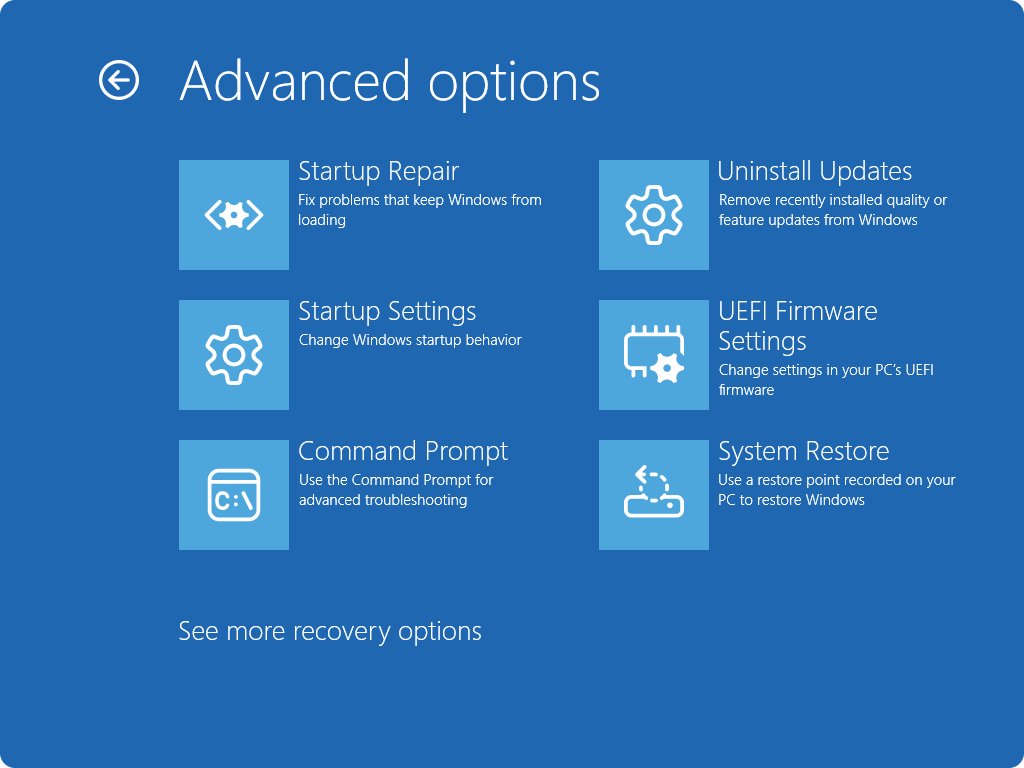
Windows has no switch that removes Num Lock, so a setting cannot stop someone pressing the key later. You can set it to off at every power-on through the PC's firmware, where the device exposes a setup screen.
- Go to Start > Settings > Update & Security > Recovery.
- Under Advanced startup, select Restart now.
- Select Troubleshoot > Advanced options > UEFI Firmware Settings > Restart.
- Find the Num Lock startup setting, whose name differs by manufacturer, and set it to off.
- Save the change and exit so the PC starts Windows.
No UEFI Firmware Settings entry? The device does not expose that screen, so you can force Num Lock off at sign-in with a scheduled task instead.
Turn off scripts and key remapping tools in Windows 10
Remapping software can make one key send another, including a letter key that sends a digit. PowerToys Keyboard Manager, for example, only applies its remaps while PowerToys is running and the module is enabled.
- Close any keyboard macro, gaming keyboard or script tool from its icon in the notification area.
- If you use PowerToys, close it, or turn off Keyboard Manager in its settings.
- Type in Notepad to see whether the letters are back.
- If they are, reopen PowerToys and select Remap a key on the Keyboard Manager tab.
- Delete the mapping that sends the wrong character, then select OK.
A remap can also be aimed at one app, so check any target app set under Remap a shortcut.
Typing in Safe Mode on Windows 10
Safe Mode starts Windows with a limited set of files and drivers. If the keys type correctly there, default settings and basic drivers are not the cause. Have your BitLocker recovery key to hand if the device is encrypted.
- Go to Start > Settings > Update & Security > Recovery.
- Under Advanced startup, select Restart now.
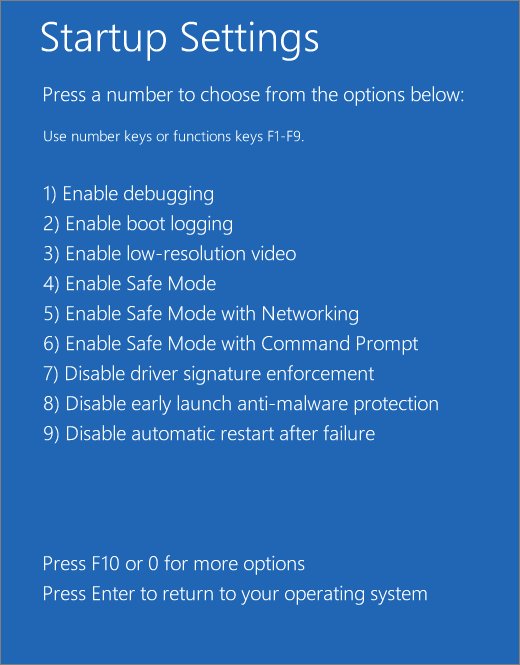
- Select Troubleshoot > Advanced options > Startup Settings > Restart.
- After the PC restarts, press 4 to select Enable Safe Mode.
- Sign in and type in Notepad.
- Restart the PC to return to normal mode.
Find problematic apps with a clean boot
A clean boot starts Windows with only essential drivers and startup programs, which exposes a background app that interferes with typing. Skip this on a work PC unless IT agrees, because Microsoft warns that network policy can block these steps.
- Sign in as an administrator, select Search, type
msconfigand select System Configuration. - On the Services tab, select Hide all Microsoft services, select Disable all, then select Apply.
- On the Startup tab, select Open Task Manager.
- For each enabled startup item, select it and select Disable, keeping a note of what you turned off.
- Close Task Manager, select OK in System Configuration and restart.
- Type in Notepad. If the letters are correct, a disabled app is the cause; enable half the items at a time until the fault returns.
- When you finish, open
msconfigagain, select Normal Startup on the General tab, select Enable all on the Services tab, and enable your startup items.
How to tell if Num Lock is on in Windows 10
Many laptops have no Num Lock light, so a quick test is more reliable than looking for one. Turn on Toggle Keys if you want an audible signal.
- Look for an indicator light above or next to the Num Lock key; lit means Num Lock is on.
- Go to Start > Settings > Ease of Access > Keyboard and turn on the toggle under Toggle Keys.
- Press Num Lock and listen for the sound that confirms the key registered.
- Type on a letter key that has a small number printed on it. A digit means Num Lock is on, and a letter means it is off.
Keyboard still typing numbers after turning off Num Lock
Numbers return after every restart
The firmware or a sign-in task switches Num Lock on at each startup.
- Set the Num Lock startup setting to off, using the firmware steps above.
- Check Task Scheduler and your startup apps for any task you added to set Num Lock.
- Restart and test in Notepad.
The Num Lock key does nothing
The key is shared with Fn, or the key itself has failed.
- Hold Fn and press the key.
- Press Windows key + Ctrl + O and use the Num Lock key on the On-Screen Keyboard's number pad.
- If the on-screen key works but the physical one never does, treat it as a hardware fault and use Method 11.
The keyboard types numbers at the sign-in screen
Num Lock is on before Windows loads, or the sign-in layout differs from your usual one.
- Press Num Lock, or hold Fn and press it, before you type the password.
- Check the input language icon on the sign-in screen and select the correct layout.
- Select the password reveal icon to check what you have typed.
Keys type by themselves or produce nothing
This is a different fault from Num Lock, usually a stuck key, a driver or a connection problem.
- Disconnect the keyboard, or test with a USB keyboard on a laptop.
- Clean the keys and repeat Method 11.
- For a keyboard that keeps repeating a row of letters, stop the zxcvbnm typing.
- For one that produces nothing on Windows 11, fix the unresponsive keyboard.
Keyboard typing numbers instead of letters FAQ
Why is my keyboard typing numbers instead of letters?
Num Lock is almost always the cause on a laptop. Many laptops share number pad digits with letter keys, and turning Num Lock on makes those keys type digits. Press Num Lock, or hold Fn and press it, to go back to letters.
How do I get my keyboard back to letters?
Press the Num Lock key once, holding Fn if the label shares a key with another function. If that fails, press Windows key + Ctrl + O, turn on the numeric keypad in the On-Screen Keyboard's Options, and select Num Lock there.
How do I turn off Num Lock on a laptop with no Num Lock key?
Open the On-Screen Keyboard with Windows key + Ctrl + O, select Options, then select Turn on numeric keypad. The keyboard expands with a number pad, and its Num Lock key turns the setting off without any physical key.
Why does my keyboard type numbers after a restart?
The PC's firmware or a sign-in task can set Num Lock on at startup. Open UEFI Firmware Settings through Advanced startup and set the Num Lock startup setting to off, where your device offers it. The setting's name differs by manufacturer.
Can a wrong keyboard layout make keys type the wrong characters?
Yes. A layout decides which character each key sends, and Windows key + Spacebar switches between installed layouts. Select the input language icon in the system tray and choose the layout that matches your keyboard, then remove any layout you do not use.
Will updating the driver fix a keyboard typing numbers?
Only if a driver fault is the cause, which is less common than Num Lock. Try Num Lock and the layout check first. Then use Device Manager to update the driver, roll it back after a bad update, or uninstall it and restart.
Is there a keyboard troubleshooter in Windows 11?
Windows 10 keeps the legacy Keyboard troubleshooter, but Microsoft lists it for removal from newer Windows 11 releases and Get Help does not offer one. On those versions, check Num Lock, layouts and drivers yourself using the steps on this page.
How can I tell if my keyboard hardware is faulty?
Connect the keyboard to another PC. If the same keys misbehave there, the keyboard is likely at fault and may need replacing. On a laptop, plug in a USB keyboard instead: correct letters on it point to the built-in keyboard.