To make a spreadsheet on Google Docs, open sheets.google.com and click New, because spreadsheets live in Google Sheets, the spreadsheet app in the Google Docs Editors suite.
This guide covers creating a sheet from Google Drive or a template, importing Excel files, sharing, and placing a table or chart inside a Google Docs document.
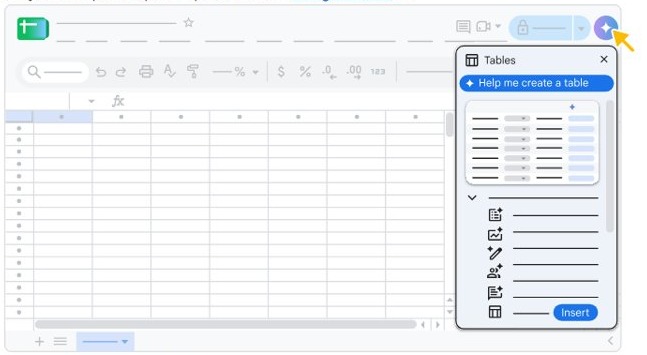
Step-by-step tutorial: creating a spreadsheet in Google Docs
Google Docs itself is a word processor, so a true spreadsheet opens in Sheets under the same Google Account. These steps take you from an empty browser tab to a saved, shared sheet.
- Open sheets.google.com in your browser and sign in with your Google Account. You can also go straight to sheets.google.com/create.
- Click New. A blank spreadsheet opens.
- Click the file name at the top of the spreadsheet, type a name, and press Enter.
- Click cell A1, type a column heading, and press Enter to move down.
- Type your data, keeping one kind of information in each column.
- Click an empty cell, type an equal sign and a function such as
=SUM(A2:A10), and press Enter. - Click outside the cell you typed in. Google saves your changes automatically while you are online.
- Click Share, enter an email address, choose Viewer, Commenter or Editor, and click Send.
Once your data is in place, you can format and calculate in Google Sheets with colors, charts and more formulas.
Can you make a spreadsheet in Google Docs?
Yes and no. A document can hold a table, a linked range or a chart, but formulas across a full grid belong in Sheets. Match your goal to a row.
| What you want | Use this | Why |
|---|---|---|
| A full spreadsheet with formulas and tabs | New at sheets.google.com | Sheets is the spreadsheet app, and it holds up to 20 million cells |
| A small grid inside a document | Insert > Table in Google Docs | The table stays in the document, up to 20 x 20 cells |
| Spreadsheet numbers in a document that can refresh | Copy cells from Sheets and paste with Link to spreadsheet | An Update button pulls in changes from the original |
| A chart in a document, with no sheet yet | Insert > Chart in Google Docs | The chart links to a new Google Sheet that holds its numbers |
| An existing Excel workbook | File > Import in Google Sheets | Sheets converts .xlsx and other spreadsheet files |
How to create a Google Sheet from Google Drive
Start from Google Drive when you already keep your files there. The new sheet is stored in Drive with the rest of your work.
- Open drive.google.com on your computer.
- In the top-left corner, click New.
- Select Google Sheets. A new spreadsheet opens.
- Click the file name at the top, type a name, and press Enter.
If you want Sheets in its own window on Windows, you can install Google Sheets for PC as a browser app.
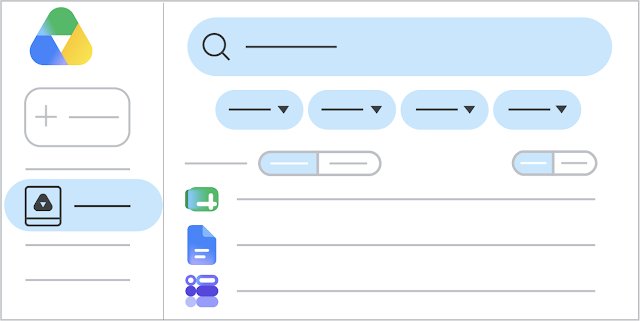
How to create a spreadsheet from a Google Sheets template
Google publishes ready-made templates such as budgets and order forms. A template saves you from building the layout and formulas yourself.
- Go to the Sheets home screen at sheets.google.com.
- At the top right, click Template Gallery.
- Click the template you want. A copy of it opens, so the original stays untouched.
- Replace the sample entries with your own data.
- Click the file name at the top, type a name, and press Enter.
To hide or show recent templates on the home screen, click Menu > Settings and change Display recent templates on home screens.

How to enter data in a Google Sheets spreadsheet
A cell is the box where a column letter meets a row number. Use these steps for typing, editing and calculating in any cell.
- Click an empty cell, or double-click a cell that already has content.
- Type your text, number or date.
- Press Ctrl + Enter on Windows or Cmd + Enter on a Mac to start a new line inside the same cell.
- Press Enter when you finish the entry.
- Select a cell and type an equal sign followed by a function to add a calculation.
- Select one or more cells and use the toolbar for bold, font size, text color, cell fill, borders, merging or text wrapping.
How to save a spreadsheet in Google Sheets
Google Sheets has no save step while you are online, because Google saves your changes as you type. Use these steps to commit an entry, or keep a second copy.
- Click outside the cell you typed in to save that entry.
- To keep a copy on your computer, click File > Download and choose a file type, such as Microsoft Excel (.xlsx).
- To keep a second copy in Google Drive, click File > Make a copy.
- Type a name, choose where to save the copy, and click OK.
How to import an Excel file into Google Sheets
Sheets imports .xls (newer than Office 95), .xlsx, .xlsm, .xlt, .xltx, .xltm, .ods, .csv, .txt, .tsv and .tab files. The file must not be password protected.
- Open a new or existing spreadsheet in Google Sheets.
- Click File > Import.
- Choose the file you want to bring in.
- Select an import location from the table below.
- For a .csv or .txt file, set Separator character if you do not want Detect automatically.
- Click Import.
Check the sheet after a conversion. Excel macros do not carry over, any cell with more than 50,000 characters is removed, and locked or hidden cells from a protected workbook become viewable and editable.
To edit an Excel file without converting it, open Google Drive and double-click the file. Password-protected .xlsx files ask for the password first.
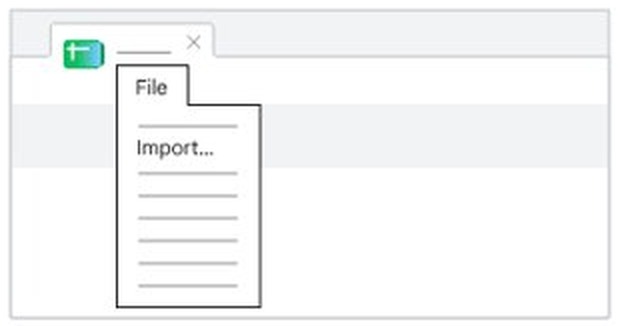
Google Sheets import location options
The choice decides what happens to the sheet you have open. Not every file type offers all six options.
| Option | What it does | Use it when |
|---|---|---|
| Create new spreadsheet | Opens the data as a new spreadsheet in a new tab | You want the file kept separate |
| Insert new sheets | Adds the data as new tabs in the open spreadsheet | You are collecting several files in one place |
| Replace spreadsheet | Swaps the whole spreadsheet for the imported file | The open file is out of date |
| Replace current sheet | Overwrites only the tab you are on | Other tabs must stay as they are |
| Append rows to current sheet | Adds the data below the last row with data | You are adding a new batch of records |
| Replace data starting at selected cell | Overwrites a range from the selected cell onward | Only one block of the sheet needs refreshing |
How to share a Google Sheets spreadsheet
A Viewer can open the file without changing it, and a Commenter can add comments and suggestions. An Editor can change the file and, by default, also share it and change its permissions.
- Open the spreadsheet and click Share.
- Enter an email address or a Google Group.
- Choose Viewer, Commenter or Editor.
- Decide whether to send a notification email, then click Send or Share.
- To share by link instead, open the drop-down under General access and choose Restricted or Anyone with the link.
- Select a role, click Copy link, then click Done.
How to add a table in Google Docs
A Docs table suits a short list of values inside a written document. It lives in the document and has no link to a spreadsheet.
- Open your document in Google Docs and click where the table should go.
- Click Insert > Table.
- Choose how many rows and columns you want, up to 20 x 20 cells.
- Click a cell and type your content.
On a computer, a Docs table can also sort rows, move rows and columns, and pin header rows so they repeat at the top of each page.
How to insert a Google Sheets table into Google Docs
Paste a linked range when the numbers will change and the document must keep up. Anyone with access to the document can view the linked table, even without access to the original spreadsheet.
- Open the sheet in Google Sheets using Chrome or Firefox.
- Select the cells you want, then click Edit > Copy.
- Open your document and click where the table should go.
- Click Edit > Paste.
- Choose Link to spreadsheet or Paste unlinked, then click Paste.
- When the sheet changes, click Update at the top right of the table in your document.
To refresh several linked items at once, click Tools > Linked objects and select Update all at the bottom of the sidebar. An update overwrites edits you made to the table inside the document.
How to insert a Google Sheets chart into Google Docs
Use this route for a chart that already exists in a spreadsheet. To start from nothing, click Insert > Chart, pick a chart type, and edit the numbers in the new linked Google Sheet.
- Open your document in Google Docs.
- Click Insert > Chart > From Sheets.
- Select the spreadsheet that holds the chart, then click Select.
- Click the chart you want to add.
- Clear Link to spreadsheet if you want the chart to stay unlinked.
- Click Import.
How to see version history in Google Sheets
Sheets keeps earlier versions of a file, so you can check who edited what and roll back a mistake. You need permission to edit the file to browse them.
- Open the spreadsheet on your computer.
- At the top right, click the Last edit icon.
- Choose a version in the right panel to see who changed what.
- To go back to that version, click Restore this version at the top, then click Restore.
- To return to the current version without restoring, click Back at the top left.
- To check one cell, right-click it and click Show edit history.
Restoring a spreadsheet clears the cell-by-cell edit history from before the restore. Make a copy of that version instead if you need to keep the history.
Google Sheets pros
| Pro | Why it helps |
|---|---|
| Open to anyone with a Google Account | You can create a spreadsheet at sheets.google.com without installing Office |
| Available on the web, Android, iPhone and iPad | The same file opens on your computer and your phone |
| Sharing with three permission levels | You can let people view, comment or edit, and a link can stay restricted |
| Automatic saving online | An entry saves as you type, so a closed tab does not cost you the sheet |
| Version and cell edit history | You can see who changed a cell and restore an earlier version |
| Works with Excel files | You can convert a workbook or edit it directly, and the original file stays intact |
| Links into Google Docs | A chart or table in a document can update from the source sheet |
Google Sheets cons
| Con | What it means for you |
|---|---|
| Size limits | A spreadsheet tops out at 20 million cells or 100 MB when created in or converted to Sheets |
| Excel macros do not transfer | Google suggests rebuilding a macro in Apps Script |
| Excel protection does not transfer | Locked and hidden cells from a protected workbook become viewable and editable after conversion |
| Offline needs setup in advance | You must turn it on while connected, in Chrome or Edge, with the Google Docs Offline extension |
| Editors have wide rights by default | An Editor can also share the file and change its permissions |
| Some Gemini features need a paid plan | Some Gemini in Sheets features are only available on Google Workspace plans |
Google Sheets table not updating in Google Docs and other fixes
No Update button on a Google Sheets table in Google Docs
The table is not linked, or it is already up to date.
- Click Tools > Linked objects to see what the document links to.
- If the table is missing from the sidebar, copy the cells from Sheets again.
- Paste into the document and choose Link to spreadsheet.
Google Sheets table pastes unlinked in Google Docs
A table with more than 400 cells always pastes unlinked, and a linked table cannot grow past 400 cells.
- Select a smaller range of 400 cells or fewer in Sheets.
- Click Edit > Copy, then paste into the document.
- Choose Link to spreadsheet and click Paste.
Google Sheets will not import a password-protected Excel file
File > Import only accepts files without a password.
- Open drive.google.com and click New > File upload to add the file to Drive.
- Double-click the file in Drive and enter its password.
- Choose Edit to work on it.
Cannot see version history in Google Sheets
Version history needs edit permission, and Google occasionally merges revisions.
- Ask the file owner to give you the Editor role.
- Reopen the spreadsheet and click the Last edit icon at the top right.
Google Sheets will not work offline
Offline access must be turned on first, online, in a supported browser.
- Connect to the internet in Chrome or Microsoft Edge, outside private browsing.
- Install and turn on the Google Docs Offline extension.
- Open Google Drive, click Settings > Settings at the top right, and turn on Offline.
- Open the spreadsheet and click File > Make available offline.
Google Docs spreadsheet FAQ
Can Google Sheets be used offline?
Yes, in Chrome or Microsoft Edge once offline access is on. You can turn on Google Docs offline access, and that one setting also covers Sheets and Slides. Do this while connected, and you can then create, view and edit files without internet.
How do I print my Google Sheet?
Open the spreadsheet, click File > Print, and choose Current sheet, Workbook or Selected cells. Click Next, then click Print in Chrome. Firefox and Safari download a PDF instead, which you print from your PDF viewer.
Can I import data from Excel to Google Sheets?
Yes. Click File > Import in any spreadsheet and choose your .xlsx, .xls, .xlsm or .csv file. The file must not have a password. Google leaves the original Excel file intact, so you keep a copy to go back to.
How secure is Google Sheets?
Files in Google Drive are encrypted in transit and at rest, and they stay private to you unless you share them. Google says Drive does not use your content for advertising. Share with named people rather than Anyone with the link for sensitive data.
Can I track changes in Google Sheets?
Yes. Click the Last edit icon at the top right to browse earlier versions and see who changed what. Right-click a cell and click Show edit history to check a single cell. You need permission to edit the file to see this.
What is the difference between Google Docs and Google Sheets?
Google Docs is an online word processor for documents, and Google Sheets is an online spreadsheet app for rows, columns and formulas. Both belong to the Google Docs Editors suite. A document can display a table or chart linked from a spreadsheet.
How many cells can a Google Sheets spreadsheet have?
A spreadsheet created in or converted to Google Sheets can hold up to 20 million cells or 100 MB. When you convert an Excel file, any cell with more than 50,000 characters is removed, so check long text cells after importing.
Do I need a Google Account to make a spreadsheet in Google Sheets?
Yes. Google says anyone with a Google Account can create in Sheets, and you sign in at sheets.google.com to start. Your spreadsheets are then stored in Google Drive under that account and open from any browser where you sign in.