Select Start > Settings > Devices to change printer, Bluetooth, mouse, touchpad, typing, pen, AutoPlay and USB settings in Windows 10.
This guide walks through each Devices page, plus the related sound, phone, security and driver settings that live elsewhere in Windows 10.
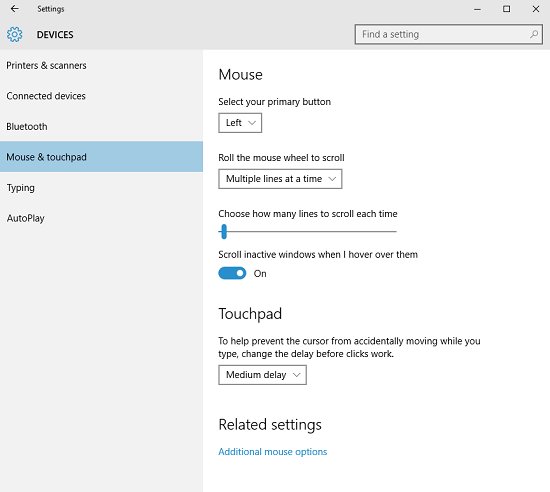
Device settings in Windows 10
Every accessory setting starts from the same Settings category, so you only need to learn one path.
- Select Start, then select Settings.
- Select Devices.
- Select the page you need, such as Bluetooth & other devices, Printers & scanners or Mouse.
- Change the setting on that page.
Microsoft ended support for Windows 10 on October 14, 2025, but these pages still work on a Windows 10 PC. Windows 11 moves them to Bluetooth & devices settings, so the paths below apply only to Windows 10.
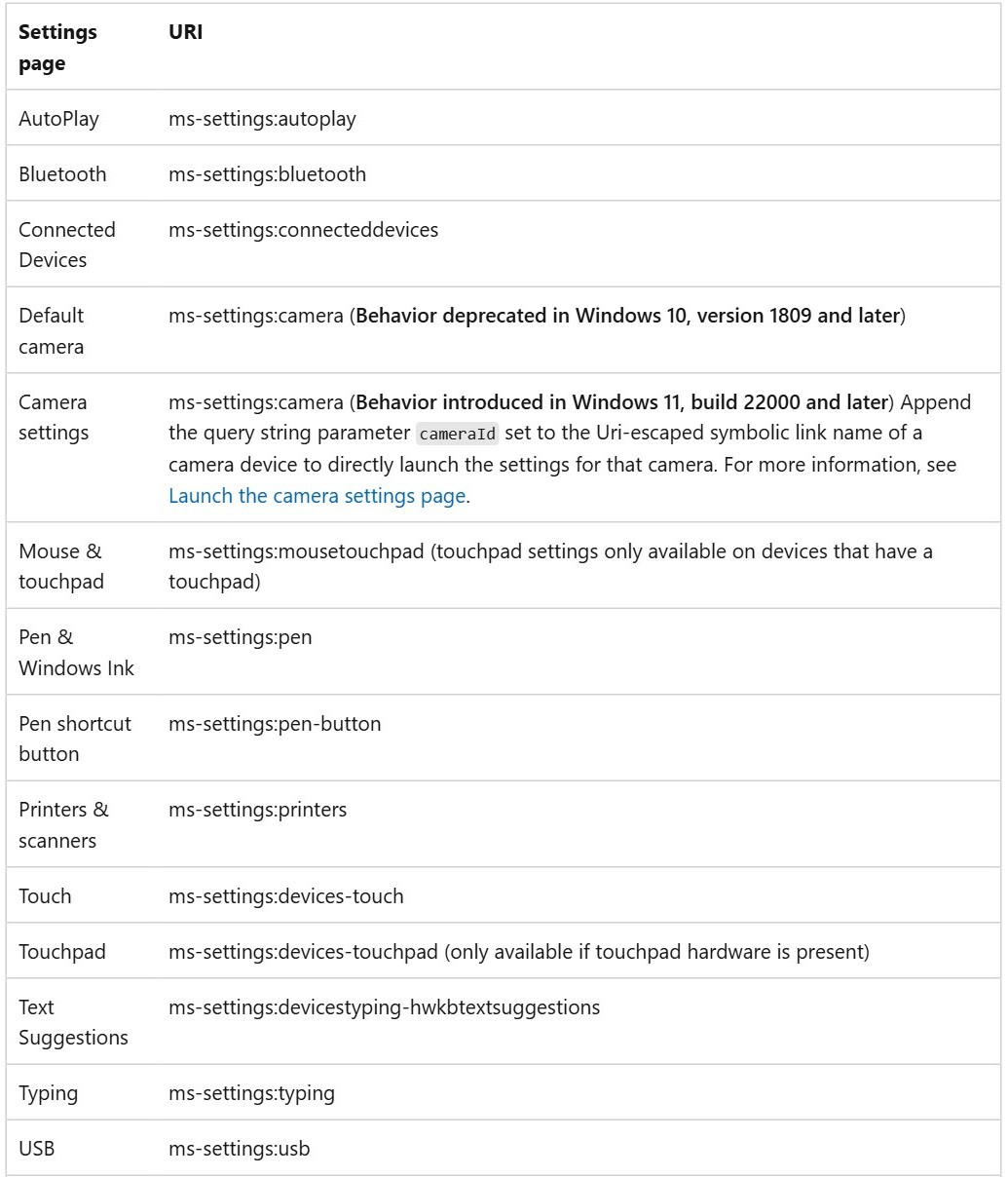
Windows 10 devices settings pages and shortcuts
Each page has its own ms-settings: address. Press Windows logo key + R, type the address and press Enter to open the page directly.
| Page | Run address | What you change there |
|---|---|---|
| Bluetooth & other devices | ms-settings:bluetooth |
Turn Bluetooth on or off, add or remove devices |
| Printers & scanners | ms-settings:printers |
Add or remove a printer, set the default printer |
| Mouse | ms-settings:mousetouchpad |
Primary button, cursor speed, wheel scrolling |
| Touchpad | ms-settings:devices-touchpad |
Touchpad on or off, gestures. Appears only with touchpad hardware |
| Typing | ms-settings:typing |
Text suggestions for a hardware keyboard |
| Pen & Windows Ink | ms-settings:pen |
What your pen does and how it works with the PC |
| AutoPlay | ms-settings:autoplay |
AutoPlay on or off, defaults for drives and memory cards |
| USB | ms-settings:usb |
Notifications about USB connection problems |
Bluetooth and other devices settings in Windows 10
Make the device discoverable before you start. Its manual or maker's website explains how, because the method differs between headsets, speakers, keyboards and mice.
- Select Start > Settings > Devices > Bluetooth & other devices.
- Under Bluetooth, switch the toggle to On.
- Select Add Bluetooth or other device.
- In the Add a device window, select Bluetooth.
- Select your device from the list and follow any prompts.
- Select Done when pairing finishes.
- To remove a device later, select it on the same page, then select Remove device.
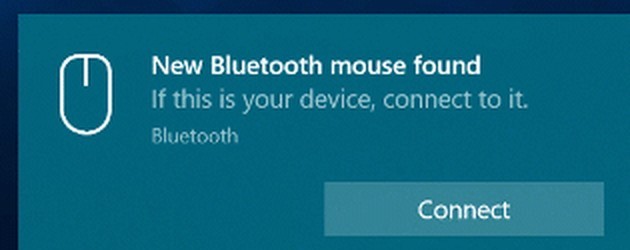
A nearby device in pairing mode may also show a Swift Pair notification. Select Yes the first time to allow Swift Pair, then select Connect. If pairing fails, you can fix Bluetooth connection problems on Windows 10 separately.
Printers and scanners settings in Windows 10
Windows lists the printers and scanners it finds, and a manual route covers the rest. A Bluetooth printer or scanner must be discoverable before you search.
- Select Start > Settings > Devices > Printers & scanners.
- Select Add a printer or scanner and wait for Windows to search.
- Select your device, then select Add device.
- If your printer does not appear, select The printer that I want isn't listed and follow the Add Printer window.
- To remove a printer, select it in the Printers & scanners list, then select Remove device.
The older Control Panel view is still available if you prefer to open Devices and Printers.
Default devices in Windows 10: change the default printer
Windows 10 can choose your default printer for you, using the last printer you used. Turn that option off if you always want the same printer. You can also change printer default settings for each printer.
- Select Start > Settings > Devices > Printers & scanners.
- Clear Let Windows manage my default printer.
- Select your printer, then select Manage.
- In Manage your device, under Printer status, select Set as default.
To return to automatic behavior, select Let Windows manage my default printer again.
Mouse settings in Windows 10
Open Start > Settings > Devices > Mouse for the main controls. Select Additional mouse options on that page to open the older Mouse Properties tabs. You can change mouse speed from this page, and change mouse DPI on mice that support it.
| To change this | Go here | Then do this |
|---|---|---|
| Primary button | Devices > Mouse | Choose Left or Right under Select your primary button |
| Pointer speed | Devices > Mouse | Move the Cursor speed slider |
| Wheel scrolling | Devices > Mouse | Choose Multiple lines at a time or One screen at a time, then set the lines to scroll |
| Inactive window scrolling | Devices > Mouse | Turn on Scroll inactive windows when hovering over them |
| Double-click speed | Additional mouse options > Buttons | Move the Speed slider under Double-click speed |
| ClickLock | Additional mouse options > Buttons | Check Turn on ClickLock |
| Pointer accuracy | Additional mouse options > Pointer Options | Check Enhance pointer precision under Motion |
| Pointer trails and hiding | Additional mouse options > Pointer Options | Check Display pointer trails or Hide pointer while typing under Visibility |
| Finding the pointer | Additional mouse options > Pointer Options | Check Show location of pointer when I press the CTRL key |
| Horizontal scrolling | Additional mouse options > Wheel | Adjust the setting on a mouse that supports it |
| Pointer size and style | Settings > Ease of Access > Mouse pointer | Choose the style and size. The Pointers tab has full schemes |
Select OK to save any change you make on the Mouse Properties tabs.
Touchpad settings in Windows 10
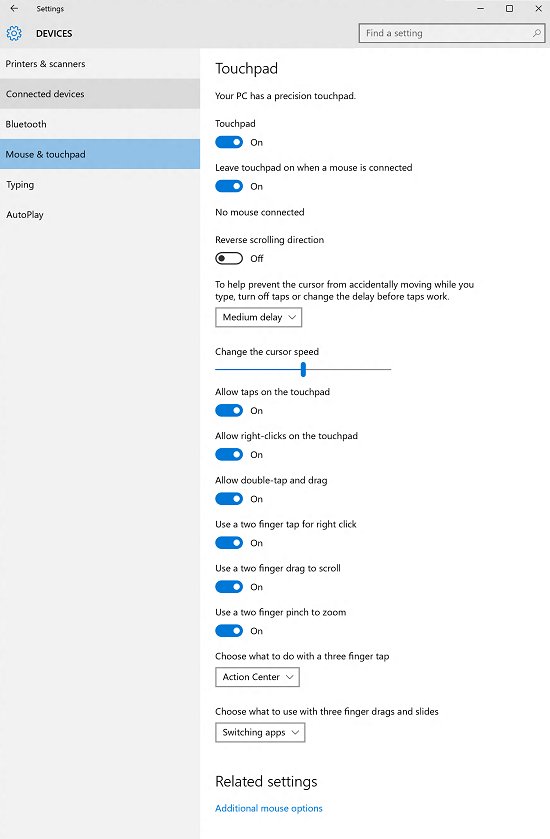
Select Start > Settings > Devices > Touchpad to turn the touchpad on or off, adjust cursor speed, reverse the scrolling direction, and change three-finger and four-finger gestures. These are the default gestures. Some of them work only on precision touchpads.
| Action | Touchpad gesture |
|---|---|
| Select an item | Tap the touchpad |
| Scroll | Place two fingers on the touchpad and slide horizontally or vertically |
| Zoom in or out | Place two fingers on the touchpad and pinch in or stretch out |
| Show more commands, like right-click | Tap with two fingers, or press the lower-right corner |
| See all open windows | Swipe up with three fingers |
| Show the desktop | Swipe down with three fingers |
| Switch between open apps or windows | Swipe left or right with three fingers |
| Open action center | Tap with four fingers |
| Switch desktops | Swipe left or right with four fingers |
Typing settings in Windows 10
Turn these on to see suggestions while you type on a physical keyboard. The second toggle adds suggestions in other languages you type in.
- Select Start > Settings > Devices > Typing.
- Under Hardware keyboard, turn on Show text suggestions as I type.
- Turn on Show text suggestions based on the recognized languages you're typing in if you type in more than one language.
Pen & Windows Ink settings in Windows 10
This page controls what your pen does and how it works with the PC. Pressing the pen's top button once opens Microsoft Whiteboard, and double-pressing it opens Snip & Sketch.
- Select Start > Settings > Devices > Bluetooth & other devices.
- Put the pen in pairing mode. On a Surface Pen, hold the top button for 5 to 7 seconds until the LED flashes white.
- Select Add Bluetooth or other device, then select Bluetooth.
- Select your pen's name, then select Done.
- Select Start > Settings > Devices > Pen & Windows Ink and set the options you want.
If the shortcut button stops working, pair the pen again in Settings.
AutoPlay settings in Windows 10
AutoPlay decides what Windows does when you connect a drive or insert a memory card. You can turn it off completely or set a default for each media type.
- Select Start > Settings > Devices > AutoPlay.
- Set the AutoPlay toggle to On or Off.
- Under the AutoPlay defaults, choose what happens for a removable drive.
- Choose what happens for a memory card.
USB settings in Windows 10
This page controls whether Windows warns you about USB connection problems. Leave it on, because the warnings tell you what is wrong. If a device is not detected at all, you can fix USB devices not recognized by checking power settings, drivers and hubs.
- Select Start > Settings > Devices > USB.
- Select or clear Notify me if there are issues connecting to USB devices.
- Plug in the USB device and read any notification Windows shows, such as Slow USB charger connected or Use different USB port.
Safely remove a USB device in Windows 10
Eject a USB drive before you unplug it. The control lives in the taskbar, not on the USB page.
- In the taskbar's notification area, right-click Safely Remove Hardware and Eject Media. Select Show hidden icons first if you do not see it.
- Select Eject and the device name.
- Wait for the Safe To Remove Hardware notification, then unplug the device.
If the icon is missing, open Taskbar settings, select Select which icons appear on the taskbar, and turn on Windows Explorer: Safely Remove Hardware and Eject Media.
Playback devices settings in Windows 10
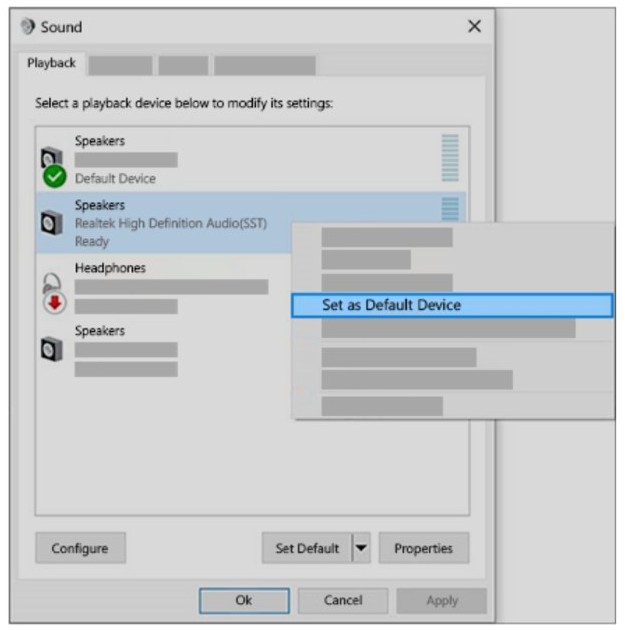
Sound devices are not on the Devices page. Windows 10 manages them under System > Sound, and it keeps the default device option in the older Sound dialog.
- Select the Speakers icon on the taskbar, then select the up arrow and choose your speakers or headphones for a quick switch.
- For a permanent default, type control panel in the taskbar search box and open it.
- Select Hardware and Sound, then select Sound.
- On the Playback tab, right-click your audio device and select Set as Default Device.
- Select OK.
To check that a device is enabled, select Start > Settings > System > Sound, select the device, select Device properties, and clear Disable.
Recording devices settings in Windows 10
Microphones use the same Sound page. A moving line in the test confirms that the PC is hearing you, which separates a device problem from an app problem.
- Select Start > Settings > System > Sound.
- Under Input, select your microphone in Choose your input device.
- Select Device Properties.
- Speak normally and watch Test your microphone. The line should move.
- If the sound is too quiet, open the Levels tab, adjust Microphone and Microphone Boost, then select OK.
If apps still cannot hear you, open Settings > Privacy > Microphone, then turn on Allow apps to access your microphone and Allow desktop apps to access your microphone.
Mobile device settings in Windows 10
Phones connect through the Phone Link app. Android needs Android 10 or later, and the phone and PC must share a Wi-Fi network. iPhone needs iOS 16 or later and a PC with Bluetooth Low Energy. You can also set up Phone Link step by step for texts, calls and photos.
- Type Phone Link in the taskbar search box and open it.
- If it is missing, open Settings, search for Phone Link, and select Enable or disable Phone Link.
- Turn on the toggle, then select Install in the pop-up.
- Follow the prompts in the app to choose your phone and link it.
Phone Link does not support work or school accounts.
Windows 10 device security settings
These settings live in the Windows Security app rather than in Settings > Devices. Open Windows Security, then select Device security. Options vary with your hardware and Windows version.
| Section | What it does |
|---|---|
| Core isolation | Protects core Windows processes by running them in a virtualized environment |
| Memory integrity | A Core isolation toggle that helps stop malicious programs from using low-level drivers to take over the PC |
| Security processor | Shows the TPM manufacturer, version and status |
| Secure boot | Helps prevent rootkits from loading when the device starts |
| Hardware security capability | Rates the security level your hardware supports |
Change device driver settings in Windows 10
Windows Update delivers drivers for many devices, and optional driver updates stay hidden until you open them. If Windows Update has nothing for your device, check the hardware maker's website for a compatible driver.
- Select Start > Settings > Update & Security > Windows Update > Advanced options.
- Turn on Receive updates for other Microsoft products when you update Windows.
- Return to Windows Update and select Check for updates.
- If View optional updates appears, select it and choose the driver updates you want.
- Select Download and install, then restart the PC.
How to see connected devices in Windows 10
- Select Start > Settings > Devices > Bluetooth & other devices and look for your device in the list.
- Select Printers & scanners to find an added printer or scanner.
- Right-click the Start button and select Device Manager.
- Expand the matching category, such as Mice and other pointing devices or Human Interface Devices, and look for your device.
Windows 10 devices settings not working
The Bluetooth toggle is missing in Windows 10
The PC might not have a Bluetooth adapter, or its driver might not be installed.
- Check the PC maker's specifications to confirm that it has Bluetooth.
- Right-click the Start button and select Device Manager.
- Expand Bluetooth, right-click the adapter and select Update driver.
- Select Search automatically for updated driver software.
The Touchpad page is missing from Devices settings
The page appears only when touchpad hardware is present, and a missing or outdated driver can stop a touchpad from working.
- Right-click the Start button and select Device Manager.
- Look under Human Interface Devices or Mice and other pointing devices.
- Right-click the touchpad and select Update driver.
- If that does not help, reinstall the touchpad from Device Manager and restart.
A mouse or keyboard stops responding in Windows 10
A port, cable, hub, battery or driver problem is the usual cause.
- Unplug the device, wait a moment and plug it back in.
- Try a different USB port, and connect directly to the PC if you use a hub.
- For a wireless receiver, unplug it for about 10 seconds and plug it back in.
- Charge or replace the batteries.
- Double-click the device in Device Manager, select the Driver tab and select Update Driver.
Windows 10 devices settings FAQ
How do I change device settings in Windows 10?
Select Start, then Settings, then Devices. Pick the page for your hardware, such as Printers & scanners, Mouse or Bluetooth & other devices, and change the option there. Sound settings sit separately under System > Sound.
Where are the other devices settings in Windows 10?
They are on the Bluetooth & other devices page, at Start > Settings > Devices. Select the device in the list to remove it, or select Add Bluetooth or other device to add one. Wireless displays and docks appear on this page too.
Where are the devices and printers settings in Windows 10?
Go to Start > Settings > Devices > Printers & scanners to add, remove or manage a printer. Press Windows logo key + R and type ms-settings:printers to jump straight there. The older Devices and Printers view is still available through Control Panel.
How do I set default devices in Windows 10?
Default printers and sound devices have separate settings. For a printer, select Manage on Printers & scanners, then Set as default. For audio, open the Sound dialog in Control Panel, right-click a device on the Playback tab, and select Set as Default Device.
Where are mobile device settings in Windows 10?
Mobile devices connect through the Phone Link app. Type Phone Link in the taskbar search box and open it. If it is missing, search Settings for Phone Link, select Enable or disable Phone Link, turn on the toggle, and select Install.
Which Windows 10 device settings give the fastest Wi-Fi?
No Devices page controls Wi-Fi speed, because Wi-Fi settings live under Network & Internet. To keep a connection from dropping, set Power Saving Mode to Maximum Performance in Power Options. You can also try your router's other band, or move closer to the router.