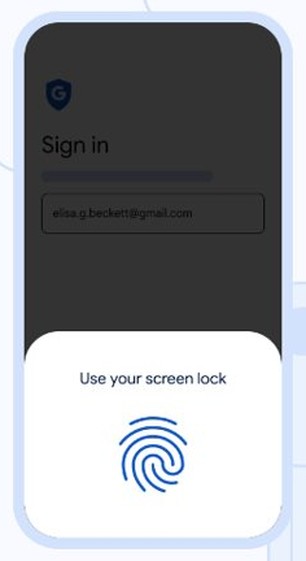
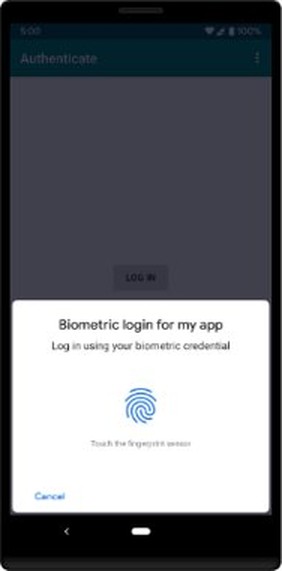
Google asks for your fingerprint or PIN on Android because your phone's screen lock is one way it confirms that the person approving a sign-in or sensitive action is you.
Unlock the phone with the method it asks for, keep it online, and tap Try another way if the check still fails. The sections below cover the causes, the fixes on your phone and account, and other ways to sign in.
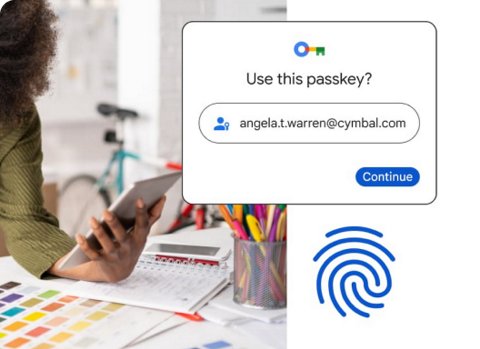
What you’re seeing: the Google 2FA prompt that won’t move past fingerprint or PIN
You tap the prompt, Android asks you to verify with a fingerprint or PIN, and the sign-in stalls or asks again. These steps clear the most common causes in order.
- Unlock your phone with its PIN, pattern, or password once, so the fingerprint sensor is available again.
- Connect to steady Wi-Fi or mobile data, because a dropped connection makes the screen lock check fail.
- Go back to the sign-in screen on your other device and select Resend.
- Tap the notification on your phone and approve it, matching the number on screen if you are asked to.
- Use the same finger you normally unlock with, or enter your screen lock when Android asks.
- Select Try another way on the sign-in screen if the check still fails, then pick a different method.
Why Google asks for fingerprint/PIN during 2FA on Android
Several separate Google and Android checks look the same on screen. Knowing which one you hit tells you which fix applies.
| What triggered it | What Android asks for | Why |
|---|---|---|
| Verify it's you on your phone | Pattern, PIN, password, or fingerprint | Google accepts your screen lock as proof of identity |
| A sensitive action on your account | A verification step, which can be your screen lock | It adds a challenge even if someone has your sign-in details |
| A passkey sign-in | Fingerprint, face scan, or PIN | A passkey is unlocked by your device's screen lock |
| Identity Check, away from a trusted place | Biometrics only | A PIN, pattern, or password will not satisfy Verify it's you there |
| Unusual sign-in activity | Number matching on the prompt | Google may ask for this when something differs, such as your location |
Your fingerprint and face data stay on your device. Google says this biometric data is never shared with it.
Prerequisites to make Google 2FA prompt actually work
A prompt can only reach a phone that meets all of these. Check each one before you change any account settings.
| You need | How to check it |
|---|---|
| An Android phone signed in to your Google Account | Settings > Accounts & backup > Manage Accounts (labels vary by phone) |
| An internet connection | Turn on Wi-Fi or mobile data and load a web page |
| A screen lock | Settings > Security > Screen lock |
| Notifications that can appear | Turn off Do Not Disturb |
| Current Google Play services | Settings > your profile picture > All services > System services > Google Play services |
| A correct date and time | Clock app > More > Settings > Change date and time > Automatic date and time |
Fix it on your Android (screen lock + biometrics)
Menu names vary by phone maker, so look for the closest match, or use your manufacturer's support site if you cannot find Security. The Pixel labels below are one example.
- Open Settings > Security and tap Screen lock. Choose a PIN, Pattern, or Password if it is set to None or Swipe.
- On a Pixel, open Settings > Security & privacy > Device unlock > Fingerprint and enter your backup PIN, pattern, or password.
- Delete a fingerprint that often fails, then add it again, centering your finger and then adjusting it to capture the edges and tips.
- Clean the sensor with a lens wipe or soft cloth, and keep your finger clean and dry.
- Open Settings > your profile picture > All services > System services > Google Play services, and tap Update if it is offered.
- Open Settings > Apps > Google Play services > Storage & cache and tap Clear cache.
- Try the sign-in again and tap Resend on the sign-in screen if the prompt has expired.
Clear the cache only, not the storage. Google warns that clearing the data can delete saved passwords and payment cards.
Fix it in your Google Account (2-Step Verification + recent sign-in behavior)
Google picks the challenge it thinks is best, so the account side can change what you are asked for. Recent changes to your account can also delay or block a sign-in step.
- Open your Google Account at myaccount.google.com and select Security & sign-in.
- Select 2-Step Verification and confirm you have at least one backup method, such as backup codes or an authenticator app.
- Under How you sign in to Google, turn off Skip password when possible if you want your password asked for first instead of a passkey.
- On your sign-in screen, select Try another way when a passkey appears, so you can skip that challenge. Google offers it less often if you do this regularly.
- Remove any old device from your account if it still receives prompts you cannot answer.
- Wait 7 days if a newly added device, phone number, security key, or passkey is being rejected for a sensitive action.
If you have only one method on the account, set up 2-Step Verification with a second one now, so one failed check never locks you out.
Common gotchas that trigger repeated fingerprint/PIN prompts
Each of these looks like a broken prompt, but the fix for each is small. Find your situation and do the one thing it needs.
| Your situation | What happens | Do this |
|---|---|---|
| You restarted your phone recently | A backup PIN, pattern, or password is required on Pixel phones | Enter it once, then use your fingerprint again |
| You have not used your backup in 72 hours | A Pixel asks for your backup PIN, pattern, or password | Enter it once, then try the prompt |
| Your fingerprint failed a few times | Android switches to your backup method | Enter your PIN, pattern, or password |
| Identity Check is on and you are away from a trusted place | Biometrics are enforced, so a PIN will not work | Use your fingerprint or face, or return to a trusted place |
| You requested several codes | Only the newest code works | Enter the most recent code you received |
| You see Request Expired | The prompt timed out | Go back to the sign-in screen and select Resend |
| You are on a VPN or in a new location | Google may treat the sign-in as unusual | Follow the number match, or try from a usual device |
Troubleshooting when fingerprint/PIN still fails
Your fingerprint is not recognized
The sensor cannot read the finger because it is wet, dirty, covered, or not the enrolled one.
- Use the same finger you normally unlock your phone with.
- Keep your finger clean and dry, and remove anything covering the sensor.
- On Pixel 6 and later, press firmly and hold until the phone unlocks.
The screen lock check fails right after you enter it
The check needs an internet connection, and a dropped connection makes it fail.
- Switch to a steadier Wi-Fi or mobile network.
- Start the sign-in again and enter your screen lock.
The Google prompt never arrives on your phone
The phone is offline, signed out, silenced, or running an old version of Google Play services.
- Select Resend on the sign-in screen.
- Confirm the phone is online and turn off Do Not Disturb.
- Update Google Play services and confirm you are signed in on the phone.
- Try signing in again.
A prompt appears that you did not request
Someone else may have your password, so treat this as a warning.
- Tap No, don't allow on the prompt.
- Change your Google Account password and review your sign-in activity.
- You can also check Google My Activity on Android for anything you do not recognize.
Authenticator codes are rejected on your phone
The code expired, belongs to a different account, or your device's clock is off.
- Enter a new code before it expires, and check that it is for the correct Google Account.
- Turn on Automatic date and time, because Authenticator now uses your phone's clock.
A work or school account keeps demanding extra steps
Your administrator controls whether 2-Step Verification is required for your account and which steps it allows.
- Use one of your backup options to sign in.
- Contact your administrator if you cannot get in or a required method is missing.
Alternatives if you can’t use biometrics for this sign-in
Your fingerprint is one option, not the only one. Select Try another way on the sign-in screen to see what your account has set up, because only methods added ahead of time appear.
| Method | Works when | Keep in mind |
|---|---|---|
| Screen lock PIN, pattern, or password | The sensor fails but you know your lock | Not accepted under Identity Check away from a trusted place |
| Backup code | You have no phone or no signal | Each 8-digit code works once, so mark it as used |
| Google Authenticator code | You have no internet or mobile service | A new authenticator can take up to 7 days to appear as a sign-in option |
| Text message or voice call | You have mobile signal on your recovery number | Unusual activity can block these codes, and they are more exposed to phone-number attacks |
| Physical security key | You own a key and connect it by NFC or USB | A new key can take about 7 days to work at sign-in |
| Another signed-in phone | A second phone is signed in to the account | It receives the prompt just like the first phone |
| A computer you use often | No other option appears | Google recommends this when no options are shown |
Add a second fingerprint for Google Prompt on Android
A second enrolled finger gives you a fallback when one fails, for example with a cut or a wet hand. It also lets you approve a prompt with whichever hand is holding the phone.
- On a Pixel, open Settings > Security & privacy > Device unlock > Fingerprint.
- Enter your backup PIN, pattern, or password.
- Choose the option to add another fingerprint and follow the prompts.
- Center your finger over the sensor, then adjust it to capture the edges and tips.
- Test the new finger on the lock screen before you rely on it.
Pixel phones allow up to 4 fingerprints. Other Android phones use similar steps under their own security menus.
Is password and fingerprint 2FA?
Yes, a password and a fingerprint count as two factors. A password is something you know and a fingerprint is something you are, and multifactor sign-in needs two or more different kinds. Two passwords would not qualify. On Google's sign-in, a passkey can also work as a stronger second step when your password comes first.
Face, fingerprint, PIN or security key for Google 2-Step Verification
These four options differ in where the check happens and what you need to have with you.
| Option | Where it is checked | What you need |
|---|---|---|
| Face | On your device, with data never shared with Google | A phone or computer with face unlock and a screen lock |
| Fingerprint | On your device, with data never shared with Google | A device with a sensor, an enrolled finger, and a backup lock |
| PIN | On your device, as part of your screen lock | A PIN of 4 or more digits, with 6 or more recommended |
| Security key | On the key, which you connect when asked | A compatible key connected by NFC or USB |
How to test Google Prompt 2FA on Android
Test this while you are still signed in somewhere, so a problem does not lock you out of the account.
- Open a private browser window on a computer and go to your Google Account.
- Enter your email address and your password if you are asked for it.
- Tap the notification when it appears on your phone, and match the number if you are asked to.
- Verify with your fingerprint or screen lock when Android asks.
- Confirm the computer finishes signing in, then close the private window.
Google Prompt 2FA FAQ
Why does Google ask for fingerprint even when I'm just entering the 2FA code?
They are usually two separate checks. The code answers the sign-in, while the fingerprint answers an Android Verify it's you request or a sensitive action on the account. Google asks because it adds a challenge even if someone already has your sign-in details.
What if fingerprint works for unlocking my phone, but Google still demands PIN?
Enter the PIN once. On Pixel phones, your backup method is required after a restart, after switching users, after a few failed scans, or after 72 hours without using it. Fingerprint then works again. If it keeps happening, tap Try another way.
Does turning off fingerprint unlock fix Google 2FA loops?
No, and it can make sign-in harder. Without a screen lock you cannot use a passkey on that device, and removing the lock also deletes your fingerprints on Pixel phones. Fix the sensor or connection, or tap Try another way instead.
Can VPN or a custom DNS trigger repeated 2FA prompts?
A VPN can, because it changes where your sign-in appears to come from, and Google may add number matching or block text codes on unusual activity. Google's help does not name custom DNS as a trigger, so test with the VPN off first.
Will factory resetting solve this?
Do not start there. A factory reset erases the phone's data and removes its sign-in to your account, so you lose that phone as a way to approve prompts. Use Try another way, backup codes, or account recovery before you consider it.
Do I need a screen lock to use Google prompts?
You should have one. Google tells you to turn on a screen lock to stop other people from using your phone to approve sign-ins, and you cannot use a passkey on a device without a screen lock.
What does Identity Check do on Android?
Identity Check requires biometrics for sensitive changes such as your Google Account password and recovery factors. Outside your trusted places, any app that asks to verify it's you enforces biometrics, so a PIN, pattern, or password will not work there.
Should you turn off Google Prompt 2-Step Verification on Android?
No, keep Google prompts and 2-Step Verification on, and add a backup method instead. Turning 2-Step Verification off removes a layer of security and makes it easier for someone else to get into your account. Backup codes and an authenticator app solve the real problem, which is being stuck when one method fails, so set them up before you need them.