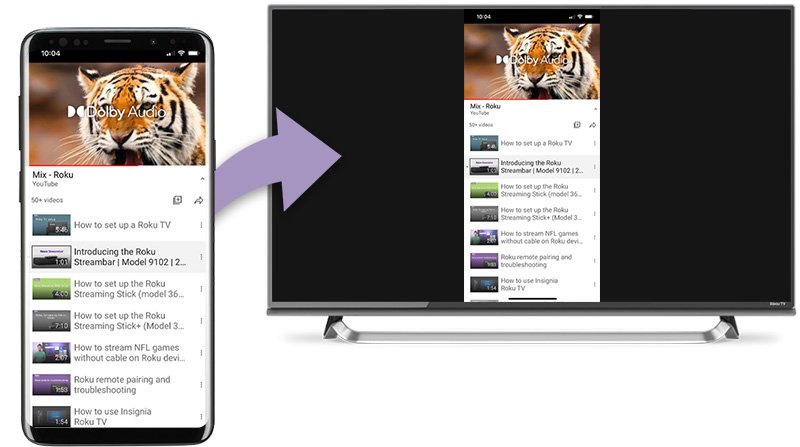
To screen mirror Android to a TV, connect both to the same Wi-Fi network, tap Smart View or Cast in your phone's Quick Settings panel, and select the TV.
This guide covers Roku, Chromecast and Google TV devices, Samsung phones over HDMI, casting a single video, stopping a session and fixing a TV that will not connect.
Step by step tutorial: how to screen mirror Android to TV
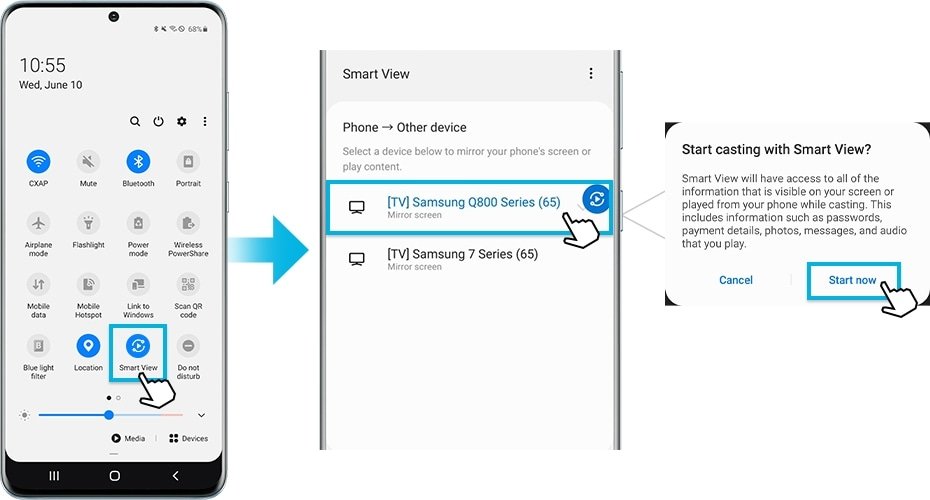
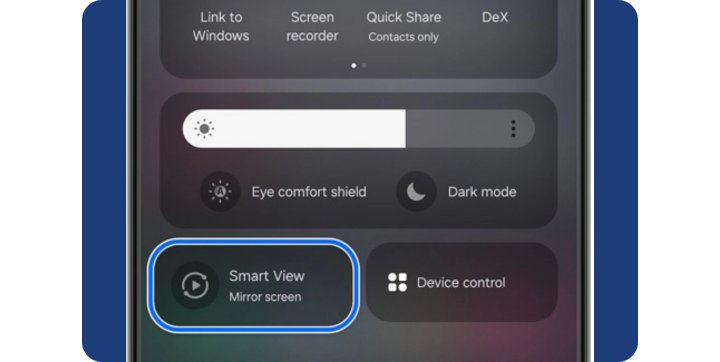
The exact names vary by phone maker. These steps fit phones with a mirroring button in the status bar panel, such as Samsung's Smart View.
- Check that your TV supports Android mirroring. Roku devices, Chromecast and Google TV devices do.
- Connect the phone and the TV to the same Wi-Fi network.
- Pull down the status bar on the phone. Swipe across the panel if you need to find the button.
- Tap Smart View, or your phone's equivalent such as Screen casting or Cast.
- Select your TV from the list of devices.
- Accept the request on the TV if one appears. Your phone screen then shows on the TV.
Android screen mirroring for Roku, Chromecast and Miracast TVs
| Your setup | Use this | Why |
|---|---|---|
| Chromecast or Google TV device | Google Home app > hold the tile > Cast > Cast my screen | Google's documented route, on Android 8.0 or later |
| Roku player or Roku TV | Your phone's mirroring button, then Allow on the TV | Roku shows a request on the TV screen |
| TV that supports Miracast | Your phone's mirroring button | Miracast is the standard behind Android screen mirroring on those TVs |
| Samsung Galaxy phone, no usable Wi-Fi | Samsung DeX with a USB-C to HDMI cable | A cable replaces the wireless link on compatible models |
| You only want a video on the TV | The media controls' output switcher | The TV plays the video instead of copying your screen |
Does Android have screen mirroring?
Yes, but the label depends on the phone. Roku says Android 10 or later generally supports mirroring to its devices, with Google-branded phones as the exception.
| What to check | Detail |
|---|---|
| Names to look for on your phone | Smart View, Quick Connect, SmartShare, AllShare Cast, Wireless display, Display mirroring, HTC Connect, Screen casting or Cast |
| Mirroring from the Google Home app | Android 8.0 or later, with a Google streaming device |
| Mirroring to a Roku device | Generally Android 10 or later, excluding Google-branded devices such as Pixel and Nexus |
| Roku models without mirroring | Roku Express model 3700 and Roku Express+ model 3710 |
| Roku model with a limit | Roku Express+ model 3910 mirrors over HDMI only, not composite or A/V output |
| Find your Roku model | Settings > System > About |
How to screen mirror Android to TV wirelessly with Google Home
This route needs a Chromecast that is already set up or another Google streaming device. It also needs the Google Home app on the phone.
- Turn on microphone permission for Google Play Services on your phone.
- Connect the phone to the same Wi-Fi network as the streaming device.
- Open the Google Home app.
- Tap Favorites or Devices.
- Tap and hold the tile of the TV.
- Tap Cast, then tap Cast my screen, Cast screen or Cast one app, depending on what your version shows.
How to screen mirror Android to Roku
You start the connection from the phone, and the request then appears on the TV. Roku's own example uses a Samsung phone, and steps on other models can differ.
- Connect the phone to the same network as the Roku device.
- Pull down the status bar and tap Smart View, or your phone's mirroring button.
- Select your Roku device from the list.
- On the TV, use the Roku remote to select Allow or Always allow.
- Browse your phone and play content from its apps. Control playback from the phone.
Roku screen mirroring request: allow, always allow, block
| Option on the TV | What it does |
|---|---|
| Always allow | Lets this phone mirror without a prompt in future and adds it to the allowed list |
| Allow | Lets this phone mirror for the current session only |
| Block | Blocks this attempt only |
| Always block | Blocks every future attempt from this phone with no prompt and adds it to the blocked list |
How to connect a Samsung phone to TV with HDMI and DeX
Samsung DeX shows a desktop-style view on the TV rather than a plain copy of the phone screen. Compatible phones include the Galaxy S8 series and later, but the S26 FE and Z Flip7 FE do not support DeX over HDMI.
- Check your model against Samsung's DeX compatibility list.
- Connect a supported USB-C to HDMI cable or adapter to the phone.
- Plug the HDMI end into the TV.
- Switch the TV to that HDMI input.
- Wait for DeX mode to start on the TV.
Wireless DeX also works with TVs that support Android screen mirroring (Miracast), with both devices on the same Wi-Fi network.
How to cast a video from Android to TV without mirroring
The output switcher sends only the video or music to a Chromecast or Google TV device. Some apps do not support it yet, so the TV may be missing from the list in those apps.
- Connect the phone to the same Wi-Fi network as the TV device.
- Start the video or music in its app.
- Open the lock screen or notification shade.
- At the top right of the media controls, tap the output switcher.
- Select your TV from the list. Playback moves to the TV.
- To bring it back, tap the output switcher again and select This phone.
How to tell if Android is mirroring to your TV
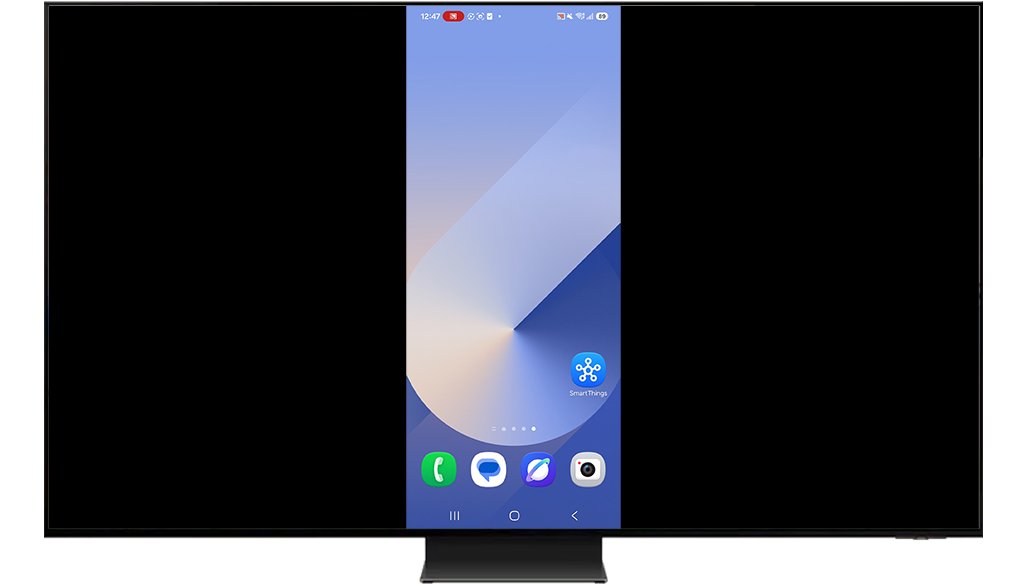
- Look at the TV. It shows your whole phone screen, including buttons and menus.
- Open another app on the phone and watch the TV change with it.
- In the Google Home app, tap and hold the TV's tile and look for Stop mirroring.
- On a phone using Smart View or a similar button, open the same menu and look for your TV as the connected device.
Android screen mirroring vs casting
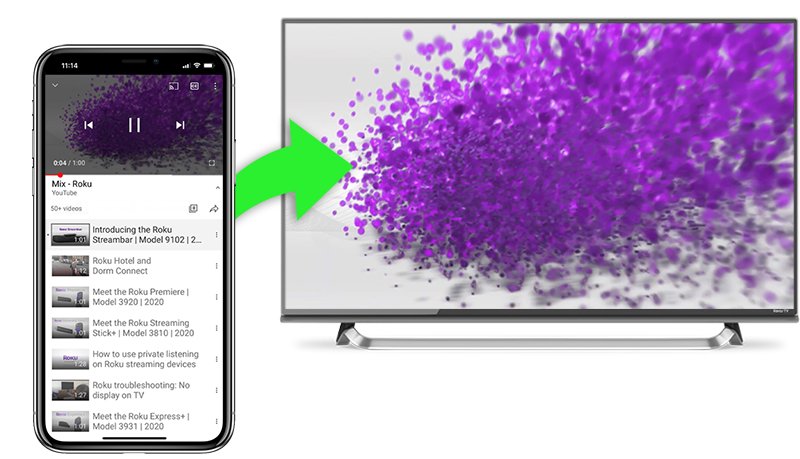
Mirroring copies everything on the phone, while casting sends one piece of content. An iPhone uses AirPlay to mirror to a TV instead, so a household with both phone types can compare casting on any phone.
| Screen mirroring | Casting | |
|---|---|---|
| Works with | Any app on the phone | Only apps that support casting |
| What the TV shows | The whole phone screen | Only the content you selected |
| Control | From the phone | From the phone or the Roku remote |
| Phone during playback | Must stay powered on | Free for other tasks, and it can even be turned off |
How to stop screen mirroring on Android
- From the Google Home app, tap and hold the TV's tile, then tap Stop mirroring.
- From a Roku device, press Home on the Roku remote.
- From the phone, open the mirroring menu and deselect or disconnect the TV.
- From the output switcher, select This phone to bring a cast video back.
Tips: how to screen mirror Android to TV
| Tip | Why it helps |
|---|---|
| Cast video from a supported app instead of mirroring | The phone stays free for other tasks, and Roku says it can even be turned off |
| Turn on low power mode or battery saver | Google recommends it so the phone lasts the whole session |
| Choose Always allow on a Roku you use often | The prompt stops appearing for that phone |
| Rename your Roku device | A clear name and location make it easier to pick from the list |
| Keep private apps closed while mirroring | The TV shows everything on the phone screen |
| Check the model before buying a cable | Not every Galaxy model supports DeX over HDMI |
Android screen mirroring not working on TV
The TV does not appear in the list on the phone
The phone and TV are usually on different networks.
- Connect both to the same Wi-Fi network.
- Restart the TV or streaming device. For a Chromecast or Google TV device, unplug it for a few seconds and plug it back in.
- Restart your router, then try again.
Android will not connect to Roku or the screen stays off
Roku points to device compatibility, the Wi-Fi network or the mirroring settings.
- Restart the Roku device.
- Restart your router.
- Forget the network on the phone.
- Reconnect the phone to the same network as the Roku device.
- Try screen mirroring again.
Cast my screen does not work in the Google Home app
The phone is older than Android 8.0, or Google Play Services lacks microphone permission.
- Check that the phone runs Android 8.0 or later.
- Turn on microphone permission for Google Play Services.
- Confirm the phone and streaming device share one Wi-Fi network.
A Pixel phone cannot mirror to Roku
Roku excludes Google-branded phones from its Android mirroring guidance.
- Use a Chromecast or Google TV device with the Google Home app instead.
- For video, use casting from an app that supports Roku.
The Roku model is not supported
Roku Express model 3700 and Roku Express+ model 3710 lack mirroring.
- On the Roku, open Settings > System > About and read the model number.
- If it is one of those models, cast from an app that supports Roku instead.
No TV shows in the media controls output switcher
Some apps do not support this feature yet or need an update.
- Update the app you are playing from.
- Confirm the phone is on the same Wi-Fi network as the TV device.
- Use Cast my screen in the Google Home app if the app still lists no devices.
Android to TV screen mirroring FAQ
How do I screen mirror Android to TV?
Connect the phone and TV to the same Wi-Fi network, pull down the status bar, and tap Smart View or your phone's mirroring button. Select the TV from the list and accept any request that appears on the TV.
Does Android have screen mirroring?
Yes. The feature goes by names such as Smart View, Screen casting, Wireless display or Cast. Android 8.0 or later can also mirror to Google streaming devices through the Google Home app.
Can I mirror my Android to any TV?
No. The TV needs a compatible system, such as Chromecast, Google TV, Roku or Miracast support. A compatible Samsung phone can also connect by HDMI through DeX, and a streaming device can add mirroring to a TV with no support.
How do I screen mirror Android to Roku?
Connect the phone to the same network as the Roku device, tap Smart View or your phone's mirroring button, and select the Roku. Then use the Roku remote to choose Allow or Always allow on the TV.
How do I screen mirror Android to TV wirelessly?
Use a mirroring button on the phone or the Google Home app with both devices on one Wi-Fi network. In Google Home, hold the TV's tile, tap Cast, then tap Cast my screen or Cast screen.
Does screen mirroring use a lot of Wi-Fi data?
Neither Google nor Roku publishes a figure for mirroring. The session runs over your Wi-Fi network between the phone and TV, and any video you play from an app on the phone still streams to the phone.
Can I still use my phone while screen mirroring?
Yes, and you control everything from the phone. Everything you open also appears on the TV, including buttons and menus. Casting from a supported app leaves the phone free for other tasks without showing them on the TV.
Can I screen mirror without Wi-Fi?
Google and Roku both require the phone and TV device to share a network, and Google has retired Chromecast guest mode. A compatible Samsung phone can connect by USB-C to HDMI cable through DeX instead of Wi-Fi.
Will screen mirroring work if my phone is locked?
Roku says the phone must stay powered on for the whole session when mirroring, and neither Roku nor Google documents mirroring from a locked phone. To keep a video playing with the phone off, cast it from a supported app.