Download Google Chrome on a Windows 10 or Windows 11 PC from google.com/chrome: select Download Chrome, open the installation file, and select Yes at the Windows prompt.
The same steps work on HP, Dell, Lenovo and Acer laptops because Google's instructions depend on the Windows version and not the brand. This guide also covers offline installation, first-time setup and the errors that stop an install.
The safest place to download Google Chrome
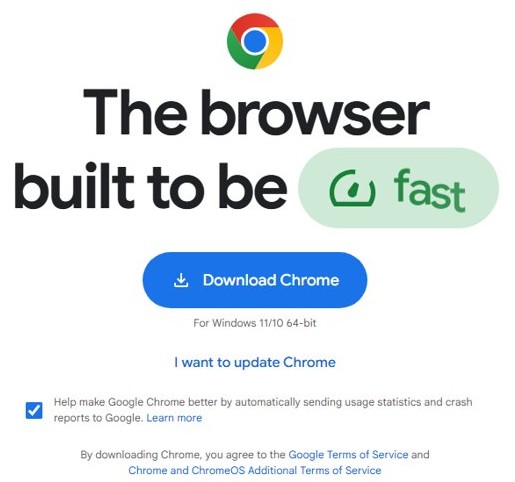
The safest source is Google's own page, google.com/chrome. Google's install instructions start there, and the line under the button tells you which build you are getting.
- Open any browser, type
google.com/chromein the address bar and press Enter. - Select Download Chrome. The line under the button should read For Windows 11/10 64-bit.
- Open the installation file from your Downloads folder.
- Select Yes when Windows asks "Do you want to allow this app to make changes to your device?"
- Wait for the installer to finish. A Chrome window opens on its own.
If you want a specific release channel, you can download Google Chrome for PC with the installer file names and sizes listed for each one.
Google Chrome system requirements for Windows 10 and Windows 11
Before you download Chrome, check the items below. Most failed installs trace back to one of them, and you need nothing beyond a supported Windows version and a working connection.
| Item | What Chrome requires |
|---|---|
| Windows on an Intel processor | Windows 10 or later, with a Pentium 4 or newer processor that supports SSE3 |
| Windows on an ARM processor | Windows 11 or later |
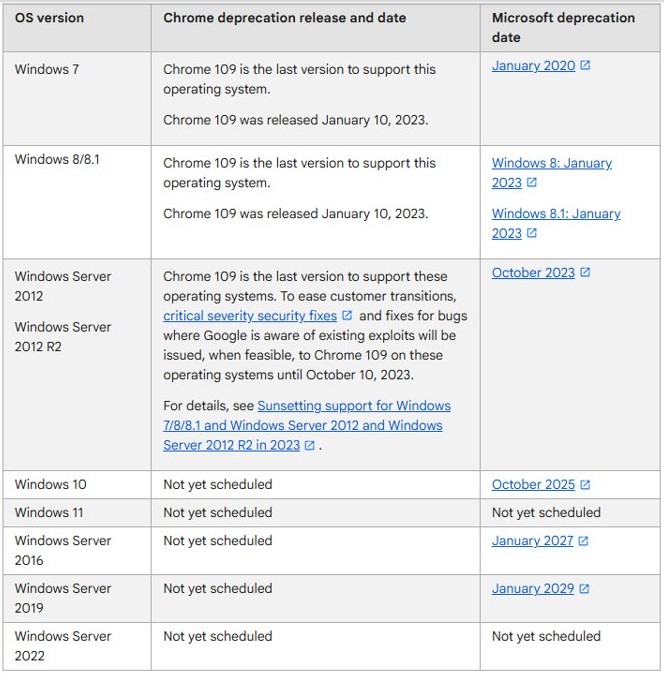
| Windows Server | Windows Server 2016 or later on an Intel processor |
| S mode | Not supported, so switch out of S mode first |
| Windows 7, 8 and 8.1 | No longer supported |
| Internet | A stable connection, or an offline installer copied from another PC |
| Account rights | Approve the Windows prompt, or ask your administrator if you cannot |
How to download Google Chrome on Windows 11
Windows 11 includes Microsoft Edge, so that is the browser you start from on a new PC.
- Select Start and open Microsoft Edge.
- Go to google.com/chrome.
- Select Download Chrome and wait for the file to save.
- Open the installation file from the Downloads folder.
- Select Yes at the Do you want to allow this app to make changes to your device? prompt.
- Wait for Chrome to install and open.
An ARM-based Windows 11 PC needs the ARM build, which Google also offers on its Chrome Enterprise download page under 64 bit (ARM).
How to download Google Chrome on Windows 10
Chrome still lists Windows 10 as a supported system. Confirm your Windows type first, because Windows 10 exists in both 32-bit and 64-bit versions.
- Select Start > Settings > System > About.
- Read System type under Device specifications.
- Open a browser and go to google.com/chrome.
- Select Download Chrome if the page shows For Windows 11/10 64-bit and your system type is 64-bit.
- Wait for the file to save in your Downloads folder, then run it as described in the next section.
Install Google Chrome on Windows 10
- Open the installation file from your Downloads folder.
- Select Run if Windows asks "Do you want to run this file?"
- Select Yes if Windows asks "Do you want to allow this app to make changes to your device?"
- Follow the on-screen instructions until the installer closes.
- Use the Chrome window that opens when installation finishes.
You can delete the installation file afterwards. Google confirms Chrome no longer needs it once installed.
How to install Chrome for all users on a Windows 10 PC
The standard download suits one person. For a PC with several accounts, Google publishes a separate offline installer for multiple users.
- Sign in to Windows with an administrator account.
- Open Google's installer for multiple user accounts.
- Download the file and open it from the Downloads folder.
- Select Yes at the Windows prompt and let the install finish.
- Sign in to a second Windows account and confirm Chrome appears in the Start menu.
Businesses that deploy Chrome across many PCs can use the Bundle or MSI packages on the Chrome Enterprise download page.
How to download the Chrome offline installer
An offline installer holds the whole browser, so it helps when the standard download fails or the target PC has no connection. Google links each version from its help pages.
| Your situation | Use this | Why |
|---|---|---|
| One Windows account uses the PC | Offline installer for one user | Installs Chrome for your account |
| Several Windows accounts use the PC | Offline installer for multiple users | Installs Chrome for everyone on the PC |
| You are downloading on a different system | Other Platforms page, then select Windows and your version | Lets you pick the file for the target PC |
| You need an MSI or a 32-bit package | Chrome Enterprise download page | Lists Stable and Beta, Bundle and MSI, and each architecture |
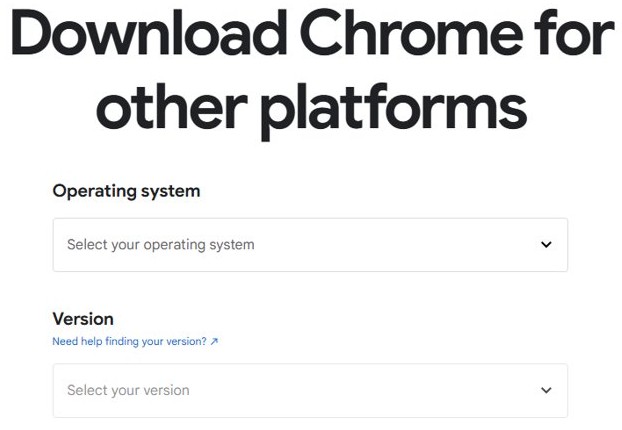
Install Chrome without an internet connection using the offline installer
- On a PC with internet access, download the offline installer that fits the target PC.
- Copy the file to a USB drive.
- Plug the drive into the PC that has no connection and copy the file to its desktop.
- Open the file and select Yes at the Windows prompt.
- Follow the on-screen instructions to finish the install.
Connect the PC to the internet when you can. Chrome's updater needs a connection to deliver security patches.
How to download Chrome without using Edge prompts
You can reach the installer without following any suggestion from Microsoft Edge. Any banner Edge shows on the page belongs to Edge and is not part of Google's download.
Go straight to Google's page in Edge
- Open a new Edge tab and type
google.com/chromedirectly in the address bar. - Close any Edge banner on the page if one appears.
- Select Download Chrome.
Skip the browser with WinGet
- Select Start, type
cmdand open Command Prompt. - Run
winget search "Google Chrome"and note the Id of the Google Chrome entry. - Run
winget install --idfollowed by that Id and-e, which forces an exact match. - Select Yes if Windows asks for permission.
WinGet is part of App Installer on Windows 11 and modern versions of Windows 10, and Microsoft supports it on Windows 10 version 1809 or later.
Should you download Chrome from the Microsoft Store?
Use Google's website. Google's install instructions name google.com/chrome as the source and do not list the Microsoft Store as a route. If a Store listing tempts you, check that Google is the publisher before you select Get.
The Store matters most in S mode, where Windows installs Store apps only. Google states Chrome cannot be installed in S mode, so the fix is to switch out of it, as shown under the common problems below.
Should you choose 64-bit Chrome?
Yes, if your Windows is 64-bit. Google's main page offers the 64-bit build by default, and Windows 11 has no 32-bit version at all. Match the build to the System type value in Settings > System > About, and once it is installed you can check whether Chrome is 32-bit or 64-bit.
| System type shows | Download this |
|---|---|
| 64-bit operating system on an x64 PC | The default Download Chrome button |
| 64-bit operating system on an ARM-based PC | 64 bit (ARM) on the Chrome Enterprise page |
| 32-bit operating system (Windows 10 only) | 32 bit (x86) on the Chrome Enterprise page |
What happens during Chrome installation?
Installation is short and asks for little. Here is what each stage does on your PC.
| Stage | What happens | What you do |
|---|---|---|
| Download page | A box offers to send usage statistics and crash reports to Google | Tick or clear Help make Google Chrome better |
| Download | The installation file saves to your Downloads folder | Open the file |
| Permission | Windows asks to let the app make changes | Select Yes |
| Install | Chrome copies its files and opens a window when done | Nothing |
| Updater | GoogleUpdater starts checking regularly for new versions | Nothing |
| Clean-up | The installation file stays in Downloads | Delete it if you want the space back |
GoogleUpdater sends the release channel, basic hardware details and your Chrome version with its update checks. Google says each installation is not given its own identifier.
How to check that Chrome installed correctly
- Select Start, type
Chromeand open Google Chrome. - Select More (the three dots) at the top right.
- Select Help > About Google Chrome and read the version number.
- Select Relaunch if it appears. No Relaunch button means you already have the latest version.
- Open Settings > Apps > Installed apps on Windows 11, or Apps & features on Windows 10, and find Google Chrome in the list.
Set up Chrome after installation
Two settings decide how Chrome behaves each time it opens. Set them once and leave them.
Choose what opens at startup
- Select More > Settings.
- Select On startup on the left.
- Choose Open the New Tab page, Continue where you left off or Open a specific page or set of pages.
Show the Home button
- Select More > Settings.
- Under Appearance, turn on Show Home button.
- Choose the New Tab page or enter a custom page.
How to set Chrome as your default browser
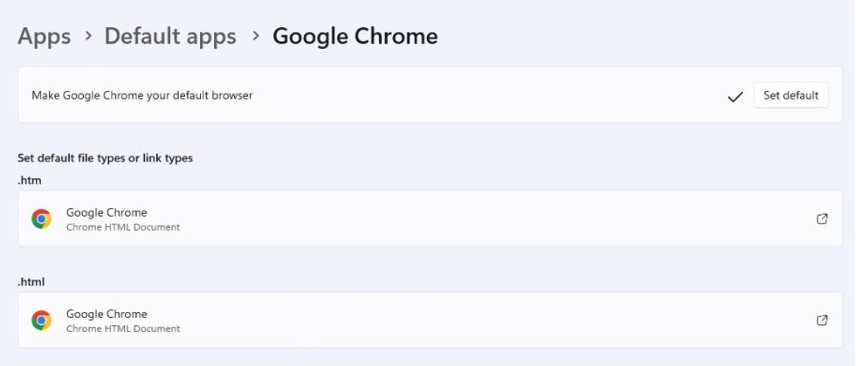
Links from email and other apps keep opening in Edge until you change this. Windows blocks the change in S mode, where Edge always stays the default.
Set Chrome as default on Windows 11
- Select Start > Settings.
- Go to Apps > Default apps.
- Search for
Chromeand select Google Chrome. - Select Set default next to the option to make Chrome your default browser.
Set Chrome as default on Windows 10
- Select Start > Settings.
- Go to Apps > Default apps.
- Under Web browser, select your current browser.
- Select Google Chrome in the Choose an app window.
How to sign in to Chrome and sync your data
Signing in is optional and requires a Google Account. It brings your bookmarks, passwords and more to every device where you use the same account.
- Open Chrome and select Profile at the top right.
- Select Sign in to Chrome.
- Enter your Google Account details.
- Select Next.
Your Chrome history can sync too if Web & App Activity is on for your account, which also personalizes other Google products.
How to import bookmarks, passwords, and settings
Export your bookmarks from the old browser as an HTML file first, because most browsers, including Firefox and Safari, can create one. Depending on the source browser, Chrome may also bring in browsing history, your homepage and default search engines.
Import bookmarks and settings
- Select More > Bookmarks and lists > Import bookmarks and settings.
- Select Choose file, pick your file and select Open.
- Select Done.
Import passwords from a CSV file
- Select More > Passwords and autofill > Google Password Manager > Settings.
- Under Import passwords, select Select file.
- Choose your
.csvfile, the only format Google Password Manager accepts. - Follow the on-screen instructions, then delete the CSV file so nobody else on the PC can open it and read your passwords.
How to pin Chrome to the taskbar or Start menu
Pin Chrome to the taskbar
- Type
Chromein the Search box on the taskbar. - Right-click Google Chrome and select Pin to taskbar.
- If Chrome is already open, right-click its taskbar icon and select Pin to taskbar instead.
Pin Chrome to the Start menu
- Type
Chromein the Search box on the taskbar. - Right-click Google Chrome and select Pin to Start.
These steps match on Windows 11 and Windows 10. To remove the icon later, right-click it on the taskbar and select Unpin from taskbar.
Customize Chrome after installing
- Open a new tab and select Customize Chrome at the bottom right.
- Under Appearance, select Change theme.
- Pick a theme from the gallery, or select Upload an image to use your own background.
- Choose a different browser color under Appearance if you prefer it.
- Select Reset to Default Chrome at the bottom of the panel to undo the changes.
To rename your profile or change its photo, select the Profile icon, then Customize profile. You can also add or remove Chrome extensions from the Chrome Web Store.
How to keep Chrome updated
Chrome updates itself in the background when you close and reopen it, and Google ships a new version every four weeks. If you leave it open for days, an update can wait, so apply it by hand.
- Open Chrome and select More at the top right.
- Select Help > About Google Chrome.
- Select Relaunch to apply a waiting update, or Not now to apply it at the next restart.
Chrome reopens your tabs and windows after you restart Google Chrome, but Incognito windows stay closed. If you see an update error, try these steps to update Google Chrome again.
Google Chrome vs. Microsoft Edge on Windows
Microsoft says Edge is built on the same underlying technology as Chrome, so the practical differences come down to accounts and setup.
| Feature | Google Chrome | Microsoft Edge |
|---|---|---|
| Getting it | Download from google.com/chrome | Already on Windows |
| Sign-in and sync | Google Account | Sign in to Edge and turn on sync |
| Extensions | Chrome Web Store | Edge's own store, plus Chrome Web Store extensions |
| S mode | Cannot be installed | Always the default browser |
Choose Chrome if your bookmarks and passwords already live in a Google Account. Stay with Edge if your PC must remain in S mode.
Privacy and security settings to review after installing Chrome
| Setting | Where to find it | What to do |
|---|---|---|
| Safety Check | More > Settings > Privacy and security > Go to Safety Check | Run it and act on what it flags |
| Safe Browsing | More > Settings > Privacy and security > Security | Choose Enhanced protection or Standard protection, and avoid No protection |
| Browsing data | More > Delete browsing data | Choose a time range, tick the data types and select Delete data |
| Usage statistics | The box on the download page | Decide whether to send usage statistics and crash reports |
Security tips for using Chrome on Windows 10
A secure browser cannot fully protect an unsupported operating system. Microsoft ended Windows 10 support on October 14, 2025, so handle Windows itself first.
| Tip | How to act on it |
|---|---|
| Keep Windows 10 protected | Upgrade to Windows 11 if your PC qualifies, or enroll in consumer Extended Security Updates, which run through October 12, 2027 |
| Review your extensions | Select More > Extensions > Manage extensions and remove anything you do not recognize |
| Remove unknown programs | Uninstall programs you do not recognize, because unwanted software can block Chrome updates |
| Reinstall only from Google | Get every future installer from google.com/chrome and not from a download portal |
How to uninstall Chrome if you change your mind
Uninstall Chrome on Windows 11
- Close all Chrome windows.
- Select Start > Settings > Apps > Installed apps.
- Select More next to Google Chrome, then Uninstall.
- Confirm, then select Yes at the Windows prompt.
Uninstall Chrome on Windows 10
- Close all Chrome windows and tabs.
- Select Start > Settings > Apps.
- Under Apps & features, select Google Chrome, then Uninstall.
- Tick Also delete your browsing data to remove bookmarks and history from the PC.
- Select Uninstall.
Data saved to your Google Account can stay on Google's servers after you remove Chrome from the PC. Delete your browsing data as well if you want that gone.
How to uninstall Chrome if you need to
Google recommends a reinstall to fix most problems with default search engines, pop-ups and Chrome updates. Do this when the browser is misbehaving and you still want to keep using it.
- Sign in to Chrome first so your bookmarks and passwords stay in your Google Account.
- Uninstall Chrome using the steps for your Windows version above.
- Restart the PC.
- Download a fresh installer from google.com/chrome and run it.
- Sign in again to bring your data back.
If the problem returns, completely uninstall Chrome and remove its leftover folders before you install it again.
Common Chrome download and installation problems
Why can't I download Google Chrome on my PC?
An unstable connection or a damaged installer is the usual cause.
- Confirm your internet connection is stable.
- Download the installer again from google.com/chrome and use the new file.
- Use the offline installer listed above if the standard download keeps failing.
Why can't I download Google Chrome on Windows in S mode?
S mode installs Microsoft Store apps only, and Chrome cannot be installed there. Switching out is free but one-way, so you cannot return to S mode.
- On Windows 11, select Settings > System > Activation. On Windows 10, select Settings > Update & Security > Activation.
- Select Go to the Store in the section about switching. Avoid the link under Upgrade your edition of Windows.
- Select Get on the Store page.
- Download Chrome from google.com/chrome.
Why can't I download Google Chrome on Edge?
A firewall, proxy or security tool can block the connection to Google's servers.
- Type
google.com/chromedirectly in the address bar to rule out a bad link. - Check that your firewall, antivirus or parental controls do not block
dl.google.comortools.google.com. - Download the offline installer on another PC if the block stays in place.
Why can't I download Google Chrome on my laptop?
The installer reports "OS not supported" when Windows is older than Chrome allows.
- Select Start > Settings > System > About and read your Windows version.
- Compare it with the system requirements table above.
- Upgrade to a supported Windows version, then run the installer again.
Troubleshooting Chrome installation problems
If the file downloads but the install stops, match the message or code to the entries below.
Error 0x80070070
The system disk is full.
- Delete temporary files and programs you no longer use from the system disk, usually C:.
- Run the installer again.
Error 1603 or 0x00000643
Windows could not complete the install, and Google ties this to problems after another app was installed.
- Restart the PC.
- Run the offline installer.
- On Windows 10, run Microsoft's Program Install and Uninstall troubleshooter if the error returns.
Errors 4, 7, 12, 13, 31, 35, 57, 102 or 103
Error 4 means a newer Chrome is already installed, and error 31 means Chrome could not be reinstalled. Google lists the others as failed installs with no known reason.
- Delete temporary files, cache files and unused programs to free disk space.
- Download Chrome again from google.com/chrome and run the new file.
- Contact your system administrator if the error stays on a work PC.
Chrome is already installed for all users
The installed copy opens in place of the new installer.
- Uninstall the current copy using the steps above.
- Download and install the version you want.
Chrome says your Windows version is not supported
Compatibility mode can make Chrome read the wrong Windows version.
- Right-click the Chrome icon and select Properties.
- Open the Compatibility tab.
- Clear Run this program in compatibility mode for and select OK.
How to download Google Chrome FAQ
Can I download Google Chrome on Windows 11?
Yes. Chrome supports Windows 11 on both Intel and ARM processors. Go to google.com/chrome and select Download Chrome. The one exception is S mode, which you must leave before Chrome can install.
Can I download Google Chrome on Windows 10?
Yes. Google's requirements list Windows 10 or later on an Intel Pentium 4 or newer processor with SSE3. Windows 10 itself left Microsoft support on October 14, 2025, so also plan for Windows security updates.
How do I download Google Chrome on an HP, Dell, Lenovo or Acer laptop?
Follow the normal Windows steps, because Google's instructions do not change by brand. Open a browser, go to google.com/chrome, select Download Chrome, open the file and select Yes at the Windows prompt.
Why can't I download Google Chrome on my HP?
Check for S mode first, because Chrome cannot install there on any brand of laptop. Then check your connection and disk space, and try the offline installer. Google's fixes do not change by manufacturer.
Why can't I download Google Chrome on my PC?
The usual causes are an unstable connection, a full system disk, S mode, an unsupported Windows version or a security tool blocking Google's servers. Download the installer again, and use the offline installer if the standard file keeps failing.
Is the Google Chrome download free?
Google's download page shows no price or payment step. Selecting Download Chrome only requires you to accept the Google Terms of Service and the Chrome and ChromeOS Additional Terms of Service.
How do I download Google Chrome 64-bit?
Select Download Chrome on google.com/chrome and check that the line under the button says For Windows 11/10 64-bit. The Chrome Enterprise download page also lists 64 bit (x86), 64 bit (ARM) and 32 bit (x86) packages.
Can I delete the Chrome install file after installing?
Yes. Google states you can delete the install file once Chrome is installed, because the browser no longer needs it. Keep a copy of an offline installer only if you plan to set up another PC without internet.