The Apple Devices app shows music and TV content for an iPod classic only when the Apple Music and Apple TV apps are installed on the PC, and file syncing is not supported on iPod classic at all.
This guide covers each missing section in turn, why Apple Music subscription songs cannot sync, how to use iTunes for an iPod classic on Windows, and what to do when the iPod does not appear.
Apple Devices app not showing music or TV for iPod classic
Apple Devices does not hold your library. It reads music from the Apple Music app and video from the Apple TV app, so both have to be on the PC first.
- Open Microsoft Store on your PC.
- Search for Apple Music, select the app, then select Get.
- Search for Apple TV, select the app, then select Get.
- Connect the iPod classic to the PC with its USB cable.
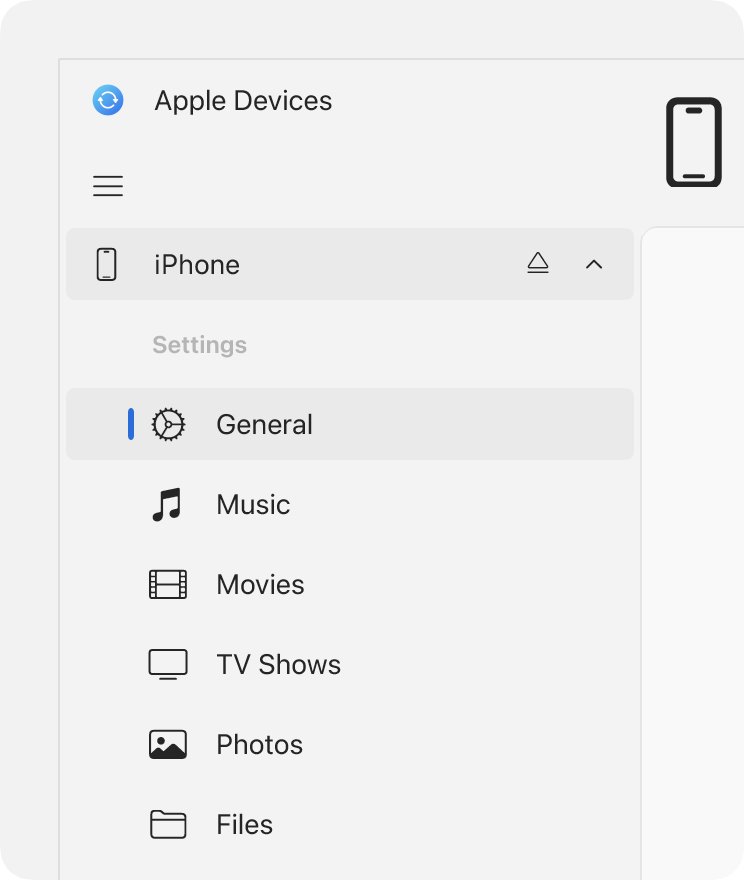
- Open the Apple Devices app and select the iPod in the sidebar.
- Select Music or TV Shows in the sidebar to see your content.
A Files section is a different case. Apple says only iPod touch supports file syncing, so an iPod classic needs disk use in iTunes instead.
What the Apple Devices app can sync to iPod classic
| Missing content | What it depends on | What to do |
|---|---|---|
| Music you own | Apple Music app installed, and Sync library off | Sync it from the Music section |
| Apple Music subscription songs | Cannot be synced to a device | Keep them on devices that use the Apple Music app |
| TV shows | Apple TV app installed, and a video-capable iPod classic | Sync from the TV Shows section |
| Movies | Apple TV app installed, and a video-capable iPod classic | Sync from the Movies section |
| Video missing from the list | Downloaded at Most Compatible HD or SD quality | Download it again at that quality |
| Files | Not supported on iPod classic | Use Enable disk use in iTunes |
How to sync music to iPod classic with the Apple Devices app
- Connect the iPod classic and select it in the Apple Devices sidebar.
- Select Music in the sidebar.
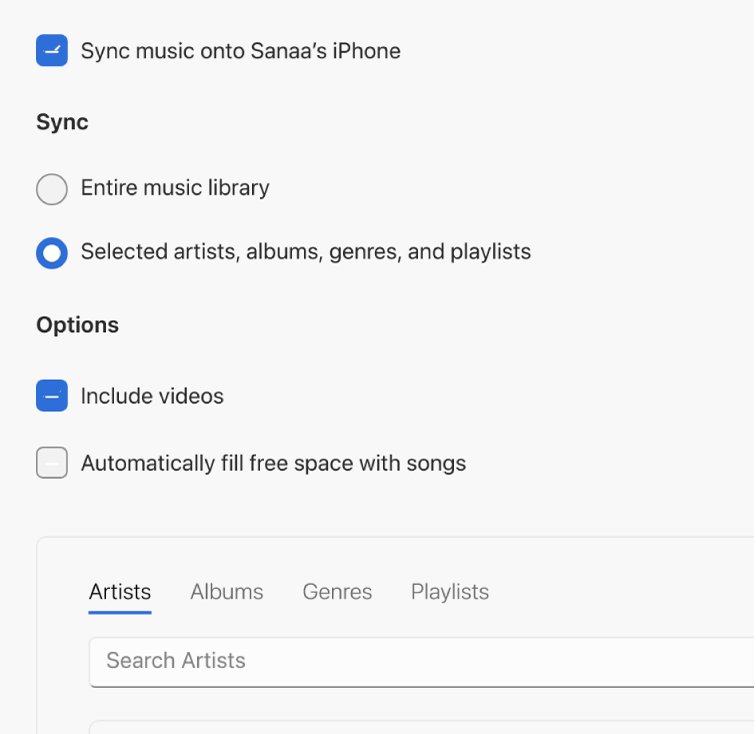
- Select the Sync music onto [device name] checkbox.
- Choose Entire music library, or Selected artists, albums, genres, and playlists.
- Select the items you want from the list if you chose a selection.
- Select Apply.
- Select the Eject button in the sidebar before you unplug the iPod.
If the app stops partway, fix Apple Devices crashes during music sync and run the sync again.
Why Apple Music songs won't sync to iPod classic
Apple Music subscription songs cannot be moved onto an iPod classic. Apple states that subscribers can't sync saved Apple Music songs to a device. Songs from your own library, including iTunes Store purchases, are the ones that can sync.
Apple also says the sync method needs the Sync library option turned off. With iCloud handling your music, the Music section shows no sync options at all.
How to turn off Sync library in Apple Music on Windows
Apple warns that turning Sync library off removes all of your downloaded music from that PC. Check you still have the original files, or can download them again, before you change it.
- Open the Apple Music app on your PC.
- Select the Sidebar Actions button at the top of the sidebar.
- Choose Settings, then select General.
- Turn off Sync library.
- Open the Apple Devices app and select the iPod classic.
- Select Music and look for the Sync music onto [device name] checkbox.
How to sync TV shows and movies to iPod classic
Only a video-capable iPod classic can take video. Movies and TV shows must also be downloaded in the Apple TV app at Most Compatible HD or SD quality, which you set in that app's Playback settings.
- Open the Apple TV app and set the download quality to Most Compatible HD or SD in its Playback settings.
- Download the show or movie again at that quality.
- Connect the iPod classic and select it in the Apple Devices sidebar.
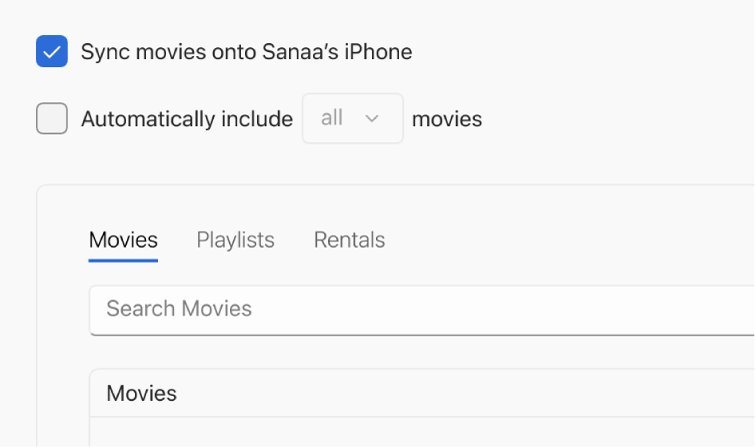
- Select TV Shows or Movies in the sidebar.
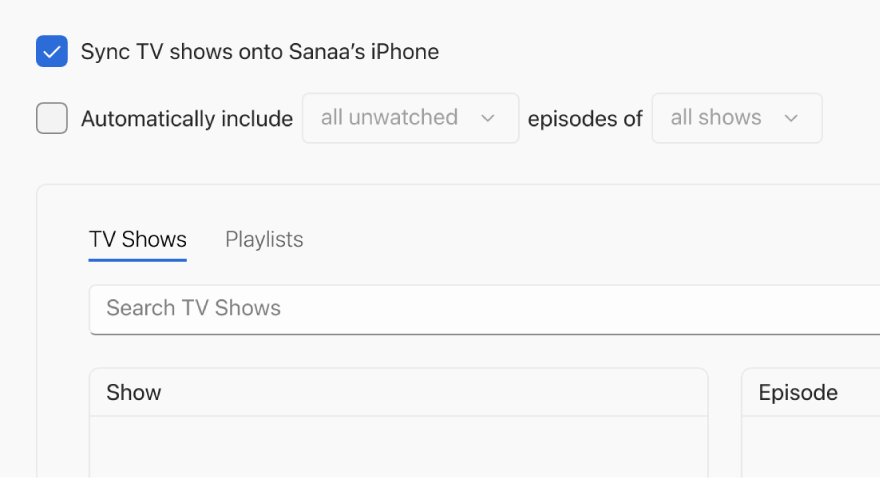
- Select the Sync TV shows onto [device name] checkbox, or the matching movies checkbox.
- Select Apply, then select Eject before you unplug the iPod.
How to use iPod classic as a hard disk in iTunes on Windows
This is the route for documents, pictures and other files. Apple says setting up an iPod classic as a hard disk requires iTunes on Windows 10 or later, so the Apple Devices app does not replace it here.
- Connect the iPod classic and open iTunes on your PC.
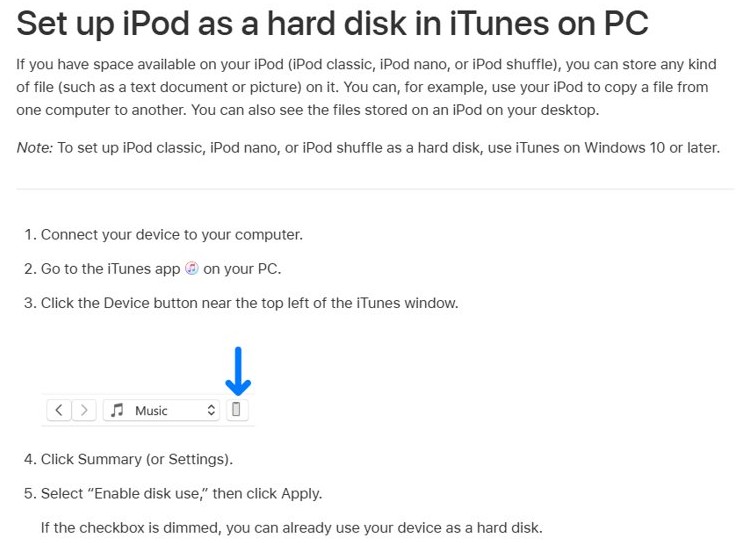
- Click the Device button near the top left of the iTunes window.
- Click Summary or Settings.
- Select Enable disk use, then click Apply. If the box is greyed out, the iPod is already usable as a hard disk.
- Double-click the iPod's icon to open it, then drag files in or out.
- Eject the iPod before you disconnect it.
Music, videos and games synced to the iPod stay hidden in this view, so an empty-looking disk does not mean your songs are gone.
How to sync iPod classic with iTunes on Windows
Apple's iTunes guide says to sync an iPod classic, iPod nano or iPod shuffle from iTunes on Windows 10 or later. It also says that once Apple Music or Apple TV is installed, you can use only those apps for your music, TV shows and movies.
- Remove Apple Music and Apple TV if you want iTunes to handle all your media: select Start > Settings > Apps > Installed apps, select More next to the app, then Uninstall.
- Install iTunes from Microsoft Store and connect the iPod classic.
- Click the Device button near the top left of the iTunes window.
- Select Music or TV Shows in the sidebar.
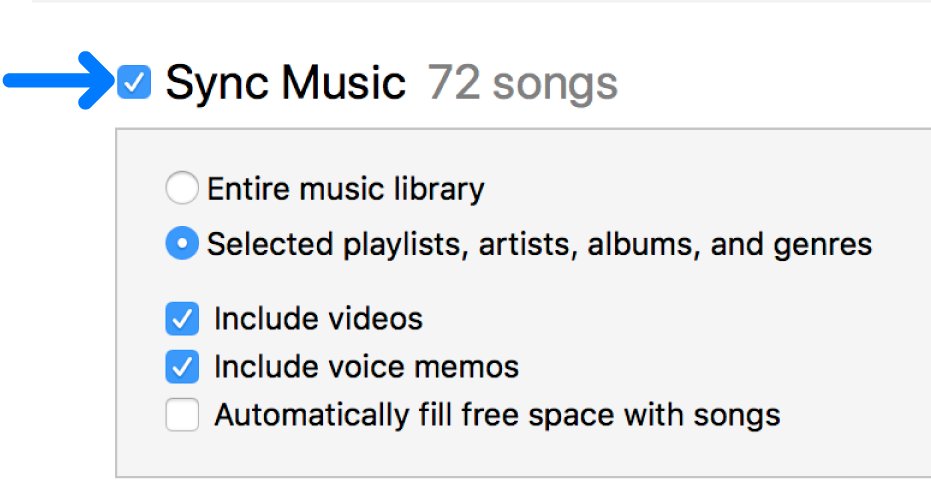
- Select the Sync checkbox, then choose the items you want.
- Click Apply, then click Eject before you unplug the iPod.
Back up your music files before you uninstall anything. If Music, Movies or TV Shows does not appear in iTunes, Apple directs you back to the Apple Music or Apple TV app.
Apple Devices vs Apple Music, Apple TV and iTunes on Windows
Four apps now share the work, and iTunes and Apple Devices do different jobs, which is why content can seem to vanish after a change.
| App | What it handles on Windows | Where it matters for iPod classic |
|---|---|---|
| Apple Music | Your music library and iTunes Store purchases | Supplies the music list in Apple Devices |
| Apple TV | Movies, TV shows and Apple TV app purchases | Supplies the video lists in Apple Devices |
| Apple Devices | Syncing, updating, backing up and restoring devices | Moves music and video to the iPod |
| iTunes | Podcasts and audiobooks, plus all media if the other two are not installed | Sets up disk use on iPod classic |
Apple device not showing up on PC or in the Apple Devices app
iPod classic not showing in the Apple Devices sidebar
The app can list a device only over a working cable connection.
- Check that the USB cable is firmly attached at both ends.
- Confirm the iPod shows that it is charging, which proves the connection.
- Try another cable that supports both data and charging.
- Try another USB port, then another computer.
- Update Windows to the latest version and try again.
Music section shows no sync options
Apple says the Music section shows no sync options when you use Apple Music with iCloud, because iCloud syncs that content instead.
- Open the Apple Music app and turn off Sync library under Settings > General.
- Reopen the Apple Devices app and select the iPod.
- Select Music and check for the sync checkbox.
A song or video was not synced because it can't be played on the device
The file format or quality does not suit the iPod, and Apple Devices can adjust that during sync.
- Select the iPod in the Apple Devices sidebar, then select General.
- Go to the Options section.
- Select Prefer standard definition videos for video problems.
- Select Convert higher bit rate songs to for music problems, then choose a bit rate.
- Select Apply. The originals stay in your library on the PC.
Songs are missing or greyed out in Apple Music
Apple Devices can only offer what the Apple Music library holds. Greyed-out iTunes Store purchases usually point to the account or the authorization.
- Click your name at the bottom of the Apple Music sidebar and check the Apple Account.
- Authorize the computer to play your iTunes Store purchases if they are greyed out.
- Select Sidebar Actions, Library, then Update Cloud Library if you use Sync library.
Apple Devices app not installing or downloading
Apple distributes the app and its updates through Microsoft Store only.
- Open Microsoft Store and search for Apple Devices.
- Select the app, then select Get.
- Check for updates in Microsoft Store if the app is already installed.
If the window stays blank with any device, fix the Apple Devices app doing nothing before you retry the iPod.
Apple Devices app and iPod classic FAQ
Why is the Apple Devices app not working with my iPod classic?
The app depends on the Apple Music and Apple TV apps for content, and on a working USB connection to see the iPod. Install both apps, check the cable and confirm the iPod is charging. File syncing stays unavailable on iPod classic.
Why isn't Apple Devices working on my PC?
Start with the connection: a firm cable that carries data, an unlocked device and the latest version of Windows. Apple distributes the app through Microsoft Store, so check for updates there. Try another USB port or another computer if nothing changes.
Does the Apple Devices app support iPod classic?
Yes, for music and video. Apple's Apple Devices guide names iPod among supported devices and notes that an iPod classic must be video-capable to take movies and TV shows. Apple's iTunes guide also directs iPod classic owners to iTunes on Windows 10 or later.
Can I put Apple Music songs on an iPod classic?
No. Apple says you can't sync saved Apple Music songs to a device, and subscribers cannot use the sync method while Sync library is on. Music from your own library, including iTunes Store purchases, can sync after you turn Sync library off.
Why is there no Files section for my iPod classic?
Apple says only iPod touch supports file syncing among iPod models. To carry documents or pictures on an iPod classic, turn on Enable disk use in iTunes on Windows 10 or later, then drag files to the iPod's icon.
Why don't my movies appear in Apple Devices?
Apple Devices lists only videos downloaded at a compatible quality. Download the movie or show in the Apple TV app at Most Compatible HD or SD, then check the list again. Your iPod classic also has to be a video-capable model.
Do I still need iTunes for an iPod classic?
For disk use, yes, because Apple requires iTunes on Windows 10 or later to set that up. Apple's iTunes guide also names iTunes for syncing iPod classic, while the Apple Music and Apple TV apps take over media once they are installed.