Check print history in Windows 11 by opening Event Viewer and reading event ID 307 in the PrintService Operational log, which records each printed document, its owner, its printer and its page count.
This guide covers the log, the print queue, the Keep printed documents option, command-line queries, and fixes for printers that stop after one page or fail inside Hyper-V.
How to check print history in Windows 11/10
You can open Event Viewer from the Start menu on both versions of Windows. The log only holds jobs printed while it is enabled, so earlier jobs will not appear.
- Open Start, type
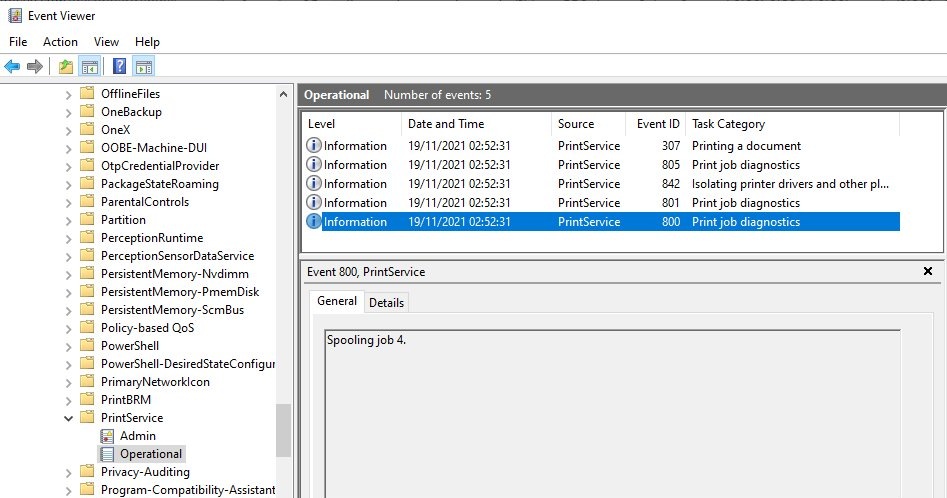
Event Viewerand open the app. - Expand Applications and Services Logs, then Microsoft, then Windows, then PrintService.
- Right-click Operational. If the menu offers Enable Log, select it, then print a document so the log has an entry to show.
- Select Operational to list its events, newest first.
- Select an entry with event ID 307 to see the document name, user, printer, size and pages.
Event ID 307 is the entry written for a printed job. Other event IDs in the same log describe other print activity, so filter on 307 when you only want the finished jobs.
Check the print queue to see recently printed documents in Windows 11
The print queue shows jobs that are still waiting, not a record of past printing. An empty list means nothing is waiting to print, unless Keep printed documents is turned on for that printer.
- Open Start, then go to Settings > Bluetooth & devices > Printers & scanners.
- Select the printer you want to check.
- Select Open print queue.
- Read the list of jobs in the Print Queue window.
- Use the Printers drop-down menu in that window to switch to another printer's queue.
On Windows 10, go to Settings > Devices > Printers & scanners, select the printer, then select Open queue.
Enable logging of print jobs in Windows 11
This does the same job as Enable Log in Event Viewer, and it suits anyone setting up more than one PC. Run Command Prompt as an administrator before you enter it.
wevtutil sl Microsoft-Windows-PrintService/Operational /e:truesl changes a log's settings and /e:true enables the log. Print a test document afterward, because the log starts empty.
You should see: The command returns to the prompt with no message, and new print jobs start to appear in the log as event ID 307.
To turn logging off again, run the same command with /e:false.
How to tell if print logging is enabled in Windows 11
Use this when the log looks empty and you are not sure whether Windows is recording anything.
wevtutil gl Microsoft-Windows-PrintService/Operationalgl displays the log's configuration, including whether it is enabled, its maximum size limit and the path of the file that stores it.
You should see: An enabled line near the top of the output. If it reads false, no print jobs are being recorded.
What does event ID 307 show in the print history log?
Each event 307 holds the details below, which is enough to answer who printed what, where and how many pages. It does not hold a copy of the document.
| Detail in the event | What it tells you |
|---|---|
| Document name | The name of the print job, usually the file name or title the app sent |
| User name | The account that owns the job |
| Computer name | The client PC that sent the job |
| Printer name | The printer used for the job |
| Port | The printer port the job went through |
| Size | The size of the print job in bytes |
| Pages | The number of pages in the document |
How to see print history by user or document in Event Viewer
A busy log gets long quickly. Filtering removes everything except printed jobs, and Find jumps to one person or file.
- Select the Operational log under PrintService in Event Viewer.
- Select Filter Current Log in the right panel.
- Enter
307as the event ID, then select OK. - Select Find in the right panel to search the filtered list.
- Enter a user name, printer name or document name, then select Find Next.
Check print jobs history in Windows with Command Prompt
wevtutil prints the same entries as text, which is quicker than scrolling Event Viewer when you only need the last few jobs.
wevtutil qe Microsoft-Windows-PrintService/Operational /q:"*[System[(EventID=307)]]" /c:20 /rd:true /f:textqe reads events, /q limits them to event ID 307, /c:20 stops after 20 events, /rd:true returns the newest first and /f:text shows plain text instead of XML.
You should see: Up to 20 print jobs listed newest first, each with its date and message text. No output means the log has no 307 events yet.
To save the history as a file in your user folder, run wevtutil epl Microsoft-Windows-PrintService/Operational %USERPROFILE%\print-history.evtx. Event Viewer can open the saved .evtx file.
Check printer history with PowerShell in Windows
PowerShell suits you better if you want to sort or filter the results further. Run it as an administrator, because a standard session can return errors about retrieving log information.
Get-WinEvent -FilterHashtable @{ LogName='Microsoft-Windows-PrintService/Operational'; Id=307 } -MaxEvents 20-FilterHashtable selects the log and the event ID, and -MaxEvents 20 limits the list. Add a StartTime key to the hash table to limit results by date.
You should see: A list of events with TimeCreated, Id, LevelDisplayName and Message columns, newest first.
Check current print jobs history in Windows with PowerShell
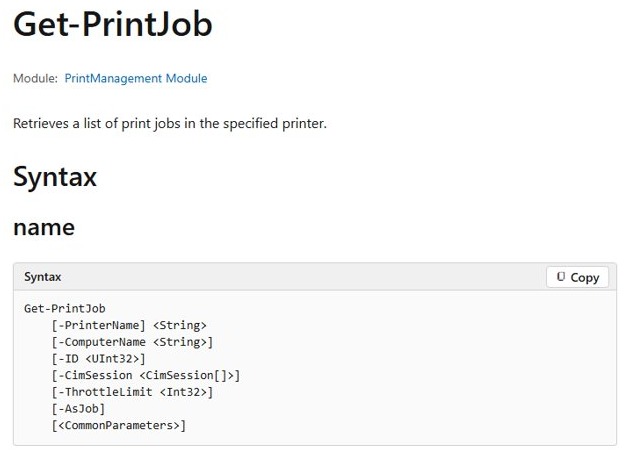
Get-PrintJob shows the jobs currently held for one printer. It is the command-line version of the print queue and does not need administrator rights.
Get-PrintJob -PrinterName "Your printer name"Replace the text in quotes with the printer's exact name, because the command does not accept wildcards. Run Get-Printer first if you need the list of names.
You should see: One row per job held for that printer, or no rows if the queue is empty.
How to keep printed documents in the Windows 11 print queue
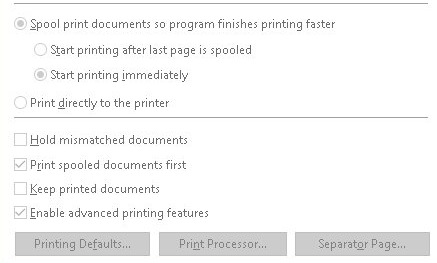
With this option on, finished jobs stay in the queue instead of being deleted, so you can see what printed. Each kept job also stays as spool files in %systemroot%\System32\Spool\Printers, and those files hold the document data.
- Open Start, then go to Settings > Bluetooth & devices > Printers & scanners.
- Select the printer, then select Printer properties.
- Select the Advanced tab.
- Select the Keep printed documents check box.
- Select OK, then print a test page and open the print queue to find it listed.
Turn this on only for a short period on a PC with plenty of free space. Spool files for large PDF or Word documents can grow very large, and a full system drive makes larger jobs fail.
Use a third-party print logging program
Windows already records who printed what, so most home users do not need another tool. A dedicated logger earns its place when you need reports the event log does not produce.
| What you need | Use this | Why |
|---|---|---|
| A list of documents, users and page counts on one PC | Event ID 307 in the PrintService log | Windows records these details once the log is enabled |
| A file you can archive or send to someone | wevtutil epl export |
The exported file opens in Event Viewer on another PC |
| Print job records for a company using Universal Print | The Jobs page in the Universal Print portal | A print admin can see each printer's jobs and their status |
| Cost per page, user quotas or scheduled reports | A third-party print logging program | The Windows log lists page counts but does not total or price them |
Download any logger from its publisher's own website, and check that it supports your version of Windows and your printer connection type.
Tips for checking print history on Windows 11
Print history has gaps when logging starts late or the log fills up, so plan for both.
| Tip | Why it matters |
|---|---|
| Enable the log before you need it | Jobs printed while it is off are not recorded and cannot be recovered from it |
Raise the log size with wevtutil sl Microsoft-Windows-PrintService/Operational /ms:52428800 |
This sets a 50 MB limit. With retention off, a full log overwrites its oldest events |
| Export the log on a schedule you can keep | An exported file keeps old entries after the live log overwrites them |
| Check the printer name in each entry | A PC with several printers logs all of them in one place |
| Use Keep printed documents only when you need a copy | Kept jobs stay on the drive, so private documents remain in the spool folder |
| Check the print server for shared printers | Run the same checks on the PC that hosts the printer when a queue is shared |
Printer only prints one page then stops on PC
Work through the symptom that matches. Microsoft links incomplete documents to a corrupted or wrong driver, and failed large jobs to low disk space.
The document stops partway or comes out garbled
The printer driver is corrupted or is the wrong one for the printer.
- Select the printer in Settings > Bluetooth & devices > Printers & scanners, then select Remove.
- Select Add device to add the printer again.
- If the problem returns, install the latest printer driver from the printer maker.
Only one app prints a single page
Printing from a plain text editor separates a driver problem from an app problem.
- Print the same text from Notepad.
- If Notepad prints every page, the driver is correct and the original app is the cause.
- If Notepad also stops, go to Printer properties > Advanced and clear Enable advanced printing features, then print again.
Short jobs print but long ones stop
Large jobs can fail when the system drive does not have room to spool them.
- Check the free space on the system drive in File Explorer.
- Free up space, or turn off Keep printed documents if you enabled it.
- Print the long document again.
The next pages stay stuck in the queue
A damaged job can block the queue or stall the spooler, so you may need to delete a stuck print job before the rest will print.
- Right-click each job in the print queue and select Cancel.
- Press Windows key + R, type
services.mscand press Enter. - Right-click Print Spooler, select Restart, then print again.
Printer not working with Hyper-V virtual machine
A virtual machine reaches your local printer through enhanced session mode. The host needs that mode turned on, and both the PC running VMConnect and the virtual machine need Windows 10 or Windows Server 2016 or later. The virtual machine also needs Remote Desktop Services enabled.
- Open Hyper-V Manager and go to the Hyper-V settings for the host.
- Turn on Enhanced session mode policy and Enhanced session mode.
- Open VMConnect and select the virtual machine.
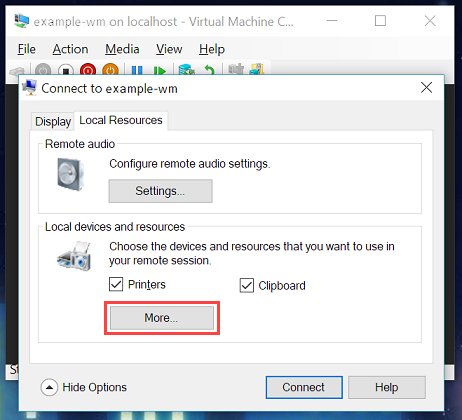
- Select Show options, then select Local resources.
- Select Printers.
- Select Save my settings for future connections to this virtual machine, then select Connect.
- Print from an app inside the virtual machine to the local printer.
To change these choices later, run VMConnect.exe <ServerName> <VMName> /edit. Hyper-V itself cannot be installed on Windows 10 Home or Windows 11 Home.
How to rename a printer in Windows 11
The print queue and event 307 both show the printer's name, so a clear name makes print history easier to read. Run this in PowerShell as an administrator, because the cmdlet requires administrator credentials.
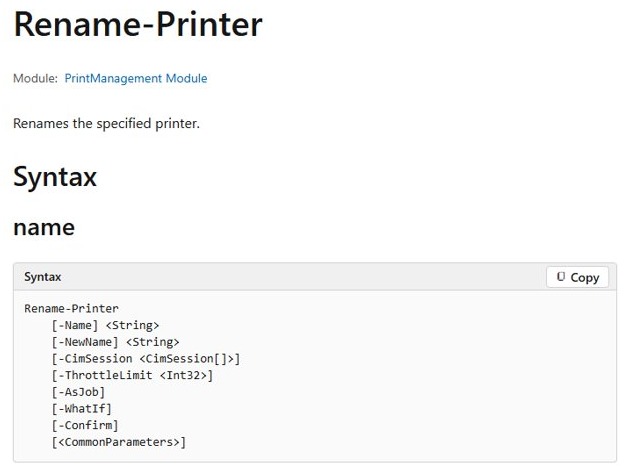
Rename-Printer -Name "Current printer name" -NewName "New printer name"-Name is the printer's exact current name and -NewName is the replacement. Wildcards do not work, so run Get-Printer first if you need the exact name.
You should see: Get-Printer -Name "New printer name" returns the printer under its new name.
Print history in Windows 11 FAQ
Can you see print history on Windows?
Yes, but only for jobs printed while the PrintService Operational log was enabled. Windows then records each printed job as event ID 307. The print queue in Settings is not a history, because it lists only jobs still waiting to print.
How to check print history on computer?
Open Event Viewer, then go to Applications and Services Logs, Microsoft, Windows, PrintService, Operational. Enable the log if it is off, then look for event ID 307. Each entry names the document, user, computer, printer, port, size and pages.
How to check print history Windows 10?
Windows 10 uses the same PrintService Operational log and event ID 307 as Windows 11. Its print queue opens from Settings, Devices, Printers & scanners, Open queue. Support for Windows 10 ended on October 14, 2025, so update when you can.
How to check my printing history?
Filter the PrintService Operational log to event ID 307, then use Find in Event Viewer to search for your user name. On a work printer that goes through a print server, the administrator may hold the records you need.
How to find print history on Windows?
Print history lives in the PrintService Operational event log rather than in Settings or a normal folder. Run wevtutil gl Microsoft-Windows-PrintService/Operational to see whether the log is enabled and the path of the file that stores it.
How to view print history Windows?
View it in Event Viewer under the PrintService Operational log, or run wevtutil qe with the event ID 307 filter in Command Prompt. Get-WinEvent does the same in PowerShell. All three read the same log and can list the most recent jobs first.
How to see printing history on Windows?
Old jobs appear only if the log was already enabled when they printed and the entries have not been overwritten. If Keep printed documents was on, the finished job may still be listed in that printer's queue.