No Picasa download is fully safe today, because Google retired the app in 2016 and every remaining installer comes from an unofficial archive. You can lower the risk by checking the file's hash and signature, scanning it with several engines, and testing it in isolation.
This guide covers each of those checks, what still works in Picasa on current Windows, how to move your library out, and the supported photo managers to use instead.
Is the archived Picasa installer safe to download?
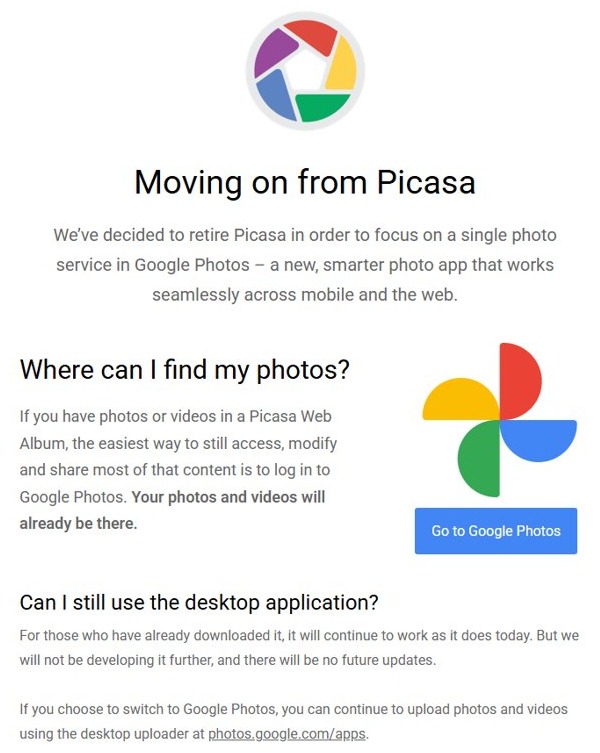
Treat any archived Picasa installer as untrusted until it passes every check below, and skip it if a supported app can do the job. Google no longer distributes Picasa, so no official copy backs up what an archive hands you. Google also says there will be no future updates, so a genuine copy still runs unmaintained code that last changed in October 2015.
If you only need to reach old photos, you may not need the installer at all. Your image files and Picasa Web Albums content can be reached without it, as the migration section shows.
Picasa background
Picasa was Google's freeware photo organizer and editor for desktop computers. These dates explain why every download is now a third-party copy.
| Date | What happened |
|---|---|
| October 9, 2015 | Google releases Picasa 3.9.141.259 for Windows, the last stable build |
| February 12, 2016 | Google announces the retirement of Picasa |
| March 15, 2016 | Google discontinues the desktop app, and users who already installed it can keep it without support |
| May 1, 2016 | Picasa Web Albums closes |
Overview: Why people still want “Picasa download for PC”
Most searches come from a specific need rather than nostalgia. Each one has a safer answer than a blind install.
| What the reader wants | Why Picasa appeals | What to check first |
|---|---|---|
| Reopen an old library | Edits and keywords sit beside the photos in hidden picasa.ini files |
Your original image files stay readable in any viewer |
| Keep photos off the cloud | It organizes local folders on your own disk | digiKam and Lightroom Classic also work from local storage |
| Non-destructive edits | Picasa 3 records edits in picasa.ini and leaves the original image unchanged |
You need Picasa only to see those saved edits applied |
| Face tags | Picasa offered face recognition, built on technology Google gained by buying Neven Vision | Microsoft's new Photos app has no face grouping, so compare the alternatives below |
Is there an official Picasa download from Google?
No. Google's Picasa site now carries only a retirement notice. The notice says installed copies keep working, that Google will not develop the app further, and that there will be no future updates. It points users to Google Photos, so a site offering an installer today is not an official Google source, whatever its page says.
Does Picasa work on Windows 11?
Assume it is untested. Picasa's listed Windows support stops at Windows 7. Version 3.9 supported Windows XP, Vista and 7, and Google stopped work on the app before Windows 11 existed. A copy may launch, but no vendor stands behind it, so test it in Windows Sandbox first and keep your library backed up.
Step-by-step: How to download and install Picasa on Windows — the safe way
The seven stages below run in order. Stop at the first one that fails and delete the file.
| Stage | Risk it reduces | You stop if |
|---|---|---|
| 1. Archive | Repackaged installers from download portals | The site wraps the file in its own downloader |
| 2. Quarantine | Accidental launch | The browser or Defender blocks the file |
| 3. Integrity | Altered or corrupted files | The hash differs or the signature fails |
| 4. Malware scan | Known malware | Any engine reports a detection you cannot explain |
| 5. Controlled install | Damage to your main system | It misbehaves in Windows Sandbox |
| 6. Configuration | Unwanted changes to file defaults | Settings do not hold |
| 7. Cloud isolation | Old code talking to the internet | You cannot block its network access |
1. Locate a reputable archive
Google no longer hosts a copy, so reputation is the only thing you can judge at this stage. This page does not link a mirror, because no archive can be confirmed as carrying Google's untouched file.
| Check | Accept | Reject |
|---|---|---|
| Delivery | A direct link to one installer file | A custom downloader, bundle or browser extension |
| Version | Version 3.9.141.259 clearly stated for Windows | A "2026" or "Windows 11 edition" Picasa, since Google never made one |
| History | A file with a visible upload date and history | A new page with no history or copied reviews |
| Corroboration | The same file available from a second independent archive | A single source you cannot compare against |
| Payment | Free, as Picasa always was | Any fee, license key or sign-up |
2. Download to a quarantine folder
Keep the file away from your Downloads folder, so nothing launches it by accident and you know exactly what you are testing.
- Create an empty folder such as
C:\Quarantine. - Save the installer to that folder and leave it unopened.
- Keep the page URL and download date in a text note beside the file.
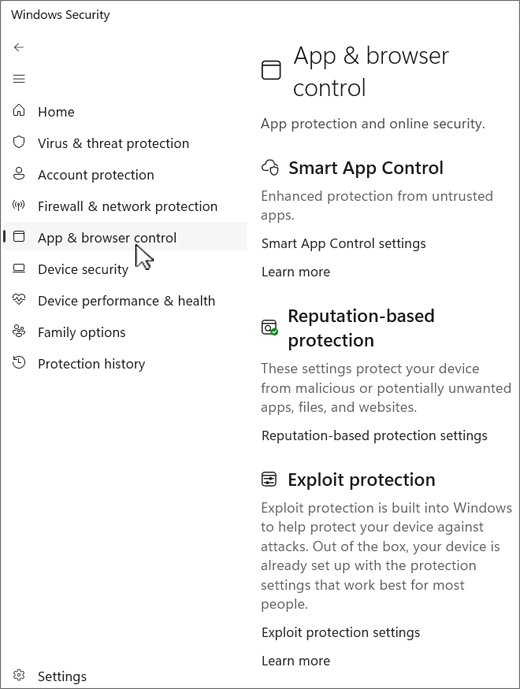
- Cancel and delete the file if Microsoft Edge warns that SmartScreen finds it suspicious.
3. Verify file integrity
Google's current Picasa pages list no hash to check against, so compare two independent copies instead. Microsoft's documentation states that two files with identical hash values have identical contents. Open PowerShell, then run these with your real file name.
Get-FileHash "C:\Quarantine\picasa-setup.exe"
Get-AuthenticodeSignature "C:\Quarantine\picasa-setup.exe" | Format-List
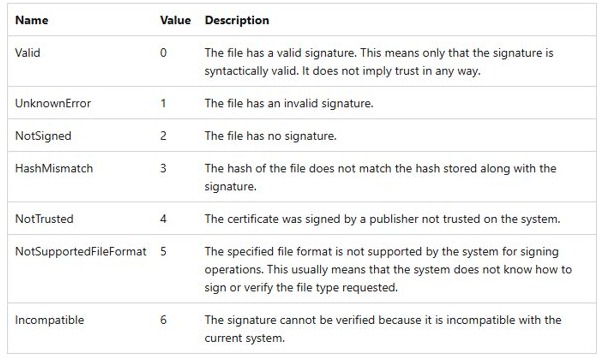
Get-FileHash uses SHA256 by default. Run it on both copies and compare the Hash values character by character. Get-AuthenticodeSignature shows the Status and the SignerCertificate.
You should see: Matching hashes on both copies and, if the file is signed, a Status of Valid with a signer that names Google.
Delete the file on HashMismatch, because the contents no longer match what was signed, or if the signer is anyone other than Google. NotSigned means no signature vouches for the file, which leaves the hash comparison and the scans as your only evidence. Valid alone proves only that the signature is well formed and does not imply trust, so always read the signer's name.
4. Scan with multiple malware engines
One clean result proves little for a file this old. Use at least two engines, and treat a detection as a reason to stop rather than a false alarm to argue with.
- Right-click the file, select Show more options, then select Scan with Microsoft Defender.
- Download a fresh copy of Microsoft Safety Scanner from Microsoft, then choose a scan type that covers
C:\Quarantine. Each copy expires 10 days after download. - Add a second vendor if you want one, such as the free Malwarebytes scanner, which runs only when you start it.
- Check the file's hash or upload it on VirusTotal, a Google-owned service that runs many antivirus engines. Antivirus vendors can receive copies of submitted files, so upload nothing private.
- Delete the file if any engine flags it.
Finish with a Microsoft Defender full scan if you opened the file by accident at any point.
5. Run the installer under control
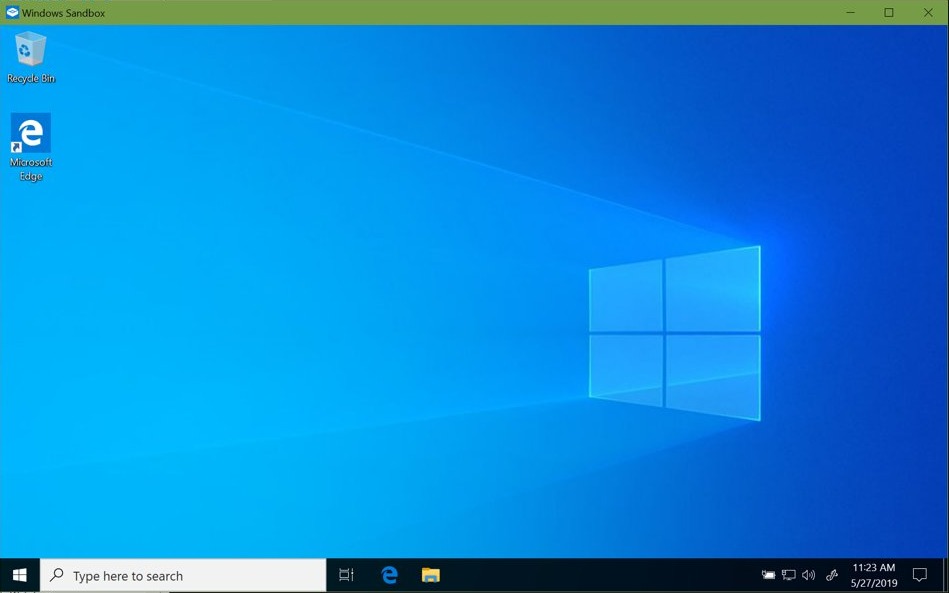
Windows Sandbox is a disposable desktop, and closing it deletes everything inside. It is available on Pro, Enterprise and Education editions, not Home. On a supported edition, turn on Windows Sandbox before you begin.
- Save this text in Notepad as
Picasa.wsb:<Configuration><Networking>Disable</Networking><MappedFolders><MappedFolder><HostFolder>C:\Quarantine</HostFolder><ReadOnly>true</ReadOnly></MappedFolder></MappedFolders></Configuration> - Double-click
Picasa.wsbto open a sandbox with no network and a read-only copy of the folder. - Run the installer from the mapped folder on the sandbox desktop and watch what it installs.
- Close the sandbox and select Ok to delete its contents.
- If it behaved, search Start for Create a restore point on your main system, select Create…, enter a description and select Create.
- Run the installer on your main system and decline anything offered beyond Picasa itself.
On Windows Home there is no sandbox, so the restore point and a backup of your photos are your safety net.
6. Configure Picasa safely
Picasa sets its own viewer as the default for JPG, BMP, GIF, PNG, TIF, TIFF and RAW files, and it adds a screen capture folder to its library. You can make Windows Photo Viewer the default again and remove the Screen Captures folder from these menus.
- Open Tools, select Configure Photo Viewer, and open the File Types tab.
- Select Don't use Picasa Photo Viewer, then select Ok.
- Open Tools and select Folder Manager.
- Set only the folders you want in Picasa to Scan Always, and leave the rest of your drive out.
- Expand the Picasa folder, select Screen Captures, change Scan Always to Remove from Picasa, and select Ok.
7. Isolate cloud features
Skip signing in to a Google account inside Picasa, because Picasa Web Albums is gone and the app has had no updates since 2015. Then block its internet access with a Windows Firewall rule. Paste the real path to the Picasa program file in place of the example, and run the command as administrator.
New-NetFirewallRule -DisplayName "Block Picasa" -Direction Outbound -Program "C:\Path\To\Picasa.exe" -Action BlockThis creates an outbound block that applies only to that program. To undo it later, run Remove-NetFirewallRule -DisplayName "Block Picasa".
You should see: PowerShell prints the new rule with Action : Block and Enabled : True.
Common installation issues and practical fixes
Microsoft Defender or Edge blocks the Picasa installer
A security check flagged the file as suspicious, untrusted or potentially unwanted.
- Keep the block in place and delete the file.
- Look for a copy whose hash matches a second independent archive, and scan that one instead.
- Move to a supported alternative if the replacement copy is flagged too.
Windows Sandbox is missing on your PC
Windows Sandbox is not supported on Windows Home.
- Open Settings, then System, then About to read your edition.
- On Pro, Enterprise or Education, turn the feature on in Windows Features.
- On Home, create a restore point and back up your photos before you install.
Picasa took over your photo file types
Picasa sets its own viewer as the default for common image formats during setup.
- Open Tools and select Configure Photo Viewer.
- Open the File Types tab and select Don't use Picasa Photo Viewer.
- Select Ok and open a JPG to check the new default.
Picasa cannot upload or sign in to web albums
Picasa Web Albums closed on May 1, 2016, and Google said some Picasa API functions were being retired.
- Stop using the upload and web album features.
- Open photos.google.com to reach web album content, which Google moved to Google Photos.
- Add local files to a current photo service if you still want a cloud copy.
Picasa does not open a newer image format
The last build dates from 2015, and it has received no format updates since. HEIF and HEIC support, for example, arrived on Apple devices with iOS 11.
- Test one sample file before you rely on Picasa for that format.
- Open those files in the Windows Photos app or another current viewer.
- Keep the originals untouched instead of converting a whole folder.
What still works in Picasa, and what’s broken
Treat Picasa as a frozen, offline viewer and editor for files you already have. Google said installed copies keep working, so local features remain available as they were in 2015. Anything that depended on Google's servers has either closed or is being retired, and nothing will be fixed if a Windows update breaks it.
What still works reliably (local, offline)
These features do not depend on Google's servers. They are still subject to Picasa's age, so back up before you edit.
| Feature | How it works | Why it matters |
|---|---|---|
| Local library | Picasa scans the folders you choose in Folder Manager | No account is needed to browse files on your disk |
| Non-destructive edits | Picasa 3 writes edits to a hidden picasa.ini in the same folder |
The original image stays unchanged |
| Keywords | Keywords are tracked per image in picasa.ini |
Those notes travel with the folder if you copy all of it |
| Image viewing | Picasa's own viewer opens common formats | You can turn it off for file associations |
What does not work or is unreliable
Expect these to fail, and do not plan a workflow around them.
| Feature | Status | Use this instead |
|---|---|---|
| Picasa Web Albums | Closed on May 1, 2016 | Google Photos |
| Picasa updates | None, and Google has said there will be no future updates | A maintained photo manager |
| Official support | Ended with the March 2016 retirement | Vendor support on a current app |
| Picasa API integrations | Google listed some functions as being retired | Current Google Photos tools |
| Windows 10 and 11 compatibility | Not among the systems listed for version 3.9 (XP, Vista and 7) | An app that lists your Windows version |
| Newer image formats | Not covered by any update since 2015 | A current viewer or editor |
Alternatives: Modern, supported photo managers for Windows
No single replacement copies Picasa exactly. Pick by whether you need local storage, face tags or cloud access.
| App | Storage | Face grouping | Cost | Suits |
|---|---|---|---|---|
| Microsoft Photos | Local folders, with OneDrive and iCloud tabs | No in the new app, but Photos Legacy has a People tab | Free | Simple viewing and folder browsing |
| Google Photos | Cloud | Face Groups, not in all regions or account types | Uses your Google Account storage | Picasa users already in Google's ecosystem |
| OneDrive Photos | Cloud | People section, rolling out gradually | Uses your OneDrive storage | Windows users who already sync to OneDrive |
| digiKam | Local | Yes, automatic face detection and tagging | Free, open source | The closest local-library, offline-first replacement |
| Adobe Lightroom Classic | Local hard drive | Not stated on Adobe's product page | Subscription | Photographers who edit and organize on desktop |
Check that a replacement reads your image files before you uninstall anything. Picasa's edits and keywords in picasa.ini are its own format, so keep those files with your backup.
Security and legal considerations
The risks below come from the app's age and from how it now reaches you. None of them can be fully removed, only reduced.
| Concern | Why it matters | What to do |
|---|---|---|
| Tampered installers | Anyone can repackage a file once the vendor stops hosting it | Compare hashes and read the signature |
| Unpatched code | No update since 2015 means no fixes for flaws found since | Open only your own photos, and block network access |
| Bundled software | Download portals may wrap free apps in extras | Reject any custom downloader |
| False reassurance | A clean scan misses threats that engines do not yet detect | Test in Windows Sandbox, where supported |
| Redistribution | Google names no archive as an authorized source, and Picasa was freeware rather than open source | Read the license screen in the installer, and ask your legal team before using it at work |
| Workplace rules | Unsupported software can break company policy | Ask your administrator first |
Quick decision guide: Should you install Picasa?
| Your situation | Do this | Why |
|---|---|---|
| You only want to see old photos | Skip Picasa and open the folders in Windows Photos | The image files are ordinary files |
You need edits saved only in picasa.ini |
Install in isolation, export copies, then uninstall | Other apps may not apply those saved edits |
| You want face tagging on local photos | Try digiKam first | It runs on Windows and has automatic face detection |
| You want automatic cloud backup | Use Google Photos or OneDrive | Picasa's own web service is closed |
| You run a work PC | Do not install it without approval | It is unsupported software from an unofficial source |
How to migrate away from Picasa (if you already use it)
Your images stay ordinary files, so the real job is protecting the edits and keywords stored beside them. Do the backup before you change anything.
- Copy your whole photo tree to a second drive, for example
robocopy "D:\Photos" "E:\PhotosBackup" /E /COPY:DAT. - Find the hidden Picasa data files with
Get-ChildItem "D:\Photos" -Recurse -Force -Filter "*picasa.ini". - Open each edited album in Picasa and export the edited images to a new folder, because other apps may not apply
picasa.iniedits. - Add that folder to your new app. In Microsoft Photos, select Gallery, then Add folder.
- Rebuild keywords and face tags in the new app, since those carry over only if that app reads them.
- Run your new app for a few weeks, and only then uninstall Picasa.
Keep the backup, including the picasa.ini files, even after you switch. It is your only record of edits you did not export.
How to download Picasa Web Albums photos with Google Takeout
Google moved Picasa Web Albums content to Google Photos, and blog images stay managed in Blogger. If you want a local copy of what Google holds, you can use Google Takeout from a desktop browser.
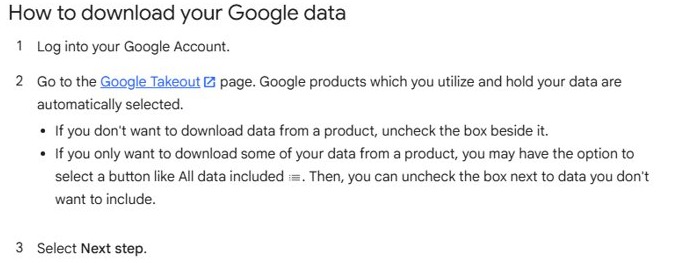
- Sign in to your Google Account and go to takeout.google.com.
- Clear the preselected products and select only Google Photos, then select Next step.
- Choose Send download link via email and One-time archive.
- Choose Zip as the file type, because Tgz can need extra software on Windows.
- Choose a maximum archive size and select Create export.
- Download the archive from Google's email within about 7 days, the point at which it expires.
How to uninstall Picasa from Windows 11
Back up your photo folders and picasa.ini files first, then remove the app and any firewall rule you added.
- Open Start and select Settings.
- Select Apps, then Installed apps.
- Find Picasa, select More (the three dots), then select Uninstall.
- Use Control Panel, Programs, then Programs and Features if Settings cannot remove it.
- Run
Remove-NetFirewallRule -DisplayName "Block Picasa"as administrator if you created that rule.
Picasa download for Windows FAQ
Is Picasa still available to download?
Not from Google. Google retired Picasa in 2016, and its site now shows only a retirement notice. Copies still circulate on third-party archives, but none of them is an official source, so each one needs its hash, signature and malware checks before you trust it.
What is the last version of Picasa for Windows?
The last stable Windows build is Picasa 3.9.141.259, released on October 9, 2015. Treat any installer claiming a newer version, or a special Windows 10 or Windows 11 edition, as suspect, because Google stopped developing the app after that release.
Is Picasa free?
Yes. Picasa was freeware, so you never needed to pay for it. Any site asking for a fee, a license key or an account to download it is not offering what Google released, and you should leave that site without downloading anything from it.
Can I still use Picasa if it is already installed?
Yes. Google said installed versions keep working, though it will not develop the app further and there will be no future updates. Leave it running only with your own files, keep a backup of your library, and block its network access.
What replaced Picasa?
Google replaced Picasa with Google Photos, a cloud service for mobile and web. It does not run as a local library in the way Picasa did. If you want local storage, digiKam and Adobe Lightroom Classic both work with files on your own drive.
Where does Picasa store edits and keywords?
Picasa 3 saves edits to a hidden picasa.ini file in the same folder as the picture, which leaves the original image unchanged. It also tracks keywords there. Copy each folder whole, including hidden files, so you keep that information when you back up.
What happened to my Picasa Web Albums photos?
Picasa Web Albums closed on May 1, 2016, and Google said your photos and videos should already be in Google Photos. Sign in at photos.google.com to look for them. Blogger images stay separate and are managed from Blogger rather than Google Photos.
Does the Windows Photos app replace Picasa face tags?
Not in the new app. Microsoft says the new Photos app has no People tab or face grouping, and those features remain in Photos Legacy. For local face tagging, look at digiKam, which has automatic face detection and runs on Windows.
Final assessment: strengths, risks and recommendations
| Area | Assessment |
|---|---|
| Strengths | Simple local library, non-destructive edits, and keywords stored with your folders |
| Risks | Unofficial sources, no updates since 2015, and no vendor support on any Windows version |
| Recommendation for most people | Use Microsoft Photos, Google Photos or digiKam, and leave Picasa uninstalled |
| Recommendation for existing libraries | Install only long enough to export edited images, with the checks on this page, then remove it |
Appendix: Short safe-install checklist (copyable)
- Confirm that you need Picasa and not just your photo files.
- Back up your photo folders, including hidden files.
- Find two independent archives offering version 3.9.141.259.
- Save both copies to
C:\Quarantinewithout opening them. - Compare
Get-FileHashresults, and reject anyGet-AuthenticodeSignatureresult showing HashMismatch or a signer other than Google. - Scan with Microsoft Defender, Microsoft Safety Scanner and one more engine.
- Test in Windows Sandbox with networking disabled, if your edition supports it.
- Create a restore point, then install and decline any extras.
- Turn off Picasa's viewer defaults and limit its scanned folders.
- Block its outbound traffic and stay signed out of Google.