Go to google.com/device in any browser, type the code from your TV or app into the Enter code box, select Continue, then sign in and approve the device.
These steps work from a phone, tablet or computer. Below you will also find which address each TV app really uses, what to do when a code is rejected or expires, and how to remove a device later.
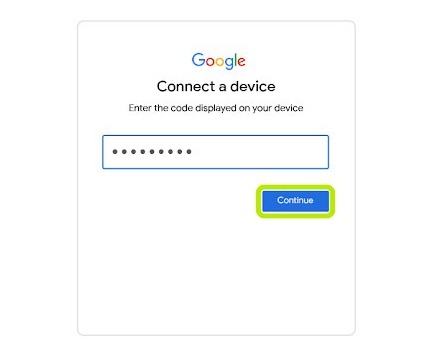
Go to google.com/device on any browser and enter this code
Keep the code on your TV or device screen while you do this. The TV waits for your approval and updates by itself.
- On the TV, console or app, choose the sign-in option that shows a code and a web address.
- On a phone, tablet or computer, open a browser and go to
google.com/device. - Check that the page says Connect a device and Enter the code displayed on your device.
- Type the code into the Enter code box exactly as your screen shows it, then select Continue.
- Sign in to your Google account if the browser asks, and choose the account you want on that device.
- Read the access request on the consent screen, then select Allow.
- Look back at the TV. It finishes signing in without you pressing anything.
If your screen shows a different web address, use that one. Google tells app developers that the address can change, so the address on your device is always the correct one.
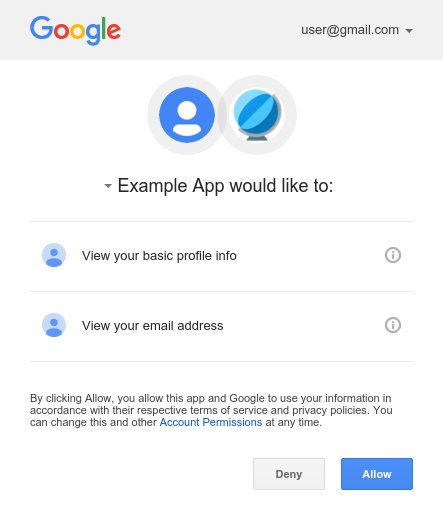
What is google.com/device and how does it work?
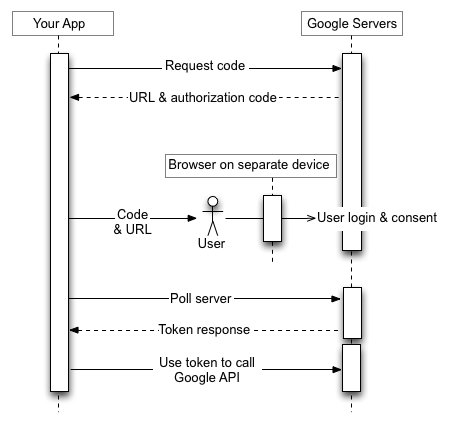
google.com/device is Google's sign-in page for devices that have no browser or only a remote for typing. You approve the device on a second screen, so you never type your password with a TV remote.
| Part of the process | What happens |
|---|---|
| Your TV or app | It asks Google for a code, then shows you that code and the sign-in address. |
| The address | google.com/device forwards to accounts.google.com/device, the Connect a device page. |
| The code | It belongs to the device that requested it, and an app must display it unchanged. |
| Your phone or computer | You enter the code, sign in if needed, and accept or refuse the consent screen. |
| After you select Allow | The app keeps checking with Google in the background, receives its access, and signs you in. |
| If you refuse or wait too long | The app gets no access. It has to request a new code to try again. |
google.com/device vs yt.be/activate: where to enter a TV code
Many TV codes do not belong on google.com/device at all. Match what you are signing in to, because a code entered at the wrong address fails even when you typed it correctly.
| What you are signing in to | Where the code goes | Why |
|---|---|---|
An app that displays google.com/device |
google.com/device |
The app uses Google's device sign-in, so its code belongs on that page. |
| The YouTube app on a smart TV or game console | yt.be/activate |
YouTube has its own TV code login at yt.be. |
| A Google account on a Google TV device | A QR code on the TV | Google TV uses a QR code for this step instead of a typed code. |
| Plex on a TV | Plex's own link page | Plex accounts are separate, so you enter the Plex TV code on Plex's site. |
| A Google Meet call | The Meet app or website | A Google Meet join code opens a meeting and has nothing to do with device sign-in. |
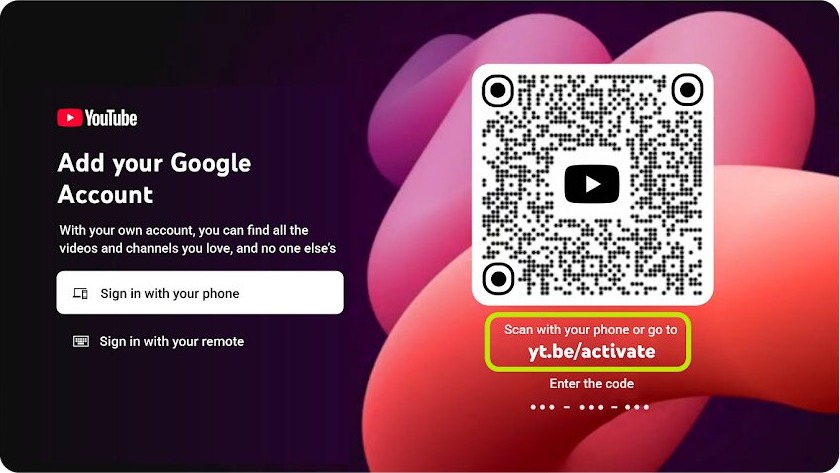
How to sign in to YouTube on a smart TV with a code
The YouTube app offers two routes on its sign-in screen. If one fails, Google's advice is to try the other.
- Open the YouTube app on your smart TV or game console.
- Choose Sign in with your phone.
- Scan the QR code, or go to
yt.be/activateon a phone, tablet or computer. - Enter the code shown on your TV screen and finish signing in.
- If that route fails, go back and choose Sign in with your remote, then type your Google account details with the on-screen keyboard.
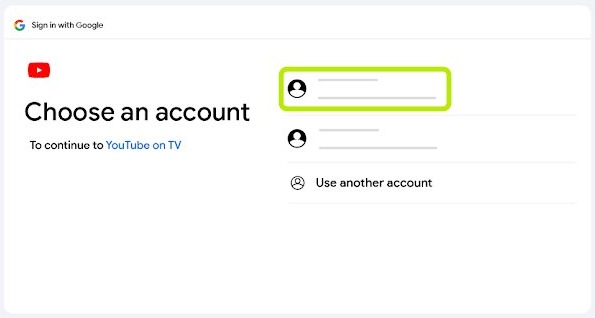
On a screen that says Who's Watching?, select Add account to reach the same sign-in options.
How to add a Google account on Google TV with a QR code
Google TV adds accounts through a QR code rather than a typed code. Each account you add becomes a separate profile on that TV.
- On the Google TV home screen, go to your profile picture or initial.
- Select your name, then select + Add account.
- Select Add an account.
- Scan the QR code with your phone. If you can't scan it, press down on the remote to continue on the TV instead.
- Sign in to the Google account you want to add.
- Follow the prompts, then choose the streaming services for this profile.
google.com/device code not working
The google.com/device code is rejected
Google treats the code as case-sensitive, so one wrong character makes it fail. A code meant for another address fails too.
- Compare each character on the page with the code on your TV, including upper and lower case.
- Check the address on your TV. If it says
yt.be/activateor another site, enter the code there. - Clear the Enter code box, retype the code and select Continue.
- If it still fails, go back on the TV and start the sign-in again to get a new code.
The google.com/device code expired
Every code has a time limit that Google sends to the app. Google's documented example is 1,800 seconds, which is 30 minutes.
- Go back on your TV or app and start the sign-in again.
- Wait for the new code to appear, and ignore the old one.
- Enter the new code straight away on
google.com/device.
The TV stays on the code screen after you select Allow
The app needs an internet connection to collect its access from Google, so a dropped connection leaves it waiting.
- Open a video or the settings menu on the TV to confirm that it has an internet connection.
- Unplug the device, wait 30 seconds and plug it back in.
- Restart your router and the phone you used.
- Start the sign-in again and enter the new code.
YouTube sign-in with your phone fails on the TV
Google's YouTube help lists the network as the first thing to check for phone sign-in.
- Confirm that the TV and phone are on the same Wi-Fi network.
- Turn off mobile data on your phone so that it uses Wi-Fi.
- Check that you entered the code correctly at
yt.be/activate. - Choose Sign in with your remote if the phone route keeps failing.
A work or school account is refused
An organization's administrator can block device sign-in for some apps or permissions.
- Try the same code screen with a personal Google account if that suits the device.
- Ask your administrator to allow the app if it must use the work or school account.
An older Chromecast has no sign-in option
Older Chromecast devices can't sign in to YouTube directly, so no code screen appears.
- Sign in to YouTube on your phone with the account you want.
- Cast the video from your phone, and control the session from there.
Manage connected devices on your Google account
Your Google account lists every device that is signed in now or was signed in recently. A new TV appearing here shows that the code sign-in went through.
- Open
myaccount.google.comand sign in. - Select Security & sign-in.
- In the Your devices panel, select Manage all devices.
- Find the TV or app in the list. Devices you already left are marked Signed out.
google.com/devices opens the same device check directly. Note the extra letter: google.com/device is where codes go, while google.com/devices is the list.
How to remove a device from your Google account
Do this when you sell a TV, leave a rental or see a device you don't recognize. Use the first steps for a whole device and the last ones for one app.
- Go to Manage all devices in your Google account, select the device and select Sign out.
- To remove one app instead, open
myaccount.google.com/linkedapps. - Select Access to your Google Account, choose the app and select See details.
- Select Remove access, then select Confirm.
- To sign out of YouTube on every TV, open
myaccount.google.com/permissions, select YouTube on TV and select Remove Access.
Several entries with one device name can come from one device or from several, so sign out of all of them to be sure. Removing access does not delete data the app already stored, so ask its developer about that.
Is google.com/device safe to use?
Yes, as long as the code came from a device in front of you. Entering a code gives access to whichever device or app requested that code. Never enter a code that someone sent you by message, email or phone call, because you would be approving their device. Read the consent screen before you select Allow, and check that your browser shows accounts.google.com first.
google.com/device code FAQ
Do I need a computer to use google.com/device?
No. Any phone, tablet or computer with a browser works, and the second device only needs to open the page. You sign in and approve the request there, while the TV or app waits with its code on screen.
Is the google.com/device code case-sensitive?
Yes. Google's documentation says the code is case-sensitive and must not be changed in any way. Copy it exactly as your screen shows it, including upper and lower case letters and any dashes between the groups of characters.
How long does a google.com/device code last?
The limit is set per request and sent to the app along with the code. Google's documented example is 1,800 seconds, or 30 minutes. When the code runs out, start the sign-in again on your device to get a new code.
Do my TV and phone need to be on the same Wi-Fi for google.com/device?
Google's device sign-in only requires that the TV or app is online and that you can open the page in a browser on another device. YouTube's phone sign-in is different, because its help page does tell you to use the same Wi-Fi network.
What is the difference between google.com/device and google.com/devices?
google.com/device is the page for entering a code from a TV or app. google.com/devices shows the devices signed in to your Google account, so you can check for access you don't recognize and sign a device out.
Can a TV app read my Gmail after I enter a code?
Not through Google's documented device sign-in. It allows a short list of permissions: basic profile details, your email address, the Google Drive files used with that app, and YouTube. Gmail is not on that list, and the consent screen shows exactly what the app is requesting.
Why does google.com/device redirect to accounts.google.com?
accounts.google.com is Google's own sign-in site, and google.com/device forwards there to show the Connect a device page. The redirect is expected, so seeing that address in your browser is a good sign that you are on the genuine page.
What happens if I refuse the request on the consent screen?
The device gets no access to your account, and the app receives a refusal from Google. Nothing changes on your Google account. To try again, start the sign-in on the TV or app so that it shows a fresh code.