To add a horizontal line in Word, type three hyphens (---) on a blank line and press Enter.
This guide covers the typing shortcut, the Borders menu, drawn line shapes, Word for Mac and Outlook, changing the line's style, removing a line and stopping Word from adding lines automatically.
Step by step tutorial: how to add a horizontal line in Word
This shortcut works in Word for Windows, including Word with a Microsoft 365 subscription. The line runs across the available page width, or across the column in a multi-column layout.
- Place the cursor on a blank line where you want the horizontal line.
- Type three hyphens:
---. - Press Enter. Word replaces the hyphens with a full-width line.
- To keep the three hyphens instead, press Backspace immediately after the line appears.
- To add text above the line, click above it and start typing.
Word horizontal line shortcut vs Borders vs line shape
| What you want | Use this | Why |
|---|---|---|
| A fast full-width divider | Typing shortcut: ---, === or ___ then Enter |
No menus, and the line sizes itself to the page or column |
| A line under text you already typed | Home > Borders | The border attaches to the selected text or paragraph |
| A short line, a diagonal line or a line you can place freely | Insert > Shapes > Lines | You set the start and end points by dragging |
| A dashed line or a line with arrowheads | Insert > Shapes, then Shape Outline | Line shapes offer dashes, weights and arrowheads |
| A blank line for someone to write on | An underlined tab | Tab lines stay aligned better than typed underscores |
Horizontal line shortcut in Word: hyphens, equal signs and underscores
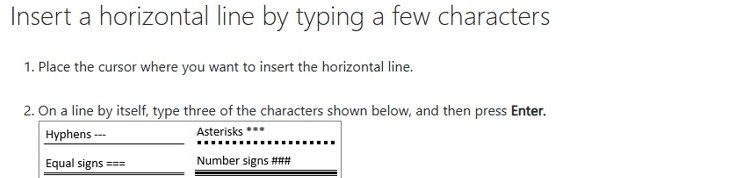
The character you type decides how the line looks. Word needs three or more of the same character, alone on the line, followed by Enter.
| Type this | Then press | Line you get |
|---|---|---|
--- (hyphens) |
Enter | Single line, 0.75 point |
=== (equal signs) |
Enter | Double line, 0.75 point |
___ (underscores) |
Enter | Single line, 1.5 point |
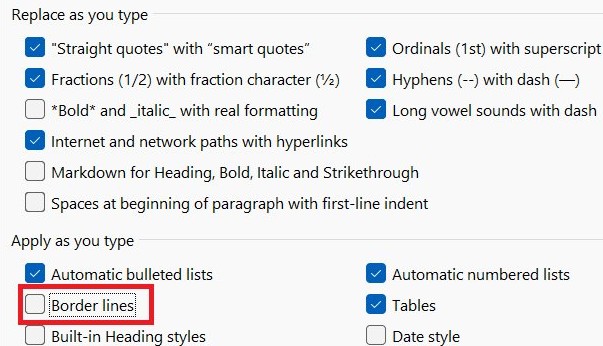
All three depend on the Border Lines option under AutoFormat As You Type, so that option must be selected.
How to insert a horizontal line in Word with the Borders button
Use this route when the line belongs under existing text. Word treats it as a border on that text or paragraph.
- Select the word, line or paragraph that should carry the line.
- Go to the Home tab.
- In the Paragraph group, select the arrow next to Borders.
- Choose the bottom border option from the menu.
- For a custom line, open the same menu and select Borders and Shading.
- Set the style, color and width, and apply them with the buttons in the Preview section.
- Check that the Apply to box says Text or Paragraph as needed, then select OK.
How to draw a straight line in Word with a shape
A drawn line is a separate object, so it can be any length and sit anywhere on the page. The same steps work in Outlook message windows.
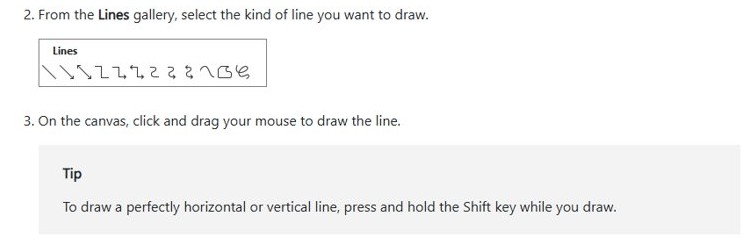
- Select Insert > Shapes.
- In the Lines gallery, choose the line style you want.
- Hold Shift and drag across the page. Shift keeps the line perfectly horizontal.
- With the line still selected, open the Shape Format tab to change how it looks.
How to add a horizontal line in Word on Mac
Microsoft's three-character shortcut page applies to Word for Windows and warns that Word for Mac can differ. The Borders route is documented for Mac, so it is the dependable option there.
- Select the word, line or paragraph that should carry the line.
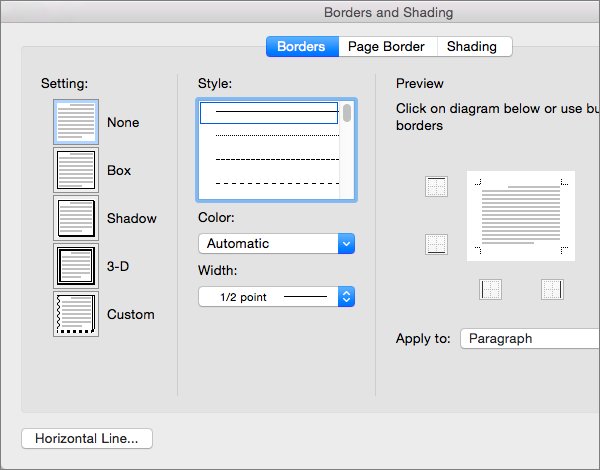
- On the Home tab, select the arrow next to the Borders button.
- In the Borders gallery, select the border style you want.
- For a custom line, select the arrow again and choose Borders and Shading.
- Change Setting, Style, Color and Width.
- Set Apply to to Text or Paragraph, then select OK. With no text selected, only Paragraph is available.
How to add a horizontal line in Outlook email
Outlook message windows use the same line tools as Word, and the three-character shortcut also works in a message. If the Insert tab is missing, you are probably replying in the reading pane.
- Pop the message out into its own window if you are in the reading pane.
- Click in the message body where the line should go.
- Open the Insert tab.
- In the Symbols group, select the horizontal line button.
- To draw a line instead, select Shapes on the same tab and choose a style from the Lines gallery.
How to stop Word from adding a horizontal line automatically
Word turns typed hyphens, equal signs and underscores into a border line through an AutoFormat setting. Clear it if the lines keep appearing when you do not want them.
- Select File > Options.
- On the Proofing tab, select AutoCorrect Options.
- Open the AutoFormat As You Type tab.
- Clear Border Lines.
- Select OK.
How to change the style of a horizontal line in Word
The controls depend on how the line was made. A typed or Borders line is a paragraph border, while a drawn line is a shape.
| Line type | Change | Where to do it |
|---|---|---|
| Typed or Borders line | Style, color or width | Home > Paragraph > arrow next to Borders > Borders and Shading, make the change, select OK, then select the Borders button again |
| Typed or Borders line | Turn it into a box | Home > arrow next to Borders > All Borders or Outside Borders |
| Drawn line | Color | Shape Format > Shape Outline, then pick a color or More Outline Colors |
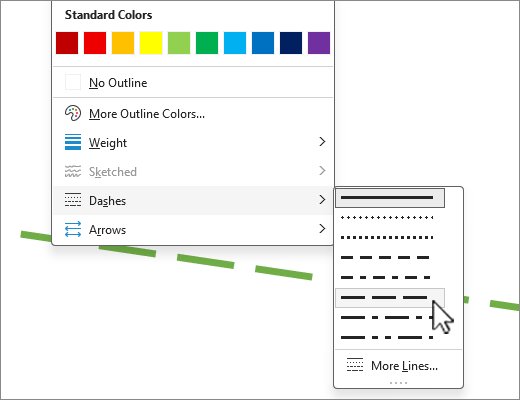
| Drawn line | Dashes | Shape Format > Shape Outline > Dashes, or More Lines for a custom style |
| Drawn line | Thickness | Shape Format > Shape Outline > Weight, or More Lines for a custom thickness |
| Drawn line | A ready-made look | Shape Format, then a thumbnail in the style gallery |
If the Shape Format tab is not showing, click the line first. To edit several drawn lines together, select the first one, then hold Ctrl (Command on a Mac) while you select the others.
How to remove a horizontal line in Word
Click the line first. If it highlights as an object, it is a drawn line. If you cannot select it, it is a horizontal border.
- For a drawn line, click it and press Delete. Hold Ctrl to select several lines before you press Delete.
- For a border line, place the cursor directly above the line.
- On the Home tab, select the arrow next to Borders.
- Select No Border.
- For a line Word just created from typed characters, press Backspace straight away to get the characters back.
Pros of adding a horizontal line in Word
| Pro | What it gives you |
|---|---|
| Speed | Three characters and Enter make a line with no menus |
| Correct width | The typed line fills the page width or the column on its own |
| Style choices | Borders and Shading sets style, color and width after the line exists |
| Free placement | A drawn line can have any length and position on the page |
| Clear document structure | A rule separates sections or a heading from the text below it |
Cons of adding a horizontal line in Word
| Con | How to work around it |
|---|---|
| A typed line cannot be clicked like an object | Remove it with Home > Borders > No Border from the line above |
| Typing underscores for a form can turn into a full-width line | Press Backspace straight away, or use underlined tabs |
| The shortcut needs Border Lines switched on | Turn it back on under AutoFormat As You Type |
| A hand-drawn line can end up slightly crooked | Hold Shift while you drag |
| Shortcut steps can differ in Word for Mac and Word for the web | Use the Borders route on a Mac |
Additional information about horizontal lines in Word
If you are building a form rather than a divider, fill-in-the-blank lines need a different setup. In a layout with columns in Word, a typed line matches the column width.
| How the line was made | What Word creates | How to delete it |
|---|---|---|
Typed ---, === or ___ |
An empty paragraph with a bottom border | Backspace at once, or Borders > No Border |
| Home > Borders | A border on the selected text or paragraph | Borders > No Border |
| Insert > Shapes > Lines | A shape you can select | Click it and press Delete |
| Underlined tab | A tab character with underline formatting | Select the tab and press Delete |
Horizontal line in Word not working
Typing three hyphens does not create a line
The Border Lines option is cleared, or other text shares the line.
- Put the three characters on a line by themselves and press Enter.
- If nothing changes, select File > Options > Proofing > AutoCorrect Options.
- On the AutoFormat As You Type tab, select Border Lines, then select OK.
You cannot select or delete the line
It is a paragraph border, not a drawn object.
- Place the cursor directly above the line.
- On the Home tab, select the arrow next to Borders.
- Select No Border.
You cannot see the Borders icon
The ribbon is on another tab or is hidden.
- Select the Home tab.
- Look in the Paragraph group for Borders.
- If the tabs show but the commands do not, bring back the Word ribbon.
Typed underscores keep turning into a full-width line
AutoFormat replaces three or more underscores when you press Enter.
- Press Backspace immediately to restore the underscores.
- For a blank to fill in, press Tab, select the tab character and press Ctrl + U.
- To stop the behavior everywhere, clear Border Lines under AutoFormat As You Type.
The Insert tab is missing in Outlook
The message is open in the reading pane.
- Pop the message out into its own window.
- Select Insert > Shapes, or use the horizontal line button in the Symbols group.
Horizontal line in Word FAQ
How do you add a horizontal line in MS Word?
Type three hyphens on a blank line and press Enter. Word replaces them with a line across the page or column. You can also use Home > Borders, or draw one with Insert > Shapes.
Can I add a horizontal line in Word on a Mac?
Yes. Select the text, select the arrow next to Borders on the Home tab, and pick a border style from the gallery. Borders and Shading sets the style, color and width.
How do I remove a horizontal line in Word?
Click a drawn line and press Delete. If you cannot select the line, it is a border, so place the cursor above it and choose Home > Borders > No Border.
Can I change the style of the horizontal line?
Yes. For a typed or border line, use Home > Borders > Borders and Shading to set style, color and width. For a drawn line, use Shape Format > Shape Outline.
Why can't I see the Borders icon?
Borders sits on the Home tab, in the Paragraph group, so another open tab hides it. If the whole ribbon is collapsed, display the ribbon again and then return to the Home tab.
How do I add a horizontal line in Word online?
Microsoft's horizontal line instructions are written for Word for Windows and note that Word for the web can differ. Try the three-character shortcut first, and open the document in the desktop app if the line does not appear.
How do I add a horizontal line in an Outlook email?
Open the message in its own window, select the Insert tab, and use the horizontal line button in the Symbols group. Typing three hyphens and pressing Enter also creates a line in a message.
What is a horizontal line in Word?
A horizontal line made by the typing shortcut is an empty paragraph with a bottom border, not a separate object. That is why it fills the available width and cannot be clicked and deleted like a shape.
Can I add a horizontal line in other programs like Google Docs?
Yes. Outlook has a horizontal line button on the Insert tab, in the Symbols group, and Google Docs documents support a horizontal rule element. The typing shortcut and Borders steps here are for Word, so use each program's own menus.