To allow pop-ups on Windows 11, open your browser's site permissions and add the website to its allowed list, because each browser runs its own pop-up blocker.
The steps below cover Microsoft Edge, Google Chrome and Opera, allowing one site or all sites, stopping unwanted pop-ups, and the problems that keep a pop-up from opening.
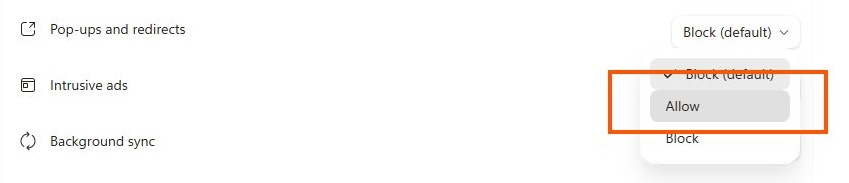
How to allow pop-ups on Windows 11
Microsoft Edge is part of Windows 11, so these steps use it first. They allow pop-ups for one website and leave the blocker on for the rest.
- Open Microsoft Edge and select Settings and more at the top of the browser.
- Select Settings > Privacy, search, and services.
- Select Site permissions.
- Under Content, select Pop-ups and redirects.
- Go to Allowed to send pop-ups and use redirects and select Add site.
- Type the full URL, starting with
https://, and select Add. - Reload the website and repeat the action that opens the pop-up.
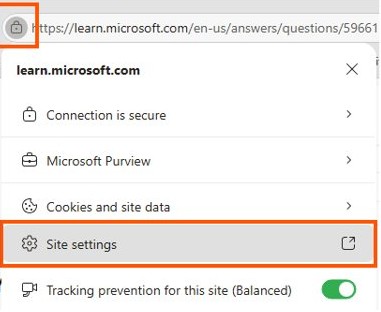
Allow pop ups Windows 11 by browser
Find the browser that shows the blocked pop-up. Changing Edge does nothing for Chrome or Opera, since each one keeps its own list.
| Your situation | Do this | Why |
|---|---|---|
| One site in Edge needs pop-ups | Site permissions > Pop-ups and redirects > Add site | The blocker stays on for every other site |
| One site in Chrome needs pop-ups | Select Pop-up blocked in the address bar and choose Always allow | It takes the fewest steps because you start on the blocked page |
| One site in Opera needs pop-ups | Site settings > Pop-ups and redirects > Add | Opera stores site-specific preferences on this page |
| You want pop-ups on every site for a short task | Change the browser's default on its Pop-ups and redirects page | This removes the blocker's protection, so switch it back afterward |
| You mean alerts in the corner of the screen | Change the site's Notifications permission, not its pop-up setting | Website notifications are a separate permission |
| Your PC is managed by work or school | Ask your administrator | A policy can set this for you |
How to allow pop-ups in Edge Windows 11 for all sites
Edge blocks pop-ups by default, and Microsoft labels that state as recommended. Use the per-site steps above when you can, because this change applies to every website you visit.
- Open Microsoft Edge and select Settings and more.
- Select Settings > Privacy, search, and services > Site permissions.
- Under Content, select Pop-ups and redirects.
- Turn off the Blocked (recommended) toggle.
- Finish your task, then turn the toggle back on.
You can turn the Edge pop-up blocker on or off again at any time from the same page.
How to allow pop-ups in Chrome on Windows 11
Chrome blocks pop-ups by default and shows Pop-up blocked in the address bar when it stops one. You can allow a site from there or change the default for all sites.
Allow pop-ups for one site in Chrome
Start on the page where the pop-up was blocked.
- Select Pop-up blocked in the address bar.
- Select the link for the pop-up you want to see.
- To allow that site every time, select Always allow pop-ups and redirects from the site.
- Select Done.
Allow pop-ups for all sites in Chrome
This changes Chrome's default for every website.
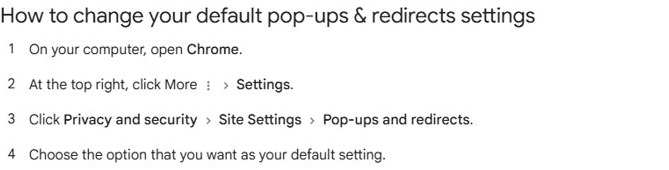
- Select More at the top right, then Settings.
- Select Privacy and security > Site Settings.
- Select Pop-ups and redirects.
- Choose the default option that allows sites to send pop-ups.
How to enable pop-ups in Opera on Windows 11
Opera tries to tell requested pop-ups, such as login pages, from automatic ones such as advertising. It blocks the ones you did not request by default.
- Go to Settings in Opera.
- Select Advanced in the left sidebar, then Privacy & security.
- Under Privacy and security, select Site settings.
- Select Pop-ups and redirects.
- Select Add to set a preference for one site, or turn on Allowed at the top for all sites.
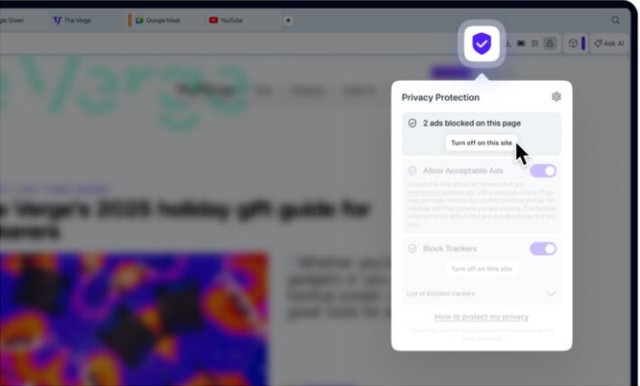
How to tell if pop-ups are allowed in your browser on Windows 11
- Go back to the website and reload the page.
- Repeat the action that should open the pop-up.
- Look at the address bar. Chrome no longer shows Pop-up blocked, and Edge no longer shows its blocked pop-up icon.
- Open Pop-ups and redirects in your browser settings and check that the site is listed under the allowed sites.

Why are pop-ups blocked by default in Windows 11 browsers
Pop-ups are blocked by default because many are distracting or malicious, although some are needed. Microsoft gives a bank's monthly statement as an example of a useful one.
| What you see | What it is | Which setting controls it |
|---|---|---|
| A new window or tab opens by itself | A pop-up | Pop-ups and redirects in the browser |
| A partial window appears over the page | A pop-up | Pop-ups and redirects in the browser |
| An alert appears in the notification center | A website notification | The site's Notifications permission |
| An ad inside the page looks like a pop-up | A website advertisement | The Edge pop-up blocker cannot block it |
| A window opens after you select a button or link | A pop-up you asked for | Edge does not stop these |
| A warning, prize or free download offer appears | A possible phishing attempt | Keep the blocker on and close the page |
How to stop pop ups Windows 11
Turn the blocker back on once you finish, and remove any site you no longer need. Website notifications and Windows notifications have their own switches.
Block pop-ups in Edge
This restores the default. For ads as well, you can block intrusive ads in Edge.
- Select Settings and more > Settings > Privacy, search, and services > Site permissions.
- Under Content, select Pop-ups and redirects.
- Turn on the Blocked (recommended) toggle.
Block a site you allowed in Chrome
Chrome keeps the sites you allowed in a list.
- Open Settings > Privacy and security > Site Settings > Pop-ups and redirects.
- Under Allowed to send pop-ups and use redirects, find the site.
- Select More next to the site, then select Block.
Stop website notifications in Edge or Chrome
Sites you subscribed to can still send alerts while the pop-up blocker is on.
- Go to the website and select View site information in the address bar.
- Find Notifications.
- Select Block.
Stop app notifications in Windows 11
These come from Windows apps, not from a browser's pop-up setting.
- Select Start > Settings > System > Notifications.
- Under Notifications from apps and other senders, select the app.
- Turn that app's notifications off, or use the main Notifications switch for all apps.
Pop ups on Windows 11 not working or still appearing
An allowed site still cannot open its pop-up in Edge
The URL in the allowed list may not match the site, or an extension may be interfering.
- Open Pop-ups and redirects and check the address under Allowed to send pop-ups and use redirects.
- Add the site again with its full URL, including
https://. - Select Settings and more > Extensions > Manage extension, then turn each extension off.
- Test the site, then turn the extensions on one at a time to find the cause.
You cannot change the pop-up setting
Work and school devices can be managed. Chrome's setting is then controlled by the administrator, and Edge has a mandatory policy for the same choice.
- Note the exact address of the website that needs pop-ups.
- Ask your administrator to allow that site.
Pop-ups keep appearing with the blocker turned on
Microsoft lists an out-of-date browser, malware, extensions, third-party cookies and the browser cache as things to check.
- Select Settings and more > Settings > About Microsoft Edge and apply any update.
- Open Windows Security > Virus & threat protection and select Start a quick scan under Quick scan.
- Turn extensions off one at a time to find the one causing the pop-ups.
- Open Privacy, search, and services > Cookies and turn on Block third-party cookies.
- Clear your browser cache.
Ads on the page still look like pop-ups
Website advertisements made to look like pop-ups are outside what the Edge blocker can stop.
- Close the tab rather than selecting anything inside the ad.
- Avoid any offer of a prize, warning or free download in that window.
- Run a quick scan in Windows Security if a page keeps returning.
Tips for allowing pop-ups on Windows 11
| Tip | Why it helps |
|---|---|
| Allow one site instead of all sites | The blocker keeps working everywhere else |
Type the full URL, including https:// |
Microsoft's Edge steps ask for the URL starting with that part |
| Only allow sites you asked to use | Malicious pop-ups use warnings, prizes and free downloads to gain your trust |
| Switch the default back after a one-off task | An all-sites setting keeps applying until you change it |
| Try the button or link on the page first | Edge does not prevent a pop-up that opens after you select a button or link |
| Change the setting in the browser you are using | Each browser keeps its own pop-up settings and allowed sites |
| Block website notifications separately | Sites you subscribed to can still send notifications while the pop-up blocker is on |
Allow pop-ups on Windows 11 FAQ
Why are pop-ups blocked by default?
Browsers block them because many pop-ups are distracting or malicious. Microsoft notes that some use phishing tactics such as warnings, prizes or free downloads to gain your trust. You can still allow the sites that genuinely need them.
Can pop-ups be a security risk?
Yes. Microsoft warns that pop-ups can engage in phishing through fake warnings, prizes or free downloads. Others are harmless, such as a bank statement window. Allow only sites you trust, and close anything that offers a prize or urgent warning.
How can I enable pop-ups for specific sites?
In Edge, open Site permissions, select Pop-ups and redirects, then Add site and type the full URL. In Chrome, select Pop-up blocked in the address bar and choose to always allow that site. In Opera, use the Add button.
Do all browsers handle pop-ups the same way?
No. Edge, Chrome and Opera all block unwanted pop-ups by default, but each keeps its own settings and its own list of allowed sites. Allowing a website in one browser does not change anything in another browser on the same PC.
Can antivirus software block pop-ups?
Microsoft's Virus and threat protection help page lists no pop-up setting, and pop-up permissions are set in the browser. If you use another security product, check its own help pages rather than turning its protection off.
How to allow pop ups in Edge Windows 11?
Select Settings and more, then Settings, Privacy, search, and services, and Site permissions. Under Content, select Pop-ups and redirects, then select Add site under the allowed list. Type the full URL starting with https:// and select Add.
How to control popups in Windows 11?
Control website pop-ups from Pop-ups and redirects in your browser settings. Control website alerts from each site's Notifications permission. Control app alerts from Settings, System and Notifications in Windows 11. Each one is a separate switch, so change the one that matches what you see.
How to stop pop ups win 11?
Turn on Blocked (recommended) under Pop-ups and redirects in Edge, or block the site in Chrome's settings. Then update your browser, turn off suspicious extensions and run a quick scan in Windows Security if pop-ups continue.