To use WordPad in Windows 11 or Windows 10, open Start, type WordPad, select it, write your document, and save it as an .rtf, .docx or .txt file.
WordPad is only on Windows 10 and Windows 11 version 23H2 or earlier, because Microsoft removed it starting with version 24H2, so this article also covers fixes for a missing app and what to use instead.
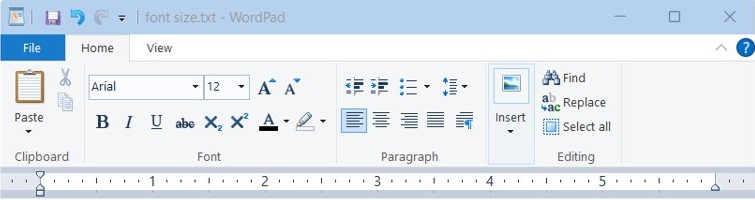
WordPad in Windows 11/10
WordPad is the basic word processor built into Windows. It creates, opens and edits .rtf, .docx and .txt files, with more formatting than plain text and far fewer tools than Microsoft Word.
- Select Start and type WordPad, then select WordPad in the results.
- Type your text in the blank page that opens.
- Select the text you want to change, then use the font and paragraph controls at the top of the window, or the keyboard shortcuts below.
- Save the document from the app's file menu.
- Choose a folder, type a name, and pick a file type: .rtf keeps formatting, .docx suits Word users, and .txt keeps text only.
If WordPad does not appear in the results, your Windows version decides what happens next, as the table below shows.
Does Windows 11 have WordPad?
Windows 11 only has WordPad on version 23H2 or earlier. To find your version, open Settings > System > About and read the Version line under Windows specifications.
| Your Windows version | Does it have WordPad? | What to do |
|---|---|---|
| Windows 11, version 24H2 or later | No, Microsoft removed it from all editions | Use Word, Word for the web or Notepad |
| Windows 11, version 23H2 or 22H2 | Yes, as an optional feature | Open it from Start, or add it back from Optional features if it is gone |
| Windows 10 | Yes, as an optional feature | Open it from Start, or add it back from Optional features if it is gone |
| Windows Server 2025 | No, Microsoft removed it here too | Use Word or Notepad |
Microsoft stopped updating WordPad in 2023, so a working copy gets no new features. If you upgraded to 24H2 within the past few days, you can still roll back and reinstall WordPad.
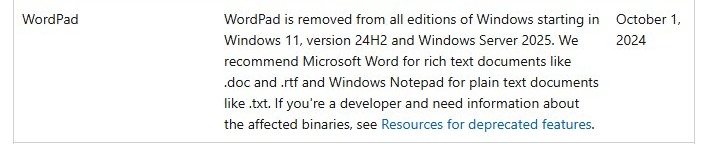
How to open WordPad in Windows 11
Search is the fastest route, and the Run dialog works when search does not. WordPad has two program files, wordpad.exe and write.exe, and write.exe starts wordpad.exe.
- Right-click the Start menu and select Run.
- Next to Open:, type
write. - Select OK to start WordPad.
- To open an existing document instead, right-click the file in File Explorer, select Open with, and choose WordPad.
If Windows reports that it can't find write, WordPad is not on this PC. Go to the missing-app fixes further down this page.
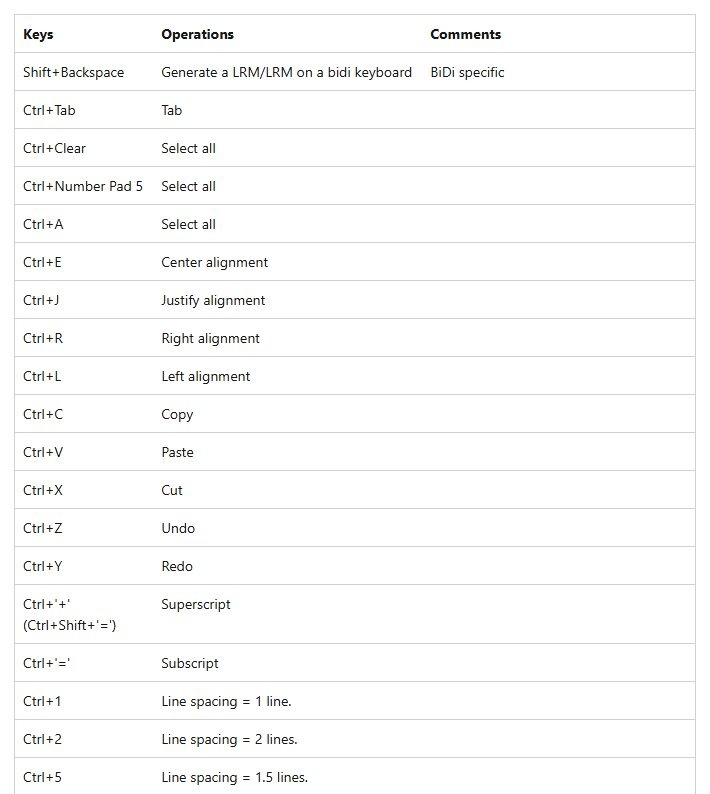
WordPad keyboard shortcuts for formatting text
WordPad's text area is built on Microsoft's Rich Edit control, and these are the keys documented for it and for Windows text editing. Select your text first, then press the keys.
| To do this | Press |
|---|---|
| Select all text | Ctrl + A |
| Copy, cut, paste | Ctrl + C, Ctrl + X, Ctrl + V |
| Undo, redo | Ctrl + Z, Ctrl + Y |
| Bold, italic, underline | Ctrl + B, Ctrl + I, Ctrl + U |
| Align left, center, right | Ctrl + L, Ctrl + E, Ctrl + R |
| Justify a paragraph | Ctrl + J |
| Set single, 1.5 or double line spacing | Ctrl + 1, Ctrl + 5, Ctrl + 2 |
| Subscript, superscript | Ctrl + =, Ctrl + Shift + = |
| Set all capitals | Ctrl + Shift + A |
| Change the bullet style | Ctrl + Shift + L |
| Jump to the start or end of the document | Ctrl + Home, Ctrl + End |
Many of these keys also work elsewhere in Windows, and there is a wider list of Windows keyboard shortcuts if you want more.
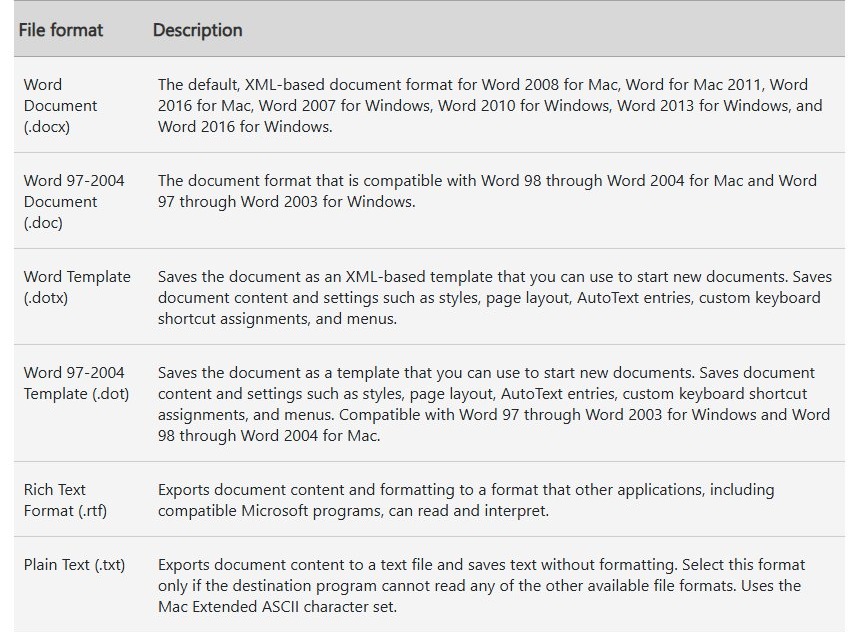
What is the file extension for WordPad
WordPad has no file type of its own. It works with three common ones, and the extension you pick decides what survives when someone else opens the file.
| Extension | What it is | When to use it |
|---|---|---|
| .rtf | Rich Text Format, readable by Word and other compatible programs | Documents with formatting that need to open in several programs |
| .docx | Microsoft Word document | Files you will share with Word users |
| .txt | Unformatted text file | Plain notes where formatting does not matter, as all formatting is dropped |
Older Word files use .doc, a format from before Word 2007. Microsoft recommends Word for .doc and .rtf documents now that WordPad is gone from current Windows.
Difference between Notepad, WordPad and Word in Windows 11/10
Notepad is for text, WordPad is for simple documents, and Word is for anything with a real layout. Availability is now the deciding factor.
| Notepad | WordPad | Microsoft Word | |
|---|---|---|---|
| Main job | Viewing and editing plain text and source code | Creating simple formatted documents | Full document creation, layout and review |
| File types | Plain text, plus Markdown in recent versions | .rtf, .docx, .txt | .docx, .doc, .rtf and more |
| Formatting | Bold, italic, links, lists and headings in recent versions | Fonts, sizes, colors, alignment, indents and bullets | Everything above, plus styles, tables and review tools |
| Windows 11 24H2 or later | Preinstalled, updated through the Microsoft Store | Removed | Separate app, not built in |
| Windows 10 and Windows 11 23H2 or earlier | Included | Included as an optional feature | Separate app, not built in |
| Cost | Free | Free | Paid desktop app; free Word for the web |
Notepad's formatting tools are among the new features in Notepad, and you can turn them off in its settings.
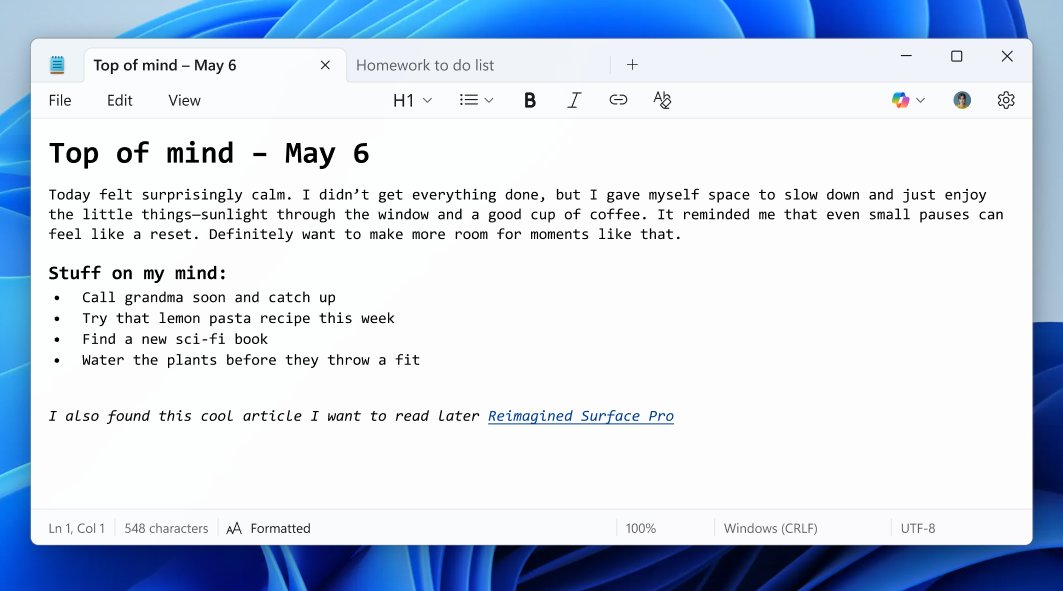
What to use instead of WordPad on Windows 11
On version 24H2 and later, Microsoft points people to Word for rich text and Notepad for plain text. Windows no longer has a built-in default RTF reader, so choose an app for .rtf files yourself.
| Replacement | Use it for | Limits |
|---|---|---|
| Word for the web | .docx documents, at no cost | Needs a free Microsoft account, and files are saved in OneDrive |
| Microsoft Word desktop app | Rich text documents like .doc and .rtf, and heavy editing | Paid, part of Microsoft 365 |
| Notepad | Plain text documents like .txt, and light formatting | Preinstalled, with no .rtf support |
To make your replacement the default, open Settings > Apps > Default apps, search for .rtf, select it, and choose the app. You can download Microsoft Word if you need the desktop version.
Fix WordPad or Notepad is missing in Windows 11
WordPad is missing after updating to Windows 11 24H2 or later
Microsoft removed wordpad.exe, wordpadfilter.dll and write.exe from Windows starting with version 24H2, so the update took them away.
- Open Settings > System > About and read the Version line.
- If it shows 24H2 or higher, stop looking for WordPad in Optional features. It is no longer listed there.
- Open your document in Word or Word for the web instead.
WordPad is missing on Windows 11 23H2 or earlier
WordPad is an optional feature on these versions, so it may have been removed from this PC. The PC must be online, because Windows Update supplies the files.
- Right-click Start, select Settings, then select System > Optional features. On some builds this page sits under Apps.
- Select View features next to Add an optional feature.
- Find WordPad and tick the box next to it, then select Next.
- Select Add and wait for it to finish.
WordPad is missing on Windows 10
WordPad is an optional feature on Windows 10 too, with a slightly different page layout.
- Right-click Start, select Settings, then select System > Optional features. On some builds this page sits under Apps > Apps & features.
- Select the + button next to Add a feature.
- Find WordPad, tick the box next to it, and select Add.
Notepad is missing in Windows 11
Notepad is a preinstalled app in Windows 11 that updates through the Microsoft Store, so it can go missing like any other app.
- Open Microsoft Store and search for Windows Notepad.
- Select the app and install it.
- Select Start, type Notepad, and select Notepad in the results.
- If the Store is not available, run
DISM /Online /Add-Capability /CapabilityName:Microsoft.Windows.Notepad.System~~~~0.0.1.0in an administrator Command Prompt to add the classic system Notepad.
On a work or school PC, the Hide "Windows Features" policy can hide the page that adds optional features, so ask your administrator. You can also download Windows Notepad if a Store search finds nothing.
WordPad takes a long time to open or not opening
WordPad takes a long time to open
Microsoft publishes no specific cause for slow starts and no longer updates WordPad, so repair the files it depends on, then reinstall the feature.
- Restart the PC and open WordPad once more.
- Open Command Prompt as administrator and run
DISM.exe /Online /Cleanup-image /Restorehealth. - When that finishes, run
sfc /scannowand wait for the result. - Open Settings > System > Optional features, search Installed features for WordPad, select it, and select Remove.
- Restart, then add WordPad back with View features.
WordPad not opening at all
WordPad may no longer be on the PC. Microsoft removed it from 24H2 and later, and it is an optional feature on older versions.
- Right-click Start, select Run, type
write, and select OK. - If Windows can't find it, check the Version line in Settings > System > About.
- On 24H2 or later, use Word or Word for the web, because WordPad is gone.
- On 23H2 or earlier, or on Windows 10, add it back from Optional features, then delete any WordPad copies from other PCs or download sites.
Why is my WordPad not working with an .rtf or .docx file?
On 24H2 and later, Windows has no built-in RTF reader, so these files need another app. On older versions, another app may own the file type.
- Open Settings > Apps > Default apps.
- Search for .rtf or .docx and select the result.
- Choose WordPad on older versions, or Word on 24H2 and later.
- Double-click the file to test the change.
WordPad in Windows 11 FAQ
How do I use WordPad on Windows?
Select Start, type WordPad and open it, then type your text and format it with the controls at the top of the window or keyboard shortcuts. Save the document as .rtf, .docx or .txt. This works on Windows 10 and Windows 11 version 23H2 or earlier.
What is WordPad in Windows 11?
WordPad is a basic word processor that Microsoft shipped with Windows and removed starting with Windows 11, version 24H2. On older Windows 11 versions it remains an optional feature that creates, opens and edits .rtf, .docx and .txt files. Microsoft no longer updates it.
Is WordPad included with Windows 11?
Only on Windows 11 version 23H2 or earlier. Microsoft removed WordPad from all editions starting with version 24H2, so a new PC running a current release does not include it, and it is not available as an optional feature on those versions either.
Can I install WordPad on Windows 11?
Yes on version 23H2 or earlier, through Settings > System > Optional features. No on version 24H2 or later, because Microsoft removed the WordPad files from Windows. Microsoft does not supply a standalone installer, so avoid sites that offer one.
What does Windows 11 use instead of WordPad?
Microsoft recommends Word for rich text documents like .doc and .rtf, and Notepad for plain text documents like .txt. Recent versions of Notepad also add light formatting such as bold, italic, lists and headings, which covers many simple notes that WordPad once handled.
Where is WordPad located in Windows 11?
On version 23H2 or earlier, search for WordPad from Start, or open File Explorer, select This PC and search for wordpad.exe. On 24H2 or later, WordPad is nowhere on the PC, because Microsoft removed wordpad.exe, wordpadfilter.dll and write.exe from Windows.
Can I use WordPad on Windows 11?
Yes, if your PC runs Windows 11 version 23H2 or earlier and WordPad is installed. Search for it from Start to check. If your PC runs version 24H2 or later, the only official way back is rolling back a recent upgrade, so move to Word or Notepad instead.
Why is my WordPad not working?
If your PC updated to Windows 11, version 24H2 or later, WordPad was removed and will not open again. On older versions, try sfc /scannow in an administrator Command Prompt, then remove and re-add WordPad from Optional features in Settings.