When WiFi stops working after a Windows update or feature upgrade, the cause is usually the wireless adapter driver or network settings the update changed, so reinstall the driver and run a network reset first.
This guide covers each fix in order, from the quick checks to uninstalling the update or going back to the previous version of Windows.
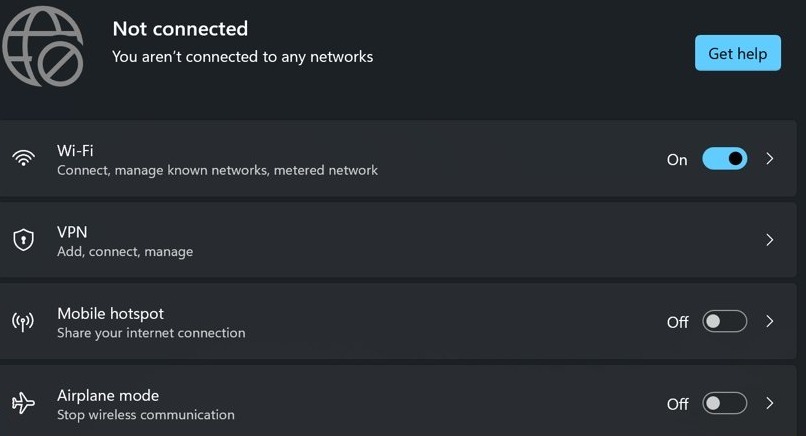
Fix no WiFi after Windows Update
Download your Wi-Fi driver from the PC maker's website on another device first, and copy it to a USB drive in case Windows does not reinstall one.
- Select Search on the taskbar, type device manager and open Device Manager.
- Expand Network adapters, right-click your wireless adapter and select Uninstall device.
- Check Attempt to remove the driver for this device and select Uninstall.
- Select Start > Power > Restart.
- After the restart, let Windows reinstall the driver, or run the driver installer from your USB drive.
- Select the Network icon on the taskbar and connect to your Wi-Fi network.
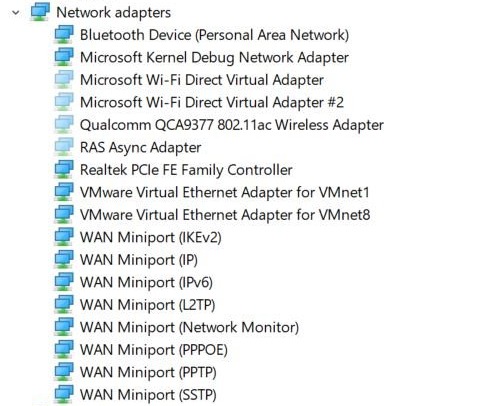
WiFi does not work after installing Windows Update
Match what you see to the fix most likely to clear it. Work down the list; each step is more disruptive than the one above.
| What you see after the update | Try this | Why |
|---|---|---|
| WiFi disappeared after Windows Update and the Wi-Fi toggle is gone | Reinstall the Wi-Fi driver | Windows no longer sees a working wireless adapter |
| Wi-Fi icon is missing from the taskbar but the adapter is listed | Check Wi-Fi and Airplane mode, then run the troubleshooter | The radio may simply be off |
| Networks show but the PC will not connect | Forget the network and reconnect | The saved profile may no longer match |
| Connected, no internet | Run the network reset commands | Winsock, TCP/IP and DNS settings are reset |
| Nothing above works | Network reset in Settings | Removes and reinstalls every network adapter |
| Started right after a monthly update | Uninstall the update | Removes the change that broke the driver |
| Started right after a feature upgrade | Go back to the previous version of Windows | Restores the old build and its drivers within 10 days |
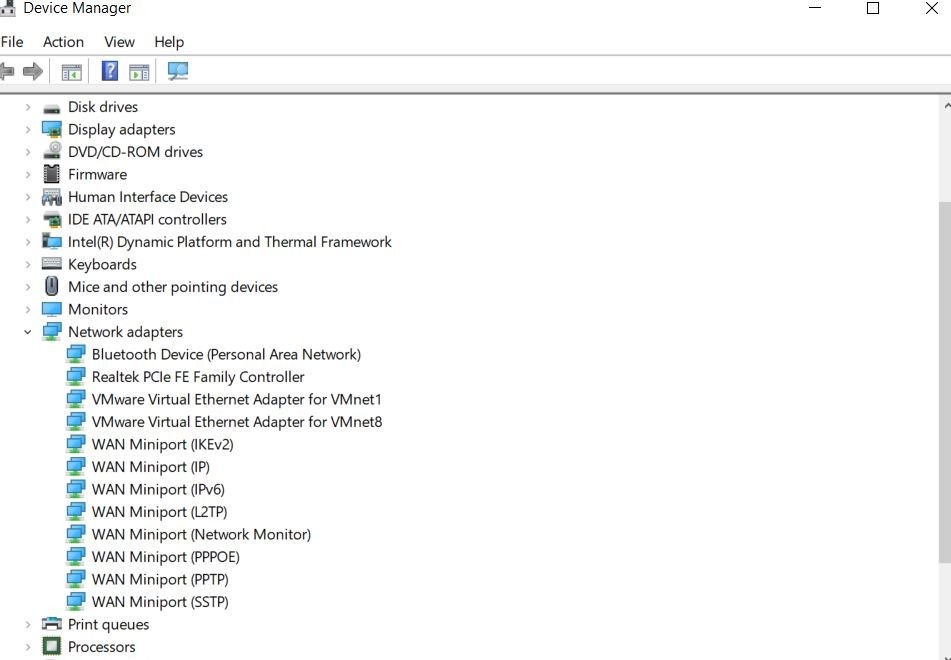
Wi-Fi icon disappeared after Windows Update quick checks
| Check | Where | What to look for |
|---|---|---|
| Wi-Fi is on | Network icon on the taskbar, or Settings > Network & internet > Wi-Fi | The Wi-Fi switch is On |
| Airplane mode is off | Settings > Network & internet > Airplane mode | The switch is Off |
| Modem and router restarted | Unplug both for at least 30 seconds, plug in the modem, then the router | Other devices connect again |
| Network troubleshooter | Get Help app, Network and Internet troubleshooter | It finds and fixes the problem |
Forget and reconnect to the Wi-Fi network
- Open Settings > Network & internet > Wi-Fi.
- Select Manage known networks.
- Select your network and select Forget.
- Select the Network icon on the taskbar, choose the network and enter the password.
Reset Winsock and TCP/IP after a Windows update
Select Search, type command prompt, select Run as administrator and then Yes. Run each command in this order, pressing Enter after each one.
netsh winsock reset
netsh int ip reset
ipconfig /release
ipconfig /renew
ipconfig /flushdns
The first two commands reset the Winsock catalog and the TCP/IP stack. The ipconfig commands drop and request a fresh IP address and clear the DNS cache.
You should see: Each command completes without an error. Restart the PC, then reconnect to Wi-Fi.
Network reset in Windows 11 Settings
Network reset removes every network adapter and reinstalls it with default settings. Use it when the steps above have not worked.
- Open Settings > Network & internet.
- Select Advanced network settings > Network reset.
- Select Reset now, then Yes.
- Wait for the PC to restart, then reconnect to your Wi-Fi network.
Reinstall any VPN client or Hyper-V virtual switches afterwards. Known networks may also switch to a public network profile.

Uninstall the Windows update that broke WiFi
- Open Start > Settings > Windows Update.
- Under More options, select Update history.
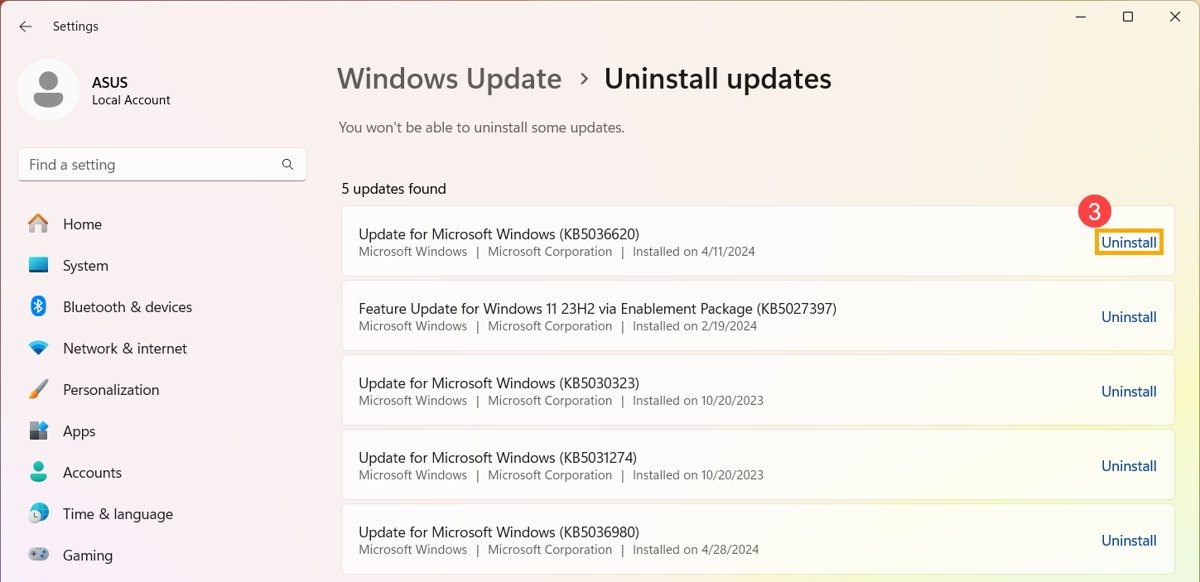
- Under Related settings, select Uninstall updates.
- Select the update installed when WiFi stopped working and select Uninstall.
- Restart the PC and test Wi-Fi.
Some updates cannot be uninstalled. Understand the risk before you remove a security update, and reinstall it once a fixed driver or update is available. You can view installed updates to match install dates to when WiFi failed.
If Windows will not start, open the Windows Recovery Environment and select Troubleshoot > Advanced options > Uninstall Updates.
WiFi not working after feature upgrade: go back to the previous version
In most cases you have 10 days after a feature upgrade to go back. Personal files stay, but apps and drivers installed after the upgrade are removed.
- Open Settings > System > Recovery.
- Select Go back, if it is available.
- Follow the prompts and let the PC restart into the earlier version.
- Connect to Wi-Fi and confirm it works before reinstalling the upgrade.
The option disappears if the windows.old folder was deleted or if user accounts added after the upgrade were removed.
Diagnose wireless connectivity problems with WifiDiagnosticsView
WifiDiagnosticsView is a third-party utility. Windows has its own built-in wireless network report that shows the same connection history and disconnect reasons.
- Type Command prompt in the taskbar search box, right-click it and select Run as administrator > Yes.
- Type
netsh wlan show wlanreportand press Enter. - Open the HTML report path the command prints in your web browser.
- Check the Network adapters section to confirm your Wi-Fi adapter and driver are listed.
- Read Disconnect Reasons and Session Success/Failures in the Summary section to see why connections fail.
If the adapter is missing from the report, Windows does not see the hardware, so reinstall the driver from the PC maker.
WiFi after Windows update FAQ
Why isn't the WiFi working after a Windows update?
An update can replace or break the wireless adapter driver or change network settings. Reinstall the Wi-Fi driver from Device Manager, reset Winsock and TCP/IP, and run a network reset if WiFi still does not work.
What to do when WiFi doesn't work?
Confirm Wi-Fi is on and Airplane mode is off, restart the modem and router, then run the Network and Internet troubleshooter in Get Help. If that fails, forget the network, reinstall the driver or run a network reset.
Why has the Wi-Fi icon disappeared from Windows?
The Wi-Fi option disappears when Windows no longer detects a working wireless adapter, often because its driver failed after an update. Uninstall the adapter in Device Manager, restart, and install the driver from the PC maker if needed.
How to reinstall the Wi-Fi driver?
Open Device Manager, expand Network adapters, right-click the wireless adapter and select Uninstall device. Check Attempt to remove the driver for this device, select Uninstall and restart. Windows reinstalls the driver automatically, or you install it from the PC maker.
How do I know if my WiFi adapter is faulty?
Run netsh wlan show wlanreport and open the report. If the adapter never appears under Network adapters even after a driver reinstall and going back to the earlier Windows version, the hardware itself may have failed.
Can a WiFi adapter stop working?
Yes. A driver problem after an update is the most common cause, and it is fixed by reinstalling or rolling back Windows. A hardware fault is rarer and continues even on an earlier version of Windows.
Why won't WiFi work after a feature upgrade?
A feature upgrade installs a new build of Windows, and the existing Wi-Fi driver may not work with it. Install the latest driver from your PC maker, or go back to the previous version from Settings > System > Recovery within 10 days.