To connect two monitors to a laptop, plug each monitor into its own video output (HDMI, DisplayPort, USB-C or Thunderbolt, or a dock), then press Windows + P and choose Extend.
This guide walks through the 5 steps, the hardware routes for laptops with only one video port, and the fixes for a second screen that Windows does not detect.
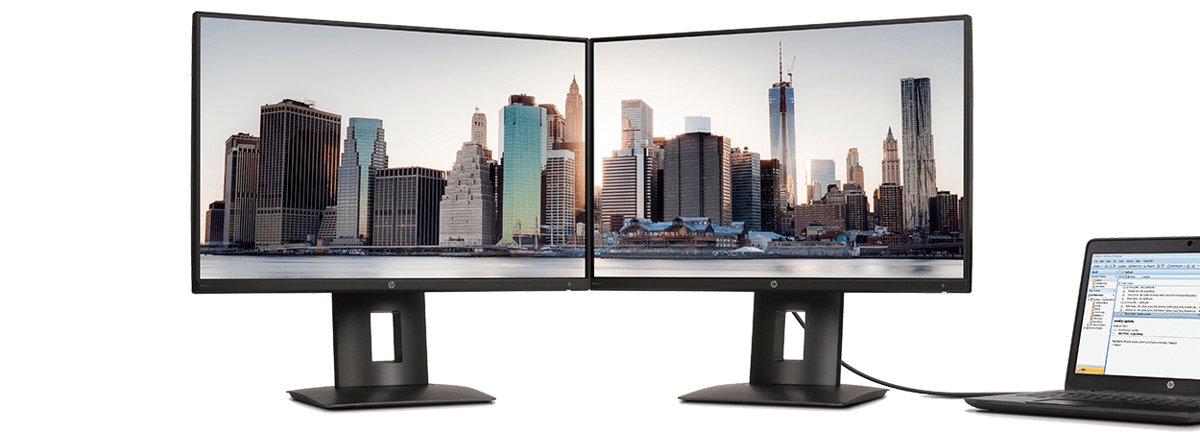
How to connect two monitors to a laptop in 5 steps
Each step has its own section below with the detail. A reader with two free video ports can finish here.
- Check which video ports your laptop has and how many external displays its graphics hardware supports.
- Place both monitors where you want them and power them on.
- Connect the first monitor to one video port with a matching cable.
- Connect the second monitor to a different video port, a dock or a USB-C adapter.
- Press Windows + P, choose Extend, then open Settings > System > Display to arrange the screens and select Apply.
Ways to connect two monitors to a laptop with one HDMI port
A laptop with a single video output supports one external monitor by default. Microsoft lists a docking station or a USB-C adapter as the way to add a second independent signal.
| Your laptop has | Use this | Why |
|---|---|---|
| Two separate video ports (for example HDMI plus USB-C with video) | One cable per port | Each port sends its own signal, so no extra hardware is needed |
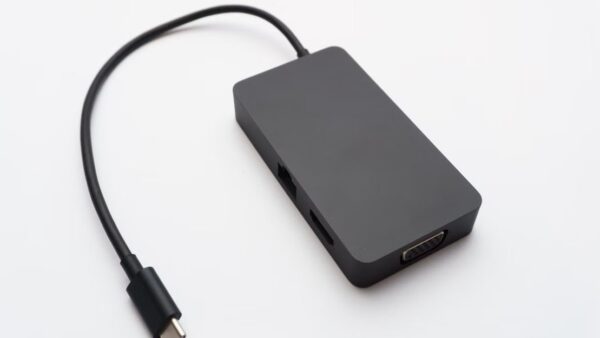
| One HDMI port and a USB-C or Thunderbolt port | USB-C or Thunderbolt to HDMI/DisplayPort adapter or dongle for the second screen | The USB-C port can carry a second video output when it supports display output |
| Only one video port | Laptop maker's docking station or a USB display adapter | A dock or USB adapter adds video outputs the laptop lacks |
| One port and a cheap HDMI splitter | Do not rely on it for two different desktops | A splitter duplicates one signal instead of creating two |
| One external monitor only | Laptop screen plus one external monitor | You still get two screens with no extra hardware |
Check compatibility
Look at the ports on both sides of the laptop and the inputs on the back of each monitor before buying any cable.
| Laptop port | Monitor input it suits | What to check |
|---|---|---|
| HDMI | HDMI | Use an HDMI cable; most monitors have this input |
| DisplayPort or Mini DisplayPort | DisplayPort or HDMI (with an adapter) | Check whether the port is full size or Mini |
| USB-C | USB-C, HDMI or DisplayPort (via adapter) | Look for a DisplayPort or display symbol next to the port; not every USB-C port carries video |
| Thunderbolt | USB-C, DisplayPort, HDMI or a Thunderbolt dock | Look for the lightning-bolt icon next to the port |
| VGA or DVI (older laptops) | VGA or DVI | Older analog VGA gives a softer picture at high resolutions |
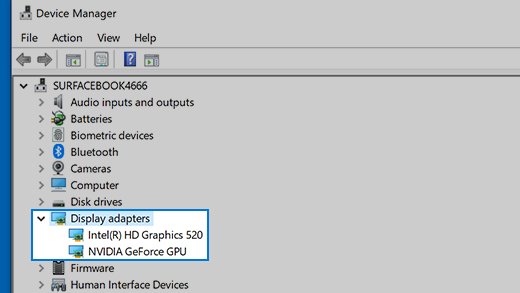
How many external monitors the graphics hardware supports is set by its maker. To find it, type device manager in the taskbar search, open Device Manager, expand Display adapters and note the adapter name, then check the manufacturer's specifications.
Adjust position
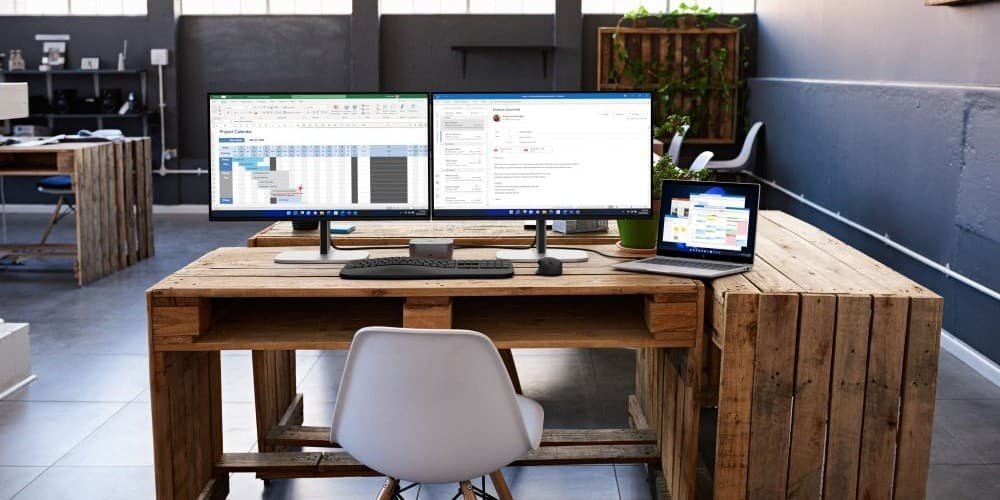
Place the screens first, because Windows maps the mouse path to the multiple monitor arrangement you set later.
- Set the monitor you look at most directly in front of you.
- Set the second monitor to its left or right, with the top edges level if possible.
- Place the laptop so its cables reach the ports without strain.
- Plug both monitors into power and turn them on.
Connect primary monitor
- Connect one end of the cable to the monitor's input (HDMI, DisplayPort or USB-C).
- Connect the other end to a matching video port on the laptop.
- Use the monitor's input or source button to pick the port you connected.
- Wait for the laptop desktop to appear on the monitor, which may take a few seconds.
Connect secondary monitor
- Connect the second monitor to a different video port on the laptop, or to a port on your dock or adapter.
- Select the correct input on the second monitor with its source button.
- If nothing appears, select Start > Settings > System > Display > Multiple displays > Detect.
- Disconnect other docks, dongles and adapters you are not using, since Microsoft notes they can cause conflicts.
Check connectivity & adjust settings
Windows shows the arrange option in its display settings only when it detects more than one display. Each screen gets a number.
- Press Windows + P and select Extend so each monitor shows a different part of the desktop.
- Select Start > Settings > System > Display.
- Select Identify to show each display's number on its screen.
- Drag the numbered boxes to match where the monitors sit on your desk.
- Select Apply.
- Select a display, adjust its display scale and set its resolution and refresh rate under Display.
Under Multiple displays you can also tick Remember window locations based on monitor connection and Minimize windows when a monitor is disconnected.
Windows + P display modes for two monitors
| Option | What you see |
|---|---|
| PC screen only | Things on one display only |
| Duplicate | The same picture on all displays |
| Extend | Your desktop spread across the screens, so you can move windows between them |
| Second screen only | Everything on the second display only |
Use the internal monitor with one external monitor
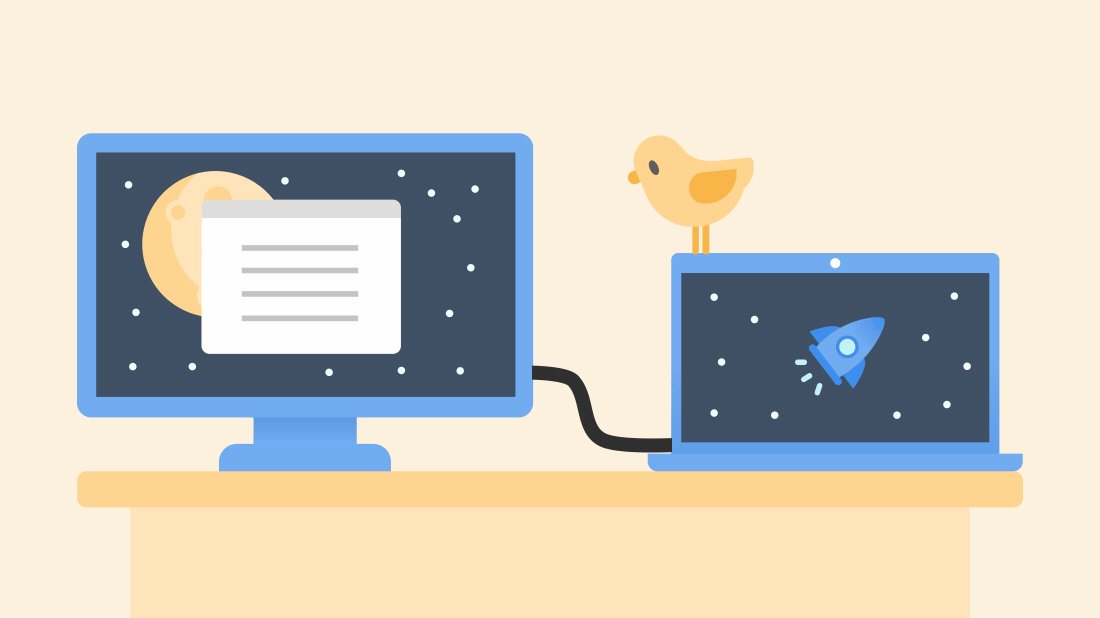
The laptop's own screen counts as a display. If you only have one spare port, this is the simplest dual-screen setup.
- Connect one external monitor to the laptop's video port.
- Press Windows + P and choose Extend.
- Open Settings > System > Display and drag the boxes so the laptop screen sits below or beside the monitor.
- Select Apply.
Use Thunderbolt passthrough (if available)
Some Thunderbolt monitors and docks have a second Thunderbolt or DisplayPort output, so one laptop port can feed two screens in a chain. Whether daisy chaining works depends on the laptop, the Thunderbolt port and both monitors.
- Confirm the laptop port shows the Thunderbolt icon.
- Check the first monitor's manual for a Thunderbolt or DisplayPort output port.
- Connect the laptop to the first monitor's input.
- Connect the second monitor to the first monitor's output port.
- Press Windows + P, choose Extend, and arrange the screens in Display settings.

Connect a monitor to every output type (if supported)
- List every video port on the laptop: HDMI, DisplayPort, USB-C with video, Thunderbolt and VGA.
- Connect the first monitor to one type, such as HDMI.
- Connect the second monitor to another type, such as USB-C with a USB-C to HDMI cable.
- Select Detect under Settings > System > Display > Multiple displays if a screen stays blank.
If the second monitor stays blank but each works alone, the graphics adapter may not support more than one external monitor. Its maker states the limit.
Use dongles
A dongle converts one port type into another, for example USB-C to HDMI or Mini DisplayPort to DisplayPort. It does not add a signal: it only changes the plug.
- Match the dongle's input to a free laptop video port.
- Match its output to the monitor's input.
- Plug the dongle into the laptop, then connect the monitor cable to it.
- Choose Extend with Windows + P.
Use a USB display
A USB display adapter, or a monitor that takes video over USB, adds a screen to a laptop with no spare video port. These usually need the adapter maker's driver from the vendor's own site.
- Connect the USB display adapter to a USB port on the laptop.
- Install the driver from the adapter maker's official website if Windows does not set it up.
- Connect the monitor to the adapter.
- Arrange the new display in Settings > System > Display.
Use a multihead splitter
Microsoft states that a display splitter cannot extend your desktop to more than one external monitor, because it duplicates the same signal instead of creating two independent signals.
Buy a splitter only if you want the same picture on both monitors. For two different screens of work, a dock, a USB-C adapter with two outputs or a second video port gives each monitor its own signal.
Get a proprietary docking station
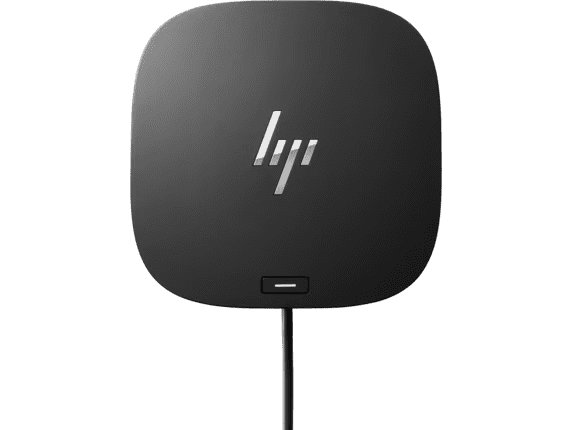
A docking station gives one cable to the laptop and several video outputs for monitors. Microsoft advises contacting your PC's manufacturer to find which docks work with your model.
- Find the dock listed for your laptop model on the manufacturer's site.
- Connect the dock to the laptop with its cable.
- Connect each monitor to a separate video output on the dock.
- Select Start > Settings > System > Display and confirm two numbered displays appear.
- Move the mouse across both screens to confirm the layout works as expected.
Laptop not detecting second monitor fixes
Second monitor shows no signal
The cable, port or monitor input is wrong or faulty.
- Press Windows + P and confirm Extend is selected.
- Reseat the cable at both ends.
- Swap in a different cable.
- Try the monitor on another computer to rule out the monitor.
One external monitor works but the second does not
The graphics adapter may not support more than one external display, or the laptop has only one video output.
- Check the adapter name under Display adapters in Device Manager.
- Check the maker's specifications for the supported monitor count.
- Add a dock or USB-C adapter if the laptop has only one video output.
Dual monitors stopped working after an update
The display driver changed or crashed.
- Press Windows + Ctrl + Shift + B to reset the graphics driver.
- Select Start > Power > Restart.
- In Device Manager, right-click the display adapter, select Properties > Driver > Roll Back Driver.
- If roll back is unavailable, select Uninstall device, restart, then choose Update driver > Search automatically for updated driver software.
Do you need two monitors?
Two external monitors suit work where you keep several windows open at once, such as spreadsheets beside documents; otherwise the laptop screen plus one monitor is enough. The single-monitor setup needs no adapter or dock, while two external screens may need extra hardware if the laptop has one video port.
Connect two monitors to a laptop FAQ
Can I connect two monitors to a laptop with one HDMI port?
Yes, if the laptop also has a USB-C or Thunderbolt port with video output, or you add a docking station or USB display adapter. One HDMI port alone carries only one independent signal to one external monitor.
Does an HDMI splitter work for dual monitors?
No, not for an extended desktop. A splitter duplicates the same signal to both screens, so they show identical pictures. Use a dock or a second video port for two different screens.
Why does my laptop not detect the second monitor?
Check that Extend is chosen with Windows + P, then select Detect under Settings > System > Display > Multiple displays. If it still fails, swap cables and update or roll back the display driver.
How do I extend my display instead of duplicating it?
Press Windows + P and select Extend. Your desktop then spreads across the screens, and you can drag windows from one monitor to the other.
How many monitors can my laptop support?
It depends on the graphics adapter and the video ports. Find the adapter name under Display adapters in Device Manager and check its maker's specifications for the supported number of displays.
Can I use the laptop screen with two external monitors?
Yes, when the graphics hardware supports three displays. Windows then shows three numbered boxes in Display settings that you can arrange and extend across.