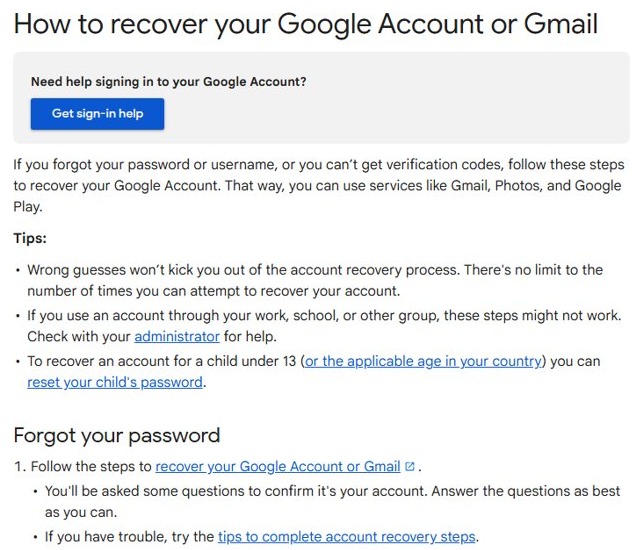
To recover a forgotten Gmail password, open the Google account recovery page at accounts.google.com/signin/recovery, enter your Gmail address, prove the account is yours, and set a new password when prompted.
This guide covers each recovery step, what to do without your recovery phone or email, security holds, forgotten usernames, and how to avoid a lockout next time.
Step by step tutorial: Recovering your forgotten Gmail password
Your Gmail password is your Google Account password, so resetting it also restores access to YouTube, Google Photos, Google Play and every other Google service on that account.
- Open a browser on a computer, phone or tablet you normally use to sign in to Gmail.
- Go to the Google account recovery page at accounts.google.com/signin/recovery.
- Enter your Gmail address or the phone number on the account.
- Answer the questions Google asks to confirm the account is yours. A typical question asks for the last password you remember or sends a code to your recovery phone or recovery email.
- Enter the verification code exactly as it appears in the text message or email.
- If a question does not work for you, select Try another way to get a different challenge.
- Create a new password when prompted. It must be one you have not already used with this account.
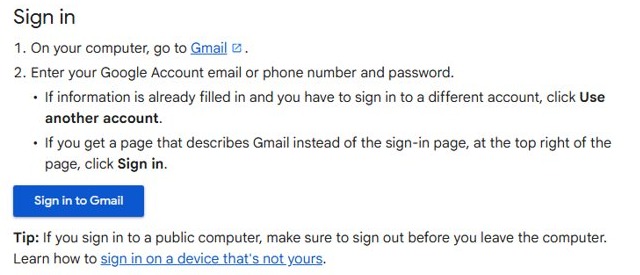
- Sign in to Gmail with the new password.
After the reset, Google signs you out everywhere except the devices you use to verify sign-ins, some third-party apps you gave account access, and helpful home devices linked to the account.
How to reset Gmail password without recovery email or phone number
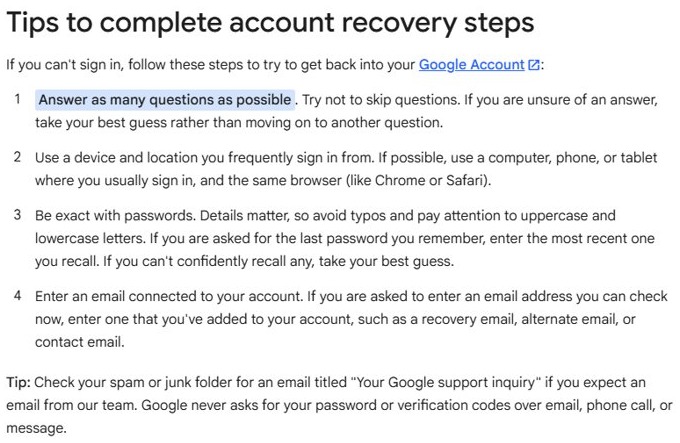
You can still recover your account without the old phone number or recovery email. Google then relies on other signals, such as your device, location and the passwords you remember.
- Use a computer, phone or tablet where you often sign in to Gmail.
- Use the same browser you usually use, such as Chrome or Safari.
- Be at a place where you usually sign in, like at home or at work.
- Start at accounts.google.com/signin/recovery and enter your Gmail address.
- When asked for the last password you remember, enter the most recent one you recall. If you cannot recall it, enter an older one; the newer, the better.
- If asked for an email address you can check now, enter an alternate or contact address you added to the account.
- Select Try another way on any challenge you cannot complete, rather than giving up on the whole process.
Wrong guesses do not kick you out of account recovery, and there is no limit on how many times you can try. If you got a "Google couldn't verify this account belongs to you" message, you can start again.
Recover your Gmail username if you forgot the email address
If the problem is the address rather than the password, find the username first. You need the phone number or recovery email on the account and the full name on the account.
- Go to the Google account recovery page and choose the option for a forgotten email address.
- Enter the recovery phone number or recovery email address linked to the account.
- Type the first and last name exactly as they appear on the Google Account.
- Follow the on-screen instructions to confirm it is your account.
- Pick your Gmail address from the list of matching usernames, then reset the password with the main steps above.
Tips for recovering your forgotten Gmail password
| Tip | Why it helps |
|---|---|
| Answer every question instead of skipping | Google advises a best guess over moving on; wrong answers do not end the process |
| Use your usual device, browser and location | A familiar setup is one of the signals Google uses to recognize you |
| Type passwords exactly, with correct uppercase and lowercase | Details matter when you enter an old password |
| Check spam for the reset email | Look for messages from [email protected] or titled "Your Google support inquiry" |
| Add [email protected] to your contacts | This helps the reset email reach your inbox |
| Check every address you might have used | Your account may be tied to an older or alternate email |
| Only enter codes at accounts.google.com | Google never asks for your password or verification codes by email, phone call or message |
| Ignore paid recovery services | Google does not work with any service that claims to offer account or password support |
What if you forgot your Gmail password and recovery email
| Your situation | What to do | What to expect |
|---|---|---|
| You still have the recovery phone | Choose the text message code challenge | Fastest route; the code arrives on that phone |
| You still have the recovery email | Choose the email code challenge and check spam | Code or link arrives from [email protected] |
| Neither, but you are on your usual device | Start recovery on that device and answer password questions | Google may verify you from the familiar device and location |
| You are still signed in to Gmail on another device | Run recovery from that signed-in device | A better chance of recovery, often faster |
| It is a work or school account | Ask your administrator to reset the password | Consumer recovery steps may not work for these accounts |
| It is a child's account under 13 | A parent resets the child's password | No recovery flow needed for the child |
| Recovery keeps failing | Create a new Google Account and set up recovery options on it | The old account stays locked |
How to tell if your Gmail password was changed
- Sign in to Gmail with the new password. If a different account fills in, choose Use another account.
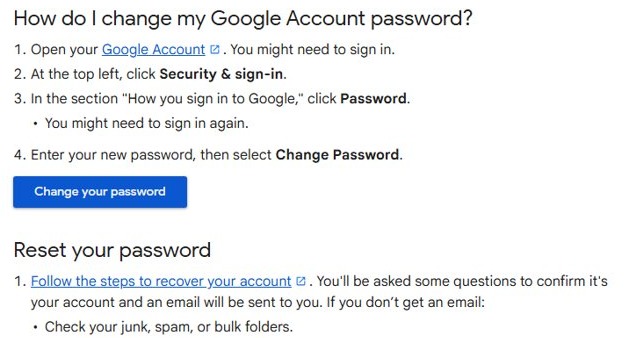
- Open your Google Account and click Security & sign-in.
- Under How you sign in to Google, check that Recovery phone and Recovery email show numbers and addresses you control.
- Review the devices signed in to your account and remove any you do not recognize.
- Sign in again on your phone and other devices, which were signed out by the reset.
Gmail password recovery not working
The Gmail password reset email never arrives
The message landed in junk or was sent to a different address.
- Check your junk, spam and bulk folders.
- Add [email protected] to your address book.
- Start the recovery steps again to request another email.
- Check every email address you might have used to sign up or sign in.
Your account recovery request is delayed or under a security hold
Google adds a delay when something about the request looks unusual, so the real owner has time to deny it.
- Wait; holds last from a few hours to a number of days, and longer on accounts with 2-Step Verification.
- If you get access to a device where you normally sign in, run recovery again from it.
- Watch your recovery phone and email for notices about the request.
Google couldn't verify this account belongs to you
The answers or signals were not enough for Google to confirm you.
- Move to the device, browser and location you use most.
- Start again at accounts.google.com/signin/recovery.
- Answer every question, including old passwords, with your best guess.
Codes go to an old recovery phone or email
Recent changes to recovery info can take up to 7 days to take effect, and Google may keep using the previous info during that time.
- Wait a few days, then try account recovery again.
- If you have a trusted passkey or security key, approve the new recovery phone at myaccount.google.com/security to speed it up.
Someone else changed your Gmail password
The account may be hacked or hijacked.
- Use the account recovery page and answer the questions as best you can.
- After you get in, change the password on any other site that used the same password.
- Review signed-in devices and turn on 2-Step Verification.
Set up Gmail recovery options to avoid a lockout
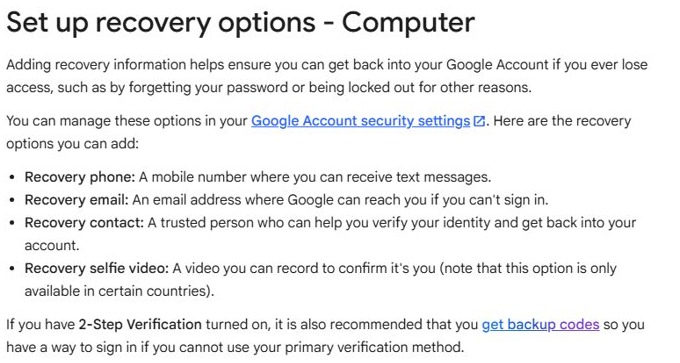
You cannot add recovery info while you are locked out, so do this as soon as you are back in.
- Open your Google Account and click Security & sign-in.
- Under How you sign in to Google, click Recovery phone and follow the prompts. Use a phone that gets text messages, not a Google Voice number.
- Click Recovery email and add an address you check regularly.
- Add a recovery contact, a trusted person who can help verify it is you, if the option is available in your region.
- Stay signed in on a personal device you keep with you.
Frequently asked questions
How do I retrieve a forgotten Gmail password?
Google cannot show you the old password, but you can reset it. Go to accounts.google.com/signin/recovery, enter your Gmail address, answer the verification questions, enter the code Google sends, and create a new password you have not used on that account before.
What if you forgot your Gmail password?
Start account recovery at accounts.google.com/signin/recovery. Google asks questions such as your last remembered password or sends a code to your recovery phone or email. Wrong guesses do not end the process, and there is no limit to how many times you can try.
How do I reset my Gmail password when I forgot it?
Open the account recovery page, enter your email address, confirm it is you with a code or other questions, then set a new password when prompted. Afterwards Google signs you out on most devices, so sign back in with the new password.
How long does the Gmail recovery process take?
With a working recovery phone or email it often takes a few minutes. If Google places a security hold on the request, recovery can be delayed for a few hours or a number of days, and longer for accounts that use 2-Step Verification.
What if I don't have access to my recovery email or phone number?
Try recovery anyway from a device, browser and location where you usually sign in, and answer the password questions with your best guess. Select Try another way on challenges you cannot complete. A device still signed in to Gmail improves your chances.
Can I recover my password without any recovery information?
Sometimes. Google can use signals such as a familiar device and location and the old passwords you remember. If it still cannot verify you, it will not reset the password, and Google suggests creating a new account with recovery options set up.
Is it safe to use my phone number for account recovery?
Yes. Google uses a recovery phone to send codes when you are locked out, block others from using your account and alert you to suspicious activity. Avoid a Google Voice number, because codes sent there are unreachable once you are locked out.
What should I do if I suspect someone else has accessed my account?
Use the account recovery page if you cannot sign in. Once in, change your Gmail password, change it on other sites that shared it, remove unfamiliar devices and turn on 2-Step Verification. Google never asks for codes by phone or message.
Can I call Google to recover my Gmail password?
No. Google does not offer phone support for signing in to a personal account and does not work with any service that claims to recover accounts or passwords. The account recovery page is the only official route.