To turn off an Android phone, open the power menu with the phone's buttons and tap Power off: Pixel 6 and later use Power + Volume up, and Samsung Galaxy phones with a Side button use Side + Volume down.
This guide covers Pixel and Samsung phones, tablets, turning off without the power button, force restarts, scheduled restarts and fixes when the phone won't shut down or turns itself off.
Step by step tutorial: How to turn off Android phone
Most Android phones put the power menu behind the power button. Newer phones assign a plain long press to an assistant, so you add a volume key.
- Find the power button. On Pixel phones it is the top button on the right side; Samsung calls it the Side button.
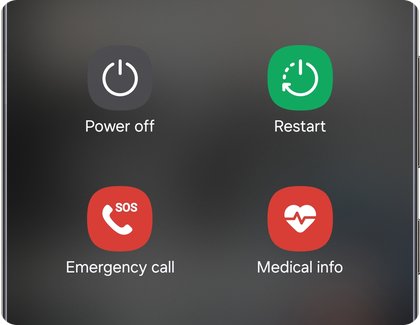
- Open the power menu. On Pixel 6 and later, press and hold Power and Volume up together for a few seconds. On a Samsung phone with a Side button, press and hold Side and Volume down. On older phones, press and hold the Power button alone.
- Tap Power off on the screen.
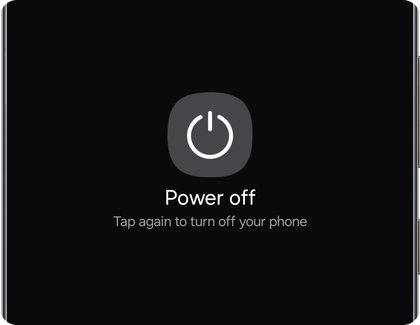
- If the phone asks you to confirm, tap Power off again.
- Wait until the screen goes fully black before you put the phone away.
How to turn off a Samsung Galaxy phone
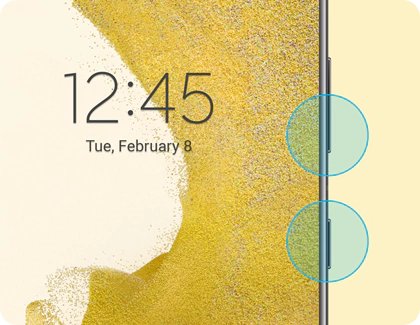
On many newer Galaxy phones, including the Galaxy S21 series, the old Power and Bixby buttons were replaced by one Side button. Its long press opens Samsung's Bixby assistant by default, which is why holding it alone does not show the power menu.
- Press and hold the Side and Volume down buttons together for a few seconds.
- When the Power menu appears, tap Power off.
- Tap Power off again to confirm.
- On an older Galaxy with a dedicated Power button, hold that button until the Power menu appears, then tap Power off and confirm.
How to turn off a Google Pixel phone
| Pixel model | Buttons to press | Then |
|---|---|---|
| Pixel 6 and later, including Pixel Fold | Press and hold Power and Volume up for a few seconds | Tap Power off on the screen |
| Pixel 5a and earlier | Press and hold Power for a few seconds | Tap Power off on the screen |
| Any Pixel, to turn it back on | Press and hold Power for a few seconds | On Pixel 6 and later, hold until you feel a buzz (up to 7 seconds) |
Pressing Power once only turns the screen off. The phone stays on and keeps receiving calls, and during a call the same press can end calls on Android if that setting is on.
Turn off a Samsung phone without the power button
Galaxy phones and tablets have two software routes, which help when the Side button is broken or stuck.
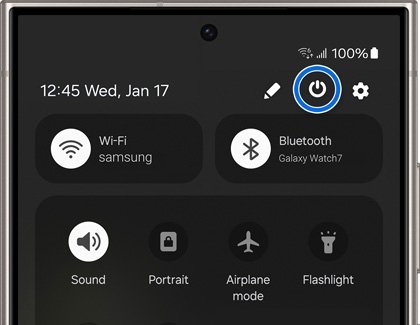
- Swipe down from the top of the screen with two fingers to open the Quick settings panel.
- Tap the Power icon in the upper right, next to the Settings icon.
- Tap Power off, then tap Power off again to confirm.
- Alternatively, with Bixby Voice set up, press and hold the Side button and say "Turn off the phone". Confirm when Bixby asks.
Bixby cannot turn the phone back on. Use the Side button, or Side and Volume down, to power it up again.
Make the side button turn off your Android phone
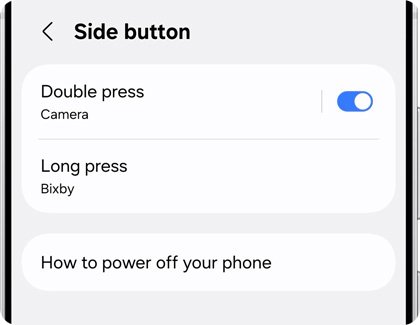
If you want a plain long press to open the power menu again, open your phone's settings and change the button's assignment.
| Phone | Setting path | Choose |
|---|---|---|
| Samsung Galaxy | Settings > Advanced features > Side button | Under Long press (or Press and hold), select Power off menu |
| Pixel 6 and later | Settings > System > Gestures > Press and hold the power button | Select Power menu |
After the change, press and hold the button alone for a few seconds and tap Power off.
How to turn off an Android tablet
Android tablets use the same power menu as phones. Samsung's steps apply to Galaxy Tab models as well as phones.
- On a Galaxy tablet with a Side button, press and hold Side and Volume down together.
- On a tablet with a dedicated Power button, press and hold it until the power menu appears.
- Tap Power off, then confirm.
- If the buttons do not work on a Galaxy tablet, swipe down with two fingers, tap the Power icon and tap Power off.
How to force restart a frozen Android phone
A frozen screen cannot show the power menu, so the phone has a button combination that forces a restart.
| Phone | Force restart | What you see |
|---|---|---|
| Samsung Galaxy | Press and hold Side (or Power) and Volume down together for about 10 seconds; it can take up to 60 seconds | The screen goes black, then the Samsung logo appears |
| Google Pixel | Press and hold Power for up to 60 seconds | Release when the screen shows the "G" logo |
| Galaxy with a removable battery | Remove the back cover and the battery for 30 seconds, then reinsert it | The phone stays off until you press Power |
If a Galaxy phone opens Maintenance Boot Mode after the force restart, use the volume keys to highlight Normal Boot, then press the Side key.
Turn an Android phone back on
- Press and hold the Power or Side button.
- On a Samsung phone, keep holding until you feel a vibration and the Samsung logo appears.
- On a Pixel 6 or later, keep holding until you feel a buzz, which can take up to 7 seconds.
- Enter your PIN, pattern or password. After a restart, biometric unlock asks for it before fingerprint or face unlock works again.
- If nothing happens, charge the phone for at least an hour and try again.
Schedule an automatic restart on a Samsung phone
Galaxy phones cannot be set to power off on a schedule from this menu, but they can restart on one. That gives you the fresh-start effect without touching the buttons.
- Open Settings and tap Device care.
- Tap Auto optimization, then tap Auto restart.
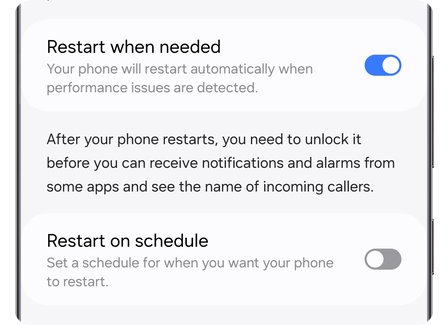
- Turn on Restart when needed to let the phone pick a quiet time.
- Or turn on Restart on schedule and set the days and time.
Tips: How to turn off Android phone
| Tip | Why it helps |
|---|---|
| Use Restart instead of Power off when the phone is acting up | Samsung notes that a restart clears minor issues that build up over time |
| Charge a phone that will not turn back on | A fully drained battery can take several minutes to show any sign of charging |
| Keep your PIN handy before you power off | Biometric unlock asks for the backup PIN or password after a restart |
| Do not count on alarms while the phone is off | Turn the phone off only when you do not need it to wake you |
| Check the button layout on your exact model | Samsung says Volume and Side key locations vary by model |
Apple tablets use a different button layout, so turning off an iPad follows its own steps.
Why won't my Android phone turn off?
Holding the power button opens Bixby or an assistant instead of the power menu
The button's long press is assigned to an assistant.
- Add the volume key: Side + Volume down on Samsung, Power + Volume up on Pixel 6 and later.
- To restore the old behavior, change the long press to Power off menu (Samsung) or Power menu (Pixel) in Settings.
The screen is frozen and the power menu does not appear
The phone is completely frozen.
- On Samsung, press and hold Side and Volume down until the device shuts down, up to 60 seconds.
- On Pixel, press and hold Power for up to 60 seconds until the "G" logo appears.
- If a Galaxy opens Maintenance Boot Mode, select Normal Boot.
The power button is broken
Hardware damage stops the button combination working.
- On a Galaxy, swipe down with two fingers and use the Power icon in Quick settings.
- Or ask Bixby: "Turn off the phone".
- Arrange a repair through Samsung or Google support for the button itself.
Why does my Android phone turn itself off?
Google lists random reboots and shutdowns without restarting under the same causes. Work through them in this order.
The phone turns off randomly or reboots during use
Outdated software, full storage or a misbehaving app.
- Go to Settings and install any Android system update.
- Update your apps from Google Play.
- Check storage and free up space.
- Close apps you are not using, then watch whether one app triggers the shutdowns.
The phone turns off in a bag or pocket
Heat, accidental touches or battery drain.
- Check whether the phone is hot and let it cool.
- Check touch sensitivity settings.
- Check battery usage in Settings for apps draining the battery.
The phone keeps shutting down after all of the above
A case, external battery or deeper software fault.
- Remove the case and any external battery pack.
- Back up your data and consider a factory reset on Android.
- Contact the manufacturer's support if the shutdowns continue.
Frequently asked questions about turning off an Android phone
How do I turn off my Android phone if the power button isn't working?
On a Samsung Galaxy, swipe down from the top with two fingers, tap the Power icon in Quick settings and tap Power off twice. You can also ask Bixby to "Turn off the phone". A broken button still needs a repair to turn the phone back on.
How do I turn off a Samsung Galaxy S21?
Press and hold the Side button and the Volume down button together for a few seconds. When the Power menu appears, tap Power off, then tap Power off again. Holding the Side button alone opens Bixby unless you change it in Advanced features.
Can I set a schedule to automatically turn off my Android phone?
Samsung offers a scheduled restart rather than a scheduled shutdown. Go to Settings > Device care > Auto optimization > Auto restart and turn on Restart on schedule, then pick the days and time.
What should I do if my Android phone won't turn off?
Use the button combination for your phone. If the screen is frozen, force a restart: hold Side and Volume down on Samsung, or hold Power for up to 60 seconds on Pixel. A phone with a removable battery can be shut down by removing the battery for 30 seconds.
How do I turn off an Android phone without the screen?
You cannot tap Power off without a working screen, but the force-restart buttons still work. Hold Side and Volume down on a Samsung until it shuts down, or hold Power on a Pixel for up to 60 seconds. Both restart the phone rather than leaving it off.
Is it necessary to turn off my Android phone regularly?
There is no requirement to power off on a schedule. A restart is the useful habit: Samsung says restarting clears minor issues that pop up over time, and Galaxy phones can do it automatically with Auto restart.
Will turning off my Android phone affect my alarms or notifications?
Yes. A phone that is off cannot receive calls, texts or app notifications; they arrive after you turn it back on. Do not rely on an alarm while the phone is powered off. Leave it on, with the screen off, if you need it to wake you.
Why does pressing the power button not turn off my Pixel?
One press only turns the screen off, and on Pixel 6 and later a long press of Power alone does not open the power menu by default. Hold Power and Volume up together, or change Settings > System > Gestures > Press and hold the power button to Power menu.
How do I turn off an Android tablet?
Hold the tablet's Power button, or Side and Volume down on newer Galaxy Tab models, then tap Power off and confirm. Galaxy tablets also have the Power icon in Quick settings, opened by swiping down with two fingers.