Yes, Apple Mail can hold your Cox address and your own Yahoo address at the same time, because Yahoo Mail signs in with the full email address, so [email protected] and [email protected] are two separate accounts even when the part before the @ matches.
This guide shows how to add the Cox account again after its move to Yahoo, create the app password Mail may need, tell the two accounts apart, and fix a Cox inbox that stops downloading.
Can Apple Mail have two Yahoo accounts with the same username?
Mail treats every account as separate as long as the email addresses differ. The quickest fix for a Cox inbox that stopped updating is to remove the old Cox account and add it again with the Yahoo sign-in.
- Open Mail on your Mac and choose Mail > Settings, then click Accounts.
- Copy any messages you need that exist only on this Mac into a mailbox under On My Mac.
- Select the old Cox account and click the Remove button.
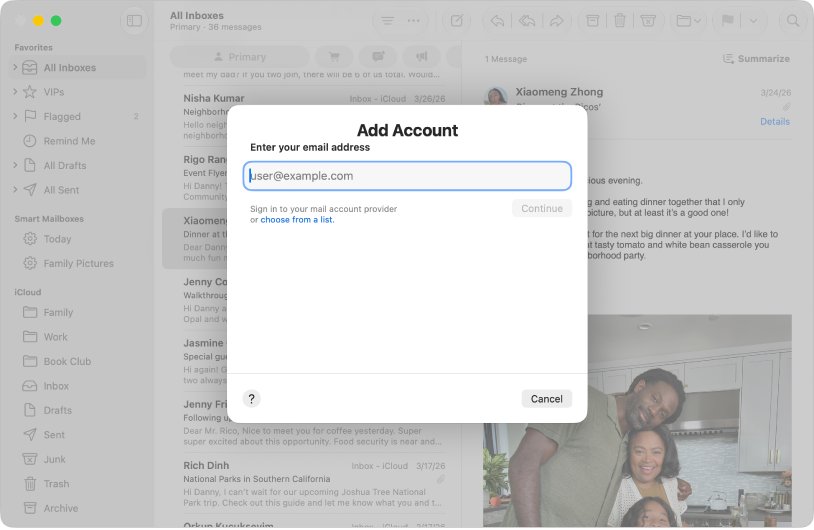
- Choose Mail > Add Account and enter your full Cox address, for example [email protected].
- Click Continue and follow the prompts, signing in with the password for the Cox mailbox now hosted by Yahoo.
- Leave your existing Yahoo account untouched; both accounts now appear in the Mail sidebar.
Apple notes that removing an account deletes its messages from your Mac, while copies stay on the mail server. That is why messages that live only on the Mac need copying first.
Cox email to Yahoo Mail: what changes in Apple Mail
| Question | Answer |
|---|---|
| Is [email protected] the same login as [email protected]? | No. Yahoo Mail uses your full email address as the user name, so the domains make them different accounts |
| Can Mail show both inboxes? | Yes. Apple Mail manages all of your email accounts in one place, each with its own sidebar entry |
| Why did the Cox account stop downloading? | The old Cox server settings saved in Mail no longer match where the mailbox lives |
| Does Mail need a new password? | Often. Yahoo requires an app password for email apps that do not use Yahoo's own sign-in page |
| Will the Yahoo account be affected? | No. Adding or removing the Cox account does not touch the separate Yahoo account in Mail |
Create a Yahoo app password for Apple Mail
If Mail rejects your normal password for the Cox or Yahoo account, generate an app password and use it once in Mail. Sign in to the account that owns that mailbox.
- Sign in to the Yahoo Account Security page in a browser you normally use for Yahoo, not a private window.
- Under External connections, click Create app password.
- Enter a name such as Apple Mail in the text field.
- Click Generate password.
- Enter that one-time password in Mail where it asks for the account password.
- Click Done on the Yahoo page.
An app password keeps working after you change your main Yahoo password. Delete it from the same page to revoke it.
Cox to Yahoo email settings for Apple Mail and Outlook
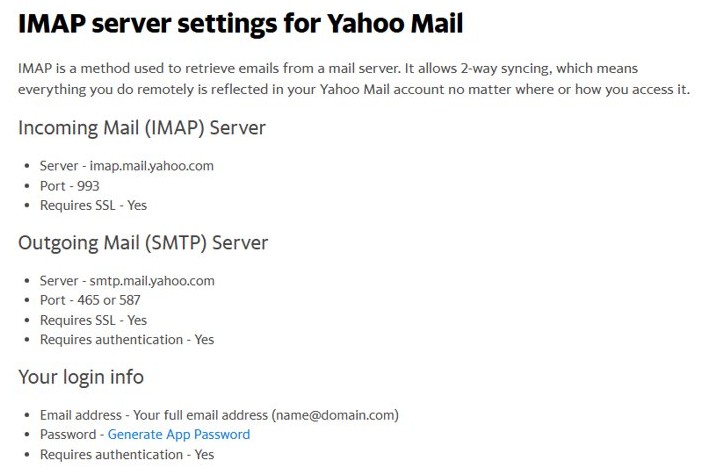
If Mail or Outlook cannot set up the account on its own, enter Yahoo Mail's published IMAP and SMTP settings by hand.
| Setting | Value |
|---|---|
| Incoming server (IMAP) | imap.mail.yahoo.com |
| Incoming port | 993, SSL required |
| Outgoing server (SMTP) | smtp.mail.yahoo.com |
| Outgoing port | 465 or 587, SSL required |
| Authentication | Required for incoming and outgoing mail |
| User name | Your full email address, for example [email protected] for the Cox account |
| Password | A Yahoo app password |
On a Mac, these go in Mail > Settings > Accounts > Server Settings. Clear Automatically manage connection settings to type the port and TLS/SSL values yourself.
Add Cox email to Mail on iPhone after the Yahoo switch
- Go to Settings, then tap Apps.
- Tap Mail, then tap Mail Accounts.
- Tap Add Account and enter your full Cox email address.
- If Mail does not set it up automatically, tap Add Other Account, then Mail Account.
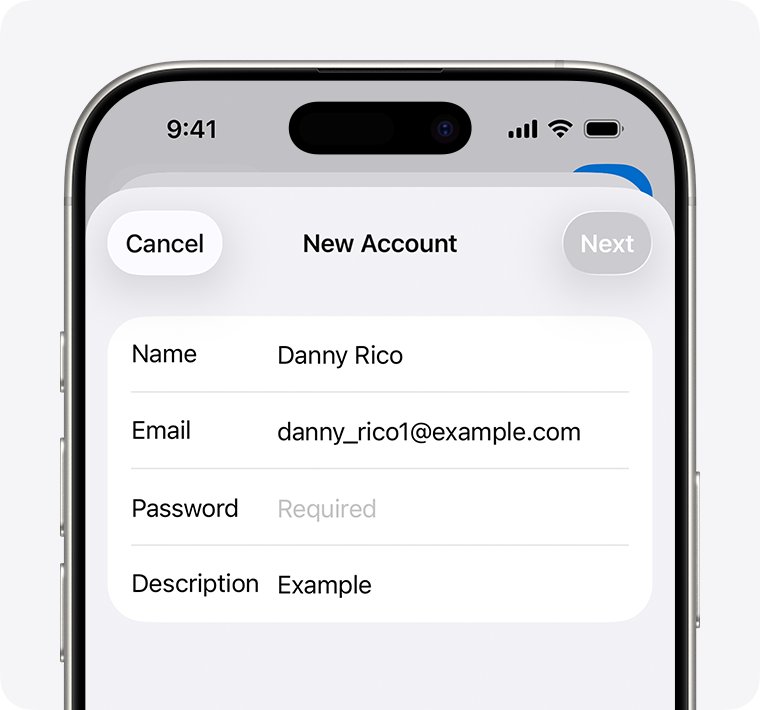
- Enter your name, Cox address, password and a description such as Cox, then tap Next.
- If Mail cannot find the settings, choose IMAP and enter the incoming and outgoing servers from the table above, then tap Save.
Rename two Yahoo accounts in Apple Mail so you can tell them apart
Both accounts may show up as Yahoo in the sidebar. Give each a clear name.
- Choose Mail > Settings, then click Accounts.
- Select the Cox account and open Account Information.
- Type a name such as Cox in the Description field.
- Select the other account and set its Description to Yahoo.
- Close the settings window; the sidebar now shows the new names.
Check Cox email is downloading in Apple Mail
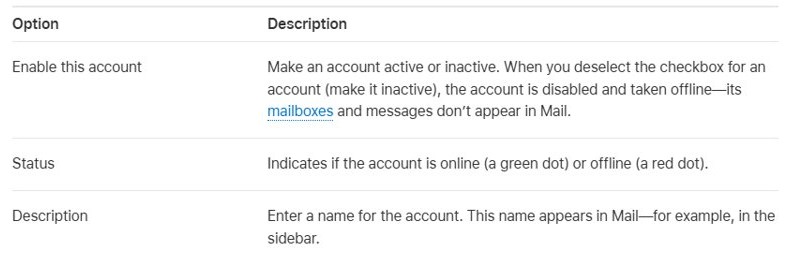
- Open Mail > Settings > Accounts, select the Cox account and check that Status shows a green dot.
- Send a test message from another address to your Cox address.
- Confirm it arrives in the Cox inbox in the sidebar, not in the Yahoo inbox.
- Reply to it from the Cox account and confirm the reply sends without a password prompt.
Cox email not downloading in Apple Mail after the move to Yahoo
New Cox messages do not download
Mail still holds the old Cox server settings or password.
- Check the account's Status in Mail > Settings > Accounts; a red dot means it is offline.
- Remove the Cox account and add it again with Mail > Add Account.
- Use a Yahoo app password if your normal password is refused.
Mail keeps asking for the password
Yahoo blocks the regular password in email apps that do not use its sign-in page.
- Create an app password on the Yahoo Account Security page.
- Enter it in the account's Server Settings for both incoming and outgoing mail.
- Quit and reopen Mail.
Old messages are missing after adding the account
Mail is still syncing, or the messages were only stored on the Mac.
- Leave Mail open on a stable connection until the inbox finishes updating.
- Sign in to your Yahoo Mail inbox on the web to see what is on the server.
- Restore Mac-only messages from a Time Machine backup if you removed the account before copying them.
Cox and Yahoo messages appear mixed together
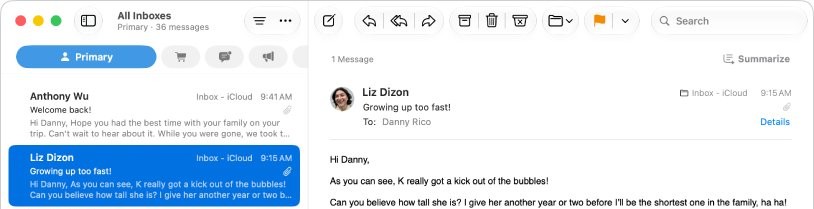
You are looking at the combined All Inboxes view.
- Expand Inboxes in the Mail sidebar.
- Select the Cox account under it to see only Cox messages.
- Give each account its own Description so they are easy to spot.
Cox email transition to Yahoo FAQ
How do I change Cox email to Yahoo in Apple Mail?
Remove the old Cox account in Mail > Settings > Accounts, then add it again with Mail > Add Account using your full Cox address. If the normal password fails, use a Yahoo app password. Your separate Yahoo account stays as it is.
How do I transfer Cox email to Yahoo Mail?
Messages stored on the mail server stay with the mailbox when you set it up again in Mail. Messages that exist only on your Mac are deleted when you remove the account, so copy them to an On My Mac mailbox first.
What are the Cox to Yahoo email settings for Outlook?
Use Yahoo Mail's IMAP settings: imap.mail.yahoo.com on port 993 with SSL for incoming mail, and smtp.mail.yahoo.com on port 465 or 587 with SSL for outgoing mail. Sign in with the full email address and a Yahoo app password.
Can I have a Cox account and a Yahoo account in the same mail app?
Yes. Yahoo Mail signs in with the full email address, so [email protected] and [email protected] are separate accounts. Apple Mail, Mail on iPhone and Outlook can each hold both.
Do I need an app password for Apple Mail?
You need one when Mail asks for a password and rejects your regular one. Yahoo requires app passwords for email apps that do not use Yahoo's own sign-in page. Create it under External connections on the Account Security page.
Does a Yahoo app password stop working if I change my password?
No. Yahoo app passwords stay active after you change your main account password. To stop an app using it, delete the app password from the Account Security page.
Will removing the Cox account from Mail delete my email?
It deletes the account's messages from your Mac, but copies stay on the mail server. Any message stored only on the Mac is lost unless you copy it to an On My Mac mailbox first.