Yes, Microsoft Edge can cast to a Chromecast: Google Cast is built in and switched on by default, so you open the cast option from the Edge menu or by right-clicking the page and pick your Chromecast.
This guide covers casting a tab, the Cast toolbar icon, turning Google Cast on or off in Edge on Windows 11, and what to do when the Chromecast or Cast button does not show up.
How to use Chromecast on Microsoft Edge browser
Put the PC and the Chromecast on the same Wi-Fi network first. Casting works with Chromecast, Chromecast with Google TV, Google TV Streamer and TVs with Google Cast built in.
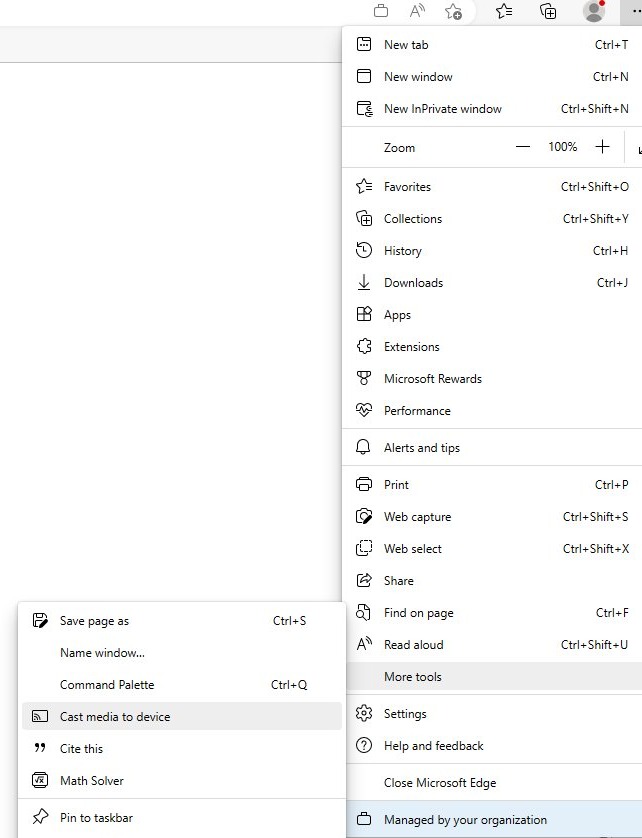
- Open the page, video or music you want on the TV in a Microsoft Edge tab.
- Select Settings and more (the three dots at the top right) and choose the cast option, or right-click an empty part of the page and choose cast.
- Wait for Edge to list the Google Cast devices on your network.
- Select your Chromecast. If it is already playing something, the new tab replaces it.
- To stop, select the Cast icon on the toolbar and choose to stop casting.
On sites that support Google Cast, such as video players with their own Cast button, select that button in the player instead; the video then plays from the Chromecast rather than from your PC.
Ways to cast from Edge to Chromecast
| Your situation | Use this | Why |
|---|---|---|
| Any web page | Edge menu cast option | Always available while Google Cast is enabled |
| You cast often | Cast toolbar icon | One click once the icon is pinned |
| Video site with its own Cast button | Player's Cast button | Hands playback to the Chromecast, so the PC can close the tab |
| A local video or music file | Open the file in a tab with Ctrl + O, then cast the tab | Edge plays the file and sends it to the TV |
| Whole desktop or another app | Windows wireless display (Win + K) on a Miracast TV | Google Cast in Edge sends browser content only |
Show the Cast icon in the Edge toolbar
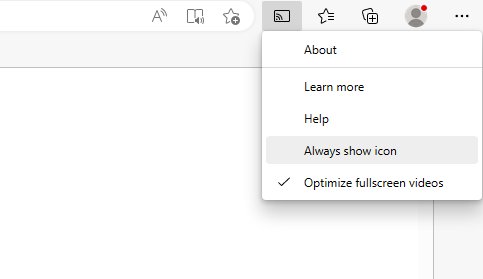
- Start casting once from the Edge menu so the Cast icon appears on the toolbar.
- Right-click the Cast icon.
- Choose the option to always show the icon to keep it pinned.
- Right-click it again later and clear that option to remove it.
In a managed browser, the Show the cast icon in the toolbar policy can force the icon on, and then you cannot remove it.
Enable or disable Cast media to device in Edge on Windows 11
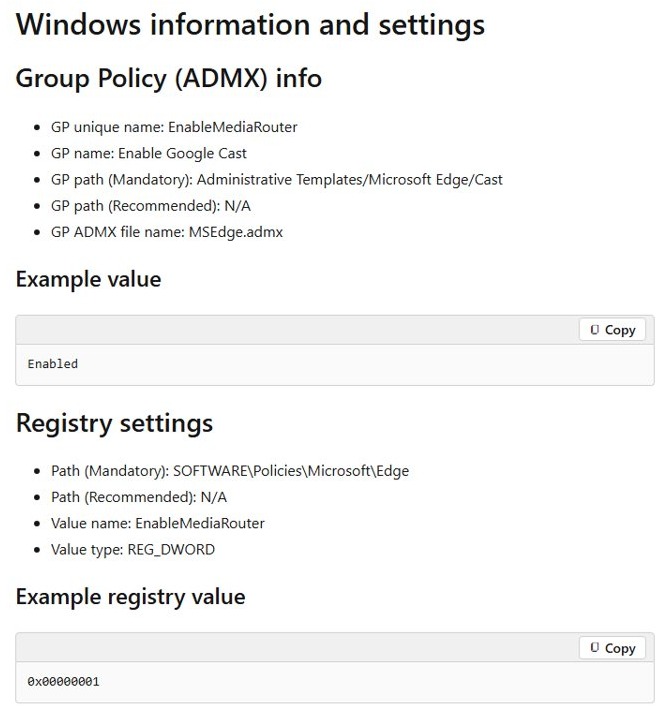
Google Cast in Edge is controlled by the Enable Google Cast policy (EnableMediaRouter). It is on by default; setting it to disabled removes casting from the menu, context menu, media controls and toolbar.
- Press Win + R, type
gpedit.mscand press Enter (Windows 11 Pro, Enterprise or Education with the Microsoft Edge ADMX templates installed). - Go to Computer Configuration > Administrative Templates > Microsoft Edge > Cast.
- Double-click Enable Google Cast, choose Enabled or Disabled, and select OK.
- Without Group Policy, open an elevated Command Prompt and run
reg add "HKLM\SOFTWARE\Policies\Microsoft\Edge" /v EnableMediaRouter /t REG_DWORD /d 0 /fto disable casting, or use/d 1to enable it. - Restart Microsoft Edge; this policy does not refresh while the browser is open.
- Type
edge://policyin the address bar and confirm EnableMediaRouter shows the value you set.
To return to the default, delete the value with reg delete "HKLM\SOFTWARE\Policies\Microsoft\Edge" /v EnableMediaRouter /f and restart Edge.
Edge Cast policies explained
| Policy | Registry value (HKLM\SOFTWARE\Policies\Microsoft\Edge) | Effect |
|---|---|---|
| Enable Google Cast | EnableMediaRouter (REG_DWORD) | 1 or not set: casting available. 0: casting turned off everywhere in Edge |
| Show the cast icon in the toolbar | ShowCastIconInToolbar (REG_DWORD) | 1: icon always shown and cannot be removed. 0 or not set: user pins or removes it |
| Combination | EnableMediaRouter = 0 | ShowCastIconInToolbar is ignored and no icon appears |
Chromecast not showing up in Edge
Why is Chromecast not showing up?
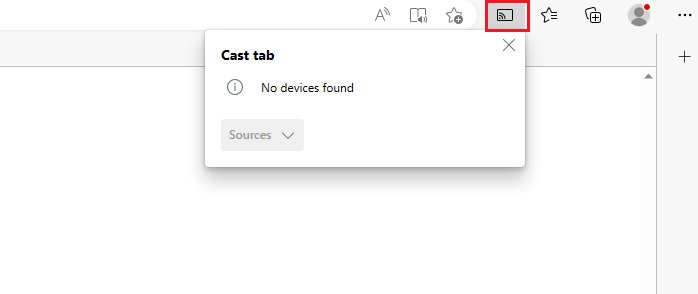
The PC and the Chromecast are on different networks, or the Chromecast has a weak Wi-Fi signal.
- Confirm the PC and the Chromecast are connected to the same Wi-Fi network, not a guest network.
- Move the Chromecast or router closer for a stronger signal.
- Restart the Chromecast and restart Edge, then open the cast option again.
Why is my Cast button not showing up?
Google Cast is disabled by policy, or the icon is not pinned.
- Type
edge://policyin the address bar and look for EnableMediaRouter set to false. - If it is set on a work PC, ask your administrator; on your own PC, delete the value as shown above.
- Start a cast from the Edge menu, then right-click the toolbar icon to keep it shown.
Chromecast says available for setup
The Chromecast has not been set up or was reset, so it cannot receive a cast yet.
- Open the Google Home app on your phone.
- Follow the prompts to set up the Chromecast on the same Wi-Fi network as the PC.
- Cast from Edge again once setup finishes.
Sound plays on the PC instead of the TV
Screen casting sends picture but can leave audio on the computer.
- Stop the cast.
- Cast the tab itself rather than the screen so audio goes to the TV.
Chromecast with Microsoft Edge FAQ
Can I use Chromecast with Microsoft Edge?
Yes. Microsoft Edge has Google Cast built in and turned on by default on Windows and macOS, so it can send a tab to a Chromecast or a TV with Google Cast on the same Wi-Fi network without installing anything.
How do I use Chromecast on my PC or laptop?
Join the PC to the same Wi-Fi network as the Chromecast, open the content in Edge or Chrome, choose the cast option from the browser menu and select the Chromecast. The tab then appears on the TV.
How do I connect a Microsoft PC to Chromecast?
There is no pairing step. A Windows PC finds the Chromecast automatically over Wi-Fi when both are on the same network, and you cast from a Google Cast browser such as Edge or Chrome.
Does Windows support Chromecast?
Windows itself casts to Miracast displays through Win + K, not to Chromecast. Chromecast support on a Windows PC comes from Google Cast in browsers such as Microsoft Edge and Google Chrome.
Can I cast my whole Windows screen to Chromecast?
Google Chrome offers Cast screen under its Sources list. Audio may stay on the computer when you cast the screen, so cast a tab when you want sound on the TV.
How do I Chromecast from Chrome?
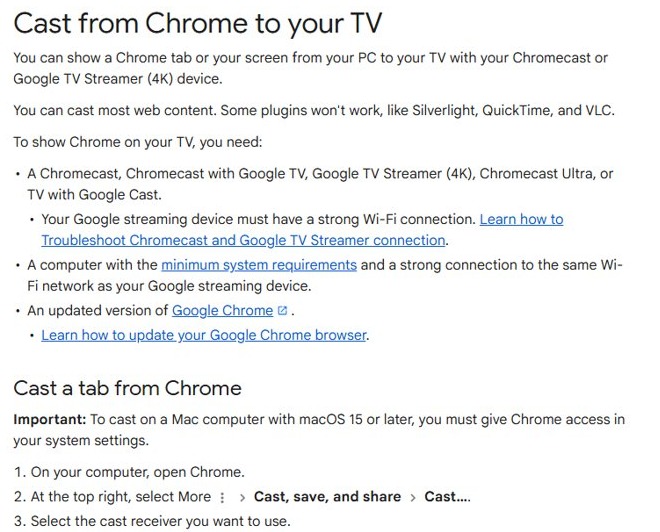
In Chrome, select More > Cast, save, and share > Cast and pick the device. To stop, select the Cast icon to the right of the address bar and then Stop casting.
Why does Chromecast say available for setup?
The device has not been set up on your network yet, or it was reset. Finish setup in the Google Home app on the same Wi-Fi network, then it appears as a cast destination in Edge.
How does Google Chromecast work?
A Chromecast plugs into the TV's HDMI port and joins your Wi-Fi. A phone, tablet or browser on the same network sends it a tab or a stream, and the Chromecast plays it on the TV.