To change Outlook's view in classic Outlook, select View > Change View and pick Compact, Single or Preview; in new Outlook and Outlook on the web, use View > Layout and Settings > Mail.
This guide covers the available layouts, columns and fonts, custom views, the reading pane and folder pane, applying a view to every folder, and resetting views to default.
How to change Outlook view layout
Classic Outlook (Outlook for Microsoft 365, Outlook 2024 and Outlook 2021) stores a view per folder. These steps change the view of the folder you have open.
- Open the mail folder you want to change, such as Inbox.
- Select the View tab on the ribbon.
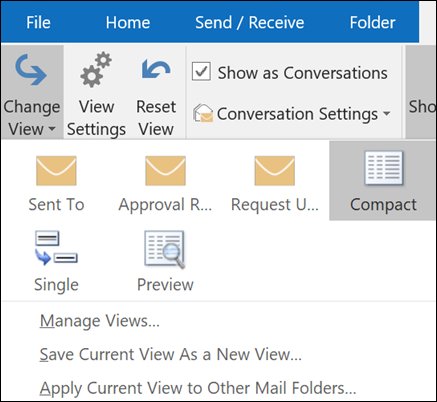
- Select Change View.
- Pick Compact for the default conversation-style list, or Single or Preview for a list view with columns.
- To move the reading pane, select View > Layout > Reading Pane and choose Right, Bottom or Off.
If an update changed your Outlook inbox view on its own, start with Compact, the default.
What different layouts are available in Outlook?
Classic Outlook offers three ready-made mail views and seven view types you can base a custom view on. New Outlook has no view types; it changes layout through the reading pane, density and message list settings.
| Layout or view type | What it shows | Best for |
|---|---|---|
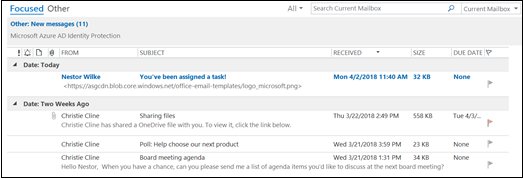
| Compact | The default Inbox view, with messages grouped by conversation | Everyday email reading |
| Single or Preview | List views with rows and editable columns | Adding, removing and sorting columns |
| Table | Rows and columns | Email folders |
| Timeline | Items along a fixed timeline | Tasks or a small number of items over time |
| Card | Every field for each item, filled or not | Contacts |
| Business Card | Only the fields that contain data | Contacts |
| People | A contact list with names and photos, with less detail than Card | Contacts |
| Day/Week/Month | Items on a calendar grid | Calendar, though it also works for email |
| Icon | Items as icons with their subject | Small folders or Notes |
Change the Outlook layout in new Outlook and Outlook on the web
New Outlook for Windows and Outlook on the web share the same layout controls. Column-based list views are not available in new Outlook.
- Select the View tab.
- Select Layout > Reading Pane and choose Show on the right, Show on the bottom, Fill screen or Popout only.
- In Outlook on the web and Outlook.com, select View > Density and choose Roomy, Cozy or Compact.
- Select Settings (the gear icon) > Mail > Layout.
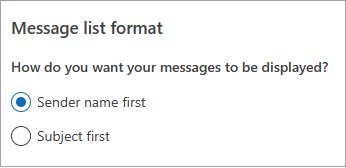
- Under Message list format, choose Sender name first or Subject first.
- Select Save if the page shows a save button.
Roomy shows sender images, attachment previews and message preview text. Cozy and Compact show only the preview text, and Compact uses the least spacing.
How to customize your Outlook view
Columns only appear in a list view, so switch to Single or Preview first. If a new column does not show up, the folder is still in Compact.
- Select View > Change View > Single or Preview.
- On the View tab, in the Current View group, select View Settings.
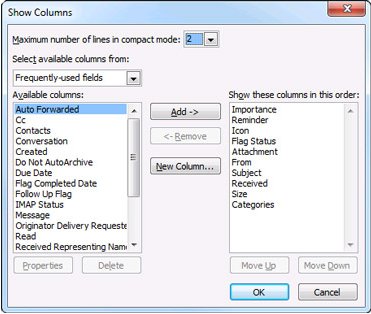
- In Advanced View Settings, select Columns.
- In Available columns, select a column and select Add. Use Select available columns from to find more column sets.
- To remove a column, select it in Show these columns in this order and select Remove.
- To change the list font, select Other Settings in Advanced View Settings, then Column Font or Row Font.
- Choose the font, style and size, then select OK until every dialog closes.
In the default Inbox view, Row Font changes the size of the sender name, subject and message preview. To change the default font in Outlook for the messages you write, use the separate mail options instead.
How to create a new view in Outlook
A named custom view keeps your settings safe, because you can switch between it and the built-in views at any time. This works in classic Outlook only.
- Select View > Current View > Change View > Manage Views.
- Select New. To start from the view you already use, select <Current view settings> and then Copy instead.
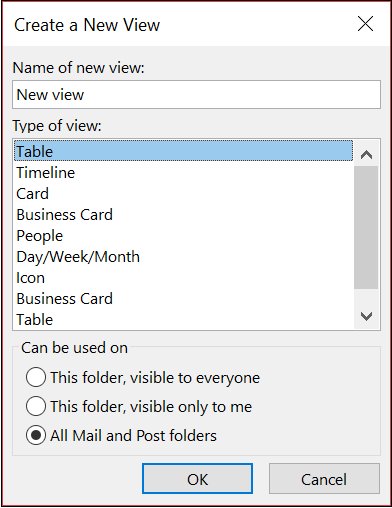
- Type a name for the view and choose a view type, such as Table.
- Under Can be used on, keep All Mail and Post folders or pick another option, then select OK.
- In Advanced View Settings: New View, set columns, fonts and other options, then select OK.
- Select Apply View to use it straight away.
Managing your Outlook settings
Many view-related settings sit in different places in classic and new Outlook. Find your version in the matching column.
| Setting | Classic Outlook | New Outlook and Outlook on the web |
|---|---|---|
| Reading pane position | View > Layout > Reading Pane > Right, Bottom or Off | View > Layout > Reading Pane > Show on the right, Show on the bottom, Fill screen or Popout only |
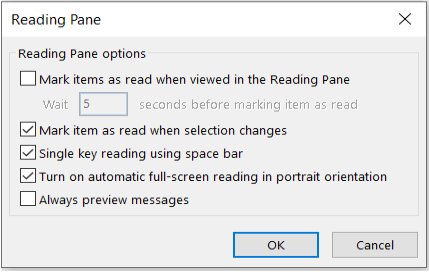
| Mark messages as read | View > Layout > Reading Pane > Options | Settings > Mail > Message handling > Mark as read |
| Conversation view | View > Show as Conversations, then All mailboxes or This folder | Settings > Mail, then Message organization |
| Focused Inbox | View > Show Focused Inbox | Settings > Mail > Message List, then Sort messages into Focused and Other |
| Folder pane | View > Folder Pane > Normal or Off | Minimize or expand it with the button at the top of the pane |
| Theme and dark mode | File > Office Account > Office Theme | Settings > General > Appearance |
| Spacing in the message list | View > Use Tighter Spacing (Outlook for Microsoft 365) | View > Density (Outlook on the web) |
| Font for new messages | File > Options > Mail > Stationery and Fonts | Not a view setting |
You can also turn on dark mode in Outlook from the same theme settings.
Apply the current Outlook view to all mail folders
A view change in classic Outlook affects only the open folder. Copy it to the rest when you want every folder to look the same.
- Open the folder that already has the view you want.
- Select View > Change View > Apply Current View to Other Mail Folders.
- In the Apply View dialog, select each folder that should use the view. A check mark shows it is selected.
- Select OK.
How to tell if your Outlook custom view is saved
- Select View > Change View and check that your custom view name appears in the list with the current view highlighted.
- Open another folder you applied the view to and check that the same columns and reading pane position appear.
- Close and reopen Outlook, then open the folder again. The view should be unchanged.
How to reset Outlook view to default
Built-in views cannot be deleted, even after you change them. Delete custom views from Manage Views, or reset every view at once with the /cleanviews switch.
- To remove one custom view, select View > Change View > Manage Views.
- Under Views for folder, select the custom view, select Delete, confirm, then select OK.
- To reset all views, close classic Outlook.
- Press Win + R to open Run.
- Type
"C:\Program Files\Microsoft Office\root\Office16\outlook.exe" /cleanviewsand press Enter. Change the path if Outlook is installed elsewhere. - Wait for Outlook to open with the default views restored.
The /cleanviews switch deletes every custom view you created, so note any column setups you want to rebuild first.
Outlook view not changing or keeps resetting
A column you added does not appear
The folder is still in Compact, which does not show columns.
- Select View > Change View > Single or Preview.
- Repeat the View Settings > Columns steps.
Only one folder changed
Classic Outlook saves the view and the reading pane setting per folder.
- Open the folder with the correct view.
- Select View > Change View > Apply Current View to Other Mail Folders and select the other folders.
The message list suddenly has more space between messages
A recent Outlook for Microsoft 365 update added wider spacing and padding.
- Select View > Use Tighter Spacing.
- On the classic ribbon, find Use Tighter Spacing in the Layout group of the View tab.
The folder list on the left is gone
The Folder Pane is turned off or minimized.
- Select View > Folder Pane > Normal.
- If the pane is a narrow strip, select the Expand the Folder Pane button at its top.
The folder pane is damaged or will not load
The Folder Pane for the current profile needs to be cleared and regenerated.
- Close Outlook and press Win + R.
- Run
outlook.exe /resetnavpanewith the full path tooutlook.exe, as in the reset steps above.
Outlook view FAQ
How do I change my Outlook view back to normal?
In classic Outlook, select View > Change View > Compact, which is the default Inbox view. If you changed the view settings themselves, close Outlook and run outlook.exe with the /cleanviews switch to restore every default view.
Why can't I add columns in new Outlook?
New Outlook for Windows does not support column-based list views. You can change the reading pane, message list format, density and conversation grouping, but columns need classic Outlook in the Single or Preview view.
How do I apply the same view to all folders in Outlook?
Open the folder that has the view you like, then select View > Change View > Apply Current View to Other Mail Folders. Tick each folder in the Apply View dialog and select OK.
How do I move the reading pane to the bottom in Outlook?
Select View > Layout > Reading Pane, then choose Bottom in classic Outlook or Show on the bottom in new Outlook and Outlook on the web. In classic Outlook the change applies to the open folder only.
Can I delete the built-in Outlook views?
No. Predefined views such as Compact, Single and Preview cannot be deleted, even after you change their settings. You can delete only the custom views you created, from View > Change View > Manage Views.
How do I turn off conversation view in Outlook?
In classic Outlook, select View and clear Show as Conversations, then pick All mailboxes or This folder. In new Outlook, open Settings > Mail, find Message organization and choose Do not group messages.
How do I make the Outlook message list more compact?
In Outlook for Microsoft 365, select View > Use Tighter Spacing. In Outlook on the web and Outlook.com, select View > Density and choose Compact, which shows only preview text with the least spacing.