When a MacBook Pro joins hotel, cafe or airport Wi-Fi but the login page never appears, open Safari and go to captive.apple.com to trigger it, then turn off Limit IP address tracking and any VPN for that network if the page still does not load.
This guide covers macOS Sonoma through macOS 27, the Private Relay and private address settings that affect public networks, and fixes for each symptom.
How to open the captive login page on a MacBook Pro
A captive network is a public hotspot that asks you to sign in, pay or accept terms before it lets you online. macOS sends a check when it joins and shows the login page, and these steps start that check again.
- Click the Wi-Fi icon in the menu bar and choose the public network.
- Wait a few seconds for the login window to appear.
- If nothing appears, open Safari and type
captive.apple.comin the address bar, then press Return. - Sign in, enter the room or voucher details, or accept the terms on the page that loads.
- If the page still does not load, pause any VPN app and try again.
- Choose Apple menu > System Settings > Wi-Fi, click Details next to the network, turn off Limit IP address tracking, and click OK.
- Open Safari again and reload
captive.apple.com.
Fees and other charges might apply on captive networks. Ask the venue for the network name and login details if the page asks for a code you do not have.
Why a Mac does not show the public Wi-Fi login page
Most hotspots work by intercepting the first web request you make and sending it to their login page. Anything that keeps that request from reaching the hotspot, or hides it, stops the page from appearing.
| Cause | What you notice | Fix |
|---|---|---|
| VPN, firewall or content blocker | Wi-Fi shows connected, nothing loads, no login window | Turn off the app's features while you sign in |
| iCloud Private Relay on the network | Pages fail or a message says the network is not compatible with Private Relay | Turn off Limit IP address tracking for that network |
| Private Wi-Fi address rotating | The hotel asks you to log in again, or a paid session stops working | Set Private Wi-Fi address to Fixed for that network |
| Old or expired DHCP lease | The Mac has an address but cannot reach the login page | Renew the DHCP lease or restart the Mac |
| Wrong date and time | Secure pages fail to load on every network | Set the date and time automatically |
| Expired hotspot session | Safari loads the wrong page or shows a security warning | Forget the network, rejoin, and log in again |
How to force the Wi-Fi login page with captive.apple.com
Apple lists captive.apple.com as the address its devices use to check internet access on networks with captive portals. Loading it yourself gives the hotspot a page to intercept.
- Make sure the Wi-Fi menu shows the public network as connected.
- Open Safari.
- Type
captive.apple.comin the address bar and press Return. - Wait for the hotspot's login, voucher or terms page to replace it.
- Complete the page and wait for the confirmation.
- Open another website to check that the session is active.
If no login page ever replaces captive.apple.com and other sites still fail, the hotspot is not seeing the request; work through the VPN, Private Relay and DHCP sections below.
How to turn off Limit IP address tracking for public Wi-Fi on Mac
With an iCloud+ subscription, Limit IP address tracking also controls iCloud Private Relay. Some networks are not compatible with Private Relay, and Apple's fix is to turn it off for that one network.
- Choose Apple menu > System Settings.
- Click Network in the sidebar, then click Wi-Fi.
- Click Details next to the public network you are connected to.
- Turn off Limit IP address tracking.
- Click OK, then reload the login page in Safari.
The setting applies only to that network, and it carries over to your other devices where Private Relay is on. While it is off, the network provider can see your Safari activity, so turn it back on when you leave.
How to change the private Wi-Fi address on a MacBook Pro
macOS Sequoia 15 and later give each network its own private address. New open networks get a Rotating address that changes every 2 weeks, which can make a hotel treat your Mac as a new device.
- Install the latest macOS update first, as Apple advises before changing this setting.
- Go to System Settings and click Wi-Fi in the sidebar.
- Click Details next to the public network.
- Open the Private Wi-Fi address pop-up menu.
- Choose Fixed to keep one address on this network, or Off if the venue requires your hardware address.
- Click OK, then forget and rejoin the network.
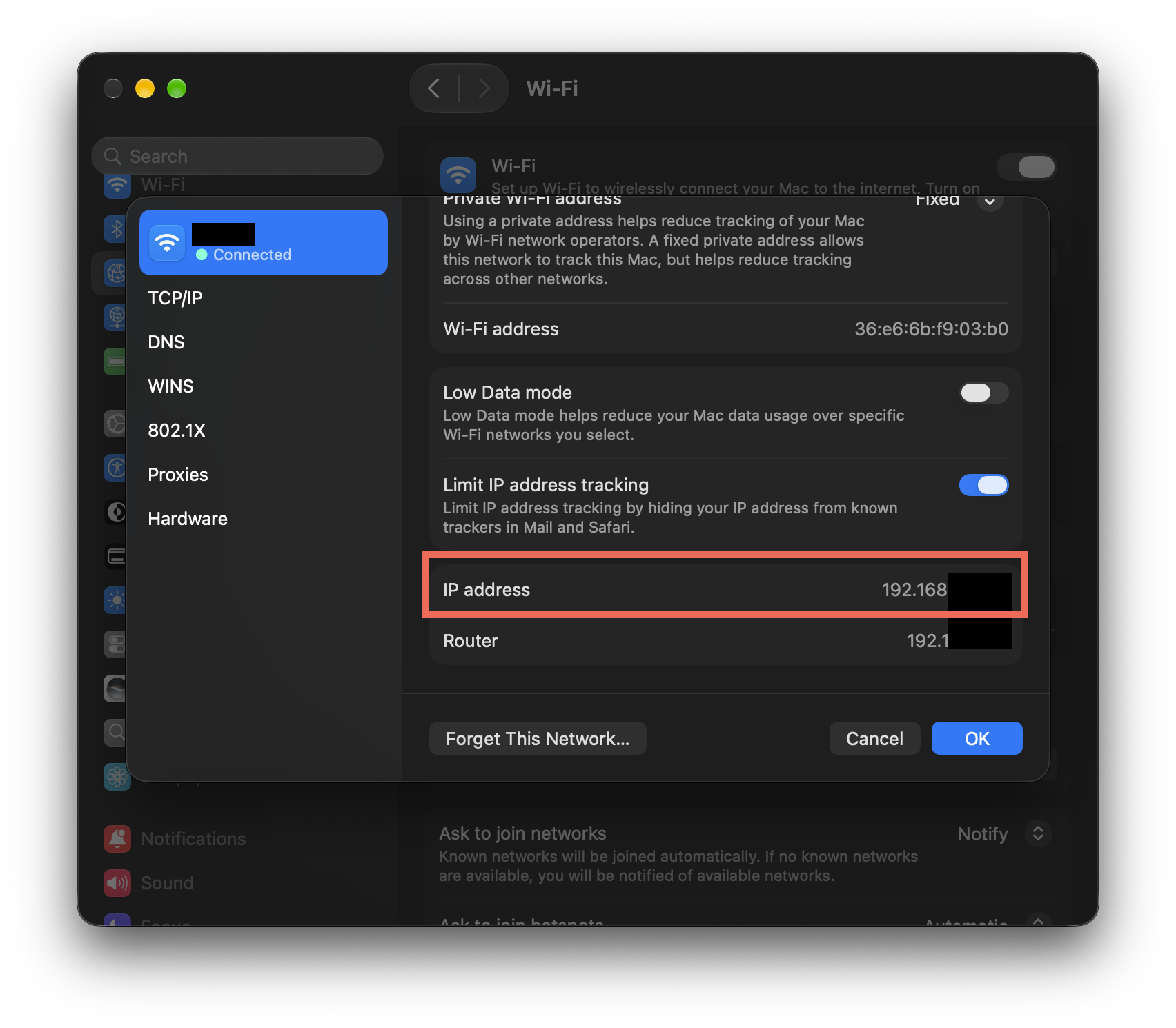
macOS Sonoma 14 and earlier do not have this setting. On a managed Mac from work or school, an administrator may lock it.
How to forget and rejoin a public Wi-Fi network on Mac
Forgetting the network clears its saved settings, so the next join is treated as a first connection and macOS checks for a login page again.
- Choose Apple menu > System Settings, then click Wi-Fi.
- Click Details next to the public network.
- Click Forget This Network and confirm.
- Click the Wi-Fi icon in the menu bar and choose the network again.
- Wait for the login window, or open
captive.apple.comin Safari.
From macOS Sequoia 15, forgetting a network also forgets its private address, unless you forgot the same network less than 24 hours ago.
How to renew the DHCP lease on a Mac
Busy hotspots often hand out short leases. Renewing gets a fresh IP address from the network, which can bring the login page back.
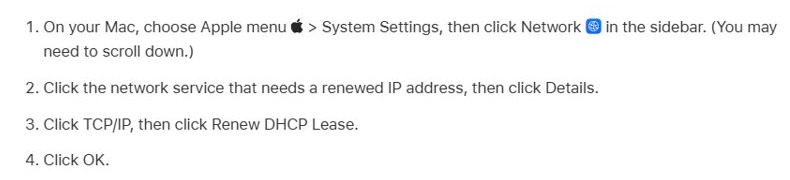
- Choose Apple menu > System Settings, then click Network.
- Click Wi-Fi, then click Details.
- Click TCP/IP.
- Click Renew DHCP Lease.
- Click OK, then open
captive.apple.comin Safari.
Restarting the Mac does the same thing automatically, because it renews the address it was given when it joined.
VPN blocking hotel Wi-Fi login on Mac
VPN apps, firewalls, antivirus tools, parental-control apps and content blockers can block the connections a hotspot needs before you sign in.
- Open the VPN or security app and turn off its protection or connection.
- Use any firewall, antivirus, parental-control or content blocker app to turn off its features for now.
- Open System Settings and search for VPN, profile, firewall and filter to find settings other apps added.
- Reload
captive.apple.comand sign in. - Turn the VPN back on after the hotspot confirms you are online.
Look in the Applications folder for apps with names such as Firewall, Security, Shield, Protection or VPN if you are not sure what is installed.
How to tell if a Mac is online on hotel Wi-Fi
After signing in, check that the session is really active before you start work.
- Open
captive.apple.comin Safari and check that it loads without the hotspot's login page appearing. - Open any regular website to confirm it loads.
- Click the Wi-Fi icon in the menu bar and look for Wi-Fi Recommendations.
- If it appears, choose it to see what macOS found.
- For a deeper check, hold Option, click the Wi-Fi icon, and choose Open Wireless Diagnostics.
Wi-Fi Recommendations is not available for personal hotspots or networks that use WPA Enterprise or WPA2 Enterprise.
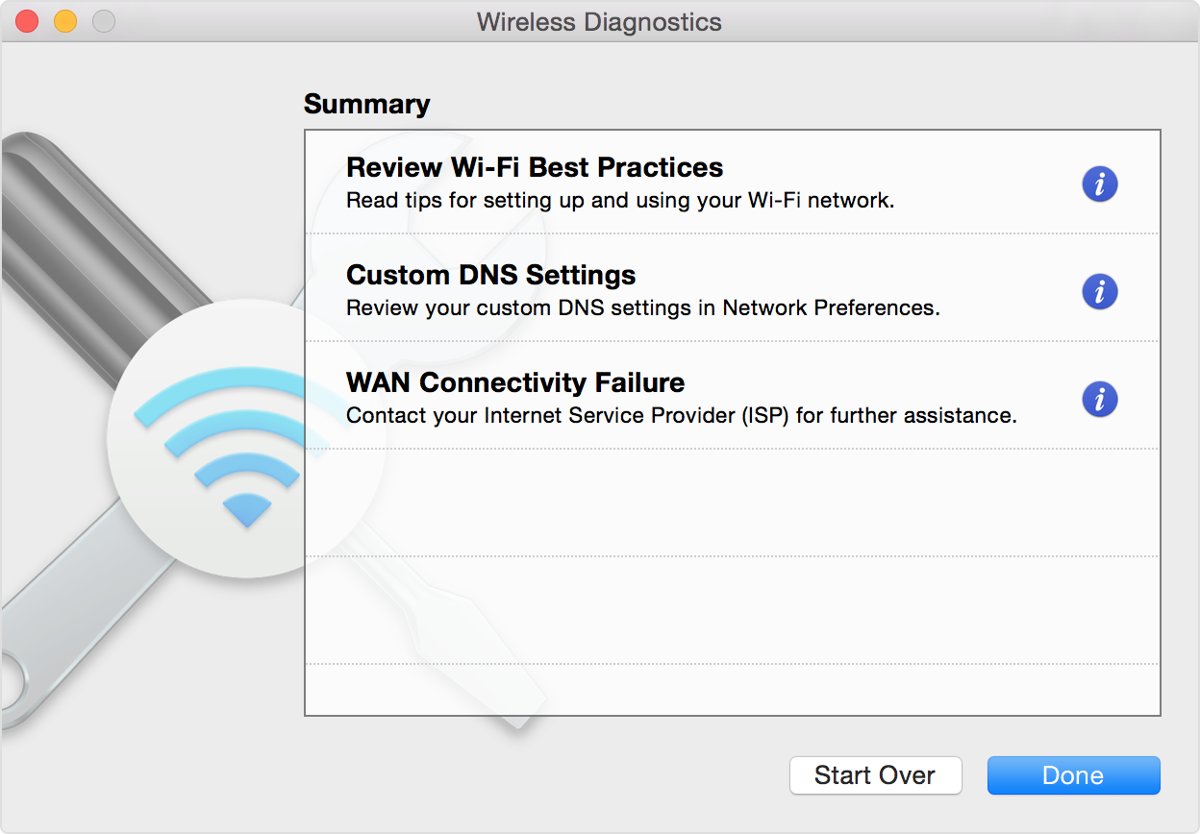
Captive.apple.com not working on Mac
Captive.apple.com loads but no login page appears and sites fail
A VPN, filter or Private Relay is carrying the request past the hotspot.
- Turn off the VPN app's connection.
- Turn off Limit IP address tracking in the network's Details.
- Reload
captive.apple.comin Safari.
Safari shows a security warning instead of the login page
The hotspot session expired and the network is intercepting pages Safari expects to be secure.
- Close the warning page without entering any details.
- Open
captive.apple.comso the hotspot can redirect you to its real login page. - If that fails, forget the network and join it again.
The login page worked yesterday but not today
The session ended, or the Mac's address changed on the network.
- Renew the DHCP lease in Network > Wi-Fi > Details > TCP/IP.
- Set Private Wi-Fi address to Fixed for that network.
- Log in again through
captive.apple.com.
Login page fails on every public network, even after macOS updates
Date and time, a profile or a security app on the Mac is interfering.
- Check that the date and time on the Mac are correct.
- Search System Settings for profile and filter and remove anything you did not install on purpose.
- Restart the Mac and try a different public network.
- If an iPhone joins the same network and shows its login screen, the issue is on the Mac.
Wi-Fi says the network needs a password or will not join
The hotspot uses a password or registered device addresses before the login page.
- Ask the venue for the network password and security type.
- If access is controlled by device address, ask staff to register your Mac's Wi-Fi address shown in the network's Details.
- Move closer to the access point; typical range is about 150 feet.
Mac public Wi-Fi login page FAQ
Why won't my Mac show the Wi-Fi login page?
Usually a VPN, a content blocker, iCloud Private Relay or an expired session is stopping the hotspot from redirecting you. Pause the VPN, turn off Limit IP address tracking for that network, and open captive.apple.com in Safari.
How do I force the Wi-Fi login page to open on a Mac?
Join the network, open Safari and go to captive.apple.com. The hotspot should replace that page with its login or terms page. If it does not, forget the network, rejoin it, and try again.
What is captive.apple.com?
It is the address Apple devices use to validate internet connectivity on networks with captive portals. Opening it in Safari on a hotspot that still needs a login gives the network a request to redirect to its login page.
Does iCloud Private Relay block hotel Wi-Fi?
It can. Apple notes some networks are not compatible with Private Relay. Turn it off for that network only by turning off Limit IP address tracking in the network's Details in System Settings.
Should I turn off private Wi-Fi address for hotel Wi-Fi?
Try Fixed first. A fixed private address keeps one address on that network, so the hotel sees the same device all stay. Choose Off only if the venue needs your hardware address, and update macOS before changing it.
Can a VPN stop the public Wi-Fi login page?
Yes. VPN and other security software that interacts with network connections can block the requests a hotspot needs. Turn off the VPN until you are signed in, then turn it back on.
Why does Safari show a security warning on public Wi-Fi?
When a hotspot session expires, the network may intercept pages Safari loads, so Safari shows the wrong page or a security warning. Do not enter details there; open captive.apple.com to reach the real login page.