Microsoft Authentication Broker is the Microsoft component that signs you in to apps with your Microsoft Entra or Microsoft account and keeps the tokens safe, so each app does not have to ask for your password itself.
On Windows it is Web Account Manager (WAM), a part of Windows 10 and later; on Android it lives inside Microsoft Authenticator, Intune Company Portal and Link to Windows. This guide covers where the broker runs, when to use it, how developers turn it on in MSAL and Azure Identity, and how to fix its common errors.
What Microsoft Authentication Broker means
An authentication broker is an app on your device that manages the sign-in handshakes and token maintenance for every connected account. Apps hand the sign-in to the broker instead of collecting credentials in their own window. For work and school accounts, the identity service behind it is Microsoft Entra ID, the former Azure AD.
Treat Microsoft Authentication Broker as a legitimate Microsoft sign-in component. On Windows it is Web Account Manager (WAM) with its Microsoft Entra plugin; on phones and Macs it ships inside Microsoft apps such as Authenticator and Company Portal. The broker gives apps single sign-on with the account already on the device, support for Windows Hello, FIDO keys and Conditional Access, and device-bound refresh tokens that are harder to steal. Security fixes arrive with the broker, so apps do not need code changes to get them.
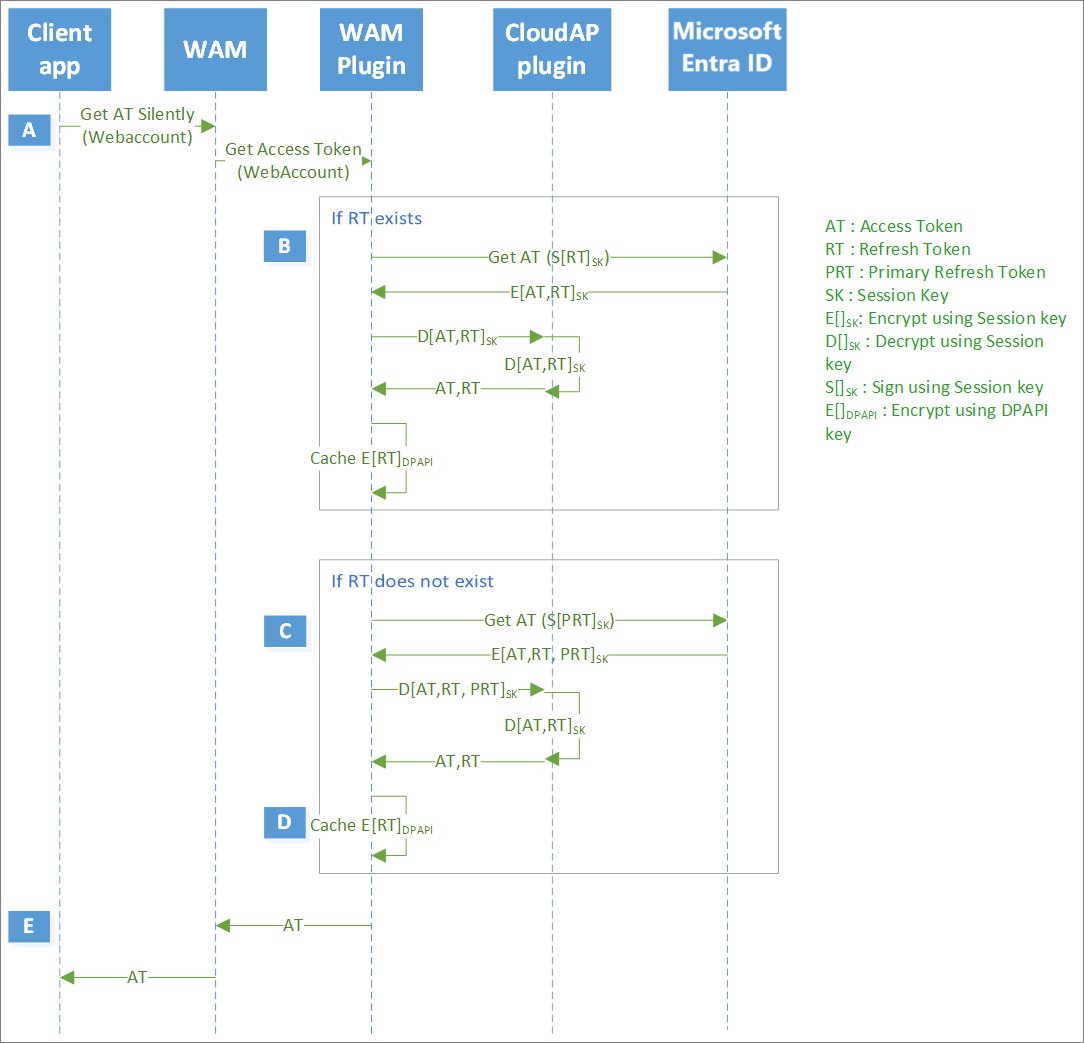
Office, Microsoft Edge and Teams use the broker and the device's Primary Refresh Token (PRT) to sign you in silently. That is why you normally sign in to Windows once and those apps open already signed in.
Where WAM is available
WAM is the default token broker on Windows 10 and newer. Other platforms use a broker built into a Microsoft app, and a Primary Refresh Token can only be issued when one of those brokers is present.
| Platform | Broker that handles Microsoft sign-in | What happens without it |
|---|---|---|
| Windows 10 version 1703 (Creators Update) and later, Windows 11 | Web Account Manager (WAM), built into Windows | Not applicable; WAM ships with the OS |
| Windows Server 2019 and later | Web Account Manager (WAM) | Not applicable |
| Windows versions earlier than 10, Windows Server before 2019 | None | MSAL, Azure CLI and Azure PowerShell fall back to browser sign-in |
| Android | Broker component inside Microsoft Authenticator, Intune Company Portal or Link to Windows | Apps sign in through MSAL locally unless a Conditional Access policy requires a broker |
| iOS and iPadOS | Broker inside Microsoft Authenticator | No Primary Refresh Token can be issued, so there is no broker-based single sign-on |
| macOS | Broker inside Intune Company Portal, activated with MDM and the Apple SSO extension profile | Browser sign-in |
| Linux | Broker inside Intune Company Portal | Browser sign-in |
MSAL falls back to a browser automatically when WAM cannot be used, so an app built with the broker still signs in on Mac, Linux and older Windows.
What is Microsoft Authentication Broker app on Android?
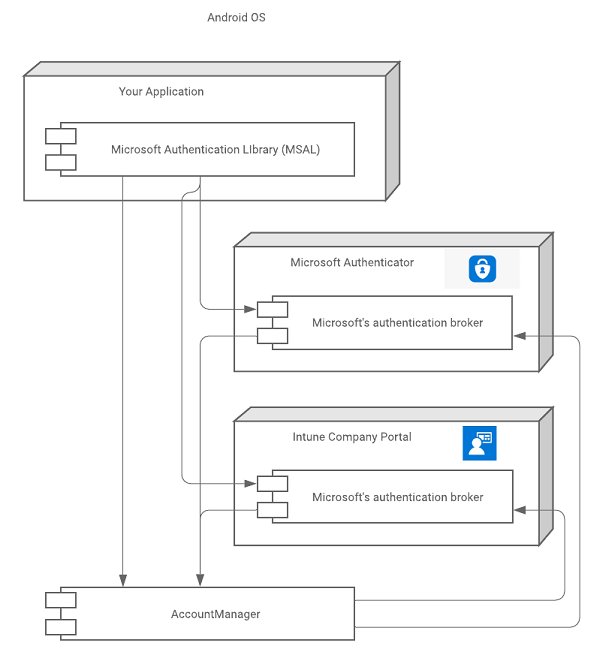
There is no separate Microsoft Authentication Broker app in the Play Store. On Android the broker is a component included in three Microsoft apps, and any one of them can act as the device's broker.
| App that hosts the broker | Who usually installs it | What the broker does for other apps |
|---|---|---|
| Microsoft Authenticator | People who use the app for two-step verification or passwordless sign-in | Device-wide single sign-on and device registration (workplace join) |
| Intune Company Portal | Users of company-managed phones | Single sign-on plus Intune enrollment and app protection checks for Conditional Access |
| Link to Windows | People who connect an Android phone to a Windows PC | Device-wide single sign-on through the same broker component |
The broker adds a Work Account account type to Android's account settings. If several broker apps are installed, MSAL picks the active one on its own.
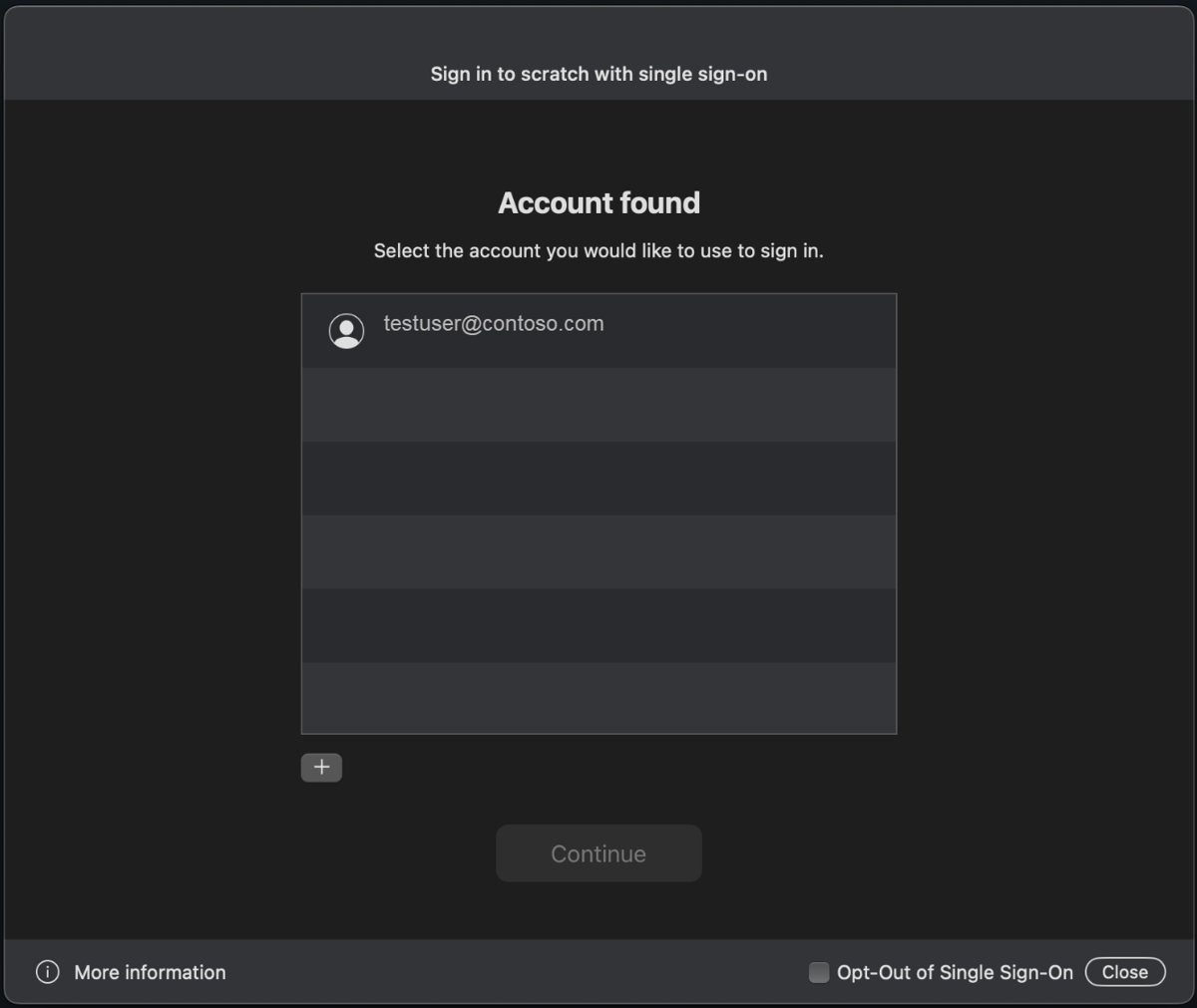
Uninstalling the only broker app removes the account and its tokens from the device, so apps ask you to sign in again. Installing one also sends the next interactive sign-in through the broker, where you pick an account from the list the device already knows.
Installing Microsoft Authenticator for Android is the simplest way to get a broker on a personal phone, and the same app handles your two-step sign-in codes and approvals.
Good use cases for Microsoft Authentication Broker
| Use case | Why the broker fits | Example |
|---|---|---|
| Windows desktop applications | Users pick the account already signed in to Windows from the built-in account picker instead of typing credentials again | A WinForms, WPF or WinUI 3 app that calls Microsoft Graph |
| Developer tools and local Azure development | Command-line tools reuse the Windows account and support Windows Hello and FIDO keys | Azure CLI 2.61.0 and later and Azure PowerShell Az 12.0.0 and later use WAM by default on Windows |
| Applications that need modern authentication controls | The broker meets Conditional Access, MFA and token protection rules without extra code | An internal line-of-business app protected by a Conditional Access policy |
| Mobile apps in managed organizations | Device-wide SSO and Intune compliance checks run through Authenticator or Company Portal | An Android app that must work on Intune-enrolled phones |
| Apps that need Proof-of-Possession tokens | WAM can issue PoP tokens for public client flows | An app calling an API that requires bound tokens |
Brokered sign-in gives the app the same access the signed-in user has, nothing more. Check permissions separately: the user still needs an Azure RBAC role, such as Storage Account Data Contributor for Blob Storage or Key Vault Secrets Officer for Key Vault secrets.
Microsoft Authentication Broker: where not to use it
WAM must run in an active, interactive Windows user session that can show UI. Several common setups break that rule by design.
| Scenario | What happens with WAM | Use this instead |
|---|---|---|
| Windows service | Token requests fail by design | Managed identity on Azure, or a service principal with a certificate |
| Task Scheduler job not running as the logged-in user | Errors by design | Run the task as the signed-in user, or use a service principal |
| runas to impersonate another account | Errors by design | Sign in as that user in their own session |
| CI pipeline or script with no user | No user context to broker | Service principal; federated identity credentials on GitHub; managed identity on Azure |
| Azure AD B2C or AD FS authorities | Not supported; MSAL falls back to a browser | Browser-based interactive sign-in |
| Third-party identity providers | WAM supports only Microsoft Entra ID | The provider's own SDK or browser sign-in |
| Azure PowerShell sign-in to national clouds | WAM sign-in to national clouds is not supported | Browser sign-in or device code flow |
Configure the app registration in Microsoft Entra
WAM redirect URIs do not go in MSAL code, but they must exist in the app registration. Without one, the broker rejects the request.
- In the Azure portal, open Microsoft Entra ID and select App registrations.
- Select your app's registration, then select Authentication.
- Under Platform configurations, select + Add a platform and choose Mobile and desktop applications.
- In Custom redirect URIs, enter
ms-appx-web://Microsoft.AAD.BrokerPlugin/{your_client_id}, using the Application (client) ID from the registration's Overview pane, and select Configure. - Back on Authentication, under Advanced settings, set Allow public client flows to Yes.
- Select Save.
- Under API permissions, add Microsoft Graph or the other APIs the app calls.
A tenant admin must grant consent the first time the app signs in. On macOS the redirect URI is msauth.com.msauth.unsignedapp://auth for unsigned apps or msauth.{bundle_id}://auth for signed apps; on Linux it is https://login.microsoftonline.com/common/oauth2/nativeclient.
Enable WAM in MSAL.NET
Broker support needs MSAL.NET 4.52.0 or higher. The core library is Microsoft.Identity.Client, and Microsoft.Identity.Client.Broker adds the broker.
- Add the
Microsoft.Identity.ClientandMicrosoft.Identity.Client.Brokerpackages to the project. - Add
using Microsoft.Identity.Client.Broker;so the rightWithBrokeroverload is available. - Create
new BrokerOptions(BrokerOptions.OperatingSystems.Windows)and set itsTitleto your app's name. - Build the
PublicClientApplicationwith.WithDefaultRedirectUri(),.WithParentActivityOrWindow(...)and.WithBroker(options). - Call
AcquireTokenSilentfirst, with a cached account orPublicClientApplication.OperatingSystemAccountfor the Windows account. - Catch
MsalUiRequiredExceptionand only then callAcquireTokenInteractive.
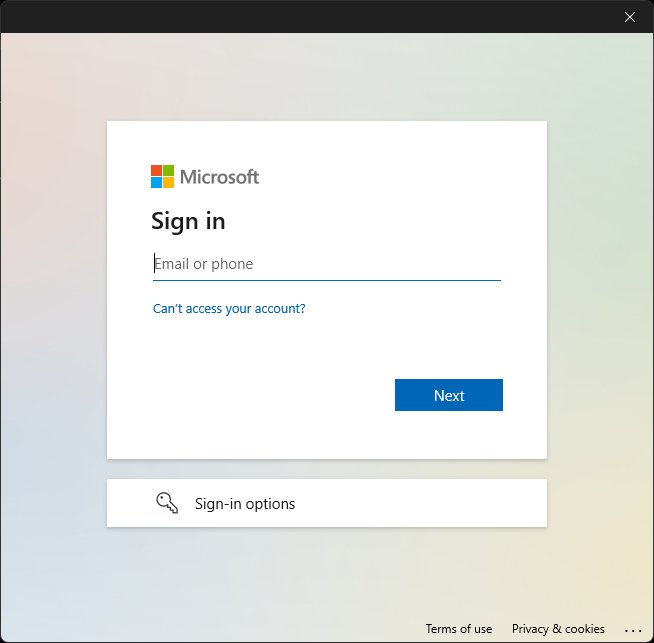
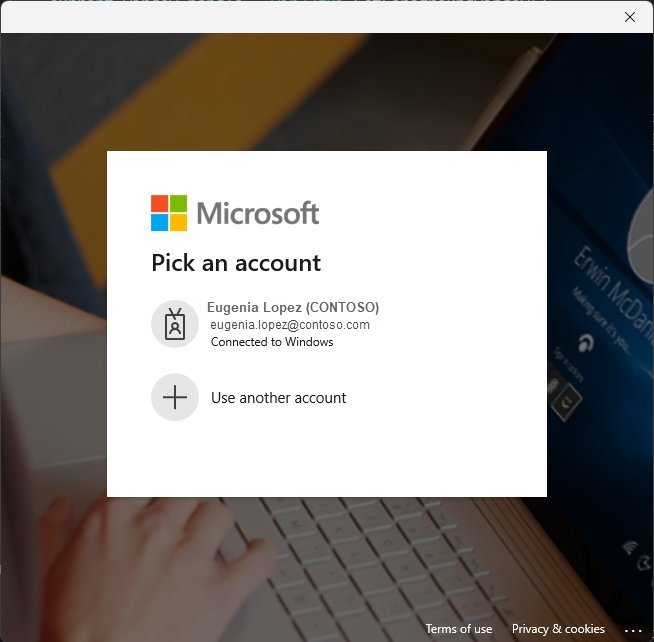
The window handle is required. Windows Forms, WPF and WinUI 3 apps pass their own window handle; console apps can pass the handle from GetConsoleWindow and GetAncestor. With an authority that includes personal Microsoft accounts, users see the system account picker first; with a single tenant set through WithTenantId, they see a generic Microsoft sign-in prompt instead.
Which .NET package should you install?
| Target framework | Microsoft.Identity.Client.Broker | Microsoft.Identity.Client.Desktop |
|---|---|---|
| .NET 6+ | Yes | No |
| .NET 6+ Windows | Yes | Yes (not recommended) |
| .NET MAUI | No; broker support is built into Microsoft.Identity.Client | No |
| .NET Framework 4.6.2+ | Yes | Yes (not recommended) |
| .NET Standard | Yes | Yes (not recommended) |
| .NET Core | Yes | Yes (not recommended) |
Microsoft.Identity.Client 4.61.0 and above no longer include a net6.0-windows7.0 binary, so existing net6.0-windows desktop apps reference the Broker package and call WithBroker. Use the Desktop package only when an app needs both WAM and the embedded browser, then call WithWindowsDesktopFeatures.
Enable WAM with MSAL Python
pip install "msal[broker]>=1.20,<2"Installs MSAL Python with the broker dependencies. Then create PublicClientApplication("CLIENT_ID", authority="https://login.microsoftonline.com/common", enable_broker_on_windows=True) and call acquire_token_interactive([...], parent_window_handle=app.CONSOLE_WINDOW_HANDLE).
You should see: Running the app opens the Windows account picker instead of a browser window, and the user selects the account to sign in with.
Console apps can use CONSOLE_WINDOW_HANDLE; desktop apps get their window handle through the Windows API, for example with pywin32. Cross-platform apps also set enable_broker_on_mac.
If the user's signed-in state is still valid, acquire_token_interactive tries a silent sign-in first. Pass prompt="select_account" to always show the picker. The authority changes the picker: /consumers for personal accounts, /organizations for work and school, /common for both, or a tenant ID for one tenant.
Use brokered authentication through Azure Identity
Azure SDK apps get the broker through the Azure Identity library rather than calling MSAL directly. Brokered credentials support personal Microsoft accounts and work or school accounts.
- For .NET, run
dotnet add package Azure.Identityanddotnet add package Azure.Identity.Broker. - Get the handle of the parent window the account picker should appear on top of.
- Create
InteractiveBrowserCredentialBrokerOptionswith that handle and setUseDefaultBrokerAccount = truefor a silent sign-in with the Windows account. - Pass the options to
new InteractiveBrowserCredential(options)and give the credential to the service client, such asSecretClientfor Key Vault. - For Python, run
pip install azure-identity-broker pywin32. - Get the window handle with
win32gui.GetForegroundWindow()and createInteractiveBrowserBrokerCredential(parent_window_handle=current_window_handle). - Pass the credential to the client, such as
BlobServiceClient; the sign-in prompt appears on first use.
If the silent default-account sign-in fails, or UseDefaultBrokerAccount is false, the .NET credential falls back to interactive brokered sign-in. Python's credential also accepts client_id, tenant_id and a timeout.
How to disable Microsoft Authentication Broker sign-in in Azure CLI and PowerShell
WAM is part of Windows, so the supported way back to browser sign-in is a setting in each tool. Use it when WAM sign-in fails and you need to keep working.
- Azure CLI on Windows: run
az config set core.enable_broker_on_windows=false, then sign in again withaz login. - Azure PowerShell (Az 12.0.0 and later): run
Update-AzConfig -EnableLoginByWam $false, then runConnect-AzAccount. - Azure PowerShell when neither WAM nor a browser opens: run
Connect-AzAccount -UseDeviceAuthenticationto use device code flow. - Azure CLI on macOS (2.91.0 and later, preview): broker sign-in is off by default;
az config set core.enable_broker_on_mac=trueturns it on and=falseturns it off. - Your own MSAL Python app: leave
enable_broker_on_windowsout, or set it toFalse, to keep browser sign-in.
Personal Microsoft accounts such as @outlook.com used with MFA in Azure PowerShell need the tenant named: Connect-AzAccount -Tenant <tenant-id>.
Microsoft Authentication Broker in sign-in logs: is it a scam?
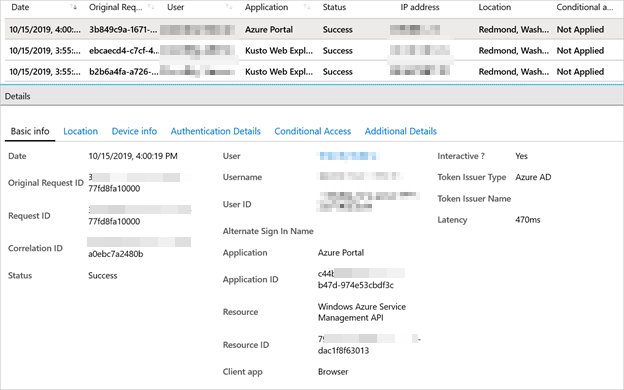
Microsoft Authentication Broker is not a scam; it is a Microsoft first-party application. Apps in Microsoft Entra sign-in logs that you do not own are owned by Microsoft, and admins can prove it in the tenant.
- Sign in to the Microsoft Entra admin center as at least a Reports Reader.
- Browse to Entra ID > Monitoring & health > Sign-in logs and note the application name and application ID on the entry.
- Open Enterprise applications > All applications in Microsoft Entra ID.
- In Application Type, select Microsoft Applications, then select Apply.
- Search for the display name or application ID, select the app, then select Properties.
- Look for the message "You can't delete this application because it's a Microsoft first party application."
In PowerShell, run Get-MgServicePrincipal -Filter "DisplayName eq '<display name>'" | Select-Object Id, DisplayName, SignInAudience, AppOwnerOrganizationId after Connect-MgGraph. An owner tenant of f8cdef31-a31e-4b4a-93e4-5f571e91255a is Microsoft's services tenant. Some first-party apps never create a service principal in your tenant, so they still appear in logs without one.
A real broker sign-in never asks you to type a password into a pop-up you did not start. Apps should only show the broker after you click a sign-in button or link.
Common Microsoft Authentication Broker errors and fixes
Broker error or API contract violation (Status_ApiContractViolation, error code 3399614473)
The WAM redirect URI is missing from the app registration.
- Open the app registration in Microsoft Entra and select Authentication.
- Add
ms-appx-web://Microsoft.AAD.BrokerPlugin/{your_client_id}under Mobile and desktop applications. - Save and run the app again.
Python broker dependency ImportError
MSAL Python was installed without the broker extras.
- Run
pip install "msal[broker]>=1.20,<2"in the app's environment. - Run the app again with
enable_broker_on_windows=True.
Microsoft Authentication Broker account picker does not show up
A Windows update affected the Microsoft.AccountsControl component that draws the account list.
- Open Windows Terminal or PowerShell as administrator.
- Run
if (-not (Get-AppxPackage Microsoft.AccountsControl)) { Add-AppxPackage -Register "$env:windir\SystemApps\Microsoft.AccountsControl_cw5n1h2txyewy\AppxManifest.xml" -DisableDevelopmentMode -ForceApplicationShutdown }. - Run
Get-AppxPackage Microsoft.AccountsControlto see that the package is registered, then try the sign-in again.
The sign-in window appears behind the app
The app did not pass a parent window handle, or passed the wrong one.
- Pass the app's window handle with
WithParentActivityOrWindowin MSAL.NET orparent_window_handlein MSAL Python and Azure Identity. - For console apps, use the console window handle (
CONSOLE_WINDOW_HANDLEin Python).
MsalClientException (ErrCode 5376): At least one scope needs to be requested
The request only asked for OIDC scopes such as profile, email or offline_access.
- Add at least one API scope, for example
user.read, to the token request.
A required authentication broker is missing
A Conditional Access policy requires a registered, Intune-enrolled or app-protected device, and no broker app is installed on the phone.
- Install Microsoft Authenticator or Intune Company Portal from the device's app store.
- Open the work app again and sign in.
- Follow the app's prompts to register or enroll the device so it meets the policy.
Microsoft Authentication Broker failure in Azure CLI: "User cancelled the Accounts Control Operation"
The WAM sign-in dialog closed or failed during az login.
- Run
az loginagain and complete the account picker. - If it keeps failing, run
az config set core.enable_broker_on_windows=falseand sign in through the browser.
"Please check your connection and try again" or error 2147943631
The PC cannot reach the network location, often an intermittent connection problem.
- Check that the PC has working internet access.
- Try the sign-in again later.
NTE_BAD_KEYSET (80090016) or "Keyset does not exist"
A problem with the device's Trusted Platform Module (TPM), which holds the broker's device-bound keys.
- Follow your PC maker's or your IT department's device recovery steps to get the TPM into a good state.
- Sign in again once the TPM is healthy.
"User interaction is required" or "Need user interaction to continue" (2156265484, 3399548929)
WAM could not use a cached token for the account.
- Prompt the user with an interactive sign-in (
AcquireTokenInteractive). - Complete MFA if the tenant requests it.
For other WAM errors in MSAL.NET, log the data in AdditionalExceptionData; it names the configuration or WAM component that failed.
WAM versus ROPC
Resource Owner Password Credentials (ROPC) is the username/password flow, where the app collects the password itself. Microsoft recommends against it, and against apps asking for passwords directly.
| WAM (broker) | ROPC (username/password) | |
|---|---|---|
| Who sees the password | Only the Windows broker | The app itself |
| Multifactor authentication | Supported; MFA claims are added to the PRT | Not supported; users who need MFA are blocked |
| Personal Microsoft accounts | Supported | Not supported |
| Passwordless (FIDO, Authenticator, SMS sign-in) | Supported, along with Windows Hello | Not supported |
| Federated AD FS accounts | Not supported; MSAL uses a browser | Not supported, except with cloud password validation |
| Token protection | Device-bound refresh tokens | None |
| Recommended for | Desktop apps with a signed-in user | Test scenarios only, when no secure flow is viable |
Microsoft's migration advice for ROPC is direct: desktop apps should use broker-based sign-in, mobile apps should use Authenticator or Company Portal as the broker, and jobs with no user should use a service principal or managed identity. In MSAL.NET with WAM, AcquireTokenByUsernamePassword lets WAM handle the protocol.
Should you use Microsoft Authentication Broker for sign-in?
The bottom line: use the broker for any Windows desktop app or mobile app where a real user signs in with a Microsoft Entra or Microsoft account, and keep browser sign-in only as the fallback MSAL already provides. The broker handles MFA, Conditional Access, Windows Hello and token protection for you. It is the wrong choice only where no interactive user exists, such as services, pipelines and scheduled jobs, which belong on managed identities or service principals.
Microsoft Authentication Broker FAQ
What is Microsoft Authentication Broker?
It is the Microsoft component that manages sign-ins and tokens for every connected account on a device. Apps hand sign-in to it instead of collecting passwords. On Windows it is Web Account Manager (WAM); on Android and iOS it is built into Microsoft Authenticator and related apps.
What is Microsoft Authentication Broker app?
On Android, the Microsoft Authentication Broker is a component inside Microsoft Authenticator, Intune Company Portal and Link to Windows, not a separate app. It gives other apps single sign-on with your work or Microsoft account and lets the device meet company Conditional Access policies.
Is Microsoft Authentication Broker the same as WAM?
On Windows, yes. Web Account Manager is the authentication broker Windows uses, and its Microsoft Entra plugin handles work and school sign-ins. On other platforms the broker comes inside Microsoft Authenticator or Intune Company Portal instead.
Can I download Microsoft Authentication Broker?
Not as a standalone download. On Windows 10 and 11 it is already part of the operating system. On a phone, install Microsoft Authenticator or Intune Company Portal from the app store, and the broker comes with it.
Does WAM work only with Microsoft Entra work accounts?
No. WAM supports Microsoft Entra work and school accounts and personal Microsoft accounts. It does not work with third-party identity providers, and Azure AD B2C and AD FS authorities fall back to browser sign-in.
Can I use WAM in a Windows service?
No. WAM needs an active, interactive Windows user session that can show UI. A Windows service, a scheduled task not running as the signed-in user, or runas impersonation all fail by design. Use a managed identity or service principal for those.
Do I need to configure the WAM redirect URI in MSAL code?
No. MSAL does not need the WAM redirect URI in code, but the app registration must list ms-appx-web://microsoft.aad.brokerplugin/{client_id} under Mobile and desktop applications. Without it, MSAL Python returns an ApiContractViolation broker error.
Does every interactive request show an account picker?
No. If the user's sign-in is still valid, an interactive call in MSAL Python first tries a silent sign-in and prompts only when needed. Pass prompt="select_account" to always show the picker. Single-tenant authorities show a generic Microsoft sign-in prompt instead of the picker.
Does brokered authentication bypass Azure RBAC or Conditional Access?
No. The broker enforces Conditional Access and MFA, and the app gets only the access the signed-in user already has. The user still needs the right Azure role, such as Storage Account Data Contributor, to reach a resource.
Can I disable Microsoft Authentication Broker?
WAM is part of Windows, but tools let you skip it. Run az config set core.enable_broker_on_windows=false for Azure CLI, or Update-AzConfig -EnableLoginByWam $false for Azure PowerShell, to return to browser sign-in.