The latest Microsoft 365 (Office 365) build is Version 2610 (Build 20527.20112) on Current Channel, released October 28, 2026, while Monthly Enterprise Channel is on Version 2609 (Build 20430.20180) from October 13, 2026.
This tracker lists the current build for every update channel, recent release history, Insider, Office 2024, Office 2021 and Mac versions, and how to check and update the build on your own PC.
Latest Office 365 builds
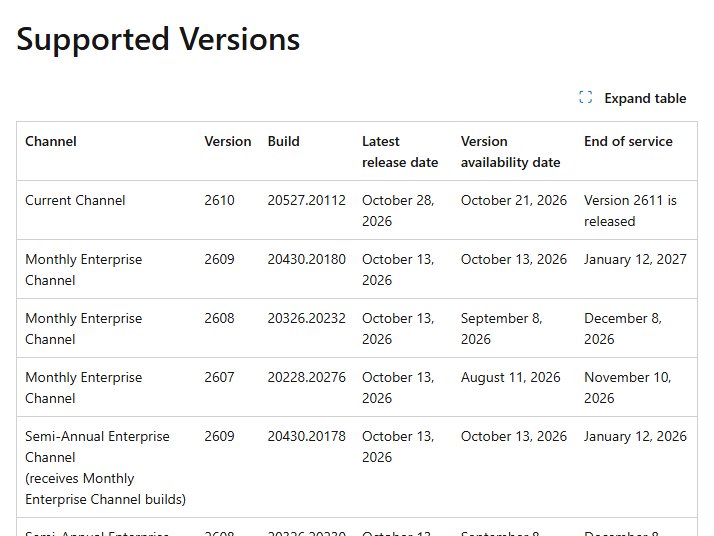
These are the supported Microsoft 365 Apps builds Microsoft lists as of November 4, 2026. They apply to Microsoft 365 Apps for enterprise, Microsoft 365 Apps for business, and the subscription desktop versions of Project and Visio.
| Update channel | Version | Latest build | Build released | Version supported until |
|---|---|---|---|---|
| Current Channel | 2610 | 20527.20112 | October 28, 2026 | Version 2611 is released |
| Monthly Enterprise Channel | 2609 | 20430.20180 | October 13, 2026 | January 12, 2027 |
| Monthly Enterprise Channel | 2608 | 20326.20232 | October 13, 2026 | December 8, 2026 |
| Monthly Enterprise Channel | 2607 | 20228.20276 | October 13, 2026 | November 10, 2026 |
| Semi-Annual Enterprise Channel | 2609 | 20430.20178 | October 13, 2026 | Follows Monthly Enterprise 2609 |
| Semi-Annual Enterprise Channel | 2608 | 20326.20230 | October 13, 2026 | December 8, 2026 |
| Semi-Annual Enterprise Channel | 2607 | 20228.20274 | October 13, 2026 | November 10, 2026 |
Version 2610 first reached Current Channel on October 21, 2026, and Build 20527.20112 is its second release. Each Monthly Enterprise row is a separate supported version, so a device on 2607 is still current as long as it has Build 20228.20276.
If your build is lower than the one for your channel, update Office to the latest release from File > Account > Update Options > Update Now.
How to check what version of Office you have
The About area of the account page shows your update channel, version and build number together. The steps are the same in Word, Excel, PowerPoint and Outlook.
- Open any Office app, such as Word or Excel, and open a blank document.
- Select File > Account. In classic Outlook, the page is called Office Account.
- Look under Product Information for the About heading.
- Read the line that names the channel, version and build, for example Current Channel, Version 2610 (Build 20527.20112).
- Compare the build with the row for your channel in the table above. A matching or higher build means you are up to date.
Office LTSC 2024, Office LTSC 2021 and the retail Office 2024 and Office 2021 suites show their version in the same About section. Only the channel name differs.
Microsoft 365 version and build numbers explained
Two numbers identify every release. The version changes only when new features arrive; the build changes with every release.
| Part | Example | What it tells you |
|---|---|---|
| Version | 2610 | The feature release. It reads as year and month: 2610 is the October 2026 feature update, 2609 is September 2026. |
| Build | 20527.20112 | The exact release. A security or non-security fix raises only the build, so Version 2610 has had Build 20527.20088 and then 20527.20112. |
| Channel | Current Channel | Which update stream the device follows. One device has one channel for Microsoft 365 Apps, Project and Visio together. |
| Shared version, different build | 2609: 20430.20180 vs 20430.20178 | From Version 2606, Monthly Enterprise and Semi-Annual Enterprise share version numbers but use slightly different builds so Click-to-Run accepts a channel move. The content is the same. |
| Version 2606 marker | Build higher than 20131.20000 | A former Semi-Annual Enterprise device with a build above 20131.20000 has installed Version 2606 and moved to Monthly Enterprise builds. |
Security and non-security fixes are cumulative. The newest build of a channel always includes every earlier fix for that channel, so there is no separate security-only download.
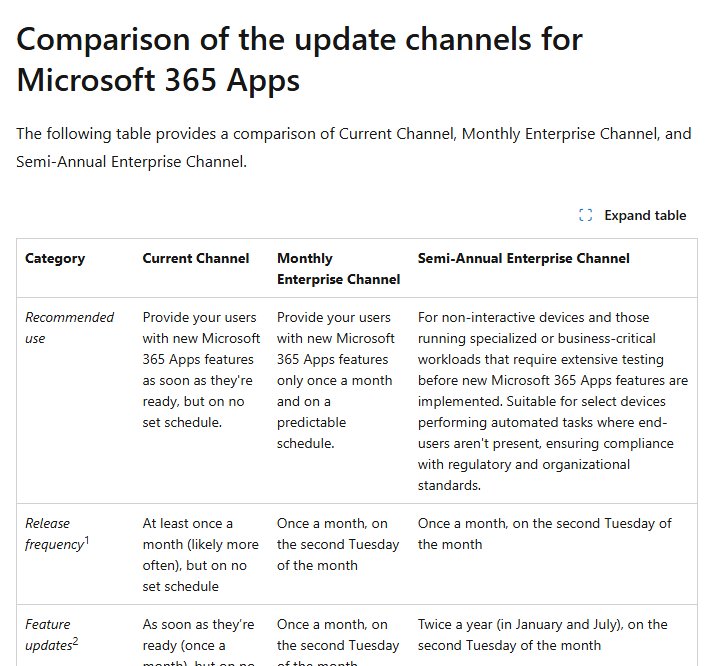
Microsoft 365 update channels: Current, Monthly Enterprise and Semi-Annual
Current Channel is the default for Microsoft 365 Apps for enterprise, Microsoft 365 Apps for business and the subscription Project and Visio apps. Home plans such as Microsoft 365 Family and Personal use Current Channel or an Insider channel.
| Channel | New features | Security and other fixes | Each version supported for | Suits |
|---|---|---|---|---|
| Current Channel | As soon as they are ready, roughly monthly, no fixed date | Two or three releases a month, including the second Tuesday | Until the next version, about one month | Home users and anyone who wants new features first |
| Monthly Enterprise Channel | Once a month, on the second Tuesday | Once a month, on the second Tuesday | Three months, with three months of rollback | Businesses that want one predictable update a month |
| Semi-Annual Enterprise Channel | Monthly since the July 2026 Version 2606 release | Once a month, on the second Tuesday | One month plus a two-month rollback window, about three months in all | Specialized, non-interactive or heavily tested devices |
| Current Channel (Preview) | About a week or more before Current Channel | Several releases per version | Until the next version | A small pilot group testing the next Current Channel version |
| Beta Channel | Before Current Channel (Preview) | Frequent builds, often weekly | Not supported | Test PCs and IT staff only |
Security updates for all three main channels arrive on the second Tuesday of the month. The next one falls on November 10, 2026, the same day Monthly Enterprise Version 2607 reaches end of service.
Microsoft 365 Current Channel update history
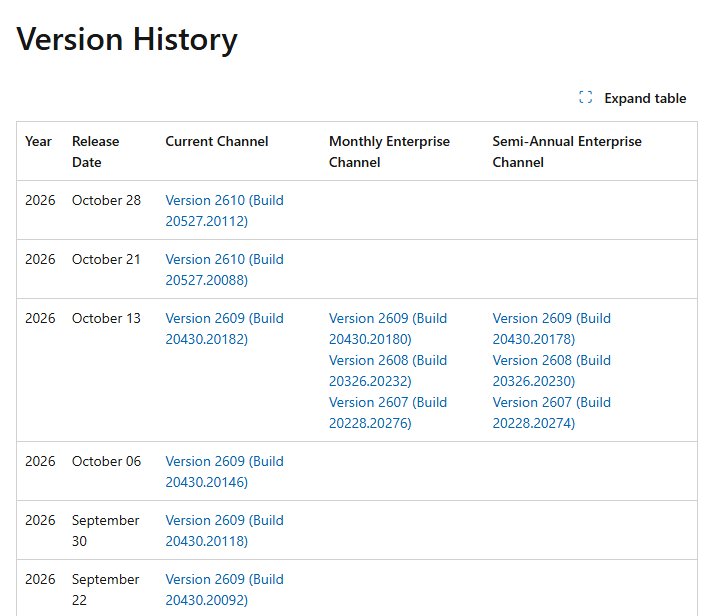
Current Channel gets the most releases. These are the ten most recent builds, newest first.
| Release date | Version | Build |
|---|---|---|
| October 28, 2026 | 2610 | 20527.20112 |
| October 21, 2026 | 2610 | 20527.20088 |
| October 13, 2026 | 2609 | 20430.20182 |
| October 6, 2026 | 2609 | 20430.20146 |
| September 30, 2026 | 2609 | 20430.20118 |
| September 22, 2026 | 2609 | 20430.20092 |
| September 18, 2026 | 2608 | 20326.20158 |
| September 8, 2026 | 2608 | 20326.20144 |
| September 1, 2026 | 2608 | 20326.20132 |
| August 26, 2026 | 2608 | 20326.20112 |
Each version stays on Current Channel for about a month and picks up three or four builds before the next feature release replaces it.
Monthly Enterprise Channel update history
Monthly Enterprise Channel releases once a month on the second Tuesday and updates three supported versions at the same time.
| Release date | Newest version (build) | Second version (build) | Oldest supported version (build) |
|---|---|---|---|
| October 13, 2026 | 2609 (20430.20180) | 2608 (20326.20232) | 2607 (20228.20276) |
| September 8, 2026 | 2608 (20326.20142) | 2607 (20228.20226) | 2606 (20131.20260) |
| August 11, 2026 | 2607 (20228.20188) | 2606 (20131.20206) | 2605 (20026.20266) |
| July 14, 2026 | 2606 (20131.20152) | 2605 (20026.20236) | 2604 (19929.20264) |
A Monthly Enterprise version is supported for three months. The version released on the second Tuesday of August, 2607, is supported until the second Tuesday of November.
Semi-Annual Enterprise Channel unification with Monthly Enterprise Channel
Starting with the Version 2606 release in July 2026, Microsoft folded Semi-Annual Enterprise Channel into Monthly Enterprise Channel. Devices on Semi-Annual Enterprise Channel now get the same feature and security updates every month.
| Release date | Semi-Annual Enterprise builds released | What changed |
|---|---|---|
| October 13, 2026 | 2609 (20430.20178), 2608 (20326.20230), 2607 (20228.20274) | Three versions in step with Monthly Enterprise |
| September 8, 2026 | 2608 (20326.20140), 2607 (20228.20226), 2606 (20131.20258) | Monthly feature versions continue |
| August 11, 2026 | 2607 (20228.20186), 2606 (20131.20206), 2508 (19127.20752) | Last month Version 2508 got a build |
| July 14, 2026 | 2606 (20131.20150), 2508 (19127.20730) | First unified release, Version 2606 |
| June 9, 2026 | 2508 (19127.20678) | Last release of the old twice-a-year model |
After Version 2606 or later installs, File > Account shows the device as Monthly Enterprise Channel. The jump from Version 2508 to 2606 was roughly 1.6 GB; later updates are normal monthly sizes.
No policy change or reinstall is needed. Existing settings from an Intune deployment of Microsoft 365 Apps, Group Policy, Configuration Manager and the Office Deployment Tool keep working.
Microsoft 365 Insider builds: Beta Channel and Current Channel (Preview)
The Microsoft 365 Insider program gives early access to new features through two channels. Beta Channel was previously named Insider, sometimes called Insider Fast.
| Insider channel | Latest version | Latest build | Released | Supported |
|---|---|---|---|---|
| Beta Channel | 2611 | 20625.20032 | November 2, 2026 | No, test devices only |
| Current Channel (Preview) | 2610 | 20527.20112 | October 29, 2026 | Yes, until the next version |
Beta Channel Build 20625.20000 from October 29, 2026 was rolled back, and Build 20625.20032 replaced it on November 2. Version 2611 is the feature release expected to reach Current Channel next.
Office 2024 and Office LTSC 2024 latest version
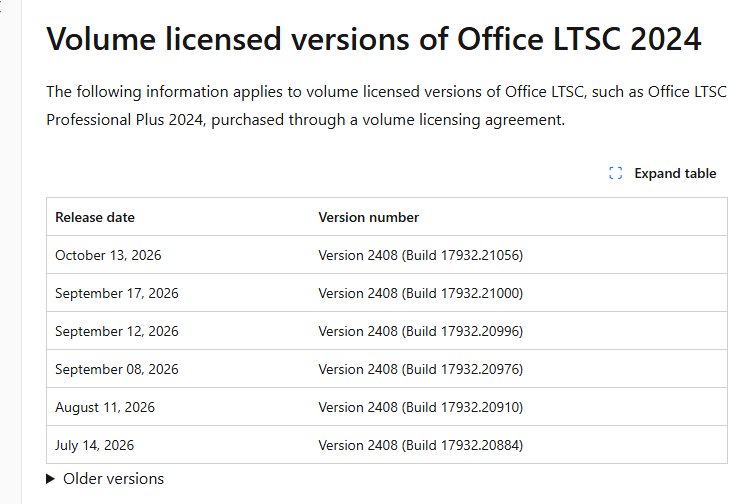
The two editions of Office 2024 update very differently. The retail suite follows Current Channel builds, while the volume licensed LTSC edition stays on one version and gets only security and quality fixes.
| Edition | Latest version (build) | Released | Update channel |
|---|---|---|---|
| Office LTSC 2024 (volume licensed), such as Office LTSC Professional Plus 2024 | 2408 (17932.21056) | October 13, 2026 | PerpetualVL2024 |
| Office 2024 (retail), such as Office Home & Business 2024 | 2610 (20527.20112) | October 28, 2026 | Same builds as Current Channel |
Office LTSC 2024 updates are cumulative and come from the Office Content Delivery Network by default. The Office Automatic Updates 2.0 scheduled task checks for them, and Microsoft Update or WSUS alone does not update it.
Office 2021, Office 2019 and Office 2016 latest builds and end of support
Office 2021 and Office LTSC 2021 reached end of support on October 13, 2026. After that date Microsoft provides no technical support, bug fixes or security updates for them.
| Product | Last version (build) listed | Released | Support status |
|---|---|---|---|
| Office LTSC 2021 (volume licensed) | 2108 (14334.20974) | October 13, 2026 | Ended October 13, 2026 |
| Office 2021 (retail) | 2609 (20430.20182) | October 13, 2026 | Ended October 13, 2026 |
| Office 2019 (volume licensed) | 1808 (10417.20207) | October 13, 2026 | Ended October 14, 2025; Microsoft may still issue occasional updates |
| Office 2016 C2R and Office 2019 (retail) | 2508 (19127.20302) | October 14, 2025 | Ended October 14, 2025 |
Microsoft recommends moving to Microsoft 365 Apps, or to Office LTSC 2024 for organizations that need an on-premises version. Once you have a new licence, install and activate Microsoft 365 over the old suite.
Office for Mac version history
Office for Mac uses a different numbering scheme: 16.x versions with a build code that starts with the build date in YYMMDD form. Only the most recent Mac release is supported, and all current packages are 64-bit.
| Release date | Version | Build |
|---|---|---|
| October 27, 2026 | 16.114.3 | 26102720 |
| October 26, 2026 | 16.114.2 | 26102345 |
| October 22, 2026 | 16.114.1 | 26102031 |
| October 14, 2026 | 16.114 | 26101123 |
| October 6, 2026 | 16.113.4 | 26100421 |
| September 29, 2026 | 16.113.3 | 26092714 |
| September 16, 2026 | 16.113 | 26091433 |
| August 11, 2026 | 16.112 | 26081010 |
| July 14, 2026 | 16.111 | 26071325 |
The same Mac builds apply to Microsoft 365 subscriptions and to Office 2024 and Office LTSC 2024 for Mac. Office 2019 for Mac reached end of support on October 10, 2023 and gets no updates.
Microsoft 365 update download sizes
Microsoft publishes approximate download sizes for the en-us x64 build. Actual sizes can vary by about 50 MB, and an older starting build means a bigger download.
| Channel | Updating to | Updating from | Approximate size |
|---|---|---|---|
| Current Channel | 2610 (20527.20112) | 2610 (20527.20088) | 52 MB |
| Current Channel | 2610 (20527.20112) | 2609 (20430.20182) | 217 MB |
| Monthly Enterprise Channel | 2609 (20430.20180) | 2608 (20326.20142) | 239 MB |
| Semi-Annual Enterprise Channel | 2609 (20430.20178) | 2608 (20326.20140) | 696 MB |
| Semi-Annual Enterprise Channel | 2609 (20430.20178) | 2607 (20228.20186) | 740 MB |
| Any channel switch | Another channel's build | Your current build | Can be a full download of 1 GB or more |
How to update Office 365 to the latest build
Office downloads new builds on its own, but you can pull the newest build for your channel right away.
- Open any Microsoft 365 app, such as Word, and create a new document.
- Select File > Account, or Office Account in classic Outlook.
- Under Product Information, select Update Options > Update Now.
- If Update Now is not there, select Enable Updates first, then select Update Now.
- Save your work and close the Office apps if the installer asks you to.
- Close the You're up to date! or Updates were installed window when it appears.
The update installs the latest build of the channel the device is already on. It does not move you to a newer channel. You can also check for Microsoft Office updates on a schedule instead of waiting for the background task.
Update Office for Mac from Terminal with msupdate
Microsoft AutoUpdate 3.18 and later includes the msupdate command-line tool. It lists and installs updates for Word, Excel, PowerPoint, Outlook, OneNote and other Microsoft apps for Mac.
cd /Library/Application\ Support/Microsoft/MAU2.0/Microsoft\ AutoUpdate.app/Contents/MacOS
./msupdate --list
./msupdate --install
Run the commands in Terminal. --list shows the updates available for installed Microsoft apps, and --install downloads and installs all of them. Add --apps XCEL2019 to update Excel only, or MSWD2019 for Word.
You should see: Running ./msupdate --list again shows no pending update for the app, and its version matches the newest row in the Office for Mac table.
The first run on macOS 10.14 Mojave or later can show a privacy prompt. Allow it so msupdate can talk to the AutoUpdate service.
How to change the Microsoft 365 Apps update channel
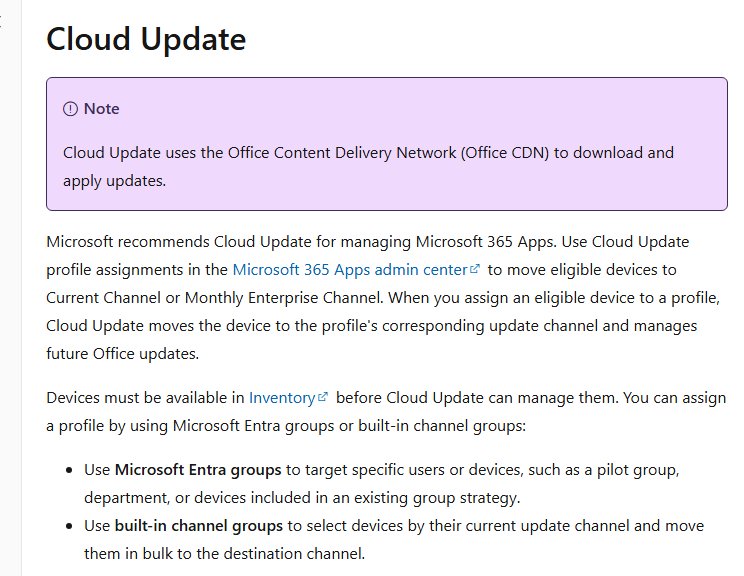
Admins change the channel without reinstalling; the move completes through the normal update process. Microsoft recommends Cloud Update in the Microsoft 365 Apps admin center, and Group Policy works for domain-joined PCs.
- Download the latest Administrative Template files (ADMX/ADML) for Microsoft 365 Apps.
- In a computer-scoped Group Policy Object, go to Computer Configuration > Policies > Administrative Templates > Microsoft Office 2016 (Machine) > Updates.
- Set Enable Automatic Updates to Enabled.
- Open Update Channel, select Enabled, and pick the target channel from the list.
- Set Update Deadline to 1, the value Microsoft suggests.
- Link the GPO to the right organizational unit, then run
gpupdate /forceon a test PC. - Check File > Account after the next update. The new channel name appears only once a build from that channel is installed.
Without Group Policy, the Office Deployment Tool does the same with <Updates Channel="Current" /> in a configuration file and setup.exe /configure yourconfigfile.xml. For self-installs from Office.com, set the default in the Microsoft 365 admin center under Settings > Org settings > Microsoft 365 installation options.
Moving to a channel with an older version removes features that exist only in the newer one, and the download is larger because binary delta compression does not apply.
Microsoft 365 update channel or build not changing
The Update Now button is missing in File > Account
Updates are switched off for this installation.
- Select Update Options > Enable Updates.
- Select Update Options > Update Now again.
- If both options are greyed out, your organization manages updates; ask your IT team for the build it has approved.
File > Account still shows the old channel after a channel change
The channel name changes only after a build from the new channel installs, and one channel change must finish before another is accepted.
- Select Update Options > Update Now to pull the first build from the new channel.
- Make sure the PC can reach the Office Content Delivery Network, or that your Configuration Manager or file share hosts a build from the target channel.
- Check that a higher-priority setting is not overriding yours: Cloud Update wins over Group Policy, which wins over the Office Deployment Tool.
Reports show Semi-Annual Enterprise Channel but the app shows Monthly Enterprise Channel
After Version 2606, the app reports Monthly Enterprise Channel while some management tools and dashboards keep the old channel name.
- Check the build in File > Account. A build higher than 20131.20000 means Version 2606 or later is installed.
- Update any reports or compliance rules that filter on the Semi-Annual Enterprise Channel name.
- Use the Microsoft 365 Apps admin center for channel reporting, which Microsoft lists as accurate after the change.
Office 2021 or Office 2019 shows no new version
Office 2021 support ended on October 13, 2026, and Office 2016 and 2019 support ended on October 14, 2025.
- Install the last build listed for your edition in the end-of-support table.
- Plan a move to Microsoft 365 Apps or Office LTSC 2024 to keep getting security updates.
Office 365 builds and updates FAQ
What is the latest version of Office 365?
The latest Microsoft 365 (Office 365) release is Version 2610 (Build 20527.20112) on Current Channel, released October 28, 2026. Monthly Enterprise Channel's newest version is 2609 (Build 20430.20180), and Beta Channel testers are on Version 2611 (Build 20625.20032).
Does Microsoft 365 update automatically?
Yes, unless updates are turned off or your organization manages them. Office downloads new builds from the Office Content Delivery Network in the background and may ask you to close open apps to finish. You can force it from File > Account > Update Options > Update Now.
How do I check what version of Office I have?
Open Word or another Office app, select File > Account, and look under Product Information > About. That line shows the update channel, the version such as 2610, and the build such as 20527.20112. Classic Outlook calls the page Office Account.
How often does Microsoft release Office updates?
Current Channel usually gets two or three releases a month with no fixed schedule, plus one on the second Tuesday. Monthly Enterprise and Semi-Annual Enterprise channels get one release a month, on the second Tuesday, which carries the security fixes.
When is the next Microsoft 365 update?
The next scheduled release is Tuesday, November 10, 2026, the second Tuesday of the month. Monthly Enterprise and Semi-Annual Enterprise devices update that day, and Monthly Enterprise Version 2607 reaches end of service. Current Channel can also get builds on other days.
What is the difference between the version and the build number in Office?
The version, such as 2610, changes only when a release adds new features. The build, such as 20527.20112, changes with every release, including security and non-security fixes. Two PCs on the same version can therefore be on different builds.
What is the difference between Office 2019 and Office 365?
Office 2019 is a one-time purchase that gets no new feature versions, and its support ended on October 14, 2025. Microsoft 365, formerly Office 365, is a subscription that gets new feature versions every month and continues to receive security updates.
Is the Beta Channel of Microsoft 365 supported?
No. Beta Channel, formerly called Insider or Insider Fast, is not supported, and Microsoft advises using it only on test devices or with a small group such as IT staff. Current Channel (Preview) is the supported way to try the next version early.
What is the latest version of Office for Mac?
The latest Office for Mac release is Version 16.114.3 (26102720), released October 27, 2026. Only the newest Mac release is supported, and it applies to Microsoft 365 subscriptions as well as Office 2024 and Office LTSC 2024 for Mac.