Find My shows a removal date about 30 days away because the iPhone was offline when you selected Remove This Device: Activation Lock comes off straight away, but the device stays in your list for 30 days.
This guide explains each date Find My can show, the two routes that remove an iPhone at once, and what to do when an insurer or repair shop wants it gone from Find My.
Why Find My says the iPhone will be removed in 30 days
The date depends on whether the iPhone was online, offline or already erased when you chose to remove it. Match your case to a row.
| State of the iPhone when you select Remove This Device | What Find My does | Activation Lock |
|---|---|---|
| Offline: turned off, battery dead, or no Wi-Fi or cellular connection | Removes the iPhone from Find My after 30 days | Removed immediately |
| Online, on iOS 27 or later | Cannot remove it; if you select Continue, it is marked Ready for Repair or Trade In for the next 30 days | Stays on, so the iPhone remains secure and findable |
| Already erased from Find My, then removed | Removes the iPhone from Find My immediately | Removed immediately |
| Comes back online after the 30 days while still signed in to your Apple Account | The iPhone reappears in your list of devices | Turned back on |
If your iPhone was offline, the date you see is only when the entry leaves your Devices list. Activation Lock, the part that blocks anyone else from activating the phone, is already off.
Does removing a device from Find My turn off Activation Lock?
Yes, for an offline device. Activation Lock links the iPhone to your Apple Account on Apple's activation servers, and each action in Find My treats it differently.
| Action | Activation Lock afterwards | Your data on the iPhone |
|---|---|---|
| Turn off Find My iPhone in Settings on the phone | Removed automatically | Kept |
| Remove This Device while the iPhone is offline | Removed immediately; the entry leaves Find My after 30 days | Kept |
| Erase This Device only | Stays on; your Apple Account and password are needed to reactivate it | Erased the next time it is online |
| Erase, then Remove This Device | Removed immediately, and the iPhone leaves Find My at once | Erased |
| Ready for Repair or Trade In (iOS 27 or later) | Stays on while the repair or trade in is in progress | Kept |
Once Activation Lock is removed, someone else can activate the iPhone and connect it to their own Apple Account.
How to remove a device from Find My immediately
Erasing the iPhone first is the only route in Find My that removes it at once. The erase runs only when the iPhone is online, so this works for a phone that can still connect.
- Open the Find My app on another iPhone or iPad signed in to the same Apple Account.
- Tap Devices, tap the name of the iPhone, then tap the More button.
- Tap Erase This Device and follow the onscreen steps. Leave the phone number and message empty, because the iPhone is not lost.
- Wait for the confirmation email that says the iPhone was erased.
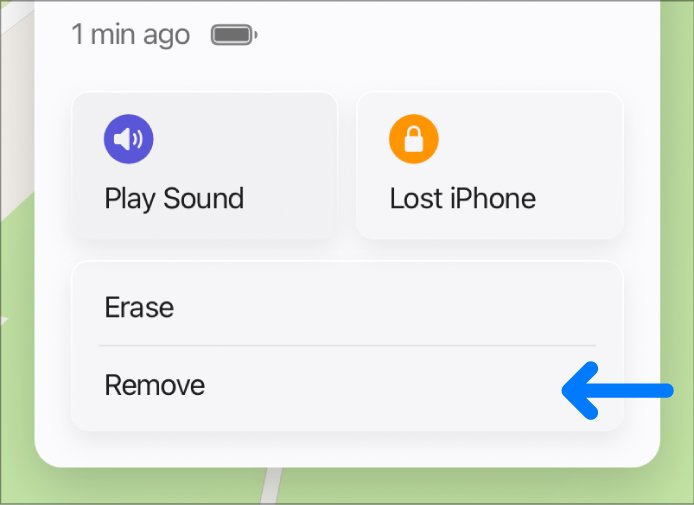
- Open the iPhone in Devices again, tap Remove This Device, then tap Remove.
If the iPhone is offline, the erase begins the next time it connects to Wi-Fi or a cellular network. Until then, the only removal on offer is the 30-day one.
How to remove a device from Find My on iCloud.com
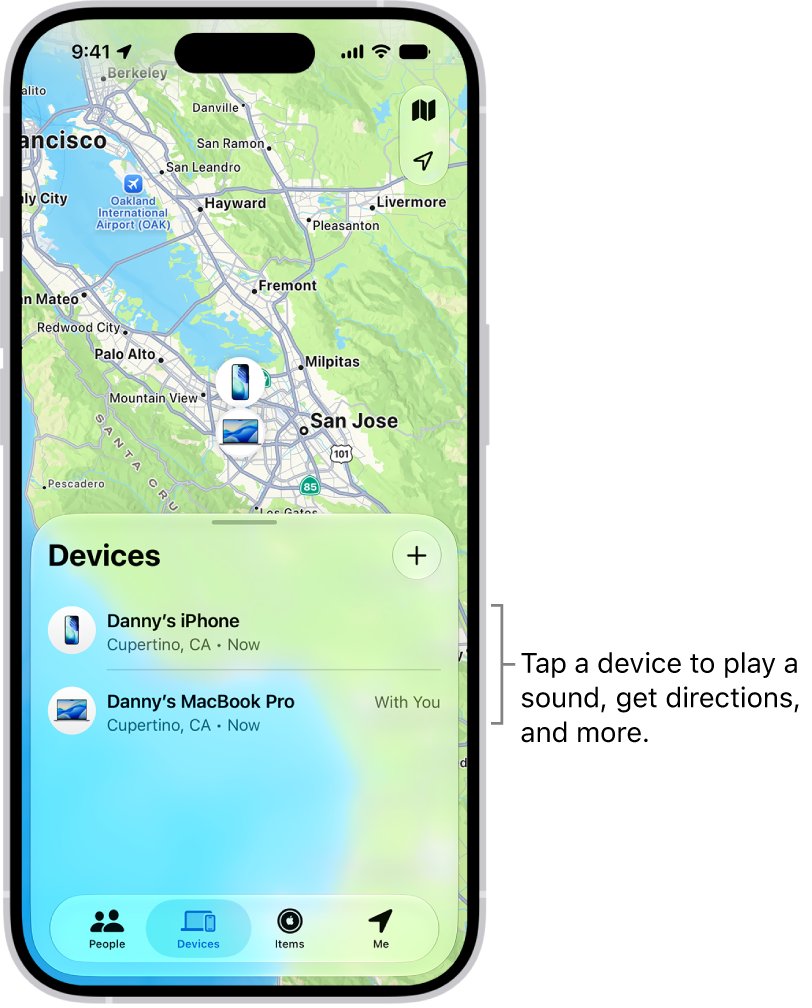
Use the web when you have no other Apple device, or when the iPhone will not turn on. An offline iPhone loses Activation Lock as soon as you finish these steps.
- Go to icloud.com/find in a browser and sign in to your Apple Account.
- Select the iPhone in the list of devices. If another device is open, select All Devices first.
- Select Remove This Device.
- Read the message that appears, then confirm the removal.
- Leave the offline iPhone in the list. It drops off after 30 days, and its Activation Lock is already off.
On the Find My sign-in page, you can sign in without a two-factor code by using the option at the bottom of the window. That helps when the dead iPhone was your trusted device, because it saves you going through Apple Account recovery just to reach Find My.
How to turn off Find My iPhone in Settings
If the iPhone still turns on and you can unlock it, turn off Find My on the phone itself. Activation Lock is removed automatically and there is no 30-day wait.
- Open Settings on the iPhone.
- Tap your name, then tap Find My.
- Tap Find My iPhone, then turn off Find My iPhone.
- Enter your Apple Account password, then tap Turn Off.
Signing out of your Apple Account in Settings on the iPhone also removes it from your account and from Find My. Both need the password, so reset your Apple Account password first if you have forgotten it.
How to remove an iPhone from your Apple Account device list
The Apple Account device list is separate from Find My. Remove from Account signs the iPhone out remotely, so it loses access to iCloud, Find My and two-factor codes.
- On another iPhone or iPad, open Settings and tap your name. On a PC or Android phone, sign in at account.apple.com and select Devices.
- Scroll to the list of devices and tap the iPhone's name.
- Tap Remove from Account.
- Review the message, then confirm that you want to remove the device.
If the iPhone is still signed in to your Apple Account, it can reappear in the list the next time it connects to the internet. Signing out on the phone itself is the permanent fix.
How to turn on Ready for Repair or Trade-In on iPhone
On iOS 27 and later, Apple replaces "turn off Find My before a repair" with Ready for Repair or Trade In. The iPhone stays secure and findable, and the setting turns itself off when the technician marks the job complete.
- Open the Find My app.
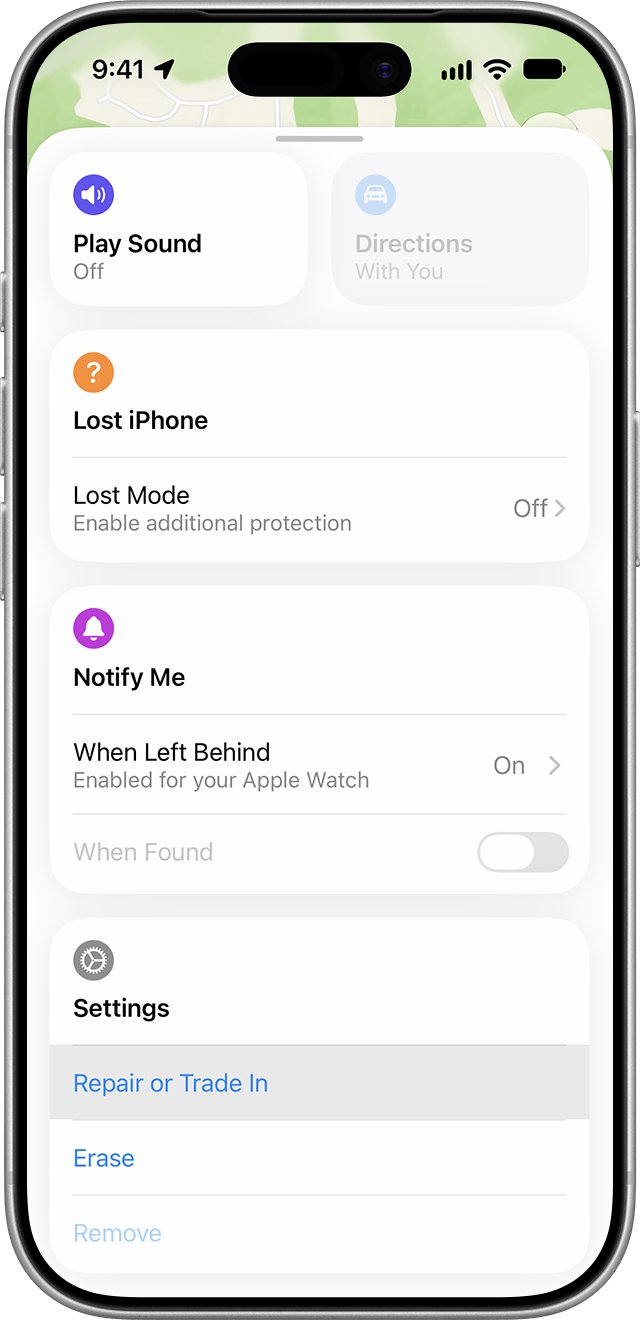
- Select the iPhone that needs repair, then tap the More button.
- Under Settings, scroll down and tap Repair or Trade In.
- Tap Enable.
- Enter your Apple Account password to authenticate.
On the web, sign in to icloud.com/find, select the iPhone, click Repair or Trade In, then click Enable. To cancel before you send the phone in, tap Turn Off next to Repair or Trade In and confirm.
Do I need to remove my iPhone from Find My for an insurance claim?
It depends on who handles the claim. Removing the iPhone too early can break an Apple theft and loss claim, while a repair or a third-party insurer may need it.
| Your claim or repair | What to do in Find My |
|---|---|
| AppleCare+ with Theft and Loss, or AppleCare One, for a lost or stolen iPhone | Keep Find My on and mark the iPhone as lost. Do not remove it from your account until the claim is fully approved |
| Apple repair or Express Replacement, iPhone on iOS 27 or later | Turn on Ready for Repair or Trade In |
| Apple repair or Express Replacement, iPhone on iOS 26 or earlier | Turn off Find My on the iPhone. If you cannot, select Remove This Device at icloud.com/find |
| Third-party or carrier insurer that wants Find My off on a dead iPhone | Select Remove This Device at icloud.com/find. Activation Lock comes off at once; tell the insurer the 30-day date is only the list entry |
On iOS 26 or earlier, Apple might not be able to service an iPhone if Find My is still on. If the dead phone held your Wallet cards, you can remove Apple Pay from another device before it leaves your hands.
How to see which devices are on your Apple Account
Two lists show where the iPhone still appears: Find My, and the Apple Account device list. Check both after a removal.
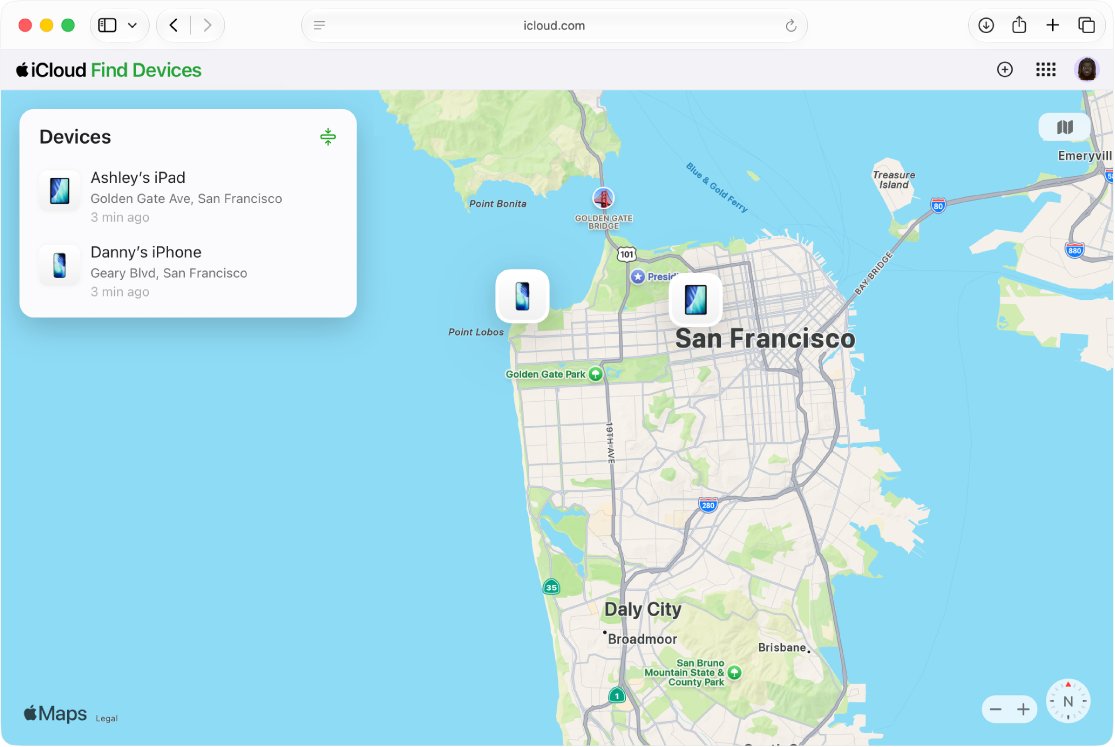
- Open the Find My app and tap Devices to see every device linked to Find My.
- Or sign in at icloud.com/find and select All Devices.
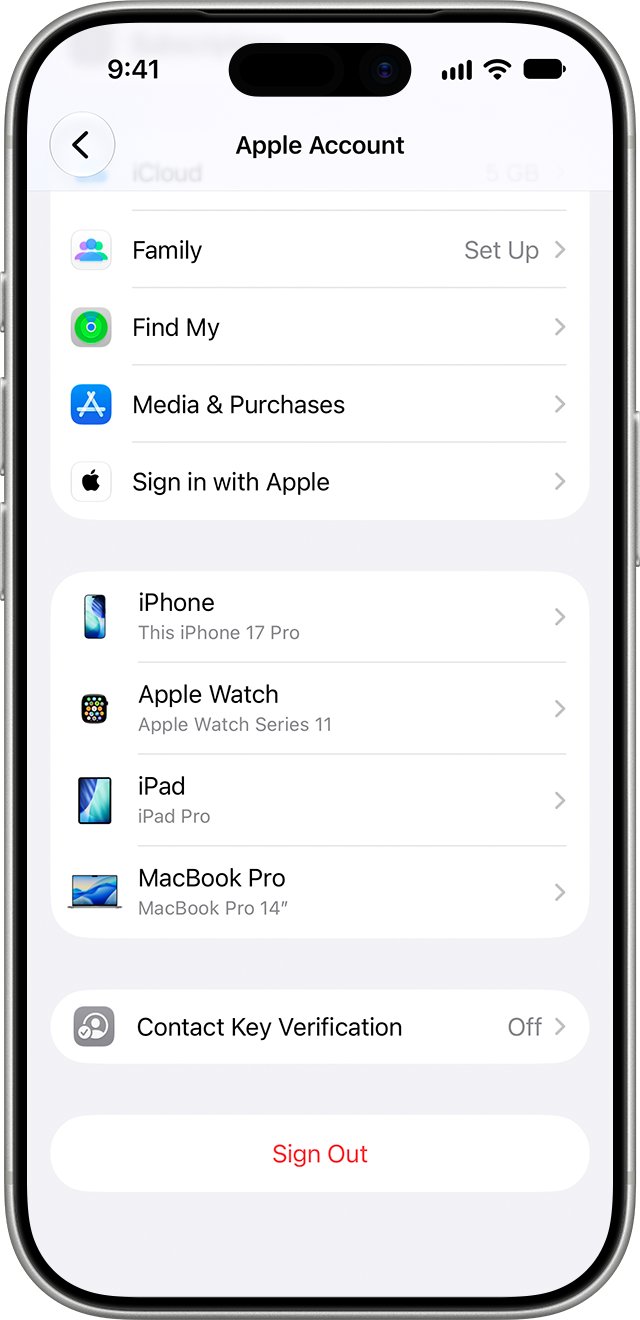
- Open Settings, tap your name and scroll down to see the Apple Account device list.
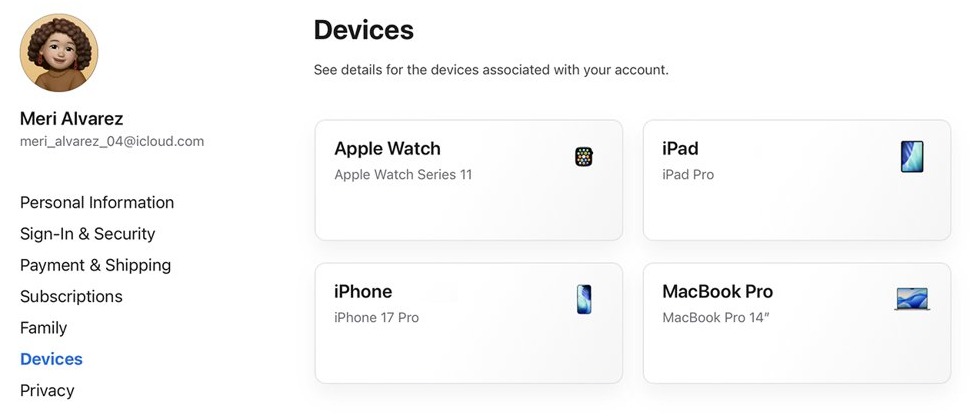
- Or sign in at account.apple.com and select Devices; click View Details if the list does not appear.
- Tap any device name to view that device's information.
An offline iPhone you removed stays in the Find My list until its 30 days are up, even though its Activation Lock is already off.
How to stop a Find My erase request
An erase sent to an offline iPhone waits until the phone next connects. If you find or repair the iPhone first and want to keep its data, cancel the request.
- Go to icloud.com/find and sign in to your Apple Account.
- Select the iPhone in the list of devices.
- Select Stop Erase Request.
- Enter your Apple Account password.
Can't remove a device from Find My on iPhone
Find My will not remove the iPhone because it is online
Find My cannot remove an online device. It may need to be offline first.
- Turn off the iPhone.
- In the Find My app, tap Devices, tap the offline iPhone, then tap the More button.
- Tap Remove.
- If you still have the working iPhone, turn off Find My iPhone in Settings instead, which avoids the 30-day wait.
The iPhone won't turn on, so you can't turn off Find My
Settings is out of reach on an unresponsive iPhone, but the web still works.
- Sign in at icloud.com/find on any computer or phone.
- Select the iPhone, then select Remove This Device, or Repair or Trade-In for an Apple repair.
- Follow the onscreen instructions. With Remove This Device, Activation Lock is removed at once because the phone is offline.
A removed iPhone reappeared in Find My
The iPhone came online after the 30 days while still signed in to your Apple Account, so Activation Lock turned back on.
- If you have the iPhone, turn off Find My iPhone in Settings or sign out of your Apple Account on it.
- If you no longer have it, erase it from Find My, wait for the confirmation email, then select Remove This Device.
An Apple repair asks you to turn off Find My first
On iOS 26 or earlier, Apple might not be able to service an iPhone while Find My is on.
- If the iPhone works, turn off Find My iPhone in Settings > your name > Find My.
- If it does not, select the iPhone at icloud.com/find and select Remove This Device.
- On iOS 27 or later, turn on Ready for Repair or Trade In instead.
Find My device removal FAQ
Can you speed up removing a device from Find My?
Not for an iPhone that stays offline: Find My removes it after 30 days. To remove it at once, turn off Find My iPhone in Settings on the phone, or erase it from Find My and then select Remove This Device. Both need a working or online iPhone.
Does removing an iPhone from Find My remove Activation Lock?
Yes. When you select Remove This Device for an offline iPhone, Activation Lock is removed immediately, even though the device stays in your Find My list for 30 days. After that, someone else can activate the iPhone with their own Apple Account.
Why can't I remove a device from Find My?
Find My cannot remove a device that is online. Turn the iPhone off and try again, or turn off Find My iPhone in Settings on the phone. On iOS 27 and later, an online iPhone can be marked Ready for Repair or Trade In instead.
What happens if a removed iPhone comes back online?
If it comes online after the 30 days and is still signed in to your Apple Account, it reappears in your list of devices and Activation Lock turns back on. Signing out of the Apple Account on the iPhone stops that.
Does erasing an iPhone remove it from Find My?
No. An erase keeps Activation Lock on and the iPhone stays in Find My. To remove it, wait for the email confirming the erase, then select Remove This Device, which removes it from Find My and turns off Activation Lock immediately.
Should I remove my lost iPhone from Find My?
No. Keep it in Find My, mark it as lost and use the map to find the lost phone. Removing it turns off Activation Lock, and AppleCare+ with Theft and Loss requires Find My on throughout the claim.
How do I remove an old iPhone from my Apple Account?
Open Settings on another Apple device, tap your name, tap the old iPhone and tap Remove from Account. On a PC, sign in at account.apple.com and select Devices. Signing out on the old iPhone itself removes it permanently.
Do I need to turn off Find My before an Apple repair?
On iOS 26 or earlier, yes, or Apple might not be able to service the iPhone. On iOS 27 and later, turn on Ready for Repair or Trade In instead, which keeps the iPhone secure and findable during the repair.