KB5077241 is the February 24, 2026 optional non-security preview update for Windows 11 versions 24H2 and 25H2 (OS Builds 26100.7922 and 26200.7922), and it adds a taskbar network speed test, built-in Sysmon, camera pan and tilt controls, WebP wallpapers and fixes for sleep, sign-in, printing and BitLocker recovery.
Below: how to get it, what each change does and where to find it, how to remove it, and which kind of PC owner should install it first.
Available now as an optional preview; wide rollout follows
KB5077241 shipped as an optional preview, so Windows Update did not install it on its own. Its changes then moved into the next regularly scheduled monthly update, which is how Microsoft services optional preview content.
On a PC that is not fully up to date, installing the latest update from Windows Update brings these changes with it.
- Select Start > Settings > Windows Update.
- Turn on Get the latest updates as soon as they're available if you want gradually rolled-out features as early as possible. Security updates arrive on the usual schedule either way.
- Select Check for updates.
- Select Download & install next to the cumulative update that is offered.
- Select Restart now when Windows asks, or restart from Start > Power > Update and restart.
- Press Windows + R, type
winverand press Enter. An OS Build of 26100.7922 or 26200.7922 or higher means the KB5077241 changes are on the PC.
Windows Update for Business devices were not offered the preview at all; they received the changes in the following security update.
Background
Microsoft releases one optional non-security preview each month, a few weeks after the security release. KB5077241 was the February 2026 one for both supported Windows 11 versions.
| Detail | KB5077241 |
|---|---|
| Release date | February 24, 2026 |
| Applies to | Windows 11 version 25H2 and version 24H2, all editions |
| OS builds | 26200.7922 (25H2) and 26100.7922 (24H2) |
| Update type | Non-security preview, combined with a servicing stack update |
| Servicing stack update | KB5077371 (version 26100.7911) |
| Known issues at release | Microsoft listed none |
| Windows Update | Offered as an optional update |
| Windows Update for Business | Not offered; the changes come in the next security update |
| Microsoft Update Catalog | Standalone x64 and Arm64 .msu packages |
| WSUS | Not synced automatically; import it manually from the Catalog |
What's new: the practical wins
Most of the new features reach PCs in stages, so a device with the build installed may not show every item at once.
| Change | Where you find it | Who gets it |
|---|---|---|
| Network speed test | Right-click the network icon in the system tray, or open the Wi-Fi or Cellular Quick Settings | Everyone; tests Ethernet, Wi-Fi and cellular |
| Camera pan and tilt | Settings > Bluetooth & devices > Cameras > your camera > Basic settings | Owners of cameras that support pan and tilt |
| Built-in Sysmon | Settings > System > Optional features > More Windows features | Off by default; aimed at IT and security teams |
| Quick Machine Recovery on Pro | Settings > System > Recovery > Quick machine recovery | Pro devices that are not domain-joined or enterprise-managed |
| WebP desktop wallpapers | Settings > Personalization > Background, or right-click the image in File Explorer | Everyone |
| Search result counts and previews | Search on the taskbar | Everyone |
| Emoji 16.0 | The emoji panel | Everyone; a small set, one from each major category |
| RSAT on Arm64 | Windows features on Arm64 PCs | Admins on Pro or Enterprise Arm64 devices |
| First sign-in restore | Windows Backup for Organizations | Microsoft Entra hybrid joined devices, Cloud PCs and multi-user setups |
Built-in network speed test — fast checks without a third-party site
The speed test measures whichever connection is active: Ethernet, Wi-Fi or cellular. It opens the test in your default browser rather than in a separate app.
- Right-click the network icon in the system tray at the right end of the taskbar.
- Select the speed test option in the menu that opens.
- Alternatively, select the network icon to open Quick Settings, then open the Wi-Fi or Cellular panel and start the speed test from there.
- Wait for the test to finish in your default browser and read the results.
If the option is missing, the device has not received this gradually rolled-out feature yet; installing later updates and keeping the early-updates toggle on is the only supported way to get it sooner.
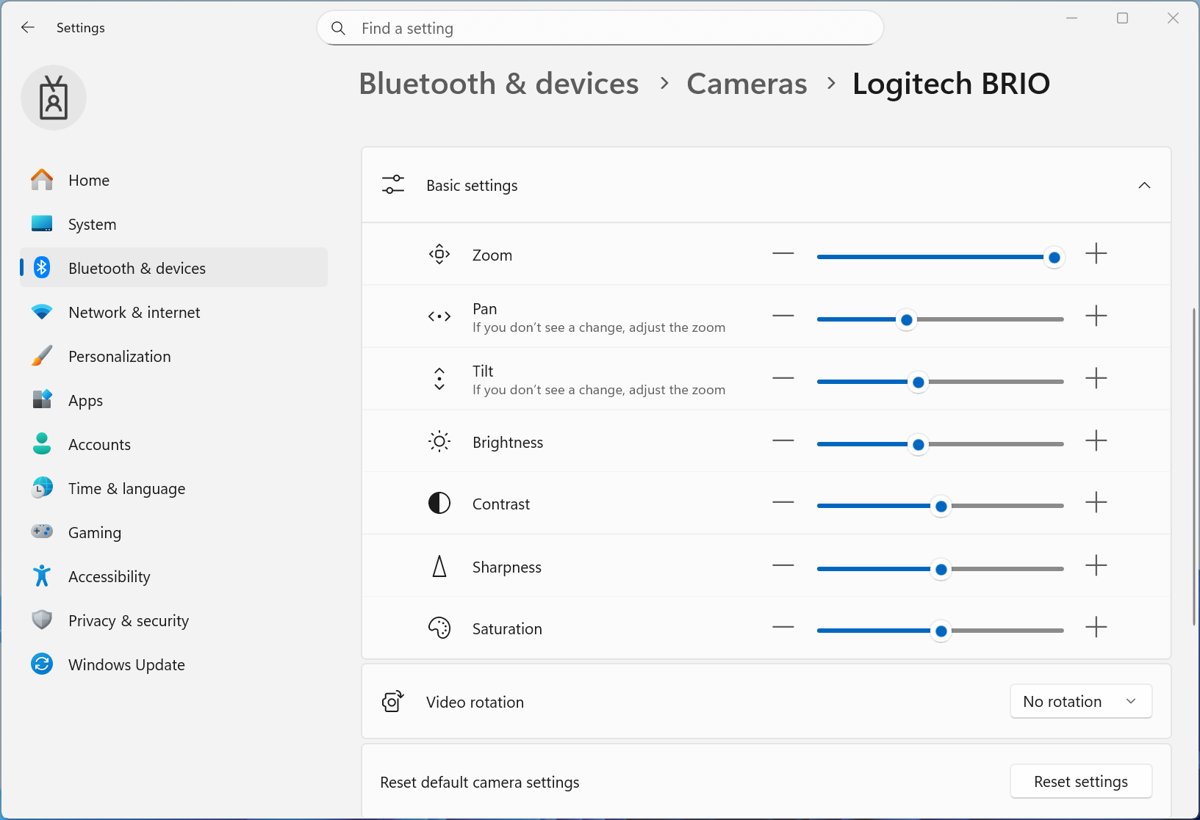
Pan and tilt controls for compatible webcams
Windows 11 can now move a supported camera's view without the manufacturer's own app. The controls only appear for cameras whose hardware supports pan and tilt.
- Select Start > Settings > Bluetooth & devices > Cameras.
- Select your camera in the list of connected cameras.
- Find the pan and tilt controls in the Basic settings section.
- Adjust pan to move the view left or right and tilt to move it up or down while you watch the preview.
- Close Settings; apps that use the camera pick up the new framing.
Built-in Sysmon: Windows ships System Monitor as an optional feature
System Monitor (Sysmon) now ships with Windows 11 as an optional feature. It logs process creation, network connections and file creation time changes to the Windows event log, but it is disabled until you turn it on.
Built-in Sysmon cannot run alongside the standalone Sysinternals Sysmon. Uninstall the standalone copy first.
- Open PowerShell as administrator and run
Get-Service sysmon*. If it returns a service, uninstall the standalone Sysmon before you continue. - Enable the feature from Settings > System > Optional features > More Windows features by selecting Sysmon, or run
Dism /Online /Enable-Feature /FeatureName:Sysmon. - Run
sysmon -ito install the service with the default configuration, orsysmon -i C:\Sysmon\sysmonconfig.xmlto install it with your own XML configuration. - Apply a changed configuration later with
sysmon -c C:\Sysmon\sysmonconfig.xml; no restart is needed. - Open Event Viewer and go to Applications and Services Logs > Microsoft > Windows > Sysmon > Operational to see the events.
- Remove the service later with
sysmon -u.
Quick Machine Recovery and other recovery improvements
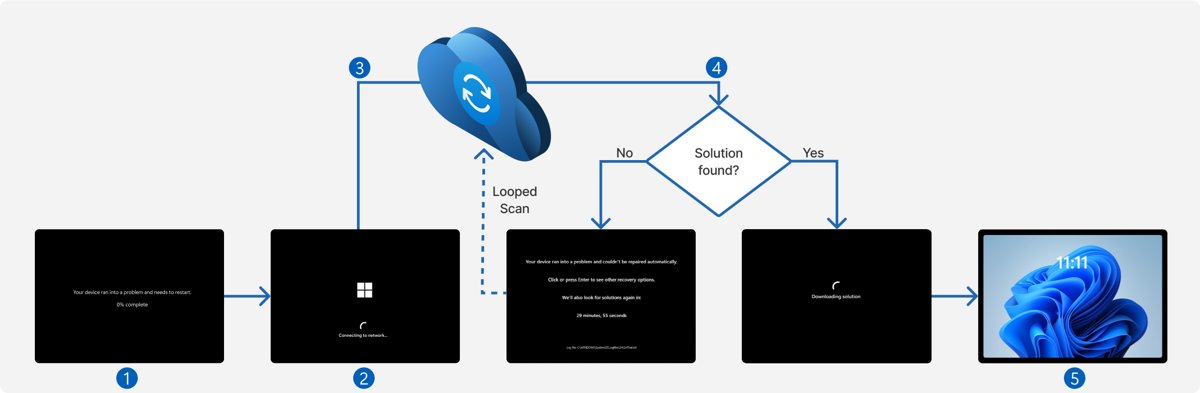
Quick Machine Recovery boots a PC that repeatedly fails to start into the Windows Recovery Environment, connects to the network and checks Windows Update for a fix. KB5077241 turns it on automatically for Windows Pro devices that are not domain-joined and not enrolled in enterprise management, matching Windows Home.
The same update fixes a BitLocker hang: the device no longer stops responding after you enter the recovery key. Windows Backup for Organizations also gains a first sign-in restore of user settings and Microsoft Store apps.
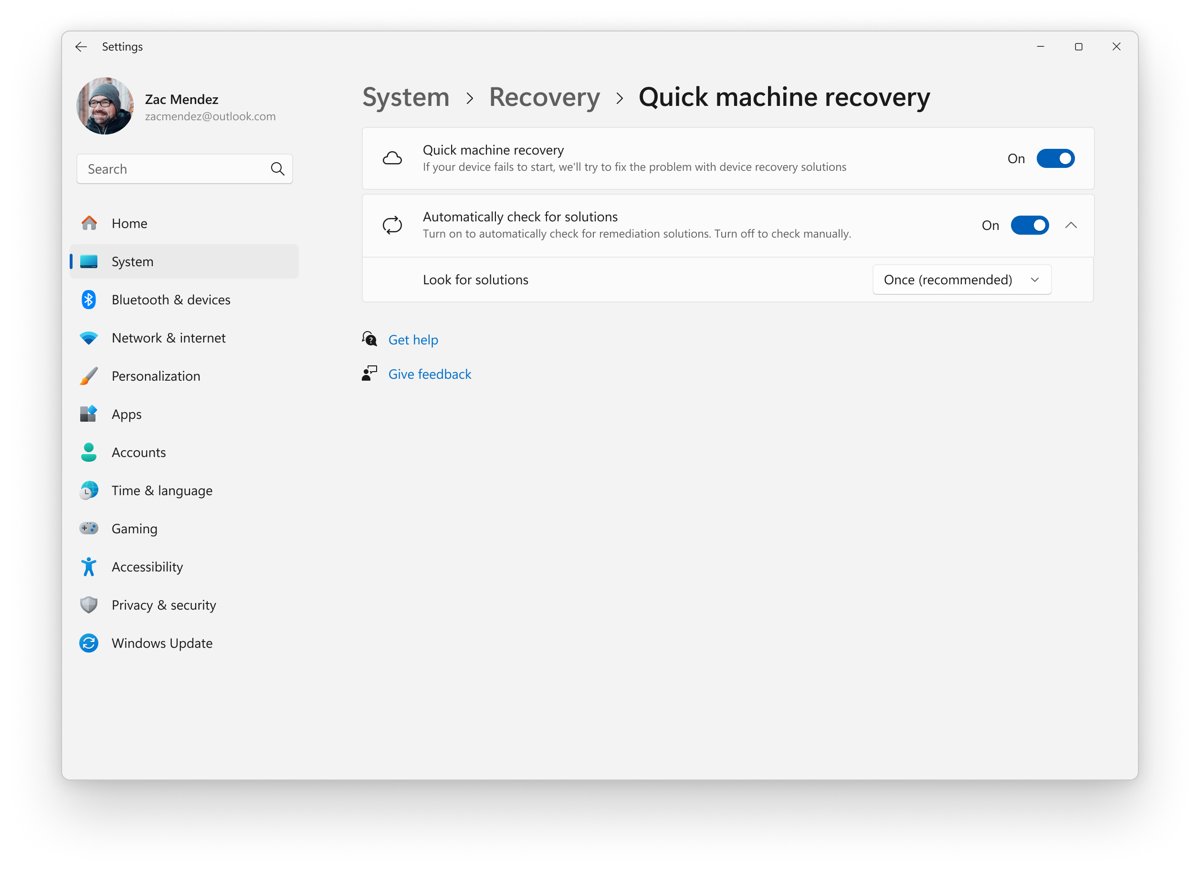
- Select Start > Settings > System > Recovery.
- Select Quick machine recovery.
- Turn the Quick machine recovery toggle On to let recovery use Windows Update.
- Turn Automatically check for solutions On so the PC searches without waiting for you.
- Set Look for solutions to Once for a single scan, or pick a retry interval for repeated scans.
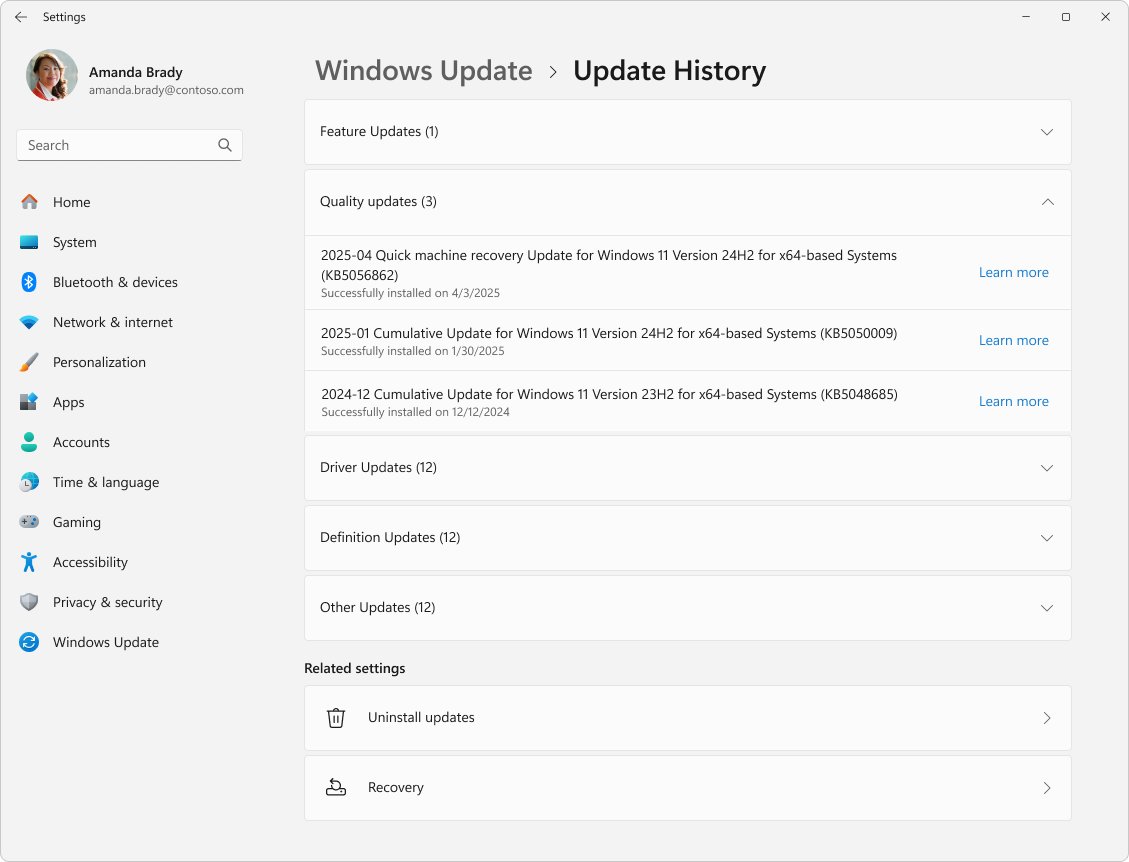
- After a remediation is applied, find it under Settings > Windows Update > Update history in the Quality updates section.
Domain-joined Pro, Enterprise and Education devices keep it off unless the organization enables it. Admins can check the device's settings with reagentc.exe /getrecoverysettings from an elevated Command Prompt.
Reliability and quality-of-life fixes
These fixes have no setting to turn on. They apply once the build is installed.
| Area | What KB5077241 changes |
|---|---|
| Sign-in and lock screen | Better sign-in screen reliability |
| Sleep and resume | Better reliability when the PC wakes and a shorter resume time, especially under heavy load |
| BitLocker | The device no longer stops responding after you enter your recovery key |
| Nearby Sharing | More reliable when sending larger files |
| Printing | Faster Windows print spooler (spoolsv.exe), with fewer slowdowns during high-volume jobs |
| File Explorer | More reliable new windows, a more reliable Network page, and Extract all for non-ZIP archives |
| Windows Update settings page | The page responds faster |
| Task Manager | The Search process now shows a magnifying-glass icon |
Sleep/resume improvements — a long-standing annoyance
Slow or failed wake from sleep has been a recurring Windows 11 complaint. KB5077241 targets both the reliability of waking and the time it takes.
Install the update, or any later cumulative update, if your PC is slow or unreliable when it wakes from sleep. Microsoft lists improved wake reliability plus performance work that cuts resume time under heavy load. If wake problems continue on the new build, update the display and chipset drivers through Windows Update or the PC maker before blaming the update.
Sign-in, print spooler, and Windows Update improvements
These three changes touch parts of Windows most people use every day, which is why they matter more than their one-line descriptions suggest.
| Component | Symptom it addresses | What to expect after installing |
|---|---|---|
| Sign-in screen | The sign-in or lock screen misbehaves or fails to respond | More consistent sign-in screen behavior |
| Print spooler (spoolsv.exe) | Printing slows down or stalls during large or repeated jobs | Smoother printing with fewer slowdowns |
| Windows Update settings page | Settings > Windows Update is slow to load or react | A more responsive page |
Platform and compatibility notes
A few changes matter mainly for specific hardware or for admins.
| Item | Detail | Who should care |
|---|---|---|
| Architectures | Separate x64 and Arm64 packages in the Microsoft Update Catalog | Admins installing offline |
| RSAT on Arm64 | Remote Server Administration Tools now install on Windows 11 Arm64 devices | Admins on Snapdragon and other Arm64 PCs |
| Secure Boot | More device targeting data for certificate updates, plus Get-SecureBootUEFI -Decoded and the new Get-SecureBootSVN cmdlet |
Anyone tracking the Secure Boot certificate change |
| Sysmon coexistence | Built-in Sysmon and standalone Sysinternals Sysmon cannot run together | Security teams already using Sysmon |
| Windows Update for Business | Preview not offered; changes arrive with the next security update | Managed fleets |
| Servicing stack | The SSU in the combined package cannot be removed | Anyone planning a rollback |
WebP wallpapers, Widgets, and Search tweaks
WebP images can now be a desktop background, and Search on the taskbar groups its results with counts and offers previews. A planned Widgets change, settings opening as a full page in the Widgets app, was removed from the release notes in April 2026 and is planned for a later release.
- To use a WebP wallpaper, select Start > Settings > Personalization > Background and choose the .webp file as your picture.
- Or open File Explorer, right-click the .webp image and select Set as desktop background.
- To try the new Search layout, select Search on the taskbar and type a query.
- Read the number beside each group header, then select a header to show every result in that group and hide the others.
- Hover over a result and select Preview to see its content without opening it.
RSAT on Arm64 and File Explorer improvements
RSAT installs only on Pro, Enterprise and Education editions. On Windows 11 version 25H2 Arm64 devices, some RSAT tools are reached through Windows features: Active Directory Domain Services and Lightweight Directory Services Tools, Active Directory Certificate Services Tools, Server Manager, Group Policy Management Tools, DNS Server Tools and DHCP Server Tools.
- On an Arm64 PC, open Control Panel > Programs > Programs and Features.
- Select Turn Windows features on or off.
- Tick the RSAT tools you need and select OK.
- In File Explorer, open a new instance by holding Shift and clicking the File Explorer taskbar icon, or by middle-clicking it.
- Open a non-ZIP archive folder and select Extract all on the command bar to unpack it.
Secure Boot certificate timeline
The Secure Boot certificates used by most Windows devices began expiring in June 2026. Devices that have not received the newer certificates keep starting and running normally, and Microsoft continues to deliver the new certificates through Windows updates.
KB5077241 added higher-confidence targeting data so Windows quality updates reach the right devices with the new certificates, plus two PowerShell tools to check the state yourself.
- Right-click Start and select Terminal (Admin); the Secure Boot cmdlets refuse to run without administrator rights.
- Run
Get-SecureBootUEFI -Name db -Decodedto read the Secure Boot signature database in a readable form instead of raw bytes. - Run
Get-SecureBootSVNto check the Secure Boot Security Version Number (SVN). - If either cmdlet reports
Cmdlet not supported on this platform, the PC boots in legacy BIOS mode or does not support Secure Boot.
IT administrators managing many devices should follow Microsoft's Secure Boot playbooks for Windows client and Windows Server.
Deployment, installation, and rollback
Home users install it from Windows Update; admins can deploy the Catalog .msu with DISM, installing the servicing stack package before the update when they install files one at a time. Removing it takes one of the routes below.
The combined package includes the servicing stack update, so wusa.exe /uninstall does not work on it. Use Settings or DISM, and if a problem update is blocking the desktop entirely, removing a problem Windows 11 update from Windows RE works the same way.
- Select Start > Settings > Windows Update > Update history.
- Under Related settings, select Uninstall updates.
- Select the update in the list, then select Uninstall and restart.
- If Settings will not open, run
DISM /online /get-packagesin an elevated Command Prompt and note the package name of the cumulative update. - Run
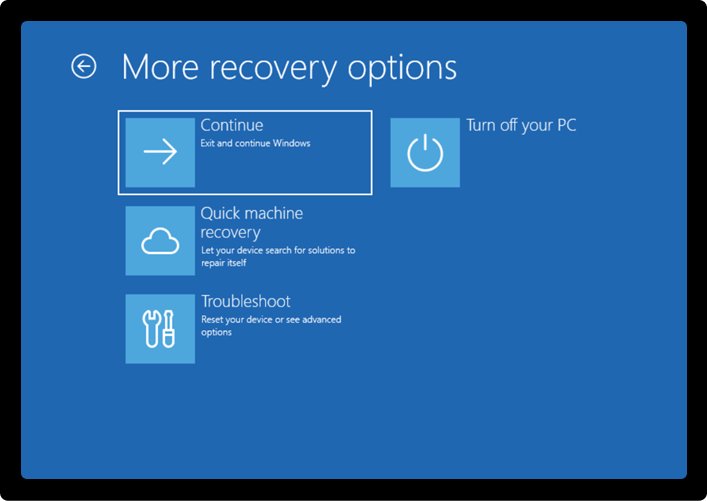
DISM /Online /Remove-Package /PackageName:<package name>with that name, then restart. - If Windows will not start, boot into Windows RE and select Troubleshoot > Advanced options > Uninstall Updates > Uninstall latest quality update.
Offline installs use DISM /Online /Add-Package /PackagePath: followed by the path to the downloaded .msu, or Add-WindowsPackage -Online -PackagePath in PowerShell.
Concerns and trade-offs
The update has no listed known issues, but a preview build still carries trade-offs worth weighing.
| Concern | What the release notes say | What you can do |
|---|---|---|
| It is a preview | Non-security update released ahead of the next monthly security update | Wait for the monthly update if the PC works well today |
| Features may not appear | Gradual rollout varies by device | Turn on the early-updates toggle and be patient |
| Rollback is partial | The servicing stack update stays after removal | Remove the cumulative update with Settings or DISM |
| Sysmon log volume | A loose configuration can generate high event volume | Test a configuration before deploying it widely |
| Speed test uses the web | The test opens in your default browser | Set the browser you want as default first |
Is this just another way to push Microsoft services?
Almost everything in KB5077241 is local: Sysmon logs stay in the local event log, camera controls live in Settings, and the reliability fixes change Windows components.
No, apart from the speed test, the changes do not route you to a Microsoft online service. The only web-dependent feature is the network speed test, which opens in whatever browser you set as default. Backup for Organizations restores Microsoft Store apps, but it applies to Entra hybrid joined devices, Cloud PCs and multi-user setups, not home PCs.
The Edge / Bing worry — will Microsoft force its ecosystem?
The worry is that a built-in speed test or search change becomes a shortcut into Edge or Bing whatever the user picked.
Set your preferred browser as default in Settings > Apps > Default apps before you use the speed test. Microsoft states that the speed test opens in the default browser, and none of the KB5077241 notes changes default apps or the search provider. The taskbar Search change is about result grouping and previews, not where web results come from.
Telemetry, Sysmon, and logging implications
Sysmon is a logging tool, not a telemetry channel. It records activity on the device and leaves analysis to whatever tool reads its log.
| Question | Answer |
|---|---|
| Is Sysmon on after the update? | No. It is disabled until an administrator enables and installs it |
| Where do its events go? | The local log at Applications and Services Logs > Microsoft > Windows > Sysmon > Operational |
| Does it leave the PC? | Only if you forward it with Windows Event Collection or a SIEM agent |
| Does it block or alert? | No. It neither analyzes events nor blocks activity |
| Are events localized? | The rendered message follows the device language; the XML event data stays the same in every language |
| Do updates turn it on? | No. Updates replace its binaries, but a disabled Sysmon stays disabled |
Gradual rollout and hidden variability
Two PCs with the same build number can look different. Microsoft splits each release into a gradual rollout, where features arrive over time and vary by device, and a normal rollout, which is the broad release.
| Situation | Why it happens | What to do |
|---|---|---|
| Build is 26100.7922 or later but a feature is missing | The feature is in gradual rollout | Turn on Get the latest updates as soon as they're available and keep updating |
| Battery icon or Start menu looks unchanged | Both were listed as continuing a gradual rollout | Wait; no setting forces them on |
| Widgets settings still open as a dialog | The full-page Widgets settings change was pulled and moved to a future release | Nothing; it is not in this update |
| Work PC never offered the preview | Windows Update for Business does not get preview updates | Expect the changes in the next security update |
ViVeTool and early enablement: proceed at your own risk
ViVeTool is an unofficial command-line tool that flips hidden feature IDs. Enthusiasts use it to switch on gradually rolled-out features before Microsoft enables them for a device.
Use the Get the latest updates as soon as they're available toggle instead of forcing features on. ViVeTool is not a Microsoft tool, and a feature forced on before Microsoft enables it for your device may be unfinished on your hardware. The official toggle is supported, puts the PC early in the queue, and leaves security updates on their normal schedule.
Who should install, and when
| Your situation | Do this | Why |
|---|---|---|
| PC hangs after a BitLocker recovery key, or wakes from sleep badly | Install now, or install the latest update | These fixes target exactly that |
| Home PC that works fine | Wait for the regular monthly update | The same changes arrive without preview risk |
| Enthusiast who wants the speed test and Search changes | Install and turn on the early-updates toggle | Features roll out gradually |
| Small business with a few PCs | Install on one PC first | A single test machine catches printer or app problems |
| Managed fleet on Windows Update for Business | Pilot from the Catalog, then let the security update deploy it | The preview is not offered through that channel |
| Admin on an Arm64 device who needs RSAT | Install it | RSAT on Arm64 starts with this update |
Consumers and enthusiasts
For home users the visible wins are the speed test, WebP wallpapers, camera framing, Search previews and smoother wake from sleep.
Install it if you want the features early or have a sleep or BitLocker problem; otherwise let the next monthly update deliver it. Microsoft listed no known issues, and the update can be removed from Settings if something breaks. Home edition already had Quick Machine Recovery on, so nothing changes there for Home users.
Small businesses and IT admins
Small offices without a domain usually run Windows Pro, which is exactly the group that gets Quick Machine Recovery switched on by this update.
Test it on one Pro PC that prints heavily and uses your line-of-business apps, then roll it out. The print spooler and sign-in changes affect daily work, and Quick Machine Recovery changes how unmanaged Pro PCs recover from boot failures. One test machine shows both before every desk gets it.
Enterprises and security teams
Enterprises get the most from built-in Sysmon, RSAT on Arm64, the Secure Boot cmdlets and the first sign-in restore in Windows Backup for Organizations.
Evaluate KB5077241 in a pilot ring, and plan any Sysmon rollout separately with a tested configuration. Microsoft's own Sysmon guidance is to evaluate optional preview updates in test or pilot environments and review event output after updates. Remove standalone Sysmon first, because the two versions cannot coexist.
How to prepare and what to watch after installing
- Before installing, make sure you can find your BitLocker recovery key, for example in the Microsoft account the PC is signed in with.
- Install the update from Settings > Windows Update and restart.
- Press Windows + R, type
winverand press Enter; the OS Build should read 26100.7922 or 26200.7922 or higher. - Open Settings > Windows Update > Update history and check that the update appears under Quality updates.
- Put the PC to sleep and wake it, print a test page, and sign out and back in to check the areas this update changed.
- If something regressed, uninstall the update from Update history > Uninstall updates and wait for the next monthly release.
The bigger picture: why this update matters
KB5077241 shows how Windows 11 now changes: features land in an optional preview, reach devices gradually, and become standard in the next monthly update. Later updates, such as the September 2026 cumulative update, build on the same pattern.
Treat KB5077241 as a worthwhile reliability update with a few genuinely useful tools, not a must-install for every PC. The sleep, sign-in, printing and BitLocker fixes help the most people, while built-in Sysmon, RSAT on Arm64 and the Secure Boot cmdlets mainly help admins preparing for the certificate change. Anyone who simply keeps Windows Update current gets all of it.
KB5077241 FAQ
What is KB5077241?
KB5077241 is the optional non-security preview update for Windows 11 versions 24H2 and 25H2, released on February 24, 2026. It raises the OS Build to 26100.7922 or 26200.7922 and adds a network speed test, built-in Sysmon and several reliability fixes.
Is KB5077241 a security update?
No. KB5077241 is a non-security preview update. It contains new features and quality fixes but no security patches, and its changes were then included in the next regularly scheduled monthly security update for Windows 11.
Does KB5077241 have known issues?
Microsoft listed no known issues for KB5077241 in its release notes. If you hit a problem after installing it, you can uninstall it from Settings > Windows Update > Update history > Uninstall updates and report it through Feedback Hub.
How do I uninstall KB5077241?
Open Settings > Windows Update > Update history, select Uninstall updates, choose the update and select Uninstall. If Settings fails, use DISM /Remove-Package with the package name from DISM /online /get-packages. The wusa.exe /uninstall switch does not work on this combined package.
What build number is KB5077241?
KB5077241 moves Windows 11 version 25H2 to OS Build 26200.7922 and version 24H2 to OS Build 26100.7922. Run winver from the Run dialog to see the build installed on your PC; any higher build already includes these changes.
How do I use the network speed test in Windows 11?
Right-click the network icon in the system tray, or open the Wi-Fi or Cellular panel in Quick Settings, and start the speed test. It runs in your default browser and works on Ethernet, Wi-Fi and cellular connections once the feature reaches your device.
How do I enable Sysmon in Windows 11?
Enable Sysmon from Settings > System > Optional features > More Windows features, or run Dism /Online /Enable-Feature /FeatureName:Sysmon as administrator. Then run sysmon -i to start logging. Uninstall any standalone Sysinternals Sysmon first, because the two cannot run together.
Why don't I see the new features after installing KB5077241?
Most KB5077241 features use a gradual rollout, so they reach devices over time and vary by device and market. Turn on Get the latest updates as soon as they're available in Windows Update and keep installing updates; no supported setting forces them on.
Can I install KB5077241 manually?
Yes. The Microsoft Update Catalog offers separate x64 and Arm64 .msu files. Install them together with DISM /Online /Add-Package, or install each file in order, servicing stack package first. WSUS admins can import the update manually from the Catalog.