When iCloud email stops sending or receiving in new Outlook for Windows, remove the iCloud account, add it back through the Apple Account sign-in, and switch to classic Outlook with an app-specific password if the new app still refuses it.
This guide covers the causes, the add and remove steps in new Outlook, the iCloud Mail server settings, app-specific passwords, classic Outlook with iCloud for Windows, and fixes for the errors people hit.
How to fix iCloud email not working in new Outlook
Start with the account connection, because new Outlook keeps working for other accounts while one iCloud sign-in goes stale. A fresh sign-in replaces the old credentials.
- Sign in at iCloud.com, open Mail and send yourself a test message to confirm iCloud Mail itself works.
- In new Outlook, open the View tab and select View settings.
- Select Accounts > Your accounts, select Manage beside the iCloud address, and select Remove.
- Select Add Account, type the iCloud address and select Continue.
- Select Continue on the Sync your iCloud account screen, sign in to your Apple Account in the browser, and select Allow.
- Select Done on the Success! window and send a test message.
- If the sign-in still fails, select Advanced setup and use the iCloud Mail server settings below, or move the account to classic Outlook.
Why has new Outlook stopped working with iCloud?
An iCloud account in Outlook breaks for a handful of reasons, and most of them come from the Apple side rather than from Outlook. Match what you see to a row.
| Cause | What you notice | What fixes it |
|---|---|---|
| Apple Account password changed or reset | Outlook stops syncing and asks for a password; Apple revokes every app-specific password automatically after a password change | Generate a new app-specific password, or remove and re-add the account |
| App-specific password revoked at account.apple.com | The app that used it is signed out until it gets a new password | Generate a new app-specific password and sign in again |
| "Something went wrong… You may need to make an app password" in new Outlook | The error appears when you add the account or send and receive | Microsoft lists this issue for some third-party accounts as fixed; restart new Outlook, then re-add the account |
| iCloud Mail outage | iCloud.com Mail and the iPhone Mail app fail too | Check Apple's System Status page and wait for the service to return |
| iCloud for Windows sync expected in new Outlook | iCloud calendars and contacts never appear in new Outlook | Apple supports this sync in classic Outlook only, and new Outlook does not run COM add-ins, a key difference between new and old Outlook |
| Wrong date and time on the PC | Sign-in or sync fails on that PC while other devices work | Set the correct date and time in Windows Settings |
How to add iCloud email to new Outlook
Microsoft lists iCloud accounts as available in new Outlook. The current setup signs you in to your Apple Account in the browser, so no app-specific password is typed into new Outlook on this route.
- Open new Outlook, select the View tab and select View settings. You can also open the File tab and select Account info.
- Select Accounts, then Your accounts.
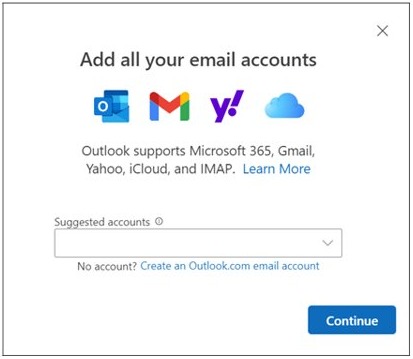
- Select Add Account, enter your iCloud address in the Suggested account box and select Continue.
- On the Sync your iCloud account screen, select Continue.
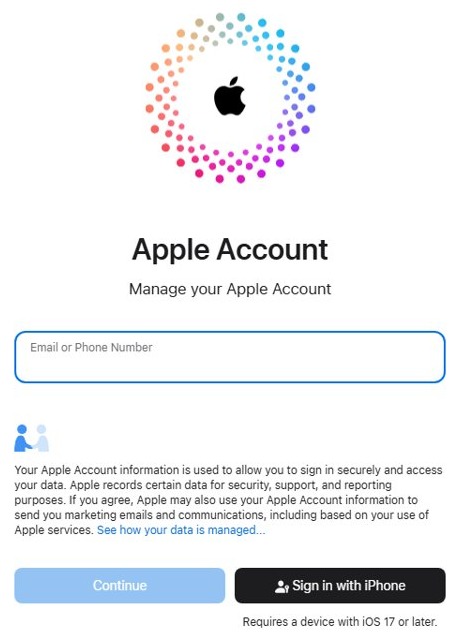
- In the browser that opens, select Continue or Sign in with iPhone, enter your Apple Account password and any two-factor code.
- Select Allow on the permissions window.
- When Success! appears, select Done or add another account.
If the sign-in fails, Microsoft says to try again or select Advanced setup. If neither works, Microsoft's advice is to use classic Outlook for the iCloud account.
How to remove an iCloud account from new Outlook
Removing the account clears a broken connection so the next sign-in starts clean. Your mail stays on Apple's servers, so nothing is lost from iCloud.
- Open new Outlook and go to View > View settings, or File > Account info.
- Select Accounts > Your accounts.
- Select Manage beside the iCloud account.
- Under Account details, select Remove.
- Select Return to accounts page, then add the account again with Add Account.
The same Account details page has Set as primary account, which makes iCloud the account new Outlook uses first.
iCloud Mail IMAP and SMTP settings for Outlook
Use these values in Advanced setup in new Outlook or in manual setup in classic Outlook. iCloud Mail does not support POP, so choose IMAP.
| Setting | Incoming mail (IMAP) | Outgoing mail (SMTP) |
|---|---|---|
| Server | imap.mail.me.com |
smtp.mail.me.com |
| Port | 993 | 587 |
| Encryption | SSL required; try TLS if SSL gives an error | SSL required; try TLS or STARTTLS if SSL gives an error |
| User name | The part of your address before @icloud.com; try the full address if that fails | Your full iCloud Mail address, such as [email protected] |
| Password | An app-specific password | The same app-specific password |
| Authentication | Required | Required |
How to generate an app-specific password for iCloud Mail in Outlook
An app-specific password lets Outlook sign in to iCloud without your main Apple Account password. Apple offers one only when your Apple Account is protected with two-factor authentication.
- Sign in to your Apple Account at account.apple.com.
- In the Sign-In and Security section, select App-Specific Passwords.
- Select Generate an app-specific password, type a name such as Outlook, and select Create.
- Copy the password and select Done.
- Paste the password into Outlook's password box when it asks you to sign in to iCloud.
The password is usually 16 characters in dash-separated groups and is case-sensitive. You can keep up to 25 active app-specific passwords, and changing your Apple Account password revokes all of them.
How to stop using new Outlook and switch to classic Outlook
Classic Outlook is the app Apple documents for iCloud Mail with an app-specific password and for iCloud for Windows calendar and contacts sync. The toggle needs classic Outlook installed on the PC; if it is missing, install classic Outlook first.
- Open new Outlook.
- Select the New Outlook toggle in the top-right corner of the window.
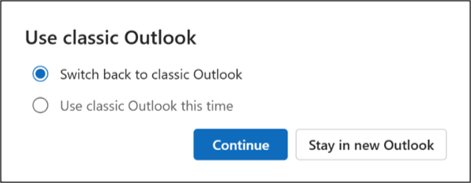
- Choose Switch back to classic Outlook.
- Answer or skip the feedback form.
- Wait for classic Outlook to open. If the toggle is hidden, select the Help tab and then Go to classic Outlook.
The toggle also offers a one-time option, and both apps can stay installed. The other ways to switch back to classic Outlook include opening Outlook (classic) straight from the Start menu.
How to add iCloud email to classic Outlook
Classic Outlook accepts your regular iCloud password only when two-factor authentication is off. With two-factor authentication on, which is the normal case, it needs an app-specific password.
- Open classic Outlook and select File > Add Account.
- Enter your iCloud email address and select Connect.
- Paste your app-specific password and select Connect.
- Follow the remaining prompts until the account finishes adding.
- Make iCloud the default sending account if you want: File > Account Settings > Account Settings, select the iCloud account and select Set as Default.
How to sync iCloud calendar and contacts with Outlook on Windows
Apple's iCloud for Windows syncs calendars and contacts into the classic version of Outlook, not new Outlook. Apple lists Windows 10 (May 2019 Update or later), iCloud for Windows 10 or later and Outlook 2021 or later for Mail, Contacts and Calendars.
- Open the iCloud for Windows app and sign in with the same Apple Account you use on your iPhone or Mac.
- Select the options arrow beside Calendars and Contacts.
- Turn on Automatically sync your iCloud calendars and contacts to Microsoft Outlook.
- Select Done and finish the Outlook setup prompts.
- Open classic Outlook and check that the iCloud calendars and contacts appear.
To keep only the calendar, you can also add iCloud Calendar to Outlook as a subscribed calendar.
How to check if iCloud Mail is down
If iCloud Mail fails everywhere, no Outlook change will fix it. These checks separate an Apple outage from an Outlook problem.
- Sign in at iCloud.com and open Mail. If messages load and send there, the iCloud account is fine.
- Open the Mail app on your iPhone and send a test message.
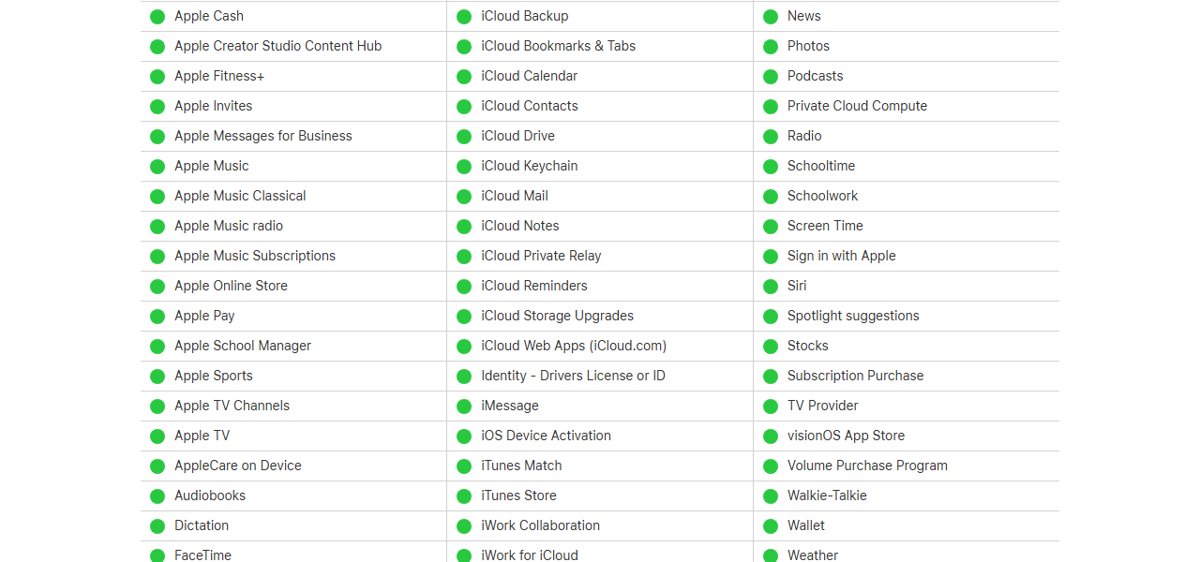
- Open Apple's System Status page and look at the status beside iCloud Mail.
- If iCloud.com and the iPhone work but Outlook fails, the problem is the Outlook connection, so remove and re-add the account.
- If everything fails and System Status shows an issue, wait for Apple to clear it before you change any Outlook settings.
New Outlook not sending or receiving iCloud email
"Something went wrong… You may need to make an app password"
Microsoft logged this new Outlook error for some third-party accounts and marked it fixed in June 2025; with classic Outlook it also means the account needs an app-specific password.
- Close new Outlook and open it again so it loads the current version.
- Remove the iCloud account and add it back through the Apple Account sign-in.
- If you use Advanced setup or classic Outlook, generate an app-specific password and paste it instead of your Apple Account password.
Outlook stopped getting new mail from iCloud
The saved sign-in no longer works, often after an Apple Account password change revoked every app-specific password.
- Confirm new mail arrives at iCloud.com.
- Generate a new app-specific password at account.apple.com.
- Remove the iCloud account from Outlook.
- Add it back and sign in again.
iCloud email stuck in the Outlook Outbox
A message that failed to send stays in the Outlook Outbox folder and blocks retries.
- Open the Outbox and move the message to Drafts, or delete it.
- Open the copy in Drafts or Deleted Items.
- Select Send again.
Correct iCloud password rejected in classic Outlook
The account has two-factor authentication on, so Outlook needs an app-specific password.
- Generate an app-specific password at account.apple.com.
- Start File > Add Account again in classic Outlook.
- Paste the app-specific password into the password box and select Connect.
"The installed version of Outlook is not supported by iCloud"
iCloud for Windows does not work with an Office version installed from the Windows Store.
- Uninstall the Office version you got from the Windows Store.
- Install Office 365 (now Microsoft 365) instead.
- Open iCloud for Windows and turn on Calendars and Contacts again.
Classic Outlook not sending or receiving iCloud email with iCloud for Windows
The iCloud for Windows sign-in or the iCloud Outlook Add-in has stopped working.
- Confirm mail works on iCloud.com and your iPhone.
- Close Outlook.
- Sign out of iCloud for Windows, then sign back in.
- Restart Outlook and select Refresh.
- If iCloud still does not load, go to File > Options > Add-ins, set Manage to COM Add-ins, select Go, check iCloud Outlook Add-in and select OK.
New Outlook and iCloud email FAQ
Why has new Outlook stopped working with iCloud?
The usual cause is a stale sign-in: an Apple Account password change revokes every app-specific password, and the account stops syncing. Remove the iCloud account in new Outlook and add it back through the Apple Account sign-in to restore it.
Does new Outlook support iCloud email?
Yes. Microsoft lists iCloud accounts as available in new Outlook for Windows, added through Add Account and an Apple Account sign-in. iCloud for Windows calendar and contacts sync, however, works with classic Outlook only.
How do I stop using new Outlook?
Select the New Outlook toggle at the top right of new Outlook and choose Switch back to classic Outlook. If the toggle is hidden, use Help > Go to classic Outlook. Classic Outlook must be installed on the PC for either option to work.
What to do when Outlook stops working with iCloud email?
Check iCloud.com Mail first. If it works there, remove and re-add the iCloud account in Outlook, using an app-specific password in classic Outlook or Advanced setup. If iCloud.com fails too, check Apple's System Status page.
Why is new Outlook not working properly with my iCloud calendar?
Apple's iCloud for Windows syncs calendars and contacts only with the classic version of Outlook, and new Outlook does not run COM add-ins. Use classic Outlook with iCloud for Windows, or subscribe to the iCloud calendar instead.
Why did my Outlook suddenly stop working after I changed my Apple Account password?
Changing or resetting your Apple Account password revokes all app-specific passwords automatically. Outlook then cannot sign in to iCloud. Generate a new app-specific password at account.apple.com and sign in to the account again.
Why is Outlook not getting new iCloud mail?
Outlook stops getting new iCloud mail when its saved sign-in fails or iCloud Mail has an outage. Confirm new mail arrives at iCloud.com, then remove and re-add the account in Outlook with a fresh sign-in.