To pair Sony headphones with Windows 11, put them in pairing mode, open quick settings, select Manage Bluetooth devices on the Bluetooth tile, and pick the headphones under New devices.
This guide covers the Windows 11, Windows 10 and Windows 8.1 procedures, Swift Pair, which codecs Windows uses with Sony headphones, LE Audio, the Sound Connect app, and fixes for missing sound, poor call audio and dropouts.
Pairing procedure — Windows 11 (step-by-step)
Windows 11 pairs Sony headphones with its built-in Bluetooth audio support, the same way it pairs any other Bluetooth headset. The quick settings route below is the shortest one.
- Charge the headphones and put them into pairing mode, as described in the next section.
- On the PC, select the Network, Sound or Battery icon next to the time and date on the taskbar.
- Turn on the Bluetooth tile if it is not highlighted.
- Select the Manage Bluetooth devices chevron on the Bluetooth tile.
- Select your Sony headphones under New devices. If the list is long, scroll past Your devices to reach it.
- Follow any extra prompts, then select Done.
The Settings app reaches the same result: select Start > Settings > Bluetooth & devices, select Add device, and pick the headphones from the list.
Once paired, the headphones and the PC reconnect on their own whenever Bluetooth is on and they are in range. The steps match those for connecting Bluetooth headphones to Windows 11 from any other brand.
How to check if your PC has Bluetooth before pairing Sony headphones
What you need before pairing is short: a PC with working Bluetooth, charged headphones, and a Windows version that supports the features you want.
| Requirement | How to check | If it is missing |
|---|---|---|
| Bluetooth hardware on the PC | Start > Settings > Bluetooth & devices shows a Bluetooth switch, and Device Manager lists a Bluetooth category | Plug a USB Bluetooth adapter into a free USB port |
| Bluetooth turned on | The Bluetooth quick setting is highlighted, and any physical wireless switch on the laptop is on | Turn the tile or switch on, and make sure Airplane mode is off |
| Charged headphones | The headphones' own indicator, or the battery percentage Windows shows under the device name once paired | Charge them fully; some Bluetooth devices refuse pairing mode on a low battery |
| Headphones in range | Keep them near the PC during pairing | Move closer and away from unshielded USB 3.0 devices, which can interfere with Bluetooth |
| Swift Pair (optional) | Windows 10, version 1803 or later, or Windows 11 | Pair from Settings instead; Windows 8.1 has no Swift Pair |
| LE Audio (optional) | Windows 11, version 22H2 or later shows Use LE Audio when available under Bluetooth & devices > Devices | The PC lacks LE Audio support or drivers; classic Bluetooth audio still works |
Put the Sony headphones into pairing mode
Windows can only find headphones that are discoverable, and each Sony model has its own button sequence for that, listed in the model's manual. The order of steps below applies to every model.
- Charge the headphones, or keep them on the charger while you pair.
- Turn off Bluetooth on your phone, tablet or any other device the headphones used before, so they do not reconnect there instead.
- Turn the headphones on in pairing mode with the button sequence from your model's manual.
- Wait for the pairing signal the manual describes, such as an indicator pattern or a voice prompt.
- Start the search on the PC straight away. If the headphones leave pairing mode before Windows finds them, repeat step 3.
Headphones that were paired with this PC before do not need pairing mode again. Turn them on with Bluetooth enabled on the PC and they reconnect automatically.
Use Swift Pair (if available) or Settings
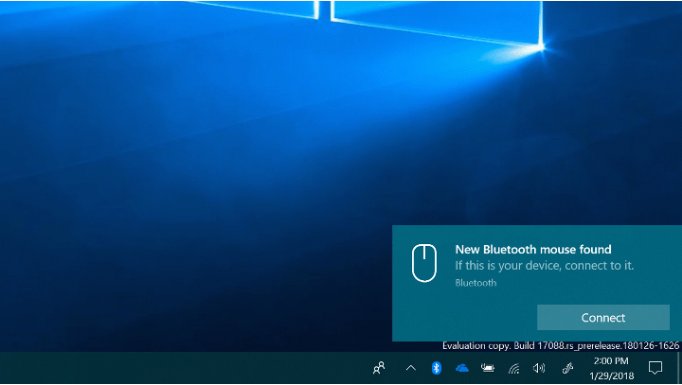
Swift Pair shows a Windows notification when a supported Bluetooth device in pairing mode comes close to the PC. It arrived in Windows 10, version 1803, and appears only for headphones that advertise Swift Pair support.
- Put the Sony headphones into pairing mode next to the PC.
- If Windows asks whether to allow Swift Pair notifications the first time, select Yes.
- When a notification such as New Bluetooth headphones found appears, select Connect.
- On Windows 10, select Close once the headphones connect.
- If no notification appears, pair from Settings instead: Start > Settings > Bluetooth & devices > Add device on Windows 11, or Start > Settings > Devices > Bluetooth & other devices > Add Bluetooth or other device on Windows 10.
Windows 10 turns Swift Pair on or off from the Bluetooth & other devices page; on Windows 11, type Swift Pair into the Settings search box. On PCs whose Bluetooth radio does not declare support for continuous scanning, Swift Pair stays off until you turn it on. Work and school PCs can block it through the AllowPromptedProximalConnections Bluetooth policy.
How to select Sony headphones as the sound output in Windows
Pairing does not always move playback to the headphones. Confirm which sound output device Windows uses before you assume pairing failed.
- Select the Sound icon on the taskbar and check that the Sony headphones are the selected audio output.
- Or open Start > Settings > System > Sound and choose the headphones under Output.
- Open Start > Settings > Bluetooth & devices and check the headphones show as connected, with a battery percentage under the name if the model reports it.
- On Windows 10, pick [headphone name] Stereo for music and video, and keep [headphone name] Hands-Free for calls only.
- Play a song or video and check that sound comes from both ear cups.
Pairing procedure — Windows 10 (step-by-step)
Windows 10 pairs from the Settings app through an Add a device window. The headphones need to be in pairing mode before you open it.
- Put the Sony headphones into pairing mode.
- Select Start > Settings > Devices > Bluetooth & other devices.
- Turn the Bluetooth switch On.
- Select Add Bluetooth or other device.
- In the Add a device window, select Bluetooth.
- Select your Sony headphones from the list and follow any additional instructions.
- Select Done when pairing succeeds.
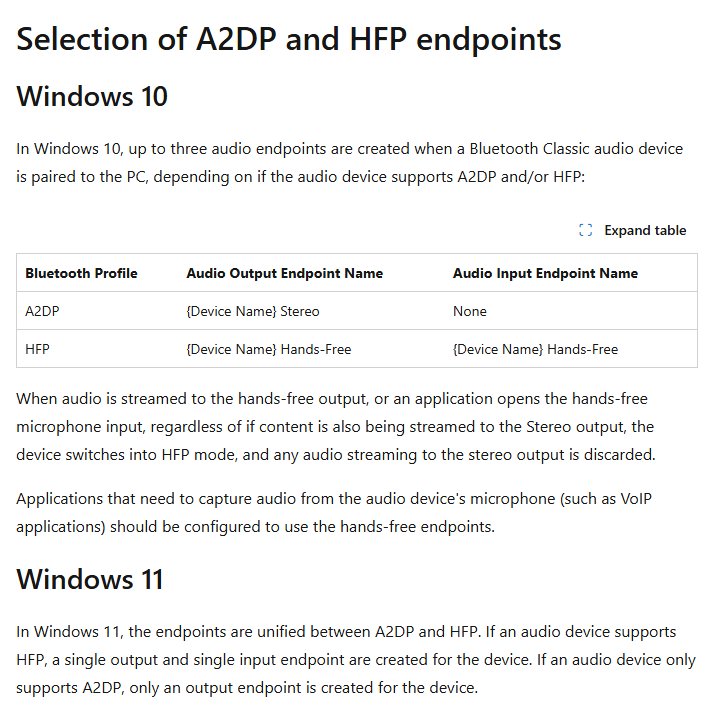
Windows 10 creates up to two playback devices for a headset: [name] Stereo for music and video, and [name] Hands-Free for calls. As soon as any app plays to the hands-free device or opens its microphone, the headphones switch to call mode and stereo sound stops.
Pairing procedure — Windows 8.1 (step-by-step)
Windows 8.1 includes built-in Bluetooth support for Bluetooth versions up to 4.0. Microsoft ended support for it on January 10, 2023, so it receives no security updates or bug fixes.
- Open Device Manager and check for a Bluetooth category. If there is none, plug in a USB Bluetooth adapter.
- Put the Sony headphones into pairing mode.
- Open Control Panel, type Bluetooth into its search box, and open the Bluetooth settings.
- Add a new Bluetooth device from there, select the Sony headphones in the list, and follow the prompts until pairing completes.
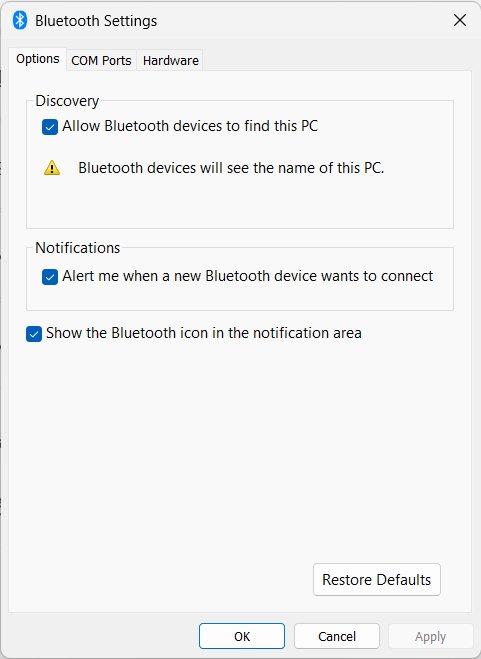
- On the Options tab of the Bluetooth Settings window, tick Show the Bluetooth icon in the notification area so you can reach the settings again from the taskbar.
- Open Control Panel > Sound, select the headphones on the Playback tab, and set them as the default device.
Windows 8.1 predates Swift Pair, AAC playback and LE Audio, so Sony headphones use classic Bluetooth with the SBC codec, which every A2DP device must support.
Advanced settings, codecs and audio profiles — what Windows actually does
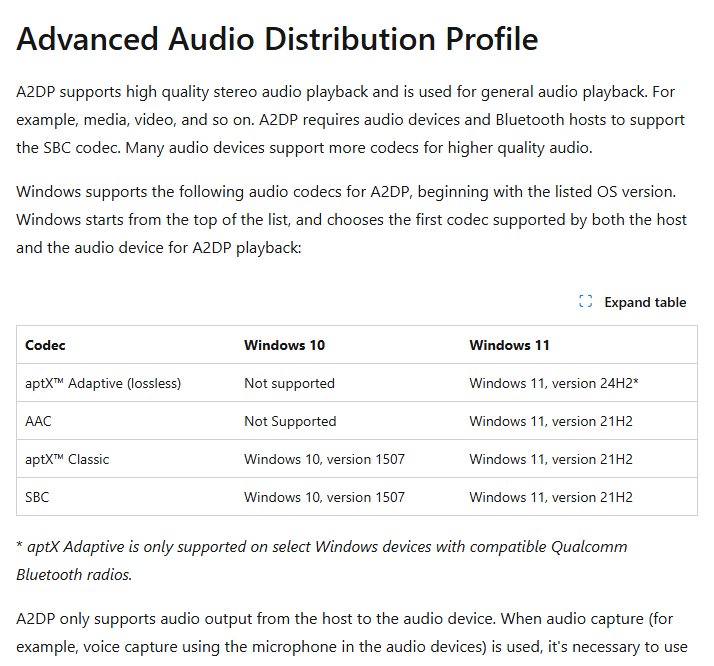
For background, here is an overview of how Windows handles Sony headphones. It uses two classic Bluetooth profiles, A2DP for stereo playback and HFP for calls, and picks the first codec on its list that both the PC and the headphones support.
| Codec or profile | Windows 10 | Windows 11 | What it means for Sony headphones |
|---|---|---|---|
| aptX Adaptive (lossless) | Not supported | Version 24H2, only on select PCs with compatible Qualcomm Bluetooth radios | Used only if the headphones list aptX Adaptive |
| AAC | Not supported | Supported from version 21H2 | Sony models that list AAC get it on Windows 11 only |
| aptX Classic | Supported from version 1507 | Supported from version 21H2 | Used only if the headphones list aptX |
| SBC | Supported from version 1507 | Supported from version 21H2 | Mandatory for A2DP, so it always works as the fallback |
| LDAC | Not in Microsoft's codec list | Not in Microsoft's codec list | Sony's own high-bitrate codec is not used over Windows' Bluetooth |
| A2DP (stereo playback) | Separate [name] Stereo device | One unified device for the headphones | Full stereo for music, video and games |
| HFP (calls) | Separate [name] Hands-Free device; wideband 16 kHz speech from version 1703 | Same unified device, switched automatically; wideband compatibility improved in 22H2 | Mono, lower-quality sound whenever the microphone is in use |
| LE Audio | Not supported | Version 22H2 or later with a compatible radio and drivers | Only for Sony models that list LE Audio |
Windows 11 switches to HFP when an app opens the microphone or plays a stream marked as communications, and returns to A2DP when the microphone closes. That switch is why music sounds flat while a Teams or Discord call is open.
The output format sits under Settings > Bluetooth & devices > Devices > your headphones > Advanced sound properties; 2 channels, 16 bit, 48000 Hz (DVD Quality) is the setting Microsoft recommends for Bluetooth audio problems.
Does Windows 11 support LDAC?
No, LDAC is not one of the A2DP codecs Windows 11 supports. Microsoft lists aptX Adaptive, AAC, aptX Classic and SBC, in that order of preference. A Sony model that offers LDAC and AAC therefore plays AAC on Windows 11 and SBC on Windows 10, unless it also supports aptX.
A USB Bluetooth audio transmitter that lists LDAC handles Bluetooth itself, so Windows sees it as a USB sound device rather than a Bluetooth codec. Check the transmitter maker's codec list before relying on it.
How to turn on LE Audio for Sony headphones in Windows 11
LE Audio streams over Bluetooth Low Energy instead of classic Bluetooth and improves battery life and call quality. Both the PC and the headphones need it, so check your Sony model's specifications for LE Audio or the TMAP profile first.
- Make sure the PC runs Windows 11, version 22H2 or later.
- Select Start > Settings > Bluetooth & devices > Devices.
- Under Device settings, turn Use LE Audio when available on.
- If the setting is not there, the PC lacks LE Audio hardware or drivers; check the PC maker's site for newer Bluetooth and audio drivers.
- If sound then plays in only one earbud, remove the headphones from Devices and pair them again.
Troubleshooting common problems (step-by-step fixes)
On Windows 11, the Get Help Bluetooth troubleshooter runs diagnostics for most of these problems; the manual fixes are below.
Sony headphones do not show up in the Bluetooth list
The headphones are not in pairing mode, or Windows is hiding some device types.
- Put the headphones back into pairing mode and keep them next to the PC.
- Select Start > Settings > Bluetooth & devices > Devices.
- Under Device settings, set Bluetooth devices discovery to Advanced.
- Check that Airplane mode is off, then turn Bluetooth off and on again.
- Run Settings > System > Troubleshoot > Other troubleshooters, and select Run next to Bluetooth.
Sony headphones are paired but will not connect
A stale pairing record, a low battery, or a temporary Bluetooth fault.
- Select Start > Settings > Bluetooth & devices.
- Select More options (…) next to the headphones, then Remove device.
- Charge the headphones, put them into pairing mode, and select Add device to pair again.
- Turn Bluetooth off for 10 seconds and back on if the first attempt fails.
- Install pending updates from Settings > Windows Update, then restart the PC.
Sony headphones connected but no sound
Windows is playing to another output, or the output format does not suit the headphones.
- Select the Sound icon on the taskbar and choose the headphones as the output.
- Check Settings > System > Sound > Output shows the headphones.
- Open Settings > Bluetooth & devices > Devices, select the headphones, and select Advanced sound properties.
- Under Output settings, set Format to 2 channels, 16 bit, 48000 Hz (DVD Quality).
- In Device Manager, right-click the Bluetooth adapter and select Update driver > Search automatically for updated driver software.
Sound plays in only one ear
Channel balance, Mono audio, or LE Audio earbuds where only one side paired.
- Open Settings > System > Sound, select the headphones under Output, and set Left and Right volume to the same level.
- Turn off Mono audio on the Sound page.
- Check Format is set to 2 channels, 16 bit, 48000 Hz (DVD Quality).
- Remove the headphones from Bluetooth & devices > Devices and pair them again.
Bluetooth option is missing on the PC
The Bluetooth adapter driver failed to load.
- Open Device Manager and expand Bluetooth.
- Right-click the adapter, which may include the word radio, and select Uninstall device > Uninstall.
- Select Start > Power > Shut down, wait a few seconds, and turn the PC back on.
- If the adapter does not return, select Action > Scan for hardware changes in Device Manager.
Wired Sony headphones that the PC does not detect need the headphone detection fixes for Windows instead, since those problems sit in the audio jack and sound driver rather than Bluetooth.
Sony headphones sound bad on PC during calls
Music turns muffled or mono when a call app opens
Opening the headset microphone moves the headphones from A2DP stereo to HFP call audio.
- Close the call app, or end the call, and playback returns to stereo.
- In the call app's audio settings, choose the PC's built-in or a USB microphone as the input.
- Keep the Sony headphones as the speaker or output device.
- If sound still drops to call quality, the app marks its playback as communications audio, which also uses HFP.
Sony headphones mic not working in calls on Windows 10
Windows 10 exposes the headset microphone only on the Hands-Free device.
- Open Settings > System > Sound.
- Under Input, choose [headphone name] Hands-Free.
- In the call app, select the Hands-Free device for both microphone and speaker.
- After the call, switch the output back to [headphone name] Stereo.
Your voice sounds thin or robotic to other callers
Some wideband-capable headsets fall back to narrowband 8 kHz speech with certain PC Bluetooth radios.
- Install pending updates from Settings > Windows Update.
- Update the Bluetooth adapter driver from Device Manager or the PC maker's website.
- Test the call with a USB Bluetooth adapter if the built-in radio keeps falling back.
Sony headphones keep disconnecting from PC
The connection drops after the PC sits idle
Power-saving settings switch off the Bluetooth adapter.
- Select the Battery icon on the taskbar and turn off Energy saver if it is on.
- Open Device Manager and expand Bluetooth.
- Right-click the Bluetooth adapter and select Properties.
- On the Power Management tab, clear Allow the computer to turn off this device to save power.
Audio stutters or drops in some spots
Distance or radio interference, often from unshielded USB 3.0 devices.
- Move the headphones closer to the PC.
- Move USB 3.0 drives and hubs away from the Bluetooth adapter.
- Press Windows key + R, type
services.msc, and select OK. - Right-click Bluetooth Support Service and select Restart.
Firmware updates, Sony | Sound Connect app, and Sony ID
Sony | Sound Connect is Sony's phone app for its headphones and Bluetooth speakers. It replaced Sony | Headphones Connect in October 2024.
| Task | Where it happens | Details |
|---|---|---|
| Headphone firmware (software) updates | Sony | Sound Connect on a phone | Software updates are one of the app's main features; Windows Update and Device Manager update the PC's Bluetooth driver, not the headphones |
| Equalizer, noise cancelling and ambient sound | Sony | Sound Connect | Customizable equalizer and noise cancellation modes; some features are limited to compatible models |
| App requirements on Android | Google Play | Version 12.5 and later need Android 11 or later; Sony asks users to keep the app on its latest version |
| Account and personal data | Inside the app | The app's data safety listing names personal info such as name, email address and user IDs among the data it may collect |
| Pairing with Windows | Windows Bluetooth settings | No Sony ID or any other account is needed to pair the headphones with a PC |
Workarounds and unofficial options (pros and cons)
| Option | Pros | Cons |
|---|---|---|
| Headphone cable, on models with an audio jack | No pairing, no codec limits, no Bluetooth dropouts | Tethers you to the PC; check the model's manual for which features work over the cable |
| USB Bluetooth adapter | Adds Bluetooth to a desktop without it, or replaces a weak built-in radio | Codec support still follows Windows; aptX Adaptive needs select Qualcomm radios |
| USB Bluetooth audio transmitter that lists LDAC | Handles Bluetooth itself, so LDAC can work where Windows has no LDAC | Third-party hardware outside Microsoft's Bluetooth stack; shows up as a separate sound device |
| Separate USB or built-in microphone for calls | Can keep the headphones in stereo while you talk | Some call apps still switch to call audio; one more device to manage |
| Unofficial Bluetooth codec drivers | Promise extra codecs on Windows | Replace parts of the Windows Bluetooth stack and come from neither Microsoft nor Sony |
Security, privacy and the data angle
| Concern | What happens | What you can do |
|---|---|---|
| PC visible to nearby devices | Turning Bluetooth on in Settings shows Discoverable as <computer name> | Close Bluetooth settings after pairing and turn Bluetooth off when you are not using it |
| Swift Pair pop-ups | Windows listens for Bluetooth LE advertisements and shows one notification per device per session; it does not actively scan, for power and privacy reasons | Turn Swift Pair off if you do not want the notifications |
| Headphone tracking | Microsoft's accessory guidelines ask LE devices to rotate their Bluetooth address at least every 15 minutes | This is a headphone feature, not a Windows setting; check the model's specifications |
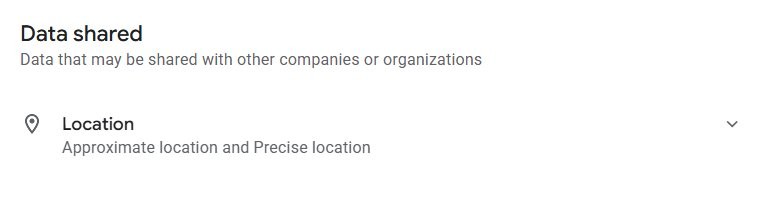
| Sound Connect app data | The app's Google Play data safety section says it may share location with third parties and may collect device IDs, app activity, crash logs, location and personal info | Data is encrypted in transit and you can request deletion; review the app's permissions on the phone |
| Work or school PC refuses the headphones | Admins can block Swift Pair, set a minimum encryption key size, or allow only listed Bluetooth profiles | Ask IT to allow the headset profiles (HFP and A2DP) rather than looking for a workaround |
Practical recommendations for Windows users with Sony headphones
| Your situation | Do this | Why |
|---|---|---|
| Windows 11, music and video | Pair over Bluetooth and leave the codec to Windows | AAC is used automatically if the headphones support it |
| Windows 10 | Select [name] Stereo as the output | The Hands-Free device plays mono call-quality audio |
| Lots of video calls | Use a separate microphone, or accept call-quality audio during calls | Opening the headset microphone switches the headphones to HFP |
| You want LDAC | Use the cable or an LDAC USB transmitter | Windows' Bluetooth stack has no LDAC |
| PC and headphones both list LE Audio | Turn on Use LE Audio when available | Better battery life and call quality |
| Desktop with no Bluetooth | Add a USB Bluetooth adapter | Windows supports adapters plugged into a USB port |
| Still on Windows 8.1 | Pair through Control Panel and plan an upgrade | Windows 8.1 has had no updates since January 10, 2023 |
Strengths and limitations — a critical analysis
| Area | Strength on Windows | Limitation on Windows |
|---|---|---|
| Pairing | Built into Windows, with Swift Pair on supported models | Pairing-mode buttons differ from one Sony model to the next |
| Music quality | AAC on Windows 11 and aptX Adaptive on select PCs | No LDAC; Windows 10 uses SBC unless the model supports aptX |
| Calls | Wideband speech since Windows 10, version 1703 | Stereo playback drops to mono while the microphone is open |
| Settings and updates | Windows controls output, format, balance and Mono audio | Equalizer, noise cancelling modes and firmware updates need the phone app |
| Newer Bluetooth audio | LE Audio on Windows 11, version 22H2 or later | Needs support on both the PC and the headphones, plus drivers |
How to unpair Sony headphones from Windows
- Select Start > Settings > Bluetooth & devices > Devices.
- Find the Sony headphones in the list.
- Select More options (…) next to them.
- Select Remove device, then Yes.
- On Windows 10, select the headphones on the Bluetooth & other devices page and choose Remove device.
To use the headphones with this PC again, pair them from scratch. For quick reference, the whole pairing flow is: pairing mode on the headphones, Bluetooth on in Windows, Add device, select the headphones, Done, then check the sound output.
Sony headphones on Windows FAQ
How do I connect Sony headphones to my laptop?
Put the headphones into pairing mode, then on Windows 11 open quick settings, select Manage Bluetooth devices on the Bluetooth tile, and choose them under New devices. On Windows 10, use Settings > Devices > Bluetooth & other devices > Add Bluetooth or other device > Bluetooth.
Why won't my Sony headphones connect to my PC?
The usual causes are headphones not in pairing mode, a low battery, an old pairing record, or a Bluetooth driver fault. Remove the headphones in Bluetooth & devices, charge them, pair again, and run the Bluetooth troubleshooter if they still fail.
Why do Sony headphones sound bad on PC?
When an app opens the headset microphone, Windows switches the headphones from A2DP stereo to the Hands-Free Profile, which carries mono call-quality audio. Close the call app or use a separate microphone to get stereo back.
Do Sony headphones use AAC on Windows?
Only on Windows 11. Microsoft added AAC for Bluetooth playback in Windows 11, version 21H2, and Windows 10 does not support it, so Sony headphones without aptX fall back to SBC on Windows 10.
Can I update Sony headphone firmware from a PC?
Sony delivers headphone software updates through the Sony | Sound Connect phone app. Windows Update and Device Manager update the PC's own Bluetooth driver, which helps the connection but does not change the headphones' firmware.
Do Sony headphones work with Windows 8.1?
Yes, Windows 8.1 has built-in Bluetooth and can pair them over classic Bluetooth with the SBC codec. It has no Swift Pair, AAC or LE Audio, and Microsoft stopped supporting Windows 8.1 on January 10, 2023.
How do I use the Sony headphones microphone on Windows 10?
Choose the Hands-Free device for the headphones as the input under Settings > System > Sound, and select it as microphone and speaker in the call app. Switch the output back to the Stereo device after the call for full-quality music.
Is the Sony Sound Connect app needed on Windows?
No. Windows pairs Sony headphones with its own Bluetooth settings, without the app or a Sony ID. Sound Connect runs on a phone and handles the equalizer, noise cancelling modes and headphone software updates.