An iPhone alarm that makes no sound usually has its Sound set to None, a very low Alarms and Timers volume, or a speaker Volume Limit that caps how loud it can get.
The fixes below cover regular Clock alarms and the sleep schedule wake up alarm, alarms that start loud and then fade, and alarms that stopped sounding after an iOS update.
How to fix alarm sound on iPhone
These checks fix most silent or quiet alarms. Set a test alarm two minutes ahead after each one so you hear the result before you rely on it.
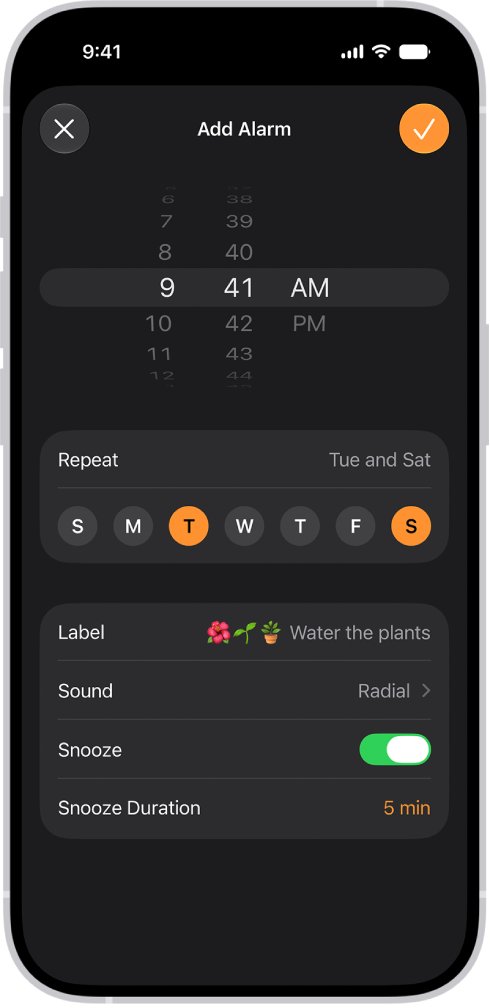
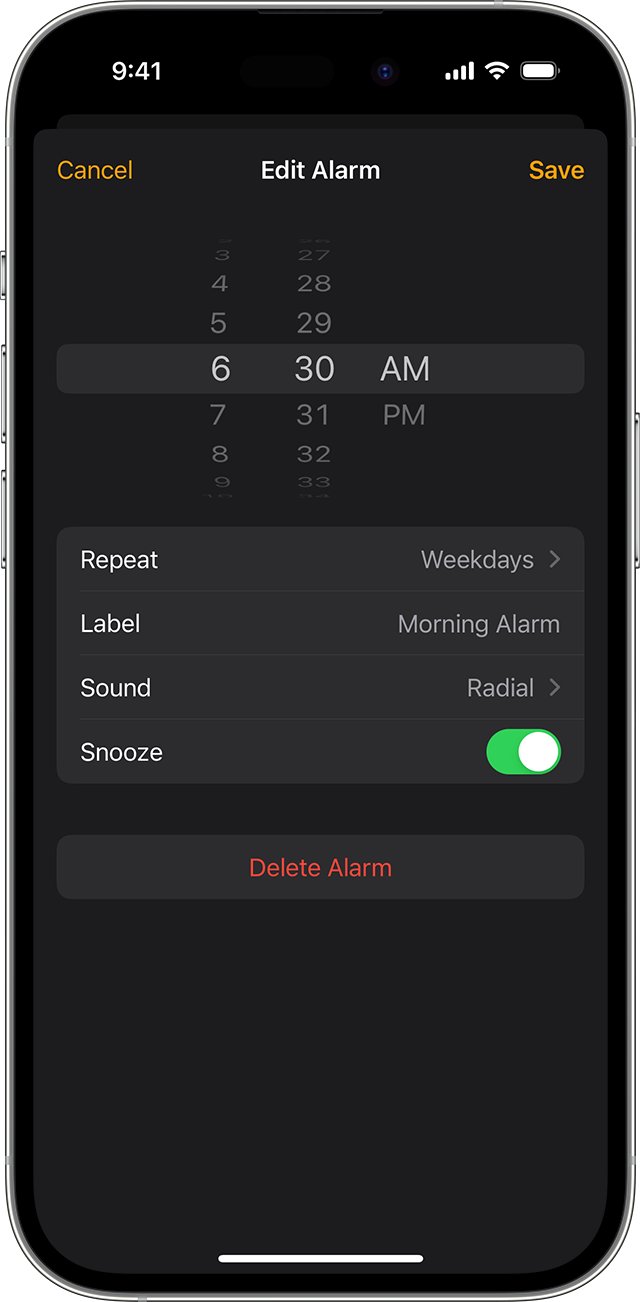
- Open the Clock app, tap Alarms, then tap the alarm time to edit it.
- Tap Sound and select a ringtone or song; if None is selected, the alarm only vibrates.
- Tap the save button, then go to Settings > Sounds & Haptics.
- Under Alarms and Timers, turn off Match Ringtone Volume and drag the volume slider toward the right.
- Under Built-In Speaker, tap Volume Limit and turn off Limit Maximum Volume, or drag its slider higher.
- Go to Settings > General > Software Update and install any iOS update offered.
Why is my iPhone alarm not making sound?
Match what happens when the alarm goes off to the cause in this table, then use the matching fix.
| What happens | Likely cause | Fix |
|---|---|---|
| Screen lights up, phone vibrates, no tone | The alarm's Sound is set to None | Edit the alarm in Clock and choose a ringtone |
| Alarm is barely audible | Alarms and Timers volume is low, or it matches a low ringer volume | Raise the slider under Alarms and Timers in Sounds & Haptics |
| Alarm never gets louder than a certain level | Volume Limit or Reduce Loud Sounds is on for the built-in speaker | Turn off Limit Maximum Volume and Reduce Loud Sounds |
| Alarm starts loud, then drops when you look at it | Attention Aware Features lowers some alerts when you look at the screen | Turn off Attention Aware Features |
| Wake up alarm is silent but other alarms work | The sleep schedule alarm has its own sound and volume | Clock > Alarms > Change > Alarm Options |
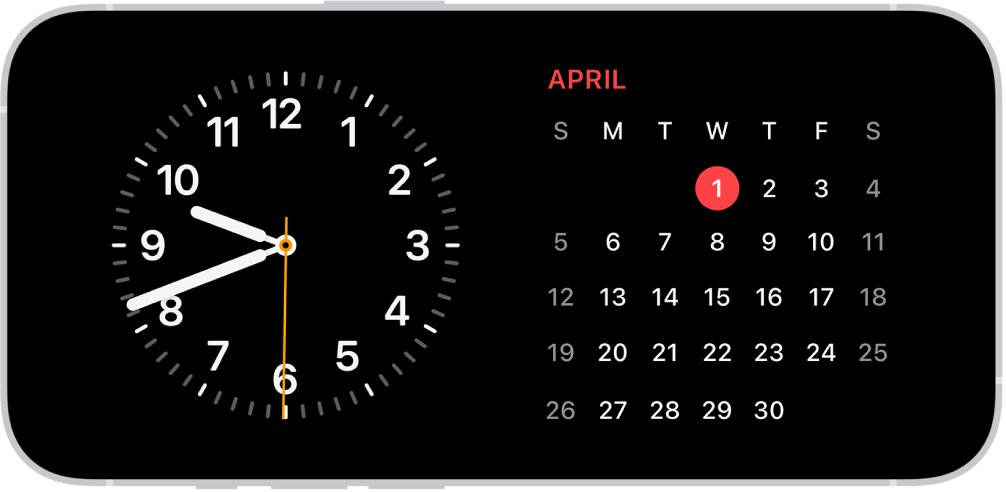
| Alarm silent while charging in StandBy | Alarm haptics are off in StandBy, so a None sound gives no alert at all | Choose a sound for the alarm |
| Alarm rang at the wrong time or not at all | The time was changed manually in Settings | Stop changing the time by hand and set the alarm again |
Does iPhone alarm sound if on silent?
Yes. Silent mode, the Ring/Silent switch, the Action button and Do Not Disturb do not stop a Clock alarm from sounding, so they are not the cause of a silent alarm.
| Setting or situation | Does the alarm still sound? | Notes |
|---|---|---|
| Silent mode on (Ring/Silent switch, Action button or Control Center) | Yes | Silent mode silences calls and alerts, not alarms |
| Do Not Disturb or another Focus on | Yes | Includes Sleep Focus |
| Wired or wireless headphones connected | Yes | Plays at a set volume through the iPhone speaker and the headphones |
| iPhone charging in StandBy | Yes, if a sound is chosen | Alarm haptics are off in StandBy |
| Alarm Sound set to None | No | Vibration only, and no vibration in StandBy |
| Alarms and Timers volume at its lowest | Barely | Raise the slider in Sounds & Haptics |
Because Silent mode does not affect alarms, turning it off will not make a silent alarm ring. Look at the alarm sound and volume settings instead.
How to change the alarm sound on iPhone
Each alarm keeps its own sound. An alarm created with None, or a vibration only, stays silent however loud the volume is.
- Open the Clock app and tap Alarms.
- Tap Edit, then tap the alarm time you want to change.
- Tap Sound.
- Select a ringtone from the list, or pick a song; tap a tone to hear a preview through the speaker.
- Go back and tap the save button.
- Repeat for each alarm in the list, because changing one alarm does not change the others.
If the preview plays clearly but the alarm is still quiet, the volume settings in the next section are the cause.
Why is my iPhone alarm not loud?
By default, alarms and timers match your ringtone volume, so turning the ringer down also turns the alarm down. A speaker volume limit can cap it further.
- Go to Settings > Sounds & Haptics.
- Under Alarms and Timers, turn off Match Ringtone Volume.
- Drag the alarm volume slider toward the right.
- Under Built-In Speaker, tap Volume Limit and turn off Limit Maximum Volume, or raise its slider.
- Under Built-In Speaker, turn off Reduce Loud Sounds.
- Turn on Change with Buttons if you want the volume buttons to adjust the alarm too.
On older iOS versions the alarm follows the slider under Ringtone and Alerts instead, so raise that one to turn up the alarm volume.
On a child's iPhone, Screen Time can lock the speaker limit: Content & Privacy Restrictions > Speaker Volume Limit set to Don't Allow blocks changes until a parent allows them.
iPhone alarm sound starts loud then low
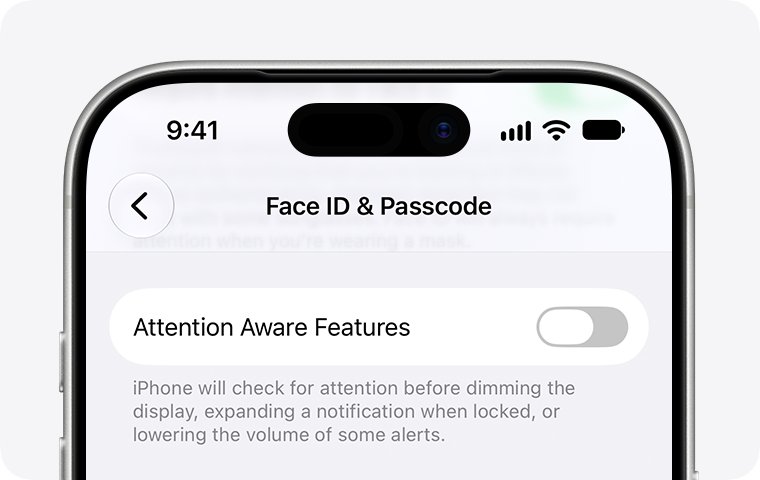
On an iPhone with Face ID, Attention Aware Features lowers the volume of some alerts once it sees you looking at the screen. The alarm can drop to a quiet level the moment you pick up the phone.
- Go to Settings > Accessibility > Face ID & Attention.
- Turn off Attention Aware Features.
- Set a test alarm a minute or two ahead.
- When it rings, look at the screen and check that the volume stays the same.
With the setting off, iPhone also stops keeping the screen lit while you read and stops expanding notifications on the Lock Screen when you look at it.
iPhone wake up alarm not making sound
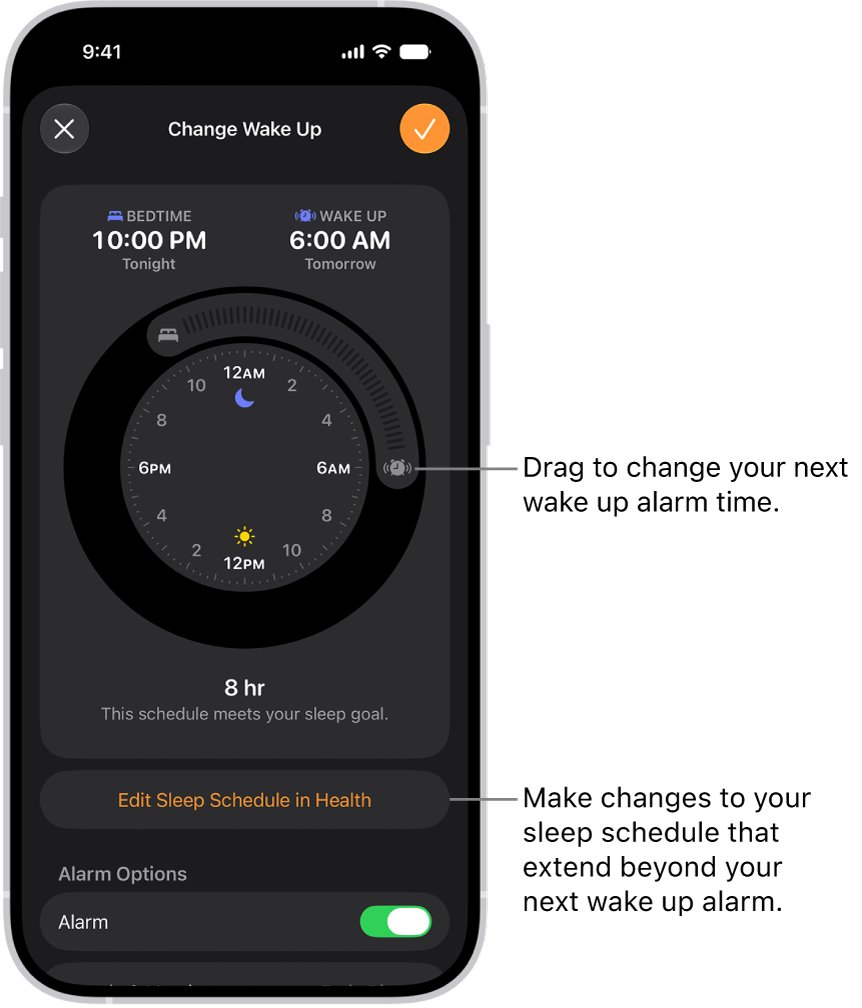
The wake up alarm from a Health sleep schedule is separate from the alarms you add in Clock. It has its own sound, volume and on/off switch under Alarm Options.
- Open the Clock app, tap Alarms, then tap Change next to the sleep schedule alarm.
- Scroll down to Alarm Options and turn on the alarm.
- Tap Sounds & Haptics and choose a ringtone rather than a vibration only.
- Drag the Alarm volume slider toward the right.
- Tap the done button, then tap Change This Schedule so the fix applies every day, not only tomorrow.
Change Next Alarm Only affects the next morning and then the schedule returns to its old settings. To turn off an alarm on iPhone for good instead, turn off the sleep schedule from Edit Sleep Schedule in Health.
iPhone alarm not making sound after update
After an iOS update, the alarm settings stay as they were, so check the sound and volume first. Then install any newer update, which can include bug fixes.
- Edit each alarm in Clock and confirm a sound other than None is selected.
- In Settings > Sounds & Haptics, check the slider under Alarms and Timers and whether Match Ringtone Volume has tied it to a low ringer.
- Plug iPhone into power and connect to Wi-Fi.
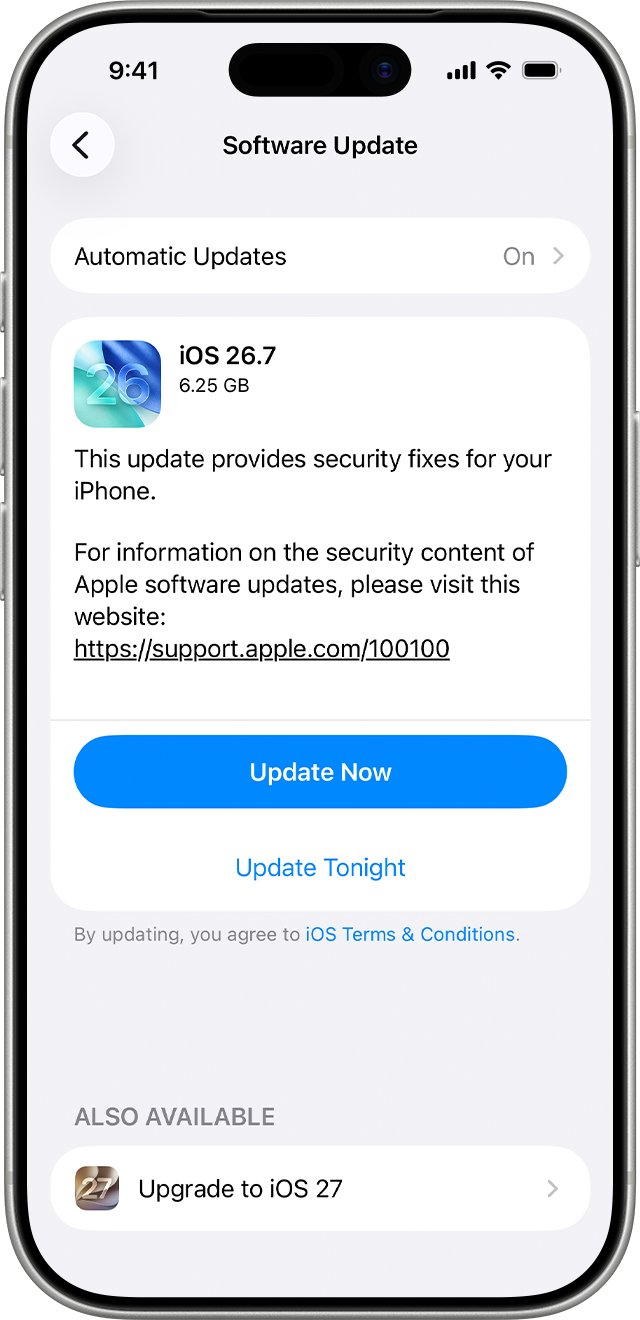
- Go to Settings > General > Software Update.
- If an update is available, tap Download and Install and follow the onscreen instructions.
- Set a test alarm a few minutes ahead and let it ring.
Turn on automatic updates in the same Software Update screen so future fixes install without you checking.
iPhone alarm goes off but no sound
The alarm screen appears but the iPhone only vibrates
The alarm's sound is set to None or to a vibration pattern.
- Open Clock > Alarms and tap the alarm time.
- Tap Sound and select a ringtone.
- Save the alarm and test it.
No sound and no vibration while iPhone charges on its side
StandBy turns off alarm haptics, so an alarm with no sound gives no alert at all.
- Edit the alarm in Clock and choose a sound.
- Raise the Alarms and Timers slider in Settings > Sounds & Haptics.
- Set a test alarm and leave iPhone charging in StandBy until it rings.
The alarm stays quiet even at full volume
A speaker limit is capping the output, or the speaker itself is blocked.
- Go to Settings > Sounds & Haptics > Built-In Speaker > Volume Limit and turn off Limit Maximum Volume.
- Turn off Reduce Loud Sounds in the same section.
- Play a ringtone preview; if it is muffled or crackles, try clearing out the speaker holes and arrange a repair check if that does not help.
iPhone 15 or iPhone 17 alarm not making sound
The Action button's Silent mode is often blamed, but it does not affect alarms; the sound or volume settings are the cause.
- Leave Silent mode as it is and open Clock > Alarms to check the alarm's Sound.
- Raise the slider under Alarms and Timers in Settings > Sounds & Haptics.
- Turn off Attention Aware Features in Settings > Accessibility > Face ID & Attention if the alarm fades when you look at it.
The alarm did not go off at the right time
Changing the time manually in Settings, for example to speed up a game timer, can affect alarms.
- Stop adjusting the clock by hand.
- Open Clock > Alarms and check the alarm's switch is on and its Repeat days are correct.
- Delete and re-create the alarm if it still fires at the wrong time.
iPhone alarm sound FAQ
Why is my iPhone alarm not making sound?
The alarm's Sound is usually set to None, or the Alarms and Timers volume is very low. Edit the alarm in Clock and choose a ringtone, then raise the alarm slider in Settings > Sounds & Haptics and check that Volume Limit is not capping the speaker.
Why is iPhone alarm not sounding when it goes off?
If the alarm screen appears with vibration only, the alarm has no sound selected. Tap the alarm in Clock > Alarms, tap Sound and pick a ringtone. When iPhone charges in StandBy, alarm haptics are off, so a silent alarm gives no alert at all.
How do I fix alarm sound on iPhone?
Pick a ringtone in the alarm's Sound setting, turn off Match Ringtone Volume under Alarms and Timers and raise the slider, turn off Limit Maximum Volume for the built-in speaker, and install the latest iOS from Settings > General > Software Update.
Why won't my iPhone alarm sound in the morning?
A sleep schedule wake up alarm has its own settings. Open Clock > Alarms, tap Change, scroll to Alarm Options, turn the alarm on, choose a sound, raise the Alarm volume slider and save with Change This Schedule.
Why is my iPhone alarm not loud?
Alarms match your ringtone volume by default, so a low ringer means a low alarm. Turn off Match Ringtone Volume under Alarms and Timers in Sounds & Haptics, raise the slider, and turn off Volume Limit and Reduce Loud Sounds for the built-in speaker.
Does iPhone alarm sound if on silent?
Yes. A Clock alarm sounds even when Silent mode is on, when Do Not Disturb or another Focus is on, and when headphones are connected. With headphones, it plays at a set volume through both the iPhone speaker and the headphones.
Why does my iPhone alarm start loud and then get quiet?
Attention Aware Features lowers the volume of some alerts when Face ID sees you looking at the screen. Turn it off in Settings > Accessibility > Face ID & Attention to keep the alarm at full volume.