To block a number on iPhone, open the Phone app, tap the number in your call list, scroll down and tap Block Caller.
This guide covers all four places you can block a number, the automatic filters that stop unknown and spam callers, how to see your blocked list, and why some calls still get through.
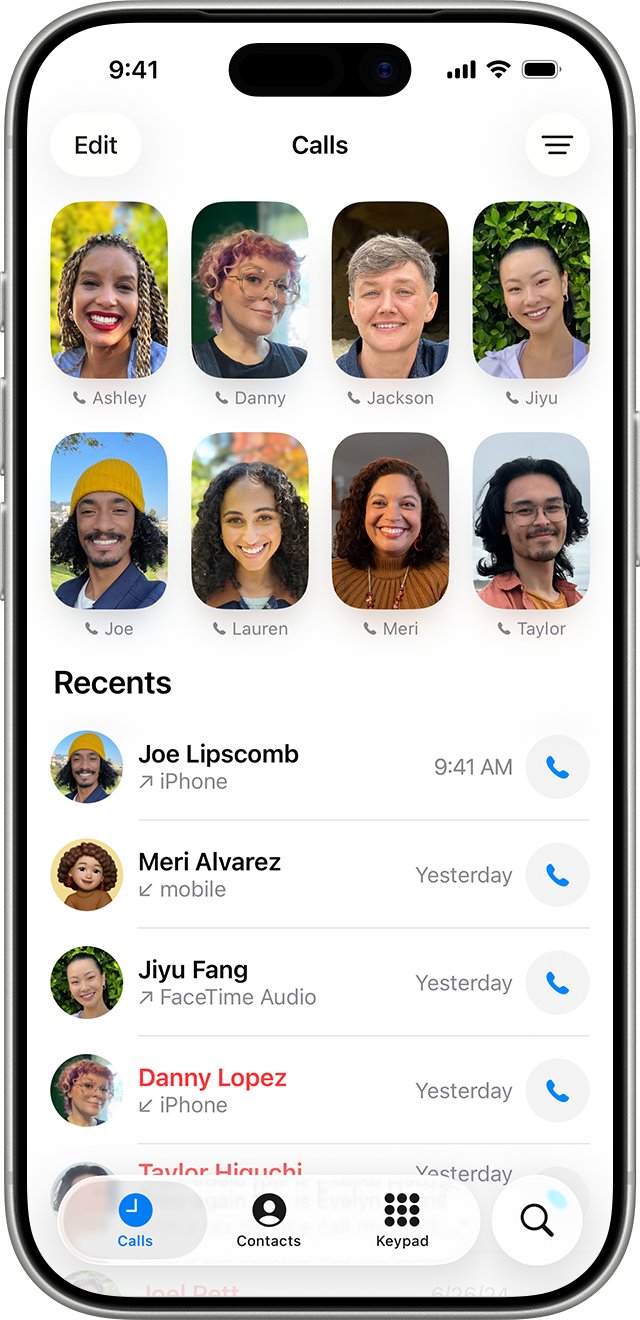
How to block a number on iPhone (4 methods)
Method 1 uses the Phone app and is the fastest, because the number you want gone is usually sitting in your recent calls.
The block applies to the number, not just the app you used, so one block also stops that person in Messages, FaceTime and Mail.
- Open the Phone app.
- Tap Calls (Unified layout) or Recents (Classic layout) at the bottom of the screen.
- Tap the number you want to block, or tap the Info button next to it in Classic view.
- Scroll to the bottom of the details screen.
- Tap Block Caller, then confirm the block.
Methods 2 to 4 below do the same job from Messages, FaceTime and the Contacts app.
Which iPhone blocking method should you use?
Every method ends in the same Blocked Contacts list, so pick the one where the unwanted number already appears.
| Your situation | Use this | Why |
|---|---|---|
| The number called you recently | Method 1: Phone app | The number is already in your call list |
| The number only texts you | Method 2: Messages app | Block from the conversation without saving the number |
| Unwanted FaceTime calls, including group calls | Method 3: FaceTime | Only FaceTime can block every participant of a group call |
| The person is saved in your contacts | Method 4: Contacts app | Blocks the saved contact card in one tap |
| Calls come from a new number every time | Silence unknown callers | A per-number block cannot keep up with rotating numbers |
| Spam texts from unknown senders | Filter unknown senders in Messages | Moves new senders out of your main list automatically |
Method 2: Block a number from the Messages app
Use this when the number texts you but never calls. When you block someone in Messages, iPhone also blocks them in Mail, Phone, FaceTime and Calendar.
- Open the Messages app.
- Open the conversation with the number you want to block.
- Tap the person's icon or number at the top of the conversation.
- Tap Info if it appears, then scroll down.
- Tap Block Contact (some iOS versions label it Block Caller), then confirm.
You cannot block a group conversation. Leave the group or mute its notifications instead, then block individual numbers if you need to.
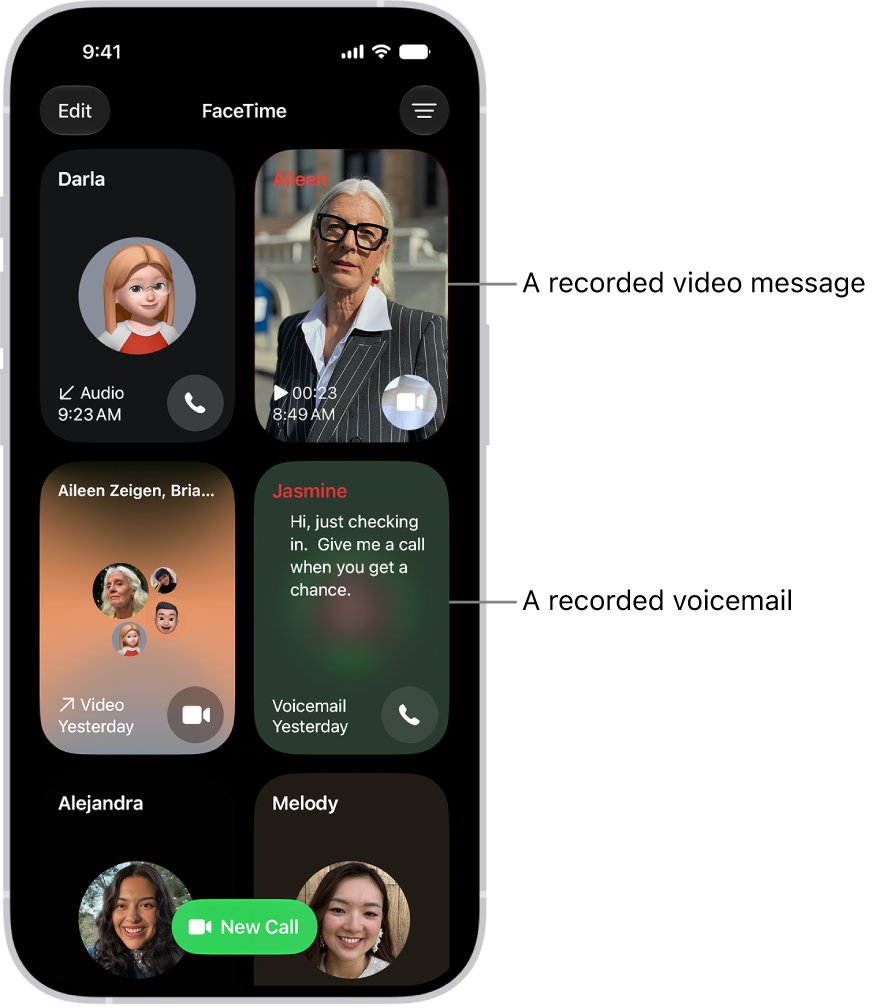
Method 3: Block a number from FaceTime
FaceTime lets you block a caller while the call is still ringing, which none of the other methods can do.
- Open the FaceTime app.
- Tap the call from the number you want to block in your call history.
- Tap Block Contact, then tap Block.
- To block during a live call, tap the phone number or email address on screen, tap Block Caller, then tap Block.
- For an unwanted Group FaceTime call, tap the call in your history and tap Block All Participants.
While a FaceTime call is ringing, you can also tap the left side of the notification, tap Join FaceTime at the top, and tap Block Caller.
Method 4: Block a number from the Contacts app
Use this when the person is saved in your contacts and has not called or texted recently. The Contacts tab in the Phone app opens the same contact card.
- Open the Contacts app, or open Phone and tap Contacts.
- Tap the contact you want to block.
- Scroll to the bottom of the contact card.
- Tap Block Contact.
- Confirm the block when iPhone asks.
What actually happens when you block a number on iPhone
Blocking is silent. The other person gets no alert, and nothing on their screen says the call or message was blocked.
| What the blocked number tries | What happens on your iPhone |
|---|---|
| Phone call | Your iPhone does not ring and you get no call notification |
| Voicemail | The caller can still leave a voicemail, but you get no notification for it |
| iMessage or text message | The message is not delivered to you |
| FaceTime audio or video call | The call does not reach you |
| Email from a blocked address in Mail | The email goes straight to the Trash folder |
| Checking whether you blocked them | Apple sends the sender no notice that they are blocked |
Email blocking applies across all your Apple devices signed in to the same Apple Account.
Automatic ways to stop spam calls without blocking each number
Spam callers rotate numbers, so blocking them one at a time rarely ends the calls. These iPhone filters work on every unknown or flagged number at once.
| Feature | Where to turn it on | What it does |
|---|---|---|
| Screen Unknown Callers: Silence | Settings > Apps > Phone | Calls from unsaved numbers are silenced and sent to voicemail |
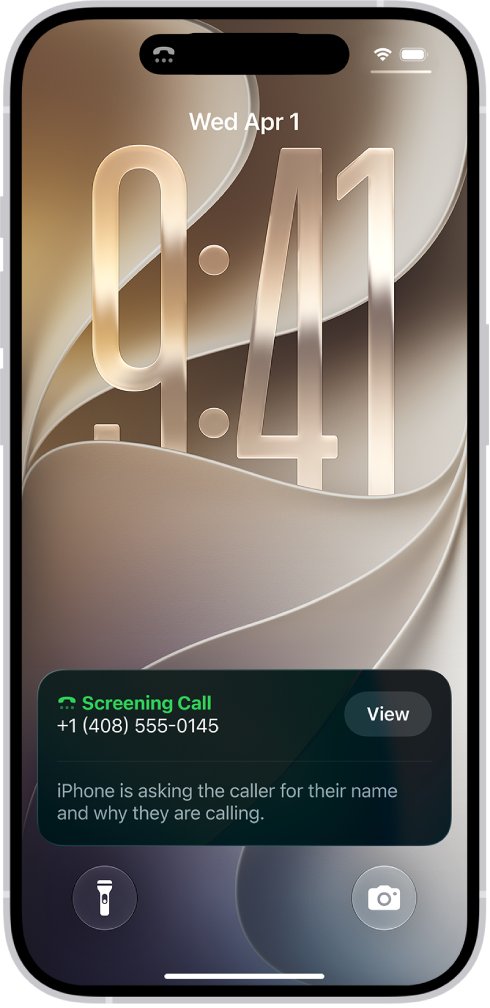
| Screen Unknown Callers: Ask Reason for Calling | Settings > Apps > Phone | Unsaved callers are asked why they are calling before your iPhone rings |
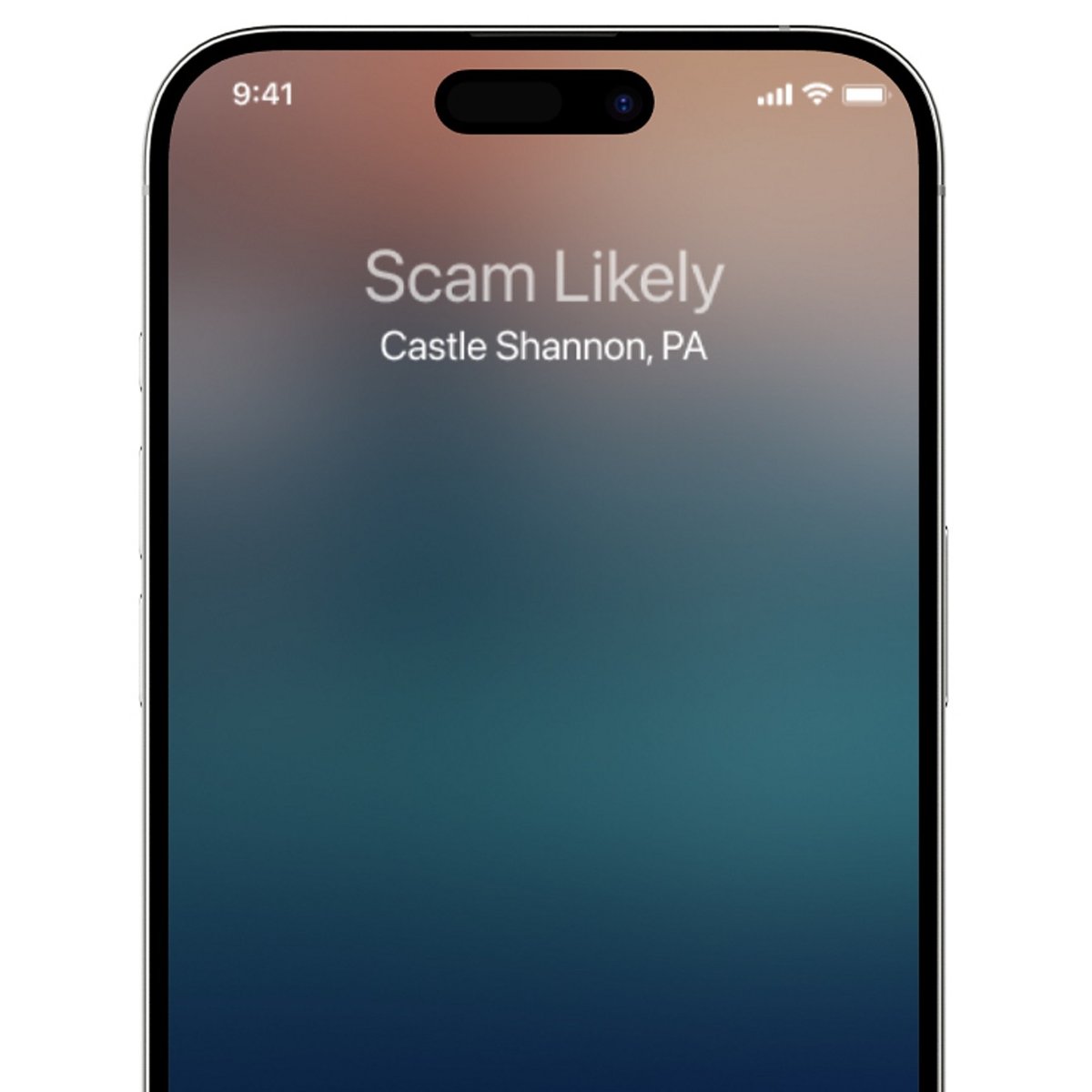
| Call Filtering: Spam | Settings > Apps > Phone | Calls your carrier flags as spam or fraud are silenced and moved to the Spam list |
| Call Filtering: Unknown Callers | Settings > Apps > Phone | Missed calls and voicemails from unknown numbers move to the Unknown Callers list |
| Silence Unknown Callers | Settings > Apps > FaceTime | FaceTime calls from unknown numbers go to voicemail |
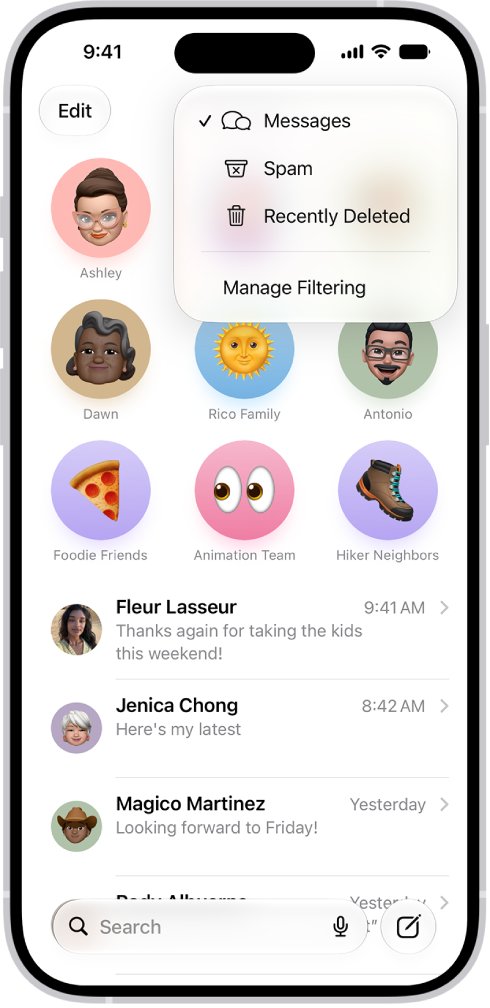
| Screen Unknown Senders | Messages > Filter button > Manage Filtering | Texts from new numbers move to the Unknown Senders folder |
Add numbers you need to hear from, such as a doctor's office or your child's school, to Contacts first so screening never silences them. These filters do most of the work of stopping spam calls on iPhone.
How to silence unknown callers on iPhone
Silencing sends every call from a number that is not in your contacts straight to voicemail, and the call still appears in your call list.
- Open the Settings app.
- Tap Apps, then tap Phone.
- Scroll to Screen Unknown Callers.
- Tap Silence to send unsaved callers to voicemail, or Ask Reason for Calling to screen them first.
- Scroll to Call Filtering and turn on the spam filter.
- Go back to Apps, tap FaceTime, and turn on Silence Unknown Callers.
The same setting is the reliable way to silence No Caller ID calls, because a hidden number has nothing to block.
How to filter unknown senders in iPhone Messages
Filtering keeps texts from new numbers out of your main conversation list, and you are not notified about them unless you allow it.
- Open the Messages app.
- Tap the Filter button in the conversation list.
- Tap Manage Filtering.
- Turn on Screen Unknown Senders.
- Tap Allow Notifications and turn on categories such as verification codes if you still want those alerts.
- To stop business promotions, open Settings > Apps > Messages > RCS Messaging and turn off RCS Business Messages where your carrier offers it.
Text filtering does not apply to a sender you have replied to three or more times. Block or report those senders instead.
Carrier-level blocking apps for iPhone: Verizon, AT&T and T-Mobile
Carrier tools block spam on the network before it reaches your iPhone, so they also catch calls the built-in filter misses.
| Carrier | Service | What it blocks |
|---|---|---|
| Verizon | Call Filter, managed in the Verizon Protect app | Spam detection and call blocking for mobile phones |
| AT&T | ActiveArmor app | Fraud calls blocked automatically; spam and private callers can be blocked or sent to voicemail; personal block list |
| T-Mobile | ScamShield in the T-Life app | Scam Block stops scam calls; spam texts blocked on the network; Premium adds call categories for $4 a month per line |
AT&T call routing needs an active voicemail box. Without one, calls from numbers outside your contacts may not go through at all.
How to report a spam number on iPhone
Reporting helps Apple and your carrier flag the number for everyone, but it does not stop the sender. Block the number as well.
- Open the spam text in Messages and tap Report Spam at the bottom.
- Tap Delete and Report Spam.
- For an unwanted FaceTime call, touch and hold the call tile in FaceTime's history and tap Report Spam.
- For a spam phone call in the US, report the number shown on your caller ID to the FTC at donotcall.gov.
- Block the number with Method 1 so it cannot reach you again.
You cannot report a message after you have replied to it. Reporting an SMS, MMS or RCS message shares it with your carrier, depending on your country or region.
Things worth knowing before you block someone on iPhone
| Fact | What it means for you |
|---|---|
| The person is never told | They will only notice that calls and messages get no reply |
| Voicemail still works for them | A blocked caller can leave a voicemail; you just get no alert |
| One block covers several apps | Blocking in Messages also blocks Phone, FaceTime, Mail and Calendar |
| Group conversations cannot be blocked | Leave the group or mute it instead |
| Silencing unknown callers also silences real calls | Delivery drivers and doctors' offices go to voicemail unless saved in Contacts |
| Calling emergency services pauses screening | Call screening turns off for 24 hours after an emergency call |
| Roaming skips screening | Calls are not screened while you are roaming |
If you need to reach only approved people, Screen Time can limit Messages to your contacts instead of blocking numbers one by one.
How to see blocked numbers on iPhone
Every number you block from any app lands in one list, which is also where you add or remove numbers by hand.
- Open the Settings app.
- Tap Privacy & Security, then tap Blocked Contacts (on some versions, tap Apps > Phone > Blocked Contacts).
- Check that the number appears; numbers without a contact card sit under the Unknown entry.
- Tap Add Blocked Contact to block someone straight from your contacts.
- To unblock a number, swipe left on it and tap Unblock, or tap Edit and use the delete button.
Still getting calls after blocking a number on iPhone?
Spam calls keep coming from different numbers
Scammers spoof a new number for each call, so a block on the old one never triggers.
- Open Settings > Apps > Phone.
- Set Screen Unknown Callers to Silence or Ask Reason for Calling.
- Turn on the spam filter under Call Filtering.
- Turn on your carrier's spam blocking app as well.
Calls show as No Caller ID or Unknown
A hidden number has no number to add to Blocked Contacts.
- Set Screen Unknown Callers to Silence in Settings > Apps > Phone.
- On AT&T, set private callers to Block in the ActiveArmor app.
The blocked person still reaches you by iMessage or FaceTime
They are using a second phone number or an email address that is not on your blocked list.
- Open the new conversation or call in Messages or FaceTime.
- Tap the number or email address at the top.
- Tap Block Contact or Block Caller.
- Check Settings > Privacy & Security > Blocked Contacts to confirm both entries are listed.
Voicemails from the blocked number still appear
Blocked callers can still leave voicemail; iPhone only suppresses the notification.
- Leave the number blocked; you will not be alerted to new voicemails from it.
- Ask your carrier whether its blocking app can stop the number on the network.
Why can't I block a number on my iPhone?
No Block Caller option on a call
The call came from a hidden or private number, so there is nothing to block.
- Open Settings > Apps > Phone.
- Set Screen Unknown Callers to Silence.
Cannot block a group text
iPhone does not block group conversations.
- Open the group conversation in Messages.
- Leave the conversation, or stop its notifications so it no longer alerts you.
- Block individual members from their own conversations if needed.
Business texts keep arriving from a short code
Business alerts come through RCS Business Messages or Apple Messages for Business.
- Open Settings > Apps > Messages.
- Tap RCS Messaging and turn off RCS Business Messages.
- Tap Messages for Business and turn off Business Updates.
Block a number on iPhone FAQ
Does the person know I blocked their number?
No. iPhone does not notify a blocked person, and Apple states a sender cannot find out they are blocked. They may only notice that their calls go unanswered and their messages get no reply.
Can a blocked number still leave a voicemail?
Yes. A blocked number can still leave a voicemail on iPhone, but you do not get a notification when it arrives. Calls and messages from the number are blocked; only the voicemail path stays open.
How do I see everyone I have blocked?
Open Settings, tap Privacy & Security, then tap Blocked Contacts. The list shows every blocked contact, with unsaved numbers grouped under Unknown. On some iOS versions the list is under Settings > Apps > Phone > Blocked Contacts.
Will blocking someone on iPhone also block them on WhatsApp or email?
It blocks them in Apple's Mail, Phone, FaceTime, Messages and Calendar, but not in WhatsApp. WhatsApp has its own Block option inside the chat, and the existing chat stays in your list after you block.
How to block a number on iPhone SE?
iPhone SE uses the same steps as every iPhone. Open the Phone app, tap Recents or Calls, tap the number or the Info button, scroll down and tap Block Caller. The Messages, FaceTime and Contacts methods work the same way.
Does blocking a number work against spam calls?
It stops that exact number, but spam callers often spoof a new number for each call. Turn on Silence or Ask Reason for Calling under Screen Unknown Callers, plus the spam filter, to catch numbers you have not blocked.
How do you completely block a number on iPhone?
Block it once from Phone, Messages, FaceTime or Contacts, and the block covers calls, texts, FaceTime and Mail. Add any second number or email the person uses, and use your carrier's blocking app to stop it on the network.
Why won't my iPhone block a number?
The most common reason is a hidden or private number, which has no number to block. Group conversations also cannot be blocked. Use Screen Unknown Callers set to Silence for hidden callers, and leave or mute unwanted groups.
How to block a number on WhatsApp on iPhone?
Open the chat with the number in WhatsApp, open the contact or chat menu, then tap Block and confirm. You can also report the sender in the same step. iPhone's own Blocked Contacts list does not control WhatsApp.