Press Windows logo key + U to open Accessibility settings, then use Text cursor, Mouse pointer and touch and Magnifier to make typing, pointing and reading easier to see on Windows 11 and Windows 10.
This guide covers the text cursor indicator and thickness, pointer size, color and Ctrl locator, Magnifier views, zoom and follow options, the keyboard shortcuts, and fixes when Magnifier jumps around or text looks blurry.
Optimize Windows 10/11 accessibility: Text cursor, mouse pointer & Magnifier
These five changes cover most low-vision needs in a couple of minutes. Each one lives on its own page under Settings > Accessibility.
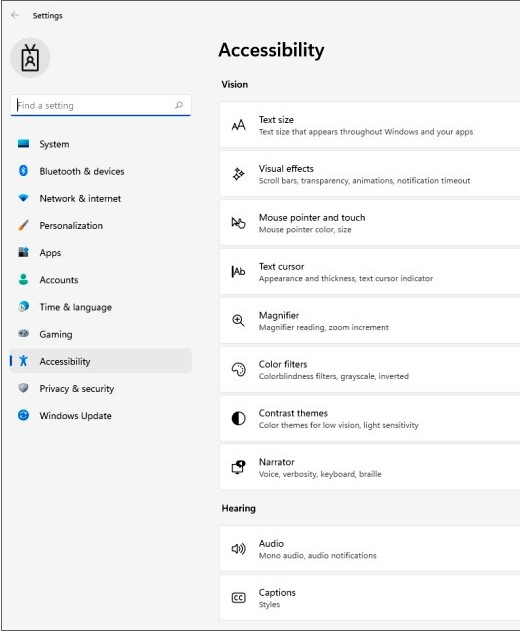
- Press Windows logo key + U to open Settings > Accessibility.
- Select Text cursor and turn on the Text cursor indicator switch.
- Go back, select Mouse pointer and touch, and drag the Size slider until the pointer is easy to follow.
- Under Mouse pointer style, pick a bright recommended color or select Choose another color.
- Press Windows logo key + Plus sign (+) to turn on Magnifier, and Windows logo key + Esc to turn it off.
If menus and labels are still hard to read after these changes, you can change the text size on its own Accessibility page without changing the display scale.
Where to find text cursor, mouse pointer and Magnifier settings in Windows 11 and Windows 10
There are no downloads or other prerequisites: Magnifier and the cursor settings are built into Windows. The ms-settings: links open the same pages on Windows 11 and Windows 10 from the Run box (Windows logo key + R).
| Setting | Windows 11 path | Run box link |
|---|---|---|
| Text cursor indicator, thickness, blink rate | Settings > Accessibility > Text cursor | ms-settings:easeofaccess-cursor |
| Mouse pointer size, color, trails, Ctrl indicator | Settings > Accessibility > Mouse pointer and touch | ms-settings:easeofaccess-mousepointer |
| Magnifier zoom, view, follow options | Settings > Accessibility > Magnifier (or Windows logo key + Ctrl + M) | ms-settings:easeofaccess-magnifier |
| Text size | Settings > Accessibility > Text size | ms-settings:easeofaccess-display |
| Contrast themes | Settings > Accessibility > Contrast themes | ms-settings:easeofaccess-highcontrast |
| Color filters | Settings > Accessibility > Color filters | ms-settings:easeofaccess-colorfilter |
| Transparency and animation | Settings > Accessibility > Visual effects | ms-settings:easeofaccess-visualeffects |
Step-by-step instructions for the Windows 11 text cursor indicator
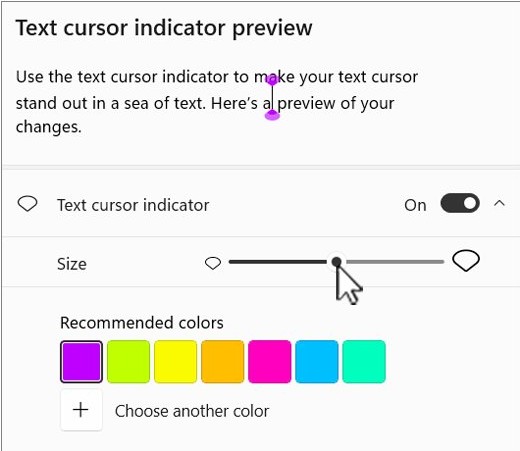
The text cursor indicator adds a colored flag above and below the blinking insertion point, so you can find where you are typing at a glance.
- Press Windows logo key + U and select Text cursor.
- Turn on the Text cursor indicator switch.
- Drag the Size slider until the flag is easy to spot in the preview.
- Pick a color from Recommended colors, or select Choose another color for a custom one.
- Under Text cursor thickness, drag the slider to make the blinking line itself wider.
- Set Cursor blink rate to None if a steady cursor is easier to find than a blinking one.
Windows 10 has the indicator, size, color and thickness controls too; the blink rate control is part of the Windows 11 page.
How to change mouse pointer size and color in Windows 11
Everything that makes the pointer easier to see and find is on one page. A larger, brightly colored pointer with the Ctrl locator suits most people who lose track of it.
- Press Windows logo key + U and select Mouse pointer and touch.
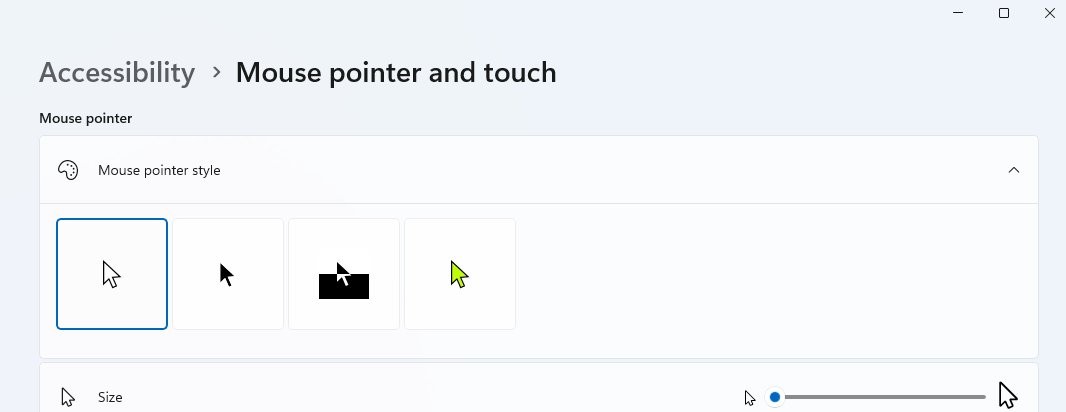
- Under Mouse pointer, drag the Size slider to make the pointer larger.
- Under Mouse pointer style, choose white, black, inverted or a recommended color. Inverted flips color against whatever is behind it.
- Turn on Mouse pointer trails to leave a short trail as the pointer moves.
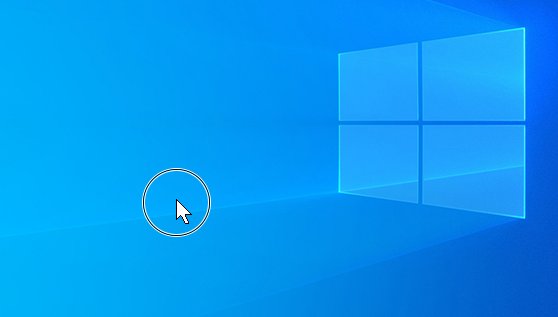
- Turn on Mouse indicator, then press Ctrl whenever you lose the pointer to show a circle around it.
- Turn on Mouse pointer shadow so the pointer stands out from the background.
- On a touchscreen, turn on Touch indicator to show a circle where each tap lands.
For classic pointer schemes and custom cursor files, you can also change the cursor size and color in Mouse Properties.
How to turn on Magnifier in Windows 11 and start it at sign-in
Magnifier enlarges part or all of the screen. Setting it to start automatically helps on a PC shared with someone who has low vision.
- Press Windows logo key + Ctrl + M to open Settings > Accessibility > Magnifier.
- Turn on the Magnifier switch, or press Windows logo key + Plus sign (+) from anywhere.
- Select Magnifier to expand it and show more settings.
- Select Start Magnifier after sign-in to launch it each time you sign in.
- Select Start Magnifier before sign-in if it must also work on the lock screen for everyone.
- Use the Magnifier toolbar to zoom, switch views and open reading controls.
Magnifier views in Windows 11: full screen, lens and docked
Magnifier has three views, and you can switch between them at any time while it runs.
| View | What it does | Best for | Shortcut |
|---|---|---|---|
| Full screen | Magnifies the whole display; you pan to move around | Reading long content, general use | Ctrl + Alt + F |
| Lens | A movable rectangle enlarges what is under it; the rest stays normal | Checking one area while keeping context | Ctrl + Alt + L |
| Docked | Pins a magnified strip to one screen edge | Watching one region while you work | Ctrl + Alt + D |
| Cycle views | Moves through the three views in turn | Comparing views quickly | Ctrl + Alt + M |
In docked view, Ctrl + Alt + arrow key snaps the dock to that edge. In lens view, the Change lens size sliders on the View page set its width and height.
Make Magnifier follow the text cursor and mouse pointer
In full screen and docked views, Magnifier can follow the mouse pointer, keyboard focus, text cursor and Narrator cursor. All four are on by default.
- Press Windows logo key + Ctrl + M and select the View tile.
- Choose Full screen or Docked in the View dropdown.
- Under Have Magnifier follow my, keep Text cursor selected so the view tracks your typing.
- Clear Mouse pointer if you work mainly by keyboard, so a bumped mouse does not move the view.
- In full screen view, set Keep the mouse pointer and Keep the text cursor to Within the edges of the screen for a steadier view, or Centered on the screen to keep them in the middle.
Change Magnifier zoom level and zoom increments
- Press Windows logo key + Ctrl + M.
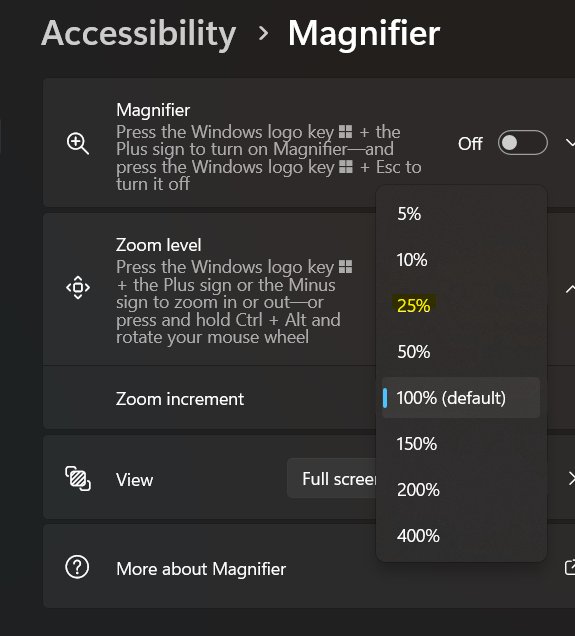
- Use the Zoom level buttons to set how much Magnifier enlarges the screen when it starts.
- Open the Zoom increments dropdown and choose a step size, such as 25%, 50% or 100%.
- Turn on Smooth edges of images and text to reduce pixelation at high zoom.
- While Magnifier runs, hold Ctrl + Alt and scroll the mouse wheel to zoom without the keyboard shortcuts.
You can also change the step size from the gear icon on the Magnifier toolbar without leaving what you are doing.
Magnifier keyboard shortcuts in Windows 11 and Windows 10
| To do this | Press |
|---|---|
| Turn Magnifier on / zoom in | Windows logo key + Plus sign (+) |
| Zoom out | Windows logo key + Minus sign (-) |
| Turn Magnifier off | Windows logo key + Esc |
| Switch between your zoom level and normal size | Ctrl + Alt + Minus sign (-) |
| Pan around the zoomed screen | Ctrl + Alt + arrow keys |
| Peek at the whole desktop (full screen view) | Hold Ctrl + Alt + Spacebar |
| Invert colors | Ctrl + Alt + I |
| Start, pause or resume reading text aloud | Ctrl + Alt + Enter |
| Read the previous or next sentence | Ctrl + Alt + H / Ctrl + Alt + K |
| Lock the view on one monitor | Ctrl + Windows logo key + K |
| Open Magnifier settings | Windows logo key + Ctrl + M |
The reading shortcuts use Ctrl + Alt as the modifier by default; change it with Reading shortcut in Magnifier settings.
How to test text cursor, pointer and Magnifier settings in Windows 11
- Open Notepad and type a line. The text cursor indicator flags should sit above and below the insertion point.
- Move the mouse across a white and a dark window. The pointer should stay visible on both.
- Press Ctrl with Mouse indicator on. A circle should appear around the pointer.
- Press Windows logo key + Plus sign (+) and keep typing in Notepad. The magnified view should follow the text cursor.
- Sign out and back in. If Start Magnifier after sign-in is selected, Magnifier opens on its own.
Magnifier, text cursor and mouse pointer warnings and notes
| Note | What it means for you |
|---|---|
| Screen Tint and Color filters cannot run together | Turning on one turns off the other, so keep Screen Tint off if you rely on a color-blindness filter |
| Start Magnifier before sign-in affects everyone | Magnifier opens on the lock screen for every user of the PC |
| Follow options are all on by default | The view can jump between the pointer, focus and text cursor until you clear the ones you do not use |
| Windows logo key + Esc with locked monitors | The first press releases viewport locks; press again to turn Magnifier off |
| Windows 10 differences | Some Windows 11 options, such as cursor blink rate and Screen Tint, may not be on Windows 10 |
| Windows Backup | Text cursor, pointer and most Magnifier settings are backed up, but the Magnifier switch and Start Magnifier before sign-in are not |
Reset mouse pointer and text cursor settings in Windows 11
- Press Windows logo key + U and select Mouse pointer and touch.
- Drag Size all the way left and choose the white Mouse pointer style.
- Turn off Mouse pointer trails, Mouse indicator and Mouse pointer shadow if you turned them on.
- Select Text cursor, turn off Text cursor indicator and drag Text cursor thickness back to the thinnest setting.
- Open Magnifier settings and clear Start Magnifier after sign-in and Start Magnifier before sign-in.
Magnifier and cursor troubleshooting tips
Magnifier view jumps around too much
Magnifier follows the pointer, keyboard focus, text cursor and Narrator cursor at once.
- Press Windows logo key + Ctrl + M and select View.
- Under Have Magnifier follow my, clear the inputs you do not use.
- Set Keep the mouse pointer and Keep the text cursor to Within the edges of the screen.
Magnified text looks blurry
Edge smoothing is off or the display runs below its recommended resolution.
- Turn on Smooth edges of images and text in Magnifier settings.
- Open Settings > System > Display and set Display resolution to the value marked (Recommended).
The screen is too bright or causes glare
Light backgrounds stay bright when magnified.
- Press Ctrl + Alt + I while Magnifier runs to invert colors.
- Turn on Screen Tint under Settings > Accessibility to soften the whole screen.
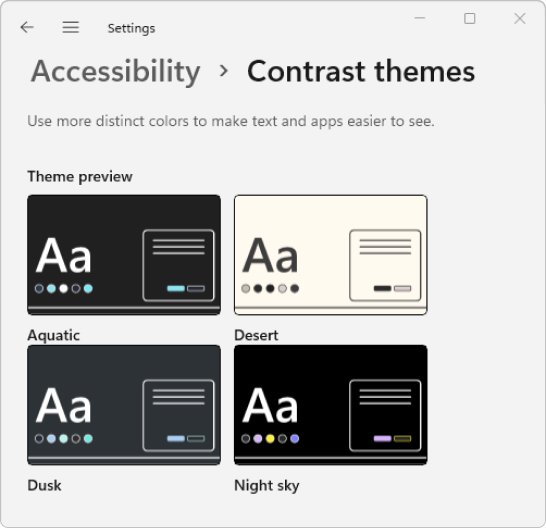
- Try a contrast theme under Settings > Accessibility > Contrast themes.
Magnifier does not turn off with Windows key + Esc
A monitor has a locked viewport, and the first press only releases it.
- Press Windows logo key + Esc once to release the locks.
- Press Windows logo key + Esc again to turn Magnifier off.
Everything is small even without Magnifier
Text size, display scale and pointer size are still at their defaults.
- Drag the Text size slider under Settings > Accessibility > Text size and select Apply.
- Pick a larger Scale under Settings > System > Display.
- Increase the pointer Size under Mouse pointer and touch.
If the pointer still feels slow or the buttons are swapped, you can customize mouse buttons and pointer speed under Bluetooth & devices.
Windows text cursor, mouse pointer and Magnifier FAQ
What's the best way to customize Magnifier zoom level?
Open Settings > Accessibility > Magnifier with Windows logo key + Ctrl + M, set the Zoom level buttons for the starting zoom, and choose a Zoom increments step such as 25%, 50% or 100%. Smaller steps give finer control while you zoom in and out.
How can I change Magnifier view?
Press Ctrl + Alt + F for full screen, Ctrl + Alt + L for lens or Ctrl + Alt + D for docked while Magnifier is on. Ctrl + Alt + M cycles through all three, and the View tile in Magnifier settings holds the options for the current view.
How should I find a mouse pointer I keep losing?
Turn on Mouse indicator under Settings > Accessibility > Mouse pointer and touch, then press Ctrl to show a circle around the pointer. A larger Size, a bright Mouse pointer style and pointer trails also make it easier to follow.
How do I make the text cursor easier to see in Windows 11?
Open Settings > Accessibility > Text cursor and turn on Text cursor indicator, then adjust its size and color. Text cursor thickness widens the blinking line, and setting Cursor blink rate to None keeps it steady.
How do I turn Magnifier on and off quickly?
Press Windows logo key + Plus sign (+) to turn Magnifier on and zoom in, and Windows logo key + Esc to turn it off. If a monitor has a locked viewport, the first Windows logo key + Esc press releases the lock and the second turns Magnifier off.
Can Magnifier start automatically when I sign in?
Yes. In Settings > Accessibility > Magnifier, expand Magnifier and select Start Magnifier after sign-in. Start Magnifier before sign-in also turns it on at the lock screen, which applies to everyone who uses the PC.
Can Magnifier read text aloud?
Yes. With Magnifier on, press Ctrl + Alt + Enter to start, pause or resume reading, or hold Ctrl + Alt and left-click the text to start from that spot. Ctrl + Alt + H and Ctrl + Alt + K read the previous and next sentence.
Do these accessibility settings work on Windows 10?
Yes for the core settings. Windows 10 has Magnifier, the text cursor indicator, thickness and pointer size and color, and the ms-settings links open those pages. Some newer options, such as cursor blink rate and Screen Tint, may only be on Windows 11.