To make Google your default search engine, open the browser's settings, go to its search engine section and select Google; on an iPhone or iPad, go to Settings > Search > Search Engine instead.
This guide covers Chrome, Microsoft Edge, Firefox, Safari, Opera, Vivaldi and Brave on a PC or Mac, Android phones, iPhone and iPad, setting Google as your homepage, and what to do when Google disappears from the list or will not stay selected.
How to make Google default search engine on PC
Every desktop browser keeps the setting in a different place. Find your browser in the table, follow the path, and select Google.
| Browser | Where the setting is | What to pick |
|---|---|---|
| Google Chrome | More > Settings > Search engine, then Change under Search engine | |
| Microsoft Edge | Settings and more > Settings > Privacy, search, and services > Search and connected services > Address bar and search | Google in Search engine used in the address bar |
| Mozilla Firefox | Menu > Settings, then search the settings page for "search engine" | Google as the default search engine |
| Safari on Mac | Safari > Settings > Search | Google in Search engine |
| Opera | Settings, section Search engine | Google in the dropdown |
| Vivaldi | Settings > Search > Default Search Engine | Google in the dropdown |
Firefox and Opera ship with Google, and Chrome uses it by default in some countries, so the change is usually needed after an app, an extension or a previous user switched it.
What “default search engine” means
The default search engine answers anything you type into the address bar that is not a web address. It is a separate setting from your homepage and from your default browser.
| Setting | What it controls | Where it lives |
|---|---|---|
| Default search engine | The site that runs searches typed into the address bar or Smart Search field | Each browser's own settings, or Settings > Search > Search Engine on iPhone and iPad |
| Homepage | The page that opens when you select the Home button | The browser's appearance or start settings |
| Startup page | The page or pages that open when the browser launches | The browser's startup settings |
| Private window search engine | Searches in private windows, in browsers that keep a separate choice | Safari Private Browsing search engine, Vivaldi Private Window Search Engine |
| Default browser | Which browser opens links from other apps | Your operating system's default apps settings |
Changing the search engine does not change your homepage. Chrome's own help notes that the startup page and homepage are not the same unless you set them to be.
Why choose Google?
Most people switch because a browser ships with a different engine, or because something changed their choice without asking. The table shows what each browser starts with and what you give up by switching.
| Browser | Starts with | What changes when you pick Google |
|---|---|---|
| Microsoft Edge | Bing | You lose Bing's extras in Edge: direct links to Windows apps, work or school suggestions and instant answers about Windows |
| Google Chrome | Google in some countries; a choice screen in others | Nothing, if Google is already selected |
| Mozilla Firefox | Nothing, unless someone switched it | |
| Opera | Nothing, unless someone switched it | |
| Safari, Vivaldi and Brave | Varies by region and setup | Address bar searches open google.com results |
In Chrome, a feature may not be available when the engine you pick does not support it, so switching back to Google restores those features.
Make Google the default search engine in Google Chrome
These steps work in Chrome on Windows, macOS, Linux and ChromeOS. If Chrome is managed by your work or school, the administrator may have locked the choice.
- Open Chrome.
- At the top right, select More (the three dots), then Settings.
- Select Search engine on the left.
- Under Search engine, select Change.
- Select Google in the list.
- Type a search in the address bar and press Enter to check that results open on Google.
Set Google as default in Google Chrome
Chrome also lets you set the default from its full list of search engines. Use this route when Google is missing from the short list or sits under Inactive shortcuts.
- Open Chrome and select More > Settings.
- On the left, select Search engine, then Manage search engines and site search.
- Find Google in the list of search engines.
- If Google is under Inactive shortcuts, select Activate next to it first.
- Select More to the right of Google, then Make default.
You cannot set Gemini as the default search engine; Chrome does not allow it.
Make Google the default search engine in Microsoft Edge
Edge ships with Bing and only lists engines that support OpenSearch. Google appears in the list once you have searched with it in Edge.
- Go to www.google.com in Edge and run any search, so Edge adds Google to its list.
- Select Settings and more (the three dots), then Settings.
- Select Privacy, search, and services.
- Select Search and connected services, then Address bar and search.
- Open the Search engine used in the address bar menu and choose Google.
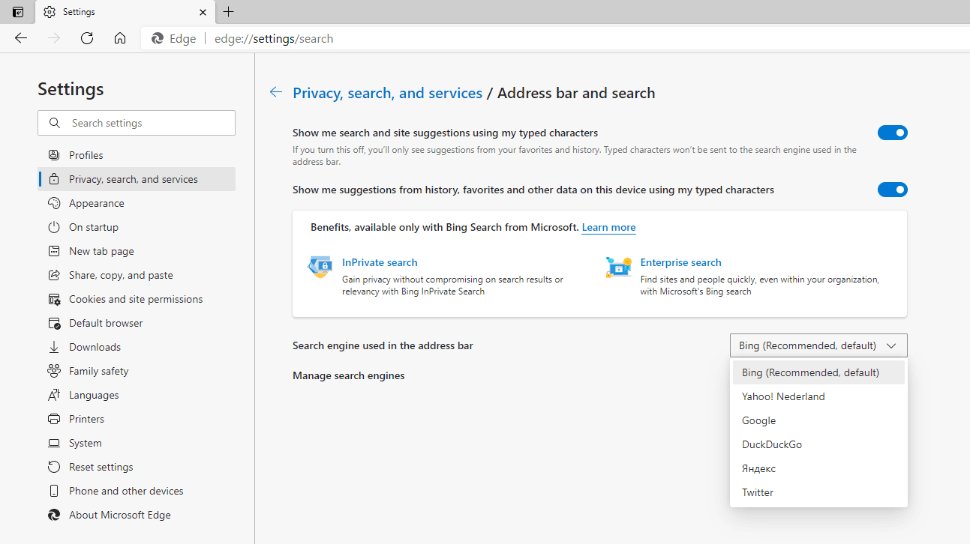
Switch to Google in Microsoft Edge
Changing the address bar engine leaves the search box on Edge's new tab page on Bing. Once the address bar uses an engine other than Bing, Edge offers a second choice that sends new-tab searches to the address bar, and so to Google.
- Set Google as the address bar engine with the steps above.
- Stay on the Address bar and search settings page.
- Find the option for how searches on new tabs work.
- Change it from Search box (Recommended) to Address bar.
- Open a new tab, type a search in the box and check that the results come from Google.
The Address bar choice only appears when the address bar engine is not Bing. A work or school device may have both choices locked by policy.
Make Google default in Mozilla Firefox
Firefox comes with Google as its default, so you usually only need this after another engine was picked. The Firefox settings layout was redesigned in June 2026, so use the search box on the settings page to jump to the right section.
- Open Firefox, select the menu button and choose Settings.
- Type
search enginein the search box at the top of the settings page. - Open the default search engine drop-down menu.
- Select Google.
- Close the settings tab and run a search from the address bar.
While typing a search, you can also pick a different engine from the icons under the address bar for one search, without changing the default.
Configure Google as default in Safari (macOS)
Safari on a Mac keeps two search engine choices: one for normal windows and one for Private Browsing. Set both if you want Google everywhere.
- Open Safari on your Mac.
- Choose Safari > Settings from the menu bar.
- Click Search.
- Choose Google from the Search engine pop-up menu.
- Choose Google from the Private Browsing search engine menu as well, if you want private windows to use it.
The same pane holds Include search engine suggestions, which asks Google for suggestions as you type. Google may record those search terms.
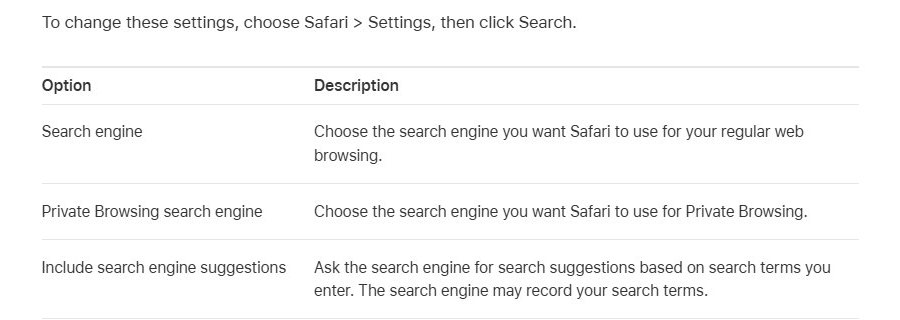
Make Google the default search engine in Safari
Safari on a Mac also lets you switch engines straight from the Smart Search field, without opening Settings.
- Open Safari and click in the Smart Search field at the top of the window.
- Delete all the text in the field.
- Choose Google from the list of search engines that appears.
- Type a search and press Return to confirm the results come from Google.
On iPhone and iPad, Safari takes its engine from the device settings instead, covered in the iPhone and iPad section below.
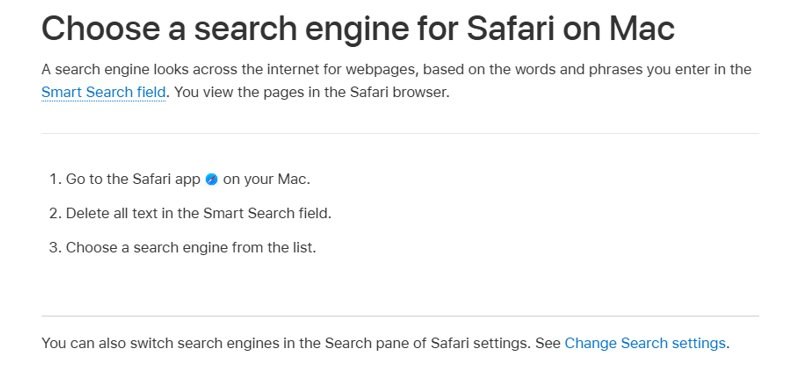
How to make Google default search engine for mobile?
On a phone, the browser's address bar, the home screen search widget and Safari each take their engine from a different place. Match the search box you use to its setting.
| Search box you use | Where to set Google |
|---|---|
| Chrome on Android | Chrome > More > Settings > Search engine |
| The phone's own browser, called Internet or Browser | Browser Menu > Settings > Advanced > Set search engine |
| Home screen search widget on phones sold in the EEA from March 2020 | Google app > profile picture > Settings > Search widget > Switch to Google |
| Safari on iPhone or iPad | Settings > Search > Search Engine |
| Chrome on iPhone or iPad | Chrome > More > Settings > Search engine |
| Opera, Vivaldi or Firefox apps | Each app's own search settings |
Make Google the default search engine on Android
Chrome is the browser on most Android phones. Its list includes search engines you have recently visited, so open google.com once if Google is missing.
- Open Chrome on your Android phone or tablet.
- At the top right, tap More, then Settings.
- Under Basics, tap Search engine.
- Tap Google.
- Go back to a tab and search from the address bar.
If your phone's own browser app is called Internet or Browser, tap its Menu button, then Settings > Advanced > Set search engine and tap Google.
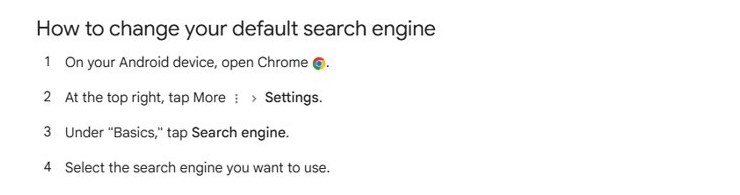
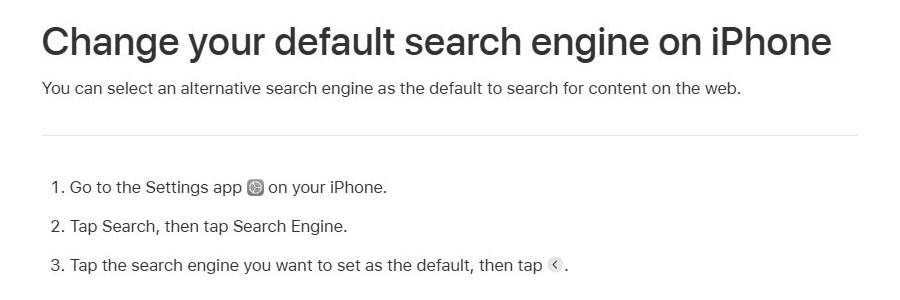
Make Google the default search engine on iPhone and iPad
Safari on iPhone and iPad uses the search engine chosen in the device Settings app. The same list appears under Settings > Apps > Safari > Search Engine.
- Open the Settings app on your iPhone or iPad.
- Tap Search.
- Tap Search Engine.
- Tap Google and confirm the choice.
- Open Safari and search from the address bar.
Chrome on iPhone and iPad keeps its own choice: in Chrome, tap More > Settings > Search engine, then select Google.
Make Google the default search engine in Brave, Opera, and Vivaldi
Opera uses Google by default. Vivaldi keeps a separate engine for private windows, so check both of its choices.
| Browser | Where to set Google |
|---|---|
| Opera | Go to Settings and pick Google from the Search engine dropdown |
| Vivaldi | Settings > Search > Default Search Engine, or select Google in Search Engines and tick Set as Default Search |
| Vivaldi private windows | Settings > Search > Private Window Search Engine, or tick Set as Private Search for Google |
| Brave | Open Settings and pick Google in the search engine section |
In Vivaldi, also keep Search in Address Field turned on under Settings > Search, so searches typed in the Address Field go to the default engine. You can set Google as Vivaldi's private search engine the same way.
Make Google your homepage or startup page
Setting the search engine does not open Google when the browser starts. If that is what you want, set Google as your homepage or startup page as well.
| Browser | Make Google the homepage | Open Google at launch |
|---|---|---|
| Google Chrome | More > Settings, under Appearance turn on Show Home button, then enter www.google.com as the custom page | In the startup settings, choose Open a specific set of pages and add www.google.com |
| Microsoft Edge | Settings > Start, home, and new tab page, turn on Show home button on the toolbar, then Set custom site | Set it on the same Start, home, and new tab page settings page |
| Safari on Mac | Safari > Settings > General, type www.google.com in Homepage, or click Set to Current Page | Set New windows open with and New tabs open with to Homepage |
| Mozilla Firefox | Open www.google.com, drag the tab onto the Home button and click Yes | Search Firefox Settings for homepage |
In Safari, choose History > Home to open the homepage at any time.
How to tell if Google is your default search engine
- Click in the address bar, type a word that is not a web address, such as
weather, and press Enter. - Look at the address of the results page: it starts with google.com/search when Google is the default.
- Open a private window and repeat the search if your browser keeps a separate private engine, as Safari and Vivaldi do.
- In Edge, also search from the box on a new tab page.
- On a phone, repeat the search in the browser and in any home screen search widget.
What to do if Google will not stay as the default
Chrome's search engine keeps changing back on its own
An extension or unwanted program is changing the setting.
- Remove programs you do not recognise from your computer.
- Open Chrome and select More > Settings.
- Select Reset settings > Restore settings to their original defaults > Reset settings. Bookmarks and passwords are kept.
- Select More > Extensions > Manage extensions and turn back on only the extensions you trust.
- Set Google as the search engine again.
Chrome shows a notice that search was reset
Chrome checks its settings at each launch and restores ones that unwanted software changed.
- Select Got it on the notice on the results page.
- Enter
chrome://settingsin the address bar to see the full list of changes. - Choose your search engine again in Search engine.
Edge goes back to Bing
An extension or other software overrides the choice, or the device is managed.
- Uninstall Edge extensions you do not need or do not recognise.
- Run a scan in Windows Security to check the PC for malware.
- Set Google again in Address bar and search.
- On a work or school PC, ask the IT department: a policy can stop you from changing the search engine at all.
The setting is greyed out or says it is managed
Your organisation sets the default search engine through a policy.
- Check whether the browser says it is managed by your organisation.
- Ask the administrator to change or remove the default search provider policy.
- Use a personal device or profile if the policy must stay.
Why Google may not appear as an option
Google is not in Edge's search engine list
Edge lists an engine only after you have searched with it.
- Go to www.google.com in Edge and run a search.
- Open Settings > Privacy, search, and services > Search and connected services > Address bar and search again.
- Pick Google from Search engine used in the address bar.
Google is missing from Chrome's list
Google was deactivated or deleted from the site search list.
- Open Settings > Search engine > Manage search engines and site search.
- Look under Inactive shortcuts and select Activate next to Google.
- If it is gone, select Add next to Site search and enter
https://www.google.com/search?q=%sin URL with %s in place of query. - Select More > Make default next to the new entry.
Google is missing in Chrome on a phone
Chrome on Android and iPhone adds recently visited search engines to the list.
- Open www.google.com in Chrome and run a search.
- Go back to Settings > Search engine and select Google.
Searching on google.com first is also how you add Google to Edge's search engine list in older Edge versions.
Google default search engine FAQ
Why can't I make Google my default search engine in Edge?
Edge only lists search engines you have searched with in Edge. Go to google.com, run a search, then pick Google under Privacy, search, and services > Search and connected services > Address bar and search. A work or school policy can also lock the choice.
Can I make Google the default search in Edge's new tab page?
Yes. After Google is your address bar engine, Edge offers an Address bar option for new-tab searches on the same Address bar and search page. Choose it instead of Search box (Recommended), and the new tab box sends searches to Google.
How do I make Google my default search engine on a Mac?
In Safari, choose Safari > Settings, click Search and pick Google from the Search engine menu. Pick it in Private Browsing search engine too if you use private windows. Chrome and Firefox on a Mac use their own settings, the same as on Windows.
How do I make Google the default search engine on an HP laptop?
HP laptops run Windows, so the setting lives in the browser, not the laptop. In Edge, search on google.com once, then choose Google under Address bar and search in Edge Settings. In Chrome, use Settings > Search engine.
How do I make Google the default search engine instead of Bing?
Microsoft Edge is the browser that starts with Bing. Open Edge Settings, select Privacy, search, and services, then Search and connected services and Address bar and search, and choose Google in Search engine used in the address bar.
How do I make Google my default search engine on Windows 10?
On Windows 10, the search engine is a browser setting, so change it in each browser you use: Chrome under Settings > Search engine, Edge under Address bar and search, or Firefox in its search settings. Each browser on the PC keeps its own choice.
How do I set Google as the default search on iPhone?
Open the Settings app, tap Search, tap Search Engine and select Google. Safari then sends address bar searches to Google. Chrome on iPhone keeps its own choice under More > Settings > Search engine.
Does changing the search engine change my homepage?
No. The search engine handles searches typed into the address bar, while the homepage is the page the Home button opens. Set Google as your homepage separately, for example in Chrome under Appearance > Show Home button.