Open amazon.com/photos in any desktop web browser and sign in with your Amazon account: every file you kept in Amazon Drive is now viewable and downloadable on the Amazon Photos website.
Amazon Drive's own apps stopped working after December 31, 2023, so this guide covers the web sign-in, how to download photos, documents and whole folders, storage limits, and what to do when files seem to be missing.
How to access Amazon Drive on a computer?
Amazon moved every Amazon Drive file to the Amazon Photos website, which works in any desktop browser on Windows or macOS. Nothing needs to be installed for this route.
- Open a web browser on your Windows PC or Mac.
- Go to amazon.com/photos. Old addresses such as amazon.com/clouddrive and amazon.com/amazondrive redirect to the same Amazon Photos page.
- Select Sign in and use the same Amazon account that held your Amazon Drive files.
- Browse your photos and videos, or open your old Amazon Drive folders, which keep their original structure on the website.
- Select the files you want and choose Download to save copies to your computer.
If you see an empty library, you are most likely signed in to a different Amazon account. Sign out and sign back in with the account you used for Amazon Drive.
What is Amazon Drive?
Amazon Drive was Amazon's online storage service for photos, videos and other files, with 5 GB of free space shared with Amazon Photos. Amazon wound it down in stages to focus on Amazon Photos as a photo and video service.
| Date | What changed | What it means for you |
|---|---|---|
| October 31, 2022 | Amazon Drive app removed from the iOS and Android app stores | You cannot install the Amazon Drive app on a new phone |
| February 1, 2023 | Uploading files on the Amazon Drive website ended | New uploads go through Amazon Photos instead |
| December 31, 2023 | Amazon Drive apps lost access to files | The Amazon Photos website is the way to reach your Drive files |
| Today | All Amazon Drive files are viewable on the Amazon Photos website | Sign in at amazon.com/photos with your Amazon account |
The change applies to Amazon Drive customers worldwide. Amazon Photos itself is not being retired.
Where are Amazon Drive files in Amazon Photos?
Amazon Drive and Amazon Photos read the same stored files, so nothing had to be copied across. What changed is where each type of file shows up and how you get it out.
| What you stored in Amazon Drive | Where it is now | How to get it |
|---|---|---|
| Photos and videos | Amazon Photos library on the website | Select them and choose Download |
| Documents, PDFs, spreadsheets (.pdf, .doc, .xls) | Amazon Photos website, offered through a blue banner at the top of the screen | Select Download in the blue banner |
| Folders you created in Amazon Drive | Folder view on the Amazon Photos website only | Select the folders and use the download icon in the top navigation |
| Files you deleted from Amazon Drive before December 31, 2023 | Removed; not available in Amazon Photos | Cannot be restored |
| Files moved to Trash recently | Amazon Photos Trash, for 90 days | Select them and choose Restore |
Amazon Drive download limits: website vs desktop app
The website is enough for a few folders. Large libraries are where the Amazon Photos desktop app earns its place, because the browser download caps each batch.
| Your situation | Use this | Why |
|---|---|---|
| Fewer than 1,000 files and under 5 GB per batch | Amazon Photos website in a desktop browser | No install needed; several items arrive as one ZIP file |
| More than 5 GB or more than 1,000 files | Amazon Photos desktop app for Windows or Mac | Amazon recommends it for downloads above the web limits |
| Only documents and other non-photo files | Blue banner Download on the website, or the desktop app over 5 GB | Skips photos and videos you may already have |
| Phone or tablet browser | A computer instead | Downloading Drive files this way works only in desktop browsers |
| You want your Drive folders kept as folders | Amazon Photos website | Folders are not supported in the Amazon Photos mobile apps |
How to download files from Amazon Drive
This is Amazon's own browser route, and it works for photos, videos, files and folders. Use a desktop browser; the option does not appear in mobile or tablet browsers.
- Sign in at amazon.com/photos with your Amazon account.
- Select the files, folders, photos or videos you want, up to 1,000 files or 5 GB in total at a time.
- Select Download on the top bar.
- Wait for the browser to save the download. Several items arrive as a single ZIP file.
- Open your computer's default download location and extract the ZIP file.
- Repeat for the next batch until every folder you want is saved.
Albums cannot be downloaded as a whole. Open the album, select all the pictures inside it, and download those instead. On Windows the default download location is usually the Downloads folder on the C drive, and you can find all photos on a Windows 11 PC if extracted pictures end up somewhere else.
How to download Amazon Drive documents and PDFs
Amazon Photos is built around pictures, so documents from Amazon Drive get their own download button. It saves only the non-photo and non-video files in one go.
- Go to amazon.com/photos and sign in if prompted.
- Find the blue banner at the top of the screen.
- Select Download in the banner to save your non-photo and non-video files, such as .pdf, .doc and .xls files.
- Open your browser's download location to find the saved files.
If your documents add up to more than 5 GB, Amazon recommends the desktop app route below instead of the banner.
How to download all Amazon Drive files at once
The Amazon Photos desktop app for Windows and Mac lifts the 5 GB and 1,000-file limit of the browser. Get it only from Amazon's own Amazon Photos apps page.
- Open the Amazon Photos apps page on amazon.com and select Download for Desktop.
- Install the app and sign in with the Amazon account that held your Amazon Drive files.
- On the app's home screen, select Download in the left navigation.
- Select Download folder(s).
- Select the All folder so every Amazon Drive file is included.
- To save documents only, also tick Download non-photo and non-video files only.
- Select Download to, choose a destination folder and follow the prompts.
- Keep the app open while the progress screen shows the download running.
Amazon Drive folder view in Amazon Photos
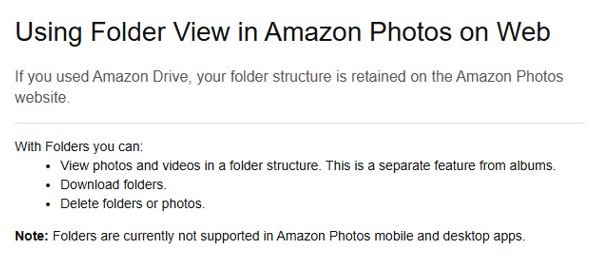
If you used Amazon Drive, your folder structure is kept on the Amazon Photos website. Folders are a separate feature from albums.
| Where you open Amazon Photos | Folders available? | What you can do with them |
|---|---|---|
| Website in a desktop browser | Yes | View photos and videos by folder, download folders, delete folders or single photos |
| Amazon Photos desktop app | No folder view | Use Download folder(s) to save Drive folders to your computer |
| Amazon Photos iOS and Android apps | No | Photos and videos only, without your Drive folder structure |
Deleting a folder on the website removes it for good after its 90 days in Trash, so check its contents before you delete it.
How to upload files to Amazon Photos from a computer
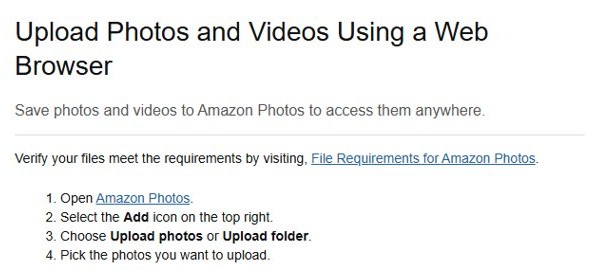
Uploading to the Amazon Drive website ended on February 1, 2023. New uploads from a computer go through the Amazon Photos website instead, including pictures you download from Google Photos to move them across.
- Sign in at amazon.com/photos.
- Select the Add icon at the top right.
- Choose Upload photos or Upload folder.
- Pick the photos, videos or folder you want to upload.
Amazon Photos accepts common formats such as JPEG, PNG, HEIC, WEBP, MP4, QuickTime and many RAW files. File and folder names must stay under 255 characters and cannot contain characters such as < > : " / \ | ? *.
Amazon Photos storage limits for Amazon Drive files
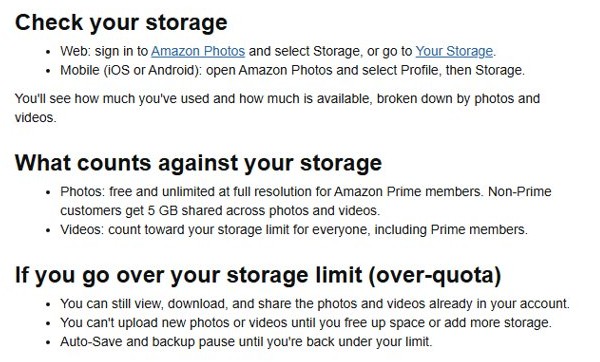
Your old Amazon Drive files count against your Amazon Photos storage. To check usage on the web, sign in to Amazon Photos and select Storage, or open the Your Storage page.
| Situation | Photos | Videos and other files |
|---|---|---|
| Any Amazon customer | Share the free 5 GB | Share the free 5 GB |
| Amazon Prime member | Unlimited at full resolution (select countries) | 5 GB, then a paid storage plan |
| Prime or a storage plan cancelled | Back to the shared 5 GB | Back to the shared 5 GB; remove items if you are over it |
| Over your limit | View, download and share still work | New uploads and Auto-Save pause until you free space |
Unlimited Prime photo storage applies in the United States, Canada, the United Kingdom, Germany, France, Italy, Spain and Japan. Videos count toward the limit for everyone, Prime members included.
How to recover deleted Amazon Drive files
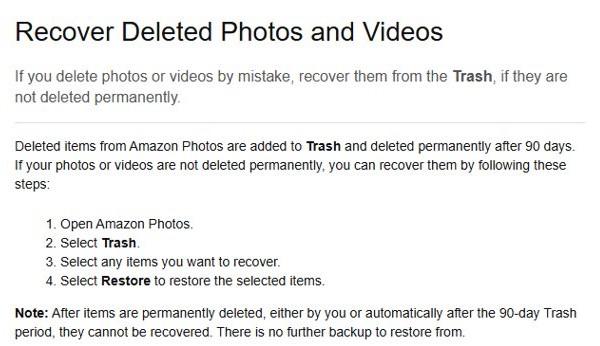
Items you delete in Amazon Photos sit in Trash for 90 days before they are removed permanently. Files deleted from Amazon Drive before December 31, 2023 are gone and cannot be brought back.
- Sign in at amazon.com/photos in a desktop browser.
- Select Trash.
- Select the items you want back.
- Select Restore to return them to your library.
After the 90-day Trash period, or after you empty Trash yourself, Amazon keeps no further backup to restore from.
Amazon Drive files missing or not downloading
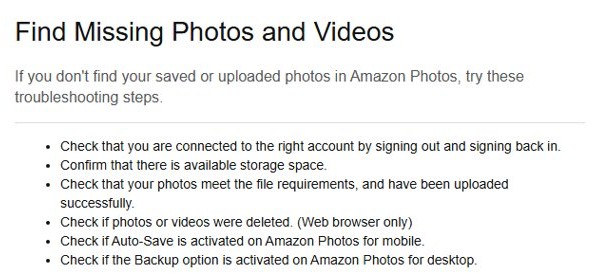
Amazon Drive files are not showing in Amazon Photos
You are usually signed in to another Amazon account, or the files were deleted.
- Sign out of Amazon Photos and sign back in with the account you used for Amazon Drive.
- Open Trash on the website and restore anything deleted in the last 90 days.
- Open the Your Storage page to confirm the account still has available storage and shows used space.
No Download option for Amazon Drive files
Downloading Drive files works only in desktop browsers, so phone browsers and the Silk browser on a Fire tablet do not offer it.
- Switch to a Windows PC or Mac and sign in at amazon.com/photos.
- Select the files again, then select Download on the top bar.
- For a whole album, open it and select the pictures inside, because albums cannot be downloaded as one item.
Large Amazon Drive download fails or stops
Browser downloads are capped at 1,000 files or 5 GB per batch.
- Split the selection into smaller batches under both limits.
- Make sure your computer has free disk space and a stable connection.
- For a full library, install the Amazon Photos desktop app and use Download folder(s) with the All folder.
Amazon Drive app not working on an old iPhone
Amazon Drive's iOS and Android apps lost access to files after December 31, 2023.
- Stop using the old Amazon Drive app; it can no longer reach your files.
- Open amazon.com/photos on a computer to see your folders and documents.
- Use the Amazon Photos iOS app if you only need photos and videos on the phone.
Uploads to Amazon Photos are stuck
Uploads pause when the account is over its storage limit, and files that break Amazon's file rules do not upload.
- Check Storage in Amazon Photos and free space or add a plan if you are over the limit.
- Rename files that use characters such as < > : " / \ | ? * or names over 255 characters.
- Confirm the file type is a supported photo or video format, then upload it again.
If files still will not download, contact Amazon customer support from the Amazon Photos help pages.
Amazon Drive access FAQ
How do I access Amazon Drive?
Go to amazon.com/photos in a desktop browser and sign in with your Amazon account. Amazon moved all Amazon Drive files to the Amazon Photos website, including your documents and your original folder structure, so the separate Amazon Drive site and apps are no longer needed.
How do I access Amazon Cloud Drive?
Amazon Cloud Drive files, like all Amazon Drive files, are reached through the Amazon Photos website. The old amazon.com/clouddrive address now redirects to Amazon Photos, where you sign in with the same Amazon account to view or download everything you stored.
Where is Amazon Drive?
Amazon Drive now lives inside the Amazon Photos website at amazon.com/photos. Amazon stopped Drive uploads on February 1, 2023 and cut off the Drive apps after December 31, 2023, and it directs every Drive customer to Amazon Photos to reach their files.
How do I sign in to Amazon Drive?
Sign in at amazon.com/photos with the email or phone number and password of your Amazon account. There is no separate Amazon Drive login; the account you shop with is the one that holds your Drive files, so use the account you originally stored them under.
Can I still download the Amazon Drive app?
No. Amazon removed the Amazon Drive app from the iOS and Android app stores on October 31, 2022, and the apps lost access to files after December 31, 2023. Use the Amazon Photos website, the Amazon Photos mobile app or the Amazon Photos desktop app instead.
How do I access Amazon Drive from an old iPhone?
The old Amazon Drive app on an iPhone can no longer open your files. Use the Amazon Photos iOS app for photos and videos, and use a computer browser at amazon.com/photos for folders and documents, because folders are not supported in the Amazon Photos mobile apps.
How do I access my Amazon Drive files?
Sign in at amazon.com/photos, then select the photos, videos, files or folders you want and choose Download. Documents such as PDFs come down through the blue Download banner at the top of the screen, and libraries over 5 GB are easier with the Amazon Photos desktop app.