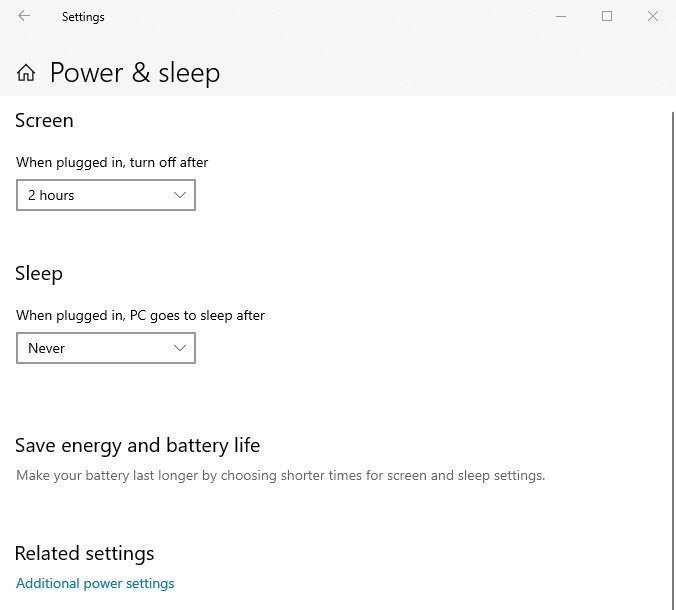
Windows 10 sleep settings live under Start > Settings > System > Power & sleep, where you pick how many idle minutes pass before the PC sleeps; the lid, power button, hybrid sleep and power plan controls sit behind Additional power settings on the same page.
Each tip below changes one of those settings, and the powercfg commands at the end show what woke the PC or what is keeping it awake.
Choose the idle duration after which your PC sleeps
This timer decides how long Windows 10 waits with no keyboard or mouse input before it sleeps. Laptops get separate times for battery and mains power; desktops show only the plugged-in setting.
- Select Start > Settings > System > Power & sleep.
- Under Sleep, open On battery power, PC goes to sleep after and pick a time.
- Open When plugged in, PC goes to sleep after and pick a time for mains power.
- Under Screen, set On battery power, turn off after to a shorter time, so the display goes dark before the PC sleeps.
- Leave the PC idle for the chosen time to see the new timer take effect.
From Command Prompt, powercfg /change standby-timeout-ac 30 sets the plugged-in sleep timer to 30 minutes, and standby-timeout-dc sets the battery one; the value is always in minutes. A screen saver on Windows 10 runs on its own timer, separate from sleep.
Put your laptop to sleep when you close the lid
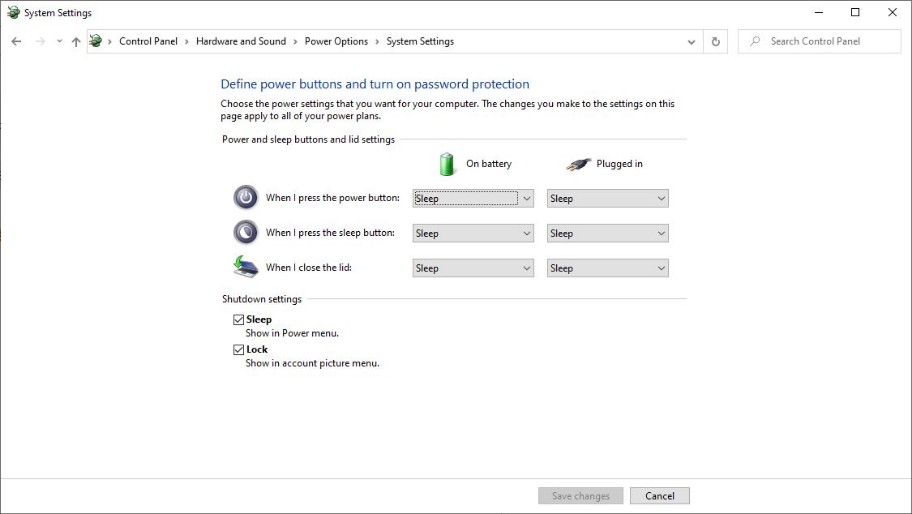
Closing the lid can sleep, hibernate, shut down or do nothing, and each power source gets its own choice.
- Select Start > Settings > System > Power & sleep > Additional power settings.
- Select Choose what closing the lid does.
- Next to When I close the lid, choose Sleep in the On battery column.
- Choose Sleep in the Plugged in column too, or Do nothing if you use the laptop closed with an external monitor.
- Select Save changes.
The same page sets When I press the power button, and on a keyboard with a Sleep key you can disable the keyboard Sleep button there too. Hibernate is missing from these lists until you turn it on: select Change settings that are currently unavailable, tick Hibernate under Shutdown settings, and select Save changes. PCs with InstantGo have no hibernate option at all.
Prevent your mouse from waking up your PC from sleep
On many PCs a mouse click or a nudge on the desk wakes the PC from sleep. Turn off wake for the mouse alone; the power button still wakes the PC on most models.
- Select Start, type device manager and select Device Manager.
- Expand Mice and other pointing devices.
- Right-click your mouse and select Properties.
- Open the Power Management tab.
- Clear Allow this device to wake the computer, then select OK.
- Put the PC to sleep and move the mouse to check it stays asleep.
No Power Management tab? In Command Prompt run as administrator, powercfg /devicequery wake_armed lists every device allowed to wake the PC, and powercfg /devicedisablewake "device name" turns one off using the exact name from that list.
A network adapter can wake the PC as well. On its Power Management tab, ticking Only allow a magic packet to wake the computer stops ordinary network traffic from waking it.
Disable hybrid sleep setting to prevent issues
Hybrid sleep saves a hibernation file every time the PC sleeps, so a power cut does not lose your open work. Microsoft designed it for desktops and leaves it off on laptops by default, and turning it on disables hibernate.
- Select Start > Settings > System > Power & sleep > Additional power settings.
- Next to the selected plan, select Change plan settings.
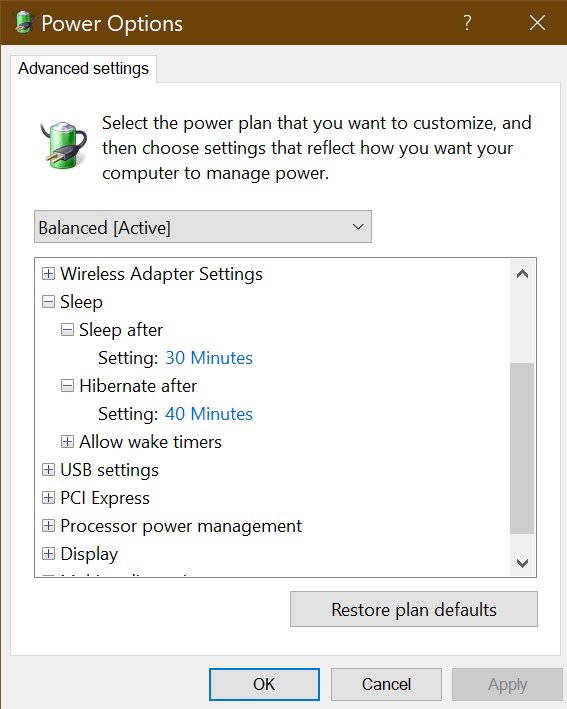
- Select Change advanced power settings.
- In the Power Options dialog, expand Sleep, then Allow hybrid sleep.
- Set it to Off for On battery and Plugged in (a desktop shows a single setting).
- Select OK.
Keep it on for a desktop in a home with frequent power cuts; turn it off when you want hibernate back. On modern standby PCs the advanced list is cut down to a few items, so Allow hybrid sleep does not appear.
Command equivalent: get the plan GUID with powercfg /getactivescheme, run powercfg /setacvalueindex <plan GUID> 238c9fa8-0aad-41ed-83f4-97be242c8f20 94ac6d29-73ce-41a6-809f-6363ba21b47e 0 (use /setdcvalueindex for battery), then powercfg /setactive <plan GUID>.
Change your power plan to apply different Windows 10 sleep settings
Each power plan keeps its own sleep, display and button settings, so switching plans swaps all of these power management settings in one click.
- Select Start > Settings > System > Power & sleep > Additional power settings.
- Select the plan you want in the Power Options list.
- Select Change plan settings next to it to see that plan's sleep times for On battery and Plugged in.
- Adjust the times if needed, then select Save changes.
- Return to the list later to switch back to your usual plan.
From Command Prompt, powercfg /list shows every plan and its GUID, and powercfg /setactive <GUID> switches to one. If the power slider under the taskbar battery icon will not move, a custom plan may be selected; switch back to Balanced.
Create a power plan with custom sleep settings
A copy of an existing plan lets you keep one set of sleep timers for normal use and another for, say, overnight downloads. powercfg builds it in a few commands.
- Select Start, type cmd, right-click Command Prompt and select Run as administrator.
- Run
powercfg /listand copy the GUID of the plan to start from. - Run
powercfg /duplicatescheme <GUID>; Windows displays the GUID of the new copy. - Run
powercfg /changename <new GUID> "Overnight downloads"to name it. - Run
powercfg /setactive <new GUID>to switch to the new plan. - Run
powercfg /change standby-timeout-ac 180andpowercfg /change standby-timeout-dc 20to set its sleep timers in minutes. - Open Power Options to check that the new plan is listed and selected.
powercfg /change always edits the active plan, which is why the new plan is switched on before its timers are set.

Sleep vs hibernate vs hybrid sleep in Windows 10
| Mode | What it does | Best for |
|---|---|---|
| Sleep | Uses very little power and resumes fastest, right where you left off; Windows saves your work and turns the PC off if the battery runs too low | Short breaks away from the PC |
| Hibernate | Uses less power than sleep and also resumes where you left off, but more slowly; not available on PCs with InstantGo | Laptops left unused and unplugged for a long time |
| Hybrid sleep | Sleeps normally but also writes a hibernation file, so the session survives a power cut; turning it on disables hibernate | Desktops, where it is designed to be used |
On a Windows 11 PC the same choices sit in a different Settings layout, where you adjust power and sleep settings under System > Power & battery.
What woke my PC from sleep in Windows 10
When the PC wakes on its own, ask Windows what caused the last wake before changing any setting.
powercfg /lastwakeReports what woke the system from the last sleep transition, such as a named device or a timer.
You should see: A wake source listing a device points to the mouse or network adapter fix above; a timer source points to wake timers.
Run powercfg /waketimers from an administrator Command Prompt to list active wake timers, which can wake the PC from sleep and hibernate. To block them, set Sleep > Allow wake timers in Change advanced power settings for each power source.
powercfg /devicequery wake_armed shows every device currently allowed to wake the PC.
Why won't my Windows 10 PC go to sleep?
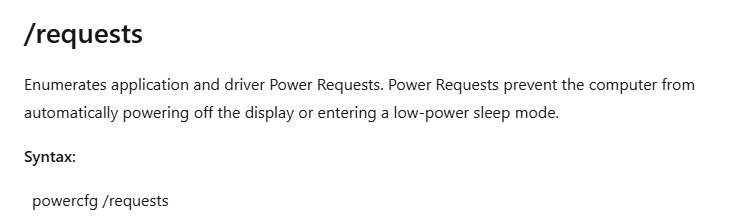
Apps and drivers can file power requests that stop Windows from turning off the display or sleeping. powercfg lists them.
powercfg /requestsLists the application and driver power requests that stop Windows from turning off the display or entering sleep.
You should see: Any program, service or driver the command names is holding the PC awake; if none is named, check the idle timer and wake sources instead.
Close the program named, or stop its playback or download, then let the PC idle again. powercfg /availablesleepstates reports which sleep states the PC supports and why any are unavailable.
Windows 10 sleep settings FAQ
How do I change how long before Windows 10 goes to sleep?
Open Start > Settings > System > Power & sleep and pick a time under On battery power, PC goes to sleep after, and under When plugged in, PC goes to sleep after. Each power plan keeps its own timers.
How do I make my laptop sleep when I close the lid?
In Power & sleep, select Additional power settings, then Choose what closing the lid does. Set When I close the lid to Sleep for On battery and Plugged in, and select Save changes. The same page also offers Hibernate, Shut down and Do nothing.
How do I stop my mouse from waking my computer?
Open Device Manager, expand Mice and other pointing devices, open your mouse's Properties and clear Allow this device to wake the computer on the Power Management tab. The powercfg /devicedisablewake command does the same for any device listed by powercfg /devicequery wake_armed.
What is hybrid sleep in Windows 10?
Hybrid sleep puts the PC to sleep and saves a hibernation file at the same time. If power is lost while the PC sleeps, Windows restores your session from that file. Microsoft designed it for desktop computers, and it is off by default on laptops.
Should I turn off hybrid sleep?
Turn it off if you want hibernate, because enabling hybrid sleep disables the hibernate option. Leave it on for a desktop that suffers power cuts, since it protects the open session. Laptops have it off by default.
Is it better to sleep or hibernate a Windows 10 PC?
Sleep suits short breaks because it resumes fastest. Hibernate uses less power and suits a laptop left unplugged for a long time, but it resumes more slowly. PCs with InstantGo do not offer hibernate at all.
How do I see what woke my computer from sleep?
Open Command Prompt and run powercfg /lastwake, which reports what woke the system from the last sleep. For scheduled wakes, run powercfg /waketimers from an administrator Command Prompt to list the active wake timers.
Why can't I find hibernate in the Windows 10 power menu?
Hibernate is hidden until you turn it on. Open Additional power settings, select Choose what the power button does, then Change settings that are currently unavailable, tick Hibernate under Shutdown settings and select Save changes. Some PCs, such as those with InstantGo, do not support it.
Customize your Windows 10 PC’s sleep patterns to your liking
Set the idle timer and lid action first, then stop the mouse from waking the PC; switch power plans or build a custom one only when you need different timers for different jobs. The timer and lid settings decide almost every sleep event, while stray wakes come from devices and timers that powercfg /lastwake names directly. Separate plans let you swap a whole set of sleep rules in one step instead of editing them each time.