Press F7 in Microsoft Edge or Google Chrome to turn caret browsing on or off in Windows 11 and Windows 10.
This guide shows the F7 toggle, the Edge setting that keeps caret browsing off permanently, why it switches on by accident, and how to fix a cursor that will not go away.
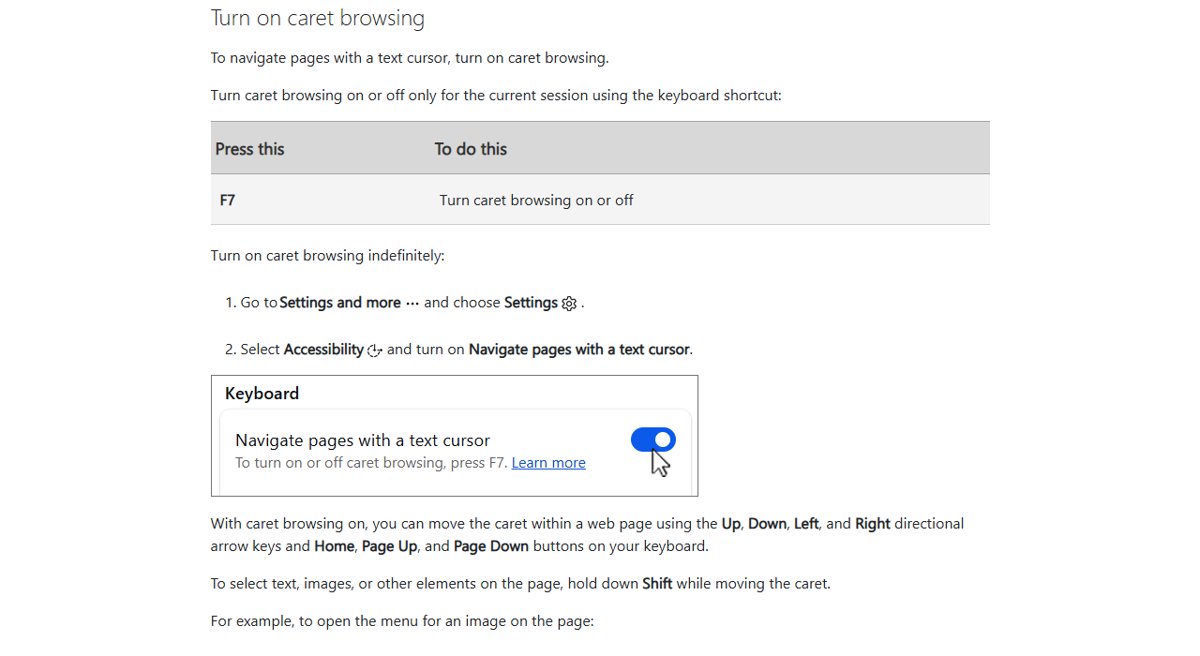
How to turn caret browsing on or off using the keyboard (F7 method in Windows 10 & 11)
Caret browsing is a browser feature, not a Windows-wide switch, so the key works inside the browser window you have open.
In Microsoft Edge, F7 turns caret browsing on or off for the current session only.
- Click anywhere on the web page so the browser window has focus.
- Press F7 once.
- If the browser asks you to confirm, choose the option that turns caret browsing on or off, depending on what you want.
- Look at the page: a blinking text cursor means caret browsing is on, and no cursor means it is off.
- On a laptop where F7 changes brightness or volume instead, hold Fn and press F7.
Pressing F7 a second time reverses the change. To stop Edge from starting with caret browsing on, change the setting in the next section.
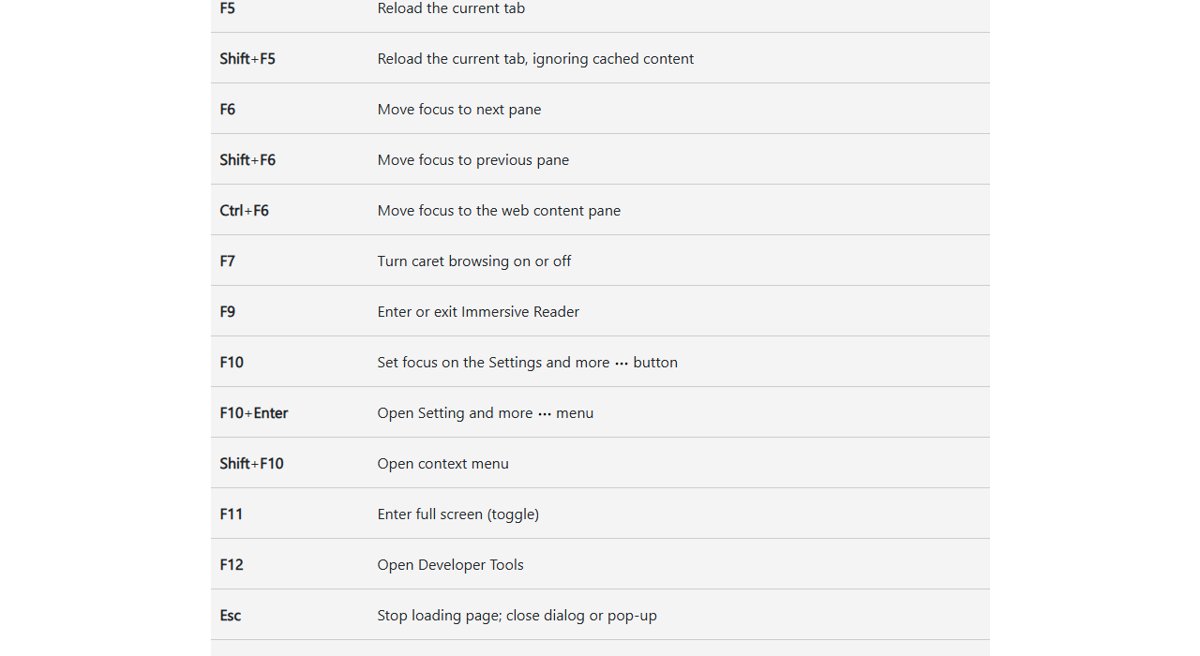
Turn off caret browsing permanently in Microsoft Edge
Edge keeps a separate setting that turns caret browsing in Edge on indefinitely. If the blinking cursor comes back every time you open Edge, this setting is on.
The steps are the same in Edge on Windows 11 and Windows 10.
- Open Microsoft Edge.
- Select Settings and more (the three dots at the top right).
- Choose Settings.
- Select Accessibility in the left pane.
- Turn off Navigate pages with a text cursor to disable caret browsing permanently.
- Turn the same switch on instead if you want caret browsing every time Edge opens.
With the switch off, F7 still turns caret browsing on for one session. Close and reopen Edge, and it starts with caret browsing off again.
Managing caret browsing in popular browsers and apps (Edge, Chrome, Firefox, Word, and others)
Each browser stores its own caret browsing state. Turning it off in Edge does not change Chrome or Firefox, and the reverse is also true.
| App | How to turn caret browsing off | What to know |
|---|---|---|
| Microsoft Edge | Press F7, or turn off Navigate pages with a text cursor under Settings > Accessibility | F7 is per session; the Accessibility switch is permanent |
| Google Chrome | Press F7 in the Chrome window | Chrome has native caret browsing, and Google also offers a Caret Browsing extension; if one is installed, remove it from Chrome's extensions page |
| Chrome on a Chromebook | Press Ctrl + Search + 7, or Search + Brightness up for the extension | Chromebooks have no standard F7 key |
| Mozilla Firefox | Use Firefox's own setting, not the Edge or Chrome one | Its state is stored separately from Chromium-based browsers |
| Microsoft Word | Nothing to turn off | F7 in Word for Windows opens the Editor pane to check spelling and grammar; the blinking cursor in a document is normal editing |
| Other Windows apps | Nothing to turn off | Caret browsing exists only in browsers; text boxes and editors always show a cursor |
Accessibility tips: Combining caret browsing with other Windows keyboard and accessibility features
Caret browsing works best alongside the Windows keyboard, cursor size and color and text cursor settings below.
| Feature | Windows 11 path | Windows 10 path | Why pair it with caret browsing |
|---|---|---|---|
| Text cursor indicator | Settings > Accessibility > Text cursor > Text cursor indicator | Settings > Ease of Access > Text cursor > Turn on text cursor indicator | Adds a coloured marker so the caret is easy to find on a busy page |
| Text cursor thickness | Settings > Accessibility > Text cursor > Text cursor thickness | Settings > Ease of Access > Text cursor > Change text cursor thickness | A thicker caret is easier to track while moving with the arrow keys |
| Sticky keys | Settings > Accessibility > Keyboard > Sticky keys | Settings > Ease of Access > Keyboard > Sticky Keys | Lets you press Shift and an arrow key one at a time to select text |
| Filter keys | Settings > Accessibility > Keyboard > Filter keys | Settings > Ease of Access > Keyboard > Filter Keys | Ignores brief or repeated keystrokes, which cuts accidental F7 presses |
| On-screen keyboard | Settings > Accessibility > Keyboard > On-screen keyboard, or Windows logo key + Ctrl + O | Settings > Ease of Access > Keyboard > Use the On-Screen Keyboard, or Windows logo key + Ctrl + O | Gives you F7 and the arrow keys when a physical key is missing or broken |
Inside Edge, the same Accessibility page also holds options such as a high visibility focus indicator and text size.
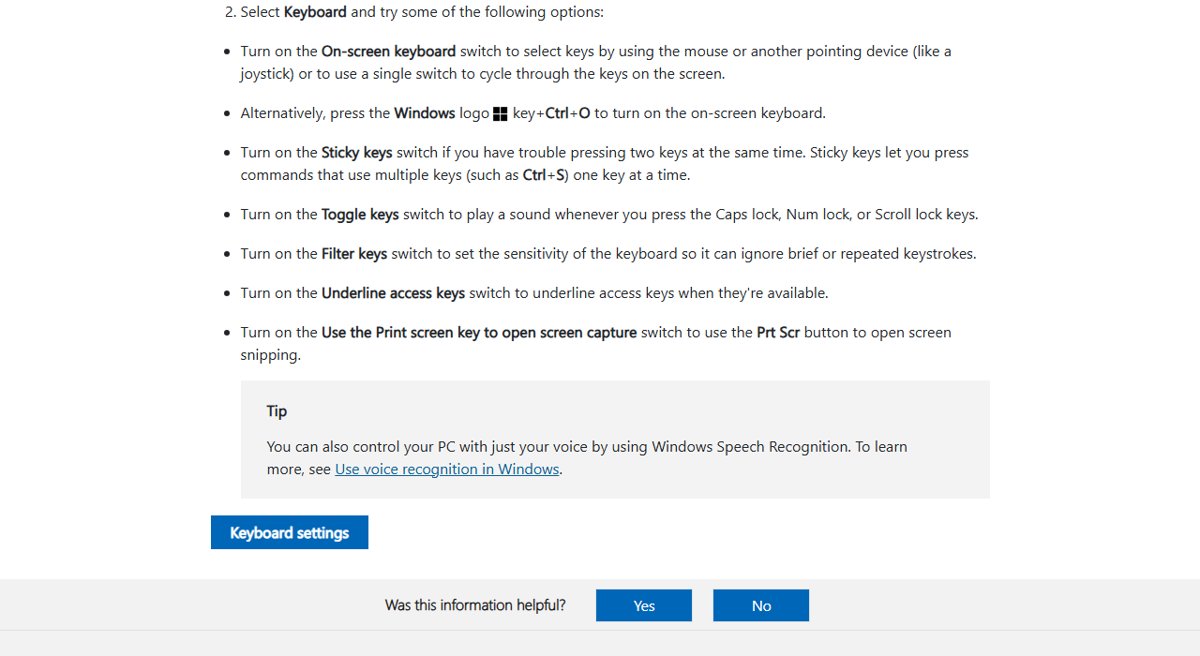
Is caret browsing on? Signs to look for in Edge and Chrome
- Click on plain text in the middle of a web page.
- Look for a blinking vertical line where you clicked; that line is the caret.
- Press the Down arrow key. If the caret moves to the next line instead of the page scrolling, caret browsing is on.
- Hold Shift and press the Right arrow key. Text that highlights letter by letter confirms caret browsing is on.
- In Edge, open Settings > Accessibility and confirm Navigate pages with a text cursor shows off if you want it off permanently.
What is caret browsing and what does turning it off mean?
The caret is the blinking text cursor. Caret browsing puts that cursor on a web page so you can move through it with the keyboard instead of a mouse or touchpad.
| With caret browsing on | With caret browsing off |
|---|---|
| A blinking cursor appears in page text | No cursor on the page unless you click in a text box |
| Up, Down, Left and Right arrow keys move the cursor | Arrow keys scroll the page |
| Shift + arrow key selects text, images or other elements | Text is selected by dragging with the mouse |
| Ctrl + arrow key moves word by word in Chrome | Ctrl + arrow key has no page effect |
| Shift + F10 opens the menu for a selected image in Edge | Right-click opens the menu |
Turning caret browsing off changes nothing else. Pages, extensions and saved data are not affected.
Why caret browsing suddenly turns on: Common triggers and keyboard shortcuts explained
| Trigger | What happens | What to do |
|---|---|---|
| Pressing F7 by mistake | F7 is the caret browsing shortcut in Edge and Chrome, so one stray press turns it on | Press F7 again |
| Confirming the F7 prompt without reading it | Accepting the confirmation turns caret browsing on for the session | Press F7 again and choose to turn it off |
| Edge setting left on | Navigate pages with a text cursor starts every Edge session with caret browsing on | Turn the switch off under Settings > Accessibility |
| Pressing F7 in Word, then switching to the browser | F7 opens Editor in Word but toggles caret browsing if the browser has focus | Check which window is active before pressing F7 |
| Laptop function key layout | Keyboards with Fn lock on, or an F7 in an easy-to-hit spot, send F7 more often | Use Filter keys or change the Fn lock on the keyboard |
| Chromebook shortcut | Ctrl + Search + 7 turns caret browsing on | Press the same keys again |
Who should use caret browsing? Accessibility benefits vs. everyday use cases
| Reader | Keep caret browsing? | Reason |
|---|---|---|
| Keyboard-only users, or anyone who cannot use a mouse | Yes | Arrow keys reach and select any text on a page |
| Screen reader and assistive technology users | Often yes | A visible caret marks the reading position on the page |
| Low vision users | Yes, with the text cursor indicator on | A thick, coloured caret shows exactly where you are |
| Writers, editors and researchers who copy quotes | Yes | Shift + arrow keys select exact passages without overshooting |
| Everyday browsing with a mouse or touchpad | No | Arrow keys stop scrolling the page, which feels broken |
| Gamers and users of web apps with arrow-key controls | No | The caret can capture arrow keys the page needs |
Caret browsing vs. mouse navigation: Key differences and when each is better
| Task | Caret browsing | Mouse navigation | Better choice |
|---|---|---|---|
| Selecting part of a sentence | Shift + arrow keys, character by character | Drag and hope you stop on the right letter | Caret browsing |
| Scrolling a long article | Cursor moves line by line | Scroll wheel or touchpad moves the page fast | Mouse |
| Opening links | Move the caret, then use Tab to reach the link | One click | Mouse |
| Working without a pointing device | Fully usable | Not possible | Caret browsing |
| Copying a table cell or code snippet | Exact selection with the keyboard | Easy to grab extra characters | Caret browsing |
Stopping the caret cursor from reappearing: Preventing accidental activation
Edge and Chrome offer no setting that removes the F7 shortcut itself. These steps stop caret browsing from coming back on its own and make accidental presses less likely.
- In Edge, open Settings and more > Settings > Accessibility and turn off Navigate pages with a text cursor.
- In Chrome, remove the Caret Browsing extension if it is installed, so the toolbar button cannot turn it on.
- If you press F7 by accident while typing fast, turn on Filter keys under Settings > Accessibility > Keyboard (Windows 11) or Settings > Ease of Access > Keyboard (Windows 10).
- When a confirmation prompt appears after F7, read it and choose the option that leaves caret browsing off.
- Close and reopen the browser to confirm it starts without the blinking cursor.
Troubleshooting caret browsing issues (cursor stuck, highlight problems, or unexpected behavior)
Caret browsing won't turn off
The Edge setting is on, so every new session starts with caret browsing.
- Open Edge Settings > Accessibility.
- Turn off Navigate pages with a text cursor.
- Close every Edge window and open Edge again.
F7 does nothing when you try to turn off caret browsing
The key sends a media or brightness command, or another app has focus.
- Click inside the web page so the browser window is active.
- Hold Fn and press F7.
- If F7 still does nothing, turn the setting off in Edge Settings > Accessibility instead.
Blinking cursor stuck on the page after turning caret browsing off
The page or tab still has keyboard focus in a text field.
- Click an empty area of the page outside any text box.
- Press F5 to reload the tab.
- Open a new tab and confirm the cursor no longer appears on plain text.
Text highlights when you press the arrow keys
Shift is held or stuck, often because Sticky keys is on.
- Press and release Shift once.
- Open Settings > Accessibility > Keyboard in Windows 11, or Settings > Ease of Access > Keyboard in Windows 10.
- Turn off Sticky keys if you do not use it.
Caret browsing turned on in Chrome but not in Edge
Each browser keeps its own state.
- Click inside the Chrome page.
- Press F7 to turn caret browsing off in Chrome.
- Remove the Caret Browsing extension if it shows to the right of the address bar.
Turn off caret browsing FAQ
How do I turn off caret browsing?
Press F7 in Edge or Chrome to turn caret browsing off for the current session. In Edge, also go to Settings > Accessibility and turn off Navigate pages with a text cursor so it stays off after you restart the browser.
How do I turn off caret browsing permanently?
In Microsoft Edge, open Settings and more > Settings > Accessibility and turn off Navigate pages with a text cursor. Edge then starts every session with caret browsing off, although F7 can still turn it on for one session.
What does turn off caret browsing mean?
It means removing the blinking text cursor from web pages. With caret browsing off, arrow keys scroll the page again and you select text with the mouse. Nothing else in the browser changes.
How do I remove caret browsing from Chrome?
Click inside the page and press F7 to turn caret browsing off in Chrome. If Google's Caret Browsing extension is installed, remove it from the extensions page so its toolbar button cannot switch the feature back on.
How do I stop caret browsing from turning on by itself?
Caret browsing turns on when F7 is pressed or when Edge's Navigate pages with a text cursor setting is on. Turn that setting off, and use Filter keys in Windows if you hit F7 by accident while typing.
How do I shut off caret browsing on a laptop where F7 changes the brightness?
Hold Fn and press F7 so the browser receives the real F7 key. If that does not work, turn caret browsing off from Edge Settings > Accessibility, which needs no function key.
Is caret browsing a Windows setting or a browser setting?
It is a browser setting. Edge, Chrome and other browsers each store their own state, so turning caret browsing off in one browser leaves the others unchanged. Windows itself only controls how the text cursor looks.
What does turning on caret browsing mean?
Turning on caret browsing places a movable text cursor on web pages. You move it with the arrow keys and select text, images or other elements by holding Shift, which helps people who browse with a keyboard.