In iOS 26, Apple Maps' Alerts Only audio option speaks only driving alerts, so it gives no cue for each turn; switch the Audio Control button to the option that speaks all directions to hear turns again.
This guide covers how to change the audio option and default voice volume on iPhone, how to get silent turn cues from an Apple Watch, and what to check when Maps stays quiet.
Turn on spoken turn-by-turn directions in Apple Maps
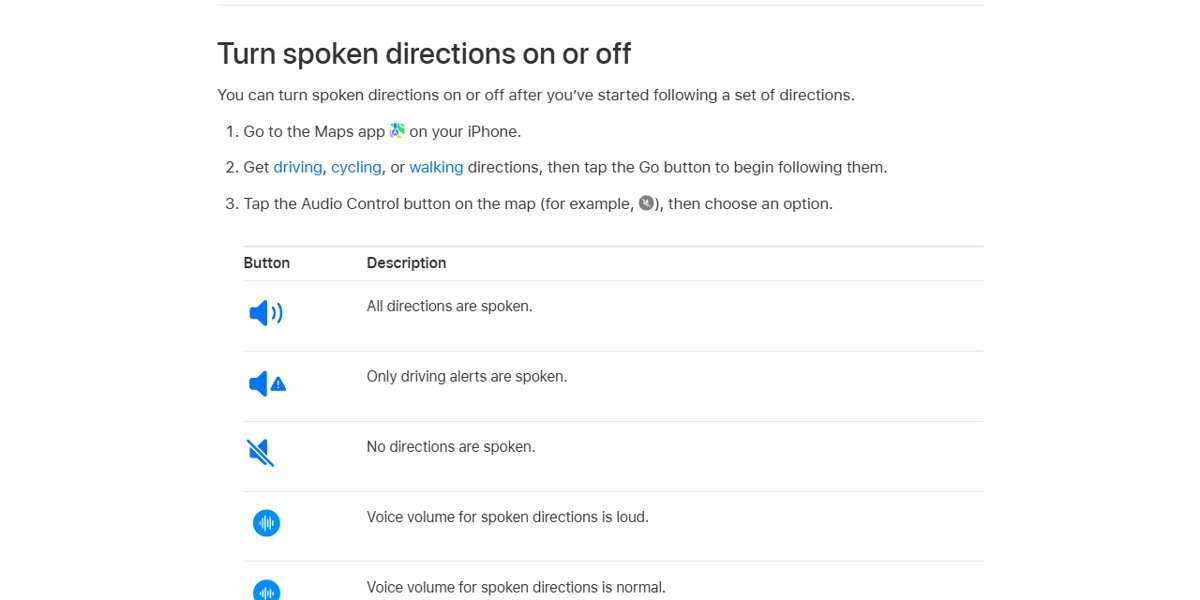
Apple's iPhone User Guide for iOS 26 describes three audio choices during navigation: all directions spoken, only driving alerts spoken, and no directions spoken.
- Open the Maps app on your iPhone.
- Get driving, cycling or walking directions, then tap Go.
- Tap the Audio Control button on the map.
- Choose the option that speaks all directions instead of Alerts Only.
- Pick a voice volume (loud, normal or soft) from the same menu.
Apple Maps audio options compared
| Audio option | What you hear | Use it when |
|---|---|---|
| All directions spoken | Every turn and step, spoken aloud | You need a cue before each turn or exit |
| Alerts Only | Only driving alerts | You want quiet navigation and watch the screen for turns |
| No directions spoken | Nothing | You follow the map visually |
| Apple Watch with Maps | Tones and taps on your wrist for each turn | You want turn cues without a voice |
Apple does not document a turn chime for Alerts Only in the current iPhone User Guide, so a quiet turn in that mode matches the documented behavior and is something to report to Apple Support if you want it changed.
Change the default voice volume for Apple Maps directions
The Audio Control button changes the current trip. The Settings app sets the volume Maps uses every time.
- Open the Settings app on your iPhone.
- Tap Apps, then tap Maps.
- Tap Spoken Directions.
- Choose an option below Voice Volume.
- Start a route and press the volume buttons while a direction is spoken to fine-tune the level.
Get turn alerts on Apple Watch instead of chimes
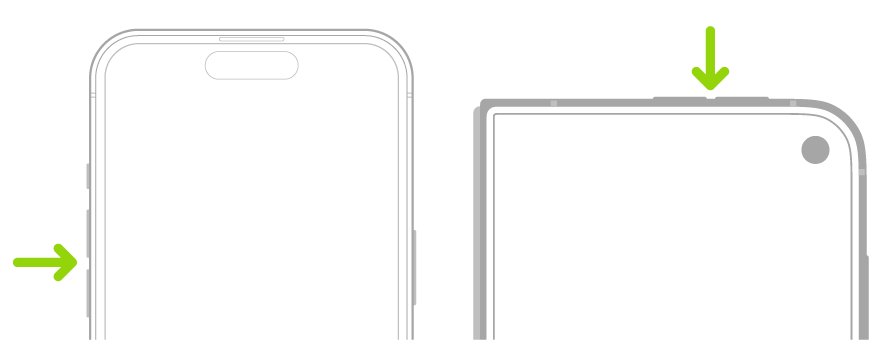
Apple Watch plays tones and taps your wrist before each turn on driving, cycling and walking routes. A low tone followed by a high tone means turn right; a high tone followed by a low tone means turn left.
- On Apple Watch, open Settings, tap Privacy & Security, tap Location Services and turn it on.
- Open the Maps app on your Apple Watch.
- Search for a destination, or choose one from Favorites, Recents, Find Nearby or Guides.
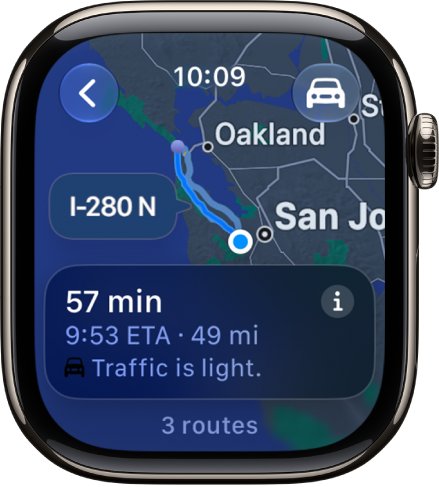
- Tap the button at the top right and choose driving, walking or cycling.
- Choose a route or tap Go.
- Turn off Silent Mode on the watch if you want the tones as well as the taps.
You also feel a vibration when you reach the last leg and again when you arrive.
Hear Apple Maps directions with podcasts or the car radio
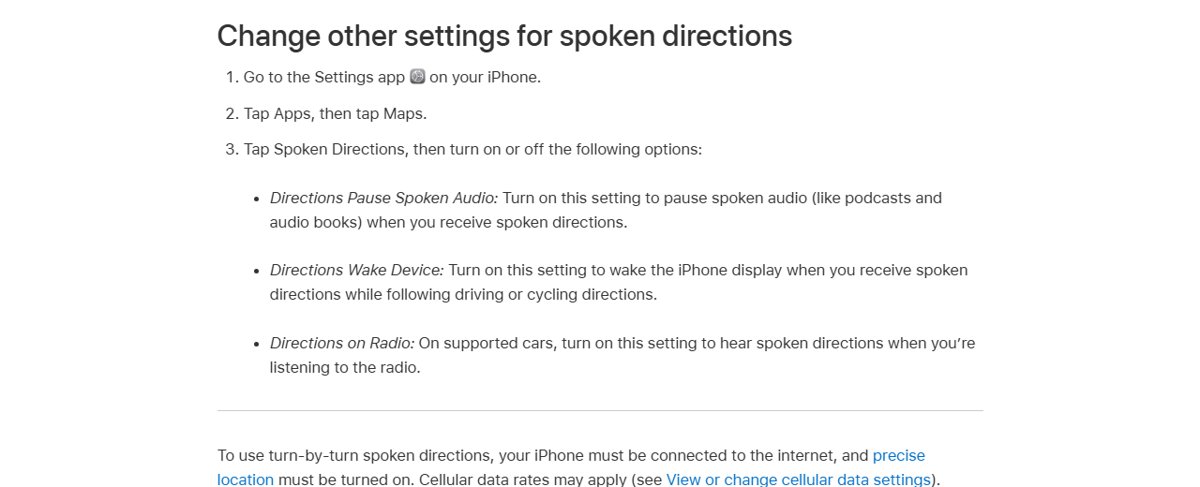
Three Spoken Directions switches control how directions mix with your other audio.
- Go to Settings > Apps > Maps > Spoken Directions.
- Turn on Directions Pause Spoken Audio to pause podcasts and audiobooks while each step is spoken.
- Turn on Directions on Radio to hear directions over the car speakers while the radio plays (supported cars only).
- Turn on Directions Wake Device to light the display when a direction is spoken.
Check that Apple Maps spoken directions work
- Start a short driving route from My Location and tap Go.
- Confirm the Audio Control button shows the all-directions option.
- Listen for the first spoken step as the route begins.
- Press the volume up button while a step is spoken if the voice is too quiet.
Apple Maps navigation voice not working: causes and fixes
Maps shows a Steps button instead of Go and speaks nothing
The route starts somewhere other than My Location, and Maps speaks no directions for those routes.
- Change the start point to My Location.
- Tap Go and check the Audio Control button.
No spoken directions on any setting
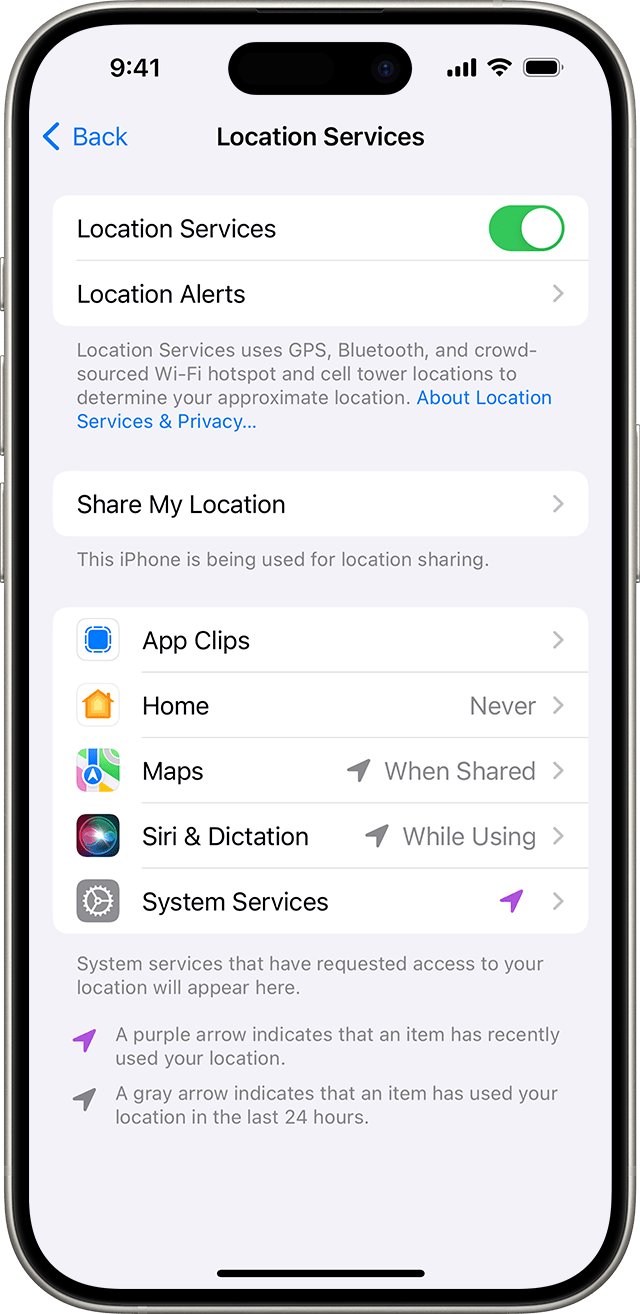
Turn-by-turn spoken directions need an internet connection and Precise Location.
- Check that the iPhone has a cellular or Wi-Fi connection.
- Go to Settings > Privacy & Security > Location Services.
- Tap Maps and turn on Precise Location.
- Check that spoken directions are offered in your country or region on Apple's iOS Feature Availability page.
Directions are too quiet to hear
The voice volume is set to soft, or the volume buttons were lowered while no direction was playing.
- Go to Settings > Apps > Maps > Spoken Directions and choose a louder Voice Volume.
- Press the volume up button while a direction is being spoken.
- Check Settings > Sounds & Haptics > Volume Limit in case the speaker volume is capped.
Directions are drowned out by music or a podcast
Spoken word media keeps playing over the directions.
- Turn on Directions Pause Spoken Audio in Spoken Directions settings.
- Turn on Directions on Radio if your car supports it.
Apple Watch gives taps but no tones
Sounds don't play when Apple Watch is in Silent Mode.
- Turn off Silent Mode on Apple Watch.
- Start the route again from the Maps app on the watch.
Apple Maps alerts only mode FAQ
What does Alerts Only mean in Apple Maps?
Alerts Only means Apple Maps speaks only driving alerts during navigation. In iOS 26 it does not speak each turn, so pick the option that speaks all directions from the Audio Control button if you need turn cues.
Why are my Apple Maps alerts not working?
Spoken directions and alerts need an internet connection, Precise Location turned on for Maps, and a route that starts at My Location. Routes from any other start point show Steps instead of Go and speak nothing.
Why is the navigation voice not working in Apple Maps?
The Audio Control button may be set to no directions or Alerts Only, or the voice volume may be set to soft. Change the option on the map, then raise the default in Settings > Apps > Maps > Spoken Directions.
How do I make Apple Maps directions louder?
Press the volume up button while a direction is spoken, or choose the loud option from the Audio Control button. To change the default, go to Settings > Apps > Maps > Spoken Directions and pick a Voice Volume.
Can Apple Watch alert me to turns without sound?
Yes. When you navigate in Maps on Apple Watch, the watch taps your wrist before each turn. With Silent Mode off it also plays a low-high tone for right turns and a high-low tone for left turns.
Can Apple Maps pause my podcast for directions?
Yes. Turn on Directions Pause Spoken Audio in Settings > Apps > Maps > Spoken Directions. Podcasts and audiobooks then pause automatically while each step of the route is spoken.
How do I change the Apple Maps navigation voice?
Apple Maps uses your Siri voice and language. Go to Settings, tap Siri (or Apple Intelligence & Siri), then tap Voice to choose another voice or Language to change the language.
Can I hear Apple Maps directions over my car radio?
Yes, in supported cars. Turn on Directions on Radio in Settings > Apps > Maps > Spoken Directions, and spoken directions play over the car speakers while you listen to the radio.