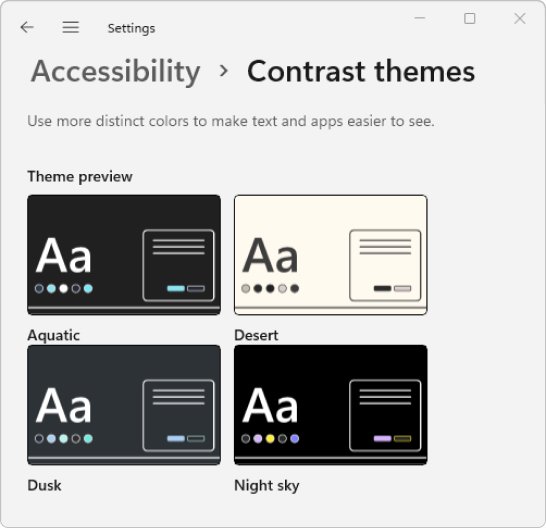
To change the desktop font color in Windows 11, open Settings > Accessibility > Contrast themes, pick a theme, select Edit, and set the Text color.
Windows has no separate color setting for desktop icon labels, so this guide also covers the background, icon size and third-party routes, plus how to undo every change.
Change the font color on Windows desktop
A contrast theme is the only built-in Windows setting that lets you choose a text color. It recolors text across Windows, not only on the desktop.
- Open Start > Settings > Accessibility > Contrast themes.
- Pick a theme from the Contrast themes drop-down.
- Select Edit under the drop-down.
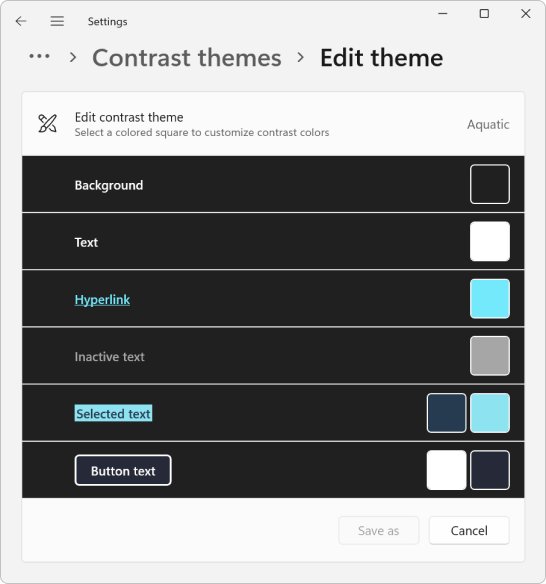
- Select Text, choose a color on the palette, adjust brightness with the slider, and select Done.
- Select Save as, type a name, and select Save and apply.
- Wait for the Please wait message to clear while Windows applies the colors.
Method 1: Changing the icon font color by adjusting desktop background
This method leaves the label color alone and changes what sits behind it. A plain background behind the icons makes the existing label text stand out without touching system colors.
- Right-click an empty area of the desktop and select Personalize.
- Select Background.
- Under Personalize your background, choose Solid color.
- Pick a color that contrasts with the label text.
- To keep a photo instead, choose Picture and select one with a plain area where your icons sit, then pick Fill or Fit.
Method 2: Using Windows 11 contrast themes for greater control
Contrast themes let you set six colors: Background, Text, Hyperlinks, Inactive Text, Selected Text and Button Text. Windows 10 calls the feature High contrast.
- Windows 11: Open Settings > Accessibility > Contrast themes, choose a theme, and select Apply.
- Windows 11: Select Edit, click Background and Text in turn, pick colors, and select Done after each one.
- Windows 11: Select Save as, name the theme, and select Save and apply.
- Windows 10: Open Settings > Ease of Access > High contrast and turn on Turn on high contrast.
- Windows 10: Pick a theme in Choose a theme, click the colored rectangle next to Text, choose a color, and select Done.
- Windows 10: Select Apply to save the change.
- Press Left Alt + Left Shift + Print Screen to switch the contrast theme on or off at any time.
Method 3: Using third-party applications like Iconoid, Classic Color Panel, or Desktop Icon Toy
Iconoid, Classic Color Panel and Desktop Icon Toy are third-party utilities, not Microsoft tools. Microsoft does not document or support them, so check each one's current Windows 11 compatibility on its developer's site.
- Save your current look first: open Settings > Personalization > Themes and select Save to store the active theme.
- Download the tool only from its developer's own website, never from a download portal.
- Read the developer's notes for your Windows version before you install.
- Change one setting at a time and check the desktop after each change.
- If labels or colors look wrong, close the tool, uninstall it from Settings > Apps, and reapply your saved theme.
A comparison table of methods
| Your goal | Use this | Trade-off |
|---|---|---|
| A different text color, using only Windows | Method 2: custom contrast theme | Changes text and background colors across all of Windows |
| Labels that are hard to read on your wallpaper | Method 1: solid or plainer background | The label color itself stays the same |
| Bigger, easier-to-read icons | View > Large icons, or Ctrl + mouse wheel | Icons take more desktop space |
| Color only the desktop labels | Method 3: third-party tool | Unsupported by Microsoft; may stop working after updates |
Why font color matters for accessibility and personalization
| Need | What helps | Windows setting |
|---|---|---|
| Low vision or light sensitivity | Strong contrast between text and background | Contrast themes |
| Telling apart colors | A screen palette tuned for color vision | Color filters |
| Busy wallpaper behind icons | A plain area behind labels | Personalization > Background |
| Matching the desktop to your style | Background, accent color and mode together | Personalization > Themes and Colors |
The same personalization habit applies elsewhere: you can also change the cursor size and color so the pointer stays visible against your new colors.
The persistent limitation: Windows 11’s lack of native full color customization
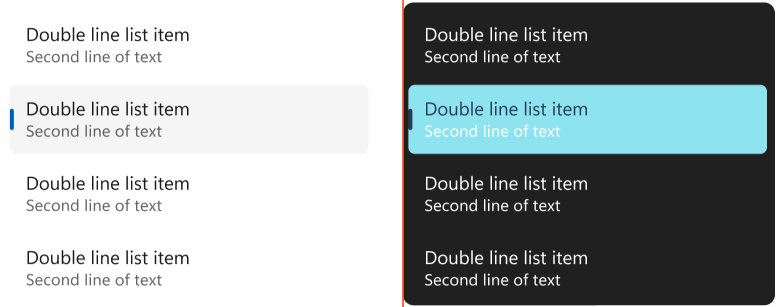
Windows 11's design keeps personalization to a small set of controls. That is the design stalemate: you can change mode, accent and background, but not individual interface elements.
| Element | Can you change it in Settings? | Where |
|---|---|---|
| Desktop background | Yes | Personalization > Background |
| Light, dark or custom mode | Yes | Personalization > Colors > Choose your mode |
| Accent color | Yes | Personalization > Colors |
| Desktop icon size | Yes | Right-click desktop > View |
| System text color | Only with a contrast theme | Accessibility > Contrast themes |
| Desktop icon label color alone | No | No Settings option |
Accent color on Start and the taskbar needs dark or custom mode. You can still change the taskbar color to match your desktop.
Practical tips for safe desktop customization on Windows 11
| Tip | Why |
|---|---|
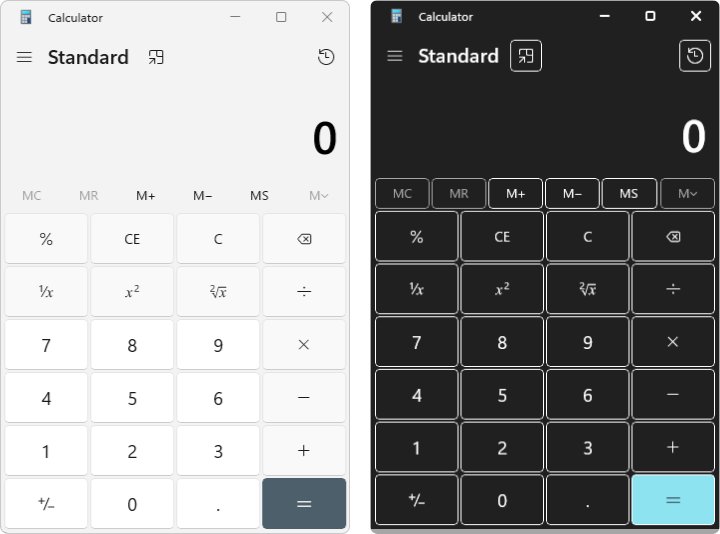
| Save your theme before changing anything | Personalization > Themes > Save lets you reapply the old look in one click |
| Save custom contrast themes with Save as | An unsaved edit is lost when you switch themes |
| Learn Left Alt + Left Shift + Print Screen | It turns a contrast theme off if the colors make the screen hard to use |
| Avoid undocumented registry edits | Microsoft documents no registry value for desktop label color |
| Get tools from their developer's site | Download portals can bundle unwanted software |
Alternatives for readability: Icon size and text shadows
If the color is fine but the labels are hard to read, make the icons bigger. Bigger icons also give each label more space.
- Right-click an empty area of the desktop and select View.
- Choose Large icons, Medium icons or Small icons.
- For finer steps, hold Ctrl and scroll the mouse wheel over the desktop.
- To review visual effects such as text shadows, select Start, type Adjust the appearance and performance of Windows, and open the Visual Effects tab.
- Select OK to keep your changes.
Is there a registry hack to change desktop icon text color in Windows 11?
No. Microsoft documents no registry value that sets the desktop icon label color in Windows 11 or Windows 10. Registry tweaks shared online are unsupported, and a wrong edit can break settings. A custom contrast theme does the same job through Settings and can be switched off with a shortcut.
Can I return my desktop icons’ appearance to default without risking my system?
Yes. Every change in this guide is a Settings change, so you can reverse it without editing system files.
- Windows 11: Open Settings > Accessibility > Contrast themes, choose None, and select Apply.
- Windows 10: Open Settings > Ease of Access > High contrast and turn off Turn on high contrast.
- Open Settings > Personalization > Themes and select a default Windows theme or your saved theme.
- Right-click the desktop, select View, and choose Medium icons.
- Uninstall any third-party desktop tool from Settings > Apps.
Why did my desktop icon font color stop changing after a Windows Update?
Desktop icon font color stopped changing after a Windows update
A third-party tool stopped working with the new build, or the contrast theme was switched off.
- Open Settings > Accessibility > Contrast themes and check that your custom theme is selected.
- Select your saved theme and select Apply again.
- Check the third-party tool's site for a version that supports your Windows build.
Why did the font change on my desktop?
A contrast theme was turned on, often by pressing Left Alt + Left Shift + Print Screen by accident.
- Press Left Alt + Left Shift + Print Screen to turn the contrast theme off.
- If the colors stay, open Contrast themes and choose None.
- Reapply your usual theme from Personalization > Themes.
Colors changed everywhere, not just on the desktop
Contrast themes apply system-wide text and background colors.
- Select Edit on your contrast theme.
- Set Background and Text to colors you can live with in every app.
- Select Save as, then Save and apply, or switch back to None.
Desktop font color: Frequently asked questions and troubleshooting
How do I change the font color on desktop icons?
Windows has no setting for icon labels alone. Apply a contrast theme in Settings > Accessibility > Contrast themes, select Edit, and change the Text color, or use a plain background so the labels stand out.
How do I change the desktop font color in Windows 10?
Open Settings > Ease of Access > High contrast, turn on high contrast, pick a theme, click the Text color rectangle, choose a color, select Done, and then Apply.
How do I change the desktop font size?
Right-click the desktop, select View, and choose Large icons, or hold Ctrl and scroll the mouse wheel. Larger icons are easier to read and give their labels more space.
How do I change the desktop font in Windows 11?
Windows 11 Settings has no option to pick a different font style for desktop icon labels. The Fonts page under Personalization installs and manages fonts, but does not assign one to the desktop.
How do I change the color of my desktop in Windows 11?
Right-click the desktop, select Personalize, then Background, and choose Solid color. Pick a color, or choose Picture, Slideshow or Windows spotlight instead.
Why has the font changed on my computer?
A contrast theme is the usual cause. Press Left Alt + Left Shift + Print Screen, or set Contrast themes to None in Settings > Accessibility, to restore the normal colors.
Does dark mode change the desktop font color?
No. Choose your mode in Settings > Personalization > Colors switches apps, Start and the taskbar between light and dark. It does not change the desktop icon label color.
Can I change the font color on a desktop file name only?
Not with Windows settings. Text colors apply system-wide through contrast themes, so coloring a single file or folder label needs a third-party tool.
Outlook: The future of desktop icon customization
Use a saved custom contrast theme for a different desktop text color, and a plainer background or larger icons if you only need readable labels. Windows 11 Settings still has no label color option, and these built-in routes survive updates and switch off with one shortcut. Third-party tools fill the gap but carry no Microsoft support.