To stop the App Store asking for a password on free apps, open Settings, tap your name, tap Media & Purchases, tap Password Settings and turn off the password requirement for free downloads.
This guide covers iPhone, iPad, Mac and Apple TV, what happens when Face ID or Touch ID is set for purchases, how Ask to Buy affects child accounts, and why paid apps still ask.
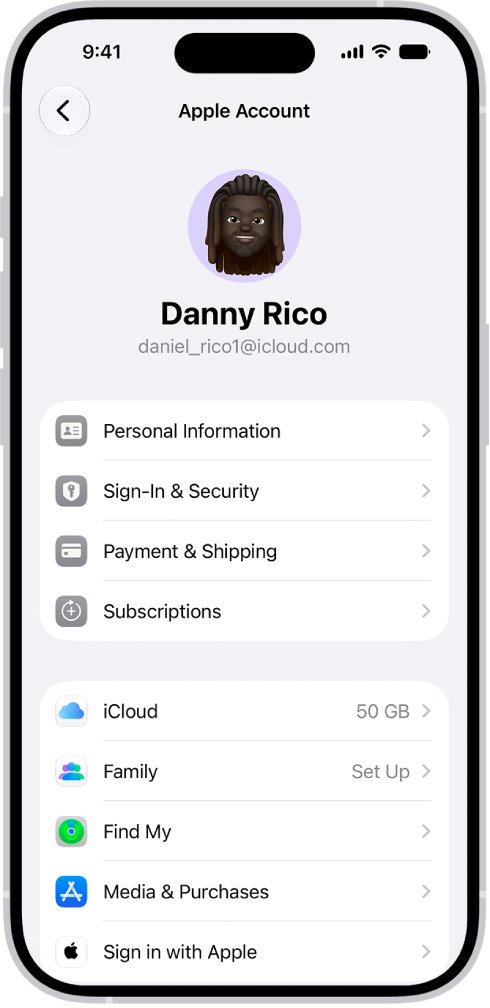
Turn off password for free apps on iPhone and iPad
This setting lives in your Apple Account settings, not inside the App Store app. It applies to free apps and other free items from Apple's stores.
- Open the Settings app.
- Tap your name at the top of the list.
- Tap Media & Purchases.
- Tap Password Settings.
- Turn off the password requirement under free downloads.
- Choose Always Require or Require After 15 Minutes for purchases, then go back to save the change.
If Password Settings does not appear, Face ID or Touch ID is turned on for purchases. Turn that off first, using the next section but one.
Why does the App Store keep asking for my password?
Apple asks for your Apple Account password, Face ID or Touch ID to confirm that the person downloading is the account owner signed in to the App Store. Which prompt you see depends on three settings.
| Setting | What you are asked | Applies to |
|---|---|---|
| Always Require | Your password on every purchase, even when you are signed in | Paid apps and in-app purchases |
| Require After 15 Minutes | No password if you entered it in the last 15 minutes | Paid apps and in-app purchases |
| Free downloads password turned on | Your password for each free app | Free apps and free items |
| Face ID or Touch ID for iTunes & App Store | Face ID or Touch ID for every download, even free ones | All App Store downloads |
| Ask to Buy on a child account | A request sent to the parent for approval | Child's purchases and free downloads |
Can you turn off password for paid apps in the App Store?
No. On iPhone, iPad and Mac, Apple does not let you remove password protection for paid items completely; the closest setting is Require After 15 Minutes. With Require After 15 Minutes, a second purchase within 15 minutes of entering your password goes through without another prompt. Only Apple TV lets you turn off the password for both free and paid items.
Turn off Face ID for App Store purchases
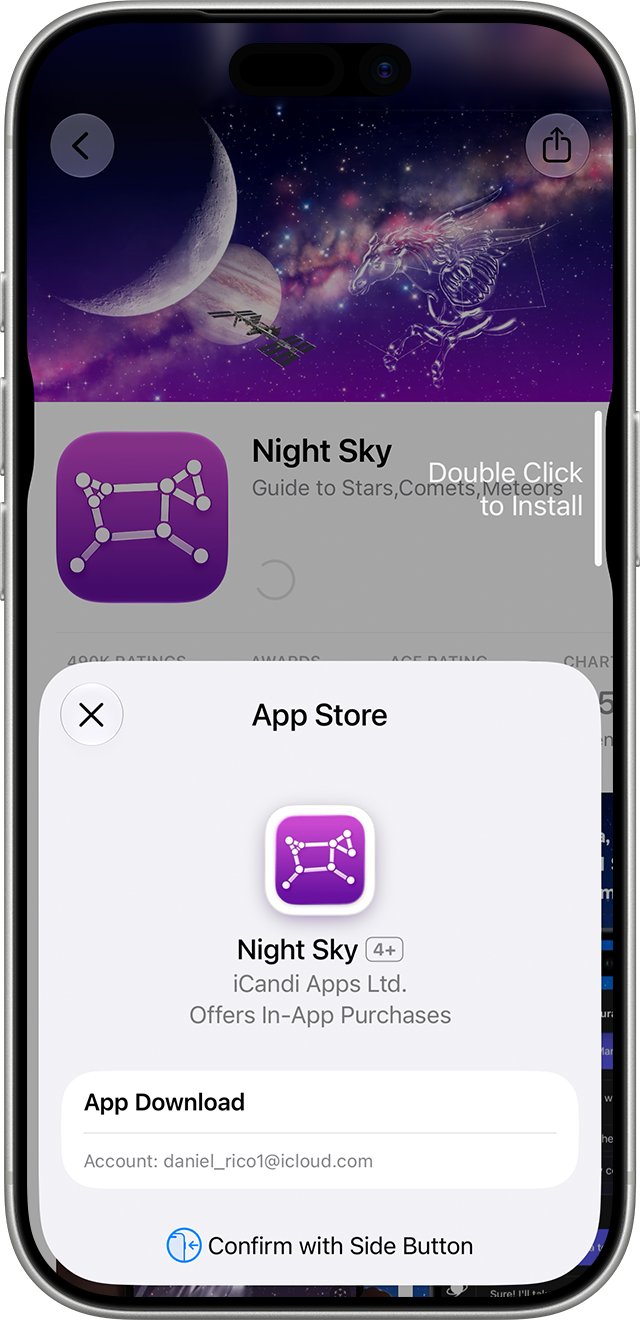
When Face ID or Touch ID is set for purchases, it replaces the password prompt for every download, including free apps. Password Settings is hidden until you turn it off.
- Open Settings.
- Tap Face ID & Passcode, or Touch ID & Passcode on a device with a Home button.
- Enter your device passcode.
- Turn off iTunes & App Store.
- Go back to Settings, tap your name, then tap Media & Purchases.
- Tap Password Settings and turn off the password requirement for free downloads.
Paid purchases then ask for your Apple Account password instead of Face ID or Touch ID.
Turn off password for free downloads on Mac
The Mac setting covers the App Store on a Mac and Apple's other media stores. It is hidden when Touch ID is turned on for purchases.
- Choose the Apple menu > System Settings.
- Click your name at the top of the sidebar.
- Click Media & Purchases.
- Set the free downloads option so it no longer requires a password.
- Choose how often purchases ask for a password.
If the free downloads and purchases options are missing, Touch ID is turned on for purchases. Turn off Touch ID for purchases in System Settings, then repeat the steps.
Turn off password for purchases on Apple TV
Apple TV is the only Apple device where you can turn off the password for both free and paid items.
- From the Home screen, open Settings.
- Select Users and Accounts.
- Select your account.
- Under Require Password, choose the settings you want for purchases and free downloads.
Anyone holding the remote can then buy items on your account, so leave the paid-item password on if children use the Apple TV.
Turn off Ask to Buy for a child's App Store downloads
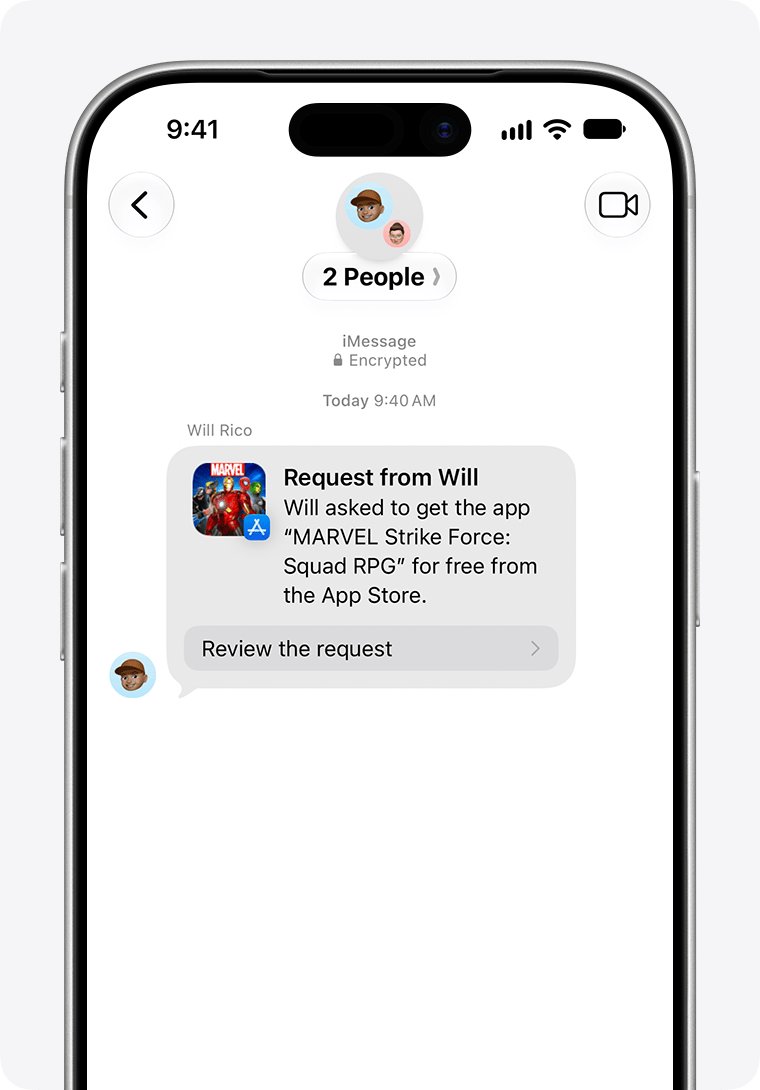
On a child account in Family Sharing, Ask to Buy sends every purchase and free download to a parent for approval. Turning off the child's own password does not remove that request.
Depending on the child's state, country or region, Ask to Buy is on by default and cannot be turned off for children under 18.
- On the parent's iPhone or iPad, open Settings and tap Family.
- Tap your child's name.
- Tap Apps & Websites and enter your Screen Time passcode if asked.
- Tap Restrictions.
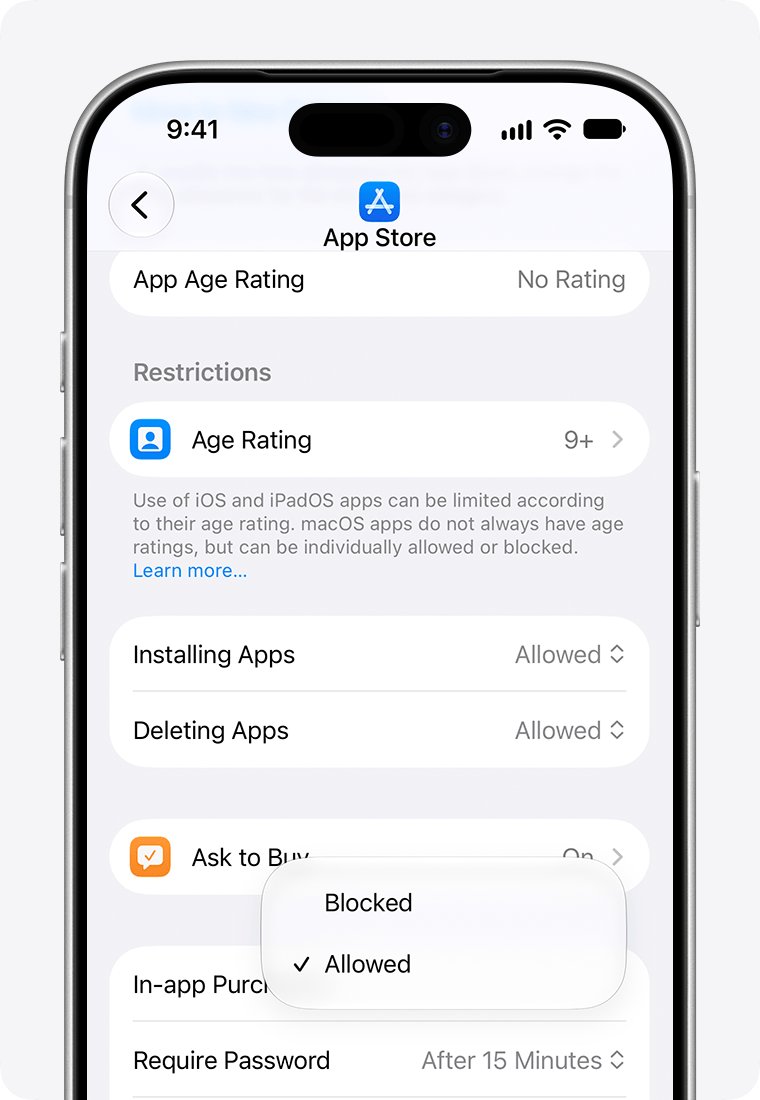
- Tap Ask to Buy, then turn off Require Purchase Approval.
On a Mac, the same switch is under Apple menu > System Settings > Family > your child's name > Apps & Websites > Restrictions > Ask to Buy.
Download a free app without password to test it
- Open the App Store and find a free app you do not have yet.
- Tap Get.
- Confirm the app starts downloading without a password, Face ID or Touch ID prompt.
- Open Settings > your name > Media & Purchases > Password Settings again and confirm the free downloads setting is still off.
A prompt for a paid app at this point is expected, because paid items always need some form of authentication on iPhone, iPad and Mac.
App Store keeps asking for password on iPhone
Password Settings is missing from Media & Purchases
Face ID or Touch ID is turned on for iTunes & App Store, which hides the menu.
- Open Settings > Face ID & Passcode or Touch ID & Passcode.
- Turn off iTunes & App Store.
- Return to Media & Purchases and open Password Settings.
Free apps still ask for Face ID or Touch ID
Face ID or Touch ID for purchases covers every download, even free items.
- Turn off iTunes & App Store under Face ID & Passcode or Touch ID & Passcode.
- Turn off the free downloads password in Password Settings.
- Download a free app to confirm no prompt appears.
Paid apps still ask for a password
Apple does not let you turn off password protection for paid items on iPhone, iPad or Mac.
- Open Settings > your name > Media & Purchases > Password Settings.
- Select Require After 15 Minutes to skip repeat prompts within 15 minutes.
A child's device sends a request instead of downloading
Ask to Buy is on for the child account in Family Sharing.
- Approve the request from the message on the parent's device.
- Or turn off Require Purchase Approval under Family > child's name > Apps & Websites > Restrictions > Ask to Buy, where the child's region allows it.
Turn App Store password back on
- Open Settings, tap your name, then tap Media & Purchases.
- Tap Password Settings.
- Turn the free downloads password back on.
- Select Always Require to be asked on every purchase.
- Optional: turn iTunes & App Store back on under Face ID & Passcode to use Face ID instead of typing the password.
App Store password FAQ
How do I turn off password to download apps?
Open Settings, tap your name, tap Media & Purchases, then tap Password Settings and turn off the password requirement for free downloads. Free apps then install without a password. If Password Settings is missing, turn off iTunes & App Store under Face ID & Passcode first.
Can I turn off password for paid apps on iPhone?
No. Apple does not allow you to turn off password protection for paid items on iPhone, iPad or Mac. Choose Require After 15 Minutes in Password Settings so purchases within 15 minutes of entering your password do not ask again.
Why can't I see Password Settings on my iPhone?
Password Settings is hidden when Face ID or Touch ID is turned on for purchases. Open Settings, tap Face ID & Passcode or Touch ID & Passcode, and turn off iTunes & App Store. Password Settings then appears under Media & Purchases.
Why does the App Store ask for Face ID on free apps?
With Face ID or Touch ID turned on for iTunes & App Store, Apple asks for it on every download, even when the item is free. Turn off iTunes & App Store under Face ID & Passcode, then turn off the free downloads password in Password Settings.
Can I turn off password on Apple TV purchases?
Yes. Apple TV is the only Apple device where you can turn off the password for both free and paid items. Open Settings, select Users and Accounts, select your account, then change the options under Require Password.
Can I turn off password for my child's App Store downloads?
A child account with Ask to Buy sends each download to a parent for approval instead of asking for a password. A parent can turn off Require Purchase Approval in Family settings, but in some regions Ask to Buy stays on for children under 18.
Does turning off the App Store password affect in-app purchases?
No. In-app purchases count as purchases and appear in your Apple ID purchase history, so they still follow the Always Require or Require After 15 Minutes setting. Only free downloads can go through without a password on iPhone, iPad and Mac.