To disable or enable SafeSearch in Windows 11, open Settings > Privacy & security > Search permissions and pick Strict, Moderate or Off under SafeSearch.
This guide covers what each level filters, the Windows 10 and Bing.com settings, ways to lock SafeSearch on for a child's PC or a home network, turning off web results in Start, and why SafeSearch sometimes will not turn off.
How to disable or enable SafeSearch setting or filter in Windows 11
The change applies to web previews in Windows Search straight away. No restart is needed.
- Select Start, then Settings.
- Select Privacy & security in the left pane.
- Select Search permissions.
- Under SafeSearch, select Strict to turn the filter fully on.
- Select Moderate for the default level, or Off to disable SafeSearch in Windows Search.
Off in Windows only stops Windows from filtering its own previews. Bing in your browser then follows whatever you set on Bing.com.
Filter web search results in Windows using SafeSearch
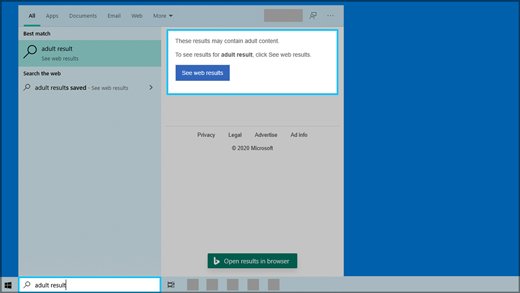
Windows Search gets its web results from Bing. Bing checks each result for adult content before Windows shows it in the preview pane, and replaces flagged previews with a See web results button that opens the results in your browser.
| Level | What Bing filters | Effect on Bing in your browser |
|---|---|---|
| Strict | Explicit text, images and videos | Shared with Bing and enforced on the PC, whatever your Bing.com setting says |
| Moderate (default) | Explicit images and videos, but not text | Bing uses your own Bing.com SafeSearch setting |
| Off | Nothing | Bing uses your own Bing.com SafeSearch setting |
Because only Strict overrides Bing.com, setting Windows to Off is not enough to switch SafeSearch off in your browser. Change Bing.com too.
Turn off SafeSearch on Windows 10
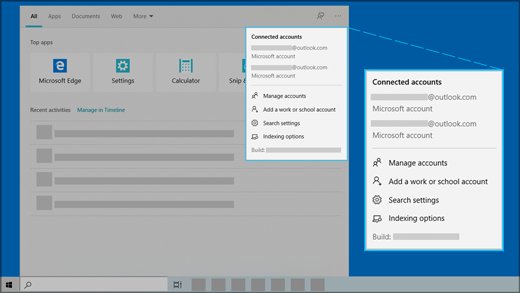
Windows 10 keeps the same three levels on a different Settings page.
- Select Start > Settings.
- Select Search.
- Select Permissions & History.
- Under SafeSearch, choose Strict, Moderate or Off.
How to turn off SafeSearch on Bing in your browser
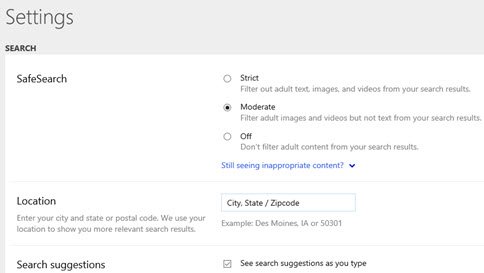
Bing.com has its own SafeSearch setting, which covers searches in Edge, Chrome, Firefox and any other browser on the PC. The full set of Bing SafeSearch settings works the same on any device.
- Open a browser and go to
www.bing.com. - Select the menu icon in the upper-right corner.
- Select Settings, then More.
- Under SafeSearch, choose Strict, Moderate or Off.
- Select Save at the bottom of the page.
If Windows is set to Strict, Bing in the browser on that PC stays strict whatever you pick here.
Permanently enable SafeSearch on a child's PC or home network
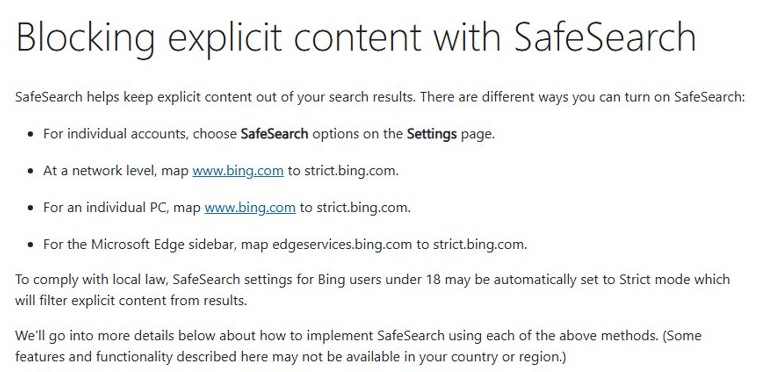
The Settings and Bing.com choices can be changed by anyone who uses the PC. These options lock Strict in place.
| Your situation | Use this | Who can undo it |
|---|---|---|
| One Windows PC, quick change | Strict in Search permissions | Anyone signed in to that Windows account |
| One PC a child uses, locked down | Map www.bing.com to strict.bing.com in the hosts file |
Only administrators on the PC |
| Every device on your Wi-Fi | DNS CNAME from www.bing.com to strict.bing.com on your router or DNS server |
Whoever manages the router or DNS |
| A child's Microsoft account on any device | Microsoft Family Safety web and search filters | The family organiser |
Microsoft also notes that Bing may set SafeSearch to Strict automatically for users under 18 to comply with local law.
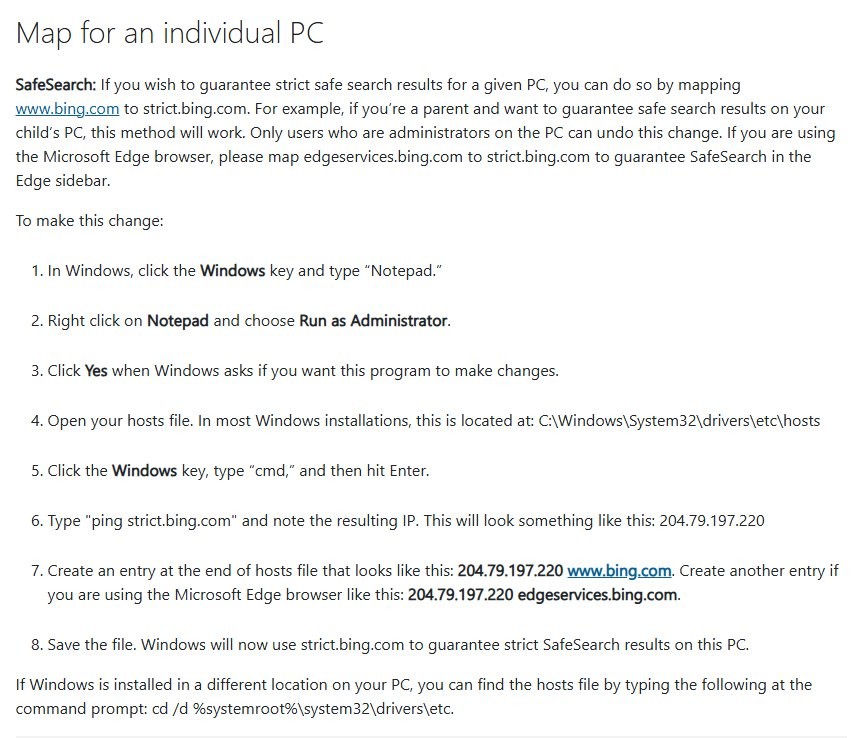
Force strict SafeSearch with the hosts file
This is Microsoft's method for guaranteeing strict results on a single PC. The hosts file needs the real IP address of strict.bing.com, not a CNAME. The hosts file in Windows 11 sits in the same folder on every standard install.
- Press the Windows key, type
cmdand press Enter. - Type
ping strict.bing.com, press Enter and note the IP address in the reply. - Press the Windows key and type
Notepad. - Right-click Notepad, choose Run as administrator and select Yes.
- Open
C:\Windows\System32\drivers\etc\hostsin Notepad. - Add a line at the end with the IP you noted followed by
www.bing.com. - Add a second line with the same IP followed by
edgeservices.bing.comto cover the Microsoft Edge sidebar. - Save the file.
To undo it, open the hosts file the same way, delete both lines and save. If Windows lives on another drive, cd /d %systemroot%\system32\drivers\etc at the command prompt takes you to the folder.
Turn on SafeSearch for a child with Microsoft Family Safety
Family Safety filters follow the child's Microsoft account to Windows, Xbox and mobile devices, as long as they browse in Microsoft Edge while signed in.
- Sign in to your Microsoft account as the family organiser.
- Select Family Safety from the menu on the left.
- Find your family member, open the menu next to their name and select Go to overview.
- Select Edge as the platform.
- Turn on Filter inappropriate websites and searches.
- Add any sites you want to allow or block under Allowed sites or Blocked Sites.
With the filter on, Bing searches are filtered and unsupported browsers are blocked so the filter cannot be bypassed. The Microsoft Family Safety app has the same switch under Content filters.
How to disable Bing Search web results in Start menu of Windows 11
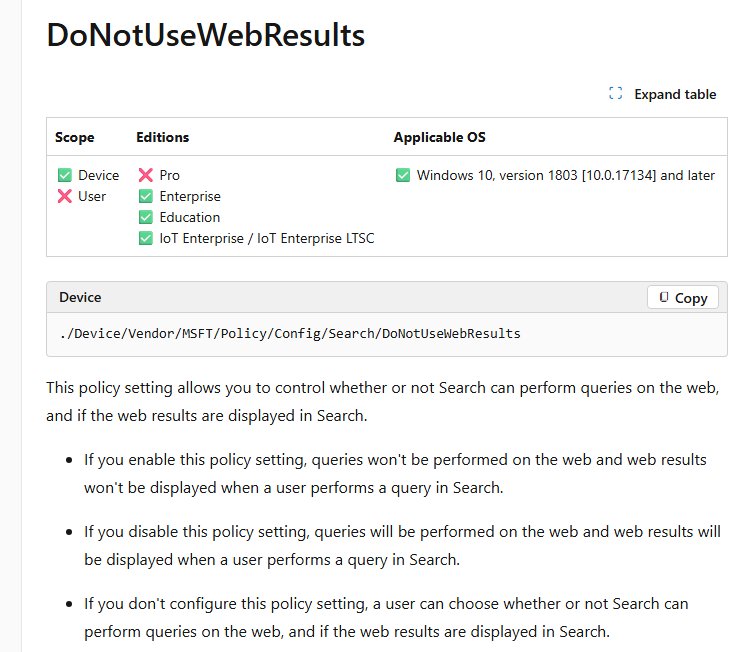
SafeSearch filters web results, but a Group Policy setting removes them from Windows Search entirely. Microsoft lists this policy for Enterprise and Education editions. On Home, first enable the Local Group Policy Editor if you want to try it.
| Tool | Where | Setting |
|---|---|---|
| Group Policy | Computer Configuration > Administrative Templates > Windows Components > Search | Set Don't search the web or display web results in Search to Enabled |
| Registry | HKEY_LOCAL_MACHINE\SOFTWARE\Policies\Microsoft\Windows\Windows Search |
DWORD ConnectedSearchUseWeb = 0 (web results off) or 1 (on) |
| Group Policy, search highlights | Computer Configuration > Administrative Templates > Windows Components > Search | Set Allow search highlights to Disabled to remove the highlights in the Start menu search box |
Restart the PC or force a Group Policy update after changing a policy. Set the policy back to Not Configured, or delete the registry value, to bring web results back.
Test SafeSearch after changing it in Windows 11
- Reopen Settings > Privacy & security > Search permissions and confirm the level under SafeSearch stuck.
- Go to
www.bing.com, open Settings > More and look at the SafeSearch choice. - If you used the hosts file or DNS method, confirm the Bing SafeSearch options are greyed out, which shows strict.bing.com is in force.
- Run
ping www.bing.comin Command Prompt and check that it replies from the strict.bing.com IP you added.
SafeSearch not able to turn off in Windows 11
Bing still filters results after you set Windows to Off
Only Strict in Windows overrides Bing; Moderate and Off hand control back to your Bing.com setting.
- Go to
www.bing.comand open Settings > More. - Set SafeSearch to Off and select Save.
- Repeat the Bing.com change in every browser you use.
Bing SafeSearch options are greyed out or stuck on Strict
www.bing.com is mapped to strict.bing.com in the hosts file or on the network, which disables the SafeSearch controls.
- Open the hosts file in Notepad as administrator and remove the
www.bing.comandedgeservices.bing.comlines. - On a home network, ask whoever manages the router to remove the DNS mapping.
- On a school or work network, the mapping is set on purpose and only the network administrator can change it.
SafeSearch resets to Strict on a child or teen account
Family Safety filtering is on, or Bing applies Strict automatically for users under 18.
- Ask the family organiser to open the account in Family Safety and select Go to overview > Edge.
- Have them turn off Filter inappropriate websites and searches if they agree.
- Where local law requires Strict for under-18 users, Bing keeps it on.
Web results still show in Start after you set the policy
The policy has not refreshed, or the edition does not apply it.
- Restart the PC so the policy applies.
- Reopen the policy and confirm it reads Enabled.
- Check the edition: Microsoft lists the web results policy for Enterprise and Education.
Windows 11 SafeSearch FAQ
How do I turn off SafeSearch on Windows 11?
Open Settings > Privacy & security > Search permissions and select Off under SafeSearch. Then turn it off on Bing.com as well, because Off in Windows lets Bing fall back to its own setting.
How do I disable Microsoft SafeSearch?
Microsoft SafeSearch lives in two places. Set it to Off in Windows Settings under Search permissions, then on Bing.com open Settings > More, choose Off and select Save.
How do I turn off SafeSearch on my computer?
On Windows 11, use Settings > Privacy & security > Search permissions. On Windows 10, use Settings > Search > Permissions & History. In both, pick Off under SafeSearch, then change Bing.com if your browser still filters.
How do I permanently turn off SafeSearch?
Set Off in Windows and on Bing.com while signed in to your Microsoft account. If it keeps coming back, a hosts file entry, a network DNS mapping, Family Safety or an under-18 account is forcing Strict.
Why am I not able to turn off SafeSearch?
Something is enforcing Strict: a strict.bing.com mapping in the hosts file or on the network, a Family Safety filter, or Bing's automatic Strict mode for users under 18. Remove the mapping or ask the account or network owner.
How do I enable SafeSearch?
Select Strict under SafeSearch in Settings > Privacy & security > Search permissions. Strict also applies to Bing in your browser on that PC, whatever the Bing.com setting says.
How do I permanently enable SafeSearch on a child's PC?
Map www.bing.com to the strict.bing.com IP address in the hosts file, or turn on Family Safety's Filter inappropriate websites and searches. Only administrators can undo the hosts change.
Can I add exceptions for Windows SafeSearch?
The Search permissions page offers only Strict, Moderate and Off, with no site list. Family Safety does have one: add sites under Allowed sites in the child's Edge filter settings to let them through.
Why use SafeSearch in Windows instead of the browser?
Strict in Windows covers Windows Search previews and Bing in every browser on the PC at once. Moderate and Off leave each browser to its own Bing.com setting.