To get Peacock on Roku, press Home on the Roku remote, open the Streaming Store, search for Peacock, select Add app, then open it and sign in or pick a plan.
This guide also covers adding Peacock from a phone or computer, subscribing to Peacock Premium Plus through your Roku account, and fixing the app when it will not install, sign in or play.
Step-by-Step Guide to Get Peacock on Roku in Seconds
These steps work on Roku streaming players and Roku TV models in the US. Peacock streams only when your device is physically located in the US.
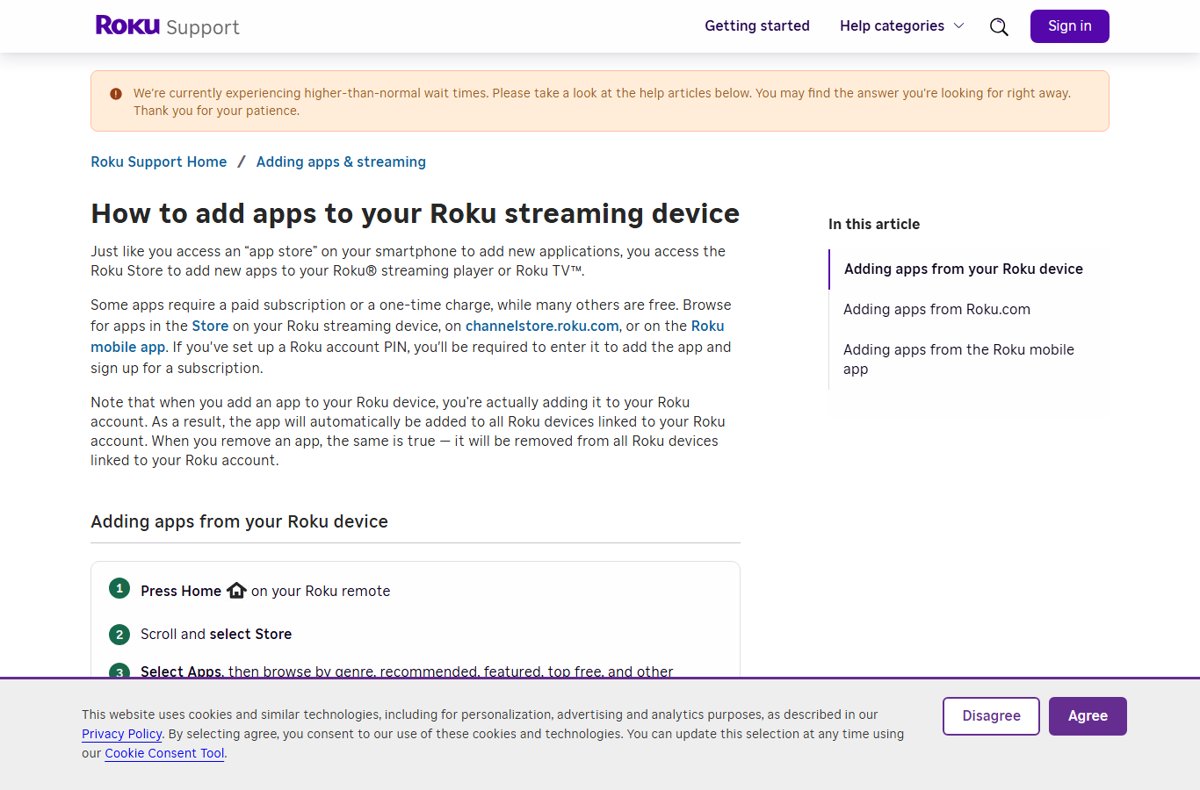
- Press Home on your Roku remote.
- On the Home screen, select Streaming Store, or use Search.
- Type Peacock and select the Peacock app.
- Select Add app, and enter your Roku account PIN if you set one.
- Wait for the app to appear at the bottom of your Home screen apps, then open it.
- Sign in with your Peacock account, or follow the on-screen steps to choose a plan.
Apps you add belong to your Roku account, so Peacock also appears on every other Roku device linked to that account.
Alternatives If You Face Issues Installing Peacock
The Roku device is not the only place to add Peacock. Pick the route that matches what you have in hand.
| Your situation | Use this | Why |
|---|---|---|
| Remote in hand, TV on | Home > Streaming Store > Add app | Installs in under a minute on the TV itself |
| Typing on the TV is slow | channelstore.roku.com on a computer > sign in > Add app | A full keyboard and the app installs to your Roku remotely |
| Phone nearby | Roku mobile app > Store > Peacock > Add app | Same result from your phone |
| You want one Roku bill and login | Subscribe to Peacock Premium Plus on The Roku Channel | Billed through your Roku account; no separate Peacock login |
| Peacock still will not install | Update the Roku software, restart, then add it again | An outdated system blocks new apps from appearing |
Understanding Peacock and Roku Compatibility
| Question | Answer |
|---|---|
| Is Peacock on Roku? | Yes; the Peacock app is distributed on Roku, and Peacock Premium Plus is also sold inside The Roku Channel |
| Roku TV or Roku player? | Both use the same Streaming Store, so the add steps are the same |
| Where it works | In the US; Peacock requires your device to be physically located in the US to stream |
| Is the app free to add? | Adding the app is free; watching needs a Peacock plan or a Premium Plus subscription through Roku |
| Does it need a Roku account? | Yes; every app you add is linked to your Roku account |
Creating and Logging into Your Peacock Account
You can create the Peacock account on the TV, or create it first on a phone or computer and then sign in on the Roku.
- Open the Peacock app on your Roku.
- To start a new account, choose the plan option on the welcome screen and follow the on-screen sign-up steps.
- To use an existing account, select the sign-in option.
- Follow the on-screen steps: either type your email and password, or enter the code shown on the TV on a phone or computer as the app directs.
- Pick your profile and start watching.
If sign-in fails, check that your Peacock subscription is active and that you are using the same email you signed up with.
How to subscribe to Peacock through Roku
Since April 28, 2026, Roku customers in the US can buy Peacock Premium Plus as a Roku Premium Subscription on The Roku Channel. It costs $16.99 per month or $169.99 per year, billed to your Roku account.
- Open The Roku Channel on your Roku device, or go to go.roku.com/peacock on a phone or computer.
- Find the Peacock Premium Plus offer and choose monthly or yearly.
- Confirm with the payment method saved on your Roku account.
- Watch Peacock Premium Plus inside The Roku Channel on your Roku device, the Roku mobile app or the web.
- To cancel or change it later, go to my.roku.com or manage it on your Roku device.
Features of the Peacock App on Roku
| Feature | What you get | Where |
|---|---|---|
| Live sports | NBA, MLB, WNBA, NFL Sunday Night Football, Premier League and more | Peacock Premium Plus |
| Ad-free on-demand shows and movies | NBC, Bravo, Peacock Originals and Universal movies | Peacock Premium Plus |
| Pause and replay live events | Roku's first Cloud DVR features for live Peacock content | Peacock Premium Plus on The Roku Channel |
| One login | Sign in once with your Roku account | Roku Premium Subscriptions |
| Captions, sound and language | Press the Star button while a show plays | Any Roku app that supports them |
Tips to Enhance Your Peacock Roku Experience
- Move the Peacock tile up your Home screen so it is not stuck at the bottom of the app list.
- Press the Star button during a show to change captions, audio track or language.
- Turn on captions for every app under Settings > Accessibility > Captions mode if Peacock's own setting is not enough.
- Use the same Peacock profile each time, because caption and language choices are saved per profile.
- Keep the app current: point to Peacock on the Home screen, press Star and select Check for updates.
How to check Peacock is installed and working
- Press Home and scroll to the end of your apps to find the Peacock tile.
- Open Peacock and confirm it shows your profile, not the sign-in screen.
- Play any show for a minute to confirm it streams without errors.
- On a phone or computer, sign in at my.roku.com to see Peacock in your Roku subscriptions if you bought it through Roku.
Troubleshooting Common Issues
Can't find Peacock on Roku
The app was added on the web or phone but the Roku has not synced, or the system software is old.
- On the Roku, go to Settings > System > Software update (called System update on some models) and select Check now.
- Search the Streaming Store for Peacock again and select Add app.
- Confirm the Roku is signed in to the same Roku account you used on the web.
Can't sign in to Peacock on Roku
The subscription has lapsed, or the account email does not match.
- Sign in again using the code or on-screen steps the app shows.
- Check that your Peacock plan is active on another device.
- Check the email linked to your Roku device under Settings > System > About.
- Contact Peacock support if sign-in still fails, because sign-in problems are handled by the app.
Why is Peacock not working on Roku?
The app or the Roku system needs an update, or the app data is stuck.
- Point to Peacock, press Star and select Check for updates.
- Press Star > Restart on the Peacock tile.
- Restart the Roku: on a player, Settings > System > System restart; on a Roku TV, Settings > System > Power > System restart.
- Remove the app with Star > Remove channel, restart the Roku, and add Peacock again from the Streaming Store.
Peacock says it is not available in your region
Peacock streams only to devices physically located in the US.
- Check that you are in the US.
- Turn off any VPN on your router that routes the Roku outside the US.
If your Roku remote stops responding mid-setup, pair the Roku remote again before you retry.
Frequently asked questions
Can you get Peacock on Roku?
Yes. Peacock is an app in the Roku Streaming Store for Roku players and Roku TV models in the US. Press Home, open the Streaming Store, search for Peacock and select Add app, then sign in or subscribe.
How do I add Peacock to my Roku TV?
Press Home on the Roku TV remote, select Streaming Store, search for Peacock and select Add app. The app appears at the bottom of your Home screen apps. Roku TV models use the same steps as Roku streaming players.
How do I subscribe to Peacock through Roku?
Open The Roku Channel or go to go.roku.com/peacock and sign up for Peacock Premium Plus. It costs $16.99 per month or $169.99 per year in the US and is billed through your Roku account, which you can manage at my.roku.com.
How do I sign in to Peacock on Roku?
Open the Peacock app and choose the sign-in option, then follow the on-screen steps, either typing your email and password or entering the code the TV shows on another device. Make sure your Peacock plan is active.
How do I get Peacock Premium Plus on Roku?
Subscribe to Peacock Premium Plus as a Roku Premium Subscription on The Roku Channel, or sign up with Peacock directly and sign in to the Peacock app. The Roku Channel option adds pause and replay for live content and bills your Roku account.
Why is Peacock not working on Roku?
The app or Roku software is usually out of date or stuck. Check for updates on the Peacock tile, update the Roku under Settings > System, restart the Roku, and if needed remove Peacock and add it again from the Streaming Store.
Why can't I find Peacock on Roku?
Search the Streaming Store by name rather than browsing. If you added Peacock from the web or phone and it is missing, run a system software check under Settings > System and confirm the Roku uses the same Roku account.
Is Peacock free on Roku?
Adding the Peacock app to Roku is free, but watching Peacock needs a Peacock subscription. You can pay Peacock directly or subscribe to Peacock Premium Plus through your Roku account on The Roku Channel.