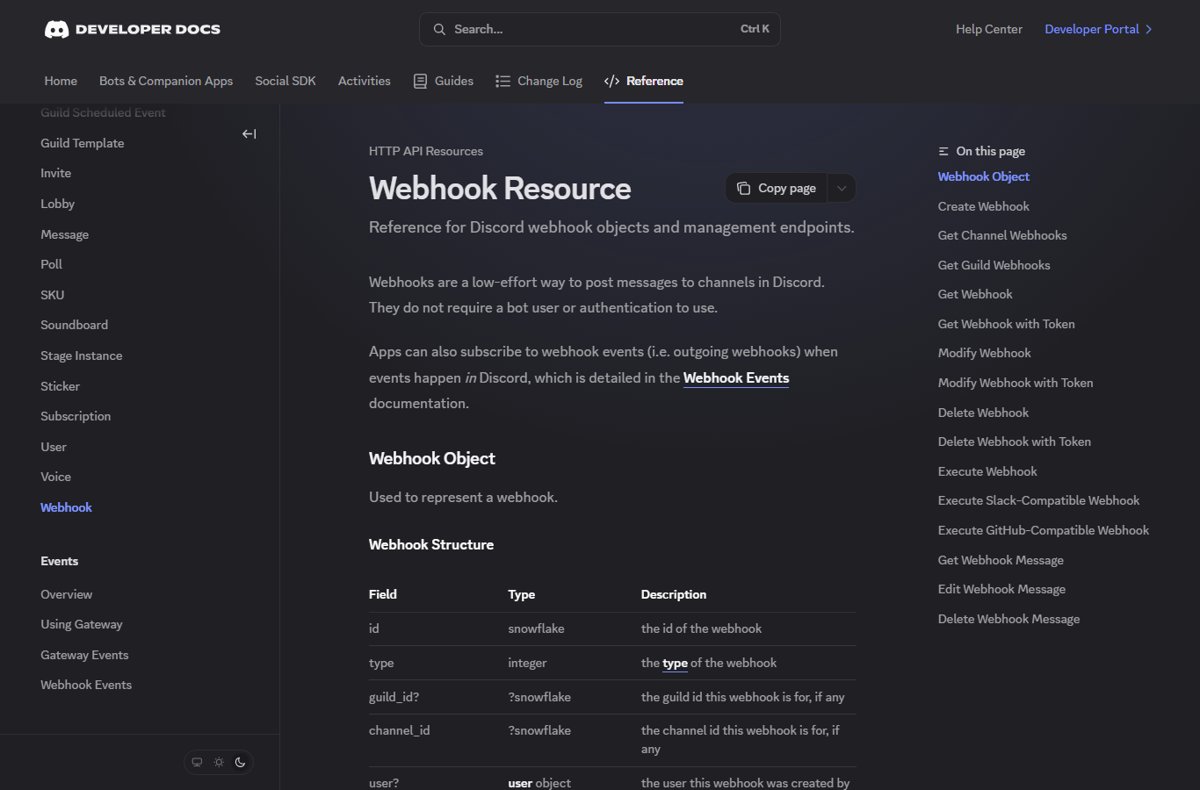
To make a webhook in Discord, open Server Settings > Integrations, select Create Webhook, pick the channel, then select Copy Webhook URL.
This guide covers the permission you need, how to test the URL, message and embed formats, mentions, files, JavaScript and Python examples, GitHub, and fixes for common errors.
How To Create A Webhook In Discord
You need the Manage Webhooks permission on the server. Webhooks post into text channels, so create the channel first if it does not exist.
- Open your Discord server in the desktop app or browser.
- Select the server name, then Server Settings.
- Open the Integrations tab.
- Select Create Webhook.
- Type a name, choose the target text channel from the dropdown and, optionally, select the avatar to upload an image.
- Select Copy Webhook URL and save your changes.
The URL looks like https://discord.com/api/webhooks/<id>/<token>. Anyone holding it can post to that channel, so store it like a password.
What Is A Discord Webhook?
A Discord webhook is a URL that lets another service or script post messages into one channel. It needs no bot user and no login; the token in the URL is the only credential.
| Question | Answer |
|---|---|
| Direction | Incoming: other services send messages into Discord |
| Can it read messages? | No; it only posts, edits and deletes its own messages |
| Can it reply to commands? | No; that needs a bot or an app |
| How it is triggered | An HTTP POST request with JSON or form data |
| Typical senders | GitHub, CircleCI, Datadog, CI pipelines and your own scripts |
What You Need Before Creating A Webhook
| Requirement | Why |
|---|---|
| Manage Webhooks permission (or server owner) | Discord requires it to create, edit or delete webhooks |
| A target text channel | Each webhook posts into one channel; forum channels need a thread name or ID |
| Discord desktop app or browser | Server Settings is easiest to use on a computer |
| A service or script that sends HTTP POST requests | A webhook does nothing on its own |
| A safe place for the URL | The token in the URL grants posting access |
If you do not have the app, download Discord for Windows or Mac, or use Discord in a web browser instead.
How To Test A Discord Webhook
Send one plain message from a terminal with curl. Replace the URL with the one you copied.
curl -H "Content-Type: application/json" -d "{\"content\": \"Webhook test\"}" https://discord.com/api/webhooks/ID/TOKENSends a POST request with a JSON body whose content field becomes the message text.
You should see: The message "Webhook test" appears in the channel, and curl prints nothing because Discord answers 204 No Content.
In PowerShell, run Invoke-RestMethod -Uri "https://discord.com/api/webhooks/ID/TOKEN" -Method Post -ContentType "application/json" -Body '{"content":"Webhook test"}'. API clients such as Postman work too: choose POST, set a raw JSON body and send.
How Discord Webhook Messages Work
Every request must include at least one of content, embeds, file or poll. The other fields change how the message looks.
| Field | What it does | Limit |
|---|---|---|
| content | Message text, with Discord markdown such as bold and code |
2,000 characters |
| username | Overrides the webhook's name for this message | Cannot contain "clyde" or "discord" |
| avatar_url | Overrides the avatar for this message | A public image URL |
| embeds | Rich cards with title, fields, colour and images | Up to 10 per message |
| tts | Reads the message aloud for users with TTS on | true or false |
| allowed_mentions | Controls which mentions ping people | users, roles, everyone |
| thread_id / thread_name | Posts into a thread, or creates one in a forum channel | Forum and media channels need one |
Add ?wait=true to the URL to make Discord return the created message as JSON, which includes its ID for later edits.
How To Send An Embed With A Discord Webhook
Embeds hold a title, description, colour and up to 25 fields. Save the JSON to a file so quoting stays simple in any shell.
curl -H "Content-Type: application/json" -d @embed.json https://discord.com/api/webhooks/ID/TOKEN

embed.json:
{
  "username": "Build Bot",
  "embeds": [{
    "title": "Deploy finished",
    "description": "Version 2.4 is live.",
    "color": 5763719,
    "fields": [
      {"name": "Branch", "value": "main", "inline": true},
      {"name": "Duration", "value": "3m 12s", "inline": true}
    ],
    "footer": {"text": "CI pipeline"}
  }]
}
Posts one embed with a title, description, green colour (a decimal RGB value), two inline fields and a footer, under the name Build Bot.
You should see: A card with a coloured left edge and the two fields side by side appears in the channel.
Discord's embed limits: title 256 characters, description 4,096, up to 25 fields, field name 256, field value 1,024, footer 2,048 and author name 256. All embeds in one message together must stay under 6,000 characters.
How To Mention Users, Roles, And Channels
Mentions use numeric IDs, not names. Copy the ID of the user, role or channel before you build the message.
| Mention | Syntax in content | Pings by default from a webhook? |
|---|---|---|
| User | <@USER_ID> |
Yes |
| Role | <@&ROLE_ID> |
No; add "roles" to allowed_mentions parse |
| Channel | <#CHANNEL_ID> |
Links the channel; no ping |
| @everyone / @here | @everyone or @here |
No; add "everyone" to allowed_mentions parse |
Webhooks parse only user mentions unless you say otherwise. To ping a role, send "allowed_mentions": {"parse": ["roles"]} with the message; to block every ping, send "parse": [].
How To Use A Discord Webhook With Popular Services
Discord accepts GitHub's and Slack's own webhook formats when you add a suffix to the URL. GitHub is the most common example.
- Copy your Discord webhook URL.
- In GitHub, open the repository, then Settings > Webhooks > Add webhook.
- Paste the URL into Payload URL and add
/githubto the end. - Set Content type to
application/json. - Choose Let me select individual events and tick events such as pushes, pull requests and releases.
- Select Add webhook, then push a commit to see the message arrive.
For services that send Slack-format webhooks, add /slack instead. Automation tools such as Zapier and Make post to the plain URL with a JSON body containing content or embeds.
How To Use A Discord Webhook In JavaScript
Node.js includes a built-in fetch function in current releases, so no package is needed. Keep the URL in an environment variable.
const url = process.env.DISCORD_WEBHOOK_URL;

const res = await fetch(url + "?wait=true", {
  method: "POST",
  headers: { "Content-Type": "application/json" },
  body: JSON.stringify({
    content: "Hello from Node.js",
    allowed_mentions: { parse: [] }
  })
});

if (!res.ok) throw new Error(`Discord returned ${res.status}`);
console.log((await res.json()).id);
Posts a message with pings disabled and waits for Discord to return the created message.
You should see: The script prints the new message ID and the text appears in the channel.
Save it as send.mjs so top-level await works, then run node send.mjs.
How To Use A Discord Webhook In Python
This uses only Python's standard library. Discord asks HTTP API clients to send a User-Agent header, so the script sets one.
import json, os, urllib.request

url = os.environ["DISCORD_WEBHOOK_URL"]
body = json.dumps({"content": "Hello from Python"}).encode()

req = urllib.request.Request(url, data=body, method="POST", headers={
    "Content-Type": "application/json",
    "User-Agent": "DiscordBot (https://example.com, 1.0)",
})
with urllib.request.urlopen(req) as resp:
    print(resp.status)
Builds a JSON body, sends it as a POST request and prints the HTTP status.
You should see: The script prints 204 and the message appears in the channel.
Set the variable first: set DISCORD_WEBHOOK_URL=... in Command Prompt, or export DISCORD_WEBHOOK_URL=... on macOS and Linux.
How To Send Files With A Discord Webhook
Files go in a multipart/form-data request, with the text and embeds in a payload_json field. The default upload limit is 20 MiB per file.
curl -F "payload_json={\"content\": \"Nightly report\"}" -F "files[0][email protected]" https://discord.com/api/webhooks/ID/TOKENUploads report.pdf as an attachment, with the message text sent in payload_json.
You should see: The message appears with report.pdf attached and downloadable.
Number extra files files[1], files[2] and so on. To show an uploaded image inside an embed, set the embed image URL to attachment://filename.png.
How To Edit Or Delete A Discord Webhook
- Open Server Settings > Integrations and select the webhook.
- Change the name, avatar or channel, then save.
- To remove it, open the webhook and use its delete option; the URL stops working immediately.
- To delete from a script, send
DELETEto the webhook URL; Discord answers 204 No Content. - To fix a message the webhook already sent, send
PATCHto/messages/MESSAGE_IDon the webhook URL with the new content.
If a URL leaks, delete the webhook and create a new one. Editing the name does not change the token.
Security Best Practices For Discord Webhooks
| Risk | What can happen | Prevention |
|---|---|---|
| URL posted in public code or screenshots | Anyone can spam the channel | Keep it in environment variables or a secrets store |
| Leaked URL | Spam or fake announcements | Delete the webhook and create a new one |
| User text passed straight into content | Unwanted pings or broken formatting | Sanitise input and set allowed_mentions |
| Too many people with Manage Webhooks | Webhooks created without oversight | Grant the permission only to admins |
| Webhook in a busy public channel | Automated posts get lost or abused | Use a dedicated alerts channel |
How to check the webhook is working
- Send the curl test message from the testing section.
- Confirm the message appears in the chosen channel under the webhook's name and avatar.
- Repeat with
?wait=trueadded to the URL and check the response contains a messageid. - Trigger a real event from the connected service, such as a GitHub push, and confirm it posts.
Troubleshooting Common Discord Webhook Problems
Create Webhook is missing
Your role lacks the Manage Webhooks permission.
- Ask the server owner or an admin to grant Manage Webhooks.
- Or ask them to create the webhook and send you the URL privately.
400 Bad Request
The body is empty, the JSON is invalid, or a limit such as 2,000 characters is exceeded.
- Check the JSON in a validator and send
Content-Type: application/json. - Include at least one of content, embeds or a file.
- Shorten long text and check the embed limits.
404 Not Found
The webhook was deleted or the URL was copied incompletely.
- Copy the URL again from Integrations.
- Create a new webhook if the old one was removed.
429 Too Many Requests
You hit Discord's rate limit.
- Read the
retry_aftervalue orRetry-Afterheader. - Wait that many seconds before sending again.
- Batch updates into fewer messages.
GitHub messages do not appear
The payload URL is missing /github or the content type is wrong.
- Edit the GitHub webhook and add
/githubto the end of the URL. - Set Content type to
application/json. - Push a new commit to trigger a fresh delivery.
Role or @everyone mention does not ping
Webhooks parse only user mentions by default.
- Add
"allowed_mentions": {"parse": ["roles", "everyone"]}to the body. - Send the message again and check the role is pinged.
Practical Discord Webhook Ideas
| Idea | Sender | What to post |
|---|---|---|
| Code updates | GitHub with /github |
Pushes, pull requests and releases |
| Build and deploy alerts | CI pipeline script | Embed with status, branch and duration |
| Server monitoring | Datadog or a cron script | Alerts when a check fails |
| Form or shop notifications | Zapier or Make | New submissions or orders |
| Daily reports | Python script on a schedule | A summary message with a file attached |
Discord Webhook Best Practices
| Practice | Reason |
|---|---|
| One webhook per service | You can revoke one without breaking the others |
| Clear names and avatars | Readers see at a glance which system posted |
| Set allowed_mentions explicitly | Prevents accidental mass pings |
Use ?wait=true when you need to edit later |
Returns the message ID |
| Handle 429 responses | Scripts keep working under rate limits |
| Send a User-Agent header from scripts | Discord asks API clients to identify themselves |
Frequently Asked Questions
How do I make a webhook in Discord?
Open Server Settings > Integrations, select Create Webhook, choose a channel and name, then select Copy Webhook URL. You need the Manage Webhooks permission on that server.
How do I create a webhook URL?
Discord generates the URL when you create the webhook. Select Copy Webhook URL in the webhook's settings. It contains the webhook ID and a secret token, so keep it private.
How does a webhook work?
A webhook is a URL that accepts HTTP POST requests. When a service or script sends JSON to it, Discord posts the content as a message in the linked channel. It needs no bot account or login.
How do I use a Discord webhook?
Paste the URL into a service that supports webhooks, such as GitHub, or send a POST request with a JSON body like {"content": "Hello"} from curl, JavaScript or Python.
How do I make a Discord webhook in Python?
Use urllib.request from the standard library to POST a JSON body with a content field to the webhook URL, and set Content-Type and User-Agent headers. A 204 status means the message was sent.
How do I create a webhook in GitHub for Discord?
In the repository, open Settings > Webhooks > Add webhook, paste the Discord URL with /github added to the end, set Content type to application/json and choose the events to send.
Can a Discord webhook receive messages?
No. Discord webhooks only post into a channel. To read or react to messages, you need a bot or an app that receives events from Discord.
How many messages can a webhook send?
Discord applies rate limits and answers 429 Too Many Requests when you exceed them. Wait for the retry_after time in the response before sending again.
Can I change a webhook's name per message?
Yes. Send username and avatar_url in the request body to override the default name and avatar for that message only. Names cannot contain the words clyde or discord.
Conclusion
Create the webhook under Server Settings > Integrations, test it with one curl message, and then connect GitHub or your own script with allowed_mentions set. A single test proves the URL and channel before you automate anything, and explicit mention settings stop a script from pinging the whole server.

![How to add another OneDrive account [use multiple accounts]](https://techdows.com/wp-content/uploads/2026/10/Microsoft-support-page-for-adding-an-account-in-OneDrive-with-Windows-tab-select-600x338.jpg)