The Private Internet Access download for Windows 11, Windows 10 and Mac comes straight from privateinternetaccess.com. Download the app for your system, install it, sign in with your PIA account and connect in a few minutes.
The desktop app is free to download but needs a paid subscription, and new subscribers get a 30-day money-back guarantee.
This guide covers the right file for your PC or Mac, the install steps, what the plans include, system requirements and fixes for an app that will not install or connect.
Which Private Internet Access download do you need?
Press Windows + I, open System > About and read System type. It tells you whether your PC is x64, ARM-based or 32-bit.
| Your machine | Download | Notes |
|---|---|---|
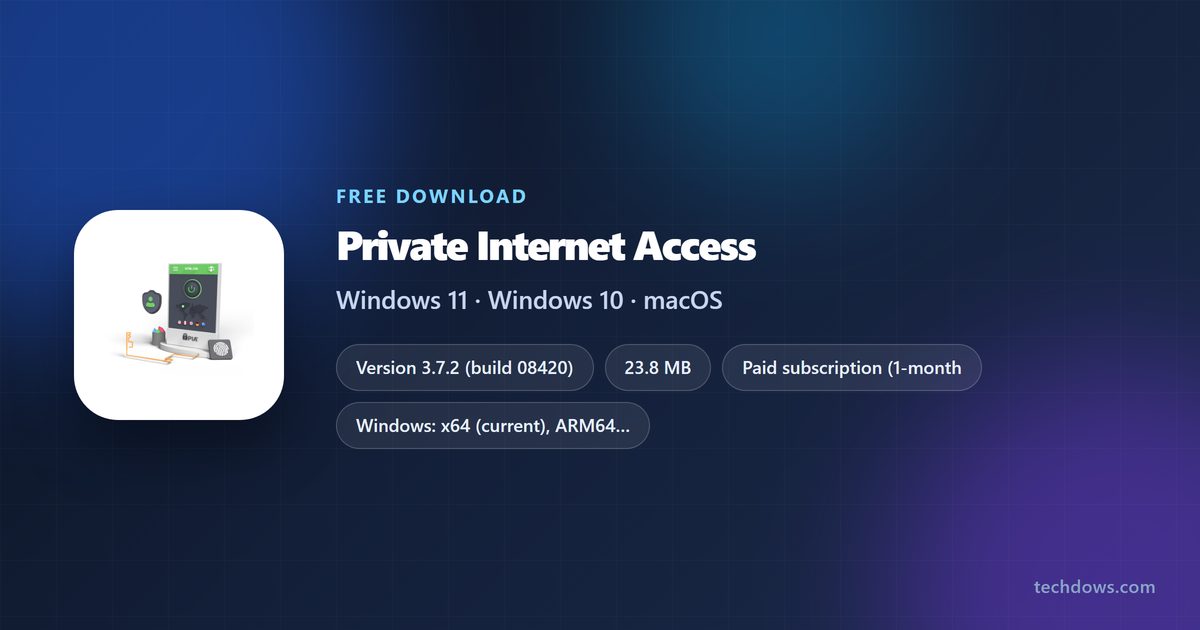
| Windows 11 or 10, 64-bit Intel or AMD | PIA for Windows x64, version 3.7.2 | 23.8 MB exe, the main build |
| Windows 11 on an ARM PC, such as a Snapdragon laptop | PIA VPN for ARM (Beta) | Version 3.6.1 beta on the same page |
| 32-bit Windows | PIA for Windows x86, version 3.5.7 | 19.4 MB exe, older release |
| Windows 7 | PIA legacy build 2.3.3 | Listed under older versions |
| Mac on macOS 11.0 or later | PIA for macOS | 118.0 MB zip |
| iPhone or iPad on iOS 15.0 or later | PIA on the App Store | 7-day free trial in the app |
| Android phone or tablet | PIA on Google Play | 7-day free trial in the app |
One subscription covers every device you own, so you can install the app on your PC, Mac and phone with the same login.
Download Private Internet Access from the official links
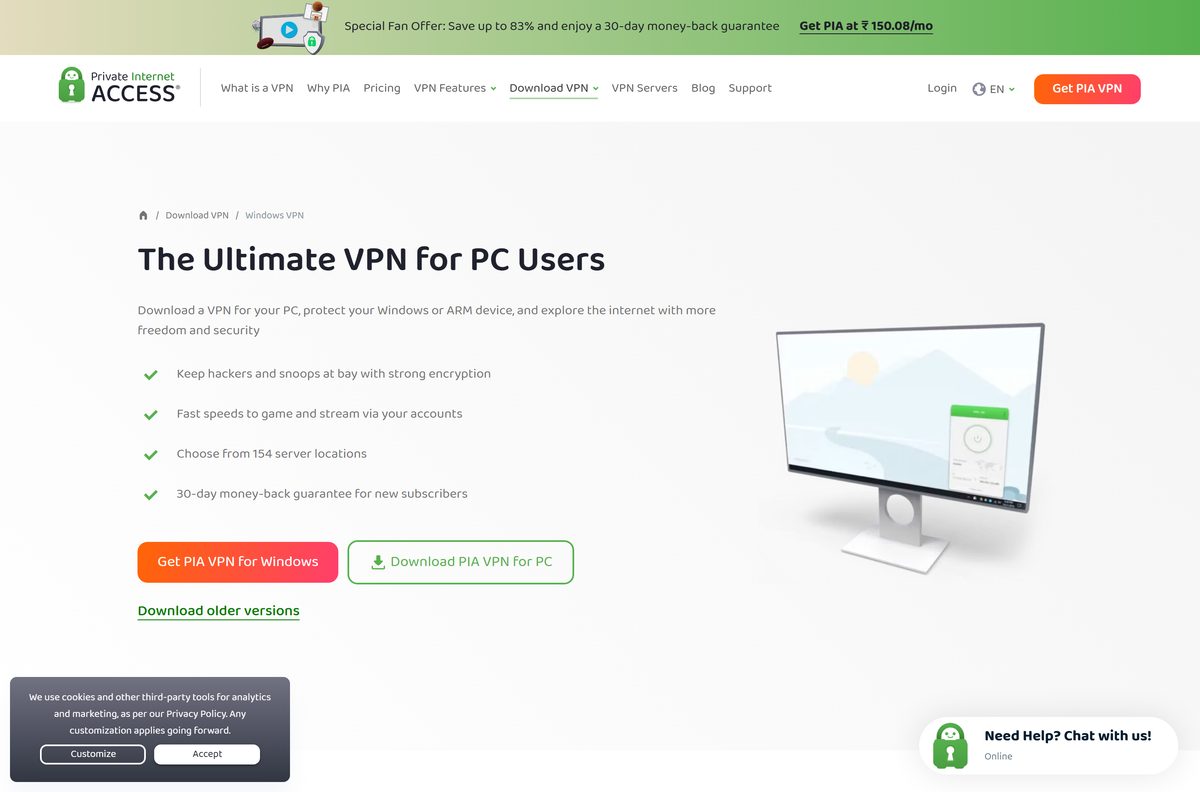
All desktop installers come from privateinternetaccess.com. The Windows and Mac links below start the current 3.7.2 release.
- Private Internet Access for Windows (x64 exe) — 23.8 MB · Windows 10 and 11, 64-bit
- Private Internet Access for Windows (x86 exe) — 19.4 MB · version 3.5.7 for 32-bit PCs
- Private Internet Access for Mac (zip) — 118.0 MB · macOS 11.0 or later
- Windows download page — ARM64 beta, Windows 7 build and plans
- Mac download page — older versions and the Mac App Store link
- Linux download page — x64 and ARM64 .run installers
Buy a plan on the download page before you install. The app asks for your PIA username and password on first launch.
How to install Private Internet Access on Windows 11 and 10
PIA lists three steps: subscribe, download and install the app, then connect to a server. Here is each click.
- Open the PIA Windows download page and pick a plan if you do not have one yet.
- Click Download PIA for 64-bit, or Download PIA VPN for ARM (Beta) on an ARM PC.
- Open your Downloads folder and double-click pia-windows-x64-3.7.2-08420.exe.
- Click Yes at the User Account Control prompt.
- Wait for setup to finish.
- Open Private Internet Access from the Start menu or the system tray.
- Sign in with your PIA username and password.
- Pick a server region and click the connect button.
Keep the installer file until the app connects. If setup stops, run it again as administrator.
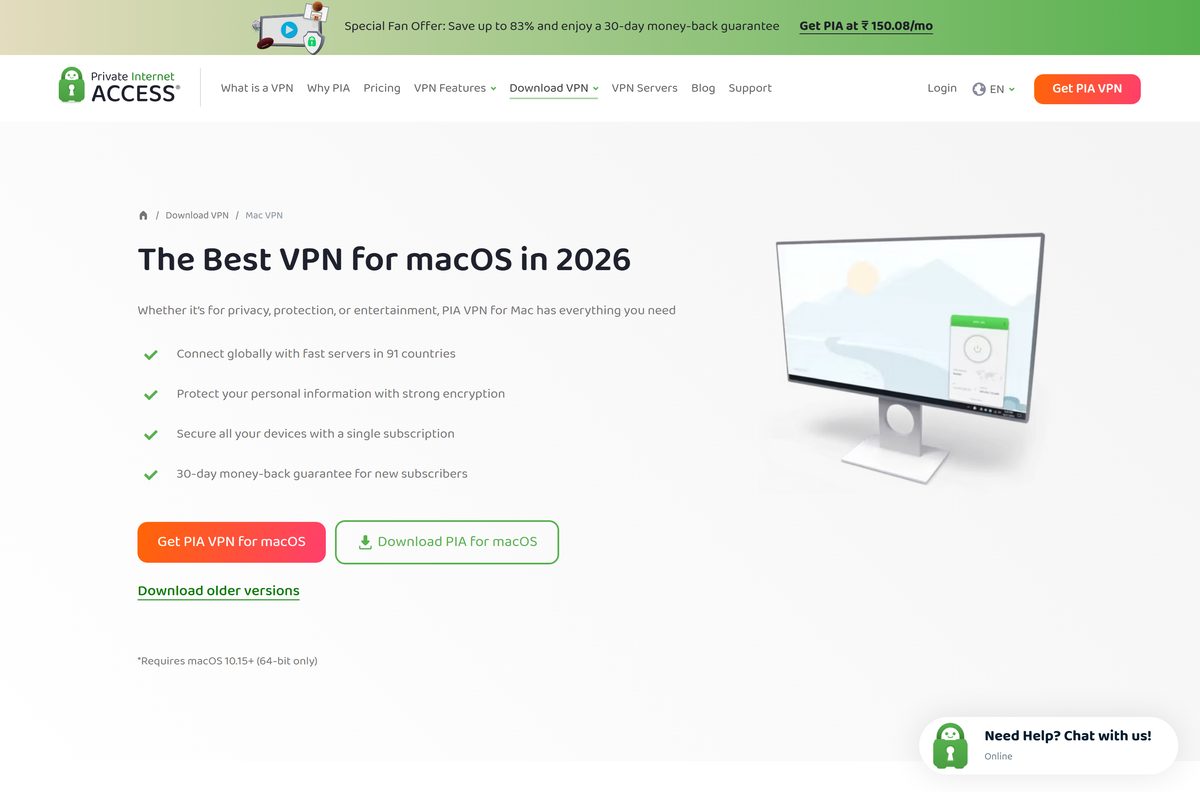
Which Private Internet Access download do you need for your Mac?
Open the Apple menu and select About This Mac to read your macOS version.
| Your Mac | Download | What to do |
|---|---|---|
| 64-bit Mac on macOS 11.0 or later | PIA for macOS zip | Unzip, open the installer and follow the prompts |
| Mac on macOS 12.0 or later, prefers the App Store | PIA on the Mac App Store | Same account, App Store updates |
| Mac on macOS 10.15 or older | Download older versions | App version 3.5 is the last one for these Macs |
macOS asks you to allow the VPN configuration the first time you connect. Click Allow and enter your Mac password, or the app cannot connect.
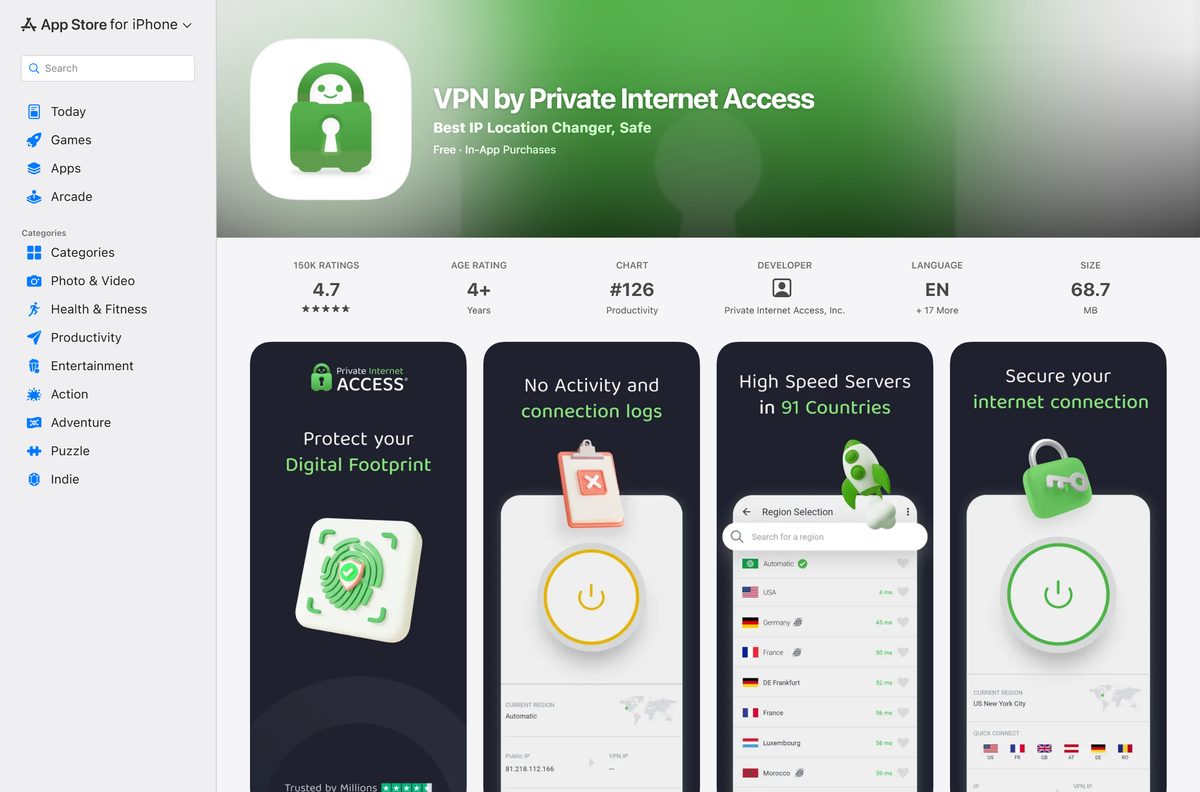
Is Private Internet Access free?
No. Private Internet Access needs a paid subscription on Windows and Mac. The app downloads free, but it will not connect without an active plan. PIA sells 1-month, 1-year and 3-year plans, and every plan carries a 30-day money-back guarantee for new subscribers. The Windows page offers no free trial for the desktop app. The iPhone and Android apps list a 7-day free trial, and refunds for store purchases follow Apple’s or Google’s terms. Buy only from privateinternetaccess.com or the official app stores.
Should you install the ARM64 beta or the x64 app?
Install the ARM64 beta on a Windows on ARM PC, and the x64 app everywhere else. PIA builds the ARM64 version natively for Windows on ARM devices and marks it as beta, currently 3.6.1. It trails the x64 release, which is 3.7.2. Intel and AMD PCs should always take the x64 build, and 32-bit PCs can only run the older 3.5.7 x86 installer.
Check the Private Internet Access system requirements
The operating system and the processor type decide which build installs.
| Field | Value |
|---|---|
| Software | Private Internet Access (PIA VPN) |
| Developer | Private Internet Access, Inc. |
| Latest version | 3.7.2, build 08420 (Windows and Mac) |
| License | Paid subscription with a 30-day money-back guarantee |
| Supported Windows | Windows 10 and Windows 11, 64-bit |
| Supported macOS | macOS 11.0 or later, 64-bit; Mac App Store build needs macOS 12.0 |
| Supported Linux | Ubuntu 20.04+, Mint, Debian, Fedora, Arch |
| Mobile | iOS 15.0 or later; Android through Google Play |
| Architecture | Windows x64, ARM64 beta and legacy x86; Linux x64 and ARM64 |
| Windows file size | 23.8 MB (x64), 19.4 MB (x86 3.5.7) |
| Mac file size | 118.0 MB zip |
| Offline installer | No separate package; the standard exe is standalone |
| Official download source | privateinternetaccess.com |
| Last verified | 2026-09-25 |
For Windows versions older than 10, PIA points to a manual OpenVPN setup instead of the app.
Fix Private Internet Access not installing or not connecting
The installer will not run on Windows
The x64 app does not run on 32-bit systems, and ARM PCs have their own build.
- Press Windows + I and open System > About.
- Read System type for x64, ARM-based or 32-bit.
- Download the matching build from the Windows download page.
- Right-click the installer, select Run as administrator and approve the prompt.
Private Internet Access will not install on Windows 7 or 8
The current app supports only Windows 10 and Windows 11.
- Open the Windows download page and select Download older versions.
- Download the Windows 7 legacy build, version 2.3.3.
- Or upgrade the PC to Windows 10 or 11 and install version 3.7.2.
The app installs but will not connect
An expired plan, another VPN client or a busy region is the usual cause.
- Quit any other VPN app running on the PC.
- Sign in at privateinternetaccess.com and confirm the subscription is active.
- Pick a different server region in the app and connect again.
- Restart the PC and try once more.
- Contact PIA’s 24/7 live chat or email support if every region fails.
The Mac app will not install or connect
An older macOS release or a blocked VPN configuration stops it.
- Open the Apple menu, select About This Mac and confirm macOS 11.0 or later.
- On macOS 10.15 or older, get app version 3.5 from Download older versions on the Mac page.
- Click Allow when macOS asks to add a VPN configuration.
- Open the app and connect again.
How to uninstall Private Internet Access
Uninstalling removes the app from the PC. Your subscription stays active until you cancel it in your PIA account.
- Right-click the PIA tray icon and quit the app.
- On Windows 11, open Settings > Apps > Installed apps.
- Click the three-dot menu next to Private Internet Access and select Uninstall.
- On Windows 10, open Settings > Apps > Apps & features, select Private Internet Access and click Uninstall.
- Click Yes at the User Account Control prompt and follow the uninstaller.
- Restart the PC before you reinstall or switch VPN apps.
- On a Mac, quit the app and drag Private Internet Access from Applications to the Trash.
Choose a Private Internet Access alternative for your PC
Pick by what you need the VPN for. A work VPN and a privacy VPN are different tools.
| Option | Cost | Use it for |
|---|---|---|
| Proton VPN | Free plan, paid plans | A VPN you can use without paying |
| NordVPN | Paid, 30-day money-back guarantee | A paid VPN with x64 and ARM64 Windows apps |
| ExpressVPN | Paid, 30-day money-back guarantee | A paid VPN with a Microsoft Store listing |
| Windows built-in VPN client | Free, part of Windows | Connecting to a work or school VPN server |
Stay with PIA if you already pay for it. One plan covers unlimited devices, including Linux, Android TV and routers.
Frequently asked questions
Is Private Internet Access free?
No. The app downloads free, but it needs a paid subscription to connect on Windows and Mac. New subscribers get a 30-day money-back guarantee. The iPhone and Android apps add a 7-day free trial through the App Store and Google Play.
Where is the official Private Internet Access download page?
The official Windows page is privateinternetaccess.com/download/windows-vpn, and the Mac page is privateinternetaccess.com/download/mac-vpn. The iPhone app is on the App Store and the Android app is on Google Play, both published by Private Internet Access, Inc.
Does Private Internet Access work on Windows 11?
Yes. The current Windows app supports Windows 11 and Windows 10 on 64-bit PCs. Windows 11 PCs with ARM processors use a separate ARM64 beta build from the same download page.
How big is the Private Internet Access download for PC?
The Windows x64 installer for version 3.7.2 is 23.8 MB. The Mac download is a 118.0 MB zip file, and the legacy 32-bit Windows installer is 19.4 MB.
Is there a Private Internet Access offline installer?
The standard Windows exe is already a standalone installer of 23.8 MB, so no separate offline package exists. Setup runs from the file itself. You still need an internet connection to sign in and connect.
Is Private Internet Access available for Mac?
Yes. The Mac app needs a 64-bit Mac on macOS 11.0 or later and downloads from privateinternetaccess.com/download/mac-vpn. The Mac App Store version needs macOS 12.0 or later. One subscription covers the Mac and your Windows PC.
Is there a 64-bit or ARM64 version of Private Internet Access?
Yes. The main Windows app is 64-bit only. Windows on ARM devices get a separate ARM64 build, currently 3.6.1 beta. A 32-bit installer, version 3.5.7, remains on the download page for older PCs.
What is the latest version of Private Internet Access for Windows?
The current Windows and Mac release is 3.7.2, build 08420. The download page also lists older versions, including 2.3.3 for Windows 7 and 3.5.7 for 32-bit Windows.
Is Private Internet Access safe to download?
Yes, when you download it from privateinternetaccess.com, the App Store or Google Play. Private Internet Access, Inc. publishes the apps and states that their source code is open for inspection. Skip mirror sites and any build labelled free or unlocked.
Why won’t Private Internet Access install on my PC?
The usual reasons are a 32-bit or ARM PC running the x64 installer, or Windows 7 or 8, which the current app does not support. Check System type in Settings, then download the matching build from the official Windows page.
How do I uninstall Private Internet Access on Windows?
Quit the app from its tray icon, then open Settings > Apps > Installed apps. Click the three-dot menu next to Private Internet Access and select Uninstall. Uninstalling does not cancel your subscription.
Does Private Internet Access work on Linux?
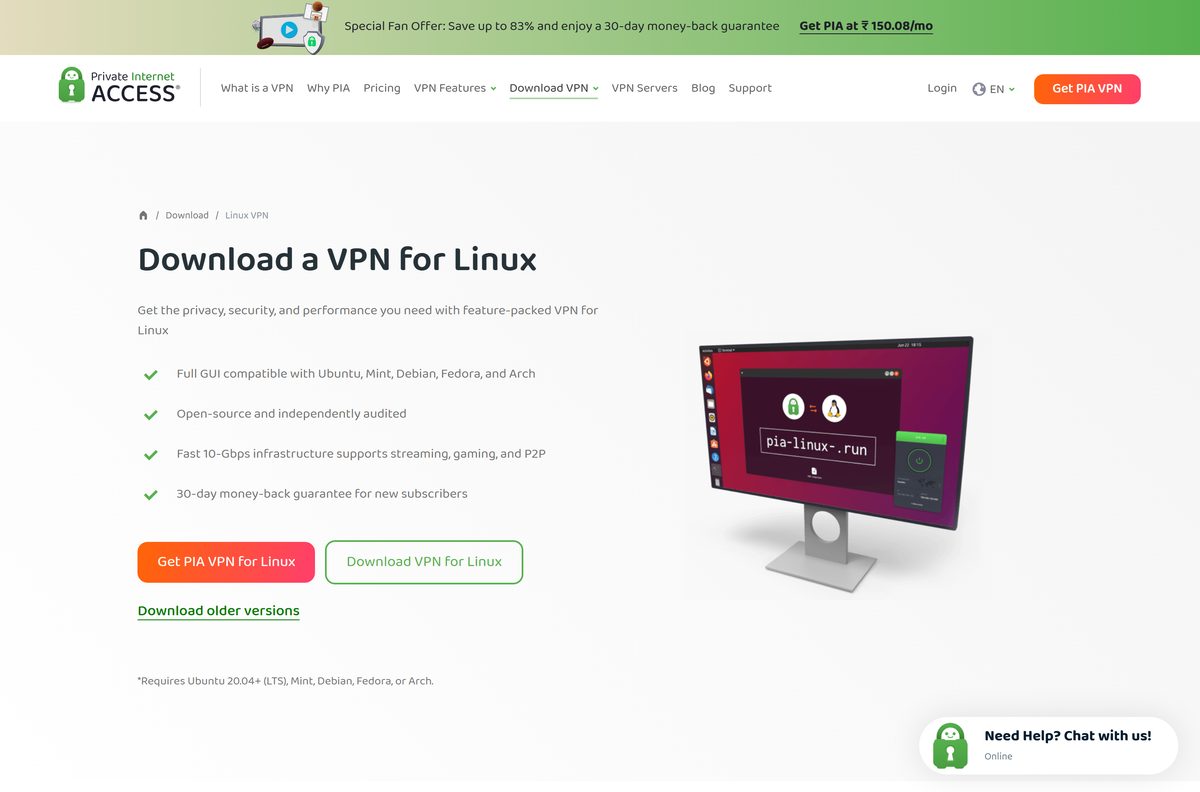
Yes. The Linux app supports Ubuntu 20.04 or later, Mint, Debian, Fedora and Arch on 64-bit systems, with a separate ARM64 build. You install it by running the downloaded .run file with sh.