You can install the Amazon WorkSpaces Client on Windows 11 and Mac in a few minutes from the Amazon WorkSpaces Client Download site. AWS also ships it for Ubuntu Linux, iPad, Android phones, Android tablets and Chromebooks.
The client is free. Your company pays for the WorkSpace itself and sends you a welcome email with the registration code the client asks for on first launch.
Windows is on version 5.34.1 and macOS on 5.33.0, now a single Universal app for Apple silicon and Intel Macs. The sections below match each device to its download, then cover setup, updates, requirements and connection fixes.
Which Amazon WorkSpaces Client download do you need?
Match your device to the row below. The desktop builds come from one AWS download site; the tablet and phone builds come from their app stores.
| Your device | Get it from | Current version |
|---|---|---|
| Windows 11 PC | Amazon WorkSpaces Client Download | 5.34.1 |
| Mac on macOS 13 Ventura or later | Amazon WorkSpaces Client Download | 5.33.0, Universal |
| Ubuntu 24.04, 22.04 or 20.04 | Amazon WorkSpaces Client Download | 2026.0 (24.04 and 22.04) |
| iPad on iPadOS 15 or later | App Store | 2.4.30 |
| Android 13 phone, tablet or Chromebook | Google Play | 5.1.3 |
| Any computer with no install rights | Web Access (DCV WorkSpaces) | Browser-based |
The iPad and Android apps connect to PCoIP WorkSpaces only. If your administrator says your WorkSpace uses DCV, use a desktop client or Web Access.
Download the Amazon WorkSpaces Client for Windows 11
AWS keeps every desktop installer on one download site and documents each client on its own guide page.
- Amazon WorkSpaces Client Download — Windows, macOS and Linux installers from AWS
- Windows client guide and release notes — Requirements, install options and version history
- Client end-of-life policy — Windows 5.22.1 and later is the supported range
Versions 5.0 to 5.22.0 reached end of life on March 31, 2025. An older copy has to be replaced, not patched.
How to install the Amazon WorkSpaces Client on Windows 11
Setup asks one real question: install just for you, or for everyone who signs in to the PC.
- Open the Amazon WorkSpaces Client Download site and select the Windows download.
- Run the installer from your Downloads folder.
- Choose Install just for you on a personal PC. Choose the all-users option on a shared PC, which needs administrator credentials.
- Tick Install driver for USB redirection if you plan to use local USB devices inside the WorkSpace. This box appears only with the all-users install.
- Finish setup and open Amazon WorkSpaces from the Start menu.
- Enter the registration code from your welcome email when the client asks for it.
- Enter your user name and password, then select Sign In. Add the multi-factor passcode if your company uses one.
Updates keep the install mode you chose, so pick it with care. Mixing a per-user copy and an all-users copy causes repeated update prompts.
Install the Amazon WorkSpaces app on iPad, Android or a Chromebook
Both mobile apps are free and need the same registration code as the desktop client.
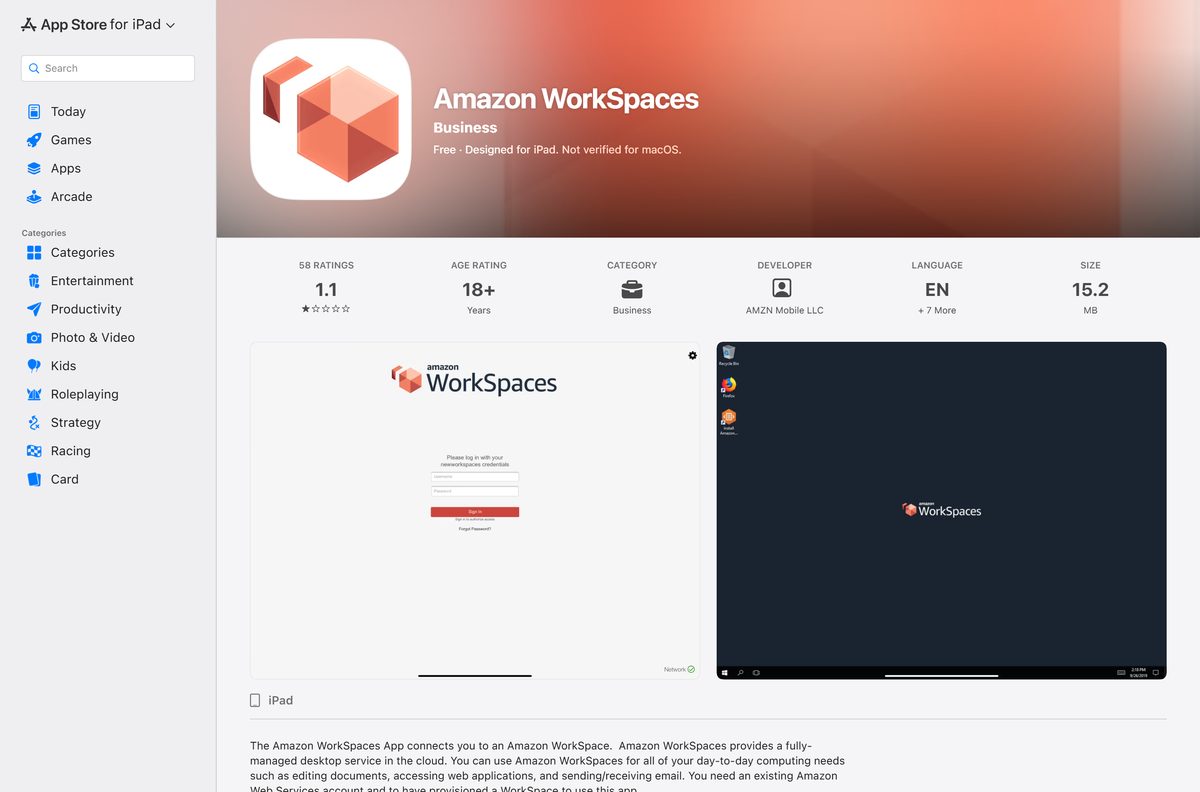
- On an iPad, open the App Store listing and select Get. Version 2.4.30 needs iPadOS 15.0 or later.
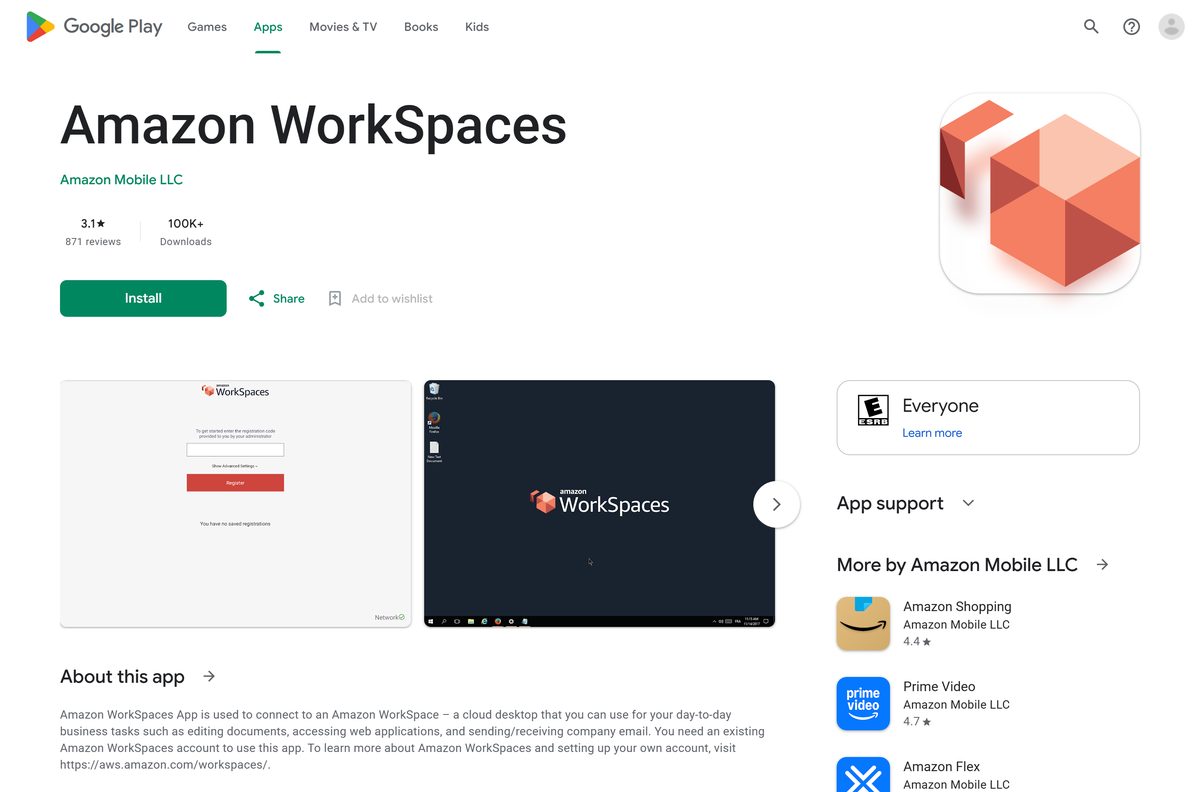
- On an Android phone, tablet or Chromebook, open the Google Play listing and select Install. Current releases need Android 13 or later on a 64-bit device.
- Open the app and enter the registration code from your welcome email.
- Sign in with your WorkSpaces user name and password.
- Swipe in from the left edge to open the menu with the keyboard, settings and Disconnect controls.
The old Chrome App for Chromebooks stopped at version 2.4.13 and is unsupported. Use the Android app on any Chromebook that runs Android apps.
Run Amazon WorkSpaces in a browser without installing the client
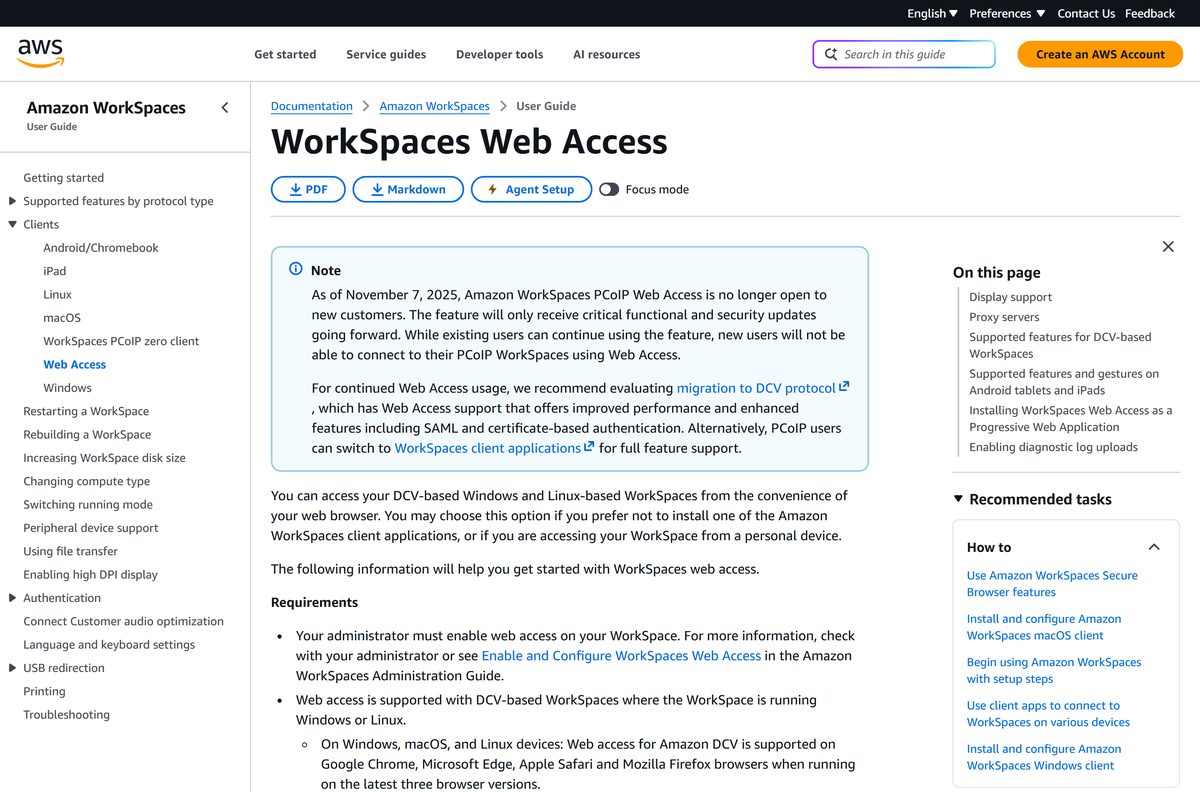
Web Access streams DCV-based Windows and Linux WorkSpaces straight into a browser tab. Your administrator has to switch it on first.
- Read the Web Access requirements, then ask your administrator whether Web Access is enabled for your WorkSpace and which sign-in URL to use.
- Open that URL in Chrome, Edge, Safari or Firefox, on one of the latest three versions.
- Enter your registration code and let the browser redirect you to your Region’s endpoint.
- Sign in with your WorkSpaces credentials.
- In Chrome or Edge, select the Install icon in the address bar to keep it as an app in its own window.
PCoIP Web Access has been closed to new users since November 7, 2025. A PCoIP WorkSpace needs one of the installed clients instead.
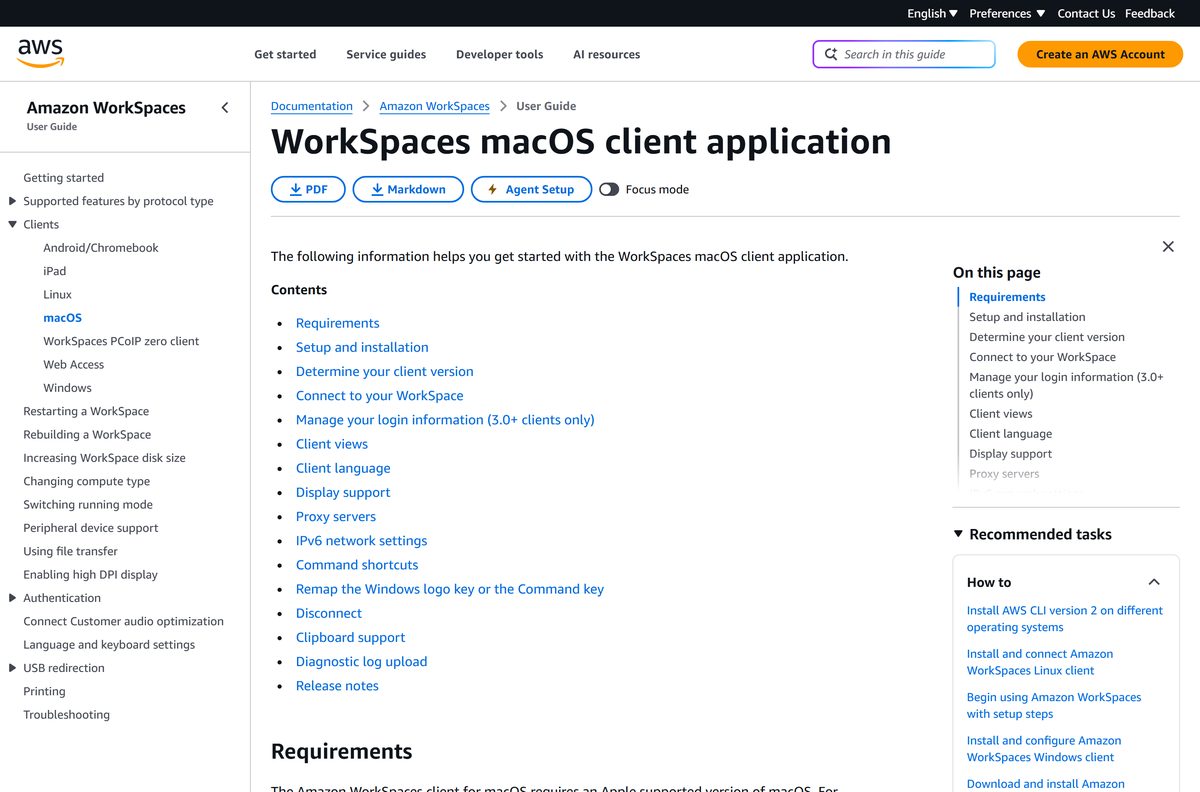
Which Amazon WorkSpaces Client download do you need for your Mac?
Open the Apple menu and select About This Mac to read your macOS version. Since 5.33.0 the chip no longer matters, because one Universal app covers Apple silicon and Intel.
| Your Mac runs | What to install | Protocols supported |
|---|---|---|
| macOS 26 Tahoe | macOS client 5.33.0 | PCoIP and DCV |
| macOS 15 Sequoia | macOS client 5.33.0 | DCV only |
| macOS 14 Sonoma or 13 Ventura | macOS client 5.33.0 | PCoIP and DCV |
| macOS 12 Monterey or earlier | Web Access, if enabled | Desktop client not supported |
The Mac client updates itself in the background in most AWS Regions, so installing once is usually enough.
Is the Amazon WorkSpaces Client free?
The price question has two halves: the app on your device, and the cloud desktop it connects to.
Yes. The client is free on every platform, but it only connects to a WorkSpace that an organization pays AWS to run. AWS bills the WorkSpace, not the app. Organizations pay by the hour or by the month with no upfront fee, and the hourly option adds a small monthly infrastructure charge. Without a registration code from an administrator, the client has nothing to connect to.
If you want a WorkSpace of your own, the rates are on the WorkSpaces pricing page. Any site charging for the client itself is not AWS.
Choose the classic or new client experience on Windows
Windows 5.34 added a Public Preview of a redesigned client next to the classic one. After you register, a Try New WorkSpaces link appears in the top-right corner unless your administrator turned it off.
Try the new experience if your WorkSpace uses DCV and you work in English. Stay on classic for PCoIP WorkSpaces or other languages. The new experience connects to DCV-based WorkSpaces only and ships in English first. It adds a Session Health panel, a Devices panel, a file transfer window and light or dark themes.
Select Return to classic in the top-right corner to switch back. Install the USB redirection driver during an all-users install, because the new experience cannot download it from its settings menu yet.
How to check your Amazon WorkSpaces Client version and update it
The Windows and macOS clients install updates in the background while they sit unused, then run the new version the next time you open them.
- In the classic Windows client or on a Mac, choose Amazon WorkSpaces, then About Amazon WorkSpaces.
- In the new Windows experience, choose Amazon WorkSpaces, then About.
- Compare the number with 5.34.1 for Windows or 5.33.0 for macOS.
- If the client shows an update message, accept it and let it install.
- If no message appears on an old version, download the current installer from the client download site and run it.
Automatic updates are off in some Regions and where an administrator disabled them. Those clients show a message when a new version exists instead.
Check the Amazon WorkSpaces Client system requirements
The hardware bar is low. The network and the operating system version are what decide whether a session connects.
| Item | Detail |
|---|---|
| Software | Amazon WorkSpaces Client |
| Developer | Amazon Web Services (AWS) |
| Latest version | Windows 5.34.1 (September 4, 2026); macOS 5.33.0 (July 7, 2026); Ubuntu 2026.0 (June 10, 2026) |
| Licence | Free client; the WorkSpace is billed to your organization |
| Windows | A Microsoft-supported version of Windows 11, 64-bit |
| macOS | 13 Ventura, 14 Sonoma, 15 Sequoia (DCV only) or 26 Tahoe; Universal app |
| Linux | Ubuntu 24.04, 22.04 or 20.04; Linux access must be enabled by the administrator |
| iPad | iPadOS 15.0 or later, PCoIP WorkSpaces only |
| Android and Chromebook | Android 13 or later, 64-bit, PCoIP WorkSpaces only |
| Network | At least 1 Mbps download; ports 4172 and 4195 for streaming, 443 for sign-in and updates |
| Official download source | clients.amazonworkspaces.com |
| Last verified | 2026-09-25 |
Stay within about 2,000 miles of your WorkSpace’s AWS Region. Round-trip times above 100 ms bring a slow-connection warning.
Check which client can open your WorkSpace
WorkSpaces stream over one of two protocols, PCoIP or DCV. In the Windows or Mac client, choose Support, then About My WorkSpace, to see which one yours uses.
| Client | PCoIP WorkSpaces | DCV WorkSpaces |
|---|---|---|
| Windows | Yes | Yes |
| macOS | Yes, except on macOS 15 | Yes |
| Ubuntu Linux | Yes | Yes |
| iPad | Yes | No |
| Android and Chromebook | Yes | No |
| Web Access | Existing users only | Yes |
Fix the Amazon WorkSpaces Client not connecting on Windows 11
Most failures come from the network or from two copies of the client. Match your symptom below.
The client shows a network error, but other apps work
Your PC’s root certificate list is out of date, or the connection is too slow.
- Install the latest Windows client from the download site; setup adds trust for Amazon Trust Services certificates.
- Confirm the connection gives at least 1 Mbps download.
- Select the Network icon in the top-right corner of the client to rerun the health checks.
Only a white page appears after sign-in
Expired Verisign or Symantec certificates sit on your PC.
- Open Control Panel, then Network and Internet, then Internet Options.
- Select Content, then Certificates.
- On the Intermediate Certificate Authorities and Trusted Root Certificate Authorities tabs, remove only expired Verisign or Symantec entries.
- Launch the client again.
No network error with a custom proxy
The client cannot reach AWS through the proxy you typed in.
- Switch the client back to the proxy set in Windows.
- Confirm the proxy does not require a user name and password, which the client does not support.
- Ask IT to allow ports 4172 and 4195 outside the proxy for streaming.
The client keeps asking to update to a version you already have
A per-user copy and an all-users copy are both installed.
- Open Control Panel, then Programs and Features.
- Find each Amazon WorkSpaces entry and read the Version column.
- Select the older one and choose Uninstall.
- Restart the PC if prompted.
How to uninstall the Amazon WorkSpaces Client
Removing the client does not touch your WorkSpace. Everything on the cloud desktop stays where it is.
- Disconnect from your WorkSpace and quit the client.
- On Windows, open Control Panel, then Programs and Features.
- Select Amazon WorkSpaces and choose Uninstall, then Yes to confirm.
- Repeat for a second entry if both a per-user and an all-users copy are listed.
- On a Mac, quit with Amazon WorkSpaces, then Quit Amazon WorkSpaces, and drag the app from Applications to the Trash.
Which Amazon WorkSpaces Client alternatives match your cloud desktop?
A remote desktop client only opens the service it was built for. Pick the one your employer’s platform uses.
| Client | Connects to | Official page |
|---|---|---|
| Amazon WorkSpaces Web Access | DCV WorkSpaces from a browser, no install | AWS documentation |
| Windows App | Azure Virtual Desktop, Windows 365 and Remote Desktop | learn.microsoft.com |
| Citrix Workspace | Citrix virtual apps and desktops | App Store |
Frequently asked questions
Is the Amazon WorkSpaces Client download free?
Yes. AWS offers every client app for free on its client download site, the App Store and Google Play. The WorkSpace you connect to is a paid AWS service, billed to your organization by the hour or by the month.
Where is the official Amazon WorkSpaces Client download page?
AWS hosts the Windows, macOS and Linux installers on the Amazon WorkSpaces Client Download site at clients.amazonworkspaces.com. The iPad app is on the App Store and the Android app is on Google Play.
Does the Amazon WorkSpaces Client run on Windows 10?
The current Windows client lists a Microsoft-supported version of Windows 11 as its requirement. AWS gives no support for clients running on an operating system that has reached end of life, so move to Windows 11 or use Web Access.
What is the latest Amazon WorkSpaces Client version?
Windows is on 5.34.1, released September 4, 2026. macOS is on 5.33.0 from July 7, 2026, and the Ubuntu client is on 2026.0 from June 10, 2026.
Is there one Mac download for Apple silicon and Intel?
Yes. Version 5.33.0 turned the macOS client into a Universal app, so one download runs natively on M-series and Intel Macs. It needs macOS 13 Ventura or later.
Where do I find my registration code?
The registration code is in the welcome email your WorkSpaces administrator sent. If that email never arrived, only the administrator can resend it or give you the code.
Can I use Amazon WorkSpaces without installing anything?
Yes, if your administrator enables Web Access and your WorkSpace uses the DCV protocol. It runs in Chrome, Edge, Safari or Firefox, and it can be installed as a web app with its own window.
Does the client update itself?
Yes. The Windows and macOS clients check for updates and install them in the background while you are not using them. In Regions without automatic updates, the client shows a message and you choose when to install.
Why does the Windows client keep asking me to update?
Two copies are installed, usually one just for you and one for all users. Uninstall the older copy from Programs and Features, then keep the one that matches how you first installed it.