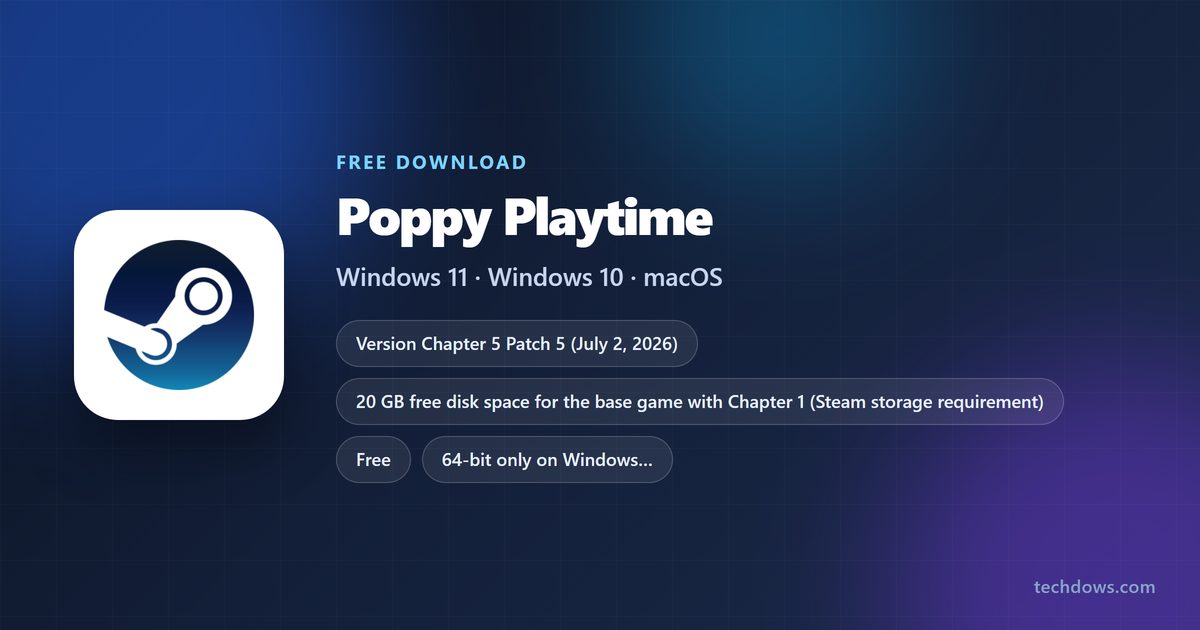
The Poppy Playtime download for PC comes from Steam on Windows 11 and Windows 10, and Chapter 1 costs nothing. Install Steam, add the game to your library, and the first chapter is ready to play.
Mob Entertainment develops and publishes the horror puzzle series. Chapters 2 to 5 install as paid add-ons to the same Steam game, and Chapters 1 to 4 also sell on iPhone, iPad and Android.
Below: the right store for your device, official links, install steps, pricing per chapter, PC requirements, fixes and removal.
Which Poppy Playtime download do you need for your device?
Each platform gets the game from its own official store. Match your device to a row and open that link.
| Your device | Where to get it | Price |
|---|---|---|
| Windows 11 or Windows 10 PC, 64-bit | Steam store page | Chapter 1 free, later chapters paid |
| Mac with an Apple silicon chip | Mac App Store listing (iPad app) | $2.99 for Chapter 1 |
| Intel Mac | No official build | Not available |
| iPhone or iPad | App Store listing | $2.99 for Chapter 1 |
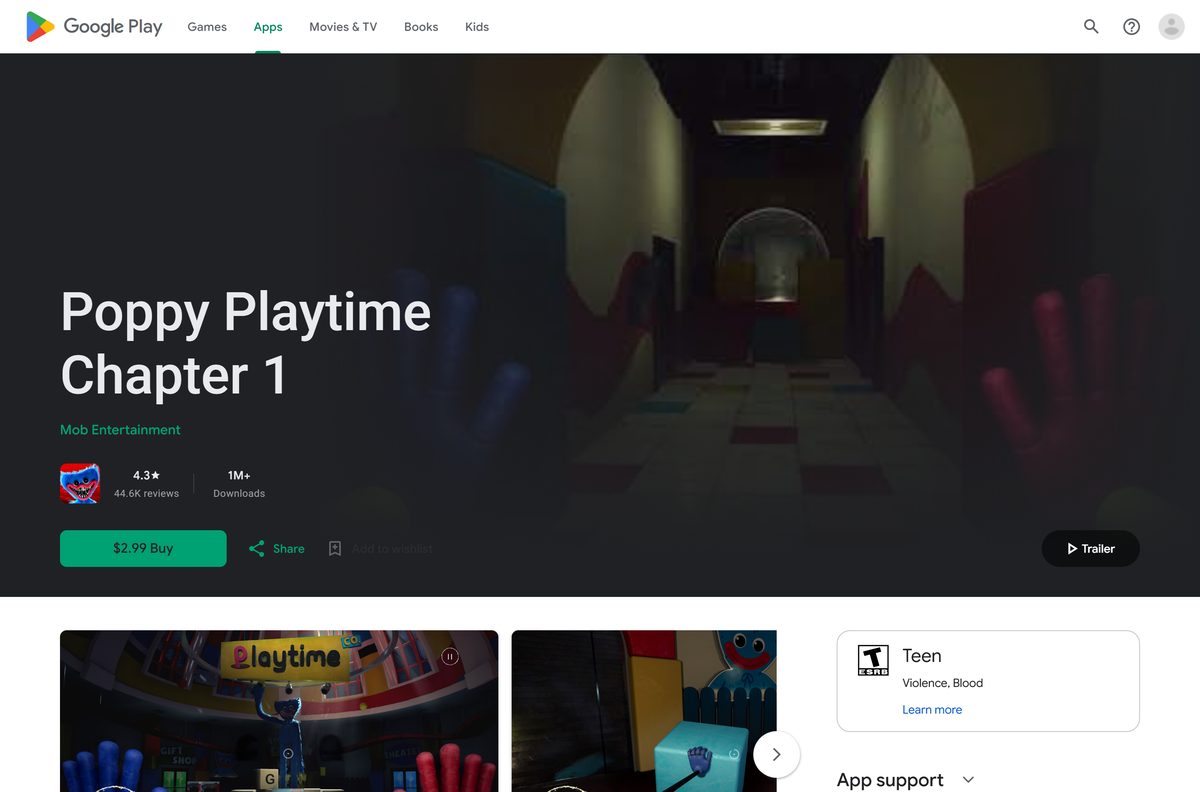
| Android phone or tablet | Google Play listing | $2.99 for Chapter 1 |
Steam and the mobile stores sell separate copies. A chapter bought on one store does not unlock on another.
Download Poppy Playtime and each chapter from Steam
Steam sells the series as one base game plus add-ons. Add the base game first, because every later chapter needs it.
- Steam client for Windows — Install this first
- Poppy Playtime (Chapter 1) on Steam — 20 GB disk space · Free, base game
- Poppy Playtime – Chapter 2 — 20 GB disk space · $9.99 list price
- Poppy Playtime – Chapter 3 — 60 GB disk space · $14.99 list price
- Poppy Playtime – Chapter 4 — 15 GB disk space · $19.99 list price
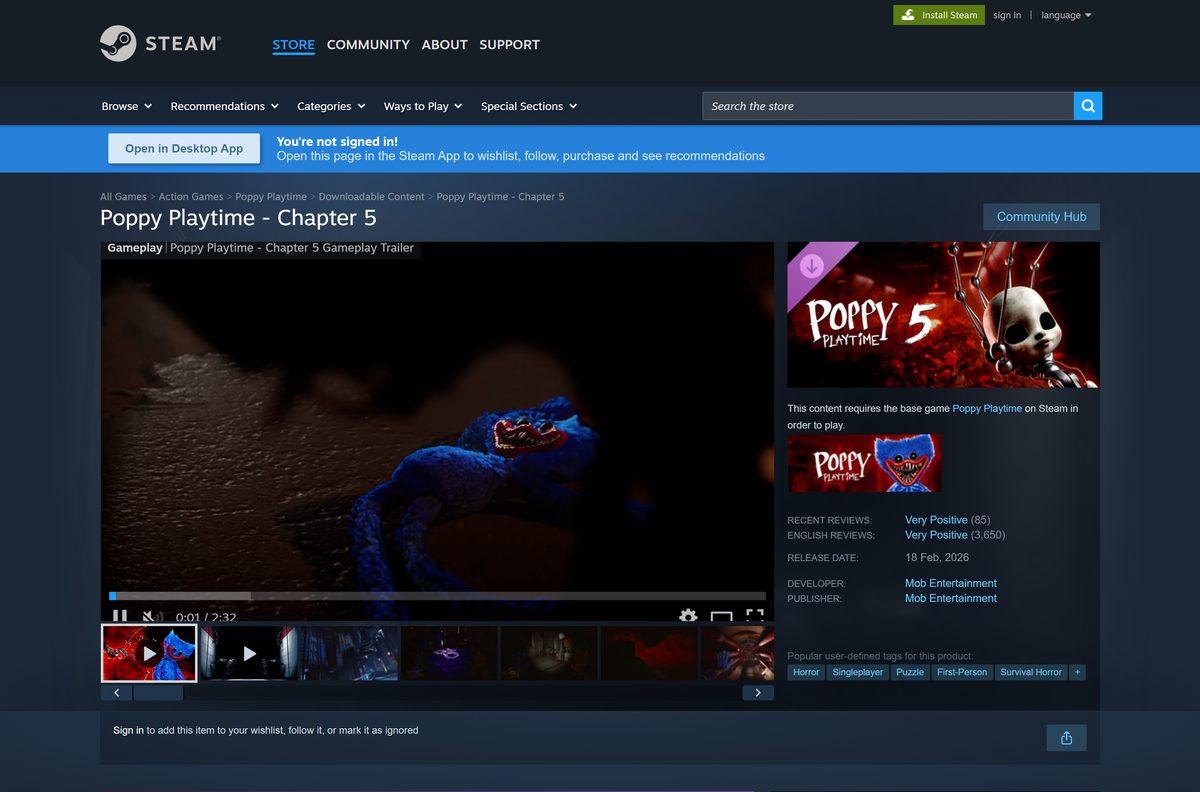
- Poppy Playtime – Chapter 5 — $19.99 list price, released February 18, 2026
The Chapter 5 page states that the content requires the base game on Steam. Sale prices change often, so check the page before you buy.
How to install Poppy Playtime on Windows 11 and 10 with Steam
Install the Steam client and sign in to a free Steam account before you start.
- Open the Steam client page and select Install Steam.
- Run the Steam setup, then sign in or create an account.
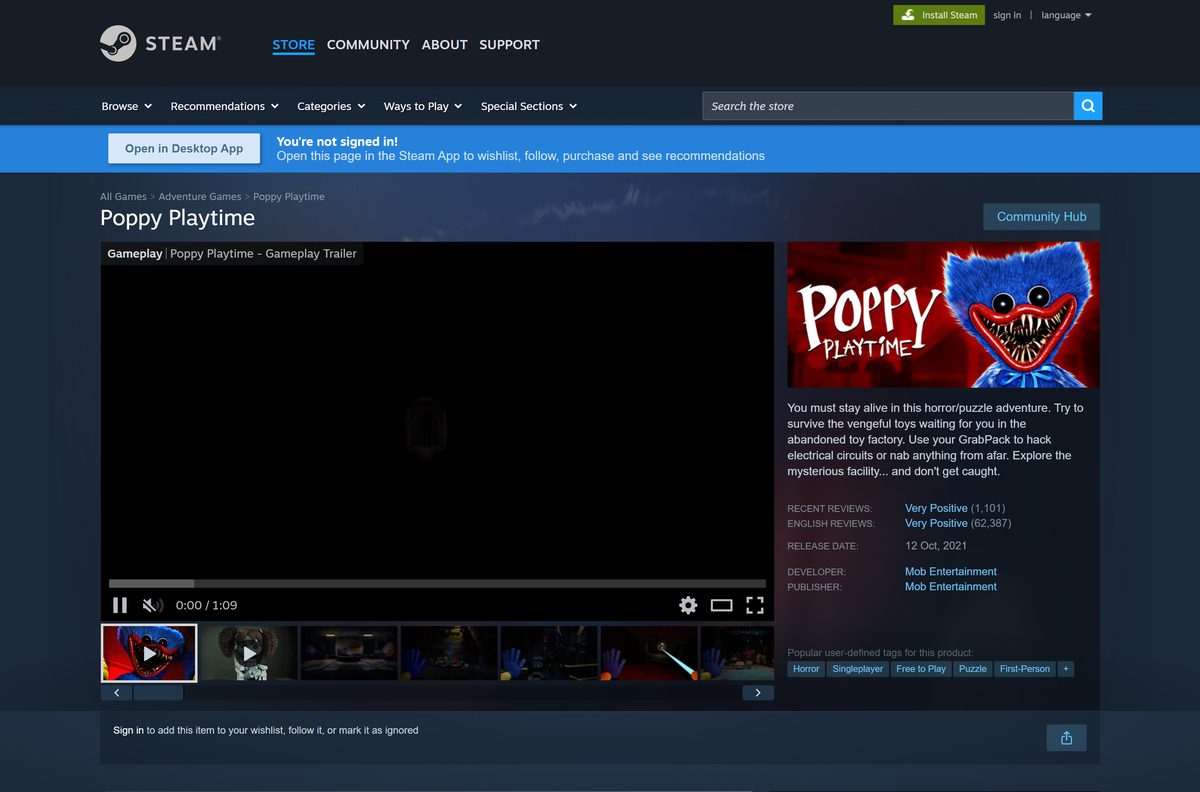
- Search for Poppy Playtime in the Steam Store tab and open the Mob Entertainment page.
- Select Play Game to add the free base game with Chapter 1 to your library.
- Pick a drive with at least 20 GB free and select Install.
- Wait for the download to finish in the Library.
- Select Play to launch Chapter 1.
To add a later chapter, open its Steam page, select Add to Cart and complete the purchase. It installs into the same game.
Is Poppy Playtime free?
Chapter 1 is free on PC. Everything after it costs money, and the mobile versions charge for every chapter.
Start with the free Chapter 1 on Steam, then buy later chapters only if the first one runs well on your PC. Steam lists the base game as free to play and sells Chapters 2 to 5 as DLC at $9.99, $14.99, $19.99 and $19.99 list prices. The App Store and Google Play charge $2.99 for Chapter 1 and $4.99 each for Chapters 2 to 4.
Google Play also shows apps named Poppy Playtime Chapter 5 and Chapter 6 from developers other than Mob Entertainment. Those are not the official game. Check the developer name before you pay or install.
Which Poppy Playtime chapter should you buy next?
The chapters form one story, and each one continues where the last ended.
Play the chapters in order, starting with Chapter 1, and check your hardware before Chapter 4 or 5. Chapter 1 runs on a GTX 1060 class card. Chapters 4 and 5 recommend an RTX 3070 or Radeon RX 6800XT with 16 GB of RAM, and Chapter 3 alone asks for 60 GB of space.
Steam released the chapters in this order: October 2021, May 2022, January 2024, January 2025 and February 2026.
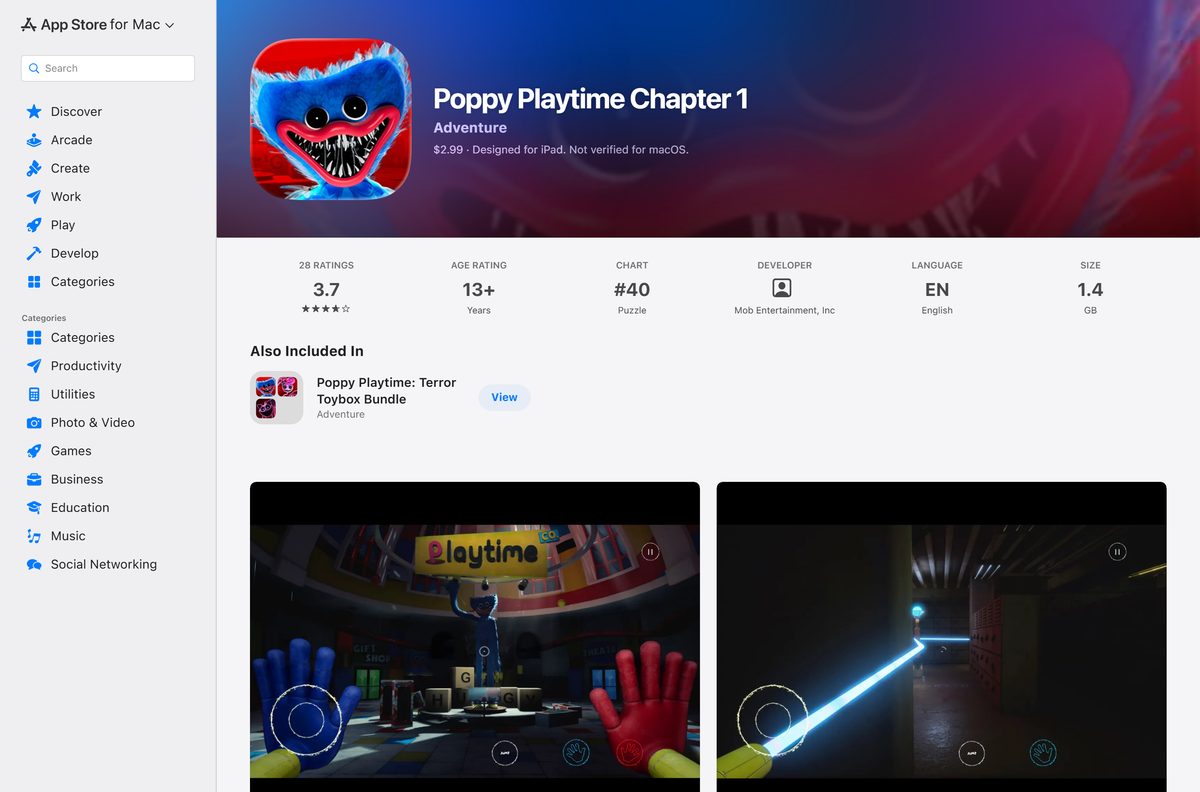
Which Poppy Playtime download do you need for your Mac?
Steam lists Windows only, with no macOS or Linux build. The Mac route is the iPad version from the App Store.
| Your Mac says | What to do | Price |
|---|---|---|
| Chip: Apple M1, M2, M3, M4 or later | Open the Mac App Store listing | $2.99 for Chapter 1 |
| Processor: Intel | No official Mac version; play on a Windows PC | Not available |
Open the Apple menu and select About This Mac to see your chip.
The App Store labels Chapter 1 as Designed for iPad and Not verified for macOS. Touch controls map to the keyboard and trackpad, so expect some rough edges.
Check the Poppy Playtime PC requirements before you install
Steam lists these Windows requirements for the base game with Chapter 1. Later chapters ask for more.
| Field | Value |
|---|---|
| Game | Poppy Playtime |
| Developer | Mob Entertainment |
| Publisher | Mob Entertainment |
| Latest version | Chapter 5 Patch 5 (July 2, 2026) |
| Price | Chapter 1 free on Steam; Chapters 2-5 paid |
| Supported OS | 64-bit Windows 10 or Windows 11 |
| Architecture | 64-bit processor and OS required |
| Processor | Intel Core i5 |
| Memory | 8 GB RAM |
| Graphics | Nvidia GeForce GTX 1060 or Radeon RX 580 |
| Disk space | 20 GB for Chapter 1 |
| Chapter 4 and 5 recommended | Core i9-11900k or Ryzen 9 5900x, 16 GB RAM, RTX 3070 or RX 6800XT, DirectX 12 |
| Offline installer | No, Steam downloads the game |
| Official sources | Steam, App Store, Google Play |
| Last verified | 2026-09-25 |
To check your PC, open Settings, select System, then About. The System type line must say 64-bit operating system.
How to check your Poppy Playtime version and update it
Steam updates the game and every chapter you own automatically.
- Open Steam and go to your Library.
- Right-click Poppy Playtime and select Properties.
- Select Updates and set Automatic Updates to keep the game up to date.
- Return to the library and select Update if the button appears.
- Open the game’s News in Steam to read the latest patch notes.
In February 2026, Mob Entertainment rolled back an update to the earlier chapters after players reported serious problems. Steam applies such rollbacks automatically.
Verify and repair the Poppy Playtime game files in Steam
Steam has no separate installer to checksum. It checks the installed files against its own copy instead.
- Open your Steam Library.
- Right-click Poppy Playtime and select Properties.
- Select Installed Files.
- Select Verify integrity of game files.
- Wait for Steam to replace any damaged files, then launch the game.
Fix Poppy Playtime not installing or launching on Windows
Find the symptom that matches your screen and follow the fix under it.
Steam says there is not enough disk space
Each chapter needs its own space, up to 60 GB for Chapter 3.
- Open Settings, select System, then Storage.
- Delete files or move them to another drive.
- Or pick a different drive in the Steam install dialog.
The game crashes on startup
Damaged files or an outdated graphics driver.
- Verify the game files in Steam.
- Update your graphics driver from the Nvidia, AMD or Intel site.
- Install pending updates from Settings and Windows Update.
- Restart the PC and launch again.
A chapter you bought does not appear
The DLC is not installed, or the base game is missing.
- Install the free base game Poppy Playtime first.
- Right-click it, select Properties, then DLC.
- Tick the chapter and let Steam download it.
The download is stuck or slow
A stale Steam download cache.
- Select Steam, then Settings.
- Select Downloads and choose Clear Download Cache.
- Sign in again and resume the download.
How to uninstall Poppy Playtime
Remove the game through the store that installed it.
On Windows with Steam
- Open your Steam Library.
- Right-click Poppy Playtime and select Manage, then Uninstall.
- Confirm with Uninstall. Owned chapters stay in your account for later.
On an Apple silicon Mac
- Open Launchpad.
- Hold the game icon until it jiggles.
- Click the X and confirm Delete.
On iPhone, iPad or Android
- Press and hold the app icon.
- Select Remove App on iPhone or Uninstall on Android.
- Confirm the removal.
Which Poppy Playtime chapters can you buy on iPhone or Android?
Phones and tablets get Chapters 1 to 4 as separate paid apps from Mob Entertainment.
| Chapter | App Store | Google Play |
|---|---|---|
| Chapter 1 | $2.99, iOS 12.0 or later | $2.99 |
| Chapter 2 | $4.99, iOS 12.0 or later | $4.99 |
| Chapter 3 | $4.99, iOS 15.0 or later | $4.99 |
| Chapter 4 | $4.99, iOS 15.0 or later | $4.99 |
| Chapter 5 | Not available | Not available |
The App Store lists Chapter 1 at 1.4 GB, far smaller than the PC install. Chapter 5 is on Windows only through Steam.
Frequently asked questions
Is Poppy Playtime free on PC?
Yes, Chapter 1 is free on Steam for Windows 11 and Windows 10. The base game includes Chapter 1 at no cost. Chapters 2 to 5 are paid DLC, listed at $9.99, $14.99, $19.99 and $19.99 before any sale.
Is Poppy Playtime free on mobile?
No. On the App Store and Google Play, Chapter 1 costs $2.99 and Chapters 2, 3 and 4 cost $4.99 each. Only the Steam version on Windows gives Chapter 1 away free.
Where is the official Poppy Playtime download for PC?
The official PC download is the Poppy Playtime page on Steam, published by Mob Entertainment. Install the Steam client, open that page and select Play Game to add the free base game to your library.
Does Poppy Playtime work on Windows 11?
Yes. Steam lists 64-bit Windows 10 as the minimum, and the Chapter 3 and Chapter 5 pages name Windows 10 and Windows 11 directly. The game does not run on 32-bit Windows.
How big is the Poppy Playtime download?
Steam asks for 20 GB of free space for the base game with Chapter 1. Chapter 2 lists 20 GB, Chapter 3 lists 60 GB and Chapter 4 lists 15 GB, so owning every chapter needs far more room.
Is there a Poppy Playtime offline installer?
No. Mob Entertainment publishes no standalone setup file for PC. Steam downloads, installs and updates the game, so you need the Steam client and an internet connection for the first install.
Can you play Poppy Playtime on a Mac?
Only partly. Steam has no macOS build. The iPad version of Chapter 1 appears in the Mac App Store for Apple silicon Macs at $2.99, labeled Designed for iPad and not verified for macOS, so controls can feel different.
Is Poppy Playtime 64-bit only?
Yes. The Steam chapter pages say the game requires a 64-bit processor and operating system, or name 64-bit Windows 10 and 11. A 32-bit copy of Windows cannot run it.
Is it safe to download Poppy Playtime?
Yes, from Steam, the App Store and Google Play under the Mob Entertainment name. Avoid download sites offering a free setup file or free later chapters, and skip store apps from other developers using the name.
What is the latest version of Poppy Playtime?
The newest content is Chapter 5, released on Steam on February 18, 2026. The most recent Steam patch is Chapter 5 Patch 5, posted on July 2, 2026. Steam installs updates automatically.
Why won’t Poppy Playtime install or launch?
The usual causes are too little disk space, a 32-bit or outdated Windows, damaged game files, or an old graphics driver. Free up space, verify the files in Steam, update Windows and the GPU driver, then launch again.
Is Poppy Playtime Chapter 5 on mobile?
No. The App Store and Google Play carry Chapters 1 to 4 from Mob Entertainment. Chapter 5 is on Steam for Windows only, and Play Store apps named Chapter 5 or Chapter 6 come from other developers.