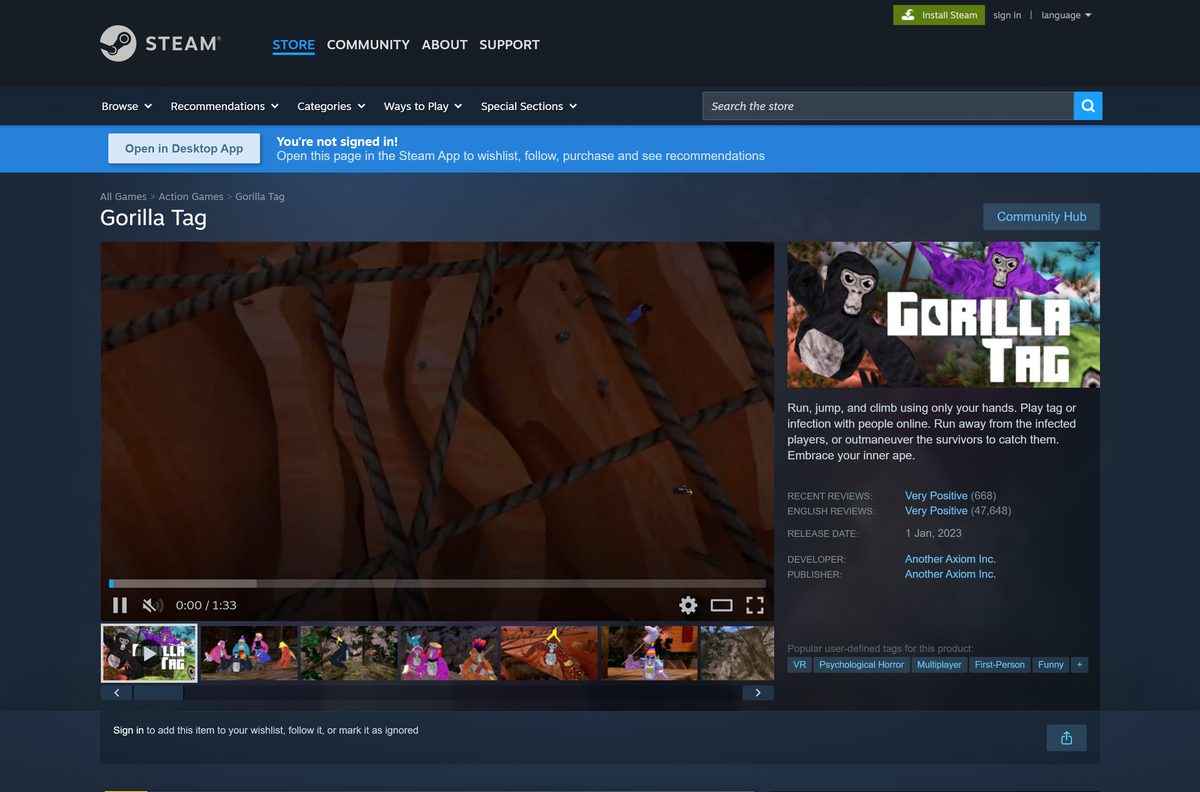
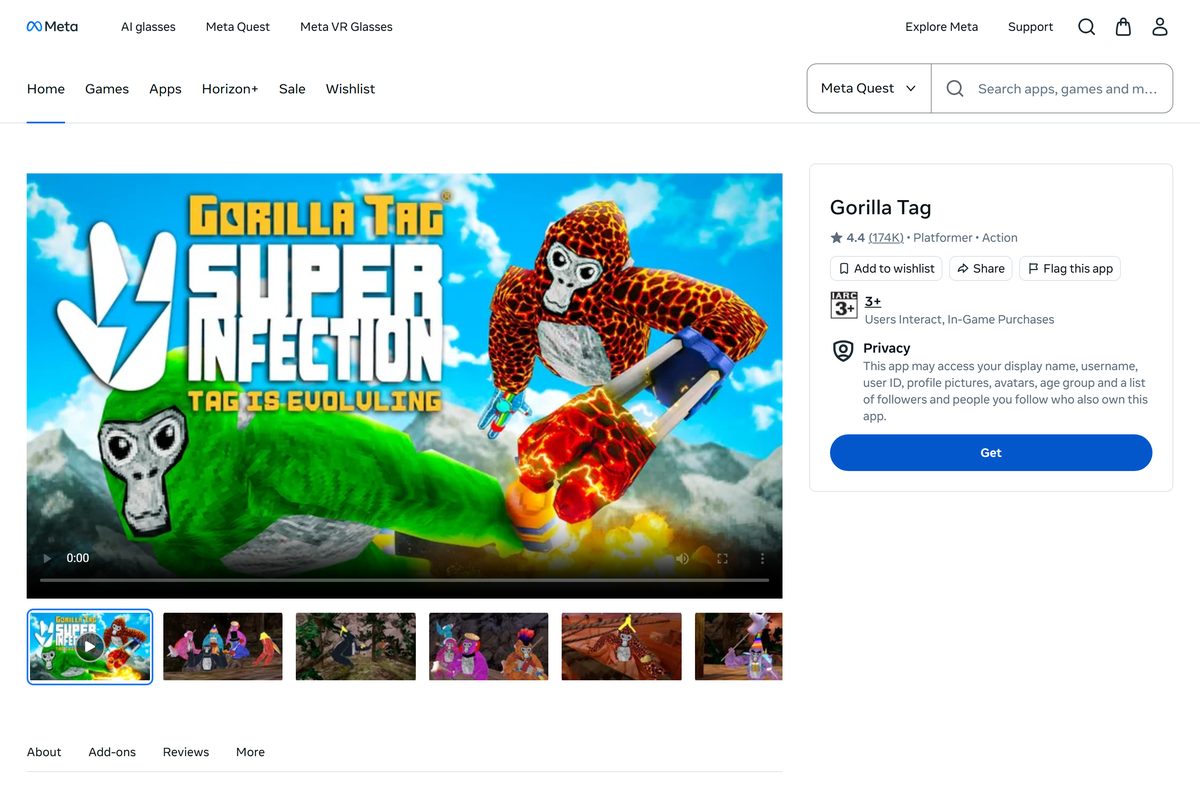
The Gorilla Tag download comes in two official forms: a PC VR version on Steam for Windows 11 and Windows 10, and a free standalone version for Meta Quest headsets. Both builds share the same lobbies, so a PC player and a Quest player can tag each other in the same match.
Another Axiom Inc. develops and publishes the game. It is VR only, so a headset is part of the download either way.
Below are the official store links, the install steps for Steam and Quest, the headset and PC requirements, the price on each store, the Mac answer and fixes for installs that fail.
Check the Gorilla Tag system requirements before you buy
The PC version is light on storage and heavy on one requirement: a VR headset. Steam marks the listing VR Only, and the game will not start in flat-screen mode.
| Item | Detail |
|---|---|
| Game | Gorilla Tag |
| Developer | Another Axiom Inc. |
| Publisher | Another Axiom Inc. |
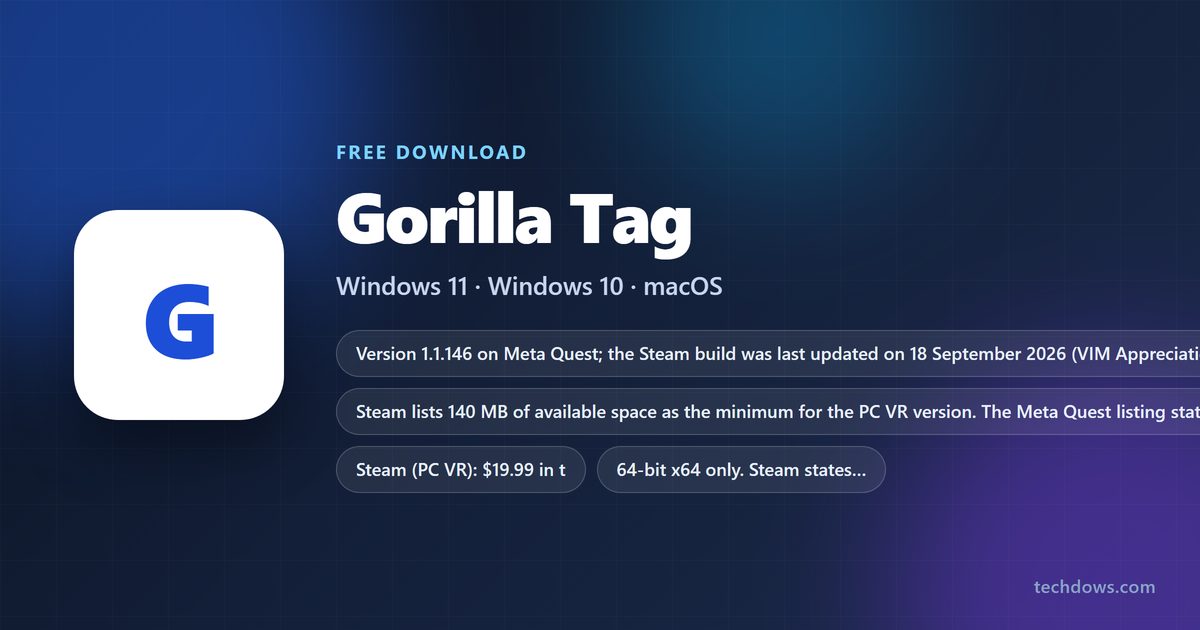
| Latest version | 1.1.146 on Meta Quest; Steam build updated 18 September 2026 |
| Price | $19.99 on Steam; free on Meta Quest; in-app purchases on both |
| Supported OS | Windows 10 or Windows 11 (64-bit) on Steam; no macOS or Linux build |
| Architecture | 64-bit processor and operating system required |
| Processor | Intel Core i5-4590 or AMD FX 8350 |
| Memory | 4 GB RAM |
| Graphics | NVIDIA GTX 970 or AMD Radeon R9 290 |
| Storage | 140 MB on PC; 1.78 GB on a Quest headset |
| VR runtime | SteamVR or Oculus PC |
| Network | Broadband internet connection |
| Standalone installer | None; Steam or the Meta Quest store installs it |
| Official store listing | store.steampowered.com |
| Last verified | 25 September 2026 |
Which Gorilla Tag download do you need?
Pick by headset, not by computer. The Quest version runs on the headset itself, while the Steam version runs on the PC and streams to a tethered or linked headset.
| Your setup | Where to get it | What it costs |
|---|---|---|
| Meta Quest 3S, 3, Pro or 2 on its own | Meta Quest store listing | Free, with optional in-game purchases. |
| Windows 11 or 10 PC with Valve Index, HTC Vive or Windows Mixed Reality | Steam store listing | $19.99, including 5,000 Shiny Rocks. |
| Windows PC with an Oculus Rift headset | Steam store listing | $19.99; it runs through Oculus PC or SteamVR. |
| Quest headset that you also link to a gaming PC | Meta Quest store listing | Free on the headset; the Steam copy is a separate $19.99 purchase. |
| Mac | Meta Quest store listing | Free on a Quest; there is no macOS build on Steam. |
Cross-platform multiplayer covers both stores, so the copy you pick has no effect on who you can play with.
Download Gorilla Tag from the official stores
Only two storefronts carry the game. Anything offered as a Gorilla Tag .exe on another site is not from Another Axiom.
- Gorilla Tag on Steam — PC VR for Windows 10 and 11; $19.99 in the US
- Gorilla Tag on the Meta Quest store — Standalone Quest version; free, 1.78 GB on the headset
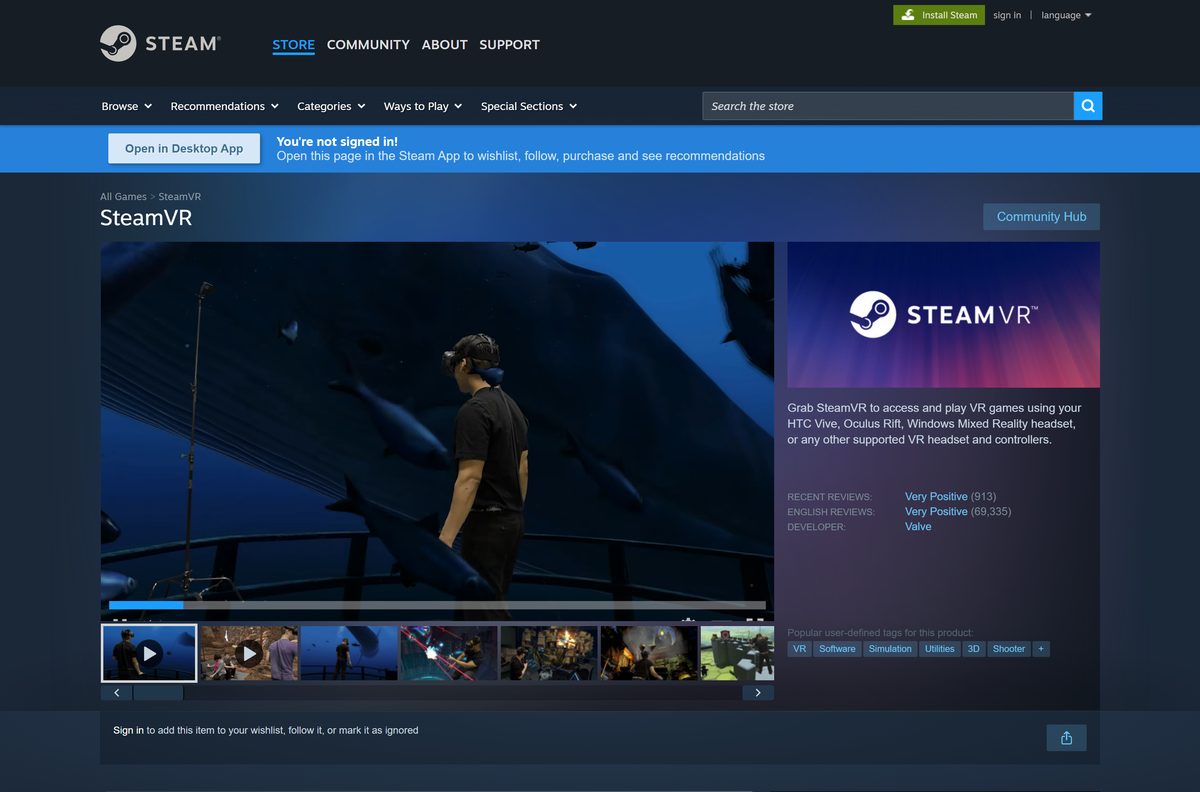
- SteamVR — Free Valve runtime the Steam copy needs for Index, Vive and other PC VR headsets
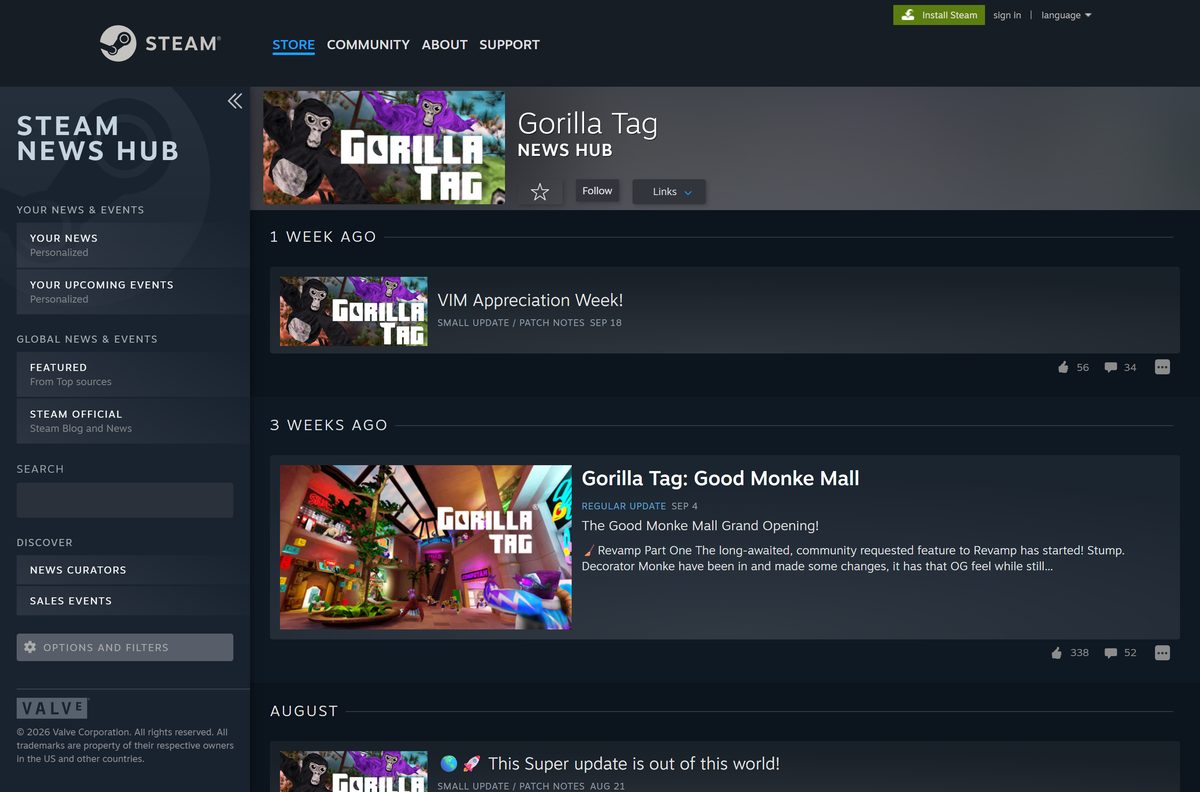
- Gorilla Tag update history on Steam — Patch notes, events and map releases
Steam also asks you to accept the Gorilla Tag EULA, a third-party agreement from the developer, before the first launch.
How to install Gorilla Tag on Windows 11 and 10 through Steam
Install the Steam client first if the PC has never run it. Plug in the headset and install its own PC software before you start.
- Open the Gorilla Tag Steam listing and sign in to Steam.
- Select Add to Cart, then Purchase for myself, and complete the $19.99 payment.
- Open the Steam client, go to Library and select Install next to the game.
- Pick a library folder and select Install again. The download needs only 140 MB.
- Install SteamVR from its free Steam listing if it is not in your library yet.
- Connect the headset, then start SteamVR and wait for the headset and both controllers to show as ready.
- Select Play on the game in your library and accept the Gorilla Tag EULA.
- Put the headset on and swing your arms to move. There are no buttons or sticks for movement.
Oculus Rift owners can launch through the Oculus PC software instead of SteamVR. Steam lists both runtimes as supported.
Install Gorilla Tag on a Meta Quest headset
The Quest version needs no PC. The headset downloads and runs it directly, and it takes 1.78 GB of the headset’s storage.
- Put on the Quest headset and open the Store from the universal menu.
- Search for Gorilla Tag and open the listing from Another Axiom.
- Select Get. The game costs nothing, so no payment step appears.
- Wait for the download to finish, then open it from the Library.
- Allow the microphone permission if you want voice chat with other players.
- Or open the Meta Quest store listing in a browser, sign in with the same Meta account and select Get.
The listing names Quest 3S, Quest 3, Quest Pro and Quest 2 as supported. The original Quest is not on that list.
Can you play Gorilla Tag on a Mac?
Not on the Mac itself. Steam lists Windows as the only platform for the game, and SteamVR has no macOS version either.
| Your situation | What to do | Notes |
|---|---|---|
| Mac owner with a Meta Quest 3S, 3, Pro or 2 | Get it on the Meta Quest store | Free and standalone, so the Mac plays no part. |
| Mac owner with no VR headset | Meta Quest store listing | A Quest headset is the only route that avoids a Windows PC. |
| Mac with Boot Camp or a Windows setup | Steam store listing | Requires a PC VR headset and a GPU at GTX 970 level or better. |
Is Gorilla Tag free?
It depends on the store. The Meta Quest listing shows a Get button with no price, while the Steam listing sells the PC VR version for $19.99 in the US.
The Steam price includes 5,000 Shiny Rocks, the in-game currency, which the listing values at $20. Quest add-on bundles cost $29.99 to $44.99, and the Gorilla Tag Fan Club (GTFC) is an optional subscription.
Mod menus and cracked PC copies offered on file sites are not from the developer. They also put a Steam or Meta account at risk of a ban.
Get it free on a Meta Quest if you own one. Buy the Steam version only for a PC VR headset such as a Valve Index or HTC Vive. The Quest copy costs nothing and shares lobbies with PC players. Another Axiom describes the game as free to play, with GTFC members choosing to chip in, and the $19.99 Steam price comes back to you as Shiny Rocks.
Check whether your VR headset runs Gorilla Tag
The Quest store lists four headsets by name. On PC, any headset that works with SteamVR or Oculus PC is covered.
| Headset | Version to use | How it runs |
|---|---|---|
| Meta Quest 3S | Meta Quest store (free) | Standalone on the headset |
| Meta Quest 3 | Meta Quest store (free) | Standalone on the headset |
| Meta Quest Pro | Meta Quest store (free) | Standalone on the headset |
| Meta Quest 2 | Meta Quest store (free) | Standalone on the headset |
| Valve Index | Steam ($19.99) | SteamVR on a Windows PC |
| HTC Vive | Steam ($19.99) | SteamVR on a Windows PC |
| Oculus Rift | Steam ($19.99) | Oculus PC or SteamVR on a Windows PC |
| Windows Mixed Reality headsets | Steam ($19.99) | SteamVR on a Windows PC |
Tracked motion controllers are required on every headset. The arm-swing movement does not work with a gamepad.
How to check your Gorilla Tag version and update it
The Quest listing says the game updates every two weeks, with maps, events and fixes. Both stores update the game on their own when auto-updates are on.
- On Quest, open the Meta Quest store listing and scroll to Additional details to see the current Version.
- On the headset, open Library, find the game and select Update if one is waiting.
- On Steam, open Library and check the status line under the game for Update Required or Update Queued.
- Select Update to fetch the patch now instead of waiting for the queue.
- Read the changes on the Steam update history page before an event or new map drops.
The Quest listing shows version 1.1.146, and the latest Steam patch landed on 18 September 2026 for VIM Appreciation Week.
Fix Gorilla Tag not installing or not launching
Most failures on PC come from Steam itself or from the VR runtime, not from the game files.
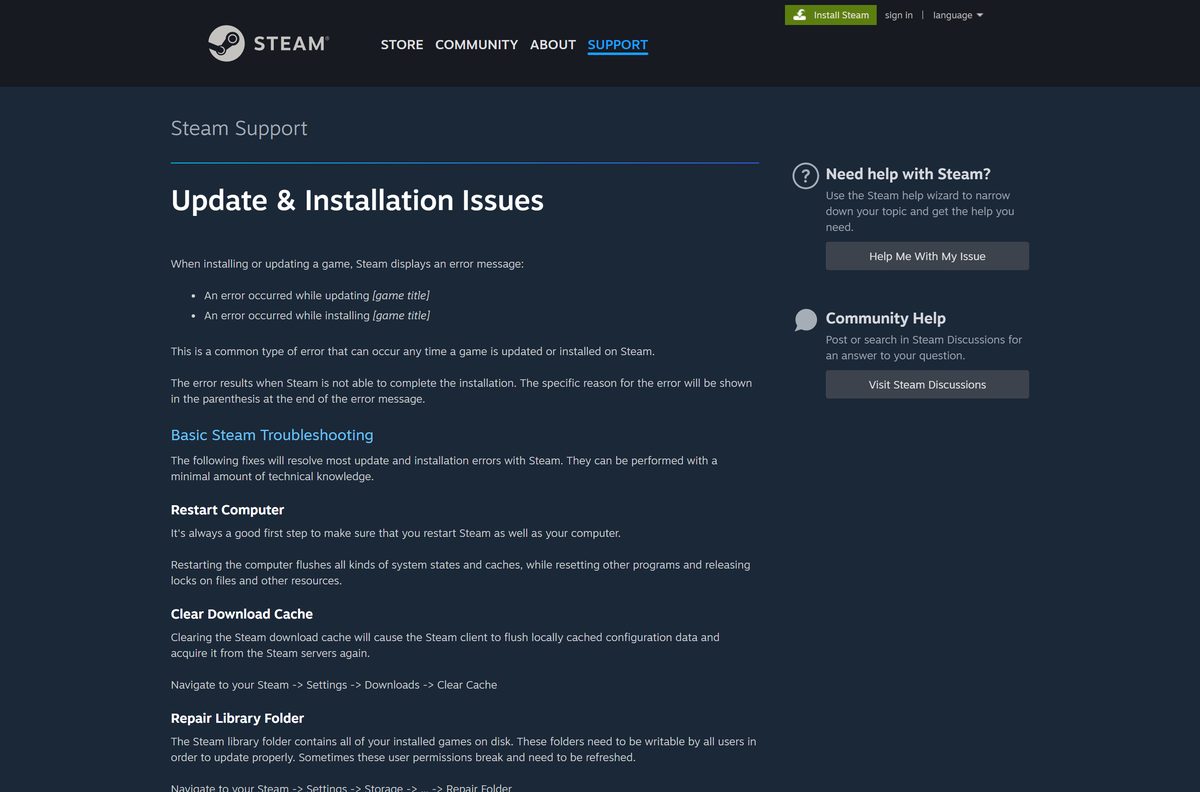
Steam shows an error while installing or updating
The reason sits in the brackets at the end of the Steam error message.
- Restart the Steam client and the computer.
- Open Steam, then Settings, then Downloads, and select Clear Cache.
- Open Steam, then Settings, then Storage, select the library folder and choose Repair Folder.
- Retry the install from the Library.
The game opens on the monitor but not in the headset
The VR runtime is not running or does not see the headset.
- Close the game.
- Start SteamVR or the Oculus PC software first and confirm the headset shows as connected.
- Launch the game again from the Steam Library.
Crashes, missing maps or broken textures
One or more game files are damaged or incomplete.
- Right-click the game in the Steam Library and select Properties.
- Open Installed Files and select Verify integrity of game files.
- Wait for the check to finish and ignore a note that a few files failed; those are local settings files.
The Quest download stalls
The headset has too little free space or lost its connection.
- Free at least 1.78 GB of headset storage by removing apps you no longer use.
- Restart the headset and reconnect to Wi-Fi.
- Open Library and restart the download.
The game needs a live internet connection to reach any lobby, so a firewall that blocks it on PC stops matchmaking too.
How to uninstall Gorilla Tag
Removing the game keeps your purchase and cosmetics, which stay on the account for a later reinstall.
- On PC, open the Steam Library and right-click the game.
- Select Manage, then Uninstall, and confirm.
- Uninstall SteamVR the same way only if no other VR game uses it.
- On Quest, open Library, open the menu for the game and choose Uninstall.
- Confirm the prompt. The game frees its 1.78 GB right away.
Frequently asked questions
Is Gorilla Tag free?
On Meta Quest, yes. The Quest store listing has a Get button with no price. On Steam the PC VR version costs $19.99 in the US and includes 5,000 Shiny Rocks. Both versions sell cosmetics and bundles inside the game.
Where is the official Gorilla Tag download page?
The PC VR version is on Steam at store.steampowered.com, app 1533390. The Quest version is on the Meta Quest store at meta.com. Another Axiom Inc. publishes both listings, and no other site distributes the game.
Does Gorilla Tag work on Windows 11?
Yes. Steam lists Windows 10 as the minimum, with a 64-bit processor and operating system, so Windows 11 is covered. The PC also needs a VR headset running through SteamVR or the Oculus PC software.
How big is the Gorilla Tag download?
Steam asks for 140 MB of available space for the PC VR version. The Meta Quest listing states 1.78 GB of space required on the headset. Leave extra room on either device for the regular map and event updates.
Is there a Gorilla Tag offline installer?
No. There is no standalone setup file. The PC version installs through the Steam client and the Quest version through the Meta Quest store. Play is online multiplayer, so an offline copy would have no lobbies to join.
Is there a Gorilla Tag Mac version?
No. Steam lists Windows as the only platform, and SteamVR has no macOS version. A Mac owner can play the free Quest version on a Meta Quest 3S, 3, Pro or 2, which runs on the headset without a computer.
Is Gorilla Tag 64-bit or 32-bit?
It is 64-bit only on PC. The Steam requirements state a 64-bit processor and operating system for the game. The Quest version runs on the headset’s own chip, so the PC architecture does not matter there.
Is the Gorilla Tag download safe?
It is when it comes from Steam or the Meta Quest store. Those are first-party listings from Another Axiom. PC copies, mod menus and cracked builds on file sites are not official and can cost you your account.
What is the latest version of Gorilla Tag?
The Meta Quest listing shows version 1.1.146. On Steam the latest patch arrived on 18 September 2026 with VIM Appreciation Week. Both stores install updates automatically, so a running copy stays current.
Why will Gorilla Tag not install or launch on my PC?
Clear the Steam download cache under Settings, then Downloads, and repair the library folder under Storage. If the game opens on the monitor only, start SteamVR or the Oculus PC software first, then launch it again.
Can you play Gorilla Tag without a VR headset?
No. Steam marks the game VR Only and states that a VR headset is required to play. Movement comes from swinging your arms with tracked controllers, so there is no keyboard, mouse or gamepad mode.
Can Quest and PC players play Gorilla Tag together?
Yes. Both listings support cross-platform multiplayer, so a free Quest copy and a paid Steam copy join the same public and private rooms. The store you choose changes the price, not who you can play with.
Do I need SteamVR to play Gorilla Tag on PC?
You need SteamVR or the Oculus PC software, as the Steam listing names both runtimes. SteamVR is free on Steam and covers Valve Index, HTC Vive and Windows Mixed Reality headsets. Oculus Rift owners can use either.