You can get the UltiMaker Cura download for Windows 11, Windows 10, Mac and Linux free from ultimaker.com. Cura is UltiMaker’s open-source slicer, and it prepares 3D models for UltiMaker printers and many other brands.
This guide covers which file to pick, how to install and set it up, the MSI and PKG packages for silent installs, system requirements, and fixes for startup problems.
Which UltiMaker Cura download do you need?
UltiMaker lists eight files under the UltiMaker Cura 5.13 heading. Match your computer to a row, then select that label on the download page.
| Your computer | Select this label | Start here |
|---|---|---|
| Windows 11 or Windows 10 PC, 64-bit | Windows Installer (.exe) | UltiMaker Cura download page |
| Several Windows PCs managed by IT | Windows Enterprise Installer (.msi) | UltiMaker Cura download page |
| Mac with an M1, M2, M3 or M4 chip | macOS – Apple Silicon (.dmg) | UltiMaker Cura download page |
| Mac with an Intel processor | macOS – Intel (.dmg) | UltiMaker Cura download page |
| 64-bit Linux desktop | Linux (.AppImage) | UltiMaker Cura download page |
| Windows 7, Windows 8 or macOS 11 | An older Cura release | Supported operating systems |
Every build is 64-bit. A 32-bit Windows installation cannot run Cura at all.
Download UltiMaker Cura from the official site
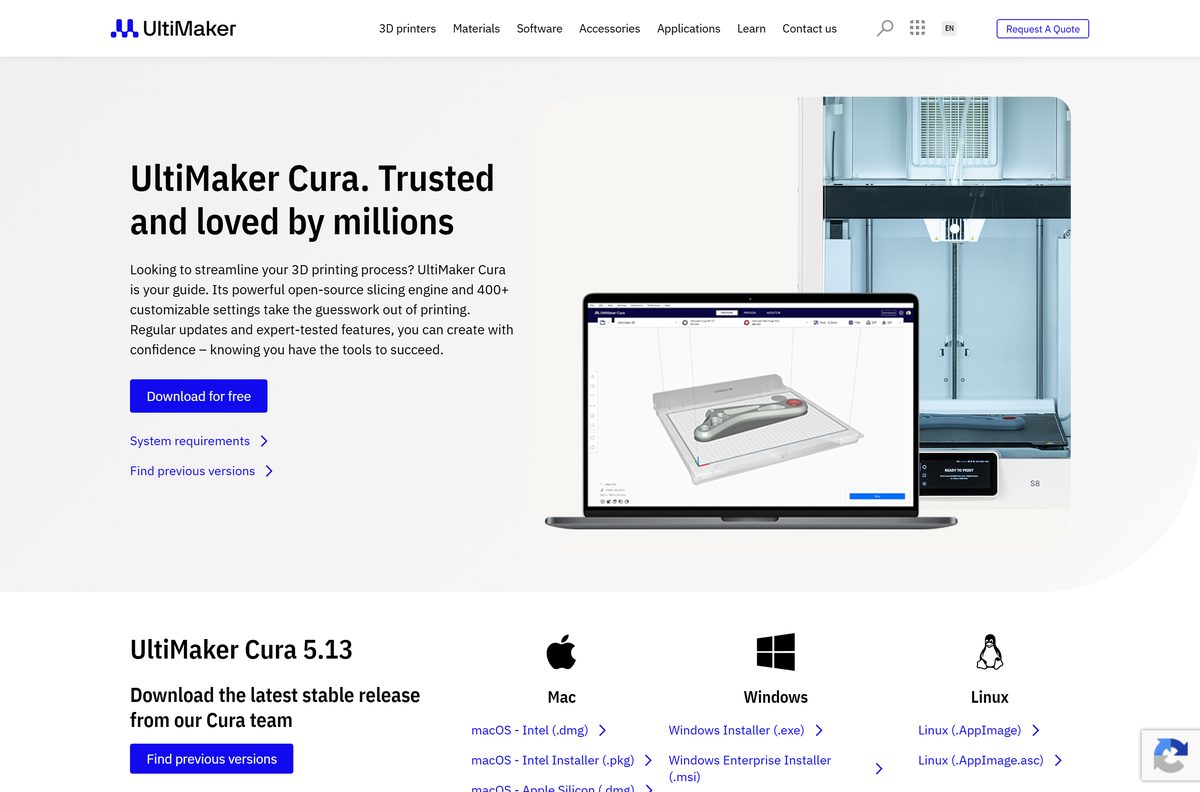
Every current package is linked from UltiMaker’s own Cura page. Select Download for free at the top and the page jumps to the file list.
- UltiMaker Cura download page — Windows .exe and .msi, macOS .dmg and .pkg, Linux AppImage
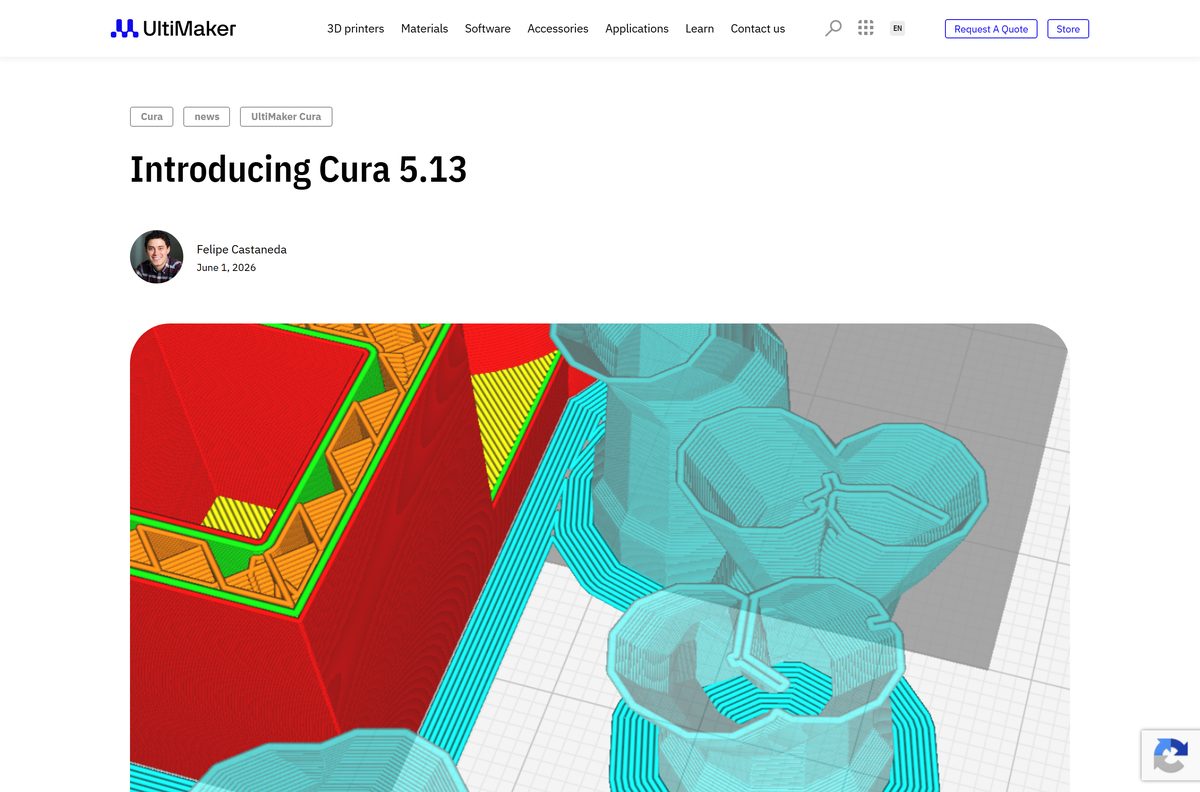
- UltiMaker Cura 5.13 release announcement — new settings, Factor 4 Plus support and bug fixes
- Cura system requirements — minimum and recommended hardware
- Supported operating systems — current OS list and the last Cura build for older systems
- UltiMaker Marketplace — material profiles and plugins for Cura
The Find previous versions link on the same page leads to older releases, including the builds for retired operating systems.
How to install UltiMaker Cura on Windows 11 and 10
The Windows installer is a standard setup wizard. The first launch then runs a short Welcome setup that adds your printer.
- Open ultimaker.com/software/ultimaker-cura and select Download for free.
- Select Windows Installer (.exe) under the Windows heading.
- Open the UltiMaker-Cura-5.13.0-win64-X64.exe file from your Downloads folder.
- Select Yes if User Account Control asks for permission.
- Follow the installation wizard to the end and keep the default folder.
- Open UltiMaker Cura from the Start menu.
- Accept the user agreement and choose whether to share anonymous usage data.
- Select Sign in to use your UltiMaker account, or select Skip to continue without one.
- Add at least one printer, either an UltiMaker model or a printer from another brand.
- Load a model and select Slice to confirm everything works.
Cura will not slice anything until at least one printer is added. You can add more printers later from the same menu.
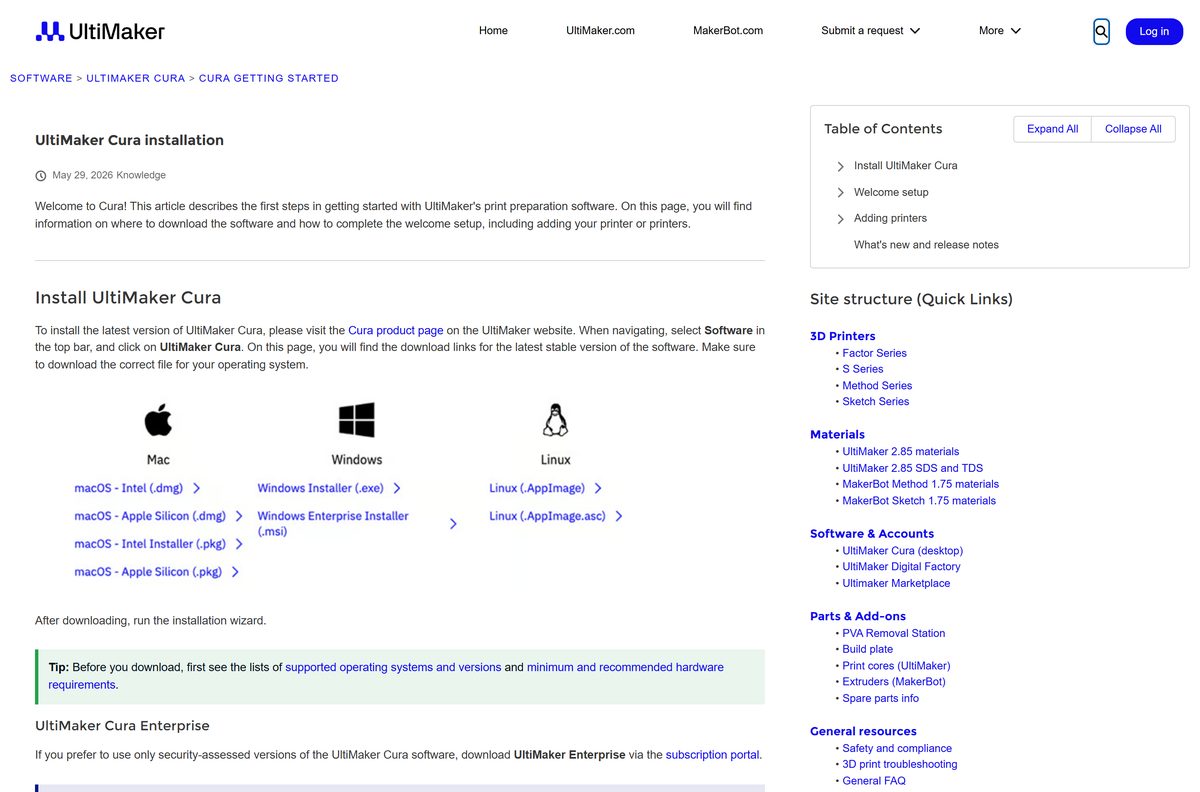
Download the UltiMaker Cura MSI and PKG packages for deployment
Since Cura 5.3.0, UltiMaker publishes a Windows .msi and macOS .pkg packages alongside the usual installers. These packages are built for silent installs pushed by an administrator.
| Package | File | Use it for | Get it |
|---|---|---|---|
| Windows Enterprise Installer (.msi) | UltiMaker-Cura-5.13.0-win64-X64.msi |
Silent installs on Windows 10 and 11 fleets | Cura download page |
| macOS – Apple Silicon (.pkg) | UltiMaker-Cura-5.13.0-macos-ARM64.pkg |
Scripted installs on M-series Macs | Cura download page |
| macOS – Intel Installer (.pkg) | UltiMaker-Cura-5.13.0-macos-X64.pkg |
Scripted installs on Intel Macs | Cura download page |
| UltiMaker Cura Enterprise | MSI from subscription.ultimaker.com | Organisations that need security-assessed releases | MSI and Enterprise options |
Test the package on one machine before pushing it to a whole lab. The Enterprise edition needs an UltiMaker software subscription, while the free .msi does not.
Run UltiMaker Cura on Linux without installing it
The Linux build is a single AppImage file. It runs in place, so there is no package manager step.
- Select Linux (.AppImage) on the Cura download page.
- Move UltiMaker-Cura-5.13.0-linux-X64.AppImage to a folder you keep, such as ~/Applications .
- Open a terminal in that folder.
- Run chmod +x UltiMaker-Cura-5.13.0-linux-X64.AppImage to make the file executable.
- Run ./UltiMaker-Cura-5.13.0-linux-X64.AppImage to start Cura.
- Complete the Welcome setup and add your printer.
UltiMaker also publishes a matching .AppImage.asc signature file for checking the download. Chrome OS and the Linux environment on Chromebooks are not supported.
Which UltiMaker Cura download do you need for your Mac?
Open the Apple menu and select About This Mac. The Chip or Processor line tells you which row applies.
| Your Mac says | Download | What to know |
|---|---|---|
| Apple M1, M2, M3 or M4 | macOS – Apple Silicon (.dmg) | Runs natively on Apple silicon |
| Intel Core processor | macOS – Intel (.dmg) | The X64 build for Intel Macs |
| Managed Mac, scripted install | macOS – Apple Silicon or Intel (.pkg) | Installer package for silent deployment |
| macOS 11 Big Sur | Cura 5.9.1 via Find previous versions | Last release for macOS 11 |
| macOS 10.15 Catalina | Cura 5.1.0 via Find previous versions | Last release for macOS 10.15 |
To install from the .dmg, open it and drag UltiMaker Cura into Applications. Current releases need macOS 12 Monterey or higher.
Is UltiMaker Cura free?
Yes. UltiMaker Cura is free and open source on Windows, Mac and Linux, with no trial period and no paid tier inside the app. The only paid product is UltiMaker Cura Enterprise, a separately tested MSI edition sold through an UltiMaker software subscription. An UltiMaker account is free and optional. Any site asking money for the standard Cura download, or wrapping it in its own installer, is not UltiMaker.
UltiMaker Cura or Cura Enterprise: which should you install?
Install the standard UltiMaker Cura unless your IT department requires security-assessed software. The standard edition gets new printer profiles and settings first, such as Factor 4 Plus support and Lightning support infill in 5.13. Cura Enterprise receives two updates a year, each supported for 12 months with security patches, and every release is independently scanned for vulnerabilities. It suits schools and companies that deploy one tested build and leave it alone.
UltiMaker Cura system requirements
UltiMaker describes Cura as lightweight, but memory and graphics needs grow with the size of the models you load.
| Field | Value |
|---|---|
| Software | UltiMaker Cura |
| Developer | UltiMaker |
| Latest version | 5.13, released June 1, 2026 |
| License | Free and open source; Cura Enterprise needs a subscription |
| Windows | Windows 10 or higher, 64-bit |
| Mac | macOS 12 Monterey or higher, Intel or Apple silicon |
| Linux | 64-bit Linux, AppImage package |
| Architecture | 64-bit only: Windows x64, macOS Intel and ARM64, Linux x64 |
| Processor | Intel Core 2, AMD Athlon 64 or Apple M1 minimum; Intel Core i3 recommended |
| Memory | 4 GB RAM minimum, 8 GB recommended |
| Graphics | OpenGL 2 minimum; OpenGL 4.1 for the 3D layer view |
| Display | 720p minimum, 1080p recommended |
| Disk space | 1.3 GB minimum, 2 GB recommended |
| Offline installer | Yes, every package is a full installer |
| Official download | ultimaker.com |
| Last verified | 2026-09-24 |
Not every Intel integrated graphics chip supports OpenGL 4.1. On those machines the 3D layer view is unavailable, even though slicing still works.
Fix UltiMaker Cura not installing or starting on Windows 11 or 10
Cura crashes or will not open after an upgrade
An old or damaged configuration folder is being imported.
- Quit Cura completely.
- Open Help → Show configuration folder if Cura still starts.
- Delete every file in that folder.
- Go up to the cura parent folder and delete the older version folders too.
- Start Cura and complete the Welcome setup again.
“The configuration seems to be corrupt” at every start
A saved material is no longer available for one of your printers.
- Note the file name the error message mentions.
- Open Help → Show configuration folder.
- Search the folder for that name and delete the matching files.
- Restart Cura.
The 3D layer view is missing or blank
The graphics driver does not offer OpenGL 4.1.
- Update the graphics driver from the GPU maker’s site.
- Restart Windows and open Cura again.
- Use a PC with a dedicated GPU if the integrated chip tops out below OpenGL 4.1.
Cura fails inside Remote Desktop or a virtual machine
UltiMaker lists RDP, Hyper-V, VDI, Citrix, VMware, VirtualBox and Docker as incompatible.
- Install Cura directly on the physical PC.
- Work at that machine instead of through an RDP session or virtual machine.
The installer refuses to run on an older PC
Windows 7, Windows 8 and 32-bit Windows are unsupported.
- Open Settings → System → About and check System type and the Windows edition.
- Install Cura 4.10 from Find previous versions on Windows 7 or 8.
- Upgrade to 64-bit Windows 10 or 11 for current releases.
How to uninstall UltiMaker Cura
Uninstalling removes the program but leaves your profiles and printers behind. Delete the configuration folder too for a clean reset.
- Open Cura and select Help → Show configuration folder, then note the path.
- Copy any custom profiles you want to keep out of that folder.
- Quit Cura.
- On Windows, open Programs and Features, select UltiMaker Cura and select Uninstall.
- On a Mac, open Applications and drag UltiMaker Cura to the Bin.
- Delete the cura configuration folder you noted in step 1.
- Reinstall from ultimaker.com if needed; the Welcome setup confirms the reset worked.
On Linux, delete the AppImage file and the Cura configuration folder.
Which Cura version to run on an older PC or Mac
Current Cura releases drop operating systems their makers no longer maintain. These older builds still run on retired systems, without updates or support.
| Your system | Last Cura release | Where to get it |
|---|---|---|
| Windows 7 or Windows 8 | Cura 4.10 | Find previous versions |
| macOS 10.12 or older | Cura 4.8 | Find previous versions |
| macOS 10.14 Mojave | Cura 4.10 | Find previous versions |
| macOS 10.15 Catalina | Cura 5.1.0 | Find previous versions |
| macOS 11 Big Sur | Cura 5.9.1 | Find previous versions |
| Chromebook or Chrome OS | None | Supported operating systems |
Upgrading the operating system is the better fix, because old releases lack newer printer profiles and slicing settings.
Frequently asked questions
Is UltiMaker Cura free?
Yes. UltiMaker Cura is free and open-source software, and the Windows, Mac and Linux downloads cost nothing. Only UltiMaker Cura Enterprise, a separately tested MSI edition for organisations, needs a paid UltiMaker software subscription.
Where is the official UltiMaker Cura download page?
The official page is ultimaker.com/software/ultimaker-cura. It lists every current package under the UltiMaker Cura heading: two Windows installers, four macOS packages and the Linux AppImage, plus a Find previous versions link for older releases.
Does UltiMaker Cura work on Windows 11?
Yes. UltiMaker supports Cura on Windows 10 or higher in 64-bit form, which includes Windows 11. Windows 7 and Windows 8 are no longer supported, and the last Cura release for them is 4.10.
How big is the UltiMaker Cura download?
UltiMaker does not print an installer size on its download page. Plan for the disk space instead: the minimum requirement is 1.3 GB of free space, and the recommended figure is 2 GB.
Is there an offline installer for UltiMaker Cura?
Yes. The Windows .exe and .msi, the macOS .dmg and .pkg and the Linux AppImage are complete packages, so setup runs without a connection. An internet connection is only needed for sign-in, the Marketplace and Digital Factory printers.
Is UltiMaker Cura available for Mac?
Yes. UltiMaker ships separate Mac builds for Intel processors and for Apple silicon M-series chips, each as a .dmg disk image and a .pkg installer. Cura 5.13 needs macOS 12 Monterey or higher.
Is there a 32-bit or ARM64 version of UltiMaker Cura?
There is no 32-bit version on any platform, because Cura is 64-bit only. Apple silicon Macs get a native ARM64 build, while the Windows and Linux downloads are x64 builds only.
Is the UltiMaker Cura download safe?
Yes, when the file comes from the links on ultimaker.com. Cura is open source and free, so any site charging for it or bundling it inside its own installer is not the official package and should be avoided.
What is the latest version of UltiMaker Cura?
UltiMaker Cura 5.13 is the current stable release, announced on June 1, 2026. It adds support for the UltiMaker Factor 4 Plus, Lightning support infill and a separate top-surface printing temperature.
Why won’t UltiMaker Cura install or start?
An old configuration folder, an unsupported system or a virtual machine are the usual causes. Delete the configuration folder, confirm Windows 10 64-bit or macOS 12 or later, and run Cura on real hardware rather than in RDP, Hyper-V or VirtualBox.
Do I need an UltiMaker account to use Cura?
No. The welcome setup offers sign-in, but a Skip button lets you continue without an account. An account adds Marketplace plugins and material profiles, settings backup and Digital Factory printer syncing.
Does UltiMaker Cura work with other 3D printer brands?
Yes. During the welcome setup you choose between adding an UltiMaker printer or a different brand, and Cura includes profiles for printers from many other manufacturers alongside UltiMaker’s own machines.