You open a .CRDOWNLOAD file by letting the browser finish it: press Ctrl + J in Chrome or Edge, resume or retry the download, and open the finished file.
This guide covers checking whether the download is still running, salvaging a partial file from a renamed copy, fixing stuck downloads, and deleting leftovers safely on Windows 11 and Windows 10.
How to Open a .CRDOWNLOAD File the Right Way
The file only becomes usable once the browser has every byte. Finish the download, then open the real file it turns into.
- Switch to the browser window that started the download.
- Press Ctrl + J to open the Downloads page in Chrome or Microsoft Edge.
- Find the entry with the same name as your .crdownload file.
- In Chrome, point to the file name in the download tray at the top right and click Resume if the download is paused.
- If the entry shows an error, start the download again from the original link on the website.
- When the download completes, click the file name on the Downloads page to open it.
The browser renames the temporary file to its real name at the end, so the .crdownload file disappears and the finished file takes its place.
What Is a .CRDOWNLOAD File?
Chrome writes incoming data into a temporary file while a download runs. Google's developer documentation states that once all data is fetched and the file is not dangerous, "the temporary file is renamed to the target filename". On Windows, that temporary file carries the .crdownload extension.
| Question | Answer |
|---|---|
| What creates it | Chrome and other Chromium-based browsers, including Microsoft Edge, while a download is in progress |
| Where it appears | Your download folder, which is C:\Users\<your name>\Downloads by default in both Chrome and Edge |
| What is inside | Only the part of the file received so far |
| What happens on completion | The browser renames it to the target file name and the .crdownload name goes away |
| What a leftover means | The download was paused, interrupted, cancelled or the browser closed before it finished |
Common .CRDOWNLOAD Scenarios and What to Do
Can you open a .CRDOWNLOAD file? Not as it is. Match what you see to a row and act on it.
| What you see | What to do | Why |
|---|---|---|
| File size keeps growing, browser shows progress | Wait for the download to finish | The browser is still writing to it |
| Downloads page shows the item as paused | Click Resume | Chrome continues from where it stopped |
| Downloads page shows Network failed or another error | Retry from the original link | The transfer broke and may not resume |
| Nothing on the Downloads page, old .crdownload in the folder | Delete it and download again | The browser no longer tracks the file |
| The website is gone and you need whatever arrived | Copy the file and rename the copy | Some formats show the part that downloaded |
| You want it as a PDF, MP4 or other format | Finish the download instead | Renaming or converting cannot add missing data |
First: Check Whether the Download Is Still Running
Deleting or renaming a file the browser is still writing breaks the download. Check its status before touching it.
- Look at the top right of Chrome, next to the address bar, for the Download in progress icon.
- Press Ctrl + J in Chrome or Edge to open the full Downloads list.
- Check the entry: a progress bar or speed means it is still running, a Resume button means it is paused.
- Open File Explorer, go to Downloads and watch the file size of the .crdownload file for a minute.
- Leave the file alone if the size is still rising, and let the download complete.
The download worked when the .crdownload file is gone and a file with the normal extension, such as .pdf or .zip, sits in the same folder.
How to Fix a .CRDOWNLOAD File That Is Stuck
A download stuck at the same size will not finish by itself. Work through these in order and stop once one completes the file.
- In Chrome's download tray at the top right, point to the file name and click Pause, then Resume to restart the transfer.
- If it still does not move, click Cancel on that entry.
- Check that your internet connection is stable, then click the download link on the website again.
- If Chrome shows Insufficient permissions or System busy, right-click the link, select Save link as and save it to a folder you can write to.
- If Chrome shows Disk full, delete files you no longer need to free space, then retry.
- Delete the old .crdownload file once the new download has completed.
How to Try Opening a Partial .CRDOWNLOAD File
Use this only when the original link no longer works. Always work on a copy, so the browser can still resume the original.
- Open File Explorer and go to your Downloads folder.
- Select the .crdownload file, press Ctrl + C, then Ctrl + V to make a copy.
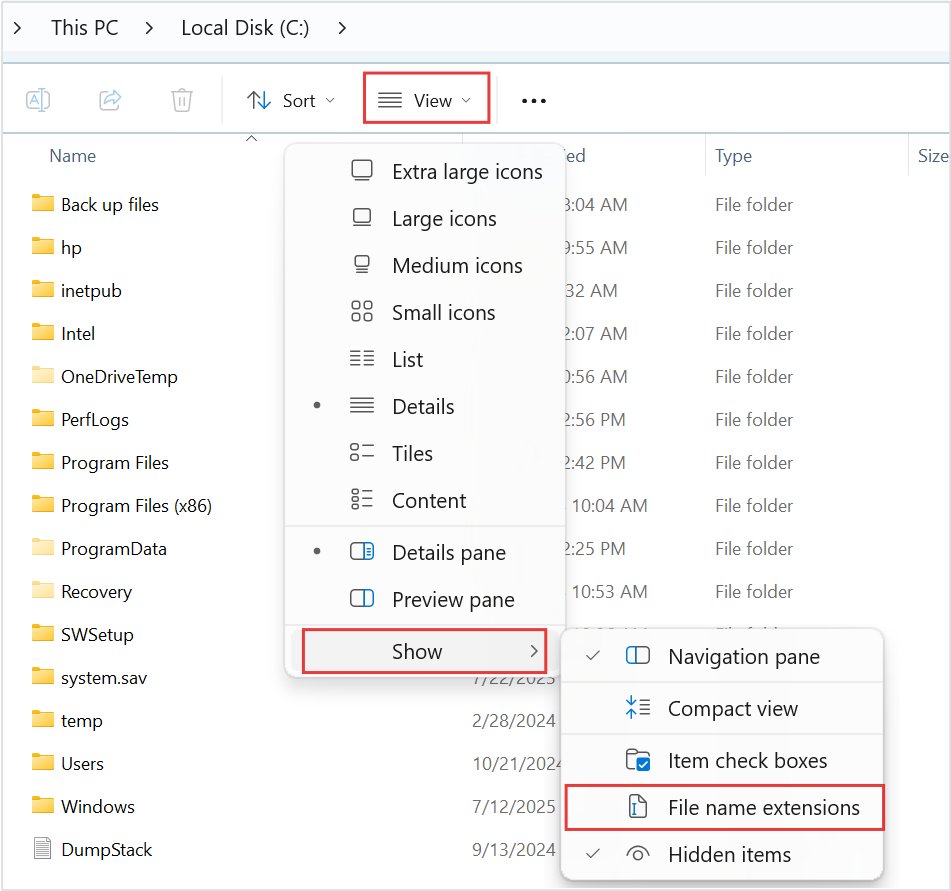
- On Windows 11, select View > Show > File name extensions so the full name is visible.
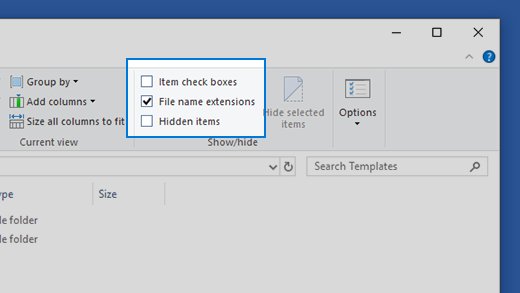
- On Windows 10, select View > Options > Change folder and search options, open the View tab and clear Hide extensions for known file types.
- Right-click the copy, select Rename, delete only
.crdownloadfrom the end and press Enter. - Confirm the rename if Windows warns you about changing the extension.
- Double-click the renamed copy to try it in its normal app.
Microsoft notes that changing a file name extension does not change anything about the file except its name. The copy still holds only the part that downloaded.
How to Identify the Original File Type
The real extension is usually already in the name, just before .crdownload. Show extensions first, or the name can look like it has none.
| Name you see | Original type | App that opens the finished file |
|---|---|---|
| report.pdf.crdownload | PDF document | Microsoft Edge, Adobe Acrobat Reader |
| clip.mp4.crdownload | MPEG-4 video | Media Player, Windows Media Player |
| photo.jpg.crdownload | JPEG image | Photos |
| notes.txt.crdownload | Plain text | Notepad |
| files.zip.crdownload | Compressed archive | File Explorer |
| setup.exe.crdownload | Program installer | Do not run a partial installer |
Check an unfamiliar extension against the Microsoft list of common file name extensions.
Which .CRDOWNLOAD Files Can Be Recovered?
Recovery here means seeing the portion that arrived, never the full file. The missing part is not on your PC.
| File type | What a renamed partial copy usually gives you |
|---|---|
| Video and audio (MP4, MP3, WAV) | Sometimes plays up to the point the download stopped; many players refuse it |
| Plain text (TXT, CSV) | The text received so far, readable in Notepad |
| Images (JPG, PNG) | Often the top part of the picture, or an error |
| PDF documents | Usually an error, because the file is incomplete |
| ZIP, RAR and 7Z archives | Usually an error; extraction fails on an incomplete archive |
| EXE, MSI and app installers | Unusable; delete it and download the installer again |
Is It Safe to Delete .CRDOWNLOAD Files?
Yes, delete a .crdownload file once the download is no longer running or you have given up on it. It is a temporary part-file that nothing else depends on. The only thing you lose is the chance to resume that download, so check the Downloads page with Ctrl + J first.
Can You Convert a .CRDOWNLOAD File?
No converter can turn a .crdownload file into a complete PDF, MP4 or ZIP, because the missing bytes were never received. Renaming only changes the label. The fix is to finish the download.
| Goal | What works | What does not |
|---|---|---|
| Get the full file | Resume or retry the download | Any converter or online tool |
| See part of the content | Rename a copy to its real extension | Changing it to an unrelated extension |
| Open .crdownload files on a phone or Mac | Finish the download in the same browser | Renaming and hoping the rest appears |
Why You Should Not Set a Default App for .CRDOWNLOAD Files
Choosing an app for the .crdownload type with Always makes every future part-file try to open in that app, and the partial data opens as an error. If you already did it, clear the choice.
- Stop double-clicking .crdownload files; open the finished file from the Downloads page instead.
- Right-click any file of the type you want to fix, select Open with > Choose another app.
- Select the app you want for that type and select Always.
- For a full reset of file associations, follow how to reset Open With settings.
Troubleshooting: .CRDOWNLOAD File Will Not Delete
Windows says the file is open in another program
The browser is still writing to it or still holds it as a paused download.
- Switch to the browser that started the download.
- In Chrome's download tray at the top right, point to the file name and click Cancel.
- Close the browser completely.
- Delete the .crdownload file in File Explorer.
The .crdownload file comes back after deleting it
The download was restarted, or the site starts it again when the page reloads.
- Open the Downloads page with Ctrl + J and cancel any active entry for that file.
- Close the tab of the site that started it.
- Delete the file again.
Chrome shows Network failed, Disk full or Download blocked
Chrome's own download error, which also leaves a .crdownload file behind.
- For Network failed, check your connection and retry the link.
- For Disk full, free space on the drive and retry.
- For Download blocked, the file was stopped by your computer's security settings; do not force it through.
- Delete the leftover .crdownload file after the retry finishes.
How to open a crdownload file on Windows when the renamed copy will not open
The copy is missing the end of the file, which most formats need.
- Check that you removed only
.crdownloadand kept the real extension. - Try the copy in a second app that handles the type, via Open with > Choose another app.
- If it still fails, delete the copy and download the file again.
For more File Explorer help, see how to get help with File Explorer in Windows 11/10.
Security Tips for .CRDOWNLOAD Files
A partial file has not finished the browser's checks. Chrome only renames the temporary file once the download is judged not dangerous or you accept the warning.
| Situation | Safe action |
|---|---|
| Partial .exe, .msi or .bat file | Never rename and run it; download the full installer from the vendor's own site |
| Chrome asks about an executable file | Click Save only if you trust the source, otherwise click Discard |
| Chrome shows Virus scan failed or Virus detected | Leave the file blocked and check your antivirus details |
| .crdownload file from a site you do not recognise | Delete it; do not open a renamed copy |
| Unknown extension before .crdownload | Look it up before opening, never guess the app |
How to Avoid .CRDOWNLOAD Problems in the Future
Most leftovers come from closing the browser, a dropped connection or a full drive. These settings cut that down.
- Keep the browser open until the Downloads page shows the file as finished.
- Free space on the drive that holds your download folder before large downloads.
- In Chrome, open Settings > Downloads and turn on Ask where to save each file before downloading to pick a folder with room.
- In Edge, open Settings and more > Settings > Downloads to see the folder under Location.
- Use a stable wired or strong Wi-Fi connection for large files.
- Open finished files from the Downloads page rather than from the folder while the download runs.
Frequently Asked Questions
How do I open a crdownload file?
Finish the download first. Press Ctrl + J in Chrome or Edge, resume or retry the entry, and open the completed file. A .crdownload file holds only part of the data, so it cannot be opened directly as the finished file.
How do I open a .crdownload file on Windows 11 or Windows 10?
Resume the download from the browser's Downloads page with Ctrl + J. If the source is gone, copy the file in File Explorer, show file name extensions, remove .crdownload from the copy's name and try opening it in its normal app.
How do I use a crdownload file?
You use the finished file, not the .crdownload file. It is a temporary part-file the browser renames to the real name once the download completes. Until then, it is only useful for resuming the download.
Can I open a crdownload file after the download finishes?
Once a download finishes, the .crdownload file no longer exists. The browser renames it to the real file name, such as report.pdf. If a .crdownload file is still there, that download did not finish.
Can I open a crdownload file as a PDF?
Only partly. Rename a copy from report.pdf.crdownload to report.pdf and open it, but most PDF readers reject an incomplete file. To get a working PDF, download it again and let it complete.
Can I open a crdownload file online?
No online tool can complete a .crdownload file, because the missing data never reached your PC. Uploading a partial file only shows the same partial content. Retry the download from the original site instead.
Why does my download stay as .crdownload?
The download was paused, interrupted or cancelled before it finished. Common causes are a dropped connection, a full disk, a permissions error or closing the browser. Open Ctrl + J to see the status and error name.
Is a .crdownload file a virus?
No. The .crdownload name is created by the browser, not by malware. The content inside is whatever you were downloading, so treat a partial file from an unknown site with the same caution as the finished file.