The LabVIEW download for Windows 11, Windows 10 and Mac comes from NI, and 2026 Q3 is the current release. You sign in with an NI user account, pick your operating system, edition and bitness, and NI serves the installer.
Two routes cost nothing. The latest version runs for free for 7 days as a trial, and LabVIEW Community Edition is free for personal, non-commercial use on Windows, macOS and Linux.
This guide covers which edition to take, installing on Windows, the macOS situation, what each edition costs you in rights, and fixes for a download that never starts.
Which LabVIEW download do you need?
NI splits the software by edition rather than by file. Match your situation to a row, then take that page.
| Your situation | Take this | What you need first |
|---|---|---|
| Work, industrial or commercial use on Windows | LabVIEW download page | A Base, Full or Professional licence, or the 7-day trial |
| Personal projects, hobby hardware, nothing commercial | LabVIEW Community download page | An NI user account; the edition itself is free |
| A Mac running any supported macOS release | LabVIEW Community download page | Community is the only edition NI ships for macOS |
| A Linux workstation | LabVIEW download page | Set the Supported OS selector to Linux |
| An older release such as 2023 Q3 or 2021 SP1 | Version selector on the download page | An active subscription or service agreement |
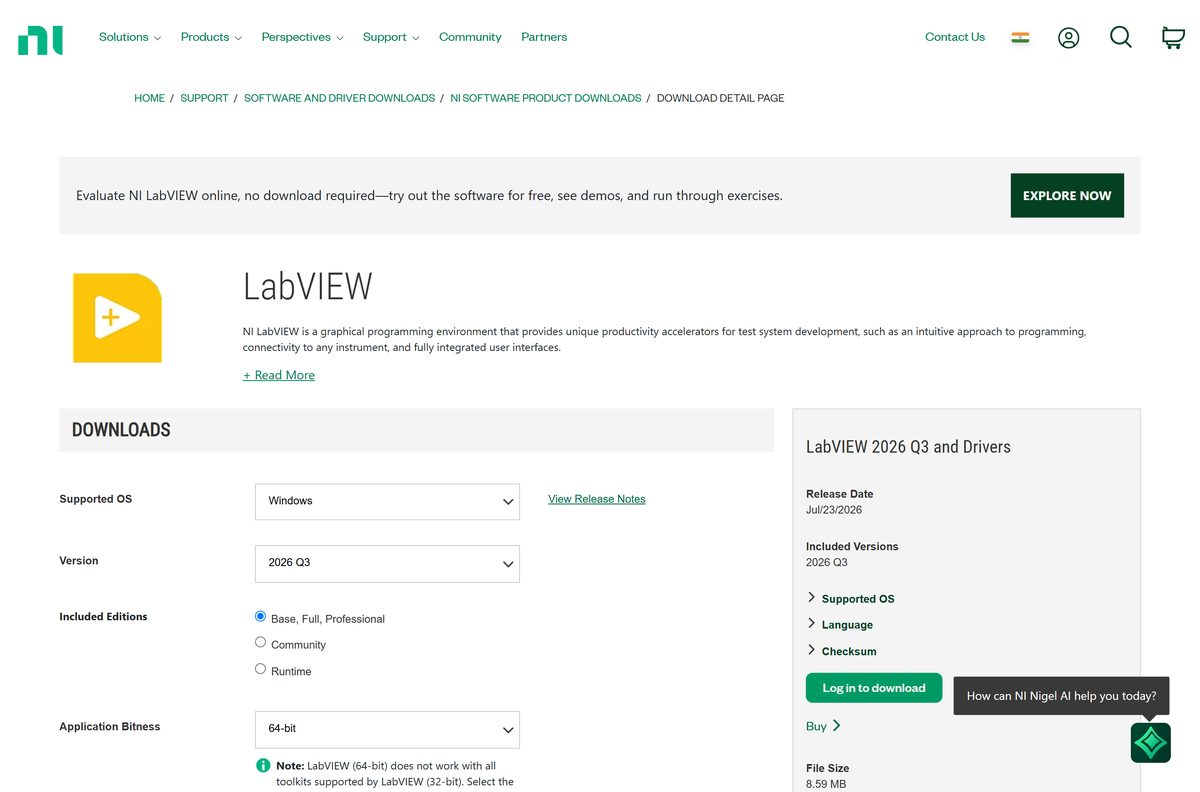
The selector also asks for Application Bitness. Take 64-bit unless a toolkit you rely on is 32-bit only.
Check the LabVIEW system requirements before you download
NI states the platform support per release rather than a single hardware minimum.
| Field | Value |
|---|---|
| Software | LabVIEW |
| Developer | NI |
| Latest version | 2026 Q3 |
| Licence | Paid subscription or perpetual, with a 7-day trial; Community edition free for non-commercial use |
| Windows | Windows 11 and Windows 10, in their Professional, Enterprise and IoT Enterprise editions |
| Not supported | Windows IoT Core and Windows in S mode |
| macOS | Community edition only, from the 2025 Q3 release onward |
| Linux | Supported, with .NET 8.0 in the current release |
| Architecture | 64-bit and 32-bit on Windows; arm64 and x86_64 on macOS |
| Download size | Not published; NI shows it after you sign in |
| Official download source | ni.com |
| Last verified | 2026-09-22 |
Press Windows + R, type winver and select OK to read your Windows edition and build.
Download LabVIEW from the official NI pages
Everything NI distributes sits on ni.com behind a sign-in. A LabVIEW installer offered anywhere else is a repackaged copy, and no NI licence activates it.
- LabVIEW download page — every release back to 2009, with OS, edition, bitness and language selectors
- LabVIEW Community download page — the free non-commercial edition, Windows, macOS and Linux
- LabVIEW product page — what the environment does, and the trial button
- Compare editions — Community, Base, Full, Professional and the LabVIEW+ Suite
- Release notes index — every release from 2017 onward, newest first
- NI software downloads — drivers, toolkits and NI Package Manager
An NI user account is free to create. A subscription, a trial or a registered serial number decides what the account may download.
How to install LabVIEW on Windows 11 and 10
Install under an administrator account, and keep the machine online. The installer pulls the packages it needs while it runs.
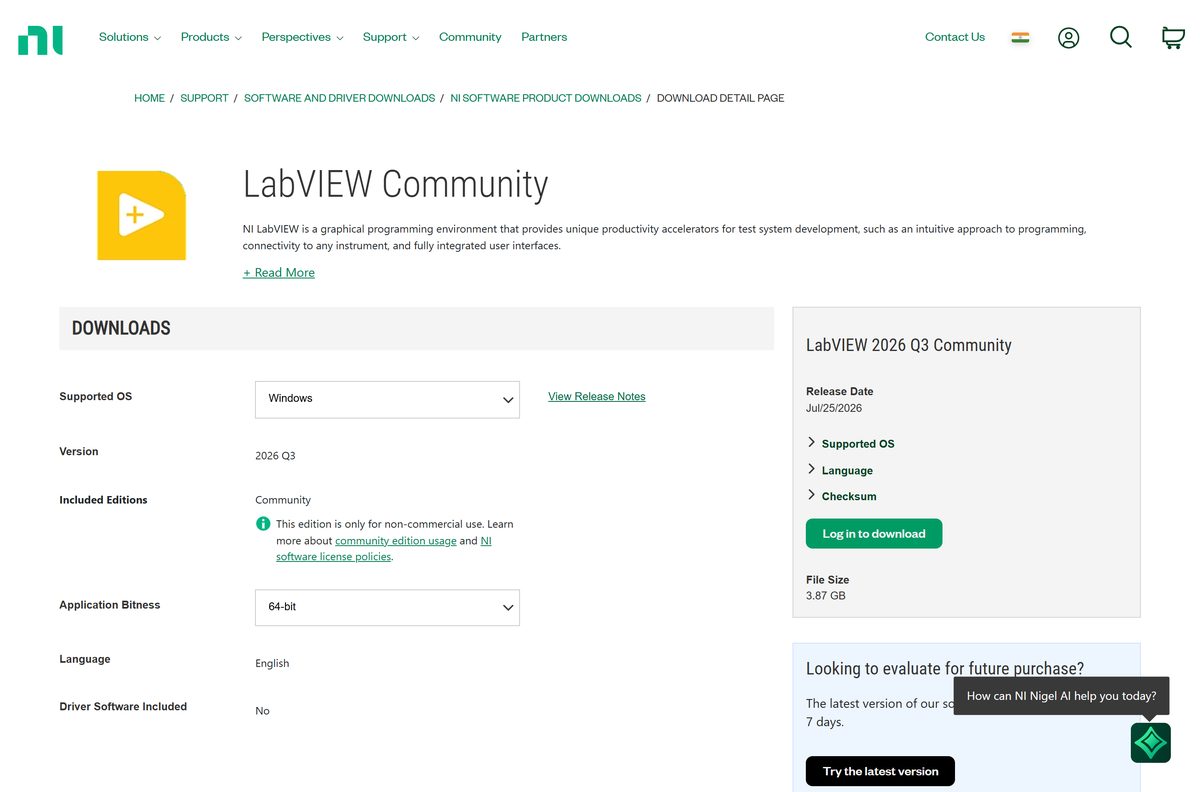
- Open the LabVIEW download page.
- Set Supported OS to Windows and leave Version on 2026 Q3.
- Choose your entry under Included Editions, then set Application Bitness to 64-bit or 32-bit.
- Pick your Language, and decide whether you want driver software included.
- Select the download control and sign in with your NI user account.
- Save the installer, then double-click it and select Yes at the User Account Control prompt.
- Accept the licence agreements and confirm the install location.
- Let NI Package Manager install LabVIEW and anything it depends on.
- Restart the PC when setup asks for it.
- Launch LabVIEW and activate it with your licence, trial or Community entitlement.
Driver software is a separate choice on the download page. Add NI-DAQmx there if your hardware needs it.
The current release ships a My First DAQ Measurement sample project for a first NI-DAQmx measurement.
How to add or update LabVIEW with NI Package Manager
NI Package Manager arrives with newer NI downloads and stays on the machine afterwards. Use it when LabVIEW is already installed and you want more of the platform.
- Open NI Package Manager from the Start menu.
- Look through the listed NI products for the toolkit, driver or add-on you need.
- Install it from there, and accept the licence agreements it shows.
- Open the NI downloads hub for anything Package Manager does not list.
- Sign in with your NI user account to reach the file.
- Restart the PC if the installer asks for it.
NI Package Manager also handles upgrades, so a quarterly release does not need a manual uninstall first.
Is LabVIEW free?
LabVIEW is paid software with one genuinely free edition and one free trial. Base, Full and Professional are sold as subscription or perpetual licences, and NI quotes them through its shop rather than printing a figure on the product page. The latest version runs free for 7 days. LabVIEW Community Edition costs nothing, but NI limits it to personal, non-commercial, non-industrial use, and rules out teaching and research at degree-granting institutions. Any site offering a free full Professional build is not distributing NI software.
Pricing shown outside ni.com, including on resellers and portals, is not NI’s quote.
Which LabVIEW edition should you install?
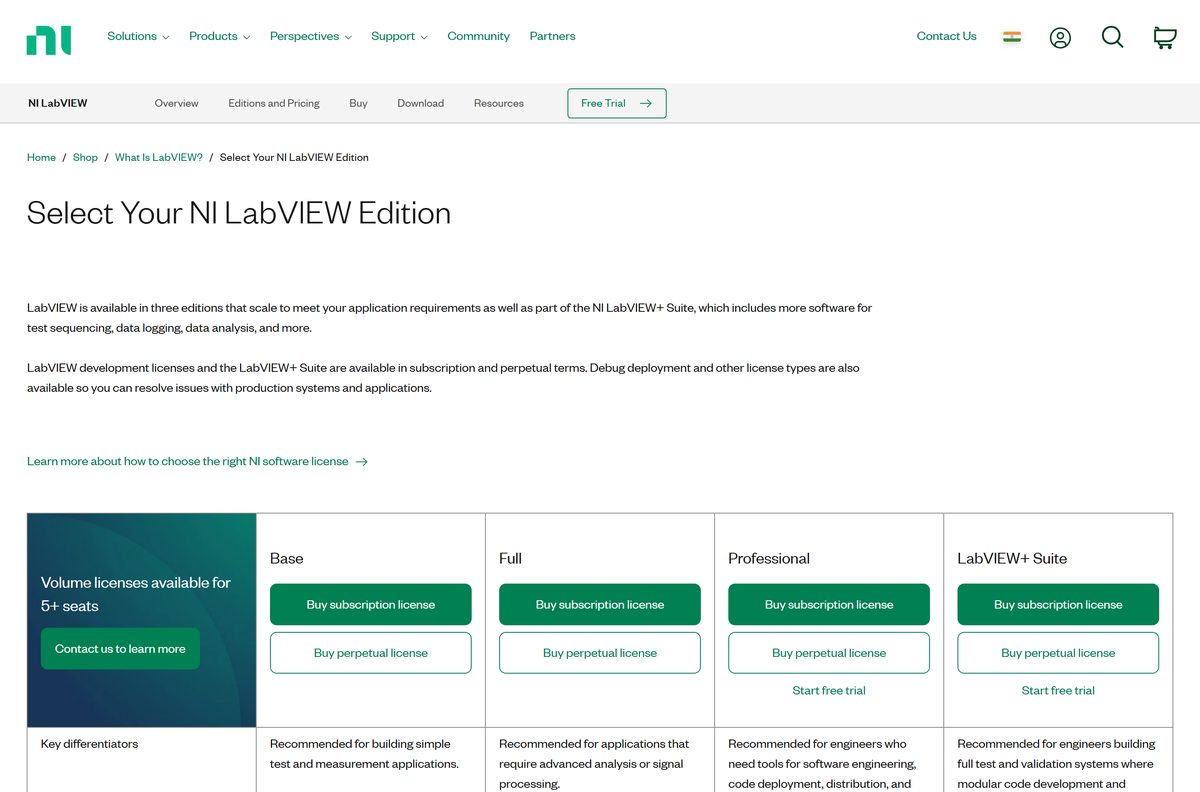
The editions differ in rights and in tooling, not in the download route.
Take Community for home projects, Base for straightforward test and measurement, Full for analysis and signal processing, and Professional for software engineering, code deployment, distribution and reporting. NI defines the split that way on its edition page. Community carries the licence restriction rather than a feature paywall, so hobby work loses nothing, while anything billable belongs on a paid edition. The LabVIEW+ Suite sits above Professional and adds TestStand, VeriStand, DIAdem and SystemLink.
Editions are chosen on the download page itself, under Included Editions.
Which LabVIEW download do you need for your Mac?
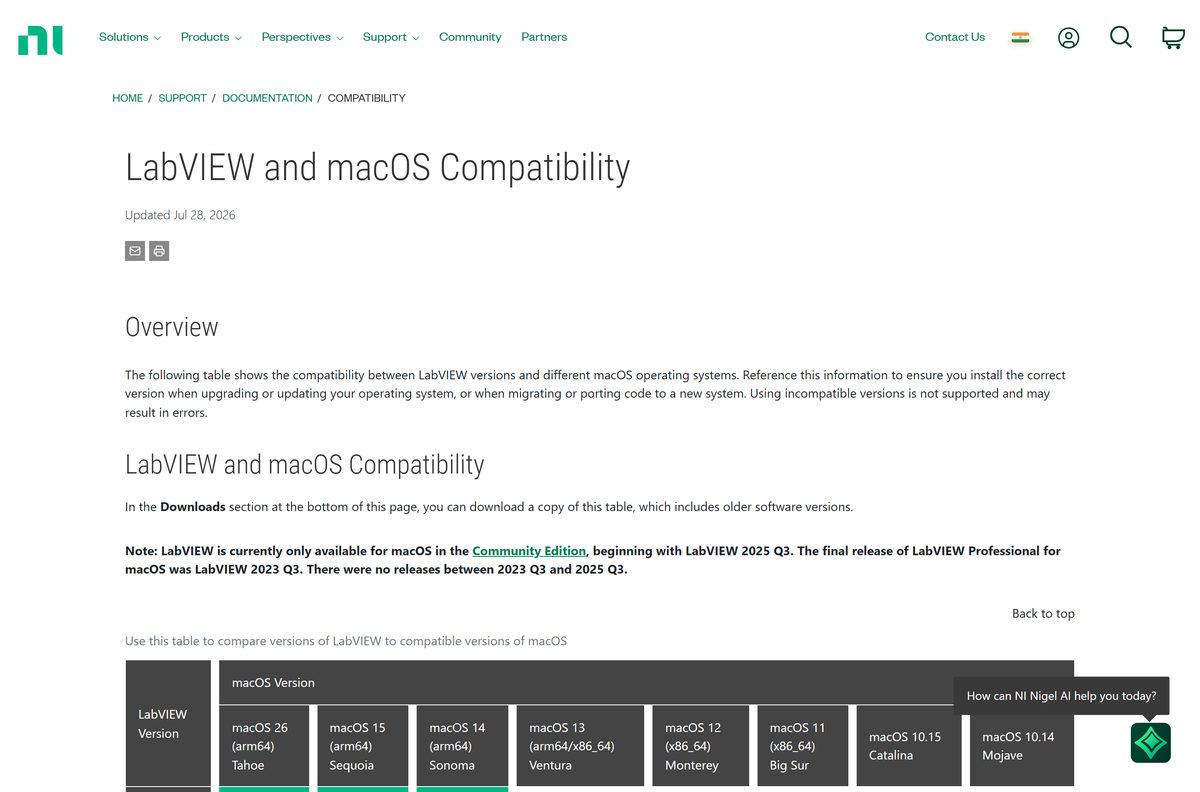
macOS support returned in 2025 Q3 after a two-year gap, and it returned as the free edition only.
| What you want on the Mac | What to download | Note |
|---|---|---|
| The current release on Apple silicon or Intel | Community edition, 2026 Q3 | Personal, non-commercial use only |
| A paid edition on macOS | Compatibility documentation | 2023 Q3 was the final Professional release for macOS |
| Commercial work on Apple hardware | Windows or Linux download page | Run a paid edition in a virtual machine or on a second PC |
NI’s macOS table spans 10.14 Mojave through macOS 26, with the supported range varying by release.
Which LabVIEW release matches your operating system?
Check this before you take an older build, because platform support moved twice in three years.
| Release | Windows | macOS | Linux |
|---|---|---|---|
| 2026 Q3 | Yes, 64-bit and 32-bit | Community edition only | Yes, with .NET 8.0 support |
| 2026 Q1 | Yes | Community edition only | Yes |
| 2025 Q3 | Yes | Community edition returns here | Yes |
| 2024 Q3 and 2025 Q1 | Yes | No release | Yes |
| 2023 Q3 | Yes | Final Professional release for macOS | Yes |
Downloading any of these older builds needs an active subscription or service agreement on your NI account.
Fix a LabVIEW download or install that will not start
Almost every failed LabVIEW download is an entitlement problem rather than a broken file.
The download button does nothing
The account has no subscription, trial or registered serial number attached.
- Sign in on the download page and read the account line under the selectors.
- Start the 7-day trial if you only need to evaluate the software.
- Register a serial number you already own, then reload the page.
- Switch to the Community edition if your use is personal and non-commercial.
An older version is unavailable
NI limits back-catalogue downloads to active subscriptions and service agreements.
- Set Version to the newest entry and download that release instead.
- Check the service agreement status on your NI account.
- Open the release notes index to confirm which release you actually need.
A toolkit is missing after installing the 64-bit build
NI states that 64-bit LabVIEW does not work with every toolkit the 32-bit version supports.
- Confirm the toolkit’s own bitness on its NI download page.
- Install the 32-bit build alongside by setting Application Bitness to 32-bit.
- Point your project at whichever build carries the toolkit.
Setup stops partway through
The installer downloads packages while it runs, so a dropped connection halts it.
- Reconnect the machine and run the installer again; it resumes rather than starting over.
- Free up drive space on the system volume before retrying.
- Open NI Package Manager and repeat the install from the products list.
- Restart Windows and run the installer once more.
Windows blocks or flags the installer
The file came from somewhere other than ni.com.
- Delete the file.
- Download it again from the official page while signed in.
- Keep Windows Security and SmartScreen switched on throughout.
How to uninstall LabVIEW from Windows
Remove the software itself first, then decide what to do with the rest of the NI platform.
- Press Windows + I to open Settings.
- Select Apps, then Installed apps.
- Search for LabVIEW in the list.
- Select the three-dot menu beside the entry and choose Uninstall.
- Confirm at the User Account Control prompt.
- Let the removal finish, then restart the PC.
- Leave NI Package Manager in place if other NI software stays on the machine, or remove it the same way.
Deactivate a paid licence before you rebuild or replace the machine, so the seat is free to reuse.
Which NI package should you move to instead?
Stay on the Community edition while the work is personal, and move to the LabVIEW+ Suite when the test system outgrows one tool. The suite bundles LabVIEW with TestStand for sequencing, VeriStand for real-time test, DIAdem for data analysis and SystemLink for managing deployed systems. That covers the jobs engineers otherwise bolt on separately. If the need is only more analysis functions, Full is the cheaper step, and Professional adds deployment, distribution and reporting tooling.
The suite has its own entry on NI’s edition comparison page.
Frequently asked questions
Is the LabVIEW download free?
The Community edition is free, for personal, non-commercial and non-industrial use only. Base, Full and Professional are paid, sold by subscription or perpetual licence. NI also offers a free 7-day trial of the latest version.
Where is the official LabVIEW download page?
NI hosts it at ni.com, under Support and Downloads. The page carries every release back to 2009, with selectors for operating system, edition, application bitness, language and driver software.
Does LabVIEW work on Windows 11?
Yes. NI’s compatibility documentation lists Windows 11 and Windows 10 in their Professional, Enterprise and IoT Enterprise editions. Windows IoT Core and Windows in S mode are not supported.
How big is the LabVIEW download?
NI does not publish the size to signed-out visitors. The file name and size appear on the download page once you sign in with an account that has a subscription, an active trial or a registered serial number.
Is there a LabVIEW download for Mac?
Yes, as the Community edition. NI states that LabVIEW is currently available for macOS only in the Community Edition, beginning with the 2025 Q3 release. The last paid macOS release was 2023 Q3.
Should you install the 64-bit or 32-bit build?
Take 64-bit for new work. NI warns that the 64-bit version does not work with every toolkit the 32-bit version supports, so check your toolkits first and install the 32-bit build if one is missing.
Is LabVIEW safe to download?
Yes, when the installer comes from ni.com and you are signed in to an NI user account. Copies hosted on download portals are repackaged, unsupported, and will not activate against an NI licence.
What is the latest version of LabVIEW?
LabVIEW 2026 Q3. It adds UTF-8 string encoding for multilingual interfaces, prompt-based VI generation from the Nigel chat window, improved security settings, .NET 8.0 support on Linux and Icon Editor updates.
Can you download an older version of LabVIEW?
Yes, if your NI account holds an active subscription or service agreement. The version selector reaches back to 2009, and the release notes index lists every release from 2017 onward.
Do you need NI Package Manager?
It comes with newer NI downloads and installs alongside the software. Once installed, it handles installing, upgrading and managing NI software, including toolkits and drivers added after the first setup.
Can the Community edition be used at a university?
No. NI limits it to personal, non-commercial and non-industrial purposes, and states it cannot be used for teaching or research at degree-granting institutions. Academic programmes use a separate licence.
Why will LabVIEW not install?
The common causes are an account without an entitlement, an unsupported Windows edition, too little free drive space, or a connection dropped while the installer fetched packages. Fix the cause, then run setup again.